















Select the Customize row action on a workflow definition to create a customized definition. You can customize a workflow by making changes in the workflow definition, or by adding a subflow definition.
Workflow definition customizations
This table describes the different customizations you can do in a workflow definition:
| Workflow feature | Customization |
|---|---|
Logic blocks | Add new post-run or multi-transition logic blocks to existing workflows. You cannot modify or remove any of the base or post logic blocks. |
| Existing transition fields | Change the values of the following fields in existing workflows as long as the workflow's validations allow for it:
|
| Notifications | Add new notifications into the Action Type field. |
Subflow definition customizations
This table describes the different customizations you can do in a subflow definition:
| Workflow feature | Customization |
|---|---|
| Approvals | Add new approvals to existing workflows. You cannot modify existing approvals. |
| Workflow Types | Add a new workflow type to existing workflows. Add new transitions to your customized workflow with that workflow type specified. |
| Orchestration | Add new orchestrations to existing workflows. You cannot modify or remove any of the base orchestrations. |
| Transitions | Add new transitions to existing workflows. |
| State and State Types | You can create new transitions which exist between existing You can use any of the values from the list lookups defined in the State List Lookup and State Type List Lookup fields. If you want to use a new value that does not exist in the current list lookup, you must customize that list lookup to add it in. You can only add new values to the lookup if it has a customization pattern of |
Subflows can be added to both workflow definitions and inside of other subflows. Only transitions with the Allow Subflows checkbox selected in the parent definition may have subflows attached to them.
A transition path is the Base sequence of states a record must go through from start to finish. For example:
New / Initial | > | To Do / Active | > | In Progress / Active | > | Done / Closed |
When you configure a subflow definition you can add steps in between the transition path's sequence of states, but you can't change the states or the order of the sequence they are in. For example:
New / Initial | > | To Do / Active | > | In Progress / Active | > | Review / Active | > | Reviewed / Active | > | Exit Subflow / Active | > | Done / Closed |
Learn more in Subflows and Subflow configuration.
Learn more about how to update a Customized workflow in the Customized workflow and base workflow updates and Configure customized workflow updates topics.
Customized workflow and base workflow updates
Customized workflows do not automatically receive updates whenever the Base version changes in a new release or patch.
The Customization Status field in the list form of the Workflow Builder application shows a customized workflow's state in relation to the base version. The values of this field are automatically generated and are only used on customized workflows. Custom workflows with a Current status are up-to-date with the latest base version. When the Customization Status field shows an Update Available status, this indicates that a new base version exists for that workflow and you are able to begin a merge of your current customizations with the newest base version features.
You can continue to use your customized workflow version as your Active workflow without immediately updating the newest Base version, but you cannot make any additional changes to that custom workflow until the updates have been applied.
To update your workflow, you can create a draft of what your current customizations would look like when merged with the latest base version before you commit to the update. The workflow draft merge preserves your current, In-Active custom workflow while it creates an updated version that combines your current customizations with the newest base version features. When the draft merge is complete, you can review the updated version and mark it as your Active workflow if you are satisfied with the merge, or you can reject the draft merge and create a new customized workflow over the latest base workflow.
Draft merge process flow
The following diagram outlines the steps that make up a successful workflow draft merge process:
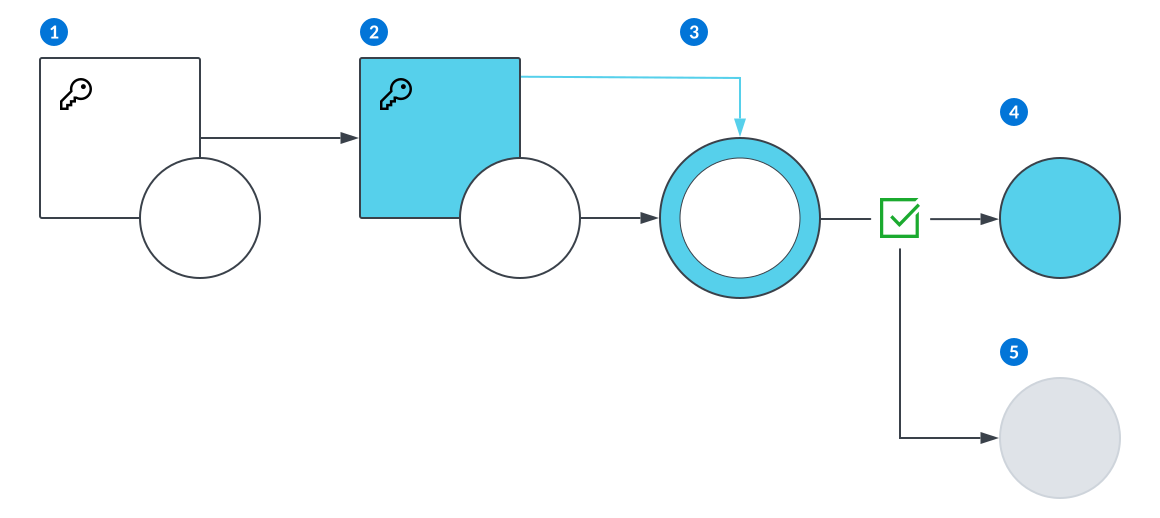
 | Original version of objects. |
|---|---|
 | Updated version of objects. |
 | A customized workflow exists over a base workflow. |
 | The base workflow is automatically updated when a new version of the base workflow is released. The custom workflow does not receive any updates and remains the same as it was before. The Customization Status field shows an Update Available status. |
 | You create a draft merge copy of the workflow to see how your current customization is merged with the new base version. |
 | You accept the draft merge workflow by marking it as your In-Active workflow which causes the older version to be archived. |
 | Archived version of object. |
To configure your workflow update, see the Configure customized workflow updates topic.
Configure customized workflow updates
Configure a customized workflow update in the Workflow Builder application when the Customization Status field indicates the Base version of the workflow has been updated.
Workflow Builder
In the Workflow Builder application, you must:
- Select the Update row action on the custom workflow you want to merge with the newest base version. This creates a copy of the original workflow which is used to contain a drafted merge of the customized workflow and the newest base version.
- Refresh the Workflow Builder application list form to see the copy of the custom workflow next to the custom workflow. The custom workflow retains its name while the copy is named
<custom workflow name>UpdateInProgress. - Open the
<custom workflow name>UpdateInProgressworkflow to review the changes made to the custom workflow when it was merged with the newest base version. - Select the Mark As Active row action if you are satisfied with the changes made in the draft merge workflow. This archives the original customized definition with the name
<custom workflow name><current date>. This allows you to revert back to the old version of the customized workflow if you discover something wrong with the merge. You can delete the archive once you feel it is no longer necessary. - If the merged workflow does not meet your requirements, you can delete it and make changes in the original custom workflow before attempting another merge. You can also create a new custom workflow over the newest base version and recreate the customizations you had before.
The <custom workflow name>UpdateInProgress workflow name automatically changes to match the name of the base version it is customized off of and the definition changes to a Current status. This workflow is then moved into Active.
Subflows
Use subflows to add additional transitions, states, and approvals into existing workflow definitions. You cannot delete existing states, state types, or transitions.
A subflow definition consists of the transitions that you define to support your business processes, and where those transitions are configured to take effect within the parent workflow. The parent workflow can be a standard workflow definition, or another subflow.
For example, a parent workflow definition could have the following transitions configured:
| Workflow Type | Transition Trigger | From State | From State Type | To State | To State Type | Allow Subflows |
|---|---|---|---|---|---|---|
| Supplier Invoice | Manual Transition | In Progress | Initial | Ready to Reconcile | Active |  |
| Supplier Invoice | Auto Transition | Ready to Reconcile | Active | Reconciled | Closed | |
| Supplier Invoice | Auto Transition | Ready to Reconcile | Active | Error | Active | |
| Supplier Invoice | Manual Transition | Error | Active | Ready to Reconcile | Active |
You could create a subflow definition which has the following transition configured:
| Transition Trigger | From State | From State Type | To State | To State Type | Allow Subflows |
|---|---|---|---|---|---|
| Manual Transition | Review | Active | Reviewed | Exit Subflow |
The subflow definition can use different combinations of fields on the Subflow Configuration page to attach the subflow to different places in the parent workflow.
| If you want your subflow attached to... | Use the fields... | Result |
|---|---|---|
| All transitions in the parent definition that match the To State and To State Type designated, regardless of the From State and From State Type. A parent workflow definition may have multiple transitions with different From State and State Types and the same To State and Type. | Parent To State: Ready to Reconcile Parent To State Type: Active | The subflow manual transition from Review to Reviewed is attached between In Progress and Ready to Reconcile, and between Error and Ready to Reconcile. |
| One transition in the parent definition that matches the From State and State Type, and the To State and State Type. A parent workflow can only have one transition that has the same From State and State Type, and To State and State Type. | Parent From State: In Progress Parent From State Type: Initial Parent To State: Ready to Reconcile Parent To State Type: Active | The subflow manual transition from Review to Reviewed is attached between the In Progress and Ready to Reconcile statuses. |
| Any transition in the parent definition that matches the To State, To State Type, and Workflow Type. A parent workflow can have different Workflow Types that further define the records, such as Supplier Invoice and Supplier Credits. A parent workflow definition may have multiple transitions with different From State and State Types, but the same To State, Type and Workflow Type. | Parent To State: Ready to Reconcile Parent To State Type: Active Parent Workflow Type: Supplier Invoice | The subflow manual transition from Review to Reviewed is attached between In Progress and Ready to Reconcile, and between Error and Ready to Reconcile, for any records of type Supplier Invoice. |
| One transition in the parent definition that matches the From State and State Type, To State and State Type, and the Workflow Type. A parent workflow can only have one transition that has the same From State and State Types, To State and State Types, and Workflow Type. | Parent To State: In Progress Parent To State Type: Initial Parent From State: Ready to Reconcile Parent From State Type: Active Parent Workflow Type: Supplier Invoice | The subflow manual transition from Review to Reviewed is attached between In Progress and Ready to Reconcile, for records of type Supplier Invoice. |
Subflow configuration
Configure subflows in the Workflow Builder application. Subflow definitions enable you to add additional transitions, states, and approvals into an existing workflow definition.
Configure the subflow
Open the Workflow Builder application from the Navigation Menu or within the Developer Studio. Identify the workflow definition where you want to add a subflow. To add a subflow definition, the workflow transition must have the Allow Subflows checkbox selected.
Create a new record in the Workflow Builder and select Subflow Definition. Then:
- Enter the parent workflow definition's name.
- On the Subflow Configuration page, configure your subflow. You must have the To State and From State of the transition from the parent workflow which you want to insert your subflow definition between.
- On the Transitions page, add detail lines for the transitions you want included in the subflow.
- Ensure one detail line uses the
Exit SubflowTo State Type. Records never exist in this state type, but it is necessary to include so the system know when the record should exit the subflow and continue in the base workflow definition transition path.
- Ensure one detail line uses the
Enable the subflow definition
Once a subflow definition has been created, it is not active until:
- The parent workflow definition has been customized by selecting the Customize row action.
- The subflow definition has been marked as Active. This can be done during subflow configuration. If the subflow definition was delivered, you must customize the subflow definition and select the
Activecheckbox.
Control which records use subflow
To control which records in an application use the subflow definition, you can configure a decision definition in the Decision Builder application. Then, specify that decision definition in the Decision field of the subflow definition.
For example, the Expense Reports application has a workflow definition enabled. If you wanted to add an approval to the workflow, you could create a subflow definition with an approval in it. If you wanted to specify that only expenses which exceed a certain dollar amount require the approval, you would create a decision definition which specifies the criteria for a record requiring the subflow be enabled.
Learn more in Decisions.