















You can configure Composite applications so that application steps must always be completed in a specific order, application steps may be completed in any order, or the order of steps is determined by values selected in previous application steps. This could be achieved through use of event actions that disable or show application steps based on criteria you define, or through use of the Guided application style.
The diagram below shows an example of how you could navigate through a Composite application:
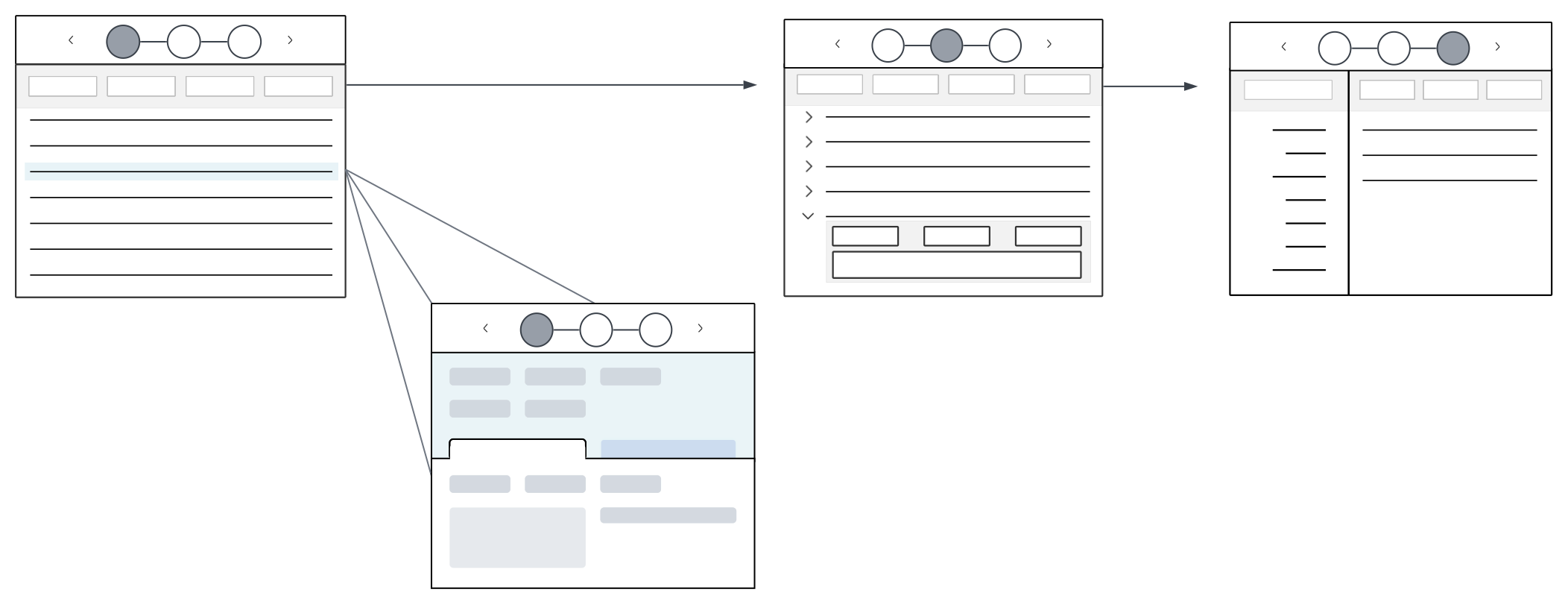
Styles
Different styles can be applied to a Composite application, such as:
Standard—Creates a standard composite application which can optionally be configured with navigation cues for users. Standard composite applications have Next and Previous buttons, as well as icons representing the application steps, which you can use for navigation. Learn more in Standard style Composite application.Guided—Creates an ordered, guided navigation experience through the application with a simplified user interface. Optionally, configure the application to control which application step a user is navigated to based on field selection in previous application steps. Only the Next and Previous buttons are available in the header region. This style is useful for configuration of mobile applications. Learn more in Guided style Composite application.
Standard style Composite application
Standard style Composite applications group related applications underneath a single access point, and contain application step icons and navigation buttons in the header region.
Standard style Composite applications are composed of two regions:
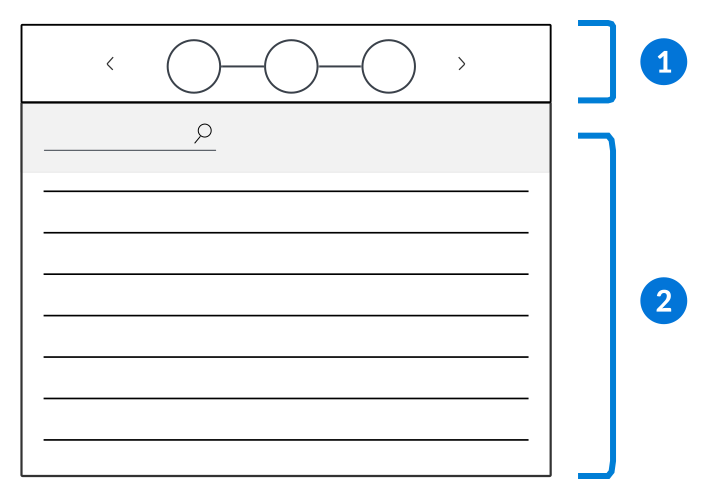
 | Composite header region—Select the arrows or icons to navigate between the application steps. |
|---|---|
 | Application form region—View, edit, or create data in the selected application step. |
You can dictate if the application steps are contained within their own, or the same, transaction boundary. By default, application steps are held within their own transaction boundaries so that records saved within an application step are committed at that time. You can optionally configure the application so that all changes in the application steps are only committed through a global save configured on the Composite. This allows records from multiple application to access pending work from one another before the saves are committed.
You can control how users navigate through the application steps by configuring Row Actions, List Form Actions, Event Actions, or Common Context.
Actions
Configure Event Actions to disable application steps within the composite application based on different criteria. This allows you to control how users access and use the application.
Actions and events already configured on the individual applications are still applied in the Composite application. Events and actions configured on the Composite application, however, only apply to specific applications. This allows an application step to behave differently in the Composite application than it does on its own.
There are specific Event Actions you can use in Composite applications, such as:
Form is Initialized—Configure an action to occur when a form is initialed. For example, disabling steps when the user opens a new form, or disabling previous steps once they've initiated the next form.Advanced List Form is Initialized—Configure to enable or disable steps without going into a detail view. This event type is only available for steps of advanced list type.
Field Value Changed—Configure an action to occur when a field value is changed. For example, disabling steps so the user can't move on until they've filled in the required fields.Before Save—Configure an action to occur when you initiate a save. For example, confirming everything has been configured correctly up until the point of save.
Common Context
Configure Common Context in Composite applications to filter for constant values throughout the application steps. For more information, see Common Context configuration.
Guided style Composite application
Guided style Composite applications control the sequence of steps a user takes with a simplified user interface. This application type and style are useful for configuring mobile applications.
Guided Composite applications function differently than Standard Composite applications in several keys ways, including:
- Application step icons are not available for navigation in the Header region.
- Users are automatically navigated to the next application step when a value is entered into the last field on the page.
- Data syncing between each application step and the Composite table occurs when navigating to the next application step.
- Action blocks and table triggers defined on the Composite application table run at the end of the composite flow. Action blocks and triggers on individual application steps do not run.
- The entire composite flow is treated as a single transaction boundary.
- You cannot edit existing records within a Guided Composite since it does not have a list form where you can select the record to edit.
Guided style Composite applications are composed of two regions:
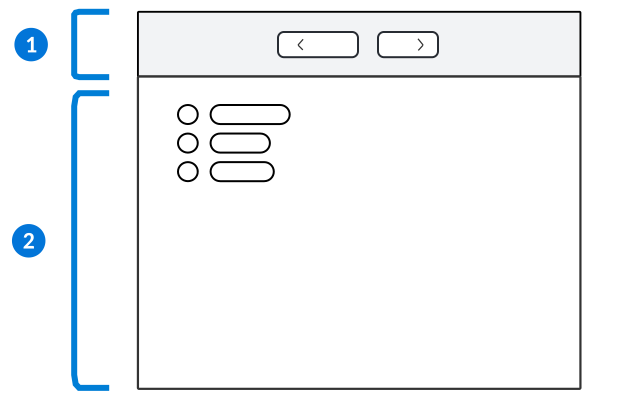
| Composite header region—Select the arrows to navigate between the application steps. |
|---|---|
| Application form region—View, edit, or create data in the selected application step. |
Configuration options
There are several features you can use with Guided Composite applications, such as:
- Queue app link—Use the Queue App Link logic block action to control which application step a user is navigated to based on the value they enter. Learn more in Queue App Link action.
- Camera scannable fields—Use camera scannable fields to enable mobile users to scan a barcode with a phone or tablet to fill in detail form fields. Learn more in Camera scannable fields for mobile users.
- Inline list and table lookups—Use inline list and table lookups to create inline lookup fields with text entry. The options panel shows as inline underneath the list, rather than expanding when selected. Users can select a value by typing in the field, scanning a barcode, or selecting from the suggestions. Learn more in List lookups and Table lookups.
Composite application configuration
Configure your Composite application using the Application Builder application.
Prerequisites
Before you configure your Composite application, you must:
- Define the individual applications for each step that will be part of your Composite application.
- Create a new table for the Composite application. This table is different than the tables the individual application steps are built over.
For Standard Composite applications, the Composite table is required, but does not have any effect on the Composite application or the application steps. Each application step's table is updated with applicable data from the composite application.
For Guided Composite applications, the Composite table is used to hold all the data from the application steps, and must contain the fields used in each step of the application. Individual application step tables are not updated with data from the Composite application, and action blocks do not run on them.
Learn more about application configuration in Application configuration overview.
Application Builder
There are Application Styles available for Composite applications. Options include:
Standard—Creates a standard Composite application which can optionally be configured with navigation cues for users. Learn more in Standard style Composite application.Guided—Creates an ordered, guided navigation experience through a Composite application with a simplified user interface. This style is useful for mobile application creation. Learn more in Guided style Composite application.
In the Application Builder, in the Application Properties panel you can optionally configure several features, such as:
- In the Disable Application Step Options field, you can disable the start page, the end page, or both. Selected options are hidden from view in the composite application header.
- In the Composite Transaction Boundary Configuration field, you can optionally specify the behavior of the transaction boundary for the composite application.
- If an option is selected, you can also optionally configure async save for your composite using the Background Operations field. This ensures that large records don't time out and users won't experience long wait times while the save finishes. Learn more in NATE development considerations. Behavior for different save types when async is enabled is:
Save and Exit, Save and Stay, Save and Add Another: Navigates out of the current composite. If the app is a nested Guided Composite, the user is navigated out of the subflow and into the next step of the parent composite.
Save and New: Refreshes the current composite application with a new record. If the Save and New is initiated by a Queue App Link logic block, then the default step and data mappings are honored when the composite re-initializes.
- If an option is selected, you can also optionally configure async save for your composite using the Background Operations field. This ensures that large records don't time out and users won't experience long wait times while the save finishes. Learn more in NATE development considerations. Behavior for different save types when async is enabled is:
- In the Composite Start Page Definition and Composite Finish Page Definition fields, you can enter a description of the Composite application. This information is visible on the start and end pages.
In the Configuration panel, you must:
- In the Composite Application Steps section, enter the applications you want included as steps in the Composite application.
- For Standard style Composites, in the Composite Application Links section, connect the application steps in the composite. Each application step must have a link defined both to and from the other application steps in order for them to have multi-directional flow. If you do not create links, the application steps appears in the composite header but are disabled. The flow between application steps can be further defined using actions and common context.
For Guided style composites, users are automatically navigated to the next application step once a value is entered into the last field on the application page. Optionally, you can use the Queue App Link logic block action to navigate users to different application steps based on the values they select in the application's fields.
Composite application best practices
These best practices ensure that Composite applications are configured consistently throughout Nextworld.
When to use
Use a Composite application when you have a group of applications that you want to be easily accessible for users from one location. Use this type to enforce a navigation flow between applications by having the user save a specific application before moving on to the next application in the composite header.
Do not design a Composite application so that it contains an application with the sole purpose of linking to another application. Instead, consider adding the linked-to application into the Composite application.