















Data items are configured as different types, such as Picture data items and Text data items. The type of data item determines how you can use the information stored in that data item and how the information is displayed. For example, a Picture data item always holds an image, but also allows you to dictate whether the image has a border, square or rounded edges, and its aspect ratio. A Text data item creates a text field with a single line, but also allows you to dictate whether there is default text populated in the field, if there are required text formats, or if there are maximum character counts for the field.
Learn more in the Data item types topic.
The diagram below shows how data items are used in tables and applications.
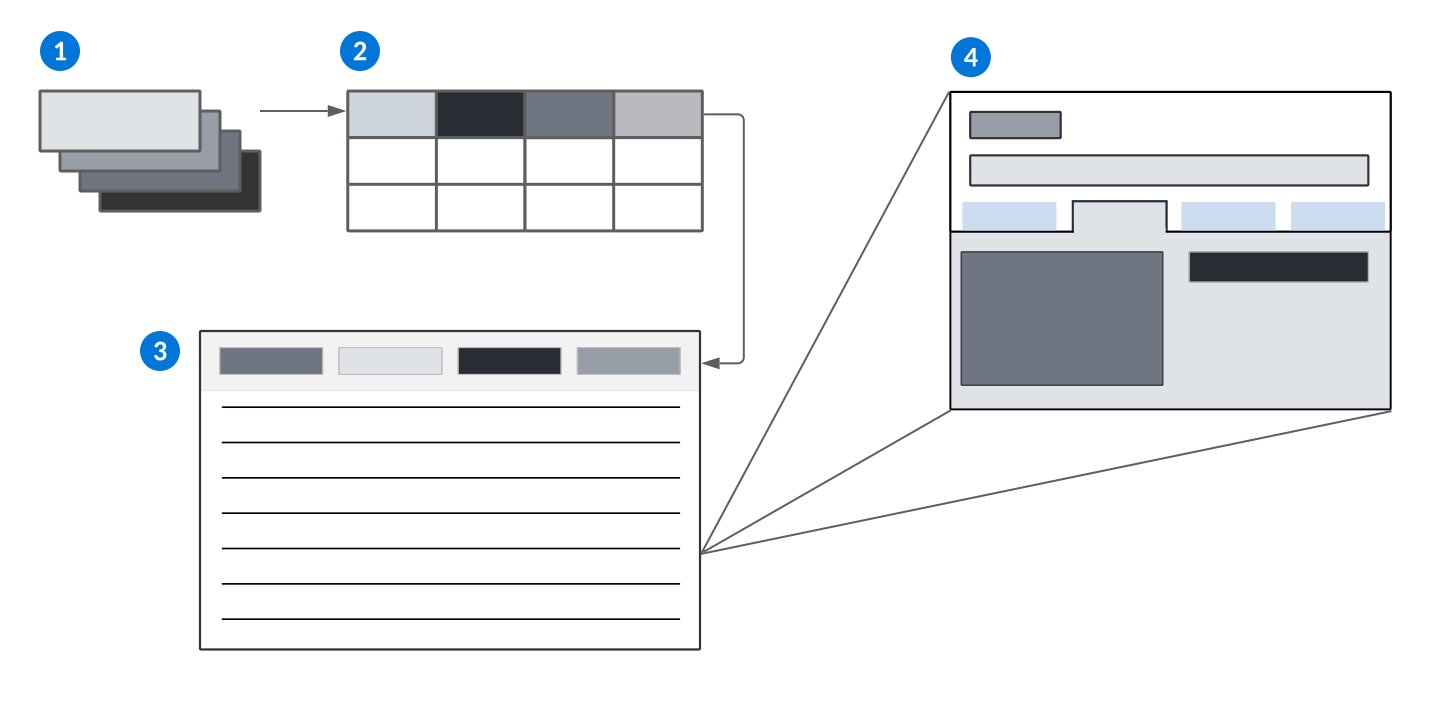
 | Data items—Data items are built or customized in order to capture and track different kinds of information, such as names or dates, in your tables and applications. |
|---|---|
 | Table—Data items are used in tables as column headers. |
 | Application in list form—Data items are used in applications as fields and column headers for the records. They can also provide more complex options, such as the ability to add record entries into subtables, or the ability to reference a data item from another table so the field in your application displays the current value of the referenced data item. |
 | Application in detail form—Data items are used in applications as fields and are displayed for one primary record. |
Data items are configured in the Data Item Definitions application, or from within the Application Builder. Learn more in Application Builder and Data Item Definitions application.
Data Item Group configuration
Configure a data item group using the Data Item Definitions application and Table Definitions application.
Data Item Definitions
In the Data Item Definitions application, you must:
- Create a data item of type
Data Item Group. This creates a field you can use to add a group of associated data items to an application. - Give the
Data Item Groupdata item the same name as the associated table created in this topic's Tables section.
Table Definitions
In the Table Definitions application, you must:
- Create a table of type
Subto hold the associated data items that are part of the data item group. - Give the table the same internal name as the
Data Item Groupdata item created above. It is critical that the table shares the exact same name of the data item, including capitalization. This is how the two objects are linked, and if they are not given the exact same name, then the data item group configuration won't work.- Do not add the
Data Item Groupdata item to this table.
- Do not add the
- Add the
Data Item Groupdata item to the table that the application is built over. The application will automatically have all the fields in the data item group available to it.
Subtable configuration
Configure a subtable using the Data Item Definitions, Table Definitions, and Application Builder applications.
Data Item Definitions
In the Data Item Definitions application, you must:
- Create a data item of type
Subtable. This creates a field that you can use to add data items. - Give the
Subtablethe same name as the related table created in this topic's Table Definitions section.
Table Definitions
In the Table Definitions application, you must:
- Create a table of type
Subtable Mainor type Sub to hold the related data items that are part of the subtable. - Give the table the same internal name as the
Subtabledata item created above. It is critical that the table shares the exact same name of the data item, including capitalization. This is how the two objects are linked, and if they are not given the exact same name then the subtable configuration won't work.- Do not add the
Subtabledata item to this table.
- Do not add the
- Add the
Subtabledata item to the table that the application is built over. The application automatically has all the fields in the subtable available to it.
Application Builder
In the Application Builder application, you must:
- In the Detail form configuration, clear the Hide On Table checkboxes for any fields that you want to appear in the subtable in the generated application. By default, all fields have the Hide On Table checkbox selected. If none of the fields have the checkbox cleared, then no fields appear in the subtable on the generated application.
Data item validation configuration
Configure field validations using the Validation Setup application and Data Item Definitions application.
Validations
If a validation doesn't already exists for your field entry requirements, then in the Validations application you must:
- Create a new validation to create a unique validation for field entry.
- Specify the validation rules necessary for field entry. Field validation rules include no lowercase letters, no uppercase letters, no numbers, no spaces, and no special characters.
Data Item Definitions
In the Data Item Definitions application, you must:
- Create a data item of type Text. A data item of type Text is the only data item type that you can validate.
- On the Settings page, enter the name of the validation in the Validation field.
Automatic number configuration
Application developers use the Data Item Definitions, Table Definitions, and Automatic Number Definitions applications to configure automatic numbering for a data item.
Data Item Definitions
In the Data Item Definitions application, you must:
- Create a data item of type
NumberorTextto apply the automatic number sequence to.- Use the type
Numberfor data items that don't use automatic formatting. - Use the type
Textfor data items that use automatic formatting.
- Use the type
- On the General Configuration page, select the Automatic Number checkbox.
Table Definitions
In the Table Definitionss application, you must:
- Add the
Numberdata item to a table. - Select the Locked field when configuring the Automatic Number field in the table configuration. This prevents the automatic number from being changed once the record has been saved and an automatic number has been assigned to the record.
- Add the Automatic Number field to the table's unique index.
- For more information see Indexes.
Automatic number definitions
In the Automatic Number Definitions application, you must:
- Create a new automatic number definition to define the numbering sequence for your data item and related table.
- Specify the Initial Number and the Increment by which it should increase.
- Specify the Org Unit Security Field and the Table Name that connect the automatic number to records.
- If you specify a Dependent Value, then you must also specify the Dependent Field. Any dependent fields used must be part of the specified table. These fields also enable you to create company or org specific automatic numbers. Learn more in Dependent values for automatic numbers.
If you want to format your automatic number, select Configure Automatic Format field action to define the formatting. See Automatic formats for more information.
Static Text data item configuration
Application developers configure Static Text data items to show a section of non-editable text in an application.
Persistent text
To configure a static text field that never changes, you must:
- Create a data item of type
Static Textin the Data Item Definitions application. - Create a synonym for the data item. This text is what populates in the application.
- Create a table in the Table Definitions application.
- Reference the data item in the table on the Fields page.
When you create a new record in the application built over the table, the synonym text associated with the data item at the time of creation is saved to the record. If the synonym is changed later, the application does not update with the new text.
Updating text
To configure a static text field that always shows the most current synonym text, you must:
- Create a data item of type
Static Textin the Data Item Definitions application. - Create a synonym for the data item. This text is what populates in the application.
- In the Table Definitionsapplication, add the data item to an existing table or create a new table.
- On the Fields page, select the Work Field checkbox for that data item.
Each time you open a record in the application, the current synonym associated with the data item shows in the application.
Inline Filter data item configuration
Configure Inline Filter data items with the Data Item Definitions, Table Definitions, Application Builder, and Logic Block Builder applications.
Prerequisites
Create your data item of type Inline Filter and add it to the table which your application is built over.
Application Builder
In the Application Builder, add your data to your application. Then, in the Field Dependencies section in the Confiugration panel, you must:
- In the Controlling Field Type field, select
Inline Filter Table Name. - In the Controlling Field field, enter the name of the table which your logic block will fetch data from.
- In the Dependent Field field, enter the name of the field in your application where you want the filter applied.
Logic Block Builder
In the Logic Block Builder, you must:
- Create a logic block over your application which fetches data from the table referenced in the Controlling Field field.
- Use your inline filter in the fetch actions, or the Build Dynamic Expression action, to filter the data you want to fetch:
- In the Expression section, select the + Add External Expression button.
- In the External Expression Type field, select
Inline Filter. - Reference the filter field's value in the expression.
Signature field configuration
Add signature fields to your applications with Picture data items.
To configure, in the Data Item Definitions application, create a new data item of type Picture. Then, on the Settings page, use the Style Options field to select the type of signature field you want included, such as signature with timestamp.
Once the data item is added to the table and application, users can use a mobile device or their mouse to sign in the box. Signatures include the username of the signee within the bottom corner of the field.
Data Item Definitions application
Application developers use the Data Item Definitions application to create and modify fields.
Use this application when creating data items for a table. An application is built over the table that stores the created data items. The data items display as fields in the application.
The defining information of a data item, including the data item name, type, and description, is stored in the Data Item Definitions application header. After the header information is entered, you can further specify your data item definition using the application's pages. These pages can be configured based on what kind of fields you want in your application.
See the Data items section for more information on configuring data items.
General Configuration
Specify the data item's customization pattern to allow the user to lock, unlock, change or add on to lookup values in the field, and write your data item's synonym.
A synonym is a brief explanation of what the data item does as a field in the application. You must write help text for every synonym you create for a data item. Enter the module, family, and application for the synonym. You can provide both the name that appears in the detail form of an application, and the name that appears on the column header of the list form of an application.
Learn more in the following Nextworld Help topics:
Settings
Configure your data item based on the data item type you chose in the header. You can add a table lookup that points to a record in another table, or link the data item to a list lookup to create a dropdown list in the field of the application. This allows a user to select one or more values from a list to populate the field. You can also specify a dynamic lookup, allows you to create a dependency on another text field. If the name of the value in the text field is a list lookup, then that list lookup drop-down list becomes accessible in another field.
See Data item types for more information on the different types of data items.