


.svg)


A visualization is built from records in a table. Filters applied to the data table also apply to the visualization. There are multiple places to use visualizations, such as:
- Applications—The visualization appears above the data table on the list form of the application. When there are multiple visualizations configured, a dropdown menu allows users to select which is visible. Configure application visualizations in the Visualizations section of the Configuration panel.
- Dashboards—The visualization appears as a read-only display of the data in a dashboard card. Configure dashboard visualizations in the application, then reference the application in a dashboard card.
- Interactive Reports—The visualization appears in reports. Configure report visualizations in the Visualizations tab of the Interactive Report Builder.
There are three panels used for configuration in the Visualization Builder. Each panel serves a different purpose in configuration, as seen in the diagram below.
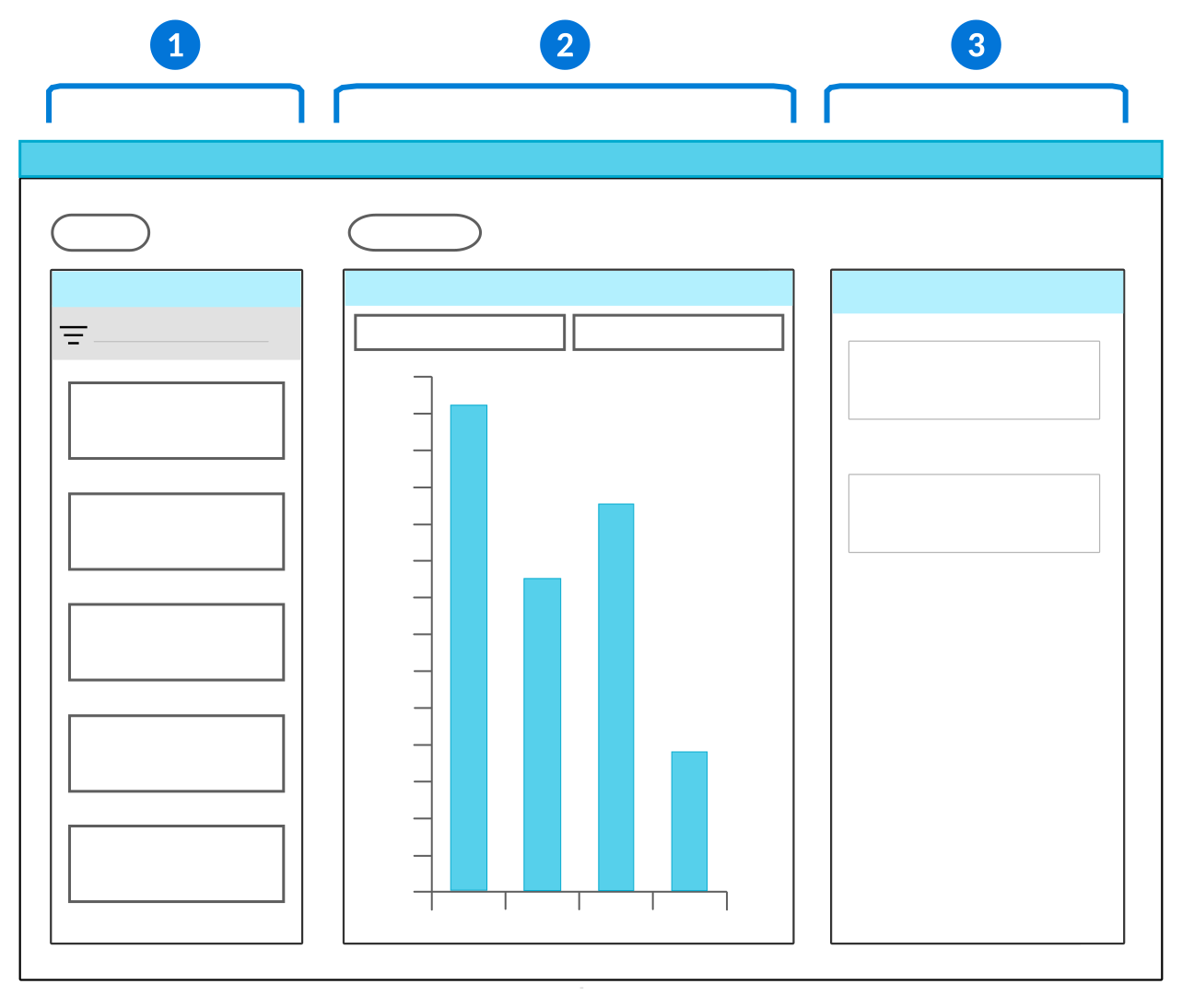
 | Fields panel—Containsthe fields you can use to build your visualization. Use the drag and drop function to move the fields from the Fields panel into the Viewer panel. |
 | Viewer panel—Contains the x-axis and y-axis fields where you can drop the fields you selected from the Fields panel. You can only have one field in the x-axis field, but there is no limit on how many fields can be placed in the y-axis field. Select the visualization Type to determine how the data is shown. See the Visualization types topic for more information. |
 | Details panel—Contains the characteristics and attributes of the fields you select. Additionally, enables you to group the data or select different color formats. Color formatting allows you to define conditions and colors for different stylizations of the visual data. For example, you can:
|
Certain visualization Type also must be configured with a Data Shape to further define how the data is shown. There are multiple data shapes to choose from, such as:
Row Based—Values of each y-axis field are plotted on the visualization as separate series on the visualization. Values of the x-axis field create the categories on the x-axis.Aggregation Based—Values of the y-axis provide aggregations of all the application records instead of displaying specific values. Values of the x-axis field group the aggregated values from the y-axis. For example, a count of unpaid invoices is your y-axis, grouped by each month in the year as your x-axis.Column Based—Values for the x-axis and y-axis come from the same data item. The value of the record is used for the y-axis. The label of the data item found on the Synonyms page is used for the x-axis. Select as many data items as you want to appear on the visualization.
Visualization types
Determine which type of visualization to use based on what information you want to display, or how you want to display it.
For example, you could use an information box visualization to show a count of open invoices, and a line graph to show the amount of each open invoice. There are several different types of visualizations, as seen in the table below.
| Type | Example | Description |
|---|---|---|
 | Use x-axis and y-axis quantitative values to display a line chart with a colored area between line and axis. The points on the line are connected with a straight line that forms a slope. | |
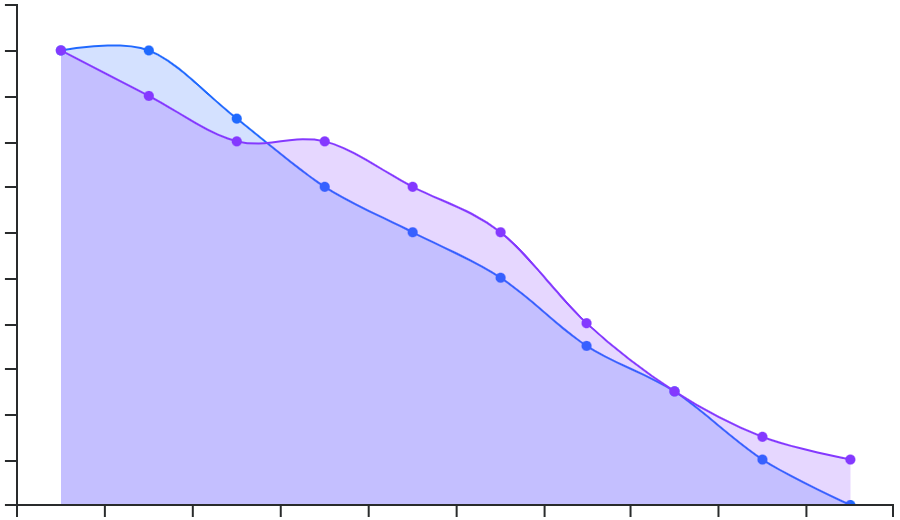 | Use x-axis and y-axis quantitative values to display a line chart with a colored area between line and axis. The points are connected with a curved line that form a slope. | |
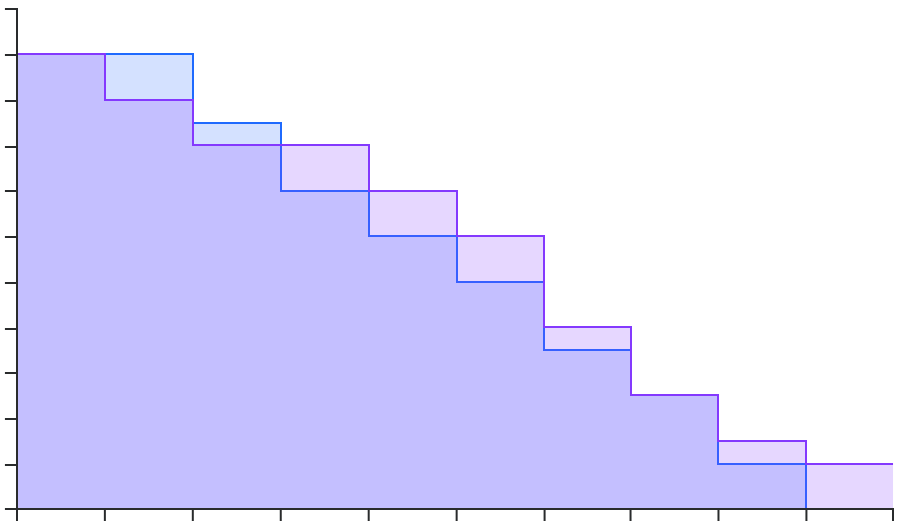 | Use x-axis and y-axis quantitative values to display a line chart with a colored area between line and axis. The points are connected with line segments that form steps. | |
 | Use x-axis and y-axis values to display categorical data represented by vertical bars. | |
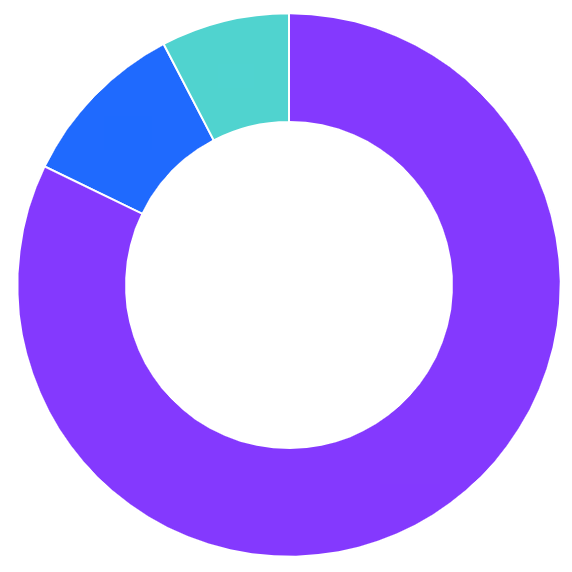 | Use x-axis values to display aggregated data in a circular graph divided into sections with a blank center. Each section represents a portion of the sum of all of the data. | |
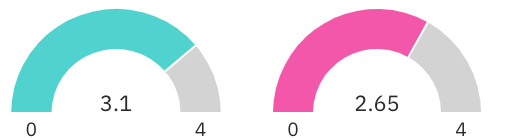 | Use x-axis values to display aggregated data in individual gauges. The colored part of the gauge represents the quantity compared to the defined maximum, counting up from zero. | |
 | Use x-axis values to display aggregated data in a unified gauge. Each ring of the gauge represents a different aggregation. The colored part of the gauge represents the quantity compared to the defined maximum, counting up from zero. | |
 | Shows specific locations defined in records on a map. Learn more in Geo map visualization configuration. | |
 | Use x-axis values to display aggregated numbers on colored boxes. Each box represents a different aggregation. | |
 | Use x-axis and y-axis quantitative values to display data points connected by straight lines. | |
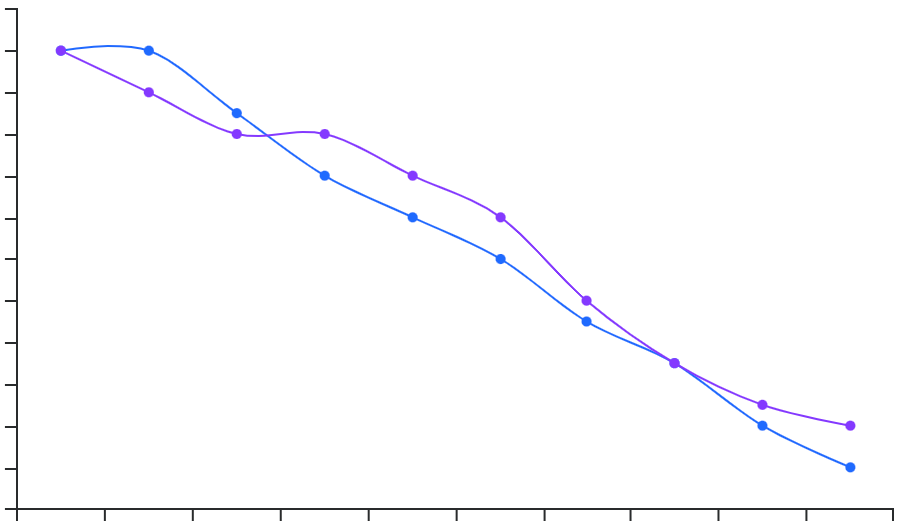 | Use x-axis and y-axis quantitative values to display data points connected by curved lines. | |
 | Use x-axis and y-axis quantitative values to display data points connected by straight lines that form steps. | |
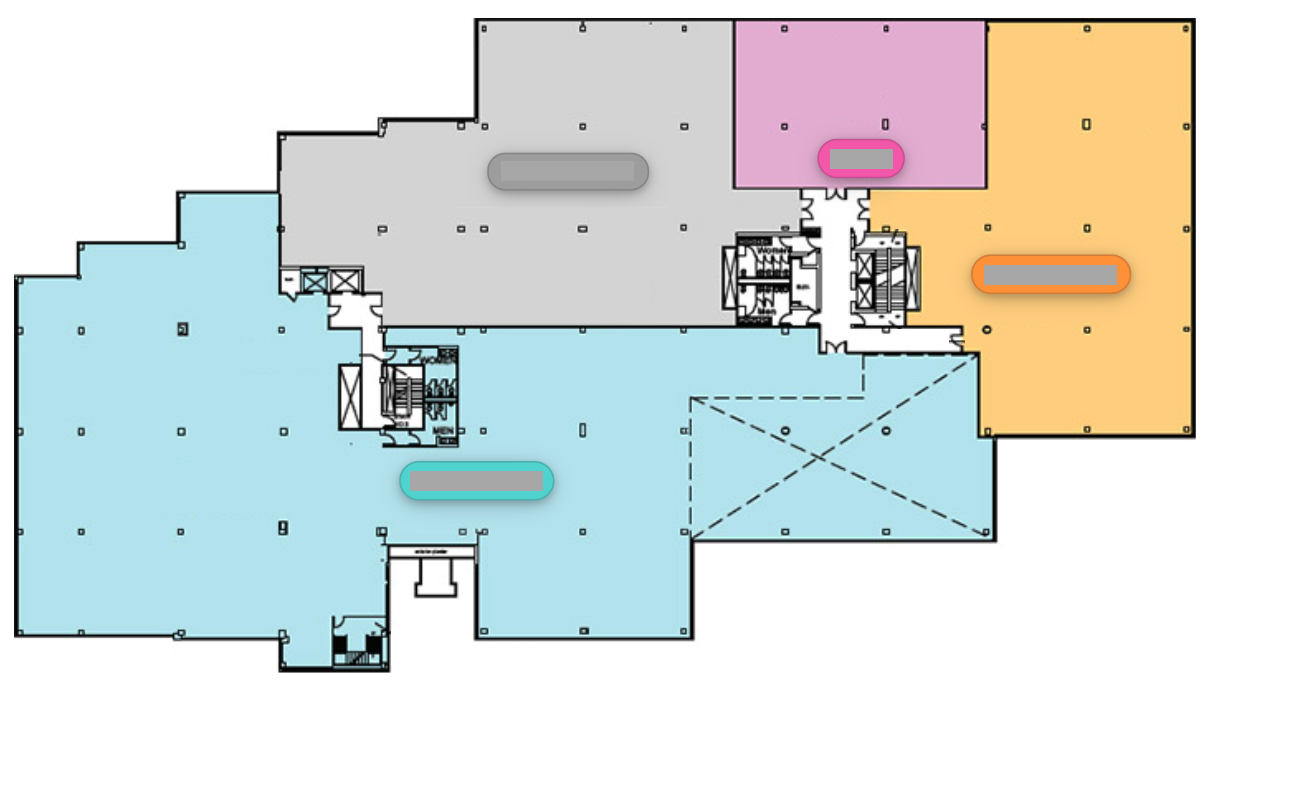 | Adds labels to named locations of a picture. Example use cases are people on a seating chart, assigned parking spaces, tenants on a building floor plan, or components on a product diagram. The visualization background and named locations are defined in the Picture Map Definitions application. | |
 | Use x-axis values to display aggregated data in a circular graph divided into sections. Each section represents a portion of the sum of all of the data. | |
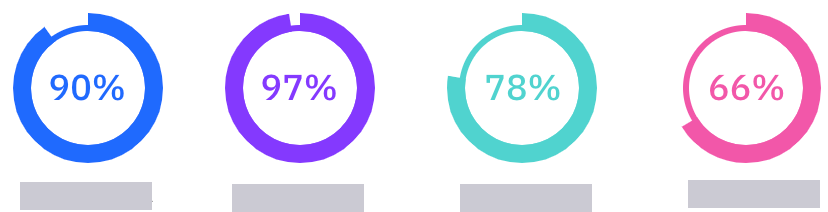 | Use x-axis values to display aggregated numbers with a row of circles. Each circle represents a different aggregation and has a percentage value in the middle of the circle. The outer ring of the circle represents the percentage. | |
 | Use x-axis and y-axis quantitative values to display data points in the plot area. | |
 | Displays building information arranged into stacked floors. Each floor is divided among units and aggregations display on the side of each floor. |
Determine the type of visualization you want to use, based on what kind of information you want to display. The table below shows how the different visualization types will display your information:
| If you want to... | Visualization Type |
|---|---|
| Compare information | |
| Show relationships | |
| Show parts of a whole |
Geo map visualization configuration
Configure a geo map visualization in the Visualization Builder for your interactive reports, applications, or dashboards.
To configure, open the Visualization Builder from the record where you want the visualization. Where the visualization appears and how you access the builder is dependent on where you are configuring, such as:
- Applications—The visualization appears above the data table on the list form of the application. When there are multiple visualizations configured, a dropdown menu allows users to select which is visible. Configure application visualizations on the Field Dependencies page of the application.
- Dashboards—The visualization appears as a read-only display of the data in a dashboard card. Configure dashboard visualizations in the application, then reference the application in a dashboard card.
- Interactive Reports—The visualization appears in reports. Configure report visualizations in the Visualizations tab of the Interactive Report Builder.
Once the Visualization Builder is open, you must:
- Configure the coordinates for where the pin should be located. You can drag and drop an Address field into the Pin Longitude or Address Field, or drag and drop a Number field into both the Pin Latitude Field and Pin Longitude or Address Field fields to set the latitude and longitude for the pin.
- In the Pin Label Fields field, drag and drop at least one of the fields used to set the pin's label.
- Optionally, specify a color for the pins on your geo map.
Learn more in Visualization types.