


.svg)


Each tutorial begins with an introduction and is followed by topics that explain the concepts behind the subject of the tutorial. Each concept is then followed by a step-by-step exercise that allows you to put the concept into practice.
The following tutorials are available:
For more information on the Nextworld Platform, see About the Nextworld Platform.
Getting started with the tutorials
This topic covers what you need to do before starting the tutorials and key points to keep in mind while completing them. Trial Users can skip this section, but all other users should review it.
Prerequisite learning
We recommended that you take the eLearning course titled Navigating Nextworld before beginning the tutorials.
Tutorial environment
We strongly recommend that you complete the tutorials in your Test environment. Learn more about customer environments in Standard customer environments.
Tutorial security
Confirm with your system administrator that your user has the roles required to complete the tutorials.
Default Lifecycle
Once logged into your Test environment, view the Lifecycle menu to ensure that your default lifecycle is Tutorial. All tutorial steps should be performed in this lifecycle.
Product Family and Product Module
When creating objects in the tutorials, you should:
- Use
Playpenas the Product Family. - Use
Personalas the Product Module.
Understanding Nextworld environments
In this section of the tutorials, you will learn about Nextworld environments. When users sign into Nextworld, they enter a specific environment. Each implementation of Nextworld has multiple environments, each serving a different purpose. By understanding these environments and key concepts like lifecycles and namespacing, you’ll be better equipped to navigate the platform, build applications, name objects, enter data, and run queries. While some details in this section don’t apply to the trial user configuration, reviewing it is still helpful for understanding key concepts like lifecycle and namespace.
Environments
An environment is a combination of business data, metadata, and the underlying software that powers the platform. When users sign into the Nextworld Platform, they sign in to an environment.
Learn more in Environments, business data, and metadata.
Standard customer environments
Nextworld customers are provided with multiple environments to develop and customize applications, preview new release upgrades, and conduct their routine business.
Learn more in Standard customer environments.
Metadata
Metadata refers to the applications on the platform, and the components that make up those applications, such as data items, tables, and logic blocks. Metadata can move, or migrate, between environments as part of the development process.
The ownership of a metadata object indicates who has control over and responsibility for it. Namespaces are amended to the metadata you create to ensure the objects are globally unique and prevent conflicts during release upgrades.
Learn more in [link: 'Environments.OwnershipAndNamespacing'].
Namespacing
Any metadata object you create automatically includes a namespace at the beginning of its internal name. A namespace is a set of characters unique to your tenant that ensures that only one version of the object exists. Namespaces always begin with ns, and you cannot delete them.
For example, if your company name is Bright Light Inc., your namespace might be nsBLI. If you create a new object named DateCreated, the saved name of the object would be nsBLIDateCreated with the namespace added.
When searching for objects created by a solution developer or customer, you must include the namespace.
Learn more in [link: 'Environments.OwnershipAndNamespacing'].
Lifecycles
A lifecycle is a project layer that segregates metadata from other lifecycles. A citizen developer can create or modify metadata objects in one lifecycle without impacting objects in other lifecycles.
Within an environment, each user has an active lifecycle. This active lifecycle determines the metadata objects which will be layered on top of the base objects during application execution. The base objects are the objects provided by Nextworld.
Learn more in Lifecycles.
Product families
A product family is a category in which you group related Nextworld objects that are custom designed for a particular industry.
Product families are made up of one or more modules. A module is a self contained collection of objects. Modules are family specific and cannot cross family types.
Learn more in Product Families.
Understanding applications
In this section of the tutorial, you will learn about applications in Nextworld. Applications allow for adding, editing, and reviewing data for a business solution. They collect, process, and store information and are built over data sources. Fields in your application are stored as data items within these data sources.
Applications are built and configured using data items, tables, logic blocks, and other platform objects.
Two important concepts to understand about applications are application types and application forms.
Application types
There are several application types and styles that control how records are stored, visualized, and processed.
One example of an application type is a Standard application. The Standard application type manages independent records. The initial application view of a standard application is the list form. From there, you can open a record in the detail form and see additional fields related to the selected record. The information for each record is independent of other records in the table.
Learn more in Application types and styles.
Application forms
Applications are pattern-based. Once a user understands the different application forms, all applications become easy to manage and navigate.
Forms are screens in an application that display different kinds of information. In an application, you generally navigate between different forms to access different types of information.
The list form displays all the records in an application and allows you to find, filter, and search for records. As the default entry point for most applications, it provides access to all records.
The detail form displays the fields for one primary record, although depending on the application configuration you may also see some information that is maintained in other applications. In most applications, record maintenance is done in the detail form.
Learn more in Application forms.
Anatomy of an application
Citizen Developers will use the top-down approach to building an application. This means you start by making an application and then add fields to it. When you save the application, these fields are automatically added to a data source. The diagram below illustrates this approach.
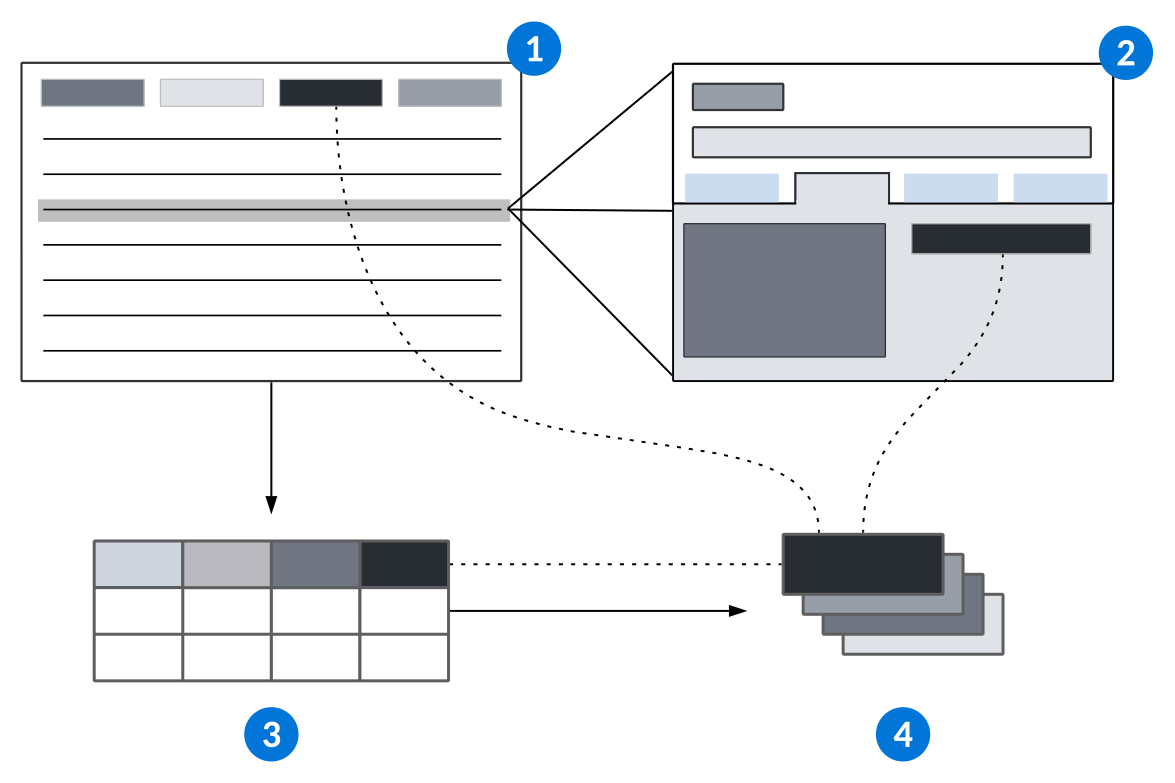
 | Application - List Form with Fields. |
 | Application - Detail Form with Fields, Rows, and Pages. |
 | Data Source - Table created when application is created. Fields added to application are also added to data source. |
 | Fields - Data items are saved in the data item repository when application is saved. |
To see a more detailed anatomy of an application, see Anatomy of a Nextworld application.
Fields, field types, field placement
Fields are data items that display in an application. Each field represents one unit of information.
Field Types
Fields are configured as different data item types, such as Number, Text, or Currency fields.
The field type determines how you can use the information stored in that field and how the information is displayed. For example, a Text data item creates a text field with a single line and allows you to specify whether there is default text populated in the field, if there are required text formats, or if there are maximum character counts for the field.
Learn more in Data item types.
Field placement
Field placement is important in complex applications that contain many different fields. You can organize the application by grouping fields into different areas using rows, columns, and pages.
Pages
Pages are displayed in an application as tabs, and enable you to organize related fields into different areas. Pages should be used when the fields can logically be organized into distinct sections, and provided a name that reflects the purpose of those fields.
For example, the Purchase Orders application has multiple pages including Accounting, Supplier, and Terms. Fields related to Payment Terms would be placed on the terms page.
Rows
Rows are assigned in pages, or as header rows which display at the top of the application regardless of what page is opened.
Columns
Columns are assigned in list forms and subtables to organize the application's record information.
Grids
To organize your rows and column, use a grid layout during configuration. To configure where a field appears in the grid, drag a field to a column on a row. The column aligns the fields across rows.
Understanding Developer Studio and Application Builder
This section of the tutorial explains the Developer Studio. The Developer Studio enables both professional and citizen developers to create and manage applications—all in one place.
On the Welcome page, the Application Quick Start feature allows you to create a new application:
using a new or existing data source
from a spreadsheet
with Ed, an AI-powered agent from Nextworld Intelligence
Once your application is created, you’ll use the Application Builder to configure and customize it.
The diagram below highlights features on the Welcome Page of Developer Studio.
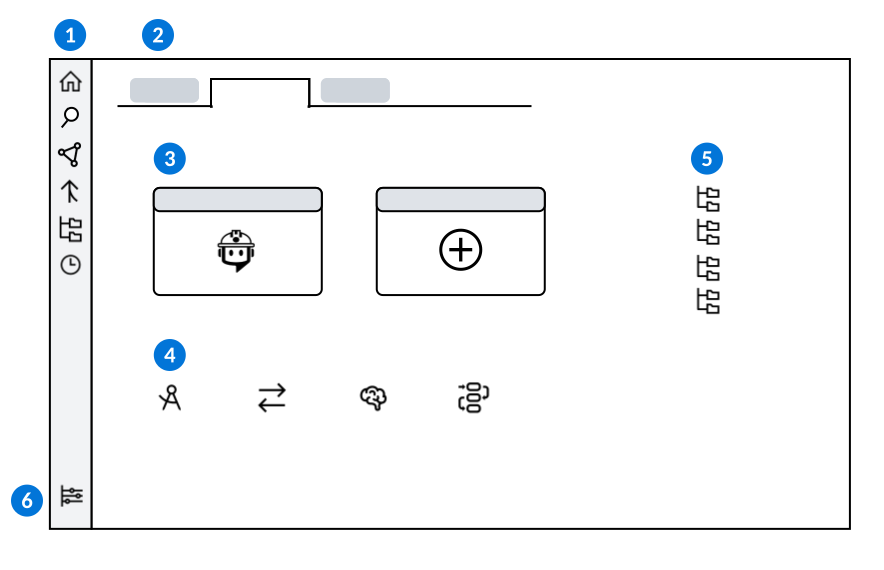
| Open different components of the Developer Studio with the following navigation buttons:
|
|---|---|
| Navigate between open applications and records by selecting different tabs. You can leave unsaved records open and return later to continue working. Pending work is held in a NATE container when you navigate between different lifecycles, or away from the Developer Studio. NATE containers only hold pending work for 48 hours. If you don't return within that time, your unsaved changes are discarded. |
| Select the Create New Project or Create New Application buttons to begin development. |
| Open the Application, Interoperability, Intelligence, or Workflow Home pages. Each home page contain links to related applications, as well as Quick Start buttons for development. Learn more in the following topics: |
 | Create or access recent lifecycles. |
 | Open the Settings  menu to configure settings such as automatic tab grouping, hiding or showing metadata types, or enabling auto checkout. menu to configure settings such as automatic tab grouping, hiding or showing metadata types, or enabling auto checkout. |
 Welcome Page—Navigate between recent work, access different Home pages, or use start development on a new project or application. Your most recent work opens automatically when the studio is opened. If no tabs are left open the studio opens to the Welcome Page by default.
 Where Used—Track where an object is being used or track what objects are being used by the selected object.
  Merge Requests—View, create, and track merge requests. Merge requests allow you to merge your changes to objects into base lifecycle.
  Branch Lifecycles—View the list form of your lifecycles. In the row action menu you can activate, deactivate, or change lifecycles.
  Unsaved Work—View metadata objects which you have worked on, but have not saved.
Application Quick Start feature
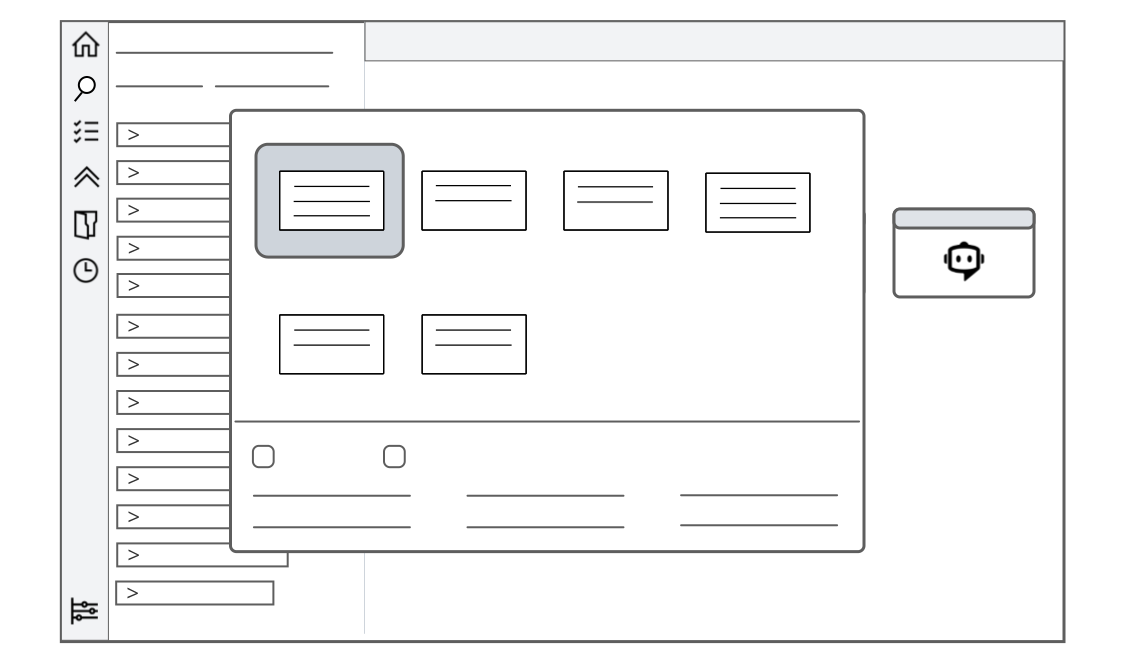
The Application Quick Start feature lets you create a new application using a new or existing data source, a spreadsheet, or artificial intelligence. It then allows you to enter your application criteria and save the record before launching the Application Builder. The diagram below represents the Application Quick Start feature:
Application Builder
After entering your application criteria in the Application Quick Start feature, the Application Builder opens, providing a simple, top-down approach to building your applications.
The Application Builder provides a visual view of the application you are building in a three-panel layout. The diagram below shows different components of the interactive Application Builder:
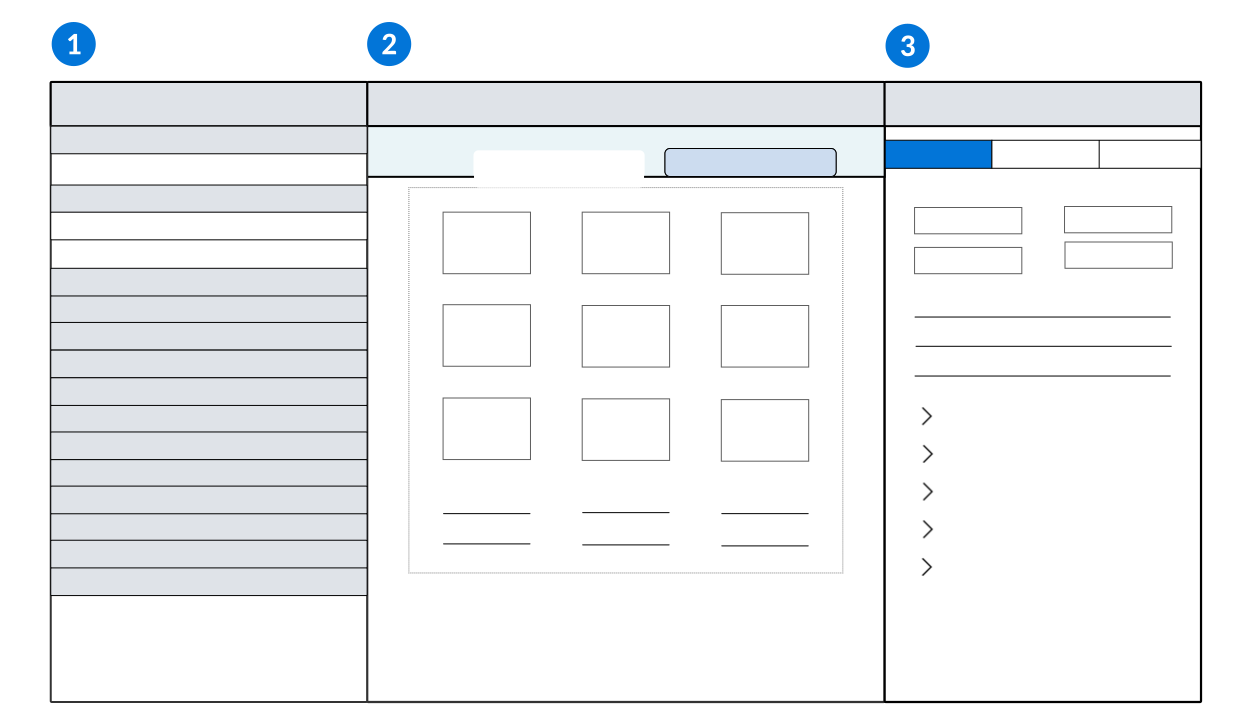
| Configuration panel—Select the component of the application that you want to configure. |
|---|---|
| Viewer panel—Select which form of the application you want to configure, then drag and drop fields from the Fields panel to the location you want them. For example, in Detail Forms you can create pages, rows, and subtables and add the fields you want in each. |
| Properties panel—View the properties of the object you have selected. For example, select a field to see the configuration options from the Data Item Definitions application record of that field. If you select Actions, Field Dependencies, or Sort in the Application Panel, you would see the configuration options for the application record. |
Learn more in Developer Studio and Application Builder.
Create an application with a new table
In this tutorial, you will learn how to use the Developer Studio to build an application and a table.
When you launch Developer Studio, the Welcome Page provides an Application Quick Start feature with different options for creating an application. For example, you could create an application:
- With a new table.
- Over an existing table.
- Over a spreadsheet using Nextworld Intelligence.
- With Ed, an agent powered by Nextworld Intelligence.
In this tutorial, you will create an application with a new table using Application Quick Start. Once you name and save the application, the platform automatically creates a table with the same name and then launches the Application Builder.
In the Application Builder, you will:
- Use field types to add fields to your application.
- Design the form layout of your application.
- Create table lookups to retrieve values from other tables.
- Create list lookups to give users a set of values to choose from.
- Generate and launch your application.
This tutorial contains the following sections:
- Requirements for Credit Card Tracking Application
- Create the Credit Card Tracking application
- Configure detail form fields
- Configure list form fields
- Generate and launch your application
- Create synonyms
- Format fields
- Understanding list lookups
- Create list lookups
- Understanding table lookups
- Create table lookups
- Test your application
- Checkpoint
Requirements for Credit Card Tracking Application
This section of the tutorial provides the business and technical requirements for the credit card tracking application that you will build. It outlines the necessary features, functions, and constraints for the application.
Introduction/Background
A business must manage corporate credit cards. A credit card tracking application will assist with this process. In most companies, the role that typically manages corporate credit cards is the finance manager or accounting manager. This role is responsible for overseeing the use of corporate credit cards, including assigning cards to employees, ensuring compliance with company policies, and managing the reconciliation of card transactions. The credit card tracking application will monitor which employees have been assigned corporate cards, manage their spending limits, and track card expiration dates. This ensures spending stays within budget guidelines and prevents overspending.
Goal
As a finance or accounting manager, I want to be able to assign corporate credit cards to employees and set the appropriate spending limits and expiration dates.
Assumptions
- The credit card tracking application will use the Standard application type and will manage independent records. The initial application view will be the list form. From there, a user will open a record in the detail form and see additional fields related to the selected record. The information for each record is independent of other records in the table. Users will enter information one record at a time in the detail form of the application.
- The employee records are managed in the RefDirectory application. The credit card tracking application will select the employee from the RefDirectory in order to assign them a corporate credit card.
- The banks that issue the corporate credit cards are managed in the RefDirectory application. The credit card tracking application will allow selection of the appropriate bank to be used for each record.
- At this time, the full credit card number will not be stored in the system so encryption will not be needed.
- At this time, we will not setup roles and permissions for using the credit card tracking application.
- Reconciling of credit card transactions is not within the current scope of the credit card tracking application.
- Requesting and approval of credit cards is not within the current scope of the credit card tracking application.
For more information on the functional and technical requirements, please refer to the topics below:
Otherwise, feel free to continue with the Create the Credit Card Tracking application tutorial.
Functional requirements
This section of the tutorial describes the functional requirements of the Credit Card Tracker application that you will build. Functional requirements are the features and functions that a product must have to allow users to complete their tasks.
Functional requirements
| Requirement | Description | Requirement Category |
|---|---|---|
| Ability to filter records on the List View | The user should have the ability to enter filtering criteria to locate the appropriate credit card record. | Must-have |
| Ability to expand the record on the list view | The user should have the ability to see the primary fields of the record on the list view and have an option to expand the row to see more fields | Must-have |
| Ability to create a new corporate credit card record, and edit or delete an existing credit card record | The user should have the ability to create a new record, edit an existing record or delete the record if necessary. At this time, permissions will not be defined. Any user of this application will be able to perform these tasks. | Must-have |
| Ability to select the employee from the RefDirectory when creating a new credit card tracking record. | The user should be able to look up valid employees in the RefDirectory when assigning a corporate credit card. | Must-have |
| Ability to choose the Credit Card Type from a list of valid values | The user should be restricted from typing into the Credit Card Type field - instead they will choose from a defined list of values. Values will include AMEX, Discover, Visa, and Mastercard. | Must-have |
| Only the Last Four Digits of the credit card should be stored | The user will not store the full credit card number so encryption is not necessary. | Must-have |
| Ability to store the currency code along with the currency amount | To assist with multiple currencies, a currency code should be stored with any currency fields. For example, if the TransactionLimit is 500.00 for a US-based employee, the TransactionLimit should also include the code USD. | Must-have |
| Ability to choose the Credit Card Status from a list of valid values | The user should be restricted from typing into the Credit Card Status field - instead they will choose from a defined list of values. Valid values for CreditCardStatus would be Issued, Canceled, On Hold , Reported Lost/Stolen, and Expired. | Must-have |
| Ability to look up a valid Card Supplier from the RefDirectory | The user should be able to select a valid bank name (credit card issuer) from the RefDirectory when assigning a corporate credit card. | Must-have |
Requirements fields, synonyms, and formatting
In this section of the tutorial are the requirements for fields in your Credit Card Tracking application. These requirements include field labels, help text, whether the field is required, and any special formatting and validation.
Fields, synonyms, and formatting Information
The application and data source will track various types of information. Below is a list of fields used in the application and stored in the data source, including their labels, help text, whether they are required, and any special formatting or validation rules.
| Field | Field Type | Description | Synonym - Long Label | Synonym - Short Label | Synonym - Help Text | Required Y/N | Formatting & Validations | Notes |
|---|---|---|---|---|---|---|---|---|
| CardOwner | TableLookup | Full name of credit Card Owner | Credit Card Owner | Card Owner | The owner of the credit card. Use this field to search for contacts in the RefDirectory application. | N | User will look up the card owner in the RefDirectory | |
| CreditCardType | Text | Institution providing the credit card | Credit Card Type | Card Type | The institution that provides the credit card For example, Visa, or Discover. This information can be found on the credit card. | Y | Valid list of values:
| |
| LastFourDigits | Text | Last four digits on card | Last Four Digits | Last Four | The last four digits on credit card | Y |
| |
| ExpirationDateMonth | Number | Credit Card expiration month | Expiration Month | Exp Month | The month the credit card expires | N |
| |
| ExpirationDateYear | Number | Credit Card expiration year | Expiration Year | Exp Year | The year the credit card expires | N |
| |
| CreditLimit | Currency | Credit limit for the card determined by credit card issuer | Credit Limit | Limit | The maximum total amount that can be charged to the credit card | N | ||
| CreditStatus | Text | Display the status of the credit card | Credit Card Status | Card Status | The status of the credit card. For example, has the card been reported as lost or stolen, is it expired? | N | Valid list of values:
| |
| CVV | Text | Security number on credit card | Credit Verification Value | CVV | A CVV is a security code that helps protect you from credit card fraud and identity theft. | N | ||
| CardSupplierName | Table Lookup | Company suppliying the credit card | Credit Card Supplier | Card Supplier | The company supplying the credit card on behalf of the credit card institution, such as a bank. Use this field to search for contacts in the RefDirectory application. | Y | User will lookup Card Supplier in the RefDirectory | |
| DailyPurchaseLimit | Currency | Maximum amount that can be spent on credit card per day | Daily Purchase Limit | Daily Limit | The maximum amount that can be charged to the credit card per day. | N | ||
| TransactionPurchaseLimit | Currency | Maximum amount that can be spent per transaction | Transaction Purchase Limit | Transaction Limit | The maximum amount that can be charged to the credit card per transaction. | N | ||
| MonthlyPurchaseLimit | Currency | Maximum amount that can be spent per month | Monthly Purchase Limit | Monthly Limit | The maximum amount tht can be charged to the credit card per month. | N |
Requirements form layouts
This section of the tutorial covers the layout requirements for your application, including field placement and page creation.
Application and form layout
The diagram below provides a visual for the layout of the forms.
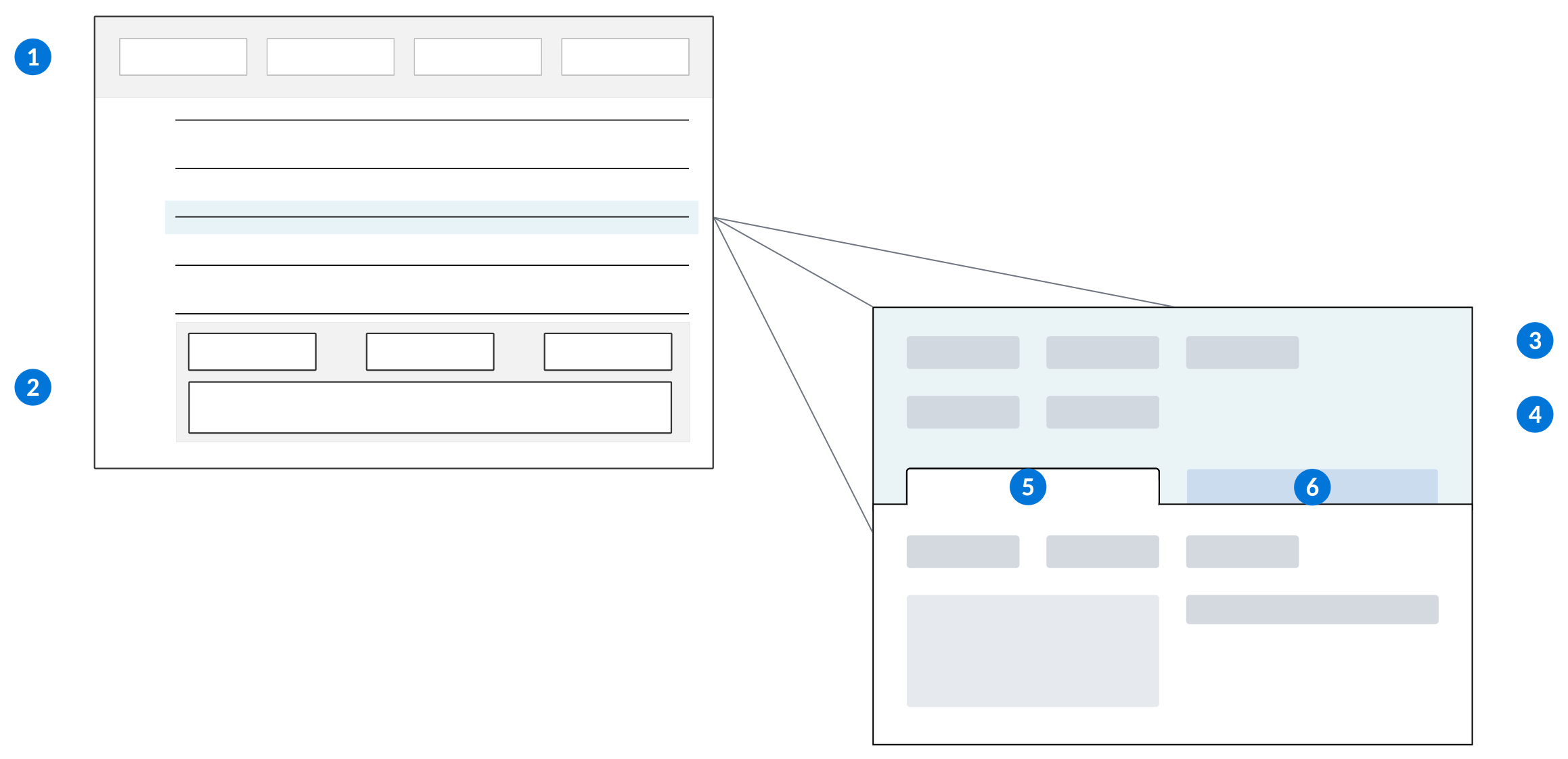
| List View - Primary fields | The following fields should be on the primary row of the List View: CardOwner, CreditCardType, LastFourDigits, ExpirationDateMonth, ExpirationDateYear, CreditLimit, CreditStatus |
| List View - Expansion fields | The following fields should be on the expansion row of the List View: CVV, CardSupplier, DailyPurchaseLimit, TransactionPurchaseLimit, MonthlyPurchaseLimit |
| Detail View - Header area, Page A, Row A | Card Owner and CreditStatus should be on row A |
| Detail View - Header area, Page A, Row B | CardSupplier and CreditCardType should be on row B |
| Detail View - Page A, Row C and D | Title Page A: Card Information.The fields LastFourDigits and CVV should be on row C. ExpirationDateMonth and ExpirationDateYear should be on Row D on Page A. |
| Detail View - Page B, Row E | Title Page B: Purchase RestrictionThe fields CreditLimit, DailyPurchaseLimit, TransactionPurchaseLimit, and MonthlyPurchaseLimit should be on row E |
Create the Credit Card Tracking application
In this tutorial, you will create an application and data source to manage company credit cards.
Create an application with a new data source
1. Open the Developer Studio.
2. On the Welcome page, under Application Quick Start, select Create New Application.
3. On the Create Application page, select New Data Source.
3. In the upper right-hand corner of the form, turn on the Show Descriptions toggle to view a description of the different application types available.
4. Select Standard List Detail as the application type.
5. In the Name field, enter NNCreditCardTracker, where NN are your initials. For example, if your name is George Washington, your application name would be GWCreditCardTracker.
6. In the Data Source Name field, notice that the name has been automatically completed with the same name as your application.
7. In Product Family, select Playpen.
8. In Product Module, select Personal.
9. In Description , enter Application for credit card tracking .
10. From the form action menu in the upper right portion of the screen, select Continue.
This will launch the interactive Application Builder within Developer Studio.
Configure detail form fields
In this tutorial, you will add and configure the fields in the detail form of your application. You will also design the layout of your detail form by adding grids to organize fields and creating pages to group related fields together.
In the Application Builder within the Developer Studio, complete the following steps for your credit card tracking application:
Select the detail form
On the Viewer Panel, select
Detail Formfrom the dropdown menu.
Add a grid to the form
Select
 Add Grid .
Add a grid with 4 rows and 3 columns (4 x 3).
Add fields to the form
1. On the Fields panel, select the New tab.
2. In the Add New Field filter, enter Text and then press Enter.
3. Choose ABC Text for the field type and then drag it into the the 3rd column of Row A.
4. In the Viewer panel, for your new field, delete the auto-generated field label and enter NN Credit Status, where NN are your initials.
This will change the autogenerated Field as well as the Synonyms.ShortLabel in the Field Properties panel.
5. Select the Confirm  button to commit the change.
6. In the Field Properties panel, select the Advanced tab.
7. In the Description field, erase the auto-generated description and enter Displays the status of the credit card.
8. Continue to add the following fields to the appropriate position in the grid.
| Field Type (step 2) | Row (step 3) | Column (step 3) | Field Label in Viewer Panel (step 4/5) | Description (step 7) |
|---|---|---|---|---|
| Text | B | 2 | NN Credit Card Type | Institution providing the credit card |
| Text | C | 1 | NN Last Four Digits | Last four digits on card |
| Text | C | 2 | NN CVV | Security number on credit card |
| Number | D | 1 | NN Expiration Date Month | Credit card expiration month |
| Number | D | 2 | NN Expiration Date Year | Credit card expiration year |
Save your application
1. On the form action menu, select Save and Stay.
When you save your application, your new fields will become data items. This allows for reuse of the data item in other tables and applications.
Add a page
1. In the Viewer panel, add a second page by selecting the icon to the right of the xxxxA page, where xxxx is the namespace.
2. In the Page Properties panel, change the Title field for the new page to be Purchase Restrictions .
3. In the Viewer panel, select the page labeled xxxxA, where xxxx is the namespace.
4. In the Page Properties panel, change the Title field to Card Information .
Add a grid to new page
1. In the Viewer panel, select the Purchase Restrictions page,
2. Select Add Grid .
3. Add a grid with 1 rows and 4 columns (1 x 4).
This will create Row E. Rows A, B, C, and D are on the Card Information page.
Add fields to Purchase Restrictions page
1. On the Fields panel, select the New tab.
2. In the Add New Field filter, enter Currency and then press Enter.
3. Choose Currency for the field type and then drag it into the the 1st column of Row E.
4. In the Viewer panel, for your new field, delete the auto-generated field label and enter NN Credit Limit, where NN are your initials.
This will change the autogenerated Field as well as the Synonyms.ShortLabel in the Field Properties panel.
5. Select the Confirm button to commit the change.
6. In the Field Properties panel, select the Advanced tab.
7. In the Description field, erase the auto-generated description and enter Credit limit for the card determined by credit card issuer.
8. Continue to add the following fields to the appropriate position in the grid.
| Field Type (step 2) | Row (step 3) | Column (step 3) | Field Label in Viewer Panel (step 4/5) | Description (step 7) |
|---|---|---|---|---|
| Currency | E | 2 | NN Daily Purchase Limit | Maximum amount that can be spent on credit card per day |
| Currency | E | 3 | NN Transaction Purchase Limit | Maximum amount that can be spent per transaction |
| Currency | E | 4 | NN Monthly Purchase Limit | Maximum amount that can be spent per month |
Save your application
1. On the form action menu, select Save and Stay.
When you save your application, your new fields will become data items. This allows for reuse of the data item in other tables and applications.
Configure list form fields
In this tutorial, you will configure the fields for the list form of your application. This includes placing fields on the primary row and the expansion row.
In the Application Builder within the Developer Studio, complete the following steps for your credit card tracking application:
Select the List Form
1. On the Viewer panel, select List Form from the dropdown menu at the top.
Add fields to the Primary Row
1. On the Fields panel, select the Existing tab.
2. Search for the field named NN Credit Card Type, where NN is your initials.
3. Drag the field into the Column Fields drop zone in the Viewer panel.
4. Follow steps 1 through 3 for each field in the table below. When you drag each new field to the Viewer panel, place it directly below the previous field.
Field Name |
|---|
NN Last Four Digits |
NN Expiration Date Month |
NN Expiration Date Year |
NN Credit Limit |
NN Credit Status |
Add fields to the Expansion Row
1. On the Fields panel, select the Existing tab.
2. Search for the field named NN CVV, where NN is your initials.
3. Drag the field into the Expansion Fields drop zone in the Viewer panel.
4. Follow steps 1 through 3 for each field in the table below. When you drag each new field to the Viewer panel, place it directly below the previous field.
Field Name |
|---|
NN Daily Purchase Limit |
NN Transaction Purchase Limit |
NN Monthly Purchase Limit |
5. On the form action menu, select Save and Stay.
Generate and launch your application
In this tutorial, you will learn how to generate your application. Before you can launch your application, you must generate it. If you make certain changes to the configuration, you must regenerate the application for the changes to take effect.
In the Application Builder within the Developer Studio, complete the following steps for your credit card tracking application:
Generate your application
1. On the form action menu, select Save and Stay.
2. On the form action menu, select the Generate button.
3. When your application generation is complete, you will receive a notification.
Launch your application
1. Navigate back to your credit card tracking application in Application Builder .
2. From the form action menu, select the Launch button. This will launch your application, showing the list form as the entry form.
At this point there are no records in your application. We will continue to configure your application to add more features and functionality.
3. Select Close on the form action menu.
This will return you to your credit card tracking application in the Application Builder within the Developer Studio.
Create synonyms
In this tutorial you will add synonyms to the fields in your application. Synonym definitions control the field label and help text that users see in the application. All data items must have synonyms, which also allow for the reuse of the data item.
Add Synonyms to fields
In the Application Builder within the Developer Studio, complete the following steps for your credit card tracking application:
On the Fields panel, select the Existing tab.
Select the NN CVV field.
In the Field Properties panel, select the Advanced tab.
Select the Synonyms page.
In the Synonyms.Label field, enter
Card Verification Value.In the Synonyms.ShortLabel field, enter
CVV.In the Synonyms.HelpText field, delete the auto-generated text and enter
A CVV is a security code that helps protect you from credit card fraud like identity theft.In the form action menu, select Save and Stay.
Follow steps 1 through 8 for each field in the table below, using the specified values for Field, Synonyms.Label, Synonyms.ShortLabel and Synonyms.HelpText .
Field (step 2) | Synonyms.Label (step 5) | Synonyms.ShortLabel (step 6) | Synonyms.HelpText (step 7) |
|---|---|---|---|
| NN Credit Card Type | Credit Card Type | Card Type | The institution that provides the credit card. For example, Visa, or Discover. This information can be found on the credit card. |
| NN Credit Limit | Credit Limit | Limit | The maximum total amount that can be charged to the credit card. |
| NN Credit Status | Credit Card Status | Card Status | The status of the credit card. For example, has the card been reported as lost or stolen, is it expired? |
NN Daily Purchase Limit | Daily Purchase Limit | Daily Limit | The maximum amount that can be charged to the credit card per day. |
NN Expiration Date Month | Expiration Month | Exp Month | The month that the credit card expires. |
NN Expiration Date Year | Expiration Year | Exp Year | The year that the credit card expires. |
NN Last Four Digits | Last Four Digits | Last Four | The last for digits of the credit card number. |
NN Monthly Purchase Limit | Monthly Purchase Limit | Purchase Limit | The maximum amount, in US dollars, that can be charged to the credit card each month. |
| NN Transaction Purchase Limit | Transaction Purchase Limit | Transaction Limit | The maximum amount that can be charged to the credit card per transaction. |
Learn more about synonyms in Synonyms.
Learn more about creating labels and help text in How to write field names and help text.
Format fields
In this tutorial, you will configure formatting and validation for your fields.
On the Formatting and Validation page of a field definition, you can set validation rules, default values, and formatting options based on the field type. For instance, a text field type allows the Number Only validation, which restricts input to numbers only. Additionally, you can define the display size and default values for all field types.
Add formatting and validation to fields
In the Application Builder within the Developer Studio, complete the following steps for your credit card tracking application:
1. In the Viewer panel, select List form.
2. On the Fields panel, select the Existing tab.
3. Select the Last Four Digits field.
4. In the Field Properties panel, select the Advanced tab.
5. Select the Formatting and Validation page.
6. In the DisplaySize field, select.
7. In the MinSize field, enter 4.
8. In the MaxSize field, enter 4.
9. On the form action menu, select Save and Stay.
10. Repeat steps 1 to 5 for each field listed in the table below, applying the specified formatting and validation for each field.
11. After completing the formatting and validation for the fields below, on the form action menu, select Save and Stay.
| Field | Field Type | Formatting and Validation | Notes |
|---|---|---|---|
| Last Four Digits | Text | DisplaySize = MinSize = 4MaxSize = 4 | Display Size is a feature that allows the user to scale the size of the field that the where data will be entered. This feature is critical because it allows the user to eliminate blank space not being used in a list or detail view. A display size of Tiny is 2 to 4 characters. Because we are requiring the last four digits of the credit card to be entered, we will set the min size to 4 and the max size to 4. |
| Expiration Date Month | Number | DisplaySize = Data Precision = 0Minimum Value = 1Maximum Value = 12 | To avoid a data entry error, set the min value to 1 and the max value to 12. This provides a range for the 12 months of the year. |
| Expiration Date Year | Number | DisplaySize = Data Precision = 0Minimum Value = 1952 | The system does not need to have expiration years before 1952. |
| CVV | Text | DisplaySize = MinSize = 3 MaxSize = 4 | Security codes on credit cards are typically 3 or 4 digits. |
Understanding list lookups
In this tutorial, you will learn about List Lookups. List lookups result in a dropdown list of selections a user can choose from, and are best for values that are not likely to change.
For example, a list lookup is best for a list of country names because they will not change much over time.
Each list lookup is associated with a list of lookup keys. The lookup key is the definition of the items in the list.
A lookup key is a value-description pair. The keys defined for the lookup determine what a user can select in an application. The application developer determines if the value or description displays. For example, if you are working with a budgeting application and need to list your budget statuses, you can choose to display the description as Draft and the value as In Process.
To make list lookups available in an application, it is necessary to add the lookup to a text data item.
When adding a lookup key you configure the following properties:
| Lookup Value | Permanent, unchanging value associated with that lookup key. |
|---|---|
| Lookup Description | Can be changed but shouldn't, can display in an application, and is an expansion of the value. End-user facing value that is not UpperCamelCase. |
| Lookup Icon | Optional. Icon that accompanies the value in the application. |
| Background Color | Optional. Color that appears in the list lookup and the field in the application. |
You can learn more in the List lookups topic.
Create list lookups
In this tutorial, you'll create list lookups and link them to your existing data items.
Create the Credit Card Institutions lookup
In the Application Builder within the Developer Studio, complete the following steps for your credit card tracking application:
1. Select the Explorer navigation button in Developer Studio .
2. Scroll down to List Lookup Definitions and select the icon to create a new list lookup.
3. Enter the following information for your lookup:
| Lookup Name | NNCredit Card Institutions |
|---|---|
| Description | Lookup for Credit Card Institutions |
| Product Family | Playpen |
| Product Module | Personal |
| Display | Description |
4. Select the Apply Icon and Colors checkbox.
This enables you to configure icons and colors for this list lookup.
Add lookup keys
1. Under Lookup Keys, select Add.
2. Use the following values to add lookup keys. You will select Add after each entry to enter a new row for the next value.
The keys you add are the options the user has in the application when they open the drop-down for the field.
| Lookup Value | Lookup Description | Lookup Icon | |
|---|---|---|---|
| First Lookup Key | AMEX | American Express | |
| Second Lookup Key | DISC | Discover Card | |
| Third Lookup Key | MC | Mastercard | |
| Fourth Lookup Key | VISA | Visa | |
3. From the form action menu, select Save and Exit to save the lookup keys and the list lookup record.
4. Return to your credit card tracking application in the Application Builder of Developer Studio.
Link the list lookup to a data item
You need to associate your list lookup with a data item in order to access the lookup from an application.
1. On the Viewer panel, select the Detail Form from the dropdown menu.
2. Select the Credit Card Type field on the Detail form.
3. In the Field Properties panel, select the Advanced tab.
4. Select the Formatting and Validations page.
5. Under the List Lookup Definitions section, enter xxxxNNCredit Card Institutions in the Lookup Name field.
6. On the form action menu, select Save and Stay.
Create Credit Card Status list lookup
1. In the Explorer panel of Developer Studio, scroll down to List Lookup Definitions and select the icon to create a new list lookup.
2. Enter the following information for your lookup:
| Lookup Name | NNCredit Card Status |
|---|---|
| Description | Lookup for credit card statuses |
| Product Family | Playpen |
| Product Module | Personal |
| Display | Description |
3. Select the Apply Icon and Colors check box.
Add lookup keys
1. Under Lookup Keys, select Add .
2. Use the following values to add lookup keys. You will select Add after each entry to enter a new row for the next value.
| Lookup Value | Lookup Description | Lookup Icon | |
|---|---|---|---|
| First Lookup Key | Issued | Issued | |
| Second Lookup Key | Canceled | Canceled | |
| Third Lookup Key | On Hold | On Hold | |
| Fourth Lookup Key | Lost | Reported Lost/Stolen | |
| Fifth Lookup Key | Expired | Expired | |
3. On the form action menu, select Save and Exit to save the lookup keys and the list lookup record.
4. Return to your credit card tracking application in the Application Builder of Developer Studio.
Link a list lookup to a data item
1. On the Viewer panel, select the Detail Form from the dropdown menu.
2. Select the Credit Status field.
3. In the Field Properties panel, select the Advanced tab.
4. Select the Formatting & Validations tab.
5. Under the List Lookup Defintion section, enter xxxx in the Lookup Name field.NNCredit Card Status
6. On the form action menu, select Save and Stay.
Understanding table lookups
In this tutorial, you will learn about Table Lookups in Nextworld. Table lookups retrieve and display information stored in a different table. They are a powerful tool that ensures data accuracy by only allowing values that have already been saved in another table to be used.
You can identify a table lookup in an application by the magnifying glass icon next to the field, which lets you search another table for the needed value. Table lookups allow access to numerous fields from another table using a reference ID (nwId), maintaining relationships even if values change.
For example, in the Expense Reports application, the RefContact field uses a table lookup to search the RefDirectory table for valid employees. You select the appropriate employee from the list of employees by clicking on the name. Selecting an employee also populates any related fields from the RefDirectory table. Because a table lookup was used, if the employee name changes in the RefDirectory table, the Expense Reports application is automatically reflects the new name of the employee.
Configuration Elements
Item | Description | Example |
|---|---|---|
Field (table lookup Data Item) | The unique name for the data item | Employee (RefContact) |
Field Type | The type of the Data Item | Table Lookup |
Related Table | Configured at the data item level. This field is used to specify the table that will be used in a Table Lookup when selecting values for the table lookup field. | RefDirectory |
Primary Search Field | Configured at the table level or the data item level. The field which can be used to uniquely identify records when searching the table. | The primary search field for a table of Employees could be the Employee name. |
Related Fields | Configured at the table level. When selected, these fieldsare included with any table lookup built over this table. | |
| Search Application | Configured at the application level. Selecting the magnifying glass on Submitted By field (RefContact) in the Expense Reports application will launch a search application showing a list of all Employees to choose from. | Search Employees |
Learn more about nwId in the nwId topic
Learn more about table lookups in the Table lookups topic
Create table lookups
In this tutorial section, you'll add two table lookup fields to your Credit Card Tracking Application.
You will also add a default search application for these table lookups.
The Credit Card Owner field will look up employees in the RefDirectory table.
The Credit Card Supplier field will look up vendors in the RefDirectory table.
In the Application Builder within the No-Code Developer Studio, complete the following steps for your credit card tracking application:
Create Credit Card Owner Table Lookup field
If you have not already done so, open your Credit Card Tracking application in the Developer Studio.
In the Viewer panel of Application Builder, select List Form.
In the Fields panel, select the New tab.
In the PageLayoutFields filter field, enter
Tableand press enter.
This should display the Table Lookup Field Type.
Drag the Table Lookup field type to the Column Fields drop zone and drop above the Card Type field.
In the List Form Viewer at the top of the Viewer panel, edit the new field name. Type
NN Credit Card Owner, where NN are your initials.Select the Confirm
button to commit the change.
Add Related Table
1. In the Field Properties panel, select the Basic tab, and scroll down to the Table Lookup Definition section.
2. Enter Ref in the Related Table field, and select RefDirectory from the list of table names.
This also automatically adds the RefContactName to the Primary Search Field .
Add synonyms to the Card Owner field
1. In the Field Properties panel, select the Advanced tab.
2. Select the Synonyms tab.
3. In the Synonyms.Label field, enter Credit Card Owner.
4. In the Synonyms.ShortLabel field, enter Card Owner.
5. In the Synonyms.HelpText field, delete the auto-generated text and enter The owner of the credit card.
6. On the form action menu, select Save and Stay.
Create Card Supplier Table Lookup field
1. In the Viewer panel of Application Builder, select List Form.
2. Scroll down to see the Drop Zones.
3. In the Fields panel, select the New tab.
4. In the PageLayoutFields filter field, enter Table and press enter.
This should display the Table Lookup Field Type.
5. Drag the Table Lookup field type to the Expansion Fields drop zone and drop above the Daily Purchase Limit field.
6. In the List Form Viewer at the top of the Viewer panel, edit the new field name. Type NN Credit Card Supplier, where NN are your initials.
7. Select the Confirm button to commit the change.
Add Related Table
1. In the Field Properties panel on the right, select the Basic tab, and scroll down to the Table Lookup Definition section.
2. Enter Ref in the Related Table field, and select RefDirectory from the list of table names.
This also automatically adds the RefContactName to the Primary Search Field.
Add synonyms to the Card Supplier field
1. In the Field Properties panel, select the Advanced tab.
2. Select the Synonyms tab.
3. In the Synonyms.Label field, enter Credit Card Supplier.
4. In the Synonyms.ShortLabel field, enter Card Supplier.
5. In the Synonyms.HelpText field, delete the auto-generated text and enter The company supplying the credit card on behalf of the credit card institution, such as a bank.
6. On the form action menu, select Save and Stay.
Add new fields to the detail form
1. In the Viewer panel, select Detail form from the dropdown menu.
2. In the Fields panel, select the Existing tab.
3. Enter Credit Card Owner in the filter field and press enter.
4. Drag the Credit Card Owner field to Row A, Column 1 in the grid.
5. In the Fields panel, select the Existing tab and clear the filter contents.
6. Enter Credit Card supplier in the filter field.
7. Drag the Credit Card Supplier field to Row B, Column 1 in the grid.
8. On the form action menu, select Save and Stay.
Add Search Application for Table Lookup fields
1. In the Viewer panel, select the Detail Form.
2. Select the Credit Card Owner field.
3. In the Field Properties, on the Basic page, locate the Label field.
4. Just below the Label field, note the data item name in brackets [xxxxNNCardOwner############_RefContactName].
5. Copy the data item name, being careful to exclude the brackets.
6. In the Viewer panel of Application Builder, select the name of your application xxxxNNCreditCardTracker.
This will display Application Properties in the third panel.
7. Go to the Actions page.
8. Scroll to the Search Actions section.
9. Select the Add button to create a Search Action.
10. In the Search Field field, paste the data item name you copied earlier.
11. In the Search Application field, enter RefDirectorySearch.
This is the default search application for the RefDirectory table.
11. Repeat steps 1 - 11 for the Credit Card Supplier field.
12. On the form action menu, select Save and Stay.
Test your application
In this tutorial section, you will save your changes, generate your application and launch it. You will then create a new record in the credit card tracking application to ensure that your application is functioning as designed and that you can save records.
You have made several changes to your application since you last generated it, so lets save and regenerate the application before adding records.
In the Application Builder within the Developer Studio, complete the following steps for your credit card tracking application:
Generate your application
1. On the form action menu, select Save and Stay.
2. On the form action menu, select the Generate button.
3. When your applicatoin generation is complete, you will receive a notification.
Launch your application
1. From the form action menu, select the Launch button,
This opens the application in list form. There are currently no records to view.
Add a record to your application
In this section, you can add records to your credit card tracking application.
1. From the List form in your credit card tracking application, select the Create button. This opens a new record in detail form.
2. Enter information in each of the fields.
3. From the form action button, select Save and Exit. This returns you to the list form of your application.
Test your application
Testing an application ensures that it works as intended, and can help prevent bugs and improve performance. Here are some things you can do to test your application:
1. Add 3 records using Save and Add Another action.
2. Verify table lookups are working by using the magnifying glass in the Card Owner and Card Supplier fields to open the default search application.
3. Verify list lookups are working by choosing a value from the Credit Card Type list and the Credit Card Status list of values.
4. Verify formatting and validation of fields are working by testing the following:
- You can enter no less than 15 and no more than 16 characters in Full Card Number field
- You can enter no less than 3 and no more than 4 characters in the CVV field
- You must enter 4 characters in the Last Four Digits field
- You can only enter a field value of 1 thru 12 in the Expiration Month field
- You can not enter a year less that 1952 in the Expiration Year field
5. After saving multiple records, open the list form and test that you can filter the records by various conditions.
6. When you are satisfied with the testing of your application, select Close to close the application and return to the Application Builder in Developer Studio.
Checkpoint
This section of the tutorial is a checkpoint. You have built an application with fields, rows, columns, and pages. You used your application to create records, verifying that all fields were configured correctly. You have run through a list of testing criteria to ensure your application is sound and meets the business and technical requirements specified.
| Checkpoint |
|---|
Be able to do the following:
|
Application Settings
In this tutorial, you will learn how to create an Application Setting.
Application settings can change what you see in an application, and how you interact with it.
An application setting can be added to any application entry point.
Application settings can apply default values to fields, as well as hide or disable different elements of an application.
This Tutorial Contains the following sections:
Understanding application settings
Application settings add a final layer of customization to applications, so you can create different flavors for different audiences. This means that you can give different users different experiences with the application based on their role.
Use application settings to configure a new flavor of an application, without changing the configuration of the application. Application settings make Nextworld applications reusable because you can repurpose an application, giving it a new name, new aim, new use and new audience. Application settings are a layer of configuration that can be applied by application developers, or by Nextworld users.
You can use application settings for:
- Fields
- Create data mappings such as default and filter values when creating or opening a record
- Layout
- Hide or disable a row or page
- Collapse a row
- Hide or disable a field
- Actions
- Hide or disable an action such as a row or form action
- Header Detail applications
- Input the individual Header and Detail application settings in a Header Detail application setting
Learn more in the Application settings topic.
You configure the following when creating an application setting:
| Application Setting Name | The unique name of the application setting. Typically, an application will have more than one named setting, so the name should reflect the purpose of the setting. |
|---|---|
| Setting Menu Title | The name of the setting that will display on the Navigation menu under the application. This can further describe how a setting affects how a user experiences an application. |
| Name | The name of the application you are configuring the setting for. This is a lookup field. |
| Customization Pattern | The customization pattern for the application setting that defines what changes, or customizations, can be made to the application setting. |
| Entry Form | The form the application opens. For example, detail form or list form. |
When you configure data mappings in an application setting, you use the Data Mapper component. Learn more about it in the Data mapper topic.
Create an application setting
In this tutorial section you'll create an application setting for your NNCreditCardTracker application that automatically filters for Visa credit cards on the list form of the application upon entry from a menu.
Trial users will not be able to test their application setting from a menu as menus are a full license feature.
Create an application setting
1. Select the Explorer navigation button in Developer Studio
2. Scroll to Application Setting Definitions, and select to create a new application setting.
3. Enter the following information:
| Application Setting Name | NNCreditCardTrackerVisaFilter |
|---|---|
| Setting Menu Title | NN Credit Card Tracker |
| Name | xxxxNNCreditCardTracker |
| Entry Form | List |
| Product Family | Playpen |
| Product Module | Personal |
4. On the Fields page under the Data Mappings field, click Add Mapping.
5. Configure the following, and then click Save and Exit.
| From | To |
|---|---|
Constant | Filter Field |
VISA | List |
xxxxNNCreditCardType |
6. From the form action menu, select Save and Exit.
Dashboard tutorials
In this tutorial, you'll learn about Nextworld dashboard pages, which contain dashboard cards. You'll start by creating different types of dashboard cards to display a date countdown, Nextworld notifications, and a mini app. Then you'll create a dashboard page, and add your dashboard cards to the page. After you save your page, you'll be able to immediately view and interact with it.
This tutorial contains the following sections:
Understanding dashboards
Dashboard pages provide a way to display information overviews, summaries, and reports. Dashboard pages are fully customizable, and can be shared across users. Like most objects in Nextworld, dashboard cards use information that is custom.
You can use dashboard cardsto create configurations of information. Dashboard cards can display information from an application, in a different format. There are many types of dashboard cards, including:
- Date Countdown
- Mini Application
- Notifications
You add dashboard cards to dashboard pages, which a user can open and flip through. You can configure the layout and appearance of cards on the page. This means that you can organize areas of information into pages. For example, a company could have one financial dashboard page that contains payables information such as invoices, contact history, contact notes, and payment details. The company could have another financials dashboard page that contains receivables information such as cash receipt details, invoices, and accounts receivable aging.
Information displayed on dashboard cards is generated when the dashboard is opened, which means it is always up-to-date.
Create dashboard cards
In this tutorial section you'll configure different dashboard cards to use on a dashboard page.
Create a new dashboard card
Start by creating a dashboard card that counts down to the end of the fiscal year.
1. Select the Explorer navigation button in Developer Studio .
2. Scroll to the Dashboard Card Builderapplication and select to create a new dashboard card.
3. Create a new dashboard card with the following information:
| Name | NNFiscalYearCountdown |
|---|---|
| Type | Date Countdown |
| Title | Countdown to the end of the company fiscal year. |
| Product Family | Playpen |
| Background Color | Select your own. |
| Description | Write your own. |
3. Configure the following:
| Start Date of Countdown | End Date of Countdown | Time Units | Show Progress Bar |
|---|---|---|---|
| Select today's date | Select the end of the fiscal year. | Days | True |
4. Click Save and Add New.
Create a notifications dashboard card
Next, create a dashboard card to display the notification information.
1. Create a notifications card with the following information:
| Name | NNNotifications |
|---|---|
| Type | Notifications |
| Background Color | Select your own. |
| Product Family | Playpen |
| Description | Write your own. |
2. Select the Show Notification Details check box.
3. Click Save and Add New.
Create a mini app dashboard card
Now, use the Job Status mini app to create a dashboard card.
1. Create a mini app card with the following information:
| Name | NNExpenseReports |
|---|---|
| Type | Application |
| Title | Expense Reports |
| Background Color | Select your own. |
| Product Family | Playpen |
| Description | Write your own. |
2. Enter the following information, and then click Save and Exit.
| Application to Display | Form to Display | Navigation |
|---|---|---|
RefExpenseReport | List | In Place |
Build a dashboard page
In this tutorial section you'll build a dashboard page using the cards you created in the last section.
Create a dashboard page and add cards
1. Select the Explorer navigation button to open the Explorer panel in Developer Studio.
2. Scroll to Dashboard Page Builder under the Dashboards category, and select to create a new dashboard page.
3. Create a new dashboard page with the following information:
| Page Name | NNDashboard |
|---|---|
| Product Family | Playpen |
| Page Layout | Three-column |
| Sequence | 1 |
| Display Name | NN Dashboard |
4. Under Page Cards, use the Add button to enter the following information, and then click Save and Exit.
This adds your dashboard cards to your dashboard page.
| DashboardCard_CardName | DashboardCard_CardType | Card Location |
|---|---|---|
NNFiscalYearCountdown | Date Countdown | A |
NNExpenseReports | Application | B |
NNNotifications | Notifications | C |
Test your dashboard
1. Use the Dashboard Pages  button in your Favorites Bar to access the list of dashboard pages.
2. Scroll to your new dashboard page and select it.
Your dashboard will display and show the three dashboard cards for the date countdown, expense reports, and notifications.