


.svg)


The elements of the Nextworld interface can be seen in the diagram below:
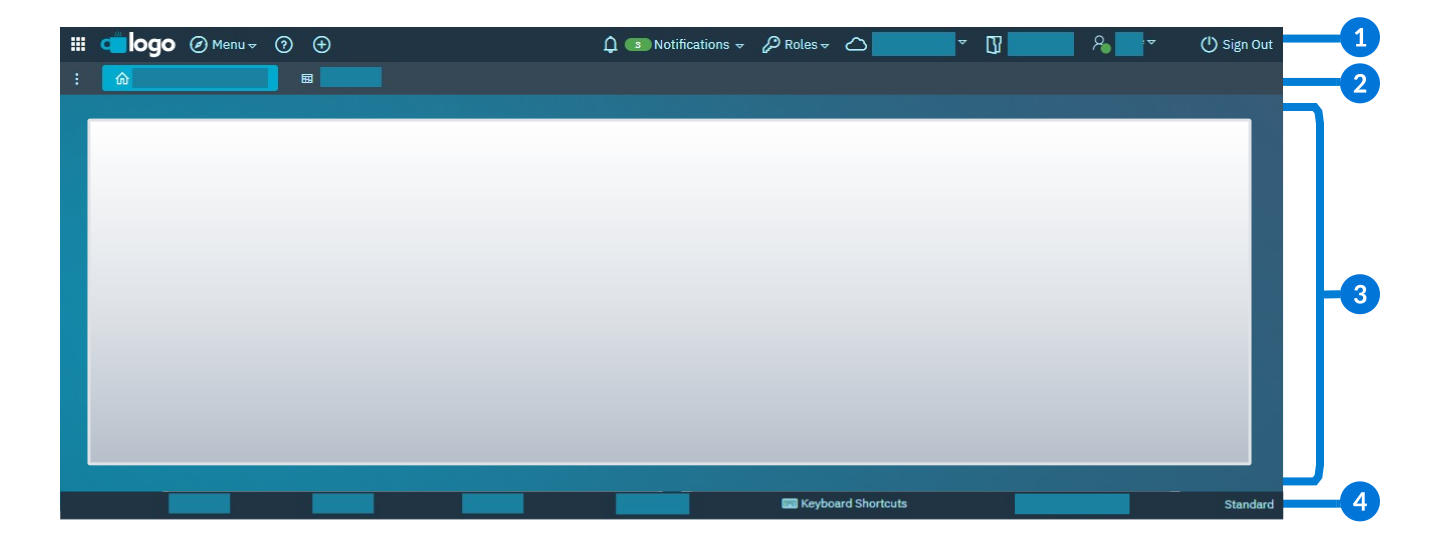
 | Main menu bar—Access the various menus, such as Navigation, Notification, Roles, and User. Learn more in Main menu bar. |
|---|---|
 | Favorites bar—Access your favorited applications, reports, and dashboards from selectable buttons. The first favorite on the Favorites bar dictates what page is opened when you sign into Nextworld or close an application. Learn more in Favorites bar. |
 | Displays whatever application, dashboard, or report you have open. By default, many users have a dashboard open when they sign into the platform. Dashboards allow you to quickly access collections of useful features, such as applications, calendars, and notifications. Learn more in Dashboards. |
 | Footer bar—Access the Keyboard Shortcuts menu and view information such as your current locale and software release version. Learn more in Footer bar. |
Nextworld has keyboard navigation available to perform all actions on the platform. Learn more in Keyboard navigation.
Main menu bar
The main menu bar is located at the top of your screen. It contains general navigation and account information.

| Sidebar menu—Access pending work, saved work, and Support. |
|---|---|
| Navigation Menu—Search for and open applications. |
| How to navigate Nextworld Help—Access Nextworld Help content. |
| Open New Tab—Select the New Tab  icon to open a new Nextworld tab in your browser. If you have favorites saved, the tab opens to the first application or dashboard on your favorites bar. icon to open a new Nextworld tab in your browser. If you have favorites saved, the tab opens to the first application or dashboard on your favorites bar. |
 | Notifications menu—View recent notifications. |
 | Roles menu—Access your user roles. |
 | Environment and Lifecycle menus—View your current environment and lifecycle. |
 | User Profile menu—View and update account information, customize the system's appearance, and more. |
| Sign Out —Sign out of your current window. |
Sidebar menu
Use the Sidebar menu to access pending and saved for later work, view an application's information, and to report issues to the internal help desk.
Select the Sidebar  icon from the main menu to open the Sidebar menu. The menu can be opened from most platform locations, and stays open until you close it.
Pending and Saved Work
To access pending or saved work, open the Sidebar menu in any application which has pending or saved work records.
Save Failures
Some applications have async save, also known as large data background save, enabled. This helps ensure large records don't time out and you won't experience long wait times while a save finishes. Once an async save fails or succeeds, you receive a message in the Notifications menu. If the save fails, the notifications contains a link that navigates you to the location of the pending changes. You can then correct the error and try to save again. Alternately, you can open the Save Failures section of the Sidebar menu to access any failed async saves.
Support
Select the Internal Help Desk button to open a ticket with support. You should open the ticket from within the application where the problem took place. The record is automatically populated with information from the application to help support diagnose your issue. These tickets are initially sent to your system administrator for review, then escalated to platform support if necessary. Learn more in the Submit issues to support topic.
Application Information
Additional system information can be accessed in the Sidebar menu, such as an application's:
- Internal Name
- Description
- Date of generation
- Product Family
- Table
Integrations
Application builders and integrators can access the Integration section to view Nextworld REST API and authentication endpoints that are included in the Endpoint Documentation. You must navigate to a dashboard page before opening the menu to see the Integrations section.
Application information
You can view an application's information, such as the internal application name or application setting name, in the Sidebar menu or from the Navigation Menu. The Sidebar menu also provides additional information such as the application's table name, product family, and whether the application is using a layout.
To view application information in the Sidebar menu, open the menu and expand the Application Information section.
To view application information from the Navigation Menu, open the Settings  menu and select the Show Menu Item Details toggle.
Navigation Menu
Use the Navigation Menu to find and open applications and reports.
The Navigation Menu is always visible, no matter where you are in Nextworld. Applications and reports that are configured to appear in the menu are organized into pages, sections, and categories. You can either use the pages and sections to locate your application or report, or you can type the name in the menu filter.
Select the Refresh button to update the menu with the latest information from the Nextworld servers.
Open the Settings menu to access the Use Wildcard Search and Show Menu Item Details toggles. The Use Wildcard Search toggle changes the starts with functionality of the Navigation Menu search field so that values entered are treated as if an asterisk was used. The Show Menu Item Details toggle shows technical details about the applications, and quick access to configuration records, within the Navigation Menu. Learn more in Wildcard characters and Application and field information.
In the Navigation Menu menu, you can add applications and reports to the favorites bar. Learn more in Favorites bar.
Guided Tour menu
Use the Guided Tours menu to view and open available tours. Guided tours help orient users to key features within an application or platform feature.
Open the Guided Tours  menu on the main menu bar. Only the tours applicable to your current location in the platform are visible. For example, a tour for an application would only be visible while the application is launched, while the
 Main Menu Bar tour is always visible.
Once a tour is selected, the first step opens in dialog box next to the highlighted component. Navigate between steps by selecting arrows at the bottom of the dialog box.
Ed
Ed is an agent powered by Nextworld Intelligence, and can help you with various tasks throughout the platform. Ed can answer questions using Nextworld Help documentation, navigate to applications, filter records, and more.
To start a conversation with Ed from anywhere in the platform, select the Ed  button in the main menu bar. He has a growing set of capabilitiess, and can help you:
- Answer questions about the platform—Ed can search for and summarize existing documentation in Nextworld Help to answer your question, and provide links to the topics used for further reading. For example, you can ask, "How do I void a journal entry?" or say "Tell me about data sources in interactive reports."
- Navigate to applications—Ed can guide you to relevant applications based on your prompt. You are never navigated to an application automatically, but Ed provides links to the applications.
- Filter for records—Ed can use your prompt to create an advanced filter that shows you records in an application that meet your criteria. For example, you can say, "Show me records that were created yesterday and have a status of
Error." - Provide audit history—Ed can tell you the changes made to records, and who made those changes. For example, you could ask him, "Who last modified this journal entry?" or "What changes were made to the Memo field?"
- Collect outstanding approvals—Ed can provide a summary of your outstanding approvals. He also includes links to applications where you can review the records which require your attention.
In the chat interface, you can access previous conversations you've had with Ed. You can rename important conversations, delete conversations, and add new ones. Use the microphone  button to transcribe your voice and make your interactions with him even faster.
You can help Ed improve over time using the thumbs up  and thumbs down
  buttons.
To get the best responses from Ed, be specific. When possible, include the applications, fields, and values you see on the platform in your prompt. For example, if you need Ed to create a filter in the Supplier Invoices application, saying, "Filter for records with a workflow status of Posted to GL," is better than saying, "Show me posted invoices." Learn more in Tips for interacting with Ed.
Ed and other agents
Ed can call upon a growing number of agents with specialized tools to assist you across the platform. Select the Help me get started... button when you first open the chat interface to learn more about these agents.
Some agents, known as ambient agents, can run in the background on your behalf. When these agents complete their tasks, you are notified in the Notifications Menu. If they need additional information from you to complete their task, you can follow the link on the notification to open a chat with them. Ambient agents are limited to a single objective. If you need to make additional requests, you can start a new conversation with Ed.
To access previous conversations with ambient agents, you can open the chat history dropdown and select the filter.
Tips for interacting with Ed
Ed has a growing set of tools and capabilities to help you with tasks throughout the platform, but he does have some limitations. Use this topic to learn how to interact with Ed more effectively.
In general, Ed responds better to specific questions and commands. If you ask Ed to execute a command such as filtering records in the list form or navigating to an application, it's best to use phrases like, "Filter for invoices with a status of Unpaid," or "Navigate to the Customer Invoices application." Moreover, you should avoid asking Ed questions that relate to previous interactions, even if they're in the same conversation. Ed remembers the last few exchanges, but you should provide him with the full context with each new message.
Some of Ed's capabilities require him to understand which record you're referring to. For example, if you ask, "Who last modified this customer record?" Ed won't know which record you're asking about unless it's selected or open in the detail form.
Filter records
Ed is more effective at filtering your records if you use the field names and values you see in your applications. In addition, try to phrase your filter requests to describe the records you want to see, rather than describing the records Ed shouldn't show you. For example:
| Less-effective request | More-effective request |
|---|---|
| Find me part time employees. | Ed, filter for employees with an Employee Type of Part-Time. |
| Search for foreign transactions. | Filter for transactions that have the Foreign Transaction checkbox selected. |
| Show me invoices that aren't paid. | Ed, filter for supplier invoices with a Payment Status of either Unpaid or Partially-Paid. |
Ask about the history of records
You can ask Ed to audit a record and tell you about the changes made to it. You can ask him who modified the record and when, about changes to a specific attribute of the record, or about changes to the record in general.
Ed's able to provide up to five changes at a time. If you ask Ed, "What changes were made to this record," he provides the most recent five changes. If instead you ask, "What are the recent changes to the Memo field on this record," he provides up to five recent changes to the Memo field, regardless of other changes that were to the record.
Build with Ed
Use Ed to create or modify metadata objects such as data items, tables, list and table lookups, workflow, applications, and interactive reports.
Ed can create an application and its associated metadata. The way you structure your prompt will dictate what types of objects he creates. For example, you could tell Ed, "Create an application to manage my tasks." This type of general prompt would have Ed create the application, table, and data items which he thinks are useful for a task management application.
Or, you could tell Ed to create an application with existing metadata by referencing the internal name of those records. If you don't use the internal name, it increases the chances of errors. For example, you could tell Ed, "Fetch ReceivablesHeader where the TransactionType = Customer Invoice," rather than, "Fetch customer invoices."
You can also ask Ed to update existing applications by adding, deleting, or modifying data items, list lookups, or table lookups. For example, you could ask Ed to add a value or change a description of an existing list lookup.
The table below reviews the different metadata that Ed can create, and examples of the type of prompts you can use:
| Metadata Object | Prompt Example: Create | Prompt Example: Modify Existing | Considerations |
|---|---|---|---|
| Data Items | "Create data items for TaskName, CreatedDate, DueDate, Priority, and Status." | "Make ProjectAndTaskTable the related table for the TaskType data item." | Ed can create data items individually, but you can also choose to create them at the same time as your table or application. Ed cannot create data items with multiple components such as Name, Workflow, or Address fields. |
| Tables | "Create a table with fields for TaskName, CreatedDate, DueDate, Priority, and Status." Or, "Create a table with fields to manage my tasks." | "Add TaskName and CreatedDate to the TaskManagerTable."Or, "Remove the TaskApproval and SupervisorName fields from the TaskManagerTable." | Ed creates a Main table by default, but you can change the table type and any additional configuration options once you navigate to the pending record. |
| Workflow | "Build me a workflow over the TaskManagerTable." | Ed cannot update or change an existing workflow. | Ed can only add workflow to a table which has already been created. |
| Table Lookups | "Create a table lookup for TaskType that uses the ProjectAndTasksTable as its related table. Add it to the TaskManager table." | Ed can create a new table lookup, or add a related table to an existing table lookup data item. | |
| List Lookups | "Create a list lookup for different priority levels in the Priority field in the TaskManagerTable." | "Add a value of Descoped to the Priority list lookup. Provide a description of 'Reduced Requirements' to the value." | In addition to creating new list lookups, Ed can tell you the values and description of a list lookup, or add or delete values. |
| Applications | "Build me an application over the TaskManagerTable." Or, "Create an application to manage my tasks." | Ed cannot apply configuration options such as application links or actions to an application, but he can add or remove fields. | Ed can build the application over an existing table, or create a table, data items, and application at the same time. You can specify what fields you want included, or leave your prompt open and allow Ed to create the fields and list lookups he believes are required. Ed creates a Standard, single table application by default, but you can change the table type and any additional configuration options once you open the pending record. Optionally, include multiple components in your prompt or specifically state you want a Header Detail application instead. |
| Interactive Reports | "Build me an interactive report over the TaskManagerTable." | Ed cannot update or change an existing report. | When you ask Ed to create an interactive report, make sure to mention the specific Data Catalog record or table name you want the report built over. |
To start creating an application with Ed, select the Ed button in the main menu bar, or the Tell Ed what to build... Quick Start button in Application Home. Learn more in [link: 'ChatbotTipsApplicationBuilder'].
Custom Time Zone
Custom time zones enable you to override the default time zone configured within your environment. Time zone controls the values displayed in date and time fields within the platform, as well as the date and time displayed in the footer bar.
For example, a customer support special may live in London, work for a company in New York, and have customers in Los Angeles. New York's time zone would likely be defaulted into their environment, but they may have instances where they'd like to display the platform within their customer's time zone of Los Angeles.
To enable a custom time zone, navigate to your User Profile menu and open the Locale page. Turn on the Custom toggle underneath Time Zone, then select the time zone you want enabled. Once a custom time zone is selected, it persists within your user profile until you clear the Custom Time Zone field.
Multifactor Authentication
Users who are required to use multifactor authentication must use an outside authentication application to obtain MFA codes.
Multifactor authentication requirements are selected by your system administrator when they create your user profile. You are required to use multifactor authentication if your account requires MFA codes and:
- You sign in from an IP address that is not trusted.
- You sign in from an untrusted device. To make a device trusted, select the Trust This Device checkbox when you are prompted to enter an authentication code. Devices are only considered trusted for 30 days before you must reauthenticate.
- A system administrator has reset your Two Factor settings.
Authenticator Application
The first time you sign into the Nextworld Platform, you must:
- Enter your username and password.
- Enter in a phone number. This number does not need to be a real number.
- Download an authenticator application from your app store. This can be any standard authentication application such as Microsoft Authenticator, Google Authenticator, or the Apple Passwords application.
- In the sign in screen on your authenticator application, scan the code from the browser.
- Enter the code from your application in the Enter Authentication Code field.
Reset Multifactor
If you ever need to reset your multifactor authentication, such as a change of phone number, navigate to the User menu and open the Settings page. Select the Reset Multifactor Authentication button, then the Yes, reset code button. Sign out of the platform and complete the setup steps again.
Favorites bar
The favorites bar is visible at the top of your screen, just below the main menu bar. It contains your favorited applications, dashboards, and reports.
To add or remove favorites, press and hold the Shift key on PC or the Option key on Mac and then select the application, report, dashboard page, or dashboard site on the Navigation Menu or dashboard list.
You can also remove favorites by holding the Shift key on PC or the Option key on Mac and then selecting the button on the favorites bar. When holding shift and hovering over an application or dashboard page that isn’t in the favorites bar, a Set Favorite  icon displays. If it has already been favorited, a Remove Favorite
  icon displays. Depending on how a dashboard page is configured, you may not be able to remove it from the favorites bar.
You can reorder your favorites by using drag and drop to move them to a new location in the favorites bar.
Set your home page with the favorites bar
The first item on your favorites bar determines what you see when you sign into Nextworld, when you close applications, and when you navigate home. To change what appears when you sign in, add the desired dashboard, report or application to the favorites bar and drag and drop it in the position as the first entry on the favorites bar.
If you don't have any favorite applications or dashboard pages in your favorites bar, the Start Page opens.
Start Page
The Start Page is a default dashboard which displays whenever you don't have any selections in your favorites bar. The Start Page may be customized for your environment, but by default has cards for application links, local weather, and a notifications summary menu. You can also open the Start Page from the Dashboard Menu  on the favorites bar.
Application and field information
Application developers can view additional details about fields and applications within the UI of the platform.
Field details
To view field details, select the Help  icon next to the field name in an application. This opens the field level help where you can view the internal data item name, data item type, and customization pattern. If a list lookup is used in the field, the name of the list lookup is also available.
Application details
Select the Show Menu Item Details toggle in the Navigation Menu to display the following information about each menu item:
- Menu Title
- Application Name
- Application Type
- Application Style
- Lifecycle
When the Show Menu Item Details toggle is on, you can select the following icons on each menu item:
 | Edit the menu entry |
 | Edit the application |
 | Edit the table |
| Edit the application setting |
 | Generate the application |