


.svg)

There are two types of lookups:
- List lookups provide a set list of predetermined values. List lookups display as drop down lists in an application.
- Table lookups provide a way to search for a value from another record or table, and can even retrieve values from multiple fields in the selected record. Table lookups display as search fields in an application.
Use lookups to validate entries in fields in a variety of ways:
- Provide only a set list of predetermined values.
- Offer a subset of options based on the selection in a different lookup field.
- Limit available choices to entries from another table.
- Automatically update the value displayed for a field when the data in the related table changes.
How a lookup functions depends on its type and whether it is configured with any extended functionalities.
How to choose a lookup type
Use these suggestions to help you decide what type of lookup to use.
| If you want to... | Use a... |
|---|---|
| Provide a drop-down list of predetermined values | List lookup |
Determine the options available in a drop-down list from the user's selection in another field | Dependent list lookup |
| Determine the subset of dependent list lookup options available in a drop-down list from a field dependency setting within Application Builder. | Filtered Dependent list lookup |
| Determine the options available in a list lookup based on the list lookup name a user enters in another field. | Dynamic list lookup |
Determine valid selections from entries in another table, and list matching options when the user begins entering a value | Table lookup |
Determine valid selections from entries in another table, and filter those options based on the user's selection in another field | Filtered table lookup |
Make sure that the displayed value for a field always represents current data from the related table | Table lookup on a Table Lookup data item |
| Allow the user to search a related table for a value, but copy the value as static text that does not change over time even if the value in the source table changes | Table lookup on a Text data item |
List lookups
List lookups enable you to provide a fixed list of selectable values in a given field of an application. Values can be formatted into either a dropdown menu or inline values.
List lookups are useful when you have a stable list of values that are not likely to change significantly over time, and which do not require related details from other fields in the application. For example, you can use a list lookup to define a list of countries or payment methods. Lists of these values would be stable and not require frequent updates.
Entries in a list lookup are defined by value and description pairs. For example, in a list of countries, the value is a code (USA) and the description is the full country name (United States of America). Once the list is created, you can change a description or add a new value-description pair.
You should never delete values from a list lookup once it has been used. Deleting a value can cause data integrity issues in any records that reference that value. Instead, select the Disabled checkbox for values that should no longer be used. This prevents values from being selected in new records, but does not alter existing records or break any legacy processes that depend on the disabled value. Disabled list lookup values are still available for inquiries, but cannot be used for new records.
The diagram below shows different style options for list lookups in an application.
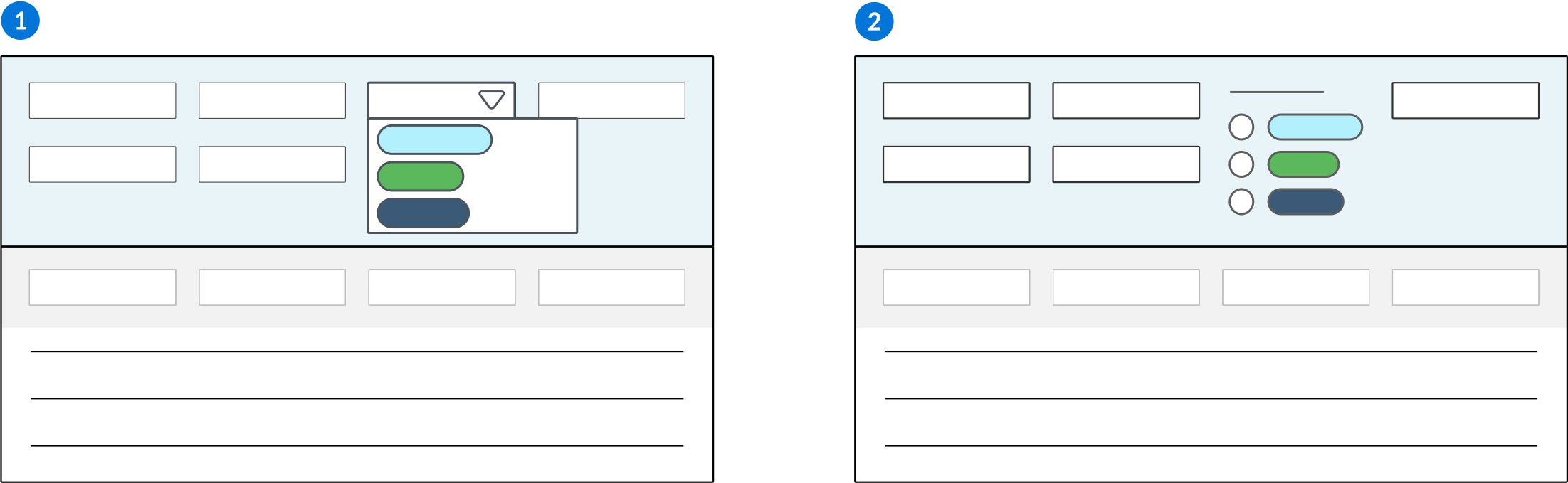
 | The field has a dropdown menu which a user can select from. By default, this is how list lookups are formatted in an application's field. |
|---|---|
 | The field shows inline values which a user can select from. |
Learn more in Basic list lookup configuration.
Basic list lookup configuration
Configure list lookups using the List Lookup Definitions and Data Item Definitions applications to create lists of selected values which you want available in the field of an application.
List Lookup Definitions
In the List Lookup Definitions application, you must:
- Create a list lookup, then configure it with values and descriptions. The values are used to reference the list lookup options, while the descriptions are what you actually see within the list lookup dropdown.
Data Item Definitions
In the Data Item Definitions application, open or create the data item where you want to populate the list lookup. Then:
- On the Settings page, specify the list lookup you created in the Lookup Name field.
- In the Lookup Type field, specify whether a user can select one or multiple list lookup values in the field.
- Some data item types allow you to optionally select a style for your list lookup in the Style Options field. By default, list lookups appear as a dropdown menu.
Control available list lookup values
Use different list lookup types to control the list lookup values available in your fields. These types include dynamic, selectable, dependent, reverse dependent, and filtered dependent list lookups.
The different types of list lookups are reviewed in the table below.
| Use type... | If you want to... | Example | Configure in the... |
|---|---|---|---|
| Dependent list lookup | Limit the choices in the dependent list lookup field based on a user's selection in the controlling list lookup field. | For example, if the dependent list lookup field is Car Models, and the controlling list lookup field is Car Make. Whichever lookup value the user selects in the Car Make field dictates what values are seen in the dependent lookup field of Car Models. | Table Definitions application. Learn more in Dependent lookup configuration. |
| Reverse dependent list lookup | Set the value in the controlling list lookup field based on a user's selection in the dependent list lookup field. The controlling field in a reverse dependent lookup is commonly hidden from the application user, while its value is used in logic blocks. | For example, if a user selects a model in the dependent list lookup field of Car Models, the system can automatically select the correct Car Make in the controlling list lookup field. | Table Definitions application. Learn more in Dependent lookup configuration. |
| Filtered dependent list lookup | Filter the values available in the dependent list lookup field based on values in the controlling list lookup. The values are not filtered based on user interaction, but instead based on the values selected during configuration. A common use case for this configuration is when you want to have multiple fields in an application with values from the same list lookup, but filtered using different controlling values. The controlling field does not need to be part of the table used in the application. This means the data item associated with the controlling list lookup does not need to be included in the table over which the application is built. | For example, an application could have two fields for car manufacturers. One field can be configured to only show values of domestic manufacturers, and the second field can be filtered to show only international manufacturers. All of the manufacturers are part of the same dependent list lookup, but the controlling list lookup determines international versus domestic. | Application Builder application. Learn more in Filtered dependent lookup configuration. |
| Filtered list lookup | Select which values are visible in the list lookup field for this application during configuration. The list lookup values which are not selected are not visible, but can still be defaulted in the field with logic blocks or the data mapper. | For example, a list lookup could contain values for all available car manufacturers. One application uses the list lookup and only orders domestic cars, so during application configuration only the domestic car manufacturers are selected to be shown. Another application uses the same list lookup but only sells international manufacturers, so at the time of application configuration only those values are selected to be shown. | Application Builder application. In the Filtered List Lookups subtable, select which values you want included in the application's field. |
| Dynamic list lookup | Show the values associated with a list lookup that is entered in another field. The controlling field is determined when the user is running the application. | For example, the List Lookup Definitions application uses a dynamic lookup to determine the dependent lookup values that are available for each row in the Lookup Keys subtable. In this subtable, the Dependent Value field dynamically looks up on the Dependent Lookup field in the header. When a user defines a list lookup in the List Lookup Definitions application, if a list lookup name is entered in the Dependent Lookup field, then all the values of the chosen list lookup display in the Dependent Value field. | List Lookup Definitions and Data Item Definitions application. Learn more in Dynamic list lookup configuration. |
Dependent lookup configuration
Configure a dependent list lookup or reverse dependent list lookup with the List Lookup Definitions, Data Item Definitions, and Table Definitions applications. Dependent list lookups use values in one list lookup to choose the values for a different list lookup.
List lookup Definitions
In the List Lookup Definitions application:
- Create a list lookup that acts as the controlling lookup.
- Create a list lookup that is dependent on the controlling lookup. When configuring the dependent lookup:
- Enter the name of the controlling lookup in the Dependent Lookup field. The values of the controlling lookup become accessible under the field Dependent Value.
- Configure values and descriptions.
- Associate the values and descriptions of the dependent lookup with the values from Dependent Value.
Data Item Definitions
In the Data Item Definitions application:
- Specify the controlling list lookup you created in the Lookup Name field of a data item.
- Specify the dependent lookup you created in the Lookup Name field of a different data item.
Table Definintons
In the Table Definitions application:
- Include the data items associated with the dependent and controlling list lookups in the table.
- On the Filtered Lookups page, under the Dependent List Lookups section:
- In the Controlling Field field, specify the name of the controlling list lookup.
- In the Dependent Field field, specify the data item that is connected to the dependent list lookup.
- To configure a reverse dependent lookup, select the Reverse checkbox. When a user updates a record in the application, this automatically sets the value in the controlling field based on what the user selects in the dependent field.
Filtered dependent lookup configuration
Configure a filtered dependent list lookup with the List Lookup Definitions, Data Item Definitions, Table Definitions, and Application Builder applications. Filtered dependent list lookups filter the values available in the dependent list lookup field based on values in the controlling list lookup
List lookup Definitions
In the List Lookup Definitions application:
- Create a list lookup that acts as the controlling lookup.
- Create a list lookup that is dependent on the controlling lookup. When configuring the dependent lookup:
- Enter the name of the controlling lookup in the Dependent Lookup field. The values of the controlling lookup become accessible under the field Dependent Value.
- Configure values and descriptions.
- Associate the values and descriptions of the dependent lookup with the values from Dependent Value.
Data Item Definitions
In the Data Item Definitions application specify the dependent lookup you created in the Lookup Name fields of any data items you want included.
When configuring data items for a filtered dependent lookup setup, you are likely to have more than one data item associated with the dependent list lookup.
Table Definintons
In the Table Definitions application, include the data items associated with the dependent list lookup in the table.
Application Builder
Configuration at the application level is required only for filtered dependent lookups.
In Application Builder, configure the filtered dependent lookup in the Configuration panel, in the Field Dependencies section, under the Filtered Dependent List Lookups section. You must:
- In the Lookup Field field, specify the data item in the application that is connected to the dependent list lookup.
- In the Controlling Lookup Name field, specify the name of the controlling list lookup.
- In the Lookup Values field, specify the values from the controlling lookup that should filter the dependent lookup.
Dynamic list lookup configuration
Configure a dynamic list lookup using the List Lookup Definitions application and Data Item Definitions application to configure a field to show the values associated with a list lookup that is entered in another field.
List lookup Definitions
In the List Lookup Definitions application, you must have defined the list lookups, along with their values and descriptions, that the dynamic lookup field should point to.
Data Item Definitions
In the Data Item Definitions application, you must:
- Create a data item that will act as the controlling field.
- Valid values for this field must be limited to names of list lookups already defined in the List Lookup Definitions application.
- For example, the data item can be a table lookup that points to the List Lookup Definitions application.
- Create a data item that will act as the dependent field.
- In the Dynamic List Lookup Field field, specify the name of the controlling data item.
When an application user selects a list lookup in the controlling field, the options in the dependent field are filtered according to the selection in the controlling field.
List lookup best practices
These best practices ensure that list lookups are configured consistently throughout Nextworld.
List lookup configurations are done in the List Lookup Definitions application.
The Display field must always be configured to only show Description. Do not use any of the other options. The lookup key descriptions are intended for an external audience, while the values are used for internal purposes.
Lookup keys
The values entered in the Lookup Description field must be under 20 characters in length and must only include numbers and letters. The value should not include any special characters.
When configuring Lookup Keys, the names entered in the Lookup Value and Lookup Description fields should follow these standards:
| Standard | Example | |
|---|---|---|
| Lookup Value | Upper camel case or UPPERCASE | USER |
| Lookup Description | Title Case | Current Username |
Customization
Configure any list lookup that is used for a workflow to have the Allow Additions customization pattern so that application developers can add additional steps/statuses to their workflow.
Ensure that any data item that uses a list lookup with the Complete Unlock customization pattern doesn't have a default value configured. List lookups that have a customization pattern of Complete Unlock do not have list values delivered to end users. If a user opened the application using that data item with a default that doesn't exist, an error will display.
Naming conventions and standards
List lookup names should have spaces and do not follow the upper camel case naming convention that most Nextworld objects adhere to. List lookup names should be descriptive enough for someone to know what the list lookup is for. For example, Bank Deposit Status and Contact Classification are all acceptable names for list lookups.
The Lookup Value field entries should only include numbers if the entry is considered a code. Numbers should not be used unless it makes sense, for example, 1 through 12 to represent the calendar months. If the value is a code, use enough letters to have it make sense. Try not to use only one letter.
If the Lookup Value field entry is considered a code, then the entry should be written in all capital letters. For example, if the code value for Financials is fins, the entry in the Lookup Value field would be FINS. If the code value for Release Management is rlsmgt, the entry in the Lookup Value field would be RLSMGT.
The Lookup Description field should contain a longer version of the value entry, but should not be a full sentence.
Best practices for list lookups released to production
These best practices ensure that, once list lookups have been released to production, you are not making changes that will be disruptive to customers. Changing list lookup configurations may negatively affect the purpose of list lookups.
Once list lookups have been developed and delivered, they are considered active in a production environment. Additional considerations apply.
Do not make the following changes:
- Do not delete a list lookup.
- Do not change Customization Pattern to be more restrictive. For example, do not change Complete Unlock to Changes Only or Allow Additions to Changes Only.
- Do not change the values of Changes Only and Allow Additions. There is usually logic tied to those values.
Reverse dependent lookups
You must manually update records using the RefreshContactRoleDependencies logic block when you make changes to reverse dependent lookups. The lookup dependencies of existing records do not automatically update, so you must run the logic block using a form action from the application.
Considerations:
- Partners may have extended your list lookup.
- Customers may have customized your list lookup.
Backwards compatibility strategy:
- Mark the list lookup as deprecated if no longer in use.
- Mark a value as disabled. Any existing values are still valid, but the value will not display to be selected on any new records.
List Lookup Definitions application
Application developers use the List Lookup Definitions application to create and modify list lookups.
Use this application when you want to create a list of pre-determined values that the user can choose from when entering field data. The pre-determined values are connected to a data item so that when the data item is available as a field in an application, the values are displayed as the only options the user can select to fill the field.
When you create a list lookup, you must give it a name, a description, and assign it to a product family. You have the option to configure how you want the list of values to display and how the list should be sorted.
Dependent lookups
If your list lookup relies on a separate list lookup that your current lookup depends on, you can specify it in the Dependent Lookup field.
Customization
If a list lookup can have changes made to the values, you can specify the type of customizations that can be performed in the Customization Pattern field.
See List lookup customization for information on customization patterns.
Lookup keys
You can configure the lookup keys, or the values that appear in the field list. This section is where you can configure the options that are visible in an application that uses the list lookup. Once a list lookup is in production, the entries in the Lookup Description can be changed, but the entries in the Lookup Value field should never be changed.
Use the Default Value check box to assign one of your lookup keys as a default value for the field. Use the Disabled check box to disable a key if it is no longer a necessary value.
Release management
Use the Released With field to specify in which release the lookup key should be added to the list of field values.
For more information, see List lookups.
Table lookups
Application developers use table lookups to point to a record within a table that is different than the table the application holding the table lookup is built over.
Table lookups are data items configured to point to and retrieve information from a specified table, referred to as the related table. The data item and/or related table must have a primary search field defined which is used to identify records when searching the table. If the data item has a primary search field selected, the table's primary search field is overruled.
You can further refine which records from the related table are available in the table lookup field through use of secondary and tertiary search fields. For example, the primary search field for a table of companies could be the Company Name. If each company has multiple org units within it, you could have a secondary search field for Org Unit. When a user interacts with the table lookup field they would be able to search for the correct company and org unit combination by entering either value in the field.
Table lookups can be configured on different data item types, as seen in the table below.
| Use type... | If you want your table lookup to... | Example |
|---|---|---|
Table Lookup | Store the internal ID (nwId) of the referenced value. If the value changes, the display value in the linked lookup field is automatically updated. Configure the related table and lookup information on a data item of type Table Lookup. Learn more in nwId. | The Supplier Invoices application contains a table lookup to retrieve the latest supplier record values from the Supplier Directory application's table. This ensures that all supplier invoices are associated with a current supplier. The ID Number and Address fields from the supplier directory are configured as related fields. This allows the Supplier Invoices application to display the ID and address of the supplier associated with an invoice. This table lookup references the nwId so when you open a supplier invoice record you'll always see the current information for the supplier. If the supplier's address has changed since the invoice record was created, you'll see the new address. |
Text | Copy the current value into the field of the application. If the lookup source changes, the contents of the field are not updated. Use this type when primary fields don't change often and there is data that is date sensitive. You must setup a custom referential integrity record for | The Directory application contains the To avoid updating Directory records every time the |
Related fields
The related table can also specify related fields to display information related to the primary search field. For example, if you create a table lookup on a Supplier Name data item, you could have related fields for the Address and Status. This would retrieve the address and status for whichever supplier name you select in the table lookup field.
Once a table lookup has been added to an application's table, the associated related fields also can be displayed in the application. Related fields shown in an application are read-only. Once a value is selected for the table lookup field, the related fields populate with current information from the related table. If you do not want to use one or more of the related fields, you can change the display setting in the application to hide them.
Filtered table lookups
Use filtered table lookups to filter the number of results viewed in a table lookup field.
A filtered table lookup is configured in the Table Definitions application, and consists of the table lookup and the values used to filter it.
The configuration applies to both the table lookup typeahead dropdown menu and to the search action mini apps.
Learn more in the Data mapper and the Filtered table lookup configuration topics.
Development considerations
Filtered table lookups are only validated on records which are being created, not on record updates. If you want the filtered table lookup validated on record save, add that validation to the Action Block attached to the table which the record is in.
Filtered table lookup configuration
Configure a filtered table lookup in the Table Definitions application, on the Filtered Lookups page, to filter the results viewed in a table lookup field.
In the Filtered Table Lookups subtable, use the data mapper to specify the source as either where the filter value should be retrieved from, or as the value of the filter, and the destination as the field in the table lookup which the filter is applied to.
If you have multiple filtered table lookup mappings on the same destination field, the second table lookup overwrites the first one. For example, if you have two mappings with source values of 5 and 10 entered in this order with the same destination field, the destination field would be 10. If you want multiple filters for the same field, you need to use an advanced mapping and use the OR operator.
If you have multiple filtered table lookup mappings for different destination fields, the table lookup is filtered by all of them. In other words, the table lookup would have to match all of the filter criteria in order to populate. Learn more in the Data mapper topic.
Filtered table lookups configured through the data mapper can override search action mappings. Learn more in the [link: 'NextbotActionsSearch'] topic.
The available source types for filtered table lookups are described in further detail below.
Filter with a constant
Filters the table lookup by a value that you specify. To create a filter with a constant:
- Add a new mapping and select the source type Constant. Once you've selected a source type, the source value input field appears.
- The options for the source value input field depend on the type of the destination field. For example, if the destination field is type text, the source value is a text input field where you can enter the desired value. If the destination field is a list lookup, the source value input is a list lookup dropdown menu.
Here is is an example of a mapping using a constant on the table lookup field Company:
From | To | ||
| Source Type | Constant | Destination Field | OrganizationalUnitType |
| Source Value | Company | ||
This results in the table lookup field Company only showing results where its related field OrganizationalUnitType was equal to Company.
This diagram shows the process in which a table lookup points to its associated table and filters the table records using the specified constant value.
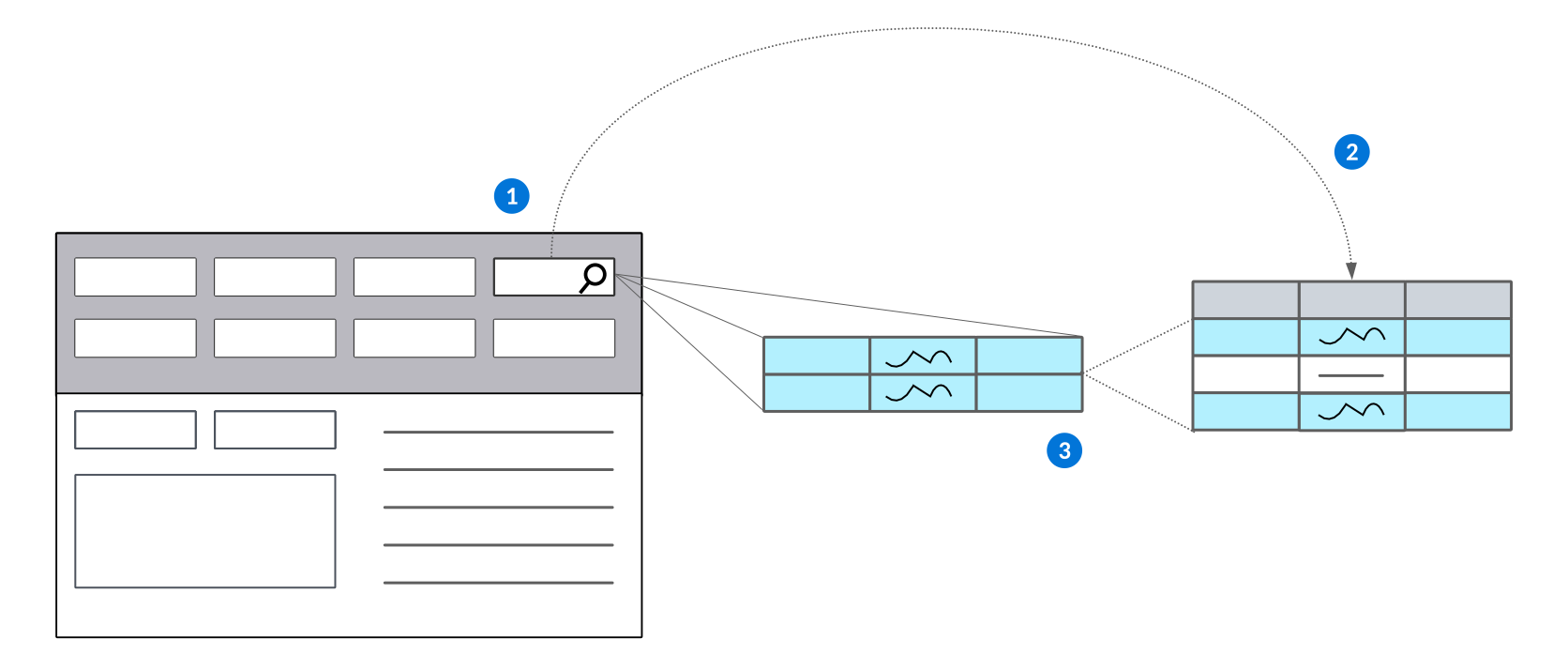
| The table lookup points to another table. |
|---|---|
| Records in the table are filtered based on the value constant value and data item field being filtered in the associated table that you specified in the Filtered Table Lookups subtable. |
 | Records that contain the specified value display as value options to choose from in the table lookup's typeahead dropdown menu. |
Filter with field values
Filters the table lookup by a value from a field defined on the table. To create this type of filter:
- Select the source type Field. Once selected, the source field input displays as a dropdown with all fields from the current table available to select.
- If the field you select is of type table lookup, an additional dropdown appears under the source field input where you select the related field. This filter mapping is equal to only show table lookup fields where the destination field equals the value stored in field on the source table.
This is an example mapping which filters the table lookup field GLAccount by the value from another field on the source table:
| From | To | ||
| Source Type | Field | Destination Field | Company |
| Source Value | Company | Name | |
| Name | |||
This results in the table lookup field GLAccount only showing results with its related field Company_Name equal to the value of Company_Name on the current record.
This diagram shows the process in which a table lookup points to its associated table and filters the table records using the value of the specified field.
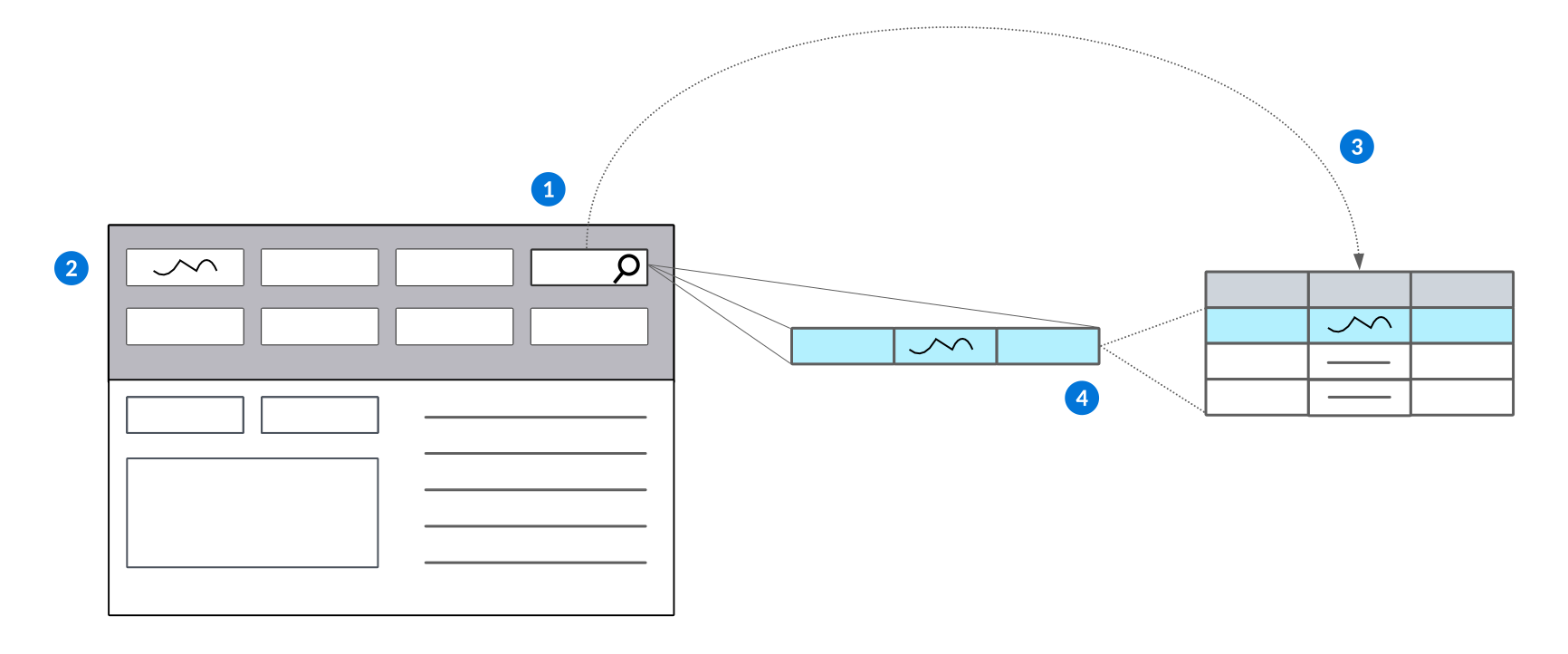
| The table lookup points to another table. |
|---|---|
| The value in this field becomes the filter for the table lookup. |
| Records in the table are filtered based on the value from the field in step 2 field to filter by and the table data item field being filtered in associated table that you specified in the Filtered Table Lookups subtable. |
 | Records that contain the same value in the field to filter by display as value options to choose from in the table lookup's typeahead dropdown menu. |
Filter with workflow
Filters a table lookup by a workflow state or state type. Workflow only shows as a source type option if the table of the table lookup field has workflow defined on it. To create a workflow filter:
- Select the source type Workflow. Once selected, a dropdown appears with the workflow states and state types from the
State LookupandState Type Lookupdefined on the workflow of the related table. - If you select multiple workflow state/state types, the table lookup can be any of the selected workflows.
- When creating a workflow filter, the destination field must be
znwWorkflowInstance.
This is an example mapping which filters the table lookup field OrganizationalUnit by the workflow state Active:
| From | To | ||
| Source Type | Workflow | Destination Field | znwWorkflowInstance |
| Source Value | Active | ||
This results with the table lookup field OrganizationalUnit only showing results for organizational units with workflow in the Active state.
Filter with a module setting
Filters the table lookup by a module setting value. To create a filter with a module setting:
- Add a new mapping and select the source type
Module Setting. - Use the dropdown menu to specify the table and the field value you want to filter by.
- Select the option
Tablefor the setting table location input and enter the table name for the desired module setting. - Specify either
GlobalorOrganizationallevel. IfOrganizationalis selected, specify the organizational unit you want to be used for the filter. The field type for the organizational unit is based on a field on the source table. The selected field should be where the organizational unitnwIdis stored. - Select the field on the module setting table you want to use as the filter value.
Here is an example mapping which filters the table lookup field Company by a global level module setting:
| From | To | ||
| Source Type | Module Setting | Destination Field | CompanyCurrency |
| Name of Table | |||
| Setting Table Location | Table | ||
| Module Settings Table | BaseSettings | ||
| Type of Setting | |||
| Setting Type | Global | ||
| Field in Setting | |||
| Type | Field from Table | ||
| Setting Field | CompanyCurrency | ||
This results with the table lookup field Company only showing results where its related field CompanyCurrency was equal to the global level module setting field CompanyCurrency from the module setting table BaseSettings.
Filter with a system value
Filters the table lookup by a system value. To filter by a system value:
- Add a new mapping and select the source type
System. The current system values available for filtered table lookups areTrue,False, andUser Directory ID. - True and false system fields act the same as a constant source type with true or false as the filter value. If
User Directory IDis selected, the id of the current user's directory record is used.
Here is an example system value mapping for the table lookup field Contact using the system value True:
| From | To | ||
| Source Type | System | Destination Field | Inactive |
| System Value | False | ||
This results in the table lookup field Contact only showing results with a value of False for its related field Inactive.
Example: filtered table lookup
The WorkCenters table is a helpful example of filtered table lookups because it contains both a constant value filter and a field filter.
Object overview
The WorkCenters
The following table lookup data items have filters configured for them:
WorkAreaWorkGroupInventoryOrgUnitCompletionLocation
Configuration elements
| Field | Filter type |
|---|---|
WorkArea | Field |
WorkGroup | Field |
InventoryOrgUnit | Constant |
CompletionLocation | Field |
Filter functions
WorkArea:
The table lookup field WorkArea looks to the InventoryOrgUnit field in the Work Centers application. For example, a value in InventoryOrgUnit could be Charlotte.
WorkArea then points to the table, WorkAreas. The table lookup filters for records in WorkAreas that contain the value Charlotte in the InventoryOrgUnit field. The records that match the filter criteria display in the table lookup drop down menu and in the search mini application of WorkArea.
The data mapping configuration for WorkArea is as follows:
| From | To |
|---|---|
Field | InventoryOrgUnit |
InventoryOrgUnit | nwId |
nwId |
WorkGroup:
The table lookup field WorkGroup first searches the InventoryOrgUnit field in the Work Centers application. For example, a value in InventoryOrgUnit could be Atlanta.
WorkGroup then searches the table, WorkGroups. The table lookup filters through records in WorkGroups that contain the value Atlanta in the InventoryOrgUnit field. The records that match the filter criteria display in the table lookup drop down menu and search mini application of WorkGroup in the Work Centers application.
The data mapping for WorkGroup is configured as follows:
| From | To |
|---|---|
Field | InventoryOrgUnit |
InventoryOrgUnit | nwId |
nwId |
InventoryOrgUnit:
The table lookup field InventoryOrgUnit points to the table Directory. The table lookup filters through the records in Directory for the records that contain the value Inventory in the OrganizationalUnitFunction field. The records that match the filter criteria display in the table lookup drop down menu and search mini application of InventoryOrgUnit in the Work Centers application.
This is what the data mapping configuration looks like:
| From | To |
|---|---|
Constant | OrganziationalUnitFunction |
Inventory Org Unit | |
CompletionLocation:
The table lookup field CompletionLocation first looks to the InventoryOrgUnit field in the Work Centers application. For example, a value in InventoryOrgUnit could be Charlotte.
CompletionLocation then points to the table InventoryLocations. The table lookup filters through the records in InventoryLocations for the records that contain the value Charlotte in the InventoryOrgUnit field. The records that match the data mapping display in the table lookup drop down menu and search mini application of CompletionLocation in the Work Centers application.
This is what the data mapping configuration looks like:
| From | To |
|---|---|
Field | InventoryOrgUnit |
InventoryOrgUnit | nwId |
nwId |
Filtered table lookup best practices
These best practices ensure that filtered table lookups are configured consistently throughout Nextworld.
Filtered table lookups are created and configured in the Table Definitions application.
Filter table looks will restrict the records that are allowed to be associated to the table via the table lookup foreign key reference. Therefore, when adding a filtered table lookup to the table, the filters need to be applicable to all interfaces to the table including but not limited to applications, logic blocks, and integrations.
Removing or modifying a filter table lookup will remove or modify the validation of allowed values into the table lookup field and may require additional logic to be added to applications, action blocks or table triggers to restrict values based on the specific business purpose of the application.
Lookup validation configuration
Configure a lookup validation using the Table Definitions application and Application builder application. An enabled table look validation disables the filtered field (dependent field) until the field which contains the filter value (controlling field) has value. This ensures that a filtered table lookup field is disabled whenever its controlling field has no value.
Table Definitions
In the Table Definitions application, you must:
- Define the filtered table lookup
- Configure the filtered table lookup with the table lookup name and the filter fields in the Data Mapper
Application Builder
In the application where you want the validation applied, in the Configuration panel, in the Field Dependencies section, you must:
- In the Controlling Field Type select
Lookup Validation - In the Controlling Field, define the full field name, including any related fields, of the field being used to filter the table lookup which determines if the field is disabled
- In the Dependent Field, define the full field name, including any related fields, of the table lookup field which is disabled in the application until the controlling field is populated
Table lookup configuration
Configure a table lookup to retrieve and show information that's stored in a different table using the Table Definitions application and Data Item Definitions application.
Configuration considerations
There are several considerations for table lookup configuration, including:
- You must define a primary search field on either the data item or related table. The primary search field is used to identify records when searching the table. If the data item has a primary search field selected, the related table's primary search field is overruled.
- You can further refine which records from the related table are available in the table lookup field through use of secondary and tertiary search fields. Even with secondary and tertiary search fields defined, you are not guaranteed to get unique results in your table lookup query. Review the indexes on your related table to improve the search performance. Learn more in Indexes.
- The fields you specify in the primary, secondary, and tertiary search fields control what values can be entered in the table lookup field. You can enter a value from any of the defined search fields to search for a matching query.
- The Table Category for your related table and your application table must be within the same database. For example, you cannot have a related table in a cloud database, and the application table in a tenant database.
- The synonym for a table lookup field comes from the data item, not from the primary search field.
Tables
Configure your source table, referred to as a related table, in the Tables application:
- On the Settings page, enter a primary search field in the Primary Search Field. Optionally, select a Secondary Search Field and/or Tertiary Search Field if you want to further refine the records by additional field values.
- On the Fields page, in the Fields subtable, select the Include as Related Field checkbox for any fields that you want included when a table lookup is built over this table. Related fields are automatically included in any table lookup that references a data item from this table.
- To make a field in this table serve as a table lookup, enter the field name in the Primary Search Field field. The field then acts as a table lookup field in the application and is input capable.
Data Item Definitions
In the Data Item Definitions application, you must:
- Create a data item. The data item type determines how the table lookup functions. You can configure a table lookup with data items of type:
Table Lookup—Stores the Nextworld internal ID (nwId) of the referenced value. If the value changes, the display value in the linked lookup field is automatically updated.Text—Copies the current value into the field of the application. If the lookup source changes, the contents of the field are not updated. Use this type when primary fields don't change often and there is data that is date sensitive.- Data items of type
Textconfigured as table lookups can optionally be configured with theTable Lookup Inlinestyle option. Including multiple table lookups of this style can impact performance of your application.
- Data items of type
- On the Settings page, enter the name of the source/related table in the Related Table field.
- In the Primary Search Field, enter the field from the related table which you want your table lookup data item to pull values from.
- If you leave the Primary Search Field blank in the data item, the Primary Search Field from the table is used. The Primary Search Field from the data item always overrules the one defined on the table definition.
Table Definitions
In the Table Definitions application, you must add your table lookup data item as a field in your application's table. When an application is built over this table, the fields where you selected the Include as Related Field checkbox are available as read-only fields whose values populate automatically from the first table once a value has been selected in the primary search field.
Dynamic table lookup configuration
Configure a dynamic table lookup using a data item of type Text. A dynamic table lookup allows you to select a different table for the lookup to be over at runtime, rather than the table the data item is built over.
Data Item Definitions
Configure a data item of type Text. See Table lookup configuration.
Then, enter the name of a data item that is a lookup over the table you want to use in the Dynamic Table Lookup Field. This table controls what values appear in the table lookup field when it is displayed in an application. The table must have a primary search field defined and marked as related field.
Multiple table lookups
The information here describes the configuration options and requirements that you should be aware of when building table lookup chains.
Table lookup chains
If you create a chain of table lookups, it should not be longer than two levels beyond the source. If more than two levels are used in the table lookup chain, then an error appears when you try to generate an application over the table that is third level from the source.
For example consider the following scenario. Table A is the source of a table lookup chain and is a directory table with a record saved for Jane. In the field Contact, she enters Jane. The following table lookups are accessing the Contact field in Jane's record.
| Table lookup | Displayed value |
|---|---|
| Table B looks up on table A. | Jane |
| Table C looks up on table B. | Jane |
| Table D looks up on table C. | Error |
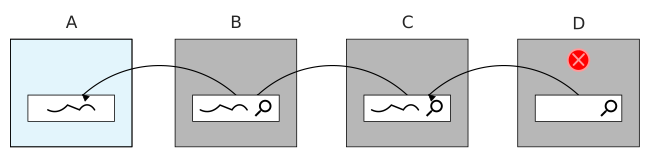
There are two ways of approaching the third level of table lookups. One solution is to use a logic block to fetch another table's fields and values, and the other way is to design your table lookup tables in a one-to-many structure to plan for future tables in the chain.
Fetch logic block
If you need to go beyond three table levels with your table lookups, then you must use a logic block to populate the necessary values. This requires configuring the keys, or the fields in a record that make it unique, from the second table so that they are in the third table. Doing this makes it possible for a logic block to populate the values from one table to the next. You can add a Fetch action to populate values from the second table to any logic block built over the third-level table.
For example, if you want table D to lookup on table C, then the following requirements must be met:
- The unique fields that make up a record in table C are also in table D. The fields are the same in both tables so that the logic block can fetch table C's record values for table D.
- A Fetch action is added to any logic block built over table D or a table D application. The Fetch action populates the values from table C into table D.
The chain can then continue without error if another two levels are created and must lookup on table D.

One-to-many structure design
Design your table lookups in a one-to-many structure rather than a chain structure if you know that the chain will not be supported and your tables do not need to access data from more than one table.
For example, if you are building a table lookup from table B to table A, you should consider the possibility of another table eventually being placed after table B that may require access to data in table B and table A. To prepare for the possibility of another table in the chain and to prevent the potential of running into the three-level error, make the next table lookup link directly to table A. In other words, if table C just requires data from table A, do not create a table lookup to table B, but directly to table A.
Table lookups and foreign keys
A foreign key is a column or group of columns in a relational database table that provides a link between data in two tables. A foreign key reference can be created using a table lookup to the foreign table or by using multiple fields in the base table that will uniquely identify a record in the foreign table.
A table lookup is essentially a pointer to a specific record in the table. Behind the scenes it stores the nwID or a unique text value used to identify the specific record. A table lookup should be created to associate a table to another table. This is done by including the table lookup in the list of fields of the base table. In addition to creating the foreign key reference, the table lookup field will enable the type ahead search, a default search application, and availability of additional fields from the table in applications. The use of the table lookup will also establish the link for referential integrity. Alternately, a table lookup can be established without using a table lookup and simply including the foreign key fields in the base table, but the other benefits of using a table lookup will not be realized.
Learn more about what a nwId is in the nwId topic.
Table lookup data item
Define one or more data items of type Table Lookup which will store the foreign key reference (nwId) and associate the data item to the table on the Formatting & Validations page by identifying the Related Table. More than one table lookup can be created that is associated to the same table. This is useful when there is more than one foreign key reference to a table. For example, table lookup fields Item and AlternateItem are both table lookups for the Items table that are referenced in the ItemAlternates Table.
Table lookup definition
Configure the table lookup type ahead fields - On the Relationship Page, identify the Primary Search Field and Secondary Search Field. If possible, the combination of the Primary Search Field and Secondary Search Field should be unique. The type ahead search will display unique instances of the combination of the primary and secondary type aheads search fields.
If the table lookup data item is a complex data item type such as Address or Name, the component table definition that describes the complex data item will determine the segment of the complex data item that is used as the primary and secondary type ahead fields. For example, the directory table has Name as the primary type ahead. Name is a complex data item. The table definition for Name specifies that NameNameInverted as the Primary Search Field and NameName as the Secondary Search Field.
Create and associate a default search application
Create and associate a default search application - This will be the default search that will automatically be accessed via the magnifying glass on the field when the table lookup field is added to an application. The default search can be overridden by the application search action definition or application settings.
Table lookup fields
Identify the table lookup fields on the Fields page. These fields will be available to include in any application over a table that includes the table lookup field associated to the table. The Primary Search Field and Secondary Search Field fields must be include.
Establish a foreign key reference
Foreign key references can be established with one of the following methods:
- A table lookup in the base table containing the nwId points back to a specific record in the foreign table. Add the
Table Lookupdata item to another table to create a foreign key reference to the table. For example, by addingItemto theItemAlternatestable, a foreign key reference to the Items table is established. - A table lookup in the base table containing a text value points back to a specific record in the foreign table.
- Multiple fields in the base table are used to identify a specific record in the foreign table.
The diagram below demonstrates the definition of foreign key references using the three methods above:
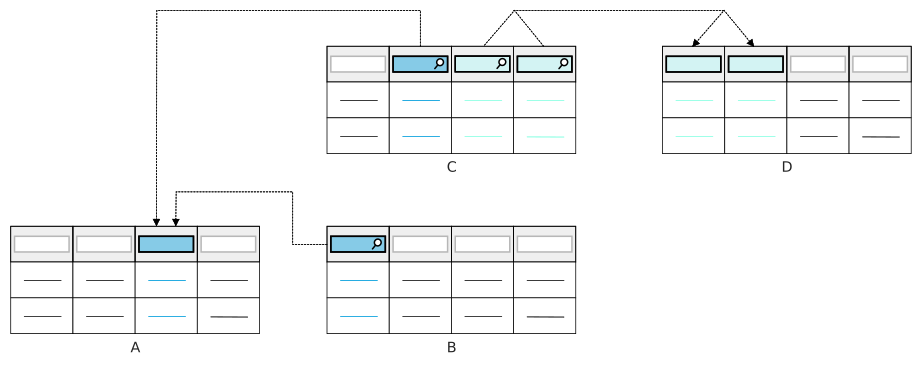
| Base Table | Base Table Data Item | Foreign Table | Key Value Stored in Base Table | Foreign Key reference established by |
|---|---|---|---|---|
| B | Table Lookup | A | nwId | A table lookup in the base table containing the nwId points back to a specific record in the foreign table. |
| C | Text Data Item | A | Text Value | A table lookup in the base table containing a text value points back to a specific record in the foreign table. |
| C | Data Item 1, Data Item 2 | D | Value Data Item 1, Value Data Item 2 | Multiple fields in the base table are used to identify a specific record in the foreign table. |
Table lookup best practices
These best practices ensure that Table Lookup data items are configured consistently throughout Nextworld applications.
Table Lookup data items are created in the Data Item Definitions application, and configured in the Table Definitions application.
Use a Table Lookup type data item when the value in the Child Field of the table can change and you want the change to be reflected in all tables that are pointing to the record. For example, EmployeeName is a data item table lookup to Directory. If the employee changes their name, you want any expense reports or transactions to automatically reflect the new name.
Common best practices
Whenever configuring, use a table lookup to:
- Link fields from one table to another. Do this instead of storing values in multiple tables and using logic blocks to fetch them.
- Store a value in one table, and reference that value from other tables without duplicating the value. In other words a table lookup ensures that you don't have to store the value twice.
If you create a chain of table lookups, it should not be longer than two links beyond the source. If more than two levels are used in the table lookup chain, then an error appears when you try to generate an application over the table that is third level from the source.
Style definitions
Style definitions enable you to change the appearance or behavior of different UI elements, such as fields and links. For example, you could change the text size of an application link, change the font color of a field in an interactive report, or configure conditionally required fields in an application.
There are several delivered style definitions available, or you can create your own. The type of style definition determines where it can be applied, and what configuration options are available, such as:
Content Item LinkorSimple Clickable Link—Highlights or changes the appearance of links. These style definitions can be referenced in dashboard cards in the Dashboard Card Builder.Field—Changes the appearance or behavior of fields or subtable fields. These style definitions can be referenced in Format Configuration in the Interactive Report Builder, or in the Apply Styles action in the Logic Block Builder.
Dashboard Card Builder
Reference your style definition in the Links subtable, in the DCCLSimpleLinks.StyleDefinitionLookup field of your dashboard card record.
Interactive Report Builder
Reference your style definition while using the Format Configuration feature in the Table Layout section of your interactive report. Learn more in Table layouts in interactive reports.
Logic Block Builder
Reference your style definition in the Apply Styles action in your logic block. This is often used with conditional logic. For example, you could have style definitions that:
- Highlight a field when a value changes.
- Change the font color when a value exceeds a certain amount.
- Change the font color and highlights the field when a value is negative.
- Clear the highlight and font color once an approver has selected the field.
- Make a field required if a value is entered in a different field.
Learn more in Style Definitions application and Apply Styles action.
Style Definitions application
Use the Style Definitions application to configure styles that change the appearance or behavior of different UI elements, such as links and fields.
The Type of element you select determines which fields are available for configuration, and where you can apply the style. Style definitions can only be referenced in:
- Logic Blocks—Enter the style definition of type
Fieldin the Apply Styles action to change the UI elements in application fields, including subtables. Optionally, create conditional logic so the style definition is only applied in certain situations. Learn more in the Apply Styles action topic. - Interactive Reports—Enter the style definition of type
Fieldin a Field Configuration in the Table Layout section of your interactive report. - Dashboards—Enter the style definition name in a dashboard card to change the UI of a
Content Item LinkorSimple Clickable Link.Each clickable link can be configured with its own unique style definition.
Learn more in the Style definitions topic.
Tips
There are several considerations for configuring style definitions, such as:
- There are no validation ensuring text colors and background colors are configured differently. If you configure both on the same field, ensure they have different values.
- Applied themes change the colors of background colors and text colors used in style definitions. Consider theme colors when you select the colors for your definition.
cannot be configured with logic blocks.