


.svg)


Column header filters
Many applications open in the list form, which displays multiple records each in their own row. The displayed information can be modified by using the filter fields located in the column headers at the top of the list form.
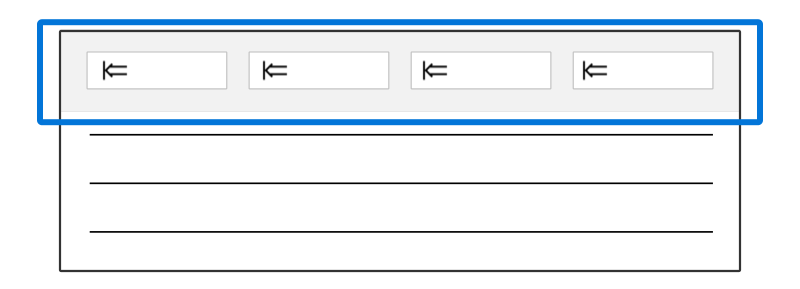
To use filter fields in the column headers to sort and filter records, you can:
- Select the arrows next to the column name to sort records in ascending or descending order based on the values in the column.
- Enter values into the filter fields to filter records to match your criteria. Filters are applied when you select outside of the filter field, hit the Enter key, or select the Refresh button.
- Select an operator using the dropdown menu located on the left side of the filter field.
Filter Operators
Filter operators control how the filter value is used to filter down records. For example, if you wanted to filter for dates greater than 01/01/2022, you can select the Greater Than operator and enter the date into the filter field.
Filter Modifiers
Filter modifiers are used to either include or exclude empty values in a filter field, and can be used on any filter that already has a value applied.
You can modify your applied filter to:

Include Empty—Displays all records with empty values for that field. If there's a filter value specified, the application displays all records with empty values for that field in addition to the records with the specified filter value.
Exclude Empty—Displays only record with values in the filter field. If there's a filter value specified, the filter works normally, displaying only records that match the filter value in the application.
For example, if you wanted to filter for any employees that have not been assigned to a supervisor, you can select the filter modifier to Exclude Empty, on the Primary Supervisor field, in the Employees application. This filters out all employees that already have an assigned supervisor, and displays all the employees that do not.
Saved Filters
You can save your filter configuration to use later using the Filter menu. Learn more in Filter menu.
Filter headers
Some application list forms have a filter header in addition to the filter fields in the column headers. Use the filter header to enter values and quickly find the records that you need.
When the list form of an application has a filter header, it appears above the normal column headers. Enter values in the filter header fields to display the records that match your criteria.
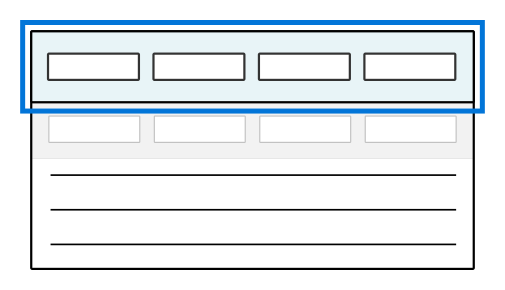
You can further refine the visible records with the filter fields in the column headers, but some applications require that you enter values in all filter header fields before displaying records. If this is the case, you will see the following message in the application: Apply all header filters to get records.
Wildcard characters
You can use wildcard characters to change the default search parameters of search fields throughout Nextworld.
By default, Nextworld search filters use a starts with functionality. This means that when you use a search field, the search results start with the first word or letter entered in the search field. For example, if you enter data into the the menu filter field, applications that start with the search's keyword like Data Item Definitions, Data Import Run Inquiry, and File Location Setup are displayed.
Wildcard characters including asterisks, range symbols, and spaces are used to change the functionality of the starts with search filter. Wildcard characters are used in different search locations in Nextworld. Use the following table to reference where each type of wildcard character can be used in specific Nextworld search locations:
| When to use | Menu search | Filter field search | Table lookup search | |
|---|---|---|---|---|
| Asterisk | Use an asterisk wildcard when you know some but not all of the search value characters. | X | X | X |
| Range symbols | Use range symbols to narrow the search method using numeric or alphabetical sequencing. | X | X | |
| Spaces | Use single letters separated by spaces to search for application names containing words beginning with those letters. | X |
Asterisk behavior
When you use an asterisk (*) to represent an unknown character, the search results replace the asterisk with a number of characters.
Use asterisks at the beginning of your search.
For example, if you entered
*datainto the search field, applications starting withdatawould display alongside all applications that containdata. Applicationssuch as Data Item Definitions and Data Source would display next to Directory Data Export and Product Data Management Settings.Use asterisks in the middle of your search.
For example, if you entered
comp*din to the search field, the search would filter for applications starting withcompthat are separated by a number of either spaces or characters fromd. Applications such as Company Directory, Component Where Used, and Company Credit Cards would display.
Range symbol behaviors
The range symbols include equal to (=), less than (<), and greater than (>).
Use = to search for the exact match of the entered value.
For example, if you entered
Revenuein to an account search field, the search would include all accounts that start with that account name such as Revenue Course Fee and Revenue Athletic Fees. You could enter=Revenueand only the account named Revenue would display.Use < to search for numbers or letters of the alphabet that are greater than the entered value.
For example, if you are searching an application for accounts starting with letters A through M, you could enter
<Mand only the accounts starting with A through M would display.Use > to search for numbers or letters of the alphabet that are less than the entered value.
For example, if you are searching an application for accounts starting with letters M through Z, you could enter
>Mand only the accounts starting with M through Z would display.
Space behavior
When using spaces, the starts with functionality applies only to the first letter of your search. The first word of your result will always start with the first letter of your search. The starts with functionality does not apply to the following letters of your search. The second letter you search may not result in a word that directly follows the first word.
For example, if you are searching for the application Cash Receipts, you could enter C R in the menu filter. Cash Receipts, along with any other applications that contain at least two words that start with C and R, such as Check Run or Contact Audit Report would display.
Advanced Filter
Use the advanced filter controls on the list form of applications to create complex filter combinations. You can add these filter combinations to the Filter Menu to access them later.
Filters are made up of expressions, which consist of fields, operators, values, and more. These key parts play the following roles in the expression:
- Field—Which column you want to filter. For example, the Date column.
- Operator—How you want to filter the column. For example,

Greater Than or Equal To. - Value—What to filter for. For example, 01/01/2022.
This would filter for dates greater than or equal to, 01/01/2022 in the Date column.
Once a filter is applied, you are able to use modifiers in the column header's filter fields to refine values further. Learn more in Column header filters.
The following diagram shows the elements of the Advanced Filter:
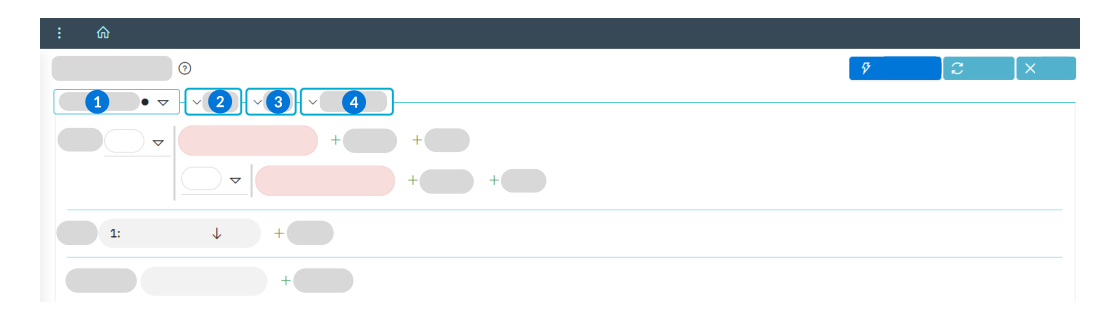
 | Filter Menu—Select, create, or edit saved filters. |
|---|---|
 | Filter—Create groups of expressions, which are connected by a condition type. A condition type is used to either widen or narrow your filter results. A condition type can be either:
For example, you are configuring an expression to display records with a balance equal to $100, and a second to filter for the date of May 4. If your condition type for the expression group is |
 | Sort—Sorts the record list by either ascending or descending values for the field, or fields selected. |
 | Aggregation—Summarize the contents of a column at the bottom of the list form. For a column of number fields, the count results in a summation of the values of all records returned by the active filter. For non-number columns, the count represents the number of records returned by the filter that have a value in that field. For a column of currency values, the aggregate is automatically grouped by currency codes. Each currency code represented in the list form has its own aggregated value at the bottom of the column. |
Filter menu
The Filter menu is accessible from the top of a list form of an application. It contains a list of any pinned filters associated with the application, as well as any saved filters you have created. You can switch between different filters to make the information you need in the application more easily accessible.
For example, if an account manager regularly needed to filter invoices by a single supplier, and then sort the records by date, they could use the Filter menu to create a saved filter. When they open the application to view all invoices, they can select the saved filter in the Filter menu and see only the records that they need.
Saved filters only apply to the application you create them in, and are user-specific by default. That means you can create as many as you want.
Pinned filters, indicated by the Pinned  icon, are delivered as part of an application, and can be accessed from within the Filter menu.
The Filter menu also allows you access to the Advanced Filter editor, which you can use to create saved searches that are more complex than those you can configure with the column header filter. Learn more in Advanced Filter.
The Filter menu includes the following buttons:
 | Select the Create button to open the Advanced Filter editor and edit, name, and save the current configuration of the column header filters. |
 | Select the Clear All Filters button to remove all filters applied in the column header filters. |
 | If you have a saved filter applied, select the Edit button to open the current saved filter in the Advanced Filter editor. |
 | If you have a saved filter applied and have applied changes to the column header filters select the Save button to update the configuration of the saved filter. |
 | If you have a saved filter applied and have applied changes to the column header filters, select the Clear Filter Changes button to revert back to the saved filter. |
 | In the Filter menu, select the Set Default button to apply the saved filter each time you open the application. Select the button again to clear the default saved filter. |
 | In the Filter menu, select the Set Global button to make the saved filter available to other users. Select the button again to remove the filter from the Filter menu of all other users. |
 | In the Filter menu, select the Delete button to remove the saved filter from the Filter menu. |