


.svg)


Use the Nextworld Platform to:
- Build—Create applications and solutions to solve business problems. See Developer Studio.
- Customize—Modify applications for your specific needs. See Customizations.
- Automate—Use tools such as workflow and scheduled jobs to automate business processes. See Workflow Home.
- Integrate—Configure your applications to work with external systems.
- Document—Write reusable, self-updating content using the built-in documentation features. See Documentation guide.
- Report—Build custom reports to analyze business data. See Reporting and analytics.
- Secure—Define what users can view, change, or delete. Nextworld objects are secured by default. See Security.
- Test—Use isolated environments to develop and test your applications before putting them into production. Monitor the functionality of your applications in the background with automated tests. See Environments, business data, and metadata and Application testing.
Methods of development
Application developers can develop applications and metadata in the Nextworld platform using both traditional development processes and agentic development (AD) using Nextworld Intelligence.
The different development pathways are summarized in the table below:
| Method of Development | Scope of Creation | Powered by Nextworld Intelligence |
|---|---|---|
| Metadata applications | Single metadata records | No. Requires you to create a metadata record then manually configure its fields and components. |
| Quick Start options | Single metadata records or multiple related metadata records, such as an application, its table, data items, and workflow. | Yes. Capable of creating multiple related records at once, but requires you to manually configure the fields and components. |
| Prompting Ed in the Developer Studio | Single metadata records or multiple, related metadata records, such as an application, its table, lookups, data items, and workflow. | Yes. Capable of creating multiple related records at once, but requires you to manually configure the fields and components. |
| Prompting Ed the Builder in Project Builder | Single metadata objects or records, or an entire project with an application, tables, fields, logic, workflow, and security. | Yes. Requires no manual configuration. Creates multiple metadata records as well as AI-generated HTML and JavaScript application features which do not follow the standard infrastructure of platform applications. Update and refine a project through prompts entered into Ed the Builder. |
Traditional development
Navigate to individual metadata applications to create components for your application or process, or use the Quick Start options within the Developer Studio.
Quick Start is powered by Nextworld Intelligence, but still requires manual refinement and configuration of the records and components. With Quick Start, you can:
- Create multiple related metadata records within one process—Create and configure your data items, table, application, and workflow in one location. Nextworld Intelligence creates the metadata records and fills in some of the required fields, such as table name and field selection, based on your selections.
- Create applications from a spreadsheet—Create an application over spreadsheet data imported and reviewed by Nextworld Intelligence. The required fields are created and added to the platform table, then data is automatically imported.
- Create with Ed—Open Ed from the Main Menu bar inside of the Developer Studio. Enter prompts to build metadata such as applications, tables, data items, workflows, interactive reports, and table lookups. Nextworld Intelligence creates the metadata records and fills in some of the required fields.
Alternately, you can open individual applications, such as the Table Definitions, Data Item Definitions, and Logic Block Builder to create the individual metadata records needed for your applications.
Learn more in Developer Studio and Quick Start options.
Agentic development
Use the Project Builder to create entire projects including applications, tables, logic blocks, workflows, and security through AI prompting. Project built applications do not rely on the same infrastructure and requirements as applications built in the Developer Studio applications. You can build with outcome driven prompting, such as "I want a form with a button that navigates users to another form," rather than having to manually create and configure an application link.
This method does not require manual configuration of the fields and components. Instead, you refine your project through additional prompts entered into Ed the Builder.
Learn more in Project Builder.
Anatomy of a Nextworld application
Nextworld applications all follow the same fundamental structure.
The application is where users enter data and view existing records. These records are saved to the table which the application is built over. A table is comprised of data items which become the fields within your application. Logic blocks are also built over the application table and allow you to perform complex operations with the application's data.
The diagram below reviews the structure of an application:
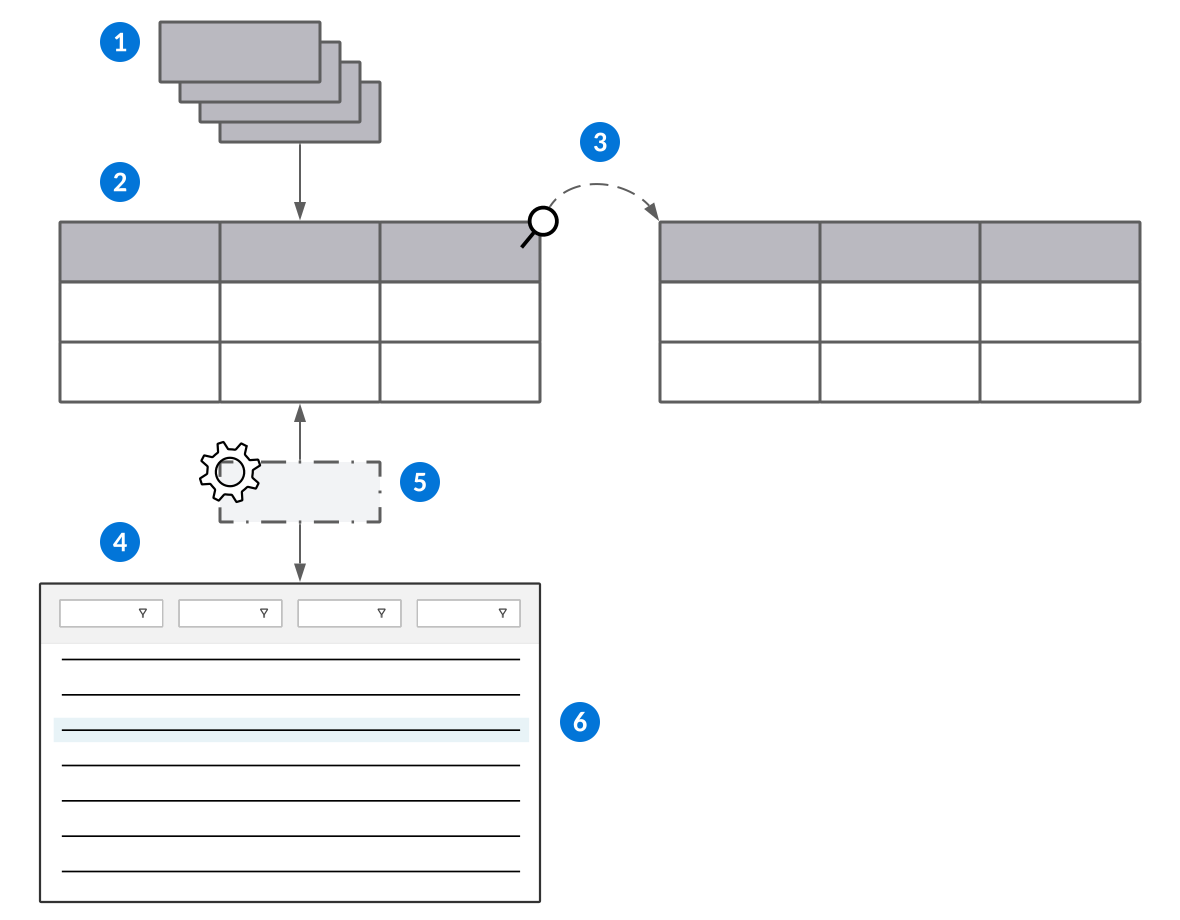
 | Data items—The foundation of all Nextworld applications. Everything is built on data items. |
|---|---|
 | Tables—Built with data items. Groups of related data items make the columns in a table. |
 | Table lookups—Reference data items in other tables to share information. |
 | Applications—Built over tables. Data items in the table are available as fields in the application. |
 | Logic blocks—Control and manipulate fields in applications. Logic blocks allow you to perform complex operations such as hide or show fields, validate entries, and impose conditional requirements. |
 | Records—Row or entry in the table with a collection of values assigned to each data item column in the table. Applications read and write the records in the table. |
Environments, business data, and metadata
An environment is a combination of business data, metadata, and the underlying software that powers the platform. When users sign into the Nextworld Platform, they sign in to an environment.
Types of data
Business data refers to the records created in applications, such as directory records, invoices, GL accounts, and more. Business data exists only in the environment where it was created.
Metadata refers to the applications on the platform, and the components that make up those applications, such as data items, tables, and logic blocks. Metadata can move, or migrate, between environments as part of the development process. Metadata is migrated based on the product family assigned to each metadata object.
Most metadata is created by Nextworld and its solution development partners. This metadata is delivered to customers as part of a solution, such as Financials or Manufacturing. However, customers also create and customize metadata in their environments. A metadata object's ownership dictates who has control over and responsibility for a metadata object. Learn more in Metadata ownership and namespacing.
Elements of an environment
The following diagram shows the different elements of an environment:
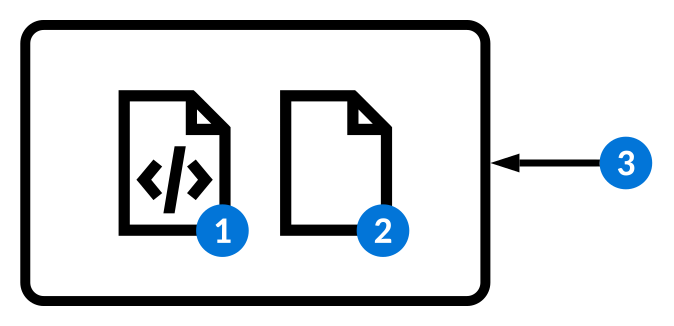
| Metadata |
| Business data |
| The version of the software that powers the platform |
Tenants
Each organization that does business or develops applications on the platform belongs to a tenant. You can only access the data in your own tenant.
Standard environment implementations
All Nextworld implementations include multiple environments, each with a specific purpose. Learn more in Standard customer environments.
Lifecycles
Lifecycles are used to segregate metadata in an environment to prevent development conflicts.
Application developers can check metadata objects into a lifecycle so that they can prevent other users from making changes to the objects while they modify them. They can make these changes without affecting metadata in the Base lifecycle.
There are multiple types of lifecycles, including:
General—Used to prevent accidental changes to metadata objects in an environment. For example, a user in thejulie_slifecycle cannot make changes to an object in the Base lifecycle unless they check the object out.Customer—Used for development of new functionality and bug fixes for existing owned and customed items.Base—Default lifecycle used for objects that are not undergoing changes. Objects in theBaselifecycle can be migrated to other environments.Branch—Used for application development. Learn more in Branch lifecycles.
Some metadata objects are not managed with lifecycles, and you cannot check them in or out. For example, a change made to a list lookup definition is reflected immediately in the environment, regardless of the lifecycle where you make the change.
Branch lifecycles
Application developers can also create and modify metadata in branch lifecycles to segregate work until development is complete. All changes to metadata objects within a branch lifecycle are tracked, including the users who made those changes. Learn more in Branch lifecycles.
Lifecycles application
Use the Lifecycles application to create lifecycles. Lifecycles segregate metadata in an environment to prevent development conflicts.
Application developers can check metadata objects into a lifecycle so that they can prevent other users from making changes to the objects while they modify them. They can make these changes without affecting metadata in the Base lifecycle. Learn more in Lifecycles.
Create and name your lifecycle record, then select the type. Once you save and generate the record, your lifecycle becomes available in the Lifecycle menu on the Main Menu Bar.
Metadata ownership and namespacing
The ownership of a metadata object indicates who has control over and responsibility for it. Namespaces are amended to the metadata you create to ensure the objects are globally unique and prevent conflicts during release upgrades.
The ownership of a metadata object can be:
- Base—These objects were created by Nextworld or a solution development partner. Base objects cannot be altered, but you may be able to customize or copy them.
- Customized—These are Base objects which have been customized in your environment. Customized objects share a connection with the base version. If a Base object changes as part of an upgrade, the customized object is also updated. You can customize a Base object with the Customize row action. Learn more in Customizations.
- Owned—These objects are yours and were created in your environment. You have complete control over these objects.
Namespacing owned objects
Any metadata object you create includes a namespace automatically at the beginning of the objects identifying name. A namespace is a set of characters unique to your tenant that ensures that only one version of the object exists. Namespaces always begin with ns, and you cannot delete them.
For example, your organization's namespace might be nsCst. You might create a data item to track the storage temperature of an item, called nsCstStorageTemperature. If Nextworld later delivers a similar data item named StorageTemperature, the namespace ensures no conflicts exist between the two objects.
Some metadata objects, such as applications and tables, have a variety of configuration options. In some cases, a namespace is also applied to those configurations, such as pages you add to a customized application. In other cases, no namespace is applied to your addition. If Nextworld delivers an upgrade to a customized metadata object with an addition that has the same name as an addition you've added, Nextworld takes ownership over that object. You can still modify the object, but you cannot delete it.
For example, you can customize an application to add an application link. If Nextworld delivers an upgrade to the application with an application link that has the same name as the one you added, you can modify the application link, but you can't delete it.
Standard customer environments
Nextworld customers are provided with multiple environments to develop and customize applications and to conduct their routine business.
The following diagram shows the standard environments you have access to in a typical implementation of the Nextworld platform:

| Development—Use to develop customizations, customer defined attributes (CDAs), and any of your own metadata objects. This environment should not be used by business users. |
| Test—Use to test the metadata you create or customize after development is complete. Like the development environment, this environment should not be used by business users. |
| Production—Use to run your business. This environment is where all your important business data is stored, and where your business users operate. |
Learn more about environments, business data, and metadata in Environments, business data, and metadata.
Migrate metadata to your production environment
The following diagram shows how you should migrate the metadata you create or customize between your development, test, and production environments:
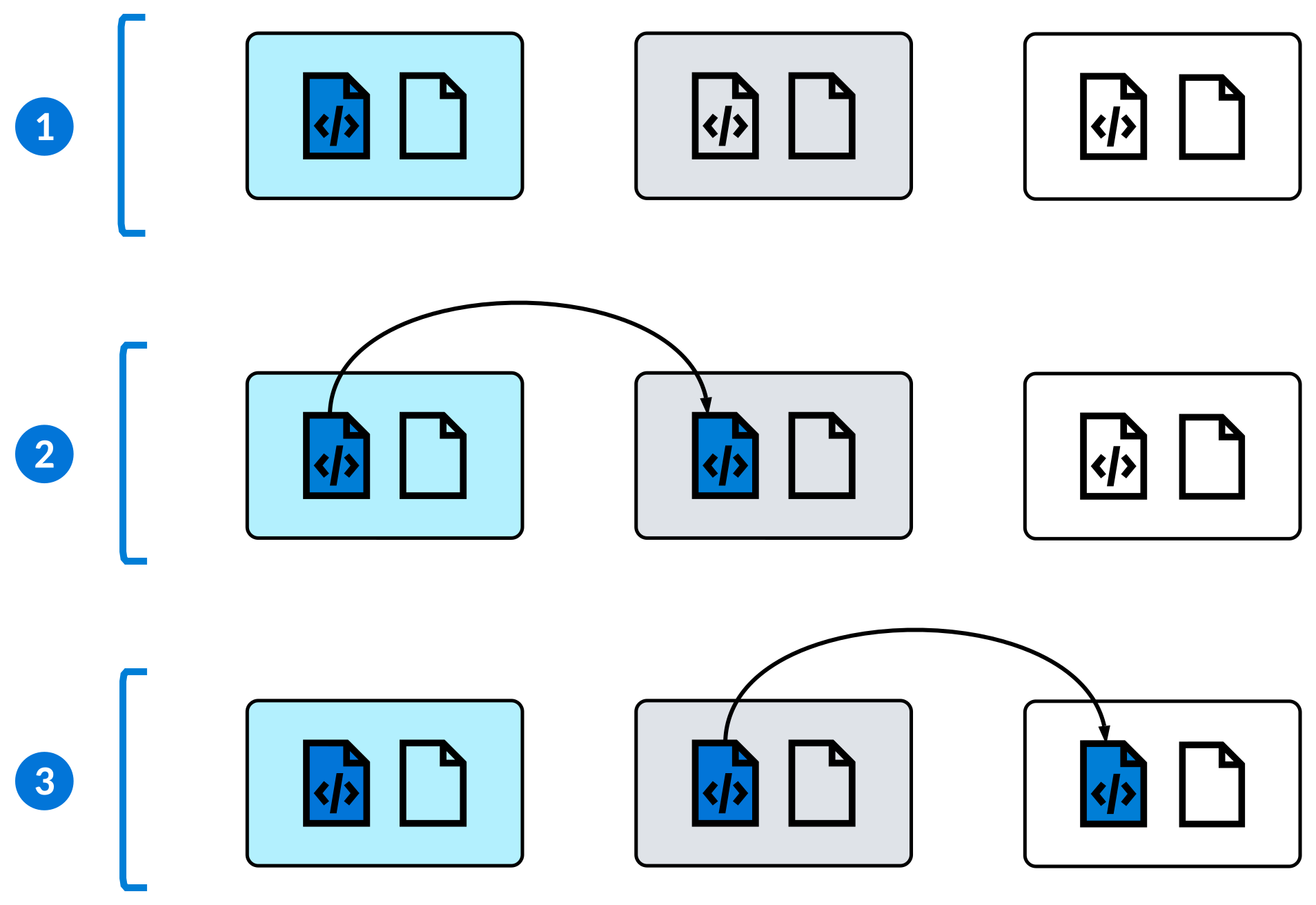
| Develop or customize metadata in your development environment. |
| After the changes to your applications are stable, migrate metadata from your development environment to your test environment. Test your applications in the test environment to make sure they're ready before you migrate them to your production environment, and to prevent conflicts with ongoing development in your development environment. |
| After you've tested your owned or customized metadata objects, migrate them to your production environment where your business users have access to them. |
To migrate the metadata you create or customize between your environments, use the Advanced Migration Utility application. However, you have additional tools at your disposal for different purposes. Learn more about all of these tools in Move your data between environments.
Move your data between environments
Nextworld customers have access to various migration applications to move data across their environments. The applications they use depend on whether they are developing or customizing metadata, or synchronizing data across their environments.
The following table describes the different migration applications at your disposal:
| Application(s) | Description | When to use | Example |
|---|---|---|---|
| Advanced Migration Utility | Used to migrate discrete sets of metadata between your environments. Learn more in Advanced Migration Utility application. | Use the Advanced Migration Utility application when you develop new metadata, or when you customize existing metadata, and want to make it accessible to your users in production. After you have created or modified metadata in your development environment, you can use this application to migrate it to your test environment. After you verify that it is working as intended, you can migrate it to production. | You develop an all-new application in your development environment, and you're ready to test it. To migrate it to your test environment, use the Advanced Migration Utility application to specify all the new metadata objects that make up your application, and migrate them. After testing, you can complete the same process to move the application and its elements to production. |
| Tenant Metadata Refresh Utility | Used to copy, or refresh, all of the metadata from one environment into another environment. Learn more in Tenant Metadata Refresh Utility application. | Use the Tenant Metadata Refresh Utility application to ensure that any changes you made to metadata are reflected in all of your environments. | You have to make a change to a few of your workflow definitions in your development environment. Once your changes are complete, you can use the Tenant Metadata Refresh Utility application to update your test environments with those changes, provided you don't have any active development going on within them. |
| Tenant Data Refresh Utility | Used to copy, or refresh, all business data from one environment into another environment. You can schedule a tenant data refresh to occur on a regular basis. Learn more in Tenant Data Refresh Utility application. | Use to keep your development and test environments updated with realistic business data. | You build a new application layout. Before you migrate it to production, you should ensure that the layout displays the way you intended. If you have scheduled a tenant data refresh for your development and test environments, you can test the application layout with data similar to that in your production environment. |
Advanced Migration Utility application
System administrators and application builders use the Advanced Migration Utility application to migrate the applications and other metadata they create between their environments.
Only use the Advanced Migration Utility application to move discrete sets of metadata between your environments. You can specify the specific applications, reports, and more that you develop and customize and migrate them to your users in production. Learn more about the other migration tools at your disposal and their purposes in Move your data between environments.
In general, you should develop new applications and customizations in your development environment, and then migrate them to your test environment. After you ensure they are working as expected, you can migrate them to your production environment, where your business users can access them. Learn more in Standard customer environments.
In the header fields, define the From Environment and To Environment for the migration. After you specify the metadata you need to migrate on the application pages, use the Submit action to start the migration. To limit the impact on users working in the target environment, don't submit a migration during peak business hours.
The Product Family you select is inconsequential, and the migration record does not migrate. However, you can access and submit advanced migration utility records from any of your environments, regardless of where they were created.
Configuration page
Use the configuration page to specify the product families containing the metadata you want to migrate, and specify whether to run the migration in Draft Mode.
Specify these product families in the Family Filter subtable. If the metadata objects you define on the other pages of this application are not in one of these product families, they are not migrated.
In the From Lifecycle and To Lifecycle fields, you must specify your Customer Default Lifecycle. This lifecycle is defined in the Tenant Environment Setup application.
All other pages
Use the other pages to define the discrete metadata objects you want to migrate. Each page has a series of subtables where you can add your metadata objects.
For example, to migrate an application you've created or customized, navigate to the Tables, Applications, and Logic Blocks page and specify its internal name in the Name field in the Application Transfers subtable.
Many of these subtables include checkboxes that, when selected, include related metadata objects in the migration.
For example, the Application Transfers subtable includes the Include App Settings checkbox. When this checkbox is selected, any application settings associated with that application are automatically migrated. If you select this checkbox, you don't have to specify these application settings in the App Setting Transfers subtable on the Data Items, Lookups, AppSettings, CDAs, and Style Definitions page.
Tenant Metadata Refresh Utility application
System administrators use the Tenant Metadata Refresh application to refresh the metadata in their non-production environments with metadata from their production environment.
Learn more in Move your data between environments.
Configure and submit tenant metadata refresh
Specify a From Environment and a To Environment to define a metadata refresh.
You should never specify your production environment as the To Environment. If you need to migrate newly developed metadata to production, use the Advanced Migration Utility application. Learn more in Advanced Migration Utility application.
In the From Lifecycle and To Lifecycle fields, you should specify your Customer Default Lifecycle. Ensure the From Environment checkbox is selected so that metadata such as list lookups are included in the refresh.
Use the Submit form action to start the refresh.
Tenant Data Refresh Utility application
Use the Tenant Data Refresh Utility application to schedule a recurring refresh of the business data in your development and test environments with data from your production environments to ensure you have realistic data.
Your test data should be similar to the data in your production environment to conduct the most accurate tests of your applications and customizations. You can set up a tenant data refresh that copies data from your production environment into your test environment. After your tests in your test environment pass, you can feel confident about migrating new or updated metadata to production. In addition to business data, a tenant data refresh also copies the audit history associated with each record.
Specify a Source Environment and Target Environment to define the tenant data refresh. When you save the record, the Name is automatically created.
After you've configured your tenant data refresh, use the Schedule Tenant Data Refresh action to schedule it to run later, during non-peak business hours. You can view the scheduled job in the Job Scheduler application. The name of the job follows the format of <namespace><Source Environment><Target Environment>_<ScheduledTime>.
If you'd like the refresh to run on a recurring basis, you can modify the Recurrence Type of the scheduled job. To cancel the refresh, delete the scheduled job.
Tenant data refresh prerequisites
Before you conduct a tenant data refresh, you must:
- Select the Allow tenant data refresh checkbox for the non-production environment you need to refresh. This checkbox is in the Environments application step in the Tenant Environment Setup application. Never select this checkbox for your production environment.
- Ensure your metadata is in-sync between your environments. The tables that exist in your production environment must also exist in your test environment in order to copy the business data in those tables.
- Review the Best practices for moving data between environments topic and make sure you consider how refreshing business data from production may affect your data, your integrations, and your users.
Best practices for moving data between environments
These best practices ensure you move data between your environments efficiently and without causing problems with your data.
Advanced Migration Utility application
To limit the impact on your users in production, don't submit a migration during peak business hours. Only migrate discrete sets of metadata.
You should always submit a migration in Draft Mode before officially conducting the migration to ensure you are moving the intended metadata.
In the Advanced Migration Utility application, do not use:
- The Data Copy, Security, or Data Transforms pages.
- The Bulk Migration or Advanced Options sections.
Tenant Metadata Refresh Utility application
Do not refresh the metadata in your development or test environments if you have metadata there you have not already migrated to production.
Tenant Data Refresh Utility application
Never refresh data in your production environment. In the Tenant Environment Setup application, the Allow tenant data refresh checkbox on the Environment application step is provided to prevent accidentally refreshing data in a given environment. This checkbox should always be cleared for your production environment.
Review any active scheduled jobs in your test environment, and if necessary, deactivate them. For example, if a table contains sensitive business data and there is a scheduled job to export from it, that job needs to be deactivated and the sensitive data should be reviewed and overwritten.
The only endpoints that should be functional in your test environment are those which are absolutely critical for testing. Be aware of the endpoint definitions configured in production and set up environment override definitions for those endpoints. Learn more in Environment override configuration.
You should also review business data that may be used in endpoint calls in production. For example, when you create a customer invoice in your test environment, a value from a field such as StoreID may interact with a third-party system as if the record is live in your production environment, which may have unintended impacts. Work with Nextworld Support to ensure your data and your endpoint definitions are configured correctly in your test environment.
Standard solution development partner environments
Nextworld solution development partners are provided with multiple environments to develop solutions and deliver them to customers.
All of your environments exist in the release pipeline. The release pipeline is a set of environments that facilitates the connection between internal Nextworld environments and customer environments. This means that your environments always run on the latest version of the Nextworld platform for you to develop, and contain the latest base metadata for you to extend. After your solutions have been developed and tested you can deliver them from the release pipeline to your customer's environments downstream.
The names of your environments start with the format of YY.n, where YY represents the year, and n represents the major version number of the year.
The following diagram shows the standard environments you have access to and how metadata migrates between them:
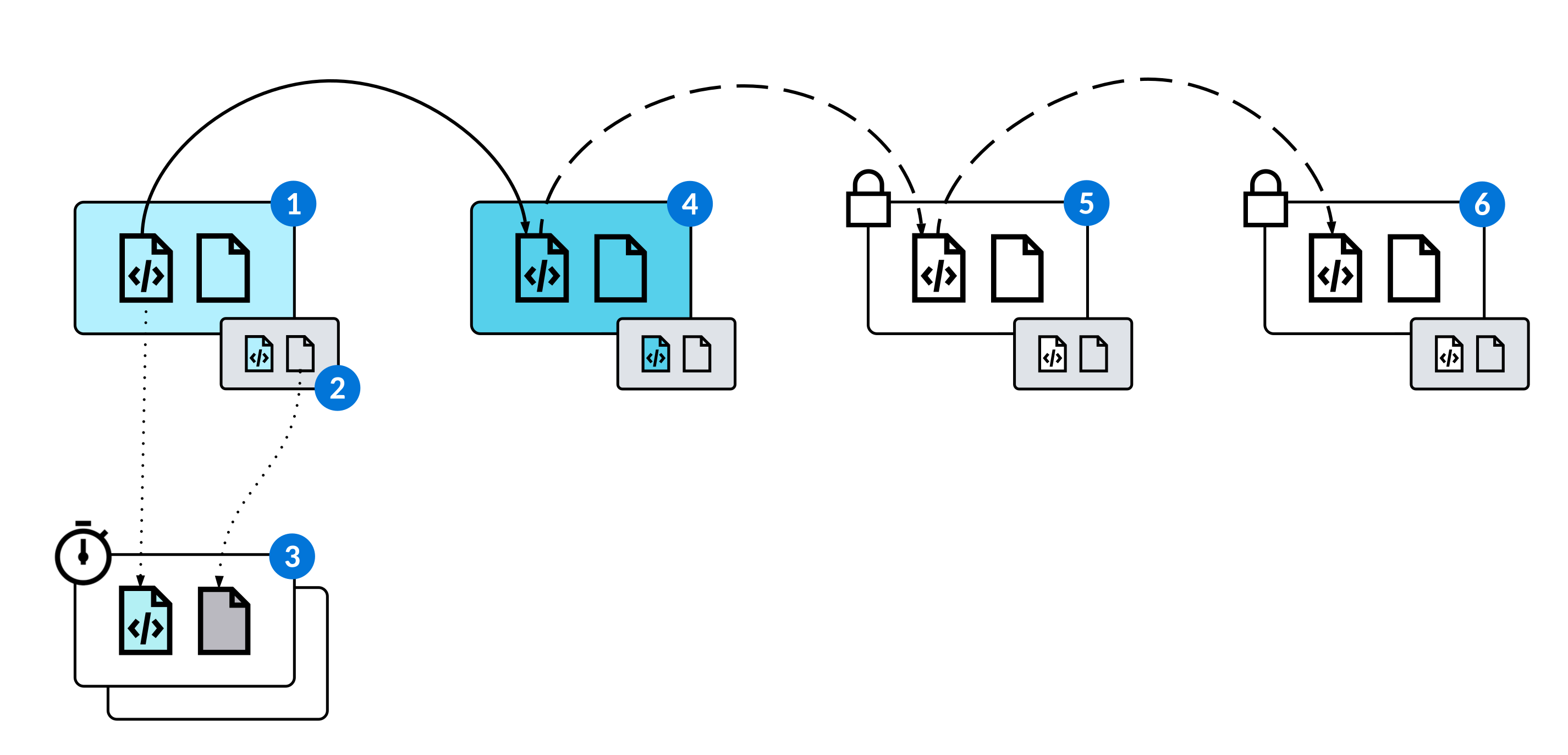
| YY.nRPDevPartner—Use to develop your solutions. After you've developed and tested your metadata, you can manually migrate it to YY.nDevPartner, where it automatically migrates downstream to customer environments on a regular interval. Learn more about how to migrate your metadata in Deliver your metadata to customers. |
| Child environments—Each of your environments also comes with a child environment. A child environment shares the same metadata as its parent environment, but holds its own set of business data. Typically, child environments are used to store sample business data for testing or demos. The names of these environments reflect their parent environments. For example, YY.nRPDevPartnerSeed is used for holding the sample business data you use to test your solutions in temporary tenants. |
| Temporary tenants—Create temporary tenants for testing, demos, and more. Temporary tenants are isolated environments which contain the metadata and business data from different environments. For example, you might create a temporary tenant with the metadata from YY.nRPDevPartner and the business data from its child environment, YY.nRPDevPartnerSeed. You can run automated tests or sign into this temporary tenant to manually test your metadata before you migrate it to the YY.nDevParner and it automatically migrates to customers. Learn more in Temporary tenants. |
| YY.nDevPartner—This is your staging environment, and is used to deliver your solutions to your customers. Metadata you migrate here automatically migrates downstream on a regular cadence to the test environment, then to the demo environment, and finally to customer environments in production. |
| YY.nTestPartner—Use to conduct any final tests.When your metadata is migrated to this environment, it is merged to base. This means that the ownership of your metadata changes from Owned to Base, and you can no longer make changes to it. This ensures that all the metadata from Nextworld and solution development partners is delivered to customers as a unified product which they can customize to fit their needs. |
| YY.nDemo—Use to conduct any demos. This is the final environment in the release pipeline before your metadata is delivered to customers. You can create temporary tenants using the metadata here to conduct demos, but you cannot modify any of your metadata in this environment, as it has already been merged to base. |
Deliver your metadata to customers
Solution development partners create and promote metadata manifests to migrate metadata downstream to their customers.
Develop all your metadata in YY.nRPDevPartner, your development environment, before promoting it to YY.nDevPartner your staging environment. From there, Nextworld will automatically migrates your metadata downstream to customer environments as part of scheduled patches if your organization is opted into that mechanism. Learn more about the environments you have at your disposal and their purposes in Standard solution development partner environments.
For hot patches and partners who are not opted into scheduled patching, there is an additional promotion to YY.nTest that is required.
To define the metadata you need to migrate to your staging environment, you reference the merge requests that are created and approved when developing in branch lifecycles. The following table describes the applications you use in each stage of the process:
| Stage | Application(s) | Description |
|---|---|---|
| 1 | Branch Lifecycle Management Merge Requests | Develop and extend metadata in a branch lifecycle. When your work is complete, create a merge request. After the merge request is approved, the metadata is merged into the base lifecycle. Learn more in Branch lifecycles. |
| 2 | Metadata Manifest Utility | Add the merge request to a metadata manifest. This creates a bundle that references all the metadata listed in the merge request. You can add multiple merge requests to a single manifest. Learn more in Metadata Manifest Utility application. |
| 3 | Validation Rule Catalog Validation Scope Definitions Validation Workbench | Check that your metadata is in a valid state and adheres to various best practices. Learn more in Validating Metadata. |
| 4 | Promotion Manager | Specify your Source Environment and Target Environment and migrate all of the metadata referenced in the metadata manifest. Each time you run a promotion, you migrate all the metadata objects referenced in the manifest as they currently exist in the base lifecycle. That is, if you modify an object in the base lifecycle after you include it in a metadata manifest, the latest version is migrated when you run a promotion.Learn more in Promotion Manager application. |
Branch lifecycles
Application developers create and modify metadata in branch lifecycles to segregate work until development is complete. Then, the work is reviewed before all the metadata objects in the branch lifecycle are merged into the base lifecycle.
Branch lifecycles are created and used for discrete development projects. For example, you may create multiple branch lifecycles and switch between them for feature development and bug fixes. After you complete development in a branch lifecycle, you create a merge request. When the request approved, all the metadata objects in the branch lifecycle are merged into the base lifecycle and the branch lifecycle is deactivated. Use the Lifecycle menu in the Main Menu bar to change lifecycles.
Additionally, all changes to metadata objects within a branch lifecycle are tracked, including the users who made those changes.
Use the following applications when working with branch lifecycles:
- Branch Lifecycle Management application—Create new branch lifecycles, check metadata objects into the branch lifecycles, keep track of changes and contributors, and create merge requests.
- Merge Requests application—Make notes, request changes, and approve merge requests.
Branch Lifecycle Management application
Application developers use the Branch Lifecycle Management application to create branch lifecycles, track changes made to metadata within those lifecycles, and create merge requests. This application is available in the Developer Studio.
After you create a branch lifecycle, it's accessible in the Lifecycle menu. You can use the Add to Lifecycle form action to select multiple objects and check them into the branch lifecycle. Alternatively, when you change your current lifecycle to the branch lifecycle, any objects you check out are added to the branch lifecycle. You can view all of the objects in the branch lifecycle on the Changes page.
When development in the branch lifecycle is complete, use the Create Merge Request form action. When the merge request is approved, the objects in the branch lifecycle are merged into the base lifecycle.
After the branch lifecycle is no longer needed, use the Deactivate form action. Only active branch lifecycles are accessible from the Lifecycle menu.
Design page
Use the Design page to describe the project you're developing in this branch lifecycle.
Changes page
Use the Changes page to view all the metadata objects that have been created, modified, or deleted within the branch lifecycle.
Contributors page
Use the Contributors page to view all the users that have modified metadata objects within the branch lifecycle.
You can add a contributor manually, but any user that modifies metadata within the branch lifecycle is automatically added to this page.
Manual Tests page
Use the Manual Tests page to track any manual tests related to the development work in this branch lifecycle.
Test Harness Results page
Use the Test Harness Results page to track any logic block test harness results related to the development work in this branch lifecycle.
Auto Test Results page
Use the Auto Test Results page to track any automated tests related to the development work in this branch lifecycle.
Merge Requests application
Application developers use the Merge Requests application to track, review, and approve changes to objects within a branch lifecycle. The Merge Requests application is accessible from the Navigation Menu, or from within the Developer Studio.
After a merge request is approved, the changes are merged into the base lifecycle. Learn more in Branch lifecycles and Merge request workflow.
In the Header region, select the type. This dictates the reviewers required for your merge request, or allows you to create a merge request for metadata sharing. Learn more in Metadata sharing.
Optionally, add a merge request tag. Tags enable you to group related merge requests. This allows you to populate a Metadata Manifest with all of the merge requests tagged with the same value. Select an existing tag or open the Merge Request Tags application to add a new one.
Metadata Objects page
View the metadata objects that are a part of a merge request and the details of each object.
Reviewers page
View the list of reviewers for this merge request, and the approval status of the merge request.
Comment Summary page
View comments from both authors and reviewers concerning the objects in the merge request.
Notes page
View additional notes or information relevant to the merge request. For example, updates to the design based on reviewer feedback can be included on this page.
Merge request workflow
The workflow for the Merge Requests application controls how metadata objects developed in branch lifecycles, approved, and merged into the base lifecycle.
The following diagram represents the different stages of a merge request:
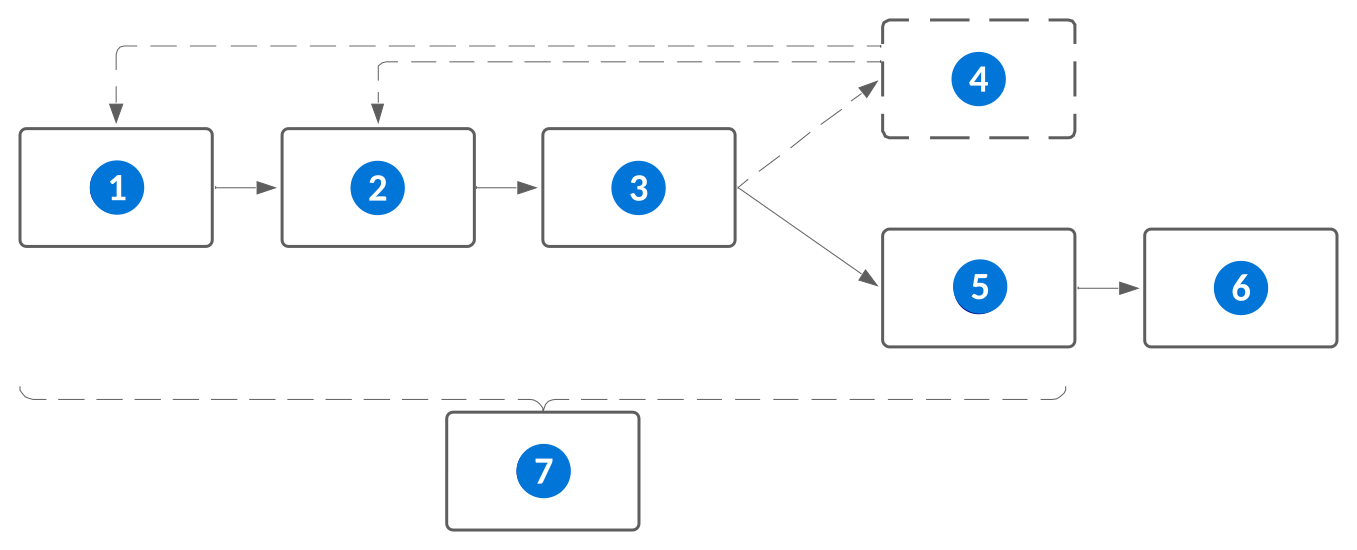
| State | Description | |
|---|---|---|
| Draft | This is the initial default state for a new merge request. While the merge request is in this state:
|
| Ready to Review | The creator of the merge request transitions the merge request to this state to indicate that it is ready for review. |
| Under Review | The reviewers of the merge request transition it to this state after they have started reviewing it. The Approved check box is enabled next to each assigned reviewer in this state. |
| Changes Requested | The reviewers of the merge request transition it to this state if they need the merge request creator to make changes before the merge request can be approved. The author can manually transition from this state back to Draft or Ready to Review. |
| Approved | This state automatically transitions once all required reviewers have approved the merge request. |
| Merged | This state automatically transitions once the objects in the merge request have successfully been merged to the base lifecycle. |
 | Closed | If a merge request is no longer needed, you can transition it to this state from any state aside from Merged. Once the merge request is in the Closed state, the status can't be changed. If required, you must create a new merge request. |
Validating Metadata
Solution development partners validate that their metadata adheres to various rules, ensuring that their solutions are in a valid state, follow best practices, and more.
Nextworld develops validation rules for different purposes. For example, the Valid References rule checks that references between metadata objects are valid. If you deleted a data item, but forgot to remove it from the Fields subtable of a table definition, you could run a validation of this rule on your metadata and fix the invalid reference before you promote it to your customers.
You should validate that your metadata adheres to these rules before you deliver it to customers. You can also schedule a job that validates the metadata in your development environment periodically. Learn more in Schedule a recurring validation.
Use the following applications to validate metadata against different rules:
- Validation Rule Catalog application—Browse the various rules that you can validate your metadata against. Certain rules are required to be validated in order to promote your metadata.
- Validation Scope Definitions application—Define the metadata you need to validate. You can specify a filter, such as all the metadata in a product family, or you can select one or more metadata manifests.
- Validation Workbench application—Choose the metadata to validate, and the rules to validate it against. View any metadata that violates the selected rules, and learn how to fix any issues.
Validation Rule Catalog application
Solution development partners use the Validation Rules Catalog application to browse the available rules they can validate their metadata against. They validate these rules to ensure their solutions are following best practices and are configured as intended.
For example, the Valid Shippable Families rule checks that every metadata object in a given scope is in a product family that's allowed to migrate. Each family definition has a Family Type, and objects in a Personal type family violate this validation rule. If you include a logic block in a metadata manifest that's accidentally assigned to the Playpen family, the logic block is flagged as a violation when you validate the manifest. You then have the opportunity to change the product family of the logic block and ensure it works as intended before you deliver it to your users.
You can open each record in the detail form to see a description of the rule. To validate your metadata against a rule, use the Validation Workbench application. Learn more in Validating Metadata.
Validation Scope Definitions application
Solution developers use the Validation Scope Definitions application to define the groups of metadata they need to validate against different rules.
After you define a scope, you can validate the metadata within that scope against different validation rules in the Validation Workbench application. Learn more in Validating Metadata.
To define the scope of the metadata you need to validate, choose a Validation Scope Type:
| Type | Description |
|---|---|
Filter | Use a Filter type to define a broad scope of metadata. In the Metadata Filter Set subtable, add a record for each type of metadata you need to validate, and define a Data Filter for metadata of that type. If you do not define a filter for a type of metadata, all objects of that type are included in the scope.This type of scope is best for validations that you need to run on a recurring basis. For example, you could schedule a validation of all the metadata in a product family every week. To define the scope for this validation, you would add a record for every type of metadata and configure each with a filter for that product family. Learn more in Schedule a recurring validation. |
Manifest | Use a Manifest type to define a more specific scope of metadata by selecting one or more metadata manifests. Metadata manifests must have a status of either Bundled or Available to include them in a scope.This type of scope is best for validating new metadata that you're ready to deliver to your customers. Learn more about creating and promoting metadata manifests in Deliver your metadata to customers. |
Validation Workbench application
Solution developers use the Validation Workbench application to validate groups of their metadata against various rules. After they run these validations, they evaluate any rule violations and make the necessary changes to their metadata.
To validate your metadata, you must first define a scope in the Validation Scope Definitions application. You can browse the various rules to validate that metadata against in the Validation Rule Catalog application. Learn more in Validating Metadata.
The Validation Workbench application is made up of the following application steps:
- Validation Profiles application step
Use the Validation Profiles application step to either select or define a validation profile, and then run the validation.
- Validation Runs application step
Use the Validation Runs application step to view a summary of each validation run.
- Rule Violations application step
Use the Rule Violations application step to examine each metadata object that violated a rule, and solutions on how to fix them.
Validation Profiles application step
Use the Validation Profiles application step to either select or define a validation profile, and then run the validation.
The Validation Profiles application step is part of the Validation Workbench application.
A number of existing validation profiles are delivered by Nextworld. You should validate your metadata against these rules to ensure your applications are adhering to best practices. The PromotionValidations rule is validated automatically each time you promote a metadata manifest.
To create your own profile, give it a name and use the Add Rule Instances button to specify each of the rules that you want to validate your metadata against.
For each rule you include in the profile, specify a Violation Severity. You can filter on the severity the Rule Violations application step after you validate. Save the record before running the validation.
Run a validation
To run a validation on a profile, select the Select Validation Scope action, select a scope, and then use the Validate Profile action to run the validation.
Validation Runs application step
Use the Validation Runs application step to view a summary of each validation run.
Each record in represents a single run of a validation profile, and is assigned a unique Run ID. You can view the total number of objects validated in the run, and the number of objects that violated a rule.
The Validation Runs application step is part of the Validation Workbench application.
Rule Violations application step
Use the Rule Violations application step to examine each metadata object that violated a rule, and solutions on how to fix them.
Every rule violation includes a Solution that details exactly how to modify your metadata so that it does not violate a rule.
For example, the solution to fix an object that violates the Valid References rule may include the following Error Message and Solution:
The table ItemLedger is referencing the data item StorageTemperature, which does not exist. If the data item StorageTemperature is supposed to be deleted, remove uses of it in the table. If the object is supposed to exist, make sure it exists in the environment for future validations.
The Rule Violations application step is part of the Validation Workbench application.
Schedule a recurring validation
Schedule a metadata validation to run on a recurring basis to ensure that your metadata is in a valid state and adheres to various validation rules.
Prerequisites
Before you can schedule a validation, you must configure:
- A validation scope definition. Typically, the validations you schedule should encompass a broad scope of metadata, and use a Validation Scope Type of Filter. Learn more in Validation Scope Definitions application.
- A validation profile. Learn more in Validation Workbench application.
Schedule a validation
In the Job Scheduler application, create a new job, and define how often it should run page. Learn more in Scheduled jobs.
In the Jobs subtable, add a new record:
- In the Job Nickname field, provide a unique name for the job.
- In the Type field, select
Logic Block. - In the
Background Task Logic Blockfield, enter theInspectionProfileRunBackgroundlogic block.
Then, select the Create Mappings field action in the Data Mappings field, and add two mappings with a source type of Constant. In the first mapping, specify:
ObjectSetCriteriaNameLookupas the destination field.- Your validation scope definition as source value.
In the second mapping, specify:
InspectionProfileNameas the destination field.- Your validation profile as the source value.
Deliver business data to customers
Use the Delivered Data Definitions and Delivered Data Setup applications to migrate business data records that are required for some configurations in production environments.
Unlike metadata, business data only exists in the environment where it was created, and does not migrate to other environments. However, there are certain instances where an application configuration or business process requires a reference to a specific business data record to function correctly.
For example, you may want to deliver a workflow definition that references a message definition which notifies everyone with a particular role when a record is transitioned to a workflow state. While a workflow definition is metadata that can be delivered through your normal migration process, message definitions are business data, and cannot. Without delivered data, your customers would encounter workflow errors, because the message definition does not exist in their environments.
To configure the business data you need to deliver, use the following applications:
- Delivered Data Definitions application
Use the Delivered Data Definitions application to define the table that contains the business data you need to deliver, and whether the records can be modified in downstream environments.
- Delivered Data Setup application
Use the Delivered Data Setup application to specify the specific business data records you need to deliver.
- Delivered Data Delivery application
Use the Delivered Data Delivery application to move your delivered data records from your development environment to one where you can test the configuration.
Considerations for delivered data
Unlike your metadata, you should create your delivered data definitions and setup records in your staging environment. From here they are migrated downstream automatically. In production environments, delivered records can be identified with the Delivered Type field in applications.
If you need to deliver records that have table lookup fields, these fields must either be empty, or you must also deliver the referenced record.
You can only deliver records in tables of type Main or Settings. However, you can specify a logic block to run as soon as the record is delivered in a downstream environment. For example, if you needed to deliver a Header Detail record, you could deliver records in a Main type table and use the logic block to create the Header Detail record.
Delivered Data Definitions application
Use the Delivered Data Definitions application to define the table that contains the business data you need to deliver, and whether the records can be modified in downstream environments.
Delivered data can either be completely locked, completely unlocked, or partially locked. If you select a Delivered Data Type of Delivered - Partial, you can use the Field Configurations subtable to specify specific fields as Locked.
Additionally, you can specify a logic block to run when records are delivered. The logic block must be in the same product family as the table, and it must be Public-Secured.
For example, if you needed to deliver records in a Header Detail structure, you could deliver records in a Main type table and specify a logic block that structures the data accordingly. If you specify an Insert Logic Block, the logic block only runs the first time it is delivered to an environment, whereas an Update Logic Block runs each time there's a patch.
Specify the behavior for record contention with the Yield to existing records checkbox.
Delivered Data Setup application
Use the Delivered Data Setup application to specify the specific business data records you need to deliver.
For each record, select the table where the data is being delivered, and then identify the record by NwId. This ensures that the correct records delivered in each downstream environment.
Learn more in Deliver business data to customers and Delivered Data Definitions application.
Delivered Data Delivery application
Use the Delivered Data Delivery application to move your delivered data records from your development environment to one where you can test the configuration.
Specify a Source Zone, Source Tenant, Target Zone, Target Tenant, and the Delivered Data Tables. Then, select the Deliver Data form action.
You should only use this app for situations where you do not use the Promotion Manager to promote metadata between environments. One example would be for moving delivered data records from a development environment to a child _test environment. For all other movements where you would normally move metadata using the Promotion Manager, you should use the Promotion Manager to move delivered data via a manifest of type Delivered Data.
Metadata Manifest Utility application
Solution development partners use the Metadata Manifest Utility application to create bundles of metadata to migrate.
To create a metadata manifest, use the Configuration page to list all of the merge requests that reference the metadata you need to migrate. Optionally, specify a merge request tag to add all of the merge requests which have been tagged with the same value. If you need to migrate any additional metadata objects, you can include them with the Manage Details page.
All of the metadata objects included in the manifest display in the detail list region. Only the current version of each object as it exists in the base lifecycle is included in the manifest.
After you create a metadata manifest, use the Promotion Manager application to migrate the metadata included within it. Learn more in Deliver your metadata to customers and Promotion Manager application.
Configuration page
On the Configuration page, select Merge Requests as the Data Source Type and list all of the merge requests you want to include in the manifest.
To migrate the metadata in a merge request, the request must be approved and merged to the base lifecycle.
Manage Details
Use the Manage Details page to include additional metadata objects in the manifest that are not included in a merge request. Specify the Object Type To Add and Object Name To Add for an object to add it to the manifest. These objects must exist in the base lifecycle.
Errors page
Use the Errors page to view any errors that may occur when compiling the manifest for a patch.
Promotion Manager application
Solution development partners use the Promotion Manager application to migrate the metadata referenced in a metadata manifest to another environment.
Use the Manifest field to filter for an existing metadata manifest. Each record in the Promotion Manager application represents a single migration of the metadata included in a manifest.
Select the Add Record button and specify the Source Environment and Target Environment for the migration. Then, use the Run Promotion row action to start the migration. If you specify an invalid source or target environment, you recieve an error.
You should migrate metadata from YY.nRPDevPartner, your development environment, to YY.nDevPartner, your staging environment, or other environments at your disposal along the release pipeline. Learn more in Standard solution development partner environments and Deliver your metadata to customers.
Metadata validations
You should always validate that the metadata you deliver to your customers is in a valid state, and adheres to best practices. Learn more in Validating Metadata.
Certain rules, however, are validated every time you run a promotion. For example, you cannot promote any metadata that you do not own, or metadata that is in a product family that shouldn't ship to production. A list of all of the rules that are automatically validated at promotion time is accessible in the PromotionValidations validation profile, in the Validation Workbench application.
If your metadata manifests contain any objects that violate these rules, your promotion run enters a Failed state. You must resolve any errors to successfully promote your metadata.
To examine the rule violations in detail, edit the failed record in the Configuration section. Then, navigate to the Validation Rule Violations page. Here, you can see a list of every object that's violating a rule, and details of how to modify the object so that it's in a valid state.
NATE
The Nextworld Automated Transaction Engine (NATE) temporarily stores data before it is committed to the database.
NATE holds data while it is being edited, and before it is saved. NATE is a safeguard for disaster recovery, and enables the Pending Work and Save for Later features.
These topics provide more detail about NATE, its features, and its implications for application developers:
- NATE containers
While records are being changed, they are held in a NATE container until the changes are saved or canceled. The NATE container accumulates data changes and then applies or discards them as a unit. NATE containers are created automatically and are managed by the Nextworld Platform.
- NATE development considerations
Certain aspects of the platform behave differently when they are inside NATE containers. Review the following sections to understand the implications of NATE during application development.
- Nested NATE containers
You can nest NATE containers within other NATE containers to control when actions performed across multiple applications are committed. For example, using nested NATE containers in a Composite application ensures that any actions performed within each application step are only committed when the entire Composite application record is saved.
- Will my row action run in a NATE container?
This topic reviews whether logic blocks initiated from row actions run inside or outside of NATE containers.
NATE containers
While records are being changed, they are held in a NATE container until the changes are saved or canceled. The NATE container accumulates data changes and then applies or discards them as a unit. NATE containers are created automatically and are managed by the Nextworld Platform.
The diagram below illustrates what happens to records as they move from being live in the database, to pending in the NATE container, to live again.
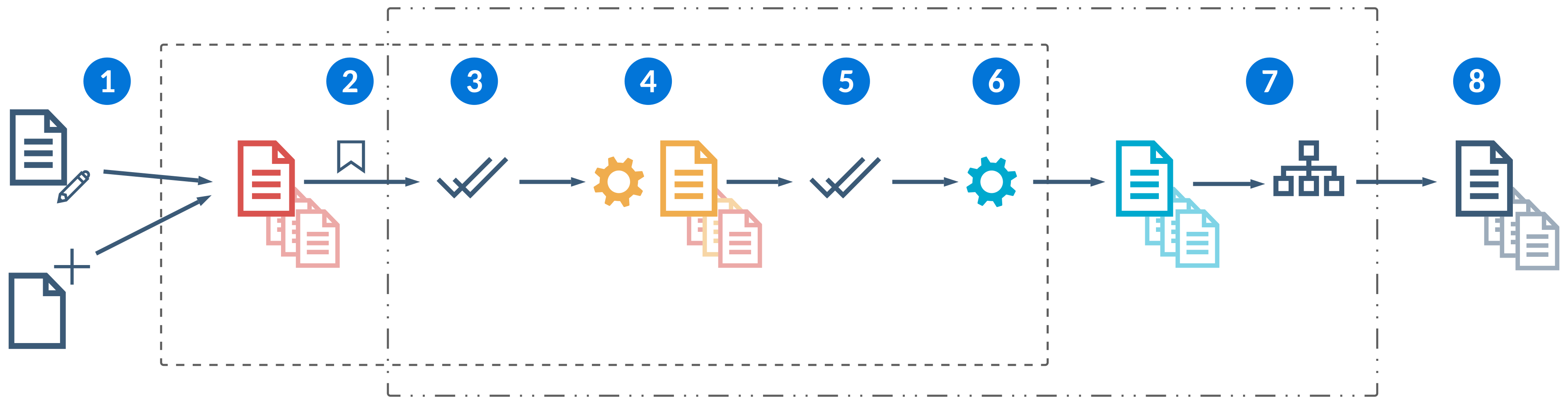
| Records that have been successfully saved are live in the database, and are accessible to everyone. When a user begins to make changes, either by creating a new record or editing an existing record, those changes are stored as a pending record in a NATE container. Depending on the application configuration and what happens after the user starts making changes to that initial record, the NATE container may hold changes to one or more records from one or more tables. For example, an advanced list application that has configured the grouped detail option holds all detail records in the same NATE container until the entire group is saved together. Other options, such as field or event actions, can also prompt changes to multiple records. Only the active user can see the changes in the NATE container. These changes are not saved to the database or visible to other users. In the diagram, the NATE container boundary is indicated by the dashed line: | |
|---|---|---|
| When the user selects Save, a series of automated processes takes place. The save action also opens the database transaction. In the diagram, the database transaction boundary is indicated by the dashed-and-dotted line: Changes within the same database transaction boundary are saved and committed to the database all at once. If there's an error, the user can correct the record and save again. If the application is configured to use | |
| An initial validation takes place. This validates the changes that have been made to all records in the NATE container.
If any validations fail, the user sees an error and can correct the record and save again. | |
| Action blocks run. Action blocks can change some but won't necessarily change all records in the NATE container. The NATE container keeps track of which records were changed and which were not. If there are any errors in the action blocks, the user sees an error and can correct the record and save again. | |
| Any records that were changed by the action blocks are validated again. Note that there may be records that are in the NATE container that were not modified by the action blocks and are not re-validated here. These are assumed to still be valid. If there are any errors during the validation, the user sees an error and can correct the record and save again. | |
| Table triggers run. Triggers run in order:
If you have multiple triggers of each type, you can control their run order by changing their order in the table definition. The table triggers run in the order they are listed in the Triggers subtable.
Triggers operate on live records. If a trigger includes a fetch on the record that it's acting on, rather than using the record handed to it by NATE, the fetch returns the live record. This allows you to compare the changes made so far with the original, unchanged record. If there are any errors when the triggers run, the user sees an error and can correct the record and save again. If the triggers successfully complete, subsequent behavior depends on whether any modified records are governed by workflow:
See the next step for the behavior when workflow is applied. | |
| If there is workflow on the table, workflow transitions take place. Any logic blocks and validations associated with the transitions run at this time. Workflow transitions do not take place within the same NATE container as the previous steps, but are still within the same database transaction boundary. Additionally, workflow transitions may be contained within their own NATE container. If the Use NATE container checkbox is selected on the workflow, then a new NATE container is created when workflow transitions initiate. If a workflow transition requires approval, the record is held in a live but approval pending state. It is not visible to users, but any logic blocks that fetch the record see the approval pending version. Subsequent behavior is determined by the workflow configuration. If there are any errors in the workflow transitions, the user sees an error and can correct the record and save again. The NATE container reopens and all records are returned to their state from step 2. If the workflow transition succeeds, if there were changes to the record, any associated triggers run again. If no changes occurred on the record, triggers do not initiate again. If triggers run again, it happens once at the end of NATE commit, or once per table update if not using NATE. Then, all records become live and the database transaction is closed. | |
 | All records move to live and are available to all users in the system. |


NATE development considerations
Certain aspects of the platform behave differently when they are inside NATE containers. Review the following sections to understand the implications of NATE during application development.
The following subheadings each review a different development consideration for application developers.
Pending Work and Save for Later
Pending work refers to any changes you have made to a record that have not yet been saved. This can be intentional, such as using the Save for Later form action, or accidental, such as computer crashes. Open the Sidebar menu and expand the Pending Work or Save for Later sections to open or delete a pending record.
Containers which are saved for later remain open for 31 days. Containers which are abandoned without saving remain open for two days before they are purged.
Async Save (Large Data Background Save)
Async save, also known as large data background save, is a feature you can configure in the Background Operations field of Application Builder. It provides the ability to push a long-running save into the background which ensures large records don't time out and users won't experience long wait times while the save finishes. By default, the async timeout is 25 seconds.
For example, Composite applications may have async save enabled when the application has save logic that has a run long time. If the save hits the threshold, users would receive a notification that the save is continuing in the background and would be navigated back to their previous location to continue working.
Composite applications have specific requirements for async save. Learn more in Composite application configuration.
Fetching records
Within a logic block, you can fetch a record which you want to update. Whether you receive the live or pending version of the record is determined by where and when the logic block is called, or what type of fetch action is used.
The type of fetch action used to retrieve the record controls whether you receive the live or pending record. If you are within a NATE container and want to retrieve a live record from outside of the container, use the Fetch Original action. To retrieve pending records from within the NATE container, use any other fetch action.
There are several fetch actions which can only be used within a NATE container, including:
- Fetch Original action
- Fetch with Disposition action
When a user begins to make changes, either by creating a new record or editing an existing record, those changes are stored as a pending record in a NATE container. Depending on the application configuration and what happens after the user starts making changes to that initial record, the NATE container may hold changes to one or more records from one or more tables.
How and when the user saves the record controls which record version is fetched. The table below describes what version of a record is returned based on when the fetch is performed:
| Container Save Phase | Logic block configuration | Record version fetched |
|---|---|---|
| Validation (Also applies to table triggers of type Validation) | UI type logic block | Pending |
| Action Block | Action Block | Pending |
| Pre Trigger | Table Trigger | Live |
| Post Trigger | Table Trigger | Live |
The behavior of fetch actions change in post triggers. You can't use the Fetch Original action in a post trigger since the record is already committed. If you build a pre trigger logic block, you can fetch the original record since the action hasn't been completed yet.
Record disposition
Processing logic blocks initiated by a user interaction within an application are assigned a call mode based on the record disposition. The record disposition is managed by the platform, and tracks the current state of the record.
If you are outside of a NATE container the record disposition is always PRISTINE. If you are within a container, records use other dispositions, such as:
INSERTED—Newly created records inside the container which are not saved.UPDATED—Preexisting records with unsaved changes inside of the container.DELETED—Deleted records that still exist outside of the NATE container. The data of a deleted record is hidden before the container commits. If you use a fetch action to try and fetch a deleted record, you are allowed to fetch within the NATE container. If you went outside the transaction boundary you'd see the live version but not the pending delete.
How to store a record created in a mini app in the same NATE container as the source record
If you configure an application link that navigates to a mini app, you can ensure records created there are included in a nested NATE container with full access to the contents of the parent container by using the Application (Extend Trans Boundary) link type in the Row Action configuration. Learn more in Nested NATE containers and Logic blocks and row actions.
Record mutations
Only 20,000 records at a time may be modified within a NATE container. If your record count exceeds that limit, consider restructuring your logic to process records in smaller batches using new transaction boundaries.
Nested NATE containers
You can nest NATE containers within other NATE containers to control when actions performed across multiple applications are committed. For example, using nested NATE containers in a Composite application ensures that any actions performed within each application step are only committed when the entire Composite application record is saved.
If the parent container is not saved, any changes made within the child containers are not committed.
You can nest NATE containers up to four levels deep. That is, a NATE container can open a nested NATE container, the nested NATE can open a second nested NATE container, the second container can open a third, but the third encounters an error if it attempts to open a fourth.
There are several application flows which can use nested NATE containers, including:
- Composite applications—Each application step is held within its own NATE container, but the parent container for the entire Composite application controls when changes are committed.
- Header Detail applications—Each detail application is held within its own NATE container, but the parent container for the entire Header Detail application controls when changes are committed.
- Application links—When you navigate from one application to another application with an application link of type
Application (Extend Trans Boundary), changes made in the new application are held within their own NATE container, but the parent container from the originating application controls when the changes are committed.
The diagram below illustrates a scenario where a nested NATE container is opened within a parent NATE container when a user opens an application link:
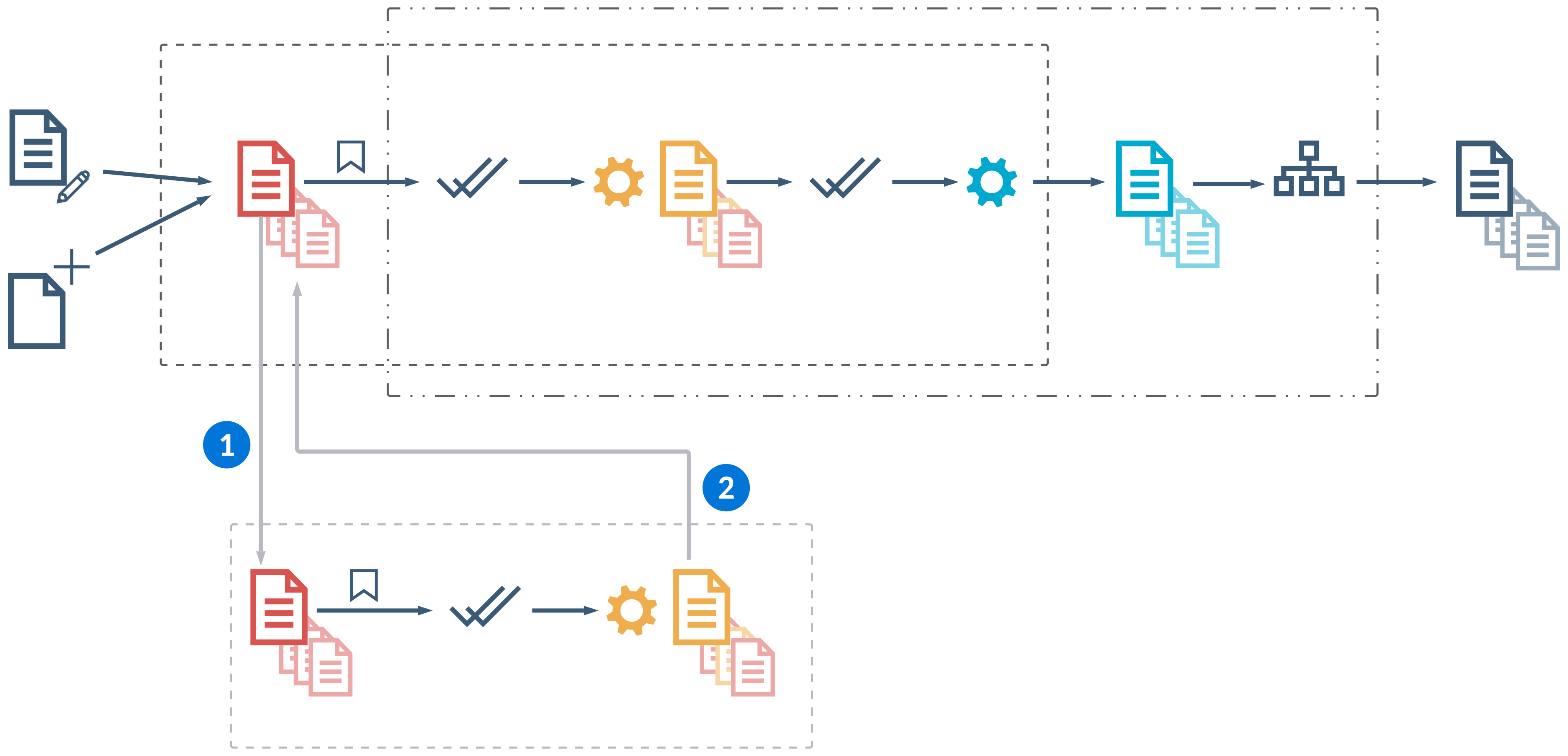
| A user selects an application link that has a link type of |
|---|---|
| When the user saves in the nested NATE container, a series of automated processes takes place in the background. Unless there is an error that requires action or prevents the save from completing, the user is then navigated back to the source application. By default, when you save in a nested NATE container, validation triggers and action blocks run. When the parent NATE container is saved, the validations run again if there are changes between the time the child NATE was saved and the parent NATE is saved. If the nested NATE has workflow implications, workflow changes are passed back to the parent NATE container but aren't queued until the parent NATE is saved. Table triggers never run until the parent NATE container is committed. |
Will my row action run in a NATE container?
This topic reviews whether logic blocks initiated from row actions run inside or outside of NATE containers.
There are multiple configuration selections which impact whether or not a row action runs in a NATE container, such as the:
- Application type
- Header Detail application
- Other application types
- Row action configuration Link Type
Logic Block - Not in Trans BoundaryLogic Block - Not in Trans Boundary (Save Required)Logic Block In Trans Boundary
- Logic block configuration
- Use Use NATE container checkbox selected
- Use Use NATE container checkbox cleared
The tables below describes whether a row action runs in a NATE container with different configurations selected.
Header Detail applications:
| Use NATE Container = True | Use NATE Container = False | |
|---|---|---|
| Not in Trans Boundary | Runs in new NATE container | Run in new NATE container |
| Not in Trans Boundary (Save Required) | Runs in new NATE container | Runs in new NATE container |
| In Trans Boundary | Runs in the same NATE container | Runs in the same NATE container |
Other application types:
| Use NATE Container = True | Use NATE Container = False | |
|---|---|---|
| Not in Trans Boundary | Runs in new NATE container | Does not run in NATE container |
| Not in Trans Boundary (Save Required) | Runs in new NATE container | Does not run in NATE container |
| In Trans Boundary | Runs in the same NATE container | Runs in the same NATE container |
If a calling logic block uses a NATE container, all of the called processing logic blocks run within the same container. The only exception is if the processing logic blocks are configured to run in a separate transaction boundary.
If the calling logic block does not use a NATE container, all of the called processing logic blocks run in new containers if they are configured with the Use NATE Container checkbox selected.
Product Families
A product family is a category used to group related metadata objects together. The metadata in a product family is typically packaged as a solution, such as Financials or Artificial Intelligence.
When you create a new metadata object, such as a data item, logic block, or application, you must enter a value in the Product Family field. Metadata is typically migrated, or moved, between environments based on product family. Learn more in Environments, business data, and metadata.
Families are made up of one or more modules, which are a way to further categorize the object. Modules are specific to a single family.
Family Definitions application
Solution developers use the Family Definitions application to manage their product families. Family definitions dictate the dependencies between objects in different families, ensuring metadata migrates correctly and functions properly in downstream environments.
To create a family definition, specify the Family Type and any Dependencies. Always create your family definitions in the YY.nRPDevPartner environment, where you develop your solutions.
In addition to the families that you own, the Family Definitions application also includes the product families from Nextworld that you have access to. When metadata in a family is migrated downstream, the associated family definition is migrated automatically.
Dependencies
Define the additional families as dependencies if you expect to reference objects in those families when creating metadata in the current family.
For example, you might own the family definition for the Financials family, and create a new financials table. If you expect to reference a data item in the Sales Intelligence family in that table, you should list the Sales Intelligence family in the Dependencies subtable on the Financials family definition.
You should set up dependencies between the families you own, but you can also include base owned families as dependencies. However, you must understand how metadata migrates downstream and which solutions your customers activate to avoid broken references. For example, if you shipped your Financials table that referenced a Sales Intelligence data item and the customer did not activate the Sales Intelligence solution, your table would not function in their environments.
Family definitions and metadata validations
Several validation rules rely on your family definitions when they're run from the Validation Workbench application. Additionally, certain rules that rely on your family definitions are validated automatically each time you run a promotion to verify that your metadata is valid for delivery to downstream environments.
For example, you cannot migrate any metadata in a product family with a Family Type of Personal. Learn more in Promotion Manager application.
You can access other rules, such as those related to family dependencies, in the Validation Rule Catalog application. You should perform these validations with the Validation Workbench application on a recurring basis and before you promote your metadata.
For example, you could set up a recurring validation to ensure you are not referencing metadata objects that are not in a dependent family as you develop. Learn more in Validating Metadata.
nwId
Every object in the Nextworld system has a unique identifier associated with it called an nwId.
A nwId is a Globally Unique Identifier (GUID), or a code made up of numbers and letters that distinguish an object from any other existing object. Every object in the system contains an nwId, which is automatically generated when an object is first saved to the database. After an object is saved and has an nwId associated with it, you can never alter the nwId value.
nwHeaderId
An nwHeaderId is the nwId of another table that connects one table to another so that records remain unique to that table pairing. A table automatically populates the nwHeaderId when you link tables together through either:
- A Header Detail structure
- A Subtable used in a Main table
For example, when building a Header Detail structure, you start with a Header table and at least one Detail table with their own nwIds:
| Table type | nwId | nwHeaderId |
|---|---|---|
| Header | 627461da-ce61-11e8-b348-024748a877aa | |
| Detail | 4beb7296-ce61-11e8-b345-024748a877aa | 627461da-ce61-11e8-b348-024748a877aa |
| Detail | fae17972-ce60-11e8-b337-024748a877aa | 627461da-ce61-11e8-b348-024748a877aa |
When you connect the tables in a Header Detail table, the Detail tables capture 627461da-ce61-11e8-b348-024748a877aa as its nwHeaderId. This means that when new detail records are created, those records are unique to that specific header table record.
If one of the Detail tables is used in another Header Detail structure with a different Header table, then the Detail table would capture the nwHeaderId of the other Header table. Detail table records remain separate and unique to their respective Header Detail structures.
Metadata IP protection
Metadata intellectual property, or IP, protection is a feature that is applied to all partner metadata. This feature ensures that your metadata is only visible to customers that have purchased your solutions.
Metadata IP protection is applied in the following ways:
- Most metadata objects–such as data items, tables, and applications, are protected based on the product families configured for your solutions.
- Menus–are protected based on the menu pages that are configured for your solutions. Menu pages are defined in the Solutions Definition application.
- Relationship trees–in applications such as Content Builder and Role Hierarchy Definitions, your metadata is protected based upon the relationship detail records to which the relationship records are attached.
Solution Definitions application
Solution developers use this application to package metadata for delivery of their solutions to customers. Before a solution can be built, it must have product families and menu pages that are part of the solution defined.
Configuration
On this page, define the name of your solution, the product family and product module if applicable, and enter the email address for notification of when an activation of your solution is requested.
Families
Configure the metadata families for your solution on this page.
Menus
Add the menu pages where your solution can be accessed.
Deprecated metadata
When a metadata object is deprecated, it means that the object is no longer supported by Nextworld, or that the object will be removed entirely in a future release. You should avoid using deprecated features, and follow any necessary instructions in the related release notes.
Every metadata object has a Deprecate checkbox. If this checkbox is selected, the Deprecated With field displays the release in which support ceased for the object. These objects display a warning message when the object is accessed in the Developer Studio. For example, if a logic block has been deprecated, a warning displays when it is opened in Logic Block Builder. Certain metadata objects, such as applications and reports, also display a warning if they are launched.
You should check the release notes for important information related to any metadata that's recently been deprecated. Use the Note Category field to filter for Deprecation Notification release notes. If the note has the Action Required checkbox selected, you may need to follow the steps included in the release note to ensure that your data and applications continue to function as expected.
Solution development partners can learn about deprecating their metadata in the Deprecating and removing delivered metadata topic.