


.svg)


Review the following topics for initial implementation tasks required of a system administrator:
- Configure UI settings across the platform
System administrators can change the default user interface settings of many platform features with applications such as the User Interface Configuration Profile and User Interface Settings.
- Configure environment options
System administrators configure different aspects of their environments, such as time zones, languages, connectors, and scheduled jobs.
- Enable Nextworld Intelligence in your environments
System administrators can enable Nextworld Intelligence within their environments to support use of Large Language Models (LLMs) and MCP servers.
- Users
Once security groups, permissions, and roles have been established for the platform, system administrators create user accounts to maintain user permissions and security settings. The user account is granted roles which control their access level to components of the platform.
- Sign in options
System administrators can configure different sign in options, such as SSO, password controls, and trusted IP addresses.
Configure UI settings across the platform
System administrators can change the default user interface settings of many platform features with applications such as the User Interface Configuration Profile and User Interface Settings.
User Interface Configuration Profile
User interface profiles enable you to exclude UI elements from the platform in order to simplify the appearance. This is beneficial for users who don't need to access certain components of the platform. Elements which can be excluded include:
- Navigation Elements–Assists users in moving around the platform, such as menus.
- Information Elements–Gives users information about the platform, such as the language being displayed in the interface and the current platform version.
- Functional Elements–Controls the look and feel of the interface, such as themes and settings.
Create a profile in the User Interface Configuration Profile Setup application, then apply the profile to individuals in the Users application, or within a user template in the User Quick Entry application. Learn more in Configure a User Interface Configuration Profile and Configure User Templates for quick entry.
If an environment is specified, the User Interface Configuration Profile only applies in that environment. If no environment is specified, it would apply to all environments.
User Interface Settings
User interface settings are applied to an entire environment, rather than individual users. Setting options include:
- Styles and formats–Control elements like required field indicators, lookup icons, lookup sorts, save actions available in the form action menu, field styles for disabled fields and currency fields, and the appearance of message banners.
- Fonts–Change the default font of elements like application titles, field labels, and row titles.
- Navigation–Dictate how keyboard navigation works, as well as the behavior of the Navigation Menu and filter fields.
- Layouts–Control column width, field size display, row title alignment, and the location of system buttons.
Once user interface settings have been configured, you must apply them to an environment Environment application step, in the Tenant Environment Setup application. Learn more in User Interface Settings application and Environment application step.
Themes
Themes enable you to apply consistent visual components within the platform's user interface. Themes are configured in the Theme Builder application. Each theme has colors assigned to:
- Specific elements in the UI, such as buttons and menus.
- Statuses, like success or warning.
- List lookup options.
Learn more in Themes.
Hide application actions with user permissions
You can optionally show or hide application links, field, row, and form actions based on a user's permissions in the Tenant Environment Setup application. Learn more in Hide application actions with user permissions.
Configure a User Interface Configuration Profile
System administrators can configure a simplified Nextworld Platform user interface by creating a profile in the User Interface Configuration Profile Setup application and applying the profile to individuals in the Users application. This allows individuals with limited needs to have a simplified experience.
For example, an individual on a manufacturing shop floor may access the Nextworld Platform from a tablet and use a limited number of applications. A user interface profile can hide the unnecessary platform features.
User Interface Configuration Profile Setup
In the User Interface Configuration Profile Setup application, you must:
- Create a new profile. Name the profile something that is unique to the environment.
- Select the environment in which the profile is active. If you do not select an environment, the profile is active across all environments for the designated users.
- Select which elements you want hidden for the users.
- Optionally, select a theme for the profile.
Users
In the Users application, you must select an existing user and open the detail view. On the User Settings page, enter the name of the profile in the User Interface Configuration Profile field.
Alternately, you can apply a User Interface Configuration profile to a user template in the User Quick Entry application. Learn more in Configure User Templates for quick entry.
User Interface Configuration Profile Setup application
System administrators use the User Interface Configuration Profile Setup application to create user interface (UI) profiles for individuals within their organizations. User interface profiles enable you to simplify the UI of the platform by hiding elements like Ed, the Navigation Menu, Guided Tour, and Header and Footer elements such as Nextworld Help icons and the current date and language.
Certain users can benefit from a simplified user interface that only shows them the Nextworld Platform elements they need to access. System administrators can choose to exclude UI elements from the user interface by creating profiles. These elements are grouped by the following types:
- Navigation Elements–Assists users in moving around the platform, such as menus.
- Information Elements–Gives users information about the platform, such as the language being displayed in the interface and the current platform version.
- Functional Elements–Controls the look and feel of the interface, such as themes and settings.
If an environment is specified, the User Interface Configuration Profile only applies in that environment. If no environment is specified, it would apply to all environments.
Once the profile has been configured, it can be applied directly to a user record in the Users application, or referenced in a user template. Learn more in Configure User Templates for quick entry.
For more information on the user interface elements found in the platform, see Elements of the Nextworld interface.
User Interface Settings application
System administrators configure user interface settings to change the default user interface of platform features, such as font, field styling, and the behavior of navigation features. User interface settings are applied to an entire environment.
General Configuration
Specify the product family and product module.
Styles and Formats
Control elements like required field indicators, lookup icons, lookup sorts, save buttons, and the appearance of message banners. Additionally, you can control how field styles, such as disabled fields and currency fields, are displayed.
For save actions, you can select the default Save button shown in the form action menu, move select save actions into a submenu, or remove certain save options from the menu. If a user favorites a submenu option, it appears back in the primary form action menu.
Fonts
Change the default font of elements like application titles, field labels, and row titles.
Navigation
Dictate how keyboard navigation works, as well as the behavior of the Navigation Menu and filter fields.
Layouts
Control column width, field size display, row title alignment, and the location of system buttons.
Once user interface settings have been configured, you must apply them to an environment in the Environment application step, in the Tenant Environment Setup application. Learn more in Environment application step.
Keyboard Shortcuts
Change the default keyboard navigation for your environment. Any keyboard shortcuts configured by a user within the Keyboard Shortcuts window overrides the default environment settings.
Themes
A theme is a visual pattern that you configure to control the visual components of the platform's user interface.
For example, the following images compare two themes applied to the same application form. One theme uses blue, white, and black, while the other theme has grey, purple, and white assigned.
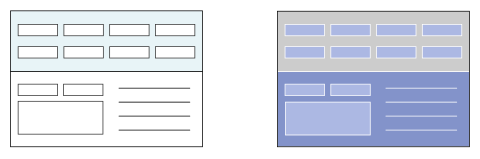
Themes are configured in the Theme Builder application. Each theme has colors assigned to:
- Specific elements in the UI, such as buttons and menus.
- Statuses, like success or warning.
- List lookup options.
Application developers and users typically use themes for personal use or global use. Create a personal theme if you are the only audience the theme is intended for. Create a global theme if the theme should be applied as the default theme across a zone.
Themes are environment specific. If you change the default theme in the User Menu, that theme is applied each time you sign into the environment you assigned it in.
Theme configuration
Configure themes using the Theme Builder application to create and modify user interface themes. Use the Environment application step inside the Tenant Environment Setup application to default a theme into an environment.
Theme Builder
If a theme doesn't already exist according to your requirements, then in the Theme Builder application you must:
- Create a theme and use the pages in the application to configure colors, images, and logos.
- Assign color codes to semantic meanings and spectrum colors.
See the Theme color types section for more information on configuring semantic and spectrum colors.
If you are using the theme for personal use, in which you are the only user who experiences the theme, apply your new theme in the User menu.
Default a theme in an environment
To make a theme default for a certain environment, in the Environment application step, you must:
- Create a new record.
- Select an environment and theme from the table lookup fields.
The theme that you choose becomes the default theme that appears when users are in that environment.
Theme color types
When configuring colors in the Theme Builder application, you can define colors as either semantic or spectrum. Semantic colors are colors that act as visual representations of a status, such as success or danger. Spectrum colors are the specific shades of a color that you choose to represent blue, red, green, and so on in the UI.
Some list lookups only have semantic colors and some only have spectrum colors. You can use both semantic and spectrum colors in the same list lookup if there are values that should have a status meaning attached to them and there are values that you just want to differentiate with color.
Spectrum colors
Spectrum colors are configured on the Spectrum Colors page in the Theme Builder application. All colors that can be represented in the UI have a color field in this page. Choose what color you want to define the light, dark, and standard versions of a color in your theme. If your chosen color is going to be used as a background color, you can also define what color text should appear against the spectrum color.
Define a spectrum color by using the field's color picker to choose a color or, if you already know what code represents the color you want, assigning a color code to the spectrum color field. For example, the spectrum color field, Blue, may have the color code #1F69FE, a shade of blue, assigned to it in a modified theme. This color becomes available as a text color or a background color in the UI:
- Spectrum Blue
- Spectrum Blue
When you create a new theme, colors are already defaulted into the spectrum color fields. In order to avoid confusion and keep colors paired with fields that logically describe them, only change the Hue Saturation Brightness (HSB) sliders of the default color. For example, the spectrum color field, Blue, may have the color code, #696969, a de-saturated shade of blue, assigned to a monochromatic theme in which all the default spectrum colors are desaturated. This color becomes available as a text color or a background color in the UI:
- Spectrum Blue
- Spectrum Blue
Semantic colors
Semantic colors are used in UI design to provide a color visual to convey a specific meaning to the user. For example, you can configure the color of success or the color of failure. A semantic color is typically presented alongside text for further clarification, but the color alone should be enough to represent a status. The ability to configure semantic colors allows application developers from across different cultural ranges to customize their own color=status relationship.
Define semantic colors by assigning a color code to represent a status. For example, the semantic color field, Warning, may have the color code #F0AD4E, a shade of yellow, assigned to it. This color becomes available as a text color or a background color in the UI:
- Warning
- Warning
Theme Builder application
Application developers use the Theme Builder application to create and modify user interface themes. Themes change the colors of different UI elements, and can optionally change the logo displayed throughout the platform.
If no logo is designated in the header of the record, the default Nextworld logo is used. Use the application pages to further define a theme.
General
Define the color for the background of the platform, as well as colors for application headers, help windows, and toolbars. Optionally, select a content item to display as a background image.
Menu Bar
Define the colors for the menu bar, navigation menu, and active favorite.
Tables
Define the colors for table headers, rows, and filters.
Semantic
Define the semantic colors for the theme. Semantic colors act as visual representations of a status, such as success or danger.
Spectrum
Define the spectrum colors for the theme. Spectrum colors are the specific shades of a color that you choose to represent blue, red, green, and so on in the UI.
Preview
The Preview component of the application allows you to see a live preview of your theme. Select elements inside of the preview to jump to the field which produces the color.
Themes best practices
These best practices ensure that themes are configured consistently throughout Nextworld.
Theme configurations are done in the Theme Builder application and are applied through the User menu.
Theme creators must consider accessibility when choosing text and background colors. There are Web Content Accessibility Guidelines (WCAG) that define minimum contrast ratios. Your company or organization may be required to meet Level AA or Level AAA contrast requirements.
When configuring the Logo field:
- Use a logo in the .svg file format. A .svg format logo appears clear at any screen resolution. The .gif, .jpg, and .png formats are also supported, but they consistently display at a lower quality.
- Choose a simpler image rather than an elaborate one. A simpler image is easier to read and is typically more recognizable than an overly detailed image.
When configuring the Focus field, choose a color that stands out from the other colors of the theme. This is the color that surrounds a selected field box. It should never be difficult for a user to distinguish a selected field from an unselected field, so the color chosen for Focus must stand out against any other chosen color.
When making spectrum color changes, you should only change the saturation of the existing color and not the actual color itself. Changing the color and not the saturation ensures that a spectrum color field always matches the color it is describing. For example, the Light Blue field should appear in a list lookup in some shade of light blue, and not, for example, a shade of yellow.
Once a color code is assigned to either a semantic or spectrum field, you should not use that color to represent any other field. This ensures that a color has either a semantic meaning or a spectrum meaning. Colors that have two meanings can cause unnecessary confusion for the user.
| Type | For example, |
|---|---|
Semantic | Assign the color code #D9534F, a shade of red, to the Danger field. If you have something that should represent a dangerous situation in the UI, you can now use this color. |
Spectrum | Assign the color code #DD4D50, a different shade of red than the one used for the semantic color, to the Red field. If you have a list lookup value that you want to differentiate from other values using color, you can now use the color red. |
When choosing color certain fields, consider matching with the color with a semantic color if the field's purpose matches the . For example, the Help Window color could match the color chosen for the Info field.
Hide application actions with user permissions
Show or hide application links, field, row, and form actions based on a user's permissions in the Tenant Environment Setup application.
By default, most field, row, and form action buttons appear to users, regardless of their security permissions. If a user selects a button which they don’t have permission to execute, they receive an error message.
To hide these buttons instead, navigate to the Global Settings application step of the Tenant Environment Setup application and select the Secure App Actions. Once applied, the permissions required for different types of buttons are:
- Application Links—Requires
Readrow security access to the destination application's table. - Logic Blocks—Requires access to execute the logic block. This is determined by the type of security applied to the logic block:
- Public—All users are authorized to execute.
- Public-Secured—Users must have access to the table, logic block, or security group that allows them to execute.
- Private—Called from other logic blocks, so users can't execute directly.
Learn more in Row security and Logic block security options.
Configure environment options
System administrators configure different aspects of their environments, such as time zones, languages, connectors, and scheduled jobs.
Tenant Environment Setup application
Use the Tenant Environment Setup application to specify the following for your environments:
- Default language and support of additional languages.
- Default product family and module for all newly created metadata.
- Service administrators.
- User interface settings.
- Default time zones.
- Activated solutions.
- Single sign on options.
- Global settings, such as default lifecycles.
Learn more in Tenant Environment Setup application, Single Sign On configuration, Support additional languages on the platform and Time zones.
API Keys
Register API keys within the system to:
- Authenticate third party endpoints, such as Google maps and weather widgets.
- Enable large language models.
Learn more in Client API keys setup and Enable AI models in your environment.
Email domain
Optionally, set up a custom email domain which the platform can send emails from.
Learn more in Email domain setup.
Automated record processing
Optionally, create automated record processing events with:
- Scheduled jobs—Specify the specific time and requirements for when a job runs to process records.
- Record patch processing—Specify a time limit or defined number of records which initiates a job to process records.
Learn more in Scheduled jobs and Record batch processing.
Tenant Environment Setup application
The Tenant Environment Setup composite application allows you to configure administrators and solutions for your tenant's environments. It also lets you set the default lifecycle that is necessary for customer defined attributes and user templates to work.
Configure your environments in the following application steps:
- Locale Settings application step
Use the Locale Settings application step to manage and support different languages in your environments, and set your default language.
- Service Administrators application step
Configure the administrators for your environments in the Service Administrators application.
- Environment application step
Use the Environment application step to configure user interface settings, default theme, and default time zones, for different environments.
- Solutions application step
In the Tenant Environment Setup application, use the Solutions step to activate, deactivate, or purge solutions for your environments.
- Single Sign On application step
Use the Single Sign On application step to configure inbound and outbound single sign on (SSO) authentication. Both Security Assertion Markup Language (SAML) and OpenID Connect (OIDC) SSO types are supported.
- Client Credentials application step
In the Tenant Environment Setup application, use the Client Credentials application step to configure authentication for inbound integrations coming into the platform. This allows external systems to authenticate with Nextworld and get access tokens for making API calls without requiring a user to manually sign in.
- Global Settings application step
Use the Global Settings application step to define the tenant's default lifecycle for owned and customized metadata. This is necessary for customer defined attributes (CDAs) and user templates to automatically locate tenant owned data. Optionally, configure the tenant to hide or show actions based on user permissions, or override the default emails sent when a user account is activated or for password resets.
Locale Settings application step
Use the Locale Settings application step to manage and support different languages in your environments, and set your default language.
By default, the Primary Language is set to English, and the Country is set to United States.
When you support a language, it allows the users in your environment to change their locale setting in the User Settings menu to the language of that locale. Learn more in Support additional languages on the platform.
Open the record for your tenant in the detail form to access the languages you can support. These are determined by your contract with Nextworld.
Each record with a Base ownership represents a language you can support. To support a language, use the Support Language row action, and then select Prepare Plan. After you're notified that the job is complete, there is a new record for that language that has an ownership of Owned. This indicates that the language is now enabled in your environments, and you and your users can select the new locale in your user settings.
If you create your own metadata that your users need to access in a different language, you are responsible for translating the text-based elements of those objects. Learn more in Metadata translations.
Use the Repair Language row action on your Owned record if you encounter issues with the translations in your environments. To remove the option for your users to access the platform in a language you've supported, use the Discontinue Language row action.
Service Administrators application step
Configure the administrators for your environments in the Service Administrators application.
Add the users that will be administrators for your environments. You can add individual users as well as user groups. Additionally, you can indicate backup approvers for these individuals or groups.
For more information, see Approval backup configuration.
Environment application step
Use the Environment application step to configure user interface settings, default theme, and default time zones, for different environments.
Open an environment record to select the:
- Default theme, configured in the Theme Builder application. Learn more in Theme Builder application.
- Default user interface settings, configured in the User Interface Settings applications. Learn more in Configure UI settings across the platform.
- Default product family and module. This defaults these field values in newly created metadata.
- Default time zone.
The system determines what time zone is used for an environment based on the Display Preferred Time Zone checkbox. Options include:
- Display Preferred Time Zone selected—The system looks for a Custom Time Zone in the User Profile. If no Custom Time Zone exists, it uses the Default Time Zone for that environment. If no time zone is selected, the system uses the default time zone configured by the platform.
- Display Preferred Time Zone cleared—The system looks for a Custom Time Zone in the User Profile. If no Custom Time Zone exists, it uses the user's browser's time zone.
Solutions application step
In the Tenant Environment Setup application, use the Solutions step to activate, deactivate, or purge solutions for your environments.
A solution is a group of applications, features, and processes that together enable you to complete a business process. Learn more in Solutions.
The following actions can be performed in the Solutions application step:
Activate | Create a record for the applicable tenant and environment and add a detail row to specify which solution you would like to activate. Save the record, then select Activate from the row action menu to activate the solution in your tenant and environment. | |
Deactivate | Select Deactivate from the row action menu of the applicable detail record to remove the solution from the environment. Solutions can be reactivated or purged from the deactivated state. | |
Purge | Select Purge from the row action menu for the detail record that corresponds to the applicable solution . |
Some solutions require additional configuration steps, such as obtaining and registering API keys. For more information, see Enable AI models in your environment.
Solutions
Nextworld and partners offer solutions for your environments. A solution is a group of applications, features, and processes that together enable you to complete a business process.
For example, Nextworld offers solutions for Nextworld Intelligence, as well as Financials.
Solutions are purchased and authorized by the platform. Once a solution has been authorized, system administrator can activate it in the Tenant Environment Setup application, in the Solutions / Localizations application step. Each environment must be individually configured to use a solution. Learn more in Solutions application step.
Single Sign On application step
Use the Single Sign On application step to configure inbound and outbound single sign on (SSO) authentication. Both Security Assertion Markup Language (SAML) and OpenID Connect (OIDC) SSO types are supported.
The SSO Type you select determines the requirements for configuration. Options include:
OIDC—Use the OpenID Connect page to configure inbound OIDC authentication. Optionally, use the Third Party SSO Configuration page to configure outbound OIDC authentication which can be used in endpoints and connectors.SAML—Use the SAML 2.0 page to configure inbound SAML authentication.
Learn more in Single Sign On configuration.
When SSO is configured you'll have an alternative login address for SSO. Obtain the URL details when you set up SSO through support.
Sign Out
Optionally, configure your IDP solution to add a logout URL that logs out all open sessions of the platform. This is useful for scenarios when Nextworld is part of a multiplatform solution. When the logout URL is called, all sessions in the brower are logged out of the domain.
The logout URL is #/logout. For example, https://cloud.nextworld.net/#/logout would log the user out of all instances of the platform within their browser.
Single Sign On configuration
Configure single sign on (SSO) to allow an external identity provider (IDP), such as Entra, JD Edwards, or Jumpcloud, to authenticate users signing into the platform. Both Security Assertion Markup Language (SAML) and OpenID Connect (OIDC) SSO types are supported.
Prerequisites
Contact support and let the support team know which type of SSO, and which IDP, you are setting up. Support will:
- Set up a DNS record.
- Add a URL to your tenant record.
- Provide you with the configuration details that you need for the next step.
Single Sign On application
Platform requirements for SSO are configured in the Tenant Environment Setup composite application, in the Single Sign On application step. SAML and OIDC have different requirements which can be reviewed in the following topics:
Sign Out
Optionally, configure your IDP solution to add a logout URL that logs out all open sessions of the platform. This is useful for scenarios when Nextworld is part of a multiplatform solution. When the logout URL is called, all sessions in the brower are logged out of the domain.
The logout URL is #/logout. For example, https://cloud.nextworld.net/#/logout would log the user out of all instances of the platform within their browser.
SAML configuration
Configure SAML single sign on in the Single Sign On application step within the Tenant Environment Setup application.
External Identity Provider (IDP)
In your IDP, you must:
- Set up a new SSO profile. For example, in Entra search for Enterprise Applications, select New Application, then Non-Gallery Application, then Configure Single Sign-On.
- Enter the Entity ID that identifies Nextworld as your service provider. The naming convention is
<tenant>.cloud.nextworld.net...nw<tenant>. For example,acme.cloud.nextworld.net...nwacme - Use the SAML URL provided by platform support to identify Nextworld as a your service provider in the IDP.
- Note the URL and X509 provided by your IDP. These will be used in the Single Sign On Identity Provider application step and are different than the SAML URL and X509 given to you by support to use in the IDP application.
Single Sign On application
In the Single Sign On Identity Provider application step, create a new record of type SAML. On the SAML 2.0 page, copy and paste the information from your IDP configuration page into the following fields:
| Entity ID | The identifier for your IDP. In Microsoft Entra, this value is contained in the Entra AD Identifier field. |
| SAML URL | The login service endpoint for the IDP. In Microsoft Entra, this value is contained in the Login URL field. |
| x509 Certificate | The X.509 certificate associated with your IDP signing certificate. In Microsoft Entra, visit the App Federation Metadata URL and search for the X509 Certificate or X509 Data. |
Then, determine how you want the SSO to identify the user. Options include:
| Default (no SSO User Mapping Field or Login Name Encoding) | Use when the user identifier in the external system is the same as the user's username in the platform. The NameID subject of the SAML assertion finds the platform user whose username is equal to the NameID value. | For example, if the SAML Response has this for NameID: <saml:NameID Format="urn:oasis:names:tc:SAML:1.1:nameid-format:emailAddress">John.Smith@ACME.com</saml:NameID> The system would look for a username of John.Smith@ACME.com |
|---|---|---|
| Login Name Encoding | Use when NameID does not match a platform username, but the platform username is elsewhere in the SAML response. Define the SAML segment that contains the user platform username by replacing it with the format X_LOGIN_NAME_X. | For example, if the SAML response is: <saml:Attribute Name="http://schemas.xmlsoap.org/ws/2005/05/identity/claims/emailaddress" NameFormat="urn:oasis:names:tc:SAML:2.0:attrname-format:uri"><saml:AttributeValue xsi:type="xs:string">John.Smith@ACME.com</saml:AttributeValue></saml:Attribute> You would replace it with: <saml:Attribute Name="http://schemas.xmlsoap.org/ws/2005/05/identity/claims/emailaddress" NameFormat="urn:oasis:names:tc:SAML:2.0:attrname-format:uri"><saml:AttributeValue xsi:type="xs:string">X_LOGIN_NAME_X</saml:AttributeValue></saml:Attribute> |
| SSO User Mapping Field | Use when the platform username differs from anything returned by the external IDP in the SAML response. Define an Attribute from the SAML response that uniquely identifies a user. The value of the attribute matches the External IDP User ID field on user records. | For example, If the SAML Response contains <saml:Attribute Name="http://schemas.xmlsoap.org/ws/2005/05/identity/claims/emailaddress" NameFormat="urn:oasis:names:tc:SAML:2.0:attrname-format:uri"><saml:AttributeValue xsi:type="xs:string">John.Smith@acme.com</saml:AttributeValue></saml:Attribute> You could enter http://schemas.xmlsoap.org/ws/2005/05/identity/claims/emailaddress to find this attribute. In the user record, you would enter John.Smith@ACME.com in the External User ID field. |
Mark the new profile as Active. You can have only one Active Single Sign On Identity Provider profile at a time.
OIDC configuration
Configure OIDC single sign on in the Single Sign On application step within the Tenant Environment Setup application.
SSO Authentication for Nextworld
To configure SSO authentication into Nextworld, in your IDP, you must:
- Set up a new SSO profile.
- Use the Sign-In Redirect URL provided by platform support to identify us as your service provider in the IDP.
Then, in the Single Sign On application step, create a new record of type OIDC and copy and paste the information from your IDP configuration page into the following fields on the OpenID Connect page:
| Client ID | The identifier for your IDP. In Okta, this is contained in the Client ID field. |
|---|---|
| Client Secret | The secret code for your IDP. In Okta, this is contained in the Secret field. |
| OIDC Token Issuer URL | The URL of the entity that issues the tokens. Once this value is entered, the OIDC Auth URL and OIDC Token URL fields are automatically populated. For example, in Okta, this could be something like: https://trial-4284753.okta.com/ This is the base URL used when going to the /.well-known/openid-configuration endpoint to find other URLs. If you entered the example URL in Okta, the system would use https://trial-4284753.okta.com/.well-known/openid-configuration to find the Auth Server, Token, and JWKS URLs. |
You must map the unique identifiers from the ID tokens into the External Identity Provider User ID field in SSO user records in the Users application. By default, the sub claim is used to match the records because it is guaranteed to be in any token that comes from the IDP.
Optionally, you can use the SSO User Mapping Field field in your SSO configuration record instead. If used, the field must map a claim in the OIDC ID token which contains a value that uniquely identifies a user in the IDP.
SSO Authentication for Third Party Endpoints and Connectors
To configure outbound authentication for third parties, add a record for each third party IDP on the Third Party SSO Configuration page of the Single Sign On application step.
By default, a single System User token is retrieved from third party systems and used for all endpoint and connector authentication. If you add a record for the third party system in your SSO configuration, each user is assigned a unique token from the third party upon authentication. This authentication can then be used in endpoints and connectors.
Proof Key for Code Exchange (PKCE) is automatically included within OAuth requests from the Nextworld platform. The external authorization provider which the request is sent to dictates whether it is used. Review the documentation for your provider to determine their requirements.
Client Credentials application step
In the Tenant Environment Setup application, use the Client Credentials application step to configure authentication for inbound integrations coming into the platform. This allows external systems to authenticate with Nextworld and get access tokens for making API calls without requiring a user to manually sign in.
There are several authentication types currently supported, including:
Token Exchange—Uses a token provided by an external identify provider (IdP) and exchanges it for a platform token at runtime. This allows you to authenticate with a third-party IdP and use that trusted relationship to authenticate with Nextworld.JWT Assertion—Uses a self-assigned JSON Web Token to authenticate directly with the platform. This allows you to authenticate with the platform without requiring an external IdP. Authentication occurs when you sign the JWT with a private key, then the platform verifies the signature with a public key.
JWT Assertion specifications
Review the following specification documents for JWT Assertion authentication from Internet Engineering Task Force (IETF):
Global Settings application step
Use the Global Settings application step to define the tenant's default lifecycle for owned and customized metadata. This is necessary for customer defined attributes (CDAs) and user templates to automatically locate tenant owned data. Optionally, configure the tenant to hide or show actions based on user permissions, or override the default emails sent when a user account is activated or for password resets.
Prerequisites
To configure the Tenant Default Lifecycle, you must:
- Have the
TenantConfigurationrole assigned to you. - Create the lifecycle you want to set as the Tenant Default Lifecycle in every environment the tenant owns.
Set the Tenant Default Lifecycle
To set the Tenant Default Lifecycle, create a new record and enter the lifecycle you created. Optionally, select the Secure App Actions checkbox to hide application links, field, row, and form actions if users don't have permission to execute them. Once applied, the permissions required for different types of buttons are:
- Application Links—Requires Read row security access to the destination application's table.
- Logic Blocks—Requires access to execute the logic block. This is determined by the type of security applied to the logic block:
- —All users are authorized to execute.
- —Users must have access to the table, logic block, or security group that allows them to execute.
- —Called from other logic blocks, so users can't execute directly.
Email overrides
You can optionally change the default email sent to users when they activate their account, request a password reset, or complete a password reset using the UserActivationEmailHTML , Password Reset Email, and Reset Confirmation Email fields.
Each field has a template which you can load using the buttons below the fields. To view the template’s HTML or paste your own HTML into the field, select the Fullscreen button in the editor bar, then select the Code View </> button.
If you create your own HTML, ensure the proper substitution fields are used so the system populates them correctly. The required substitution fields are:
- [Tenant Name]: Identifies the associated group of users and data within the given Environments.
- [Username]: The user being activated.
- [Password]: The temporary password being sent.
- [Login URL]: The URL link for initial sign in to the platform.
Support additional languages on the platform
Support additional languages across your environments to allow your users to access the platform in those languages.
When you support an additional language, users can select a different locale in their User Settings menu to see the platform's user interface and applications in the language of that locale. Additionally, some formatting elements may change to match those used in the region.
For example, setting your locale to English (United States) displays the date November 14th, 2025 as 11/14/2025, whereas the English (United Kingdom) locale would display it as 14/11/2025.
Support a language
Use the Tenant Environment Setup application to support different languages. Each Base record in the Locale Settings application step represents a language you can support. The available options are determined by your contract with Nextworld.
Use the Support Language row action on the language you need to enable, and then select Prepare Plan. After you're notified that the job is complete, there is a new Owned record in the Locale Settings application step for that language. This indicates that the language is now enabled in your environments, and you and your users can select the new locale in your user settings.
Learn more in Tenant Environment Setup application and Locale Settings application step.
Owned metadata and translations
When you support a language, all platform elements and Base metadata can be accessed in that language. If you have any Owned metadata objects, however, you are responsible for managing the translatable values for those objects. If you don't translate these objects, they display in the default language regardless of your locale setting.
Both customers and solution development partners may have Owned metadata that they may need to translate. Learn more in Metadata translations.
Time zones
Components of the platform, such as DateTime fields, logic blocks, and application settings, reference and use time zones in different ways. Time zones can be set at the tenant level, within user profiles, or dictated by the browser, depending on how an environment has been configured.
System administrators can set a default time zone for an environment within the Environment step of the Tenant Environment Setup application. The system determines what time zone is used based on the Display Preferred Time Zone checkbox for that environment. Learn more in Environment application step.
Options include:
- Display Preferred Time Zone selected—The system looks for a Custom Time Zone in the User Profile. If no Custom Time Zone exists, it uses the Default Time Zone for that environment. If no time zone is selected, the system uses the default time zone configured by the platform.
- Display Preferred Time Zone cleared—The system looks for a Custom Time Zone in the User Profile. If no Custom Time Zone exists, it uses the user's browser's time zone.
Custom Time Zone
Optionally, users can also select a custom time zone in their User Profile. If a custom time zone is selected, other time zone settings are ignored.
Learn more in Custom Time Zone.
Client API keys setup
System administrators configure API keys with the API Key Setup application. API keys authenticate third party endpoints, such as Google maps, weather widgets, and artificial intelligence that can be used in the Nextworld Platform.
To integrate with an external system with an API, you need to acquire the system's API key. The steps on how to acquire them are found in the table below.
| System | Function | User Responsibility |
Google Javascript API—Enables map visualizations based on latitude and longitudeGoogle Geolocation API—Displays map visualization when used with address as a data point. |
| |
| Open Weather |
|
|
| Global Payments |
|
|
| Open AI | OpenAIGPT API—Enables the use of:
|
|
Once the API keys are obtained, you must register them in the API Keys application. Each provider many only have one record in the application. View a list of available providers in the API Key Provider Catalog application. Learn more in API Key Provider Catalog application and API Key Setup application.
Once the API key record is created, the endpoints begin to work If the proper API key is not obtained, core functionality is not impacted, but maps, weather, and payments won't work.
API Key Setup application
System administrators use the API Key Setup application to register API keys. This allows third party endpoints, such as Google maps and weather widgets, to be used in applications and dashboards.
To integrate with an external system, you need to acquire the system's API key. Learn how to acquire system API keys in Client API keys setup.
Once you acquire the API key, you must create a new record for the provider and enter the key. Only one API key should be registered in the application for each vendor and API type combination. If the proper API key is not obtained, core functionality is not impacted, but maps, weather, and payments won't work.
To view a list of available API key providers, open the API Key Provider Catalog application. Learn more in API Key Provider Catalog application.
API Key Provider Catalog application
Use the API Key Provider Catalog application to view the external systems, also known as providers, which have endpoints available for use in the platform. Endpoints enable use of features such as Google maps, weather widgets, and artificial intelligence.
The list form of the application shows a record for each provider supported on the platform. For example, Global Payments or Google Analytics. In order to enable use of the provider's features, you must obtain the provider's key then create an API key record in the API Key Setup application. Learn more in API Key Setup application and Client API keys setup.
Email domain setup
A system administrator can set up a custom email domain. This allows Nextworld systems and applications to send emails from the custom domain.
Prerequisites
Contact Nextworld Support to request that the email domain be configured for your tenant. This configuration must be completed before proceeding to the steps below.
Complete preliminary setup in Nextworld
1. In the Email Domain Management application, Create a new domain.
| Customer Internet Domain | MyDomain, which is your custom domain name. For example, nextworld.net. |
|---|---|
| Primary Customer Domain | Optional. Set to True if you have multiple custom domains and the current domain represents your primary, default domain. |
| Verification Email Address | Optional. Enter an email address that should be used to test the domain setup with the Send Test Email form action. |
2. Save the record, then use the Generate Verification DNS Tokens action to update the DNS records for the new domain.
3. If you exited the domain record during your save, reopen the record. Verify that the Domain Identity Verification Token field has been populated, and that the Easy DKIM CNAME Records subtable includes at least one Easy DKIM CNAME Record.
Configure your domain server
In your DNS provider, modify the DNS records:
1. Add the Nextworld Domain Identity Verification Token to your domain name:
| Host/Name | _amazonses |
|---|---|
| DNS Record Type | TXT |
| TTL | 1 hour (recommended) |
| TXT Value / Data | "record"where record is the Easy DKIM CNAME Record name. For example: Note that the quotation marks are required. |
2. Add each of the Easy DKIM CNAME Records in the subtable to your domain name’s DNS:
Verify configuration in Nextworld
1. In the Nextworld Email Domain Management application, use the Update Verification Status action to determine whether the DNS records have been updated. Depending on your domain provider, DNS records can take up to 48 hours to update.
When the Domain Verification Status is Verified for the domain record, the DNS has propagated and the domain is ready for use in Nextworld.
2. Optionally, use the Send Test Email action on the domain record to send an email to the address specified in Verification Email Address. If the domain setup is complete and a test email address was specified, Nextworld sends a confirmation email from no_reply@MyDomain. For example, no_reply@nextworld.net.
Connectors
Connectors facilitate communication between external systems and Nextworld. You can use them to send and receive data, or to initiate logic in an external system, such as J.D. Edwards.
Like endpoints, connectors send and receive data between systems. Unlike Nextworld endpoints which require configuration of the request and response bodies, connectors have a user-friendly interface that allow you to use data mappings to select and filter for the fields and business data you want included. Connectors currently support several registrations, including:
- Batch data sync—Schedule or manually initiate a data sync which imports a copy of data from an external system, and imports it into a platform table. This data can then be manipulated or used in other processes.
- Real-Time data—View data from an external system in real-time within a platform application. This data is not saved or persisted in the platform.
- Logic invocation—Send business data and initiate a logic invocation within an external system.
Data sync
Use Batch Data Sync registrations to map external business data into an internal platform table. For example, you could configure a Batch Data Sync registration that imports data once a day from a J.D. Edwards financials table into an internal financials table. Then, you could build an interactive report over that data to view current financials data from the external platform.
Create a new table, or use an existing table, when you configure your data source registration. After you select an external table and populate the fields, select which fields you want included in your data sync, then map those fields to existing data items in your internal table. Or, if you created a new table, enter new data item names to create the appropriate data items while you map the fields.
After you create a data source registration in the connector configuration management record, another record is created in the Data Import Definitions application.
Data syncs can be manually run, or you can create a schedule for recurrent syncs to occur.
Real-time data
Use Real-Time Data registrations to show real-time external business data within an internal platform application. Real-time data is read-only and not stored or persisted in the underlying table. For example, you could configure a Real-Time Data registration to show business data subjected to compliance regulations which don't allow you to export business data.
You can create a Real-Time registration over an external orchestration, or a data service. If you create a registration over an external orchestration, you are registering a logic invocation from the external system to an internal platform table. Data service registrations are registering an external table to an internal table.
When you create your registration, the system also creates a new table to hold the incoming data. If you ever delete the registration, the table is also removed. After you select an external table and populate the fields, select which fields you want included, then map those fields to internal data items you want included in your table. If there are no existing data items for the external fields, you need to create them in the Data Item Definitions application.
Build an application over the internal platform table associated with the registration to view the real-time data.
Initiate logic
Use logic registrations to initiate logic in external systems, then map data from those external systems back into a logic block within the platform. For example, you could configure a logic registration that sends AR Invoice data into the J.D. Edwards platform. When the data is sent, a logic orchestration is called within their platform to insert that data into one of their tables. After the data has been assigned to their table and fields, they send an output back to Nextworld with the document number where our invoice data was recorded.
Select a registration type then load the available logic from the external system. When you name the logic registration and save the record, a logic block, input, and output table are automatically created to hold the external data.
After the logic is created, you can open the detail of that record to review and configure the input and output mappings between the external and internal systems. The external system fields are automatically available within the input and output mappings of the detail, but you must map internal fields to those external fields. When you select internal field names in the subtables, they are automatically added to the underlying table.
In addition to the outputs specific to the external system, all Logic Registration logic blocks have a generic Value output included with them called LogicInvocationSuccess. This value provides an overall success or failure indication at runtime, and can be used in conjunction with the logic block's message list in order to pivot the calling logic based on whether the external system's logic succeeded.
Connector applications
There are multiple applications used for connector configuration, including:
- Connector Catalog application—Review the external systems which you can connect to, as well as the supported versions. Catalog records are controlled and shipped by the platform. Learn more in Connector Catalog application.
- Connector Credentials Setup application—Configure the authorization type, connection URL, and credentials for the system you want to connect with. Connector credential records are created by system administrators in their development environments. Learn more in Connector Credentials Setup application.
- Connector Configuration Management application—Configure the details of the connector, such as the data mappings and schedule for the data sync. Reference the connector catalog record and connector credentials, then configure the data source registration or logic registration. Connector management records are created by system administrators in their development environments. Learn more in Connector Configuration Management application.
- Connector Sync Inquiry application—Review the status of any syncs which have been attempted for connectors. You can also view sync status records and summary information on the Connectors dashboard. Learn more in Connector Sync Inquiry application and Review connector sync statuses with the Connectors dashboard.
Learn more in Connector configuration overview.
Gateway Appliance
The Gateway Appliance securely connects the cloud-based enterprise application platform to on-premise assets located behind your company's firewall. The secure connection enables you to access on-premise resources from the enterprise application platform without directly exposing ports on your on-premise assets.
On-premise assets, such as servers and printers, configured behind your firewall are not connected to the cloud. While configuring these assets behind a firewall ensures your network remains secure, the firewall prevents installations, updates, and data transfers with cloud-based applications to the on-premise assets. The EAP Gateway Appliance connection gives your on-site assets secure access to the cloud.
Currently, the Gateway Appliance connects to the on-premise assets:
- JD Edwards World database (read-only)
- EPP configured label printers
Once installed and configured, the appliance gives you the ability to:
- Connect to local printers and route print jobs.
- Configure database connectivity and perform data synchronization between cloud-based applications and your on-site database.
- Upgrade and manage versions of the Gateway Appliance.
Security is provided for the appliance by an integration user account with a specified password.
Gateway Appliance installation
To install the Gateway Appliance, you must ensure your firewall and device requirements are met, install the appliance, then configure and connect your on-premise assets to the platform.
To see minimum requirements for hardware, operating systems, and software installations, see Gateway Appliance minimum technical requirements.
Firewall requirements
Ensure your firewall system settings allow the Gateway Appliance to:
- Have internet access to particular domains.
- Use HTTPS and WebSocket (WSS) protocols to send requests to and receive responses from the Nextworld Cloud on port 443.
Device requirements
Note the following default ports used during the installation process:
- Gateway Appliance: 8080
- JDE-World Pluggable Service: 8081
- Printing Pluggable Service: 8082
- EPP Configuration: 9082
User requirements
In addition to the default ports, the Gateway Appliance requires you to create an integration user in Nextworld that represents the appliance in all requests. The integration user can be the account for a designated employee, or it can be a dummy account you set up specifically for connection purposes. In the Users application, you must add the following two roles to the user record:
SYS - Base UserSYS - Integration Security Administrator
Other roles may also be applied to the user record. In addition to the roles, ensure that Multi-Factor Authentication is disabled for the integration user account.
Gateway Appliance Management application
In Nextworld, create a record for your gateway appliance. In the Gateway Appliance Management application, you must:
- Create a new record for the appliance.
- Populate the Services subtable with the services this appliance uses.
- Optionally, select the environments that can send requests to the appliance. If no environments are selected, the appliance can only connect to the default environment for the appliance user.
Gateway Appliance installation process
To install the gateway appliance, you must:
- Ensure your integration user account and firewall are established according to the instructions above.
- Log in to support.nextworld.net and search for "Gateway Appliance," then open the appropriate support article and download the appliance executable file.
- Navigate to the executable and open the installer tool.
- Follow the steps in the installation tool. Many of the fields are populated by default, however, you must supply the following values:
- User Id and Password: These values are from the integration user you created in Nextworld.
- JD Edwards World Configuration fields: Find these values in the JDE system setup.
- EPP Configuration > Host: Find this values in your EPP system setup.
Post-Installation information
In the Windows operating system, the Gateway Appliance installs to the C:\Program Files\gateway folder by default. In the Linux system, the Gateway Appliance installs to the /opt/GatewayAppliance folder by default. On both systems, this folder contains useful subfolders and files for any post-installation troubleshooting you need to perform:
- Access the
logsfolder to check the gateway appliance's event records when troubleshooting. - Open the
appliancefolder and access theapplication.propertiesfile to change any configurations after installing the gateway appliance, such as the integration user account or the service port and host information.- The
jdeworldandprintingfolders also haveapplication.propertiesfiles in their respectiveconfigsubfolders if you need to adjust configurations directly to those connected assets after you have completed your initial installation.
- The
Additional platform configurations
If your Gateway Appliance is being used in a connector, you must register your data source to complete the connection. Learn more in Connector configuration overview.
If your Gateway Appliance is being used for EPP printing, you must:
- Add a record for your onsite printers in the Printer Definitions application.
- Add a logic block, or add to an existing logic block, that inserts a record with all of the required information into the
WriteEPPPrintRequeststable. There is a table trigger configured on this table that routes the information to the gateway appliance.
Gateway Appliance minimum technical requirements
Because your on-premise assets process your data, certain minimum requirements must be in place for the Gateway Appliance to function correctly. Your hardware, operating systems, and software installations must meet or exceed the following standards.
Hardware
| Category | Minimum requirement |
|---|---|
| Processors |
|
| Memory |
|
| Hard drive |
|
Operating systems
| System | Supported versions |
|---|---|
| Linux | |
| Windows |
|
Software
| Software name | Supported versions |
|---|---|
| Postgres | |
| Java |
|
Gateway Appliance Management application
System administrators use the Gateway Appliance Management application to define the services between the Gateway Appliance and the platform.
Services the Gateway Appliance can have enabled include:
- Connecting to local printers and routing print jobs.
- Data synchronization between the platform and your on-site database.
Once you select the services you want enabled, you can optionally:
- Define the environments which the appliance connects to. If no environments are selected, the connector only applies to the appliance user's default environment.
- Modify the behavior of the Gateway Appliance using the Configuration Properties subtable. For example, you could create a configuration property that specifies the frequency that a pluggable service runs health checks.
Once a record is created in the Gateway Appliance Management application, you reference it a connector configuration. Learn more in Connector configuration overview.
Gateway Appliance Message History application
System administrators use the Gateway Appliance Message History application to review messages passed between the appliance and Nextworld.
Records include information such as number of attempts and delivery status for each message. This application is useful for debugging.
Gateway Appliance Service Catalog application
System administrators use the Gateway Appliance Service Catalog application to review the services available for their appliances.
Add services to records in the Gateway Appliance Management application to enable them. Then, reference that management record in the Connector Configuration Management application.
Learn more in Connector configuration overview.
Printer Definition application
System administrators use the Printer Definitions application to register their onsite printers for use with the Gateway Appliance.
Add the printer name, description, and site, then reference the name of the gateway appliance that fulfills the printing requests.
Connector configuration overview
System administrators configure connectors with the Connector Catalog, Connector Credential Setup, and Connector Configuration Management applications.
Connector Catalog
Use the Connector Catalog application to view the external systems which the platform can connect to. Learn more in Connector Catalog application.
In the Connector Catalog application, identify the record for the external system you want to connect with. The internal record name is used in the Connector Credentials and Connector Management applications.
Connector Credentials
Use the Connector Credential Setup application to specify the URL, authorization type, and authorization credentials for a connector. Learn more in Connector Credentials Setup application.
In the Connector Credentials application, you must:
- Create a new record.
- In the Credentials Name field, create a unique name. This name is referenced in the Connector Management record.
- In the Connector Name field, enter the internal name of the connector catalog record.
- Enter the URL and authorization type. If the authorization type requires additional information, fill in those fields.
- Optionally, enter an environment. If no environment is specified, the default environment from the external system's instance is used.
Connector Configuration Management
Use the Connector Configuration Management application to configure the specifications of their connection to external systems. Learn more in Connector Configuration Management application.
In the Connector Configuration Management application, you must:
- Create a new record and reference the connector catalog and connector credential records. If the external system is JDE World, also reference the gateway appliance record.
- Optionally, enter a default security group which ensures the metadata created by the connector is assigned to that security group.
- Configure your registration.
The configuration steps are different for each type of registration. View the following topics for more information:
Batch Data Sync registration configuration
Application developers configure batch data sync registrations within a Connector Configuration Management record to import data from an external system into a platform table.
Connector Configuration Management application
Inside your connector configuration management record, select the Register Batch Data Sync form action, then:
- Select a Registration Type. You can either send data to an existing table, or create a new table. If you sync to a new table, the table record is created when you save.
- Select the table from the external system which you want to data sync with. If this is the first time you are configuring a connector with that system, or a new table has been added in the external system which you want to connect with, select the Refresh Table field action.
- If the connector is to JDE World, select the Fetch Table Mappings field action. This field action is only available for this connection type.
- Select the Populate Mappings field action to import all of the fields from the external system.
- In the data mappings, select the ConnectorExistingTableMappings.ConnectorDataMappingIsSelected checkbox on any fields which should be included.
- Enter a ConnectorExistingTableMappings.DataImportMappingTableSchemaField for the included fields. If you are importing into a newly created table, you can either select an existing ConnectorExistingTableMappings.DataImportMappingTableSchemaField or create a new data item by entering a value into the ConnectorNewTableMappings.ConnectorFieldMappingNewDIName field. If a value is entered into the ConnectorExistingTableMappings.DataImportMappingTableSchemaField, the ConnectorNewTableMappings.ConnectorFieldMappingNewDIName field is ignored.
- Optionally, use filters to refine which records are included in the data sync. The filters are built over the internal table the data is being imported into, but are applied to the external table's data at runtime. You can only use certain expressions, such as Equal, Not Equal, Greater Than, Greater Than or Equal, Less Than, or Less than or Equal.
- Select the type of data sync you want to configure in the Import Mode field. You can have the data sync run for Inserts, Updates, or both. If the data sync runs for updates, select the match fields which you want included.
- Optionally, select the Enable Net Change checkbox. This ensures better performance for data syncs by only retrieving records that have been inserted or updated since the last sync. If selected, provide a field or fields that contain modified date information. For example, JD Edwards stores their date and time in separate fields, so you would select the date as the primary field and the time as the secondary field.
- In the Data Sync Interval field, select how often you want the data sync to occur. This can be once, recurring, or manual.
Once you save, a data import definition record is automatically created with your data mappings. On the Batch Data Sync page, you can view the data sync registration record you just configured, and:
- Select the Edit row action on the record to access additional scheduling options for your data sync, such as the recurrence rules, start date, and end date.
- Select the Edit Data Mappings row action to open the data import definition record where you can edit and update the mappings.
- Select the Execute Data Sync row action to manually execute the data sync.
Review the status of data syncs in the Data Sync Inquiry application, or on the Connectors dashboard page. Learn more in Connector Sync Inquiry application and Review connector sync statuses with the Connectors dashboard.
Logic Invocation registration configuration
Application developers configure logic invocation registrations within a Connector Configuration Management record to send business data and initiate a logic invocation within an external system.
Inside your connector configuration management record, select the Register Logic Invocation form action, then:
- Select your Logic Invocation Type. The types available are based on the connector catalog record you selected. For example, you may configure logic invocations of type
Orchestrationfor a J.D. Edwards connector. - Select the Reload External Listings form action to ensure you have the most current data from the external system.
- In the External Name field, select the external system invocation.
- In the New Logic Registration Name field, create a name for your invocation. Once saved, a logic block, input table, and output table are all created. The tables are work table which are used to pass input and output data between the external system and internal logic blocks.
- Save the record.
On the Logic Registration page, select the Edit row action on the detail record of your logic invocation, then:
- Review the name of your logic block, input table, and output table. The logic block cannot be updated or changed, but can be referenced by other logic blocks to use the imported data.
- In the Input Mappings and Output Mappings subtables, review the input mappings. The external system fields are automatically filled into the subtables, but you must map internal fields to those external fields. When you select internal field names in the subtables, they are automatically added to the underlying table.
Once created, logic blocks can call the logic registration by referencing the New Logic Registration Name. This is commonly done through use of a row or save action. For example, a transaction logic block could call the connector logic block, use Field Mappings to map data items from Nextworld into the J.D. Edwards invocation call, then map the output data from J.D. Edwards into an internal table.
Real-Time Data registration configuration
Application developers configure real-time data registrations within a Connector Configuration Management record to view data from an external system in real-time within a platform application. This data is not saved or persisted in the platform.
Real-Time Data registrations can be built over external data sources of type Orchestration or Data Service. If you create a registration over an external orchestration, you are registering a logic invocation from the external system to an internal platform table. Data service registrations connect an external table to an internal table.
Orchestration
Inside your connector configuration management record, select the Register Real-Time Data form action, then:
- If this is your first time creating a registration in this connector, or new external data sources have been added, select the Reload External Listings form action. This process runs in the background and sends a notification when it has completed.
- Select
Orchestrationin the External Data Source Type field. - Specify a name for the associated table the system creates for this registration. That table is automatically created in the same Product Family and Module as the connector configuration management record, and holds the real-time data as it comes in. To make changes to the fields, indexes, and other table options, edit the the configuration management record.
- Enter the name of the external orchestration and save the record.
On the Real-Time Data Registration page, select the Edit row action on your Orchestration record, then:
- Optionally, add a security group to secure the underlying table. Security is limited to RUID access.
- On the Field Mappings page, the input and output mappings are automatically populated for the external table.
- In the Output Mappings subtable, map the external grid to a platform subtable. Then, map any other fields you want included from the record.
- In the Subtable Output Mappings subtable, map each value you wanted included from the grid into a field within the platform subtable.
Once you save your registration, build an application of type Standard or Advanced List over the platform table associated with the registration. If the fields change in the external table, select the Refresh Resource row action on your registration and update the mappings.
Data Service
Inside your connector configuration management record, select the Register Real-Time Data form action, then:
- If this is your first time creating a registration in this connector, or new external data sources have been added, select the Reload External Listings form action.
- Select
Data Servicein the External Data Source Type field. - Enter the name of the external table, then select the Populate Mappings field action.
- In the Data Mappings subtable, select the ConnectorExistingTableMappings.ConnectorDataMappingIsSelected checkbox on any fields which should be included.
- Enter a ConnectorExistingTableMappings.DataImportMappingTableSchemaField for the included fields. If the data item you need does not exist, you must create it in the Data Item Definitions application.
Once you save your registration, build an application of type Standard or Advanced List over the platform table associated with the registration.
Route data changes back to the external system
To make changes to the external system's data, you must configure an action block over the real-time registration's internal table. An action block is automatically created and associated with the table once you save the registration. To configure, you must:
- In the connector configuration management record, navigate to the Real-Time Registration page and select the Edit row action on your registration record.
- Navigate to the Action Blocks page and select the Create Action Block field action.
- Select the type of action you want the logic block to perform, such as Insert, Update, or All. Once saved, the logic block is added to the Action Blocks subtable. You can either have an action block that performs ALL action types, or action blocks that perform individual actions.
- Select the View Action Block field action in the subtable to open the logic block, then:
- Delete the existing action.
- Configure the action block to call an external endpoint, or a logic block created in a Logic Registration within the same connector configuration management record. The processing logic block that the action block calls, or the Call External Endpoint action, must call an external API to perform the updates. You cannot configure the action block to directly make record changes.
- Do not change the action block's inputs or outputs. It can only be built over the registration table, and any other inputs or outputs added are ignored. To use additional inputs or outputs, add them to the processing logic block that this action block calls.
Connector Configuration Management application
System administrators use the Connector Configuration Management application to configure the specifications of their connection to external systems.
The Connector Configuration Management application is part of a large configuration process. Learn more in Connectors and Connector configuration overview
Reference the connector record from the Connector Catalog application which contains the correct external system information.
General Configuration page
Define the product module and product family. Optionally, define a default security group.
Enter the name of the credentials record from the Connector Credential Setup application which provides the URL, authorization type, and login credentials needed for the connector.
Batch Data Sync Registrations
Import data from the external system into a platform table.
Select the Register Batch Data Sync form action to open and configure your data sources. Once a data source has been saved, a record is created on the Batch Data Sync Registration page which you can view and edit. Select the Edit row action to open the details of the record. Navigate to the Scheduling page in the detail to configure the schedule for your data sync, such as the recurrence rules, start date, and end date.
Additionally, upon a save, a record is created in the Data Import Definitions application with your mappings and connector information. Select the Edit Data Mappings row action on the record to open the data import record. This allows you to edit or add additional field mappings to your registration.
Learn more in Batch Data Sync registration configuration.
Logic Registrations
Invoke business logic in an external system.
Select the Register Logic Invocation form action to open and configure your logic invocations. Once a logic invocation has been saved, you can select the Edit row action to create the input and output mappings. If the logic invocation has been updated on the external system, select the Refresh Resource form action.
Learn more in Logic Invocation registration configuration.
Real-Time Data Registrations
Show data from an external system within the platform in real-time.
Select the Register Real-Time Data form action to open and configure your data source. Once a real-time data registration has been mapped and saved, a record is created on the Real-Time Data Registration page which you can view and edit.
Learn more in Real-Time Data registration configuration.
Connector Catalog application
System administrators use the Connector Catalog application to view the external systems which the platform can connect to.
Each supported system has a record in the application. Reference the connector record name in the Connector Configuration Management application to configure your connector. Learn more in Connectors.
Currently, the platform allows you to connect to J.D. Edwards with orchestration logic invocation and to data sync.
General Configuration page
Review the supported versions, product family, and product module.
Connector Supported Logic Types page
Review the supported logic invocation types.
Learn more in Connectors and Connector configuration overview.
Connector Credentials Setup application
System administrators use the Connector Credential Setup application to specify the URL, authorization type, and authorization credentials for a connector.
To create a new connector credential, you must reference the name of an existing connector record from the Connector Catalog application. The connector catalog has a record for each external system which the platform can connect with. Then, you must specify the credentials needed for the system. For example, J.D. Edwards requires either a Username and Password, or SSO Authentication.
Optionally, specify an environment from within the external system. If no environment is selected, the default environment for the login credentials is used.
Once your connector credential record has been created, reference its unique key in the Connector Configuration Management application.
Learn more in Connectors and Connector configuration overview.
Connector Sync Inquiry application
System administrators use the Connector Sync Inquiry application to review the status of any syncs which have been attempted for connectors.
Each connector configured in the Connector Configuration Management application has a record in the application. Whenever a sync is attempted, whether manual or scheduled, the record is updated with the most recent information.
This application feeds data to the Connectors dashboard. Learn more in Review connector sync statuses with the Connectors dashboard.
Summary
Review the sync status, time of sync, and time of next sync scheduled sync.
Errors and Details
If the most recent sync failed, provides any internal platform errors related to the failure.
Learn more in Connectors and Connector configuration overview.
Data Sync Run Inquiry application
System administrators use the Data Sync Run Inquiry application to review records for data syncs which occurred as part of a connector.
Connectors facilitate communication between external systems and Nextworld. You can use them to send and receive data in a data sync.
Each record includes general information about the data sync, status of the run, and an attached CSV that includes all of the rows from the data sync. To view the CSV, select the Attachments form action.
Learn more in Connectors.
Review connector sync statuses with the Connectors dashboard
System administrators use the Connectors dashboard to monitor the status of sync attempts from configured connectors. For example, if an environment has a scheduled sync configured to send and retrieve data from J.D. Edwards, system administrators could use the Connectors dashboard to ensure each sync was successful, review the name of the table or logic block where the data is being held, and open up the details of a record to view any error messages.
Connectors send and receive data between the platform and an external system tables and logic blocks. Learn more in Connectors.
The Connectors dashboard is made up of the following dashboard cards:
- Recent Syncs by Data Source—Shows a summary view of data syncs based on the data source registration. The summary view provides the time of last attempted sync, status of the sync, and the name of the table being synced.
- Data Sync Execution—Shows records for every sync attempted by a connector. Each record provides the sync status, connector name, data import run number, and the name of the table being synced.
Jobs
A job is a task you can run in the background when the action takes longer than a few seconds of processing to complete.
You can create a job by:
- Clicking the Submit action in applications such as Data Import Definitions, Planner Definition, or Advanced Migration Utility.
- Clicking the Generate action in applications such as Application Builder or Logic Block Builder.
- Using the Job Scheduler application where you can initiate one or many jobs on demand or a at a scheduled time. Learn more about this in the Scheduled jobs topic.
- Creating a logic block that calls another
Background Tasktype logic block.
When you submit a job, you can perform other tasks while the job runs in the background. After a job is finished processing, you receive a notification with an updated Success or Failed job status.
While a job runs, you can view information about it in the Jobs application. When you open a job, you can view information about it, such as current status and progress information. If the job returns with a Failed status, you can view more information on why it failed and make adjustments as necessary.
You can filter for your job using the filter header. For example, you can filer by user name in the Created By User field, which displays all the jobs you created with the newest ones sorted to the top of the list. You can also filter by job type, which is determined based on where you created the job. For example, a job from the Data Import Definitions application is a Data Import type job, and a job from the Application Builder application is an App Gen type job.
Jobs application
Use the Jobs application to view information about jobs running in Nextworld.
Jobs in Nextworld can include logic block or application generation, data imports, background tasks, report generations and others. After jobs are created and submitted in their respective builder applications or scheduled through the Job Scheduler application, they can be viewed in the Jobs application. View information such as job errors or the current job statuses and use row actions in the application to stop, or terminate, a job.
Learn more about what jobs are and what you can do with them in the Jobs topic.
Summary page
View general information about a job, such as who created it, when it was created, and in what zone.
Details page
View the job input parameters, or the specific information that was used to run a job.
Dependencies page
View any dependencies the job may have and the data mappings from those dependencies.
Results page
View the job output information, or the specific information that resulted from the job.
Errors page
View the encountered errors if the job failed.
Steps page
Some job types, such as Gen All App or Gen All LB, are comprised of many steps that you must run across multiple servers at the same time to increase performance. For those types, detailed information about each step appear on this page.
Scheduled jobs
Use scheduled jobs to specify the specific time or requirements for when you want jobs to run. A job is a background task that processes, or runs, independently. Jobs configured as scheduled jobs do not require a user interaction to initiate the submission.
For example, the chart of accounts account hierarchy must be flattened each time a change is made. Instead of requiring users to manually do this, you could create a scheduled job that runs nightly which contains a job to flatten the chart of accounts table.
Scheduled jobs are comprised of one, or many, jobs that you create using the Jobs page in the Job Scheduler application. There are different job types you can create within a scheduled job, including logic blocks, data exports and imports, migrations, and reports. You can control the sequence of when each job should process and what environment they should be submitted in.
When the scheduled job is configured, it can be submitted to process. When it is submitted, any individual jobs you created within the scheduled job are submitted together as batch jobs. View the status of the submitted jobs in the Jobs application.
Dependencies
If your scheduled job has more than one job, you can sequence the jobs by defining dependencies. This ensures other jobs are completed before the specified job starts. If a job has another job defined in the Dependencies field, you can use the Data Mapper tool to map outputs from that job into the current job's fields.
For example, if you have a scheduled job that contains both a Data Export and Logic Block job, you could specify the Data Export Job Nickname in the Dependencies field of the Logic Block job. Then, you could map outputs from the Data Export into the logic block driver table fields. Those outputs then become available as values within your logic block.
Configuration options
The following scheduled job configurations apply to every job that you create within a scheduled job record:
- Run Environment—The context in which the jobs in a scheduled job are run. This contextual information includes the user account under which all job steps execute, the associated permissions and access rights that determine what resources the jobs can access, the users who receive notifications about running jobs, and the environment and lifecycle that the jobs run in.
- Recurrence—How often the jobs of a scheduled job should run. You must define one of the following recurrence types for each scheduled job record on the Recurrence page:
Manual—Run when someone executes them. They are not tied to any start date or end date, timezone, or recurrence rules.Single Run—Run once at a specified start date and start time. Use the Run Now action to manually initiate the job additional times.Recurring—Run jobs on a designated, consistent schedule. You must define a start date, start time, and timezone. You can optionally specify an end date and end time after which the scheduled job stops running.
If the recurrence type is Recurring, define one or more recurrence rules using the fields in the Recurrence Rules subtable. For example, you can schedule a report job to run every other Friday and on the last day of each month by defining two recurrence rules in the Recurrence Rules subtable.
Learn more in Job Scheduler application.
Job Scheduler application
Use the Job Scheduler application to create, schedule, and submit jobs to run in the Jobs application.
Use the header region to define the name, description, product family and module, and Category. Once your scheduled job is submitted, you can also view the time of the last submission, when it is scheduled to run next, and whether or not it is active. Only active scheduled jobs have the ability to run.
After the header information is entered, you can further specify your scheduled job using the application's pages.
General page
Specify the environment and lifecycle that the job should be run in, and the run as user. The run as user is used to apply security to the jobs that are executed, and receives notifications about the jobs.
Use the Notifications section to monitor scheduled jobs execution, and to automatically send alerts based on completion status. When a scheduled job finishes, the system can emit events for both successful and failed jobs. These events can then trigger message events that send email notifications to specified individuals. Learn more about creating message events in the Messages topic.
Recurrence page
Define how often the scheduled jobs should run. Options include:
Manual—Run when someone executes them. They are not tied to any start date or end date, timezone, or recurrence rules.Single Run—Run once at a specified start date and start time. Use the Run Now action to manually initiate the job additional times.Recurring—Run jobs on a designated, consistent schedule. You must define a start date, start time, and timezone. You can optionally specify an end date and end time after which the scheduled job stops running.
If the recurrence type is Recurring, define one or more recurrence rules using the fields in the Recurrence Rules subtable. Each recurrence rule requires a frequency interval and a frequency type, such as every two weeks or every five days. You can add multiple recurrence rules to have the job run at different intervals.
If your scheduled job has more than one job, you can sequence the jobs by defining dependencies. This ensures other jobs are completed before the specified job starts. If a job has another job defined in the Dependencies field of the subtable, you can use the Data Mapper tool to map outputs from that job into the current job's fields.
The data source type can be a constant value, a system defined value, or the result of another job action run:
Constant—Any value defined by the user that matches with the destination data type.System Value—Any system defined value, such as current time or current user, that matches with the destination data type.Table Record—The name of a record in the Jobs subtable that the data mapper is on. Choosing one of these options selects another job that you want to map a result value from.- The result value options for the Source Field are dependent on the job Type of the selected record. For example, if the type is
Logic Block, then the field options are populated with fields from the Logic Block table.
- The result value options for the Source Field are dependent on the job Type of the selected record. For example, if the type is
Jobs page
Create jobs and job dependencies that you want to run in the scheduled job. If your scheduled jobs have more than one job, you can define dependencies for each one that specify any other jobs that must be completed before the current one starts.
Recent Submissions page
View information on a scheduled job that you have submitted to the Jobs application. Each time a scheduled job is run, an entry is created on the Recent Submissions page that includes the submission type, the data and time the job was submitted, the status, and the Scheduled Job Submission Id. An application link is provided for each Scheduled Job Submission Id allowing the job details to be viewed.
Job Status card
Use the Job Status dashboard card to review information, such as the status and run time, about jobs. A job is a task you can run in the background when the action takes longer than a few seconds of processing to complete.
You can create a job by:
- Selecting the Submit action in applications such as Data Import Definitions, Planner Definition, or Advanced Migration Utility.
- Selecting the Generate action in applications such as Application Builder.
- Using the Job Scheduler application where you can initiate one or many jobs on demand or a at a scheduled time.
- Creating a logic block that calls another
Background Tasktype logic block.
When you submit a job, you can perform other tasks while the job runs in the background. A record is created in this application with information on the job's current status. After a job is finished processing, you receive a notification with an updated Success or Failed job status. Open the Job Status record to review additional information, such as why a job failed.
Scheduled Jobs
Scheduled jobs are background tasks, such as test suites, logic blocks, data syncs, or orchestrations, which run independently without a user interaction. A scheduled job can be created to run at a specific time, or when certain requirements have been met.
For example, when changes are made to the chart of accounts hierarchy in the general ledge, you must rebuild a flattened view of the relationships between the accounts. Rather than manually performing this action, you can have a scheduled job that runs ever night to address any changes made throughout the day.
Learn more in Scheduled jobs.
Record batch processing
System administrators can enable record batch processing to efficiently process records regardless of the volume of transactions in a table.
Record batch processing is similar to a scheduled job to process records. However, rather than running at a specific time, processing occurs either when a defined number of records are ready to be processed, or when a defined time limit is reached.
Each record batch is created with certain parameters, including the:
- Table—Where to retrieve records from.
- Filter Criteria—Which records should be processed.
- Target Batch Record Count—The number of records that causes a batch to begin processing.
- Maximum Delay—The maximum amount of time which should elapse before the batch begins processing, regardless of the number of records that are ready to be processed.
For example, a batch definition over the General Ledger table could filter for records with a status of Ready for Batch Processing, a target record count of 1000, and a maximum delay of one hour. This would ensure the records are processed whenever 1000 records with a status of Ready for Batch Processing exist in the table, or hourly if the record volume is not reached.
System administrators must create setup records for record batches within their tenants. Learn more in the following topics:
- Record Batch Setup application
System administrators use the Record Batch Setup application to debug and activate record batch definitions.
- Record Batch Status Inquiry application
System administrators use the Record Batch Status Inquiry application to review the status of batch definition records which have been processed.
Application developers create record batches in the Record Batch Definitions application. Learn more in Record Batch Definitions application.
Record Batch Setup application
System administrators use the Record Batch Setup application to debug and activate record batch definitions.
Select the Populate form action to load records for every batch definition record created in the Record Batch Definitions application. Enter the lifecycle you want the batch to process in, the user the batch job should process as, then activate the record.
Optionally, select the Run Now row action to process the batch definition.
Review the status of batch records which have processed in the Record Batch Status Inquiry application. Learn more in Record Batch Status Inquiry application.
Batch definitions are created by application developers in the Record Batch Definitions application. Learn more in Record Batch Definitions application.
Record Batch Status Inquiry application
System administrators use the Record Batch Status Inquiry application to review the status of batch definition records which have been processed.
Open a record to view information about the batch, such:
- How many records were processed.
- The filter criteria used to select the records.
- Diagnostic information, such as success or failure, about the processed batch.
Batch definitions are created by application developers in the Record Batch Definitions application. Learn more in Record Batch Definitions application.
System administrators create a record in the Record Batch Setup application to debug, activate, and run the batch definition. Learn more in Record Batch Setup application.
Enable Nextworld Intelligence in your environments
System administrators can enable Nextworld Intelligence within their environments to support use of Large Language Models (LLMs) and MCP servers.
MCP Servers
Model Context Protocol (MCP) is an open protocol standard for AI integrations. It enables you to build secure, standardized connections between your company's data and AI models without requiring custom integrations for each system. Learn more in Model Context Protocol (MCP).
Nextworld uses MCP in two ways:
- Connecting an external MCP client to a Nextworld application—Exposes platform data and allows you to access, analyze, and perform actions on an application's data from within an an MCP client, such as Claude or ChatGPT. Learn more in Connect an external MCP client to the platform.
- Connecting Ed to an external MCP server or Nextworld's MCP server—Allows Ed to leverage an MCP server's tools and resources to perform tasks and answer questions. Ed can connect to the Nextworld MCP server to perform tasks within any application, or to an external system's MCP server. Learn more in Connect Ed to external MCP servers.
Large Language Models (LLMs)
Obtain and register API keys for large language models (LLMs) to enable Nextworld Intelligence features, such as powering Ed, other intelligent agents, the prompt definitions that may be used in your applications, and more. Learn more in Enable AI models in your environment.
Enable AI models in your environment
System administrators must obtain and register API keys for AI models to enable most Nextworld Intelligence features in their environment.
AI Modelss, such as OpenAI's Chat GPT models, are used to power Ed, other intelligent agents, the prompt definitions that may be used in your applications, and more.
In order to enable Ed and all other agents, you must obtain and register an API key from OpenAI. Learn more in Client API keys setup.
However, you may use models from some additional providers in prompt definitions. Available AI providers are listed in the API Key Provider Catalog application, with the API Key Type of Artificial Intelligence.
For example, your organization may have certain data security requirements regarding AI models, such as hosting Chat GPT models through Microsoft Azure. If you need prompt definitions to use a different model, you can create or customize model versions using the AI Model Version Setup application. Learn more in AI Model Version Setup application.
AI Model Version Setup application
Use the AI Model Version Setup application to configure the implementation of different large language models in your environment.
The AI Model Version Setup application contains records for the different versions of large language models in your environment. Each record defines the specific configuration for an AI model, which may be used in the Prompt Definitions application.
By default, Nextworld delivers many of these model versions, along with various prompt definitions that use them. When an AI Model provider releases a new version of a model, the API keys and associated AI Model Setup record can be updated, ensuring any prompt definition that references the model version runs with the latest model.
If your organization has unique requirements when using AI Models, you can create your own setup records or customize existing ones. For example, your organization may require you to host any Chat GPT models that process your data through a service like Microsoft Azure. The information in the Provider Configuration section should be obtained from the AI Model provider.
Create and customize AI Model Version Setup records
Most organizations do not need to modify the existing configuration of the models in their environment. However, your organization may have unique requirements, such as the regional security of the models that may process your data.
Depending on your needs, you can customize existing AI Model Version Setup records, create your own, or both:
| Customize | Customize an AI Model Version Setup record if you want existing prompt definitions to reference a different model version. For example, you could customize the setup record for the GPT_4_O model version to point to a Chat GPT model you've deployed and hosted through Azure. When any prompt definitions that are configured to use the GPT_4_O model run, requests are sent to to your deployed model instead. |
| Create | Create your own setup record if you need to create your own prompt definitions that run using your own model version. For example, you could create a new AI Model Version Setup record for a Chat GPT model you've deployed through Azure. Then, you can create new prompt definitions that run using your deployed model. |
Vision models
You may have multiple AI Model setup records for the same model, depending on how the associated prompt definitions should process attachments, such as PDFs or images:
- Text scraping—If the Vision Model checkbox is cleared, prompt definitions that reference this model version send the text of a PDF attachment to the AI Model for processing. These prompt definitions can only process attachments that are PDFs.
- As an image—If the Vision Model checkbox is selected, prompt definitions that reference this model send the complete attachment to the AI Model for processing. These prompt definitions can process attachments that are PDFs or images.
Model aliases
Model aliases are built over Foundation Model records in the AI Model Version Setup application. They provide a single access point to update the model used in different configurations across the platform.
Foundation Model Records
Every model available in the platform has a Foundation Model record in the AI Model Version Setup application. Foundation Model records make a specific model version available for use in prompt definitions and agents. You can reference a Foundation Model record directly in a configuration, or you can create an alias that points to it.
Because model providers release new versions periodically, Foundation Model records can become outdated. Model aliases solve this problem by giving you a stable reference point that you can update without touching individual configuration records.
Alias Records
Alias records are also created and managed in the AI Model Version Setup application. An alias references a Foundation Model record and can be assigned a user friendly display name, such as PLATFORM_FAST_STABLE, instead of a specific model version name like Claude Opus 4.6. This makes aliases easier to identify and select in configuration records.
Delivered Aliases
Nextworld delivers alias records for the following models:
- PLATFORM_FAST
- PLATFORM_STANDARD
- PLATFORM_REASONING
Each model includes two versions:
- STABLE—The recommended version. Nextworld updates this alias after a new model version has been tested and stabilized.
- PREVIEW—The version used to test new models before they become the stable version.
These aliases are available for selection in Model fields across configuration records.
Intelligent Document Processing
Intelligent Document Processing (IDP) is the use of AI and automation to extract, classify, and process information from documents. Nextworld offers multiple features that leverage IDP to streamline and automate document processing within the platform.
Traditional document processing requires exact formatting, field mapping, and structured imports to match external data to a platform table. Nextworld's IDP capabilities remove these constraints, allowing you to build a flexible document processing workflow using the following features:
- Vision-language models—Interpret documents as images rather than structured text, extracting information and reasoning about content regardless of document type or format.
- Semantic search—Recognizes variations in terminology and phrasing within imported documents, accurately matching information to the appropriate fields and values in a platform table.
- Logic block validations—Validates document data after import, allowing you to review or transform the data before it is committed to the database.
- Workflow approvals—Routes records to an appropriate approver after they are processed, but before they are committed.
- Webhooks—Automatically forwards email attachments into an IDP workflow where they are processed, extracted, then committed to a platform table. Learn more in Automate email forwarding with webhooks.
You can tailor your document processing workflow to match the requirements for your company. You may use one, or many, platform features to create your IDP workflow.
The diagram below reviews an example of Intelligent Document Processing within the Nextworld platform:
 | Unstructured documents of different formats and types are received or imported into a staging table within the platform through API integrations, webhook configurations, or manually. |
|---|---|
 | Documents are sent to an LLM with vision-language capabilities by a prompt definition. |
 | Processed data is sent back to the platform in the shape of a platform table, then validated by logic blocks. |
 | The newly created record is sent for review with workflow approvals. |
 | The approved record is sent from the staging table to the transactional table. |
Available Solutions
Nextworld offers IDP solutions which are designed, built, and delivered based on your specific business needs.
Automate email forwarding with webhooks
Use webhooks to automatically forward emails into an internal platform table. This process uses Nextworld Intelligence to import, review, and classify documents before they are processed and committed as records.
Document attachments can be in different formats and file types. Once an email is received, the system automatically parses the document, reviews the content, classifies the document type, then routes the document to the appropriate IDP process. The new record can then be sent for approval before it is committed to the database.
What we deliver
Nextworld delivers the basic infrastructure required for email forwarding, including:
| Object | Object Name | Required configuration steps in the platform |
|---|---|---|
| The staging table which uses Nextworld Intelligence to parse incoming data. | InboundEmails | |
| The Webhook Definition that enables you to automatically send incoming emails and attachments into the staging table. | InboundEmails | Navigate to the Webhook Setup application and:
|
The Endpoint Definition that retrieves attachments from documents in outlook inboxes. | InboundEmails | If your emails have attachments, you must customize the Endpoint Definition in your environment and add the endpoint URL provided by the third-party system you are authenticating with. Then, navigate to the OAuth Setup application and create a record of type Authorization Code or Client Credentials. This is dictated by the external system's requirements. |
| The email application where you can view the incoming files. | Payables Automation Email Log application |
What you must configure outside of Nextworld
You must configure the:
- Email inbox to automatically forward the emails using a platform that lets you create automated workflows. For example, the Power Automate Setup for forwarding emails WITH ATTACHMENTS into the platform and Power Automate Setup for forwarding emails WITHOUT ATTACHMENTS community posts review steps for Power Automate flows.
- OAuth for emails attachments. For example, the Configure OAuth for Outlook Attachments (Microsoft Graph) community post reviews steps for Outlook Authorization.
Enable Ed to connect to external MCP servers within your environment
System administrators use the External MCP Definitions application to configure connections between Ed and external MCP servers. External MCP Definitions are delivered but require additional configuration steps within your environment.
Ed can also connect to Nextworld's MCP server to enable him to perform actions on platform applications and objects. Learn more in Connect Ed to Nextworld's MCP server.
Learn more about MCP in Model Context Protocol (MCP).
External MCP Definitions application
In the External MCP Definitions application, find the record for the MCP server you want to connect Ed with. Open the record and navigate to the Setup page, then:
- Select the Authorization Type. The MCP server documentation provides this information.
- If you are connecting to an internal application, select
Nextworld MCP Server.
- If you are connecting to an internal application, select
- For external MCP servers, enter the URL from the MCP server. You can find this in the MCP server documentation for that system. For example, you could search for Github MCP server documentation. For the Nextworld MCP server, you do not need to populate a URL.
- If the MCP server requires OAuth 2.1, OAuth Provider records and Credential Management records are automatically created with the same name as the MCP Definition record when saved. Some servers have dynamic client registration and automatically populate the required fields once you enter the MCP Server URL. If not, you can find the Client Secret and Client ID in the MCP server documentation. Once configured, users are required to complete the authorization process when they prompt Ed to perform an action with the server.
MCP Setup application
System administrators use the MCP Setup application to configure MCP definitions. The MCP Setup application is an inline application available within the External MCP Definitions application, but can also be accessed from the Navigation Menu.
You can open the MCP Setup application from the Navigation Menu or by navigating to the Setup page within an External MCP Definition. The Setup record provides the URL and authorization information for an MCP definition. Learn more in Enable Ed to connect to external MCP servers within your environment.
Credential Management application
Use the Credential Management application to create and manage credentials for external systems, such as HMAC keys for webhooks OAuth for MCP servers, or PGP encryption for data imports and exports.
Different credential types have different requirements, such as:
- For webhooks, you must reference the key in the Webhook Setup application. Learn more in Webhook configuration.
- For MCP, the key is automatically included in the OAuth Provider application record. OAuth Provider and Credential Management records are automatically created with the same name as the MCP Definition record once it has been saved.
- For PGP encryption, you must:
- For data exports:
- Signing: Create an internal key record. Select the Generate button or paste an existing key in ASCII armored format. You'll use the internal private key to sign data exports. The platform uses the internal private key to sign exports. You provide the internal public key to the external system so it can verify the signature.
- Encryption: Create an external key record and paste the external system's public key in ASCII armored format. The platform uses the external public key to encrypt exports.
- For data imports:
- Signature Verification: Create an external PGP public key record and enter the external system's public key. This verifies the signature on incoming files. This is usually the same key used to encrypt outbound files going to the external system.
- Decryption: Create an internal key record. Select Generate or paste an existing key in ASCII armored format. The platform uses the internal private key to decrypt imports that are encrypted with the corresponding internal public key in the external system. This is usually the same key used to sign outbound files going to the external system.
- For data exports:
OAuth Provider application
System administrators use the OAuth Provider application to configure OAuth 2.1 protocols to authenticate MCP server connections.
OAuth authorizations enables a third-party application to access an MCP server on our behalf by initiating an authentication interaction between our platform and the server, or by obtaining access itself. OAuth separates the MCP client, Ed, from the MCP server it is interacting with. The client, in this case Nextworld, is issued an access token by the third-party application that indicates the scope of access and allotted time to access the servers information.
Access the OAuth Provider application from the Navigation Menu, or from View OAuth Provider Configuration field action in the External MCP Definitions application. Fill in the required fields with information you receive from the MCP server's documentation. OAuth Provider records and Credential Management records are automatically created when you save the Setup portion of the MCP Definition record. If you need to change the client secret value, you must navigate to the Credential Management application and find the associated record.
Learn more about MCP server configuration in the Enable Ed to connect to external MCP servers within your environment topic.
Users
Once security groups, permissions, and roles have been established for the platform, system administrators create user accounts to maintain user permissions and security settings. The user account is granted roles which control their access level to components of the platform.
Depending on the customer configuration and security requirements, the user account can control not only what the user can access in Nextworld, but also how the user connects.
Users are defined in the Users application, or the User Quick Entry application. See Create new users for more information on setting up user profiles.
All users need the SYS – Base User role, as well as any hierarchies that are necessary for the user to fulfill their job responsibilities. Once a user has been created, the user needs to be linked to their directory record. To do this, launch the Directory–User Configuration application and find their name as it appears in the directory to add the user's username.
Security roles that are assigned to a user are stored at login. This means that changes to any changes on the role level are done immediately without the user needing to logout. However, if a change is made on the user level, for example, a new role is assigned to a user, then the user must log out and back in for the changes to apply.
Deactivation Delegates
When a user's Active checkbox is set to false, the user becomes deactivated. Once a user becomes deactivated, this user's jobs and approval requests can be assigned to another delegated user in the DeactivationDelegate_UserName field.
The delegated user does not receive notifications for the approval requests, but they can still access the approval record and approve or reject on that users behalf.
User Quick Entry
Users can also be created in the User Quick Entry application. This allows you to use user templates to fill in settings like user interface profiles, security roles, and sign in options. See Configure User Templates for quick entry for more information.
Default environment bulk update
If you need to update multiple user's default environment, filter the list form records in the Users application for the appropriate users, then select the Update User Default Environment form action. If you do not filter the list form, all user records are updated.
Create new users
System administrators create new user records in either the Users, User Quick Entry, or User Integrations applications.
A user record is required for every person on the platform, and contains information such as:
- Personal information—The users information such as first and last name, username, and email.
- Default environment and lifecycle—The environment and lifecycle that the user sees when they sign in, unless a different environment is selected during the sign in process. Users must also be granted permission for this environment in their assigned roles.
- Assigned roles—The roles assigned to this user. Roles are configured by application developers and are given specific security permissions in the Role Definitions application. Learn more in Security.
- User interface profile—Simplifies the user interface (UI) for the user based on the options selected in the profile. This is an optional feature. Learn more in User Interface Configuration Profile Setup application and Configure a User Interface Configuration Profile.
After a user record has been created, an employee directory record must also be created and associated with it. You can associate a directory record with a user record in the Directory User Tenant Setup application, or select the View Directory Configuration form action in the user record. Learn more in Directory User Tenant Setup application.
Before a user can sign in to Nextworld, a system administrator must activate the user using the Activate row action in the Users application. When you activate any user that is not set as SSO Login Only, the system sends an email to the user's email address containing a temporary password. Once they sign in, the user is required to set a new password.
User Quick Entry application
Create multiple user records with the same settings quickly through use of a template. Templates contain template roles, a user interface profile, default environments, and sign in options. Using templates enables you to apply or update the settings to a group of user records at one time.
Security administrators create roles of type User Template Role or Org Unit Security Template Role which contain all of the functional roles necessary to complete a job. This helps you build and name template roles that are meaningful for your organization. Learn more in User Template Setup application and Configure User Templates for quick entry.
User Integration application
Batch import a large group of user records into the UserIntegration table, then assign the appropriate user settings to those records as part of initial implementation. Learn more in User Integration application.
Users application
Create individual user records manually. Once a user record has been created, user settings and roles can be applied. Learn more in Users application.
Configure User Templates for quick entry
Configure user templates to use in the User Quick Entry application with the Role Hierarchy Definitions, User Interface Configuration Profile Setup, and User Template Setup applications. If your environment has org unit security enabled, configure org unit security templates to apply to existing User Quick Entry records.
Role Hierarchy Definitions
In the Role Hierarchy Definitions application, you must:
- Create a new role and select
User Template Rolein the Role Type field. - On the Relationships page, add the child roles for that job function. For example, the
SYS – Base Userrole which gives access to all basic platform features.
See the Roles and Role Hierarchy Definitions application topics for more information.
User Interface Configuration Profile Setup
Optionally, you can create simplified user interface profiles for individuals in your organization in the User Interface Configuration Profile Setup application.
See the Configure a User Interface Configuration Profile topic for more information.
User Template Setup
In the User Template Setup application, you must:
- Create a new template of type
User Template. - Configure user settings such as the default lifecycle, environment, and sign in options.
- If you created a user interface configuration profile, enter its name in the User Interface Configuration Profile field.
- In the User Template Roles subtable, add all of the roles you want associated with the template. Only roles of type
User Templatecan be used. Org Unit Security Template Roles are included in their own template. Review the subheading for org unit security environments for more information.
See the User Template Setup application topic for more information.
User Quick Entry
In the User Quick Entry application, select the Create User By Template form action and reference the user template.
Existing user records are not automatically updated if changes are made to the template. To apply changes from a template to one or more users, select the Apply Template to User form action. If you have implemented org unit security templates, you must apply both the User Template and Org Unit Security Template if changes have been made.
See the User Quick Entry application topic for more information.
Org unit security environments
If you need to add additional roles for org unit security to an existing User Quick Entry record, you must:
- Configure your org unit security permissions and roles. Learn more in Org unit security configuration.
- In the User Template Setup application, create a new template of type
Org Unit Security Template. Add your org unit security template roles to the User Template Roles subtable. Learn more in User Template Setup application. - In the User Quick Entry application, select the Apply Template to User row action on the record where you want to add the org unit security permissions.
User Template Setup application
System administrators use the User Template Setup application to configure templates to be used in the User Quick Entry application.
There are multiple template types to select from, such as User Template and Org Unit Security Template. The template type selected determines what configuration options are available, and how it can be used.
User Templates
User templates can be configured with many user settings, such as:
- Roles—Collections of permissions whose purpose is to use several permissions to build a complete access level.
- Default environment—The environment which a user opens to when they sign in.
- Default lifecycle—The lifecycle which a user opens to when they sign in.
- User interface configuration profiles—Simplified user interface (UI) profiles for individuals configured in the User Interface Configuration Profile Setup application. Learn more in see User Interface Configuration Profile Setup application.
- Allowed environments—The environments users may access.
- Sign in options—Options like SSO Log In and Two Factor Authentication.
Once a user template has been configured, it can be referenced in User Quick Entry records. This enables you to quickly create user records with the template configurations applied.
Org Unit Security Templates
Org unit security templates are only required for environments with org unit security enabled. This is a simplified template type which only contains org unit security roles and can be added to existing User Quick Entry records.
This enables you to apply your org unit security roles to multiple User Quick Entry records. This is useful since the user templates included in these records are a collection of functional roles specific to a certain job or duty, while org unit security roles can be widely applied to any business user.
Learn more in Configure User Templates for quick entry.
Connect a user profile to a Directory record
Nextworld system administrators use the Directory User Tenant Setup application to associate a Nextworld user account with that user's Directory record.
It's necessary to link directory records to user profiles in order to:
- Grant a user access to see records with their name on it.
- Configure workflow approvals.
- To work with applications dependent on the current logged in user's Directory record, such as for filtering or for pre-populating a field, or for logic blocks that default things like the user's email, phone number, or any other directory information.
A Nextworld User record can only be associated with a single Directory record. However, a single Directory record can be associated with more than one Nextworld User record.
To add a link between a Nextworld user and a directory record, create a new record in the Directory User Tenant Setup application. Enter the Username from the Users application in the Username field, and select the user's directory record in the Associated Directory Record field.
Users application
System administrators use the Users application to create and manage users in the Nextworld system, including two factor authentication, default environment, and behavior on trusted IP addresses.
Before a user can log in to Nextworld, a system administrator must activate the user using the Activate row action. When you activate a user, the system sends an email to the user's email address containing a temporary password. Once they sign in, the user is required to set a new password.
There are additional row actions for user records, including:
- Deactivate–Disables a user account.
- Reset Two-Factor–Removes the user's two-factor authentication configuration. Resetting two-factor authentication removes the two-factor authentication configuration, and unless two-factor authentication has been disabled, requires the user to reconfigure two factor authentication upon logging in again.
- Reset User–Resets everything, including both the two-factor authentication and the user password. Resetting the user password sends the user an email with a new temporary password, and requires the user to create a new password upon logging in. For more information on resetting passwords, see Password controls.
Update user's default environment
If you need to update multiple user's default environment, filter the list form records for the appropriate users, then select the Update User Default Environment form action. If you do not filter the list form, all user records are updated.
User Quick Entry application
System administrators use the User Quick Entry application to quickly create users with roles, user interface profiles, default environments, and sign in options through use of templates.
Select the Create User By Template form action to create a user. Reference a user template to add configuration settings, such as roles, default environment and lifecycle, and sign in options, to the user.
Select the Apply Template to User row action to load any template changes, change the template used, or to add a Org Unit Security Template to the record.
Users created in the User Quick Entry application are saved to the Users table. Changes made to a record in the Users application override any initial settings configured in the Quick Entry User application.
See Configure User Templates for quick entry for more information.
User Integration application
System administrators use the User Integration application to hold and configure user records batch imported with the Data Import Definitions application.
Once you've imported records into the UserIntegration table, filter for your data import using the Run Number in the User Integration application. Open the record to review the default values associated with the user records. Add or change any user values, then save the record. From the list form, select the Process Run form action. Once the background task has completed, the user records become available in the Users application.
The user integration process does not support use of User Templates. If you plan to use User Quick Entry and User Templates to manage users after the initial import, the roles assigned to users in the User Integration process should be of type User Template Role or Org Unit Security Template Role. Any values included in a user template override initial values configured in the user integration. Learn more in Create new users.
Directory User Tenant Setup application
System administrators use the Directory User Tenant Setup application to associate a Nextworld user account with that user's Directory record.
It's necessary to link directory records to user profiles in order to:
- Grant a user access to see records with their name on it.
- Configure workflow approvals.
- To work with applications dependent on the current logged in user's Directory record, such as for filtering or for pre-populating a field, or for logic blocks that default things like the user's email, phone number, or any other directory information.
A Nextworld User record can only be associated with a single Directory record. However, a single Directory record can be associated with more than one Nextworld User record.
To add a link between a Nextworld user and a directory record, create a new record in the Directory User Tenant Setup application. Enter the Username from the Users application in the Username field, and select the user's directory record in the Associated Directory Record field.
Sign in options
System administrators can configure different sign in options, such as SSO, password controls, and trusted IP addresses.
Learn more in the following topics:
- Password controls
System administrators can change the password requirement for users within their environments.
- Trusted IP addresses
A Nextworld installation can include a white list of trusted IP addresses and a system administrator can use those addresses to control when and how users can connect to Nextworld.
- Single Sign On configuration
Configure single sign on (SSO) to allow an external identity provider (IDP), such as Entra, JD Edwards, or Jumpcloud, to authenticate users signing into the platform. Both Security Assertion Markup Language (SAML) and OpenID Connect (OIDC) SSO types are supported.
Password controls
System administrators can change the password requirement for users within their environments.
Password requirements
The following password requirements can be enabled for your users:
- Require Upper Case—When selected, the user must include at least one upper case letter in the password.
- Require Number —When selected, the user must include at least one number in the password.
- Require Special Character—When selected, the user must include at least one special character in the password.
- Minimum Length—The minimum number of characters that a user must include in a password. By default, the minimum length is four.
- Change Frequency—The number of days after a password is created before it must be changed. By default, this is 30 days.
- Prevent Reuse—When selected, prevents the user from reusing a previous password.
- Prior Password Retention—When selected, users may not change their password to anything they've used in their last X amount of passwords. By default, the previous 5 passwords are retained.
Password reset
If a user account is locked after too many failed password attempts, a system administrator can reset the user account and cause the system to send a temporary password to the user's email. The user can then log in and create a new password. To reset a user's account, use the Reset User row action in the Users application.
Trusted IP addresses
A Nextworld installation can include a white list of trusted IP addresses and a system administrator can use those addresses to control when and how users can connect to Nextworld.
Nextworld can be configured so that users can only log in from a trusted IP address. Alternately, you require two-factor authentication when a user connects to Nextworld from an IP address that is not on the list of trusted addresses.
Contact your Nextworld account representative to configure trusted IP addresses. Once configured, a system administrator can control additional settings for users in the the znwUsers application.