


.svg)


Interactive reports can have many different report versions available. This allows you to view and manipulate your business data in different ways. For example, an interactive report built over the ReceivablesJoin table could have a report version that shows data for all of the invoices for a company, and a different report version that shows all of the credits for a company. Each report version would have different summary tables, filters, sorts, and visualizations.
To view the report versions, select the View Report form action. Learn more in Interactive Report Viewer.
Create a report version
Select the Create  button in the Report Versions section to build a new report.
Raw Mode
Select the Raw Mode checkbox to show raw data in the interactive report table, rather than the default user interface. For example, an address in the table with Raw Mode selected could look like the following:
{ "namenameinverted": 'Address', "Format2": "state, address" } |
Interactive Report Viewer
Use the Interactive Report Viewer to view the different versions of the report which have been created. Report versions consist of the layouts, field selections, filters and sorts, calculated columns, visualizations, links, and common context created over your data table in the Interactive Report Builder.
The diagram below illustrates the different components of the Interactive Report Viewer.
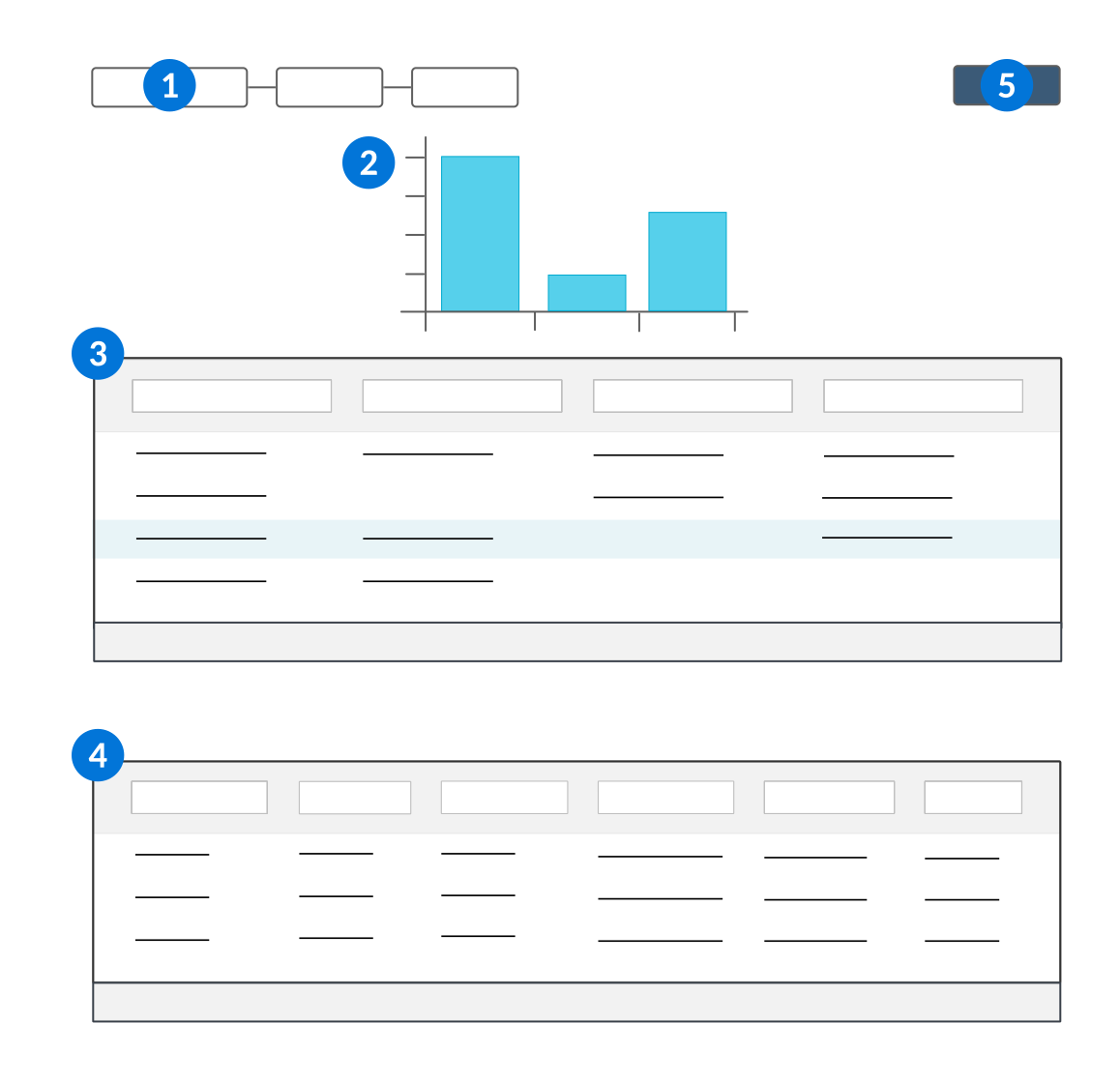
 | Report Version menu—Select which report version you want seen in the viewer. |
|---|---|
 | Visualization—The visual representation of your data which was selected in the report version. |
 | Report Data table—Shows the table layout configured for the selected report version. Double select a row from the table to see additional details of the value in the Row Details table. |
 | Row Details table—Shows you the details of the row selected in the Report Data table. |
 | Actions Menu—Open to access the Export to CSV and Export to PDF features that enables you to export the Report Data and Row Details tables. Select one of the buttons to open the Export Options window. Enter a name for your file then select the Export button. You'll receive a message in the Notifications menu once the export has completed. Select the Download button on the notification to download your file. |