


.svg)


Select a table to build your interactive report over, or use the Select a Data Source  button to pick a source from the Data Catalog application. The data catalog provides previously configured data sources that are specific to different business domains. You can add new entries to the catalog, or customize an existing source.
The components of the Interactive Report Builder change depending on what feature you are configuring for the report. The diagram below shows the different panels when you are configuring a Table Layout.
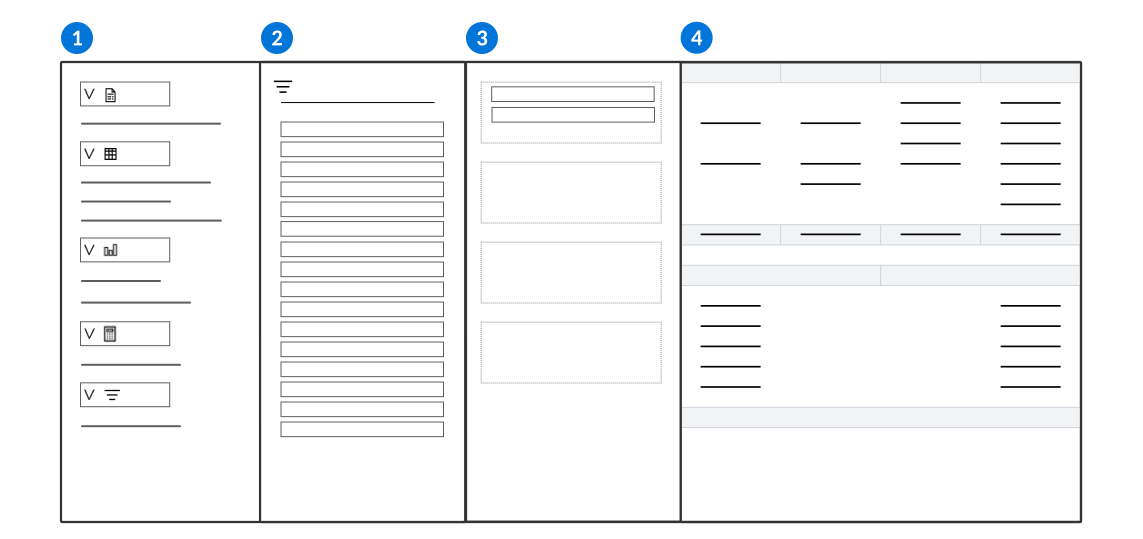
 | Build and select features for the report. Each section allows you to access different options, such as:
|
|---|---|
 | Contains fields from your data source which you can use to build your reports. Use the Add Field  button or drag the fields you want to use in aggregates, pivots, columns, and groups. For table lookup fields, expand the field to see the available values, or select the button or drag the fields you want to use in aggregates, pivots, columns, and groups. For table lookup fields, expand the field to see the available values, or select the  icon to view available hierarchies. icon to view available hierarchies. |
 | Contains the configuration options for your report. Drag and drop fields into the different report options to update the Report Data table. This panel is only available when configuring a Table Layout. |
 | Changes depending on which report structure is selected. For example, when the Table Layout section is open you can see the business data from your data source organized into rows and columns, and you can create pivots and groups to categorize and aggregate your data in different ways. When the Visualizations section is open, you can see a visual representation of your business data based on the fields you select. |