


.svg)


CDAs are useful in many scenarios. For example, you may operate a warehouse that needs to track attributes such as Color and Storage Temperature. Since these attributes don't already exist in your applications, you can create data items to capture them. These are owned data items, called CDAs.
After you create and activate your CDAs with the Customer Defined Attribute Management application, the values entered in those fields flow through your business processes. For example, you may add a Storage Temperature CDA to the Purchase Orders to Item Receipts CDA profile. When your warehouse runs out of a product, a user can create a purchase order and specify the item's needed Storage Temperature. When the product arrives, another user can create an item receipt from the purchase order, which automatically includes the Storage Temperature. You could apply the same CDA to the Item Receipts to Item Ledger profile, so that when an entry in the item ledger is automatically created, it also includes the Storage Temperature needed for the product.
Learn how to create and configure CDAs in Customer defined attribute configuration overview.
CDA profiles
CDA profiles typically represent a directional flow of data between one table and another. There are multiple types of profiles, including:
- —Transaction profiles represent a directional flow of data between two tables that occurs as part of a business process, such as a workflow transition. Transaction profiles always include a source table and a destination table. For example, the source and destination table for the
Item Receipts to Item Ledgerprofile areItemReceiptsandItemLedgerTransactions, respectively.
- —Reporting profiles function similarly to transaction profiles, but the destination table is always a report flat table that your report version applications are built over. Adding CDAs to a reporting profile allows you to filter and sort using the CDAs in your report version applications. If you need to display the CDAs in your reports, however, you must create a report layout. Learn more in Configure report layouts with customer defined attributes.
- —Unlike the other types of CDA profiles, Master profiles do not represent a flow of data between tables. Instead, they represent a single table that doesn’t require data to flow to or from it. For example, you may need to add a CDA to the
LotsCDA profile so that your unique field is accessible in the Lot Master application, which is only used for reference.
CDAs, customizations, and extensions
While both CDAs and customizations provide a way to modify applications to fit your needs, there are key differences between the features.
When you customize an object, you create a customized version of the object that is always used instead of the base version. For example, you might customize the Address data item to have a label of Location instead. While this technically creates another (customized) data item, the customized version is always used in place of the base version. That means that anywhere the Address field displayed before, the Label field now displays.
With CDAs, however, you create additional unique fields that are added to your applications. These CDAs are Owned data items. When you activate the CDA configuration, the system automatically customizes the tables, applications, and reports involved in the business process to include the CDA. If needed, you can make additional changes to these customized objects.
You should use customizations instead of CDAs if you want to:
- Modify an existing field instead of adding a new one.
- Add an attribute to an application, but the necessary CDA profile is not in the catalog.
- Add an attribute to a single table, but the available CDA profile is of type , which means it would be included in multiple tables.
- Add a new attribute that requires advanced logic.
Customer defined attribute configuration overview
System administrators use the Customer Defined Attribute Profile Catalog and Customer Defined Attribute Management applications to create, configure, and activate customer defined attributes (CDAs) using predefined CDA profiles that represent the directional flow of data between tables as part of a business process.
The following diagram illustrates how system administrators create and configure CDAs:
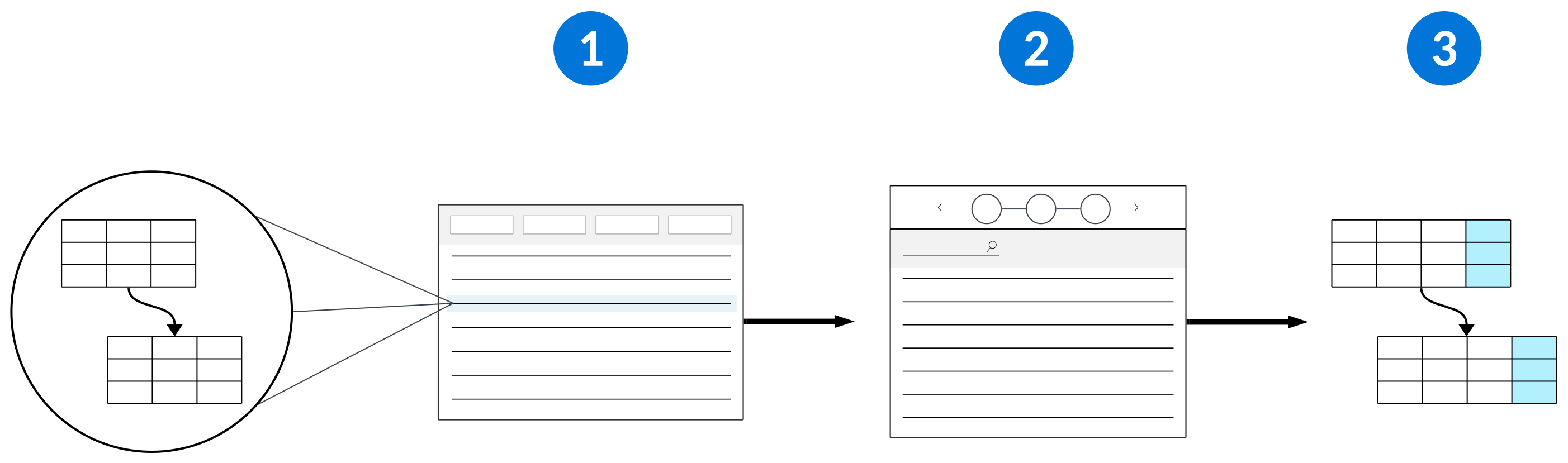
 | Customer Defined Attribute Profile Catalog application—Browse the CDA profile catalog to choose a profile for the business process you need to add unique fields to. These CDA profiles define the different tables involved in a business process and the directional flow of data between them. Learn more about the different types of CDA profiles in Customer defined attributes. After you select a profile, use the Load Configuration action to populate the Customer Defined Attribute Management application with the options for that profile. Then, use the Configure Profile action to open the application and start creating and configuring your unique fields for the business process. Learn more in Customer Defined Attributes Profile Catalog application. |
|---|---|
 | Customer Defined Attribute Management application—Use this application to create your CDAs, configure where and how they appear in the system, and activate the configuration. Learn more in Customer Defined Attribute Management application. |
 | CDAs—After you successfully activate a CDA configuration, your unique fields are available in the applications, reports, and View tables involved in your business process. |
Customer defined attribute profile development
Application developers create customer defined attribute (CDA) profiles so that their users can add unique fields to their tables, applications, and reports. These CDA profiles typically represent a directional flow of data that occurs during a business process.
To allow your users to add CDAs to the tables that make up one of their business processes, you must define a CDA profile and ensure that your business logic accommodates CDAs. Learn more about the different types of CDA profiles in Customer defined attributes.
Define a CDA profile
Use the Customer Defined Attribute Profile Setup application to define the source and destination tables you want your users to be able to add CDAs to. It's important to give CDA profiles names and specifications that are clear to your users. Learn more in Customer defined attribute profile development best practices.
Ensure your logic blocks accommodate CDAs
When the CDA profile is a or type, you must ensure the logic blocks that move data from the source tables to the destination tables accommodate any CDAs that your users may add.
Since you don't know what attributes your customers might define, use additional mappings in your logic blocks. Additional mappings are options on certain logic block actions that tell the system to look for any existing CDAs. Learn more in Additional mappings in logic blocks.
When the CDA profile is a type, use additional mappings in any logic blocks that insert records into the defined Master Table.
Customer Defined Attribute Profile Setup application
Application developers use the Customer Defined Attribute Profile Setup application to create customer defined attribute (CDA) profiles so that their users can add CDAs to their systems.
To create a CDA profile, specify either the Source Table and Destination Table or the Master Table. Provide a Profile Name and Specification that are clear to your users. Learn more in Customer defined attribute profile development best practices.
Additional mappings in logic blocks
Additional mappings allow you to pass in values from fields added in downstream environments. There are several scenarios where fields are changed or added to tables after they have been delivered to the partner or customer. For example, customer defined attributes (CDAs) and fields in customized tables are defined by customers at the time of implementation, and extension fields are defined by solution developers in their own tenants. Additional mapping options are available on logic block actions, such as the Insert Record, Insert Subtable Record, Call a Logic Block, and Save HD actions.
When values are passed into one of these logic block actions, there are some scenarios where added fields are not included. If the logic block actions reference an entire data source, any added fields are automatically included. If the logic block action only passes values as individual Field Mappings, you must configure additional mappings to include the added fields.
Example
In the Supplier Invoices application, when a record transitions to a workflow state of Posting, the WritePayablesGL logic block initiates to create a General Ledger transaction record. A common extension or customization pattern is to include a field for Reference Number on both the Supplier Invoice and General Ledger. Supplier Invoice and General Ledger have different table shapes and fields, so the logic block actions use Field Mappings, rather than a DSN, to pass the specific values needed between the records.
To ensure any new fields, such as Reference Number, added to the underlying tables are included, an Additional Mapping of PayablesHeader, which is the data source for the Supplier Invoice table, was specified on the insert logic block action at the time of design. Without the additional mapping specified, the Reference Number from the Supplier Invoice would be empty on the General Ledger record.
Header Detail tables
For additional mappings on Header Detail tables, use additional mappings on inserts on the Header and Detail tables. To get the mappings on the detail of a Header Detail, you must specify them on the insert to the Detail record itself. Mappings specified on the Save HD action only apply to the Header record.
Order of Operations
The sequence in which you create the additional mappings should match their relative importance. Once a field's value is found in a data source, that becomes the value for the target and the system stops looking for a value. However, any field mappings included in the logic block overwrite existing values found from the source record or additional mappings. The first DSN listed as an additional mapping should have the highest priority, since values are picked up from sources in the following order:
- The source record.
- The values from CDAs, Extended fields, or fields added to Customized tables in the order they were entered in additional mappings.
- Individually mapped fields.
For example, you could have an entire table, additional mappings for CDAs, Extended fields and fields on a Customized table, as well as individually mapped fields included as data sources for a logic block. In this instance, the following occurs:
- The new empty DSN is created and passed to the called logic block or logic block action.
- The values from the underlying table referenced as a DSN are mapped to the new DSN.
- The values from the custom, extended, and CDA fields from additional mappings are mapped to the new DSN in the order in which the additional mappings were entered. These values do not overwrite any previously found values from the table.
- The values from individual fields included as DSNs are mapped to the new DSN. These values overwrite any existing values found from the table or additional mappings.
Copy Additional Mappings action
Use the Copy Additional Mappings action to copy the additional mappings from one, or many, data sources into a specified target data source.
Logic blocks that fetch data from other data sources and use that data to populate values in a preexisting data source should use this action. If you insert a new record, any additional mappings from the other data sources are available. If you update an existing data source in your logic block which previously had few values populated, the Copy Additional Mappings action ensures any fields added in downstream development are also included in the update. For example, the PopulateCustomerCreditFields logic block fetches data from the ReceivablesHeader data source and uses that data to populate values. To ensure all of the fields from the ReceivablesHeader data source are included in the fetch, the PopulateCustomerCreditFields logic block should copy the additional mappings from the ReceivablesHeader data source.
Customer defined attribute profile development best practices
These best practices ensure that customer defined attribute (CDA) profiles are configured consistently.
Create CDA profiles for each of your users' business processes so that they are able to create CDAs and apply them to fit their needs.
profiles should represent the flow of data between one stage of a business process to the next. This allows users to configure their CDAs at a granular level. For example, data flows from the ItemReceipts table to the ItemLedgerTransactions table, and then to the GeneralLedgerHeader and GeneralLedgerDetail tables. There are two CDA profiles for this flow of data: Item Receipts to Item Ledger and Item Ledger to GL. This allows your users to apply a CDA that flows from the ItemReciepts table to the ItemLedgerTransactions table, but not on to the GL tables, for example.
profiles should represent the flow of data from multiple transaction tables to a single report flat table.
Provide specifications for your CDA profiles that make it clear to your customers how their data is affected when they configure the profile.
You should also provide clear descriptions for your tables and applications. Customers see these descriptions when configuring CDA profiles. Learn more in Tables best practices and Applications best practices.
Naming conventions and standards
Profile names should be clear and readable to the customer. Include spaces. Never include symbols.
Name CDA profiles based on their type:
| CDA Profile Type | Naming convention | Examples |
|---|---|---|
| Use the source business process, table, or application, followed by the word "to," and then the destination process, table, or application. |
| |
| (Integration) | Use the name of the integration table. |
|
| Use the name of the report. Do not include the word "report." |
| |
| Use the name of the source of the master data. |
|
Customer Defined Attributes Profile Catalog application
System administrators browse the Customer Defined Attribute Profile Catalog application to find customer defined attribute (CDA) profiles that represent your business processes. Use these profiles to add CDAs to your applications, reports, and View tables.
After you choose a profile that you would like to add CDAs to and configure, use the Load Configuration action to populate the Customer Defined Attribute Management application with the options for that profile. After the configuration has loaded, use the Configure Profile action to open the application and start configuring options for that profile. Learn more in Customer Defined Attribute Management application.
Learn more about CDAs and the different types of CDA profiles in Customer defined attributes.
Customer Defined Attribute Management application
System administrators use the Customer Defined Attribute Management application to to create customer defined attributes (CDAs), configure where and how they appear in the system, and activate the configuration.
Learn about CDAs and how to configure them in the Customer defined attributes and Customer defined attribute configuration overview topics.
The Customer Defined Attribute Management application is composed of the following application steps:
- Assign Fields application step
Use the Assign Fields application step to create customer defined attributes (CDAs) and add them to the CDA configuration for a selected profile.
- Specify Field Behavior application step
Use the Specify Field Behavior application step to configure how your customer defined attributes (CDAs) behave at different stages of your business process.
- Configure Applications application step
Use the Configure Applications application step to define which applications display your customer defined attributes (CDAs).
- Configure Reports application step
Use the Configure Reports application step to select the reports that you want to filter and sort using your customer defined attributes (CDAs).
- Configure View Tables application step
Use the Configure View Tables application step to select the View tables to add your customer defined attributes (CDAs) to.
- Activations application step
After you configure a customer defined attribute (CDA) profile, use the Activations application step to add your CDAs to the system.
Assign Fields application step
Use the Assign Fields application step to create customer defined attributes (CDAs) and add them to the CDA configuration for a selected profile.
After you filter for the Selected Profile, the records in the Assign Fields application step represent the table flows that make up the profile. Each table flow has one Source Table and one Destination Table. For example, a single profile may have multiple table flows including a Header table to a Header table, a Header table to a Detail table, and a Detail table to a Detail table. You can add CDAs to each table flow.
CDA profiles do not represent a directional flow of data. For these profiles, add CDAs to a single table only.
Use the Edit row action to open the detail form of a table flow. Then, use the Add button to add existing CDAs to the Fields subtable. If the CDA has not already been created, use the Create Data Item action.
After you add all the CDAs you need to the table flows, open the Specify Field Behavior application step to configure their functions in the business process.
Specify Field Behavior application step
Use the Specify Field Behavior application step to configure how your customer defined attributes (CDAs) behave at different stages of your business process.
After you filter for the Selected Profile, the records in the Specify Field Behavior application step represent each of the tables that make up that profile. Use the Edit row action to configure the behavior for your CDAs on each table, including whether it's required, locked, and more.
For example, if you are configuring CDAs for the Item Receipts to Item Ledger CDA profile, records for both the ItemReceipts and ItemLedgerTransactions tables display. You may need a CDA to be a required field when the item receipt is created, and locked when it’s posted to the item ledger. In the detail form of the ItemReceipts record, select the Fields.Required checkbox for the CDA, and in the detail form of the ItemLedgerTransactions record, select the Fields.Locked checkbox.
Configure Applications application step
Use the Configure Applications application step to define which applications display your customer defined attributes (CDAs).
After you filter for the Selected Profile, the Configure Applications application step displays all the applications that are built over any of the tables that make up that CDA profile. To include the CDAs you specified in the Assign Fields application step in your applications, select the Activate for Application checkbox for each application.
Select the Activate for Application checkbox for every application relevant to your business process. Leave the Activate for Application checkbox cleared only for applications you have no plans to use.
Configure Reports application step
Use the Configure Reports application step to select the reports that you want to filter and sort using your customer defined attributes (CDAs).
After you filter for the Selected Profile, the Configure Reports application step displays all the reports that are built over any of the tables that make up that CDA profile.
Select the Activate for Report checkbox to allow users to filter and sort using your CDAs in the report version applications built over that report.
After you activate the CDA configuration, you can create an alternate report layout to display the values from your CDA fields in the reports themselves. Learn more in Configure report layouts with customer defined attributes.
Configure View Tables application step
Use the Configure View Tables application step to select the View tables to add your customer defined attributes (CDAs) to.
After you filter for the Selected Profile, the Configure View Tables application step displays all the View tables that are built over any of the tables that make up that CDA profile.
Select the Activate for Application checkbox to add all the CDAs you specified in the Assign Fields application step to the View table.
You can add your CDAs to View tables that are built over a Join table as long as one of the tables that the Join table is built over is included in the CDA profile.
Activations application step
After you configure a customer defined attribute (CDA) profile, use the Activations application step to add your CDAs to the system.
Use the Activate row action on your CDA profile to activate the configuration. If you make changes to an existing profile, select the Apply Changes row action.
When you successfully Activate or Apply Changes to a configuration, its Status changes to Activated. The Last Configuration section in the detail form is also updated with the current date, and you can use the Results field to see how the system was modified.
If there are errors that occur during activation, they are included in the Errors field on the detail form. After you resolve the errors, either Activate or Apply Changes again.
Remove active CDAs
To remove CDAs from the system, you can deactivate a CDA configuration. First, navigate to the Assign Fields application step and remove your CDAs from the Fields subtable. Then, select the Apply Changes row action on the configuration record in the Activations application step. This does not delete the CDAs themselves, but they are removed from the tables that make up the CDA profile and no longer appear in your applications, reports, and View tables.
Considerations for CDAs, metadata, and migrations
If you migrate metadata between environments and activate customer defined attributes (CDAs), be aware of the relationship between your CDA configurations and your metadata.
CDA configurations involve both owned and customized metadata. CDAs are owned objects. During activation, base objects are customized and customized objects are updated, to incorporate the CDA in the current environment. If you migrate customized objects to another environment, any customized versions of those objects in the destination environment are overwritten. That is, if you have customized metadata in the destination environment that is not in the source environment, you may lose your changes.
For example, you may migrate an application that has been customized to include a CDA from your development environment into production. If you already customized that application in production with changes that are not also in your development environment, the existing customization is overwritten during migration.
Learn more about CDAs and how to configure them in Customer defined attributes.
Configure report layouts with customer defined attributes
System administrators configure report layouts to include their customer defined attributes (CDAs) using the Customer Defined Attribute Management and Report Builder applications.
Customer Defined Attribute Management application
In the Customer Defined Attribute Management application, you must:
- Configure a type CDA profile.
- In the Configure Reports application step, select Activate for Report checkbox on the report you want to include your CDAs.
- In the Activations application step, Activate the configuration.
Report Builder
In the Report Builder application, you must:
- Use the Create Alternate Layout action on the report you want to display your CDAs. Learn more in Report layouts.
- Open the new report layout and add your CDAs as content items. Users can select this new report layout in their Report Version applications.
Customer Defined Attributes Comparison application
System administrators use the Customer Defined Attributes Comparison application to examine differences between their metadata and their customer defined attribute (CDA) configurations. They use this information to keep their CDA configurations synchronized with their data items, applications, tables, and reports in each of their environments.
Common reasons differences exist between a CDA configuration and its related metadata include:
- The CDA configuration was updated, but the changes were not applied in the Activations application step of the Customer Defined Attribute Management application.
- The metadata was migrated to the destination zone, but the CDA configuration was not created and activated in the destination zone.
- Changes were made to associated metadata, but the CDA configuration was not updated to reflect them.
Every week, a comparison between your CDA configurations and their associated metadata automatically runs. If they are out of sync, the results are included in the Customer Defined Attributes Comparison application.
The Customer Defined Attributes Comparison application is made up of the following application steps:
- Tracked Profiles application step
System administrators use the Tracked Profiles application step to view all the customer defined attribute (CDA) profiles configurations they've activated. Each CDA configuration is automatically monitored each week to determine if any differences exist between CDA configurations and their associated metadata.
- Comparison Results application step
System administrators use the Comparison Results application step to review differences between customer defined attribute (CDA) configurations and their associated metadata in the current environment.
Tracked Profiles application step
System administrators use the Tracked Profiles application step to view all the customer defined attribute (CDA) profiles configurations they've activated. Each CDA configuration is automatically monitored each week to determine if any differences exist between CDA configurations and their associated metadata.
When you activate a new CDA configuration in the Customer Defined Attribute Management application, the system adds a corresponding record to the Tracked Profiles application step. Each configuration is monitored by default, but you can clear the Monitor checkbox to prevent configuration monitoring for a specific configuration if you are no longer using it. If you activate the configuration again, monitoring is turned back on.
Configuration monitoring occurs every week. If differences between a CDA configuration and its associated metadata is detected in the current environment, results are included in the Comparison Results application step. In addition, these results are emailed to the service administrators defined in the Tenant Environment Setup application.
Comparison Results application step
System administrators use the Comparison Results application step to review differences between customer defined attribute (CDA) configurations and their associated metadata in the current environment.
Each record in the Comparison Results application step represents one comparison of a single CDA configuration where differences between the configuration and the metadata were found in the current environment. If no differences are found, no comparison record is created.
In the detail form of a record, you can examine all the metadata objects that don’t match the CDA configuration so that you can reconcile the differences.
Every week, a comparison between your CDA configurations and their associated metadata automatically runs for all configurations listed in the Tracked Profiles application step with the Monitor checkbox selected. These comparison results are indicated by a Source of Configuration Monitoring.
Comparison results are purged from this application every six months.