


.svg)


Base objects, the user interface, and the technology that powers the Nextworld Platform are all created, upgraded, and tested by Nextworld. However, the applications and dashboards that you create or customize are yours, and you need to test them. Continuous testing of applications is critical to prevent applications with defects from reaching customers.
There are multiple components to the application testing process, including:
- Temporary tenants—Both manual and automated tests are performed in temporary tenants, which are isolated environments created on-demand. This ensures that testing never compromises data in the environments where the applications are built or used. You must set temporary tenant templates before any testing can take place.
- Test designs—To test an application, you must collect the criteria that determine if it’s working as expected. Test designs are broken down into individual case objectives that users complete when using an application. Test designs guide both manual testing and the creation of automated tests.
- Automated testing—After an application has been built, customized, or upgraded, configure an automated test to monitor its functionality. Automated tests run in the background and simulate real user actions.
Temporary tenants
Temporary tenants are isolated environments that are used for manual testing, automated testing, demos, and more. You can create temporary tenants with a temporary tenant template, which specifies the environments containing the metadata and business data you need in each temporary tenant.
Temporary tenants are referred to as tenants because, like your own tenant, they have their own set of users and are isolated from your other environments. After it's created, you can sign in to a temporary tenant just like you sign into any of your other environments. However, you must use the usernames and passwords that are automatically generated when you create the temporary tenant instead of your own username and password that you use to sign into your standard environments.
Temporary tenants are automatically destroyed when they expire, and their data is never migrated to other environments. However, you can extend these expiration dates depending on your needs.
The following diagram shows how your business data and your metadata from different environments is used to create temporary tenants:
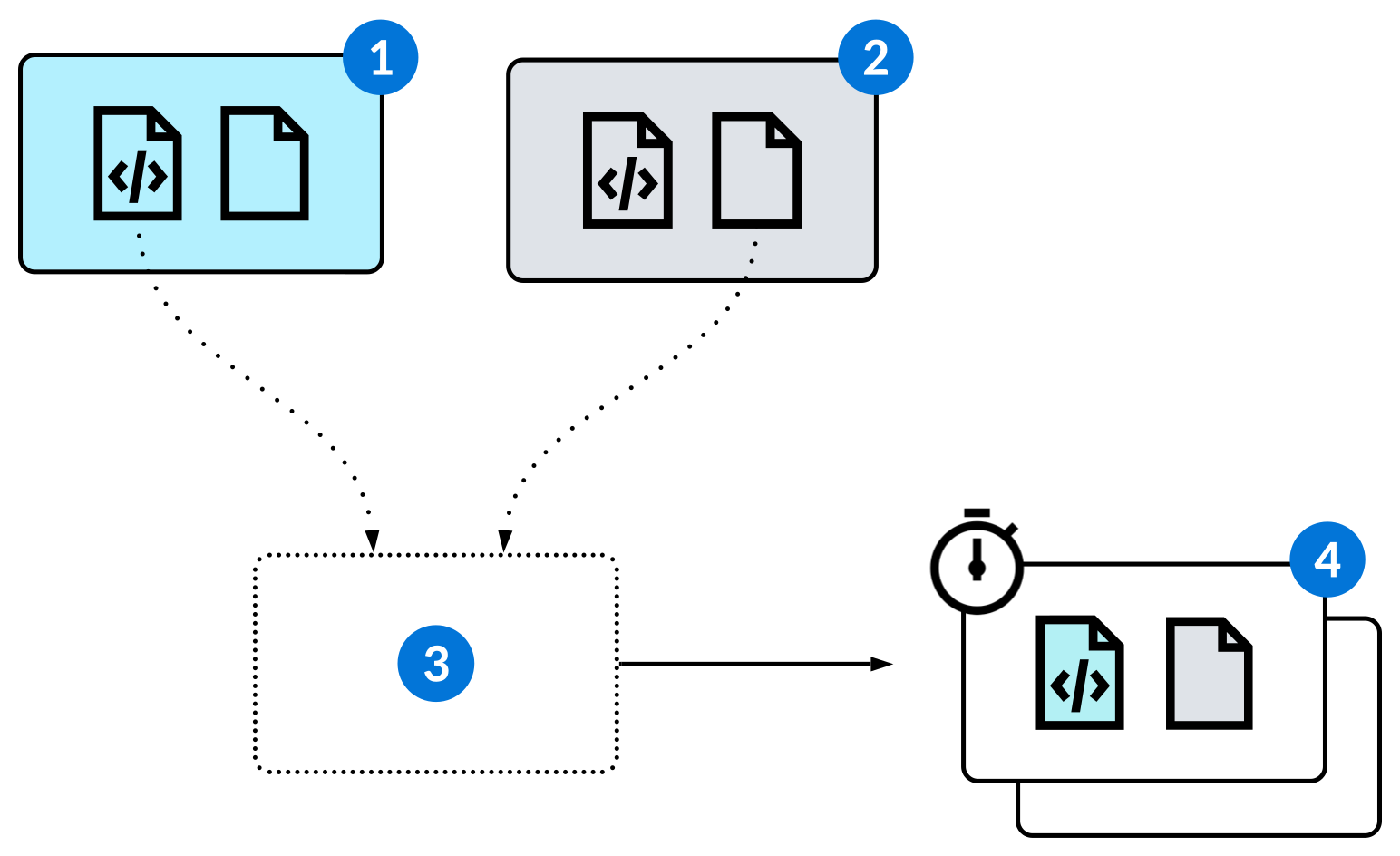
 | Base environment | The environment containing the metadata you need in your temporary tenants. For example, if you need a temporary tenant to test the metadata in your development environment, specify that environment as your base environment in the temporary tenant template. |
|---|---|---|
 | Seed environment | The environment containing the business data you need in your temporary tenants. For example, if you need a temporary tenant to test the metadata in your development environment, specify the environment where you manage your sample data as your seed environment in the temporary tenant template. |
 | Temporary tenant template | Set up temporary tenant templates to quickly create temporary tenants whenever you need them. The temporary tenant template record specifies the base environment and seed environment in which data is copied from to create temporary tenants using the template. You should always create temporary tenant templates in your development environment. There are different applications to create temporary tenant templates, depending on your use case. Learn more in: |
 | Temporary tenants | Each temporary tenant is created using a temporary tenant template. When a temporary tenant is created, it's populated with a copy of the business data and metadata from the environments defined in the template. There are different applications to create temporary tenants, depending on your use case. Learn more in: |
Temporary tenant users
When you create a new temporary tenant template, you specify a Base User. This user should have all of the roles needed to perform the necessary tasks in the temporary tenants. Each time a temporary tenant is created using the template, Actual Users with all the roles of the Base User are created. You sign in to the temporary tenant as one of these users.
Manual testing
Each time you perform a manual test, do so in a temporary tenant. This ensures that tests are repeatable and that the actions performed while testing don't affect data in other environments. Learn more in Application testing.
Automated testing
Each time a test action or test suite is submitted, a temporary tenant is created automatically. By default, the temporary tenant is destroyed as soon as the test is complete and results are recorded. However, when submitting a test action, you can specify an existing temporary tenant that is not automatically destroyed when the test is complete.
You should also use a temporary tenant when using the Nextworld recording tool to create test actions. Learn more in Create automated tests with the Nextworld recording tool.
Data transform testing
Use a temporary tenant to test a data transform and make sure it's working as intended before you run it in a shared environment. If the data in your seed environment isn't sufficient for your test, you may need to create or import additional records. Learn more in Data transforms.
Temporary Tenant Template Setup - Demo application
Use the Temporary Tenant Template Setup - Demo application to create templates for temporary tenants for use in demos. After you configure templates, use the Temporary Tenants - Demo application to create isolated environments where you can demo your features without compromising data in other environments.
To create a template, specify the environments in which to pull metadata and business data from in your temporary templates. Specify a Base User that has all the necessary roles to conduct your demonstrations. Learn more in Temporary tenants.
After you create a template, navigate to the Temporary Tenants - Demo application to create temporary tenants using your template. You can also use the Create Tenant action from the Temporary Tenant Template Setup - Demo application. Learn more in Temporary Tenants - Demo application.
Temporary Tenant Template Setup - Server application
Use the Temporary Tenant Template Setup - Server application to create templates for temporary tenants that require advanced configuration. After you configure templates, use the Temporary Tenants - Server application to create isolated environments where you can conduct tests and more without compromising data in other environments.
To create a template, specify the environments in which to pull metadata and business data from in your temporary templates. Learn more in Temporary tenants.
After you create a template, navigate to the Temporary Tenants - Server application to create temporary tenants using your template. You can also use the Create Tenant action from the Temporary Tenant Template Setup - Server application. Learn more in Temporary Tenants - Server application.
Migrations and Users page
On the Migrations and Users page, specify users in the Base Test Users subtable. These users should have all the roles required to complete your tests and other work.
In the Tables to Migrate subtable, include all the tables to migrate from the seed environment when a new temporary tenant is created using the template.
Secondary Zone page
On the Secondary Zone page, you can select an additional seed environment to migrate additional Tables to Migrate sample data from.
Temporary Tenant Template Setup - Test application
Use the Temporary Tenant Template Setup - Test application to create templates for temporary tenants for automated and manual tests. After you configure templates, use the Temporary Tenants - Test application to create isolated environments where you can test your applications without compromising data in other environments.
To create a template, specify the environments in which to pull metadata and business data from in your temporary templates. Specify a Base User that has all the necessary roles to conduct your automated and manual tests. Learn more in Temporary tenants.
In the Tables to Migrate subtable, include all the tables to migrate from the seed environment when a new temporary tenant is created using the template.
After you create a template, navigate to the Temporary Tenants - Test application to create temporary tenants using your template. You can also use the Create Tenant action from the Temporary Tenant Template Setup - Test application. Learn more in Temporary Tenants - Test application.
Temporary Tenant Template Setup - Test Harness application
Use the Temporary Tenant Template Setup - Test Harness application to create templates for temporary tenants for logic block test harness testing. After you configure templates, use the Temporary Tenants - Test Harness application to create isolated environments where you can test your logic blocks without compromising data in other environments.
To create a template, specify the environments in which to pull metadata and business data from in your temporary templates. Specify a Base User that has all the necessary roles to conduct your automated and manual tests. Learn more in Temporary tenants.
In the Tables to Migrate subtable, include all the tables to migrate from the seed environment when a new temporary tenant is created using the template.
After you create a template, select the Create Tenant form action, or navigate to the Temporary Tenants - Test Harness application and select the Create Test Harness Instance form action. Learn more in Temporary Tenants - Test Harness application and {* link 'TestAutomationLogicBlockTestingLogicBlockTestHarness'=name *.
Temporary Tenants - Demo application
Use the Temporary Tenants - Demo application to create temporary, isolated environments that you can use to demonstrate your features without affecting data in other environments. You create tenants using templates configured in the Temporary Tenant Template Setup - Demo application.
The Temporary Tenants - Demo application includes all the temporary tenants that have been created to demonstrate features. Open a record in the detail view to access the login information to access that tenant.
To create a new temporary tenant, select the Create Tenant form action, then:
- Select a temporary tenant template.
- Optionally, specify a Custom Expiration Date for the tenant, as well as Custom Usernames that you can sign into the tenant with.
- If you have demo data in another lifecycle you want to migrate, use the Lifecycle to Migrate From field on the Advanced page.
Use the Record in New Tab action to sign into the temporary tenant in a new tab and open the recording sidebar. Learn more in Create automated tests with the Nextworld recording tool.
Learn more in Temporary tenants.
Temporary Tenants - Server application
Use the Temporary Tenants - Server application to create temporary, isolated environments that require advanced configuration. In these tenants, you can conduct tests and more without affecting data in other environments. You create tenants using templates configured in the Temporary Tenant Template Setup - Server application.
The Temporary Tenants - Server application includes all the temporary tenants that require advanced configuration. Open a record in the detail view to access the login information to access that tenant.
To create a new temporary tenant, select the Create Tenant form action and select a temporary tenant template. Optionally, you can specify additional Roles for the base user of the tenant.
Use the Record in New Tab action to sign into the temporary tenant in a new tab and open the recording sidebar. Learn more in Create automated tests with the Nextworld recording tool.
Learn more in Temporary tenants.
Temporary Tenants - Test application
Use the Temporary Tenants - Test application to create temporary, isolated environments that you can use for automated and manual tests without affecting data in other environments. You create tenants using templates configured in the Temporary Tenant Template Setup - Test application.
The Temporary Tenants - Test application includes all the temporary tenants that have been created for testing. Open a record in the detail view to access the login information to access that tenant.
To create a new temporary tenant, select the Create Automation Instance form action and select a temporary tenant template. Optionally, you can specify additional Roles for the base user of the tenant. If you need to create an automated test that includes an approval, you can select Approval Test checkbox and specify the Approval Definition when you create the temporary tenant. Learn more in Validate approvals in automated tests.
Use the Record in New Tab action to sign into the temporary tenant in a new tab and open the recording sidebar. Learn more in Create automated tests with the Nextworld recording tool.
Learn more in Temporary tenants.
Temporary Tenants - Test Harness application
Use the Temporary Tenants - Test Harness application to create temporary, isolated environments that you can use for logic block testing without affecting data in other environments. You create tenants using templates configured in the Temporary Tenant Template Setup - Test Harness application.
The Temporary Tenants - Test Harness application includes all the temporary tenants that have been created for testing. Open a record in the detail view to access the login information to access that tenant.
To create a new temporary tenant, select the Create Test Harness Instance form action and select a temporary tenant template. Optionally, you can specify additional Roles for the base user of the tenant.
Learn more in {* link 'TestAutomationLogicBlockTestingLogicBlockTestHarness'=name *.
Test designs
The criteria that determine if an application is working as intended are essential to the testing process. Application developers use the Test Design Definitions application to assemble these criteria and other important information about testing the application.
A test design is a detailed plan of what needs to be tested to verify that an application works as expected and is ready to deliver to customers. It serves as a guide for performing a thorough test. That means that creating a test design requires a comprehensive understanding of the application. Use the Test Design Definitions application to gather important information about the application's purpose, the impact of the application not functioning correctly, and the objectives users complete when using it.
When you make changes to an application, you must update the associated test design.
Context and impact
Use the Test Design Definitions application to collect answers to questions about the application, such as:
- What is it used for?
- Is its structure complex?
- Is it vital for the user's business to operate?
- How is data shared between this application and others?
This kind of information is critical to the person performing or automating the test. Plus, by determining the impact of the application failing to serve its function, you can establish the priority of testing the application.
For example, the Company Directory application is the central repository for all contacts, including individuals and organizations. While the application isn't complex, its failure to function correctly could drastically affect a customer's business. Therefore, testing the application is critical, but the test itself would likely be simple.
Case objectives
Each test design is also made up of case objectives. Each objective is then made up of user actions and the effects they have within Nextworld. These effects represent the business logic that's been built into the application, and exactly what needs to be validated to verify the application's functionality. They are called Essential Validations.
For example, when creating a new record in the Company Directory application, you must select a value in the ContactType field. Depending on the value you select, certain fields are hidden or shown. Selecting Organization, for example, hides the Gender field. No organization in your directory should have a gender, so it's important to validate that the business logic that hides that field works. In a test design for the Company Directory application, one case objective would be to set the ContactType field. Within that objective, the user actions and essential validations would be as follows:
| Sequence | Pre-validation Actions | Essential Validation |
|---|---|---|
| 5 | Set ContactType to Organization | Validate that Gender field is now hidden |
| 10 | Set ContactType to Person | Validate that Gender field is now shown |
The granularity and organization of a test design is not limited by the Test Design Definitions application, but there are some standards you should adhere to. Learn more in Application testing best practices.
Test Design Definitions application
Application developers use the Test Design Definitions application to assemble the criteria necessary to determine whether an application is working as expected. These criteria outline exactly what needs to be tested so that the application can be delivered to your customers.
Create test designs to guide the testing process. Using the contextual information and testing criteria you assemble in a test design, an application developer with no previous knowledge of the application can test it. Testing criteria is made up of case objectives, which are broken down into essential validations and pre-validation actions. Learn more in Test designs.
Add case objectives to the detail list region. Use the Edit row action to provide additional detail, including the essential validations. You can add selected essential validations to other case objectives, or add selected case objectives to other test designs, with the Copy/Move Validations and Copy/Move Objectives actions.
After case objectives are added, you can use the Record in New Tab action to use the recording tool to create automated test actions that test the objectives. Learn more in Create automated tests with the Nextworld recording tool.
In addition to the case objectives, use the Business Context, Dependencies, and Notes pages to collect other important information about the application that is important to know when testing the application.
Business Context
Use the Business Context page to describe the purpose of the application. Determine the risk of the application failing to perform as expected so that you can prioritize testing for each of your applications.
Dependencies
Use the Dependencies page to describe how data is shared between this application and others. For example, records in the Sales Credits application depend on records in the Sales Orders application, and records in the Sales Orders application depend on records in the Sales Quotes application. This would be important information to include for anyone testing the applications or updating the test designs.
Notes
Use the Notes page to collect any other information that is important to know when testing this application. As you are building automated tests for the application using , you can see the total number of case objectives and how many have been automated.
Automated testing
Monitor the functionality of your applications in the background with automated tests. Application developers use multiple applications to configure these automated tests, schedule them to run on regular intervals, and review the results.
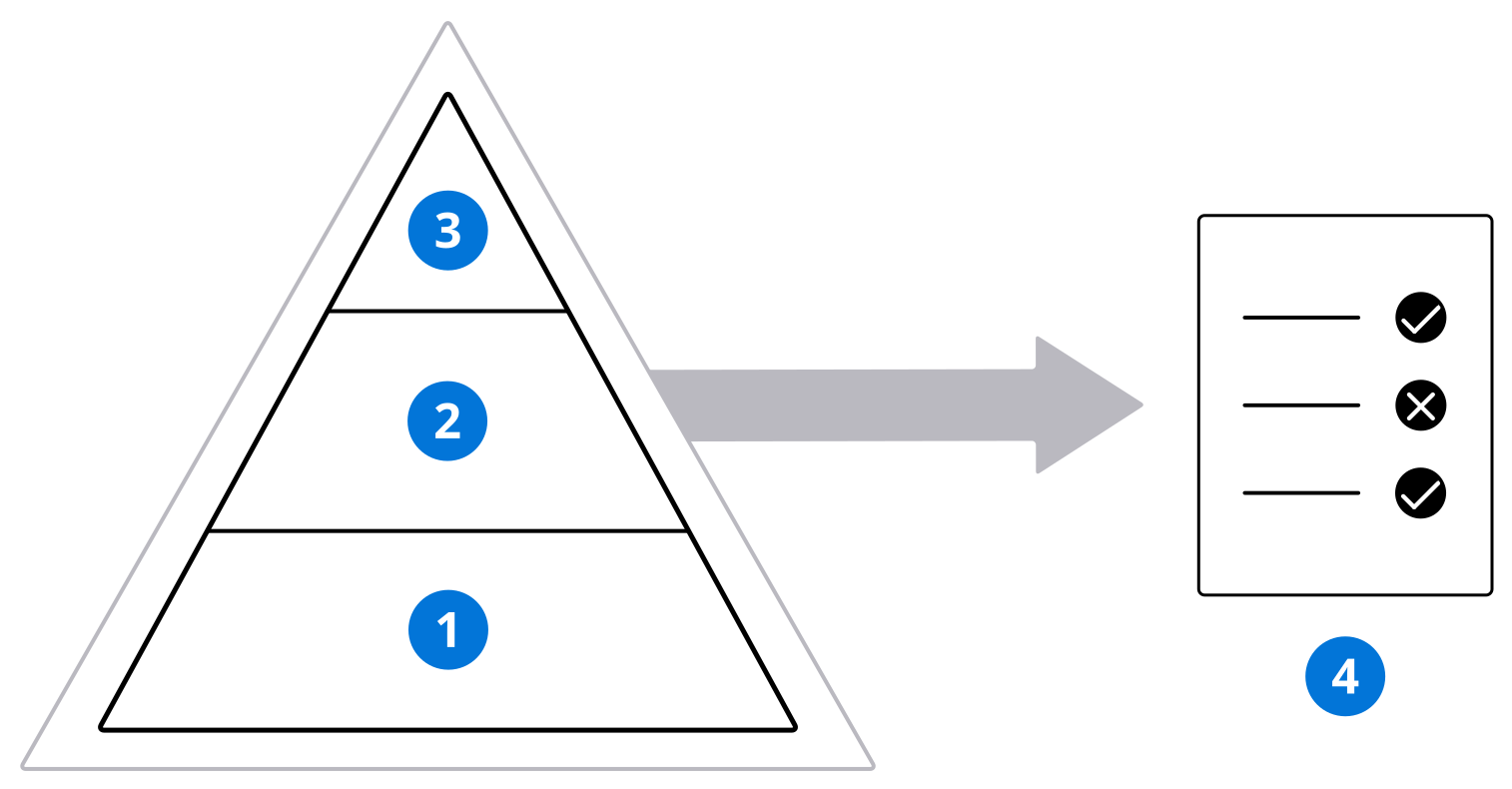
Automated tests simulate the actions of a real user, much like the actions you would take if you were manually testing an application. The following diagram shows the structure of the Nextworld objects that make up an automated test:
| Step | Application | Description |
|---|---|---|
| Test Action Definitions | Test actions are the most basic component of an automated test. They reflect the different objectives that users complete while using the application. Test actions are added to test flows, and can be reused in multiple test flows. Test actions are made up of individual user actions and validations, called test steps, which run in a sequence. For example, one test action for the Company Directory application might be to create a new record. The test steps within this test action could be as follows:
Create test actions using the Nextworld recording tool. Learn more in Create automated tests with the Nextworld recording tool. Before you add the test action to a test flow, you can submit each test action individually to verify that the test action works. You can edit existing test actions manually in the Test Action Definitions and Test Action Steps Inquiry applications. |
| Test Flow Definitions | Test flows are made up of test actions that run in a sequence. For example, a test flow for the Company Directory application might contain two test actions: first, one for creating a record, and after, one for deleting a record. Test flows are added to test suites, and can be reused in multiple test suites. They cannot be submitted individually. |
| Test Suite Definitions | Test suites are the highest level component of an automated test. They are made up of test flows that run in a sequence. For example, a test suite for the Company Directory application might contain multiple test flows, such as one for creating and deleting a record, and one for using the different application links. Test suites should cover all the objectives a user needs to successfully accomplish with the application. Schedule your test suites to run at regular intervals. Learn more in Schedule automated tests. |
| Test Results Inquiry | After a test suite or test action is submitted, either manually or via a scheduled job, you can view the results of the test. By default, tests that contain failures have videos attached to the test results record. These videos show the test being performed alongside each test step. Use them to determine exactly when and where the application failed to perform as expected so you can quickly identify the problem. Learn more in Review automated test results. |
The complexity of test actions, flows, and suites are not limited by the applications. However, there are some standards you should adhere to. Learn more in Application testing best practices.
Create automated tests with the Nextworld recording tool
Application developers use the Nextworld recording tool to log their own interactions with applications. These interactions are saved as test steps that can later be performed by a simulated user in an automated test.
While you're recording, the recording sidebar displays your user interactions with the platform as you perform them. These interactions are listed as test steps. You can edit steps, delete steps, add system steps, and more from the recording sidebar. Then, you can save your recording to create a test action, update test designs, and more.
There are multiple ways to start recording:
- Temporary Tenants - Test application—Select the Record in New Tab row action on the temporary tenant you want to record in. This automatically signs you into the tenant and opens the recording sidebar.
- Test Design Definitions application—Navigate to the case objective you want to automate and select the Record in New Tab row action to specify a temporary tenant to sign into and begin recording. This method includes the case objective details in the recording sidebar. Select the checkboxes next to each essential validation as you record them to indicate that they're covered by an automated test when you save your recording.
- User Profile menu—Turn on the Automation Recording toggle on the Settings page of the User Profile menu to begin recording in the current environment.
Add systems steps and validations
Use the recording tool to add system steps, which are steps in an automated test that don't involve a user interaction with the user interface.
The following system steps are available as form or row actions in applications when you are recording:
- Validate Model Values— Opens a window where you can select the fields you need to be validated by the automated test. You can validate field values, whether fields are hidden or disabled, and more. Before validating field values, check to make sure that they are actually the values you expect. When an automated test runs, it attempts to validate whatever the value was when you validated the fields while recording.
- Wait for Workflow— Prevent the automated test from continuing until the workflow state transitions. You can select multiple records and then use the Wait for Workflow row action to prevent the automated test from continuing until all selected records transition.
The following system steps can be added from the recording sidebar:
- Wait for Async Operations to Finish—Prevent the automated test from continuing until all background jobs triggered by the simulated user are complete. By default, the test fails after 30 minutes if the jobs are not complete, but you can customize the time limit with Action Options.
- Wait for Condition—Prevent the automated test from continuing until a condition is met. For example, a condition could be a specific number of records in a table, or a specific value in a field.
- Set to Ignore Errors—Prevent the automated test from failing when an error message displays. This step allows you to validate that error messages display after a user takes a particular action.
- Set to Fail on Errors—Cause the automated test to fail when an error message displays. Always add this step after you validate an error message to ensure that any errors you're not actively testing cause the test to fail if they occur.
Save your recording to create test actions, update test designs, and more
When you save your recording from a personal tenant, the test steps you recorded are exported to a new or existing record in the Test Action Definitions application in your development environment. If you specify an existing test action, test steps are appended after any other test steps.
You can also create or update other automated testing records with the data from your recording when you save, including:
- Test flows—Specify an existing test flow definition to automatically append the test action to the end of the test flow.
- Test designs and case objectives—Specify an existing test design and case objective combination to update the case objective with any essential validations and pre-validation actions you've included in the recorded test steps. You can also create a new test design and case objective. Only the essential validations and pre-validation actions in the case objective include the data from your recording, so you must manually update the case objective details, business context, and more in the Test Design Definitions application.
You don't have to specify test flows or test designs when you save your recording. You can leave these fields empty and either select Save and Next for more options, or export to the test action.
Environment considerations
Automated tests always run in a new temporary tenant. You should always use the recording tool in a temporary tenant so that the data you interact with is the same as the data in the tenant the automated test is run.
Be aware of the data in the temporary tenants you sign into to record your test actions. All test actions and test suites run in a new temporary tenant by default. However, test actions that are part of a test suite run in sequence in the same personal tenant.
For example, you may have two test actions, one to delete a record, and one to edit that same record. Both actions pass when you submit them individually because they run in separate temporary tenants. However, if the actions run as a part of test flows in a test suite, the order of the actions matters. If the action to delete the record comes first, the test suite fails on the action to edit the record. This means you may have to prepare the data in the temporary tenant before you start using the recording tool to create test actions that are later in the sequence within the test suite.
Test Action Definitions application
Application developers use the Test Action Definitions application to create test actions, which are the most basic component of an automated test.
Test actions are made up of test steps. You can create test steps manually on the Test Steps page, or you can use the Nextworld recording tool to import your own user interactions into a test action. Learn more in Create automated tests with the Nextworld recording tool.
After your test action is configured, use the Submit Test action. By default, the test action runs in a new personal tenant that is automatically destroyed after the test is complete and its test results record is created. Use the Submit With Options action to specify an existing temporary tenant for the test to run in.
Use the Test Results Inquiry application to see if a test action you submitted passed or failed, and to examine details of the test. Submit test actions to validate their configuration before you add them to a test flow and then add the test flow to a test suite. Learn more in Automated testing.
On the Advanced page, you can select the Approval Test checkbox and specify an Approval Definition if this test action is validating an approval. Learn more in Validate approvals in automated tests.
Test Flow Definitions application
Application developers use the Test Flow Definitions application to organize their test actions in a sequence.
Test actions can be reused in different test flows, and test flows can be reused in different test suites. You can only add test flows to test suites, not individual test actions. That is, in order for test actions to run in a test suite, they must be added to a test flow.
Test flows cannot be submitted individually.
Learn more in Automated testing.
Test Suite Definitions application
Application developers use the Test Suite Definitions application to organize their test flows in a sequence. Create test suites to monitor the functionality of entire applications or business processes in the background.
Test suites are the highest level component of an automated test. They are made up of test flows, which are made up of test actions. Learn more in Automated testing.
There are multiple ways to submit a test suite after it's configured, including:
- The Submit Test Suite action—By default, the test suite runs in a new temporary tenant that is automatically destroyed after the test is complete and its test results record is created.
- The Submit With Options action—Specify an existing temporary tenant for the test to run in. This tenant is not destroyed after the test is complete.
- The Batch Submit form action—Specify multiple test suites that meet your criteria and submit them all at the same time. You can view the results of the batch submission in the Batch Job Metrics Inquiry application.
- Automatically, via a scheduled job—After you have scheduled your test suites to run on a regular interval, any test suites with the Active checkbox selected are included in each scheduled batch submission. Learn more in Schedule automated tests.
When a test suite is submitted, the test actions that makes it up run in a sequence. Every test action is processed, unless the Fail Fast checkbox is selected. If any test action fails, the entire suite is classified as a failure in the Test Results Inquiry application. Use the Suite History form action to view a history of results from each time the test suite was submitted.
Each time the test suite runs successfully, the test suite definition record is updated to include a video of the test being performed by the simulated user. This attachment is automatically replaced each time the test suite passes. When a test suite fails, you can compare the video of the failure with the video of the passing test to troubleshoot the issue.
Learn more in Review automated test results.
Schedule automated tests
Application developers schedule their automated tests to run at regular intervals.
Use the Job Scheduler application to schedule the AppTestSubmitNightly logic block to run periodically. This logic block submits every active test suite as a batch submission. As you configure and activate additional test suites, they are automatically included in the next batch submission. Learn more about scheduling jobs in Scheduled jobs.
Consistently submitting all your test suites allows you to continuously monitor the functionality of your applications. Every batch submission of your test suites is included in the Batch Job Metrics Inquiry application, where you can examine individual failures and view trends across all your applications. Learn more in Review automated test results.
Review automated test results
Application developers use multiple applications to review the results of their automated tests. Use the Test Results Inquiry application to examine automated test failures in detail. Use the Batch Job Metrics Inquiry application to examine overall results for batch submissions of your active test suites and find trends.
Investigate individual test results
Every time an automated test is submitted, either by an application developer or by a scheduled job, a record in the Test Results Inquiry application is created. These test results records contain the details of the test submission, including whether it passed, how long it took to complete, and more.
When a test fails, use the information included in the test results record to investigate the cause of the failure and then address it. Each failed test has a Failure Category that you can use to group failures and find trends. Failed tests also include the test step that caused the failure in the Console Log field so you can quickly pinpoint the cause of the failure. In addition, videos of each test action being performed by the simulated user are attached to the test results record.
Validate automated test configuration
In addition to investigating problems with your applications, use the Test Results Inquiry application to validate the design of your automated tests as you configure them.
For example, you might be configuring an automated test to validate an error message. If you forget to add the test step that is meant to cause the error, your automated test fails. In the Test Results Inquiry application, you can use the information in the Console Log field to determine that the test failed on the step that validates the error message. Then, you can use the attached video to see that the action meant to trigger the error wasn’t performed by the simulated user. After you add the appropriate test step to the test action and submit it again, the test passes.
Monitor batch submissions
After you schedule your active test suites to run on a regular basis, use the Batch Job Metrics Inquiry application to monitor them.
The Batch Job Metrics Inquiry application aggregates the test results from each batch submission into a central location. Use the application to view the data about your tests in different ways. You can see trends across all batch submissions, all the results for a single submission, the results of a single test suite across multiple batch submissions, and more. You can also navigate to individual test results records or test suites.
When a test suite that has been passing successfully in previous batch submissions fails, this can indicate a problem with the application. For example, a test suite for the Company Directory application might fail because there is a problem with the UI logic block that hides the Gender field when the Contact Type for a directory record is set to Organization. In the Batch Job Metrics Inquiry application, you can navigate to the individual test result record and see that the test step that caused the failure was attempting to validate that the Gender field was hidden. After you fix the logic block, the next submission of the test suite should pass, informing you that the Company Directory application is functioning as intended.
The Batch Job Metrics Inquiry application only shows the test results of active test suites that are submitted automatically by a scheduled job, or those that you submit manually with the Batch Submit form action in the Test Suite Definitions application. The results of individual test suites you submit manually are not included in this application. Learn more in Schedule automated tests.
Test Results Inquiry application
Application developers use the Test Results Inquiry application to validate the configuration of their automated tests and to investigate individual test failures in detail.
Each time an automated test action or test suite is submitted, a record in the Test Results Inquiry application is created. You can see how long the test took to complete, whether it passed, how many times it was submitted before, and more. Results for test suites include each test action that makes up the suite on the Details page.
When an automated test fails, use the Failure Category and the Console Log fields to investigate the failure. For more detail, each test results record with a Test Status of Failure has videos attached that correspond to each test action. Each video shows the simulated user performing the test action step by step so you can determine exactly what caused the test to fail.
Use the Test History action to see all the times this automated test was submitted, and the View Test action to navigate to the automated test and make changes as needed.
To view trends across test suite submissions and monitor your scheduled automated tests, use the Batch Job Metrics Inquiry application. Learn more in Review automated test results.
Batch Job Metrics Inquiry application
Application developers use the Batch Job Metrics Inquiry application to monitor their test suites for failures and to examine trends.
Each record in the Batch Job Metrics Inquiry application represents a batch submission of automated test suites. The list form displays a high level view of test results over time. The detail form displays all the test results for each test suite in a single batch submission. From the detail form, you can examine individual test results in detail, navigate to the test suites, or use the Suite History row action to view the results of a single test suite across batch submissions.
There are multiple types of batch submissions you may see in the Batch Job MetricsInquiry application:
- Scheduled batch submissions—After you schedule them, all of your active test suites are submitted in a single batch on a regular interval. Learn more in Schedule automated tests.
- Reruns—The test suites that fail in each scheduled batch submission are submitted again automatically after the scheduled batch submission is processed. Sometimes, automated tests fail due to problems outside of Nextworld. When a test fails in both the batch submission and in the rerun, there is an issue you need to investigate. Failed test suites are only submitted again for scheduled batch submissions.
- Manual batch submissions—Submit a single batch of test suites based on your criteria by using the Batch Submit form action in the Test Suite Definitions application.
Advanced automated testing tools and processes
This topic includes the advanced features you can use when creating automated tests.
Validate variable calculations in a test action
While editing test steps in a test action outside of the recording tool, you can create math expressions using variables to validate against. This ensures that calculations in your business logic are working as expected, and that validations in your test steps don't succeed by coincidence.
For example, you could validate that the true difference of multiple time values matches the Duration value set by your business logic. You can validate calculations of numbers, dates, times, or currency values, but be aware that an invalid expression causes the test to fail.
To validate a variable calculation, add a new test step in the Test Action Definitions application at the sequence where you need to make a validation. To configure this test step, you must:
- Select either
Detail View,List View, orDetail List Viewin the Action Group field. - Select
Variable Math Expressionin the Action field. - Select
Validate Expressionin the Action Options field. - Select the table containing the fields you need to build your expression with in the
Option Datafield. - Select the field you want to validate your expression against in the Form Data Item Value field.
- For example, if the difference between
StartTimeandEndTimeshould equal theDuration, selectDurationin this field.
- For example, if the difference between
- Build your expression using the data items from the table.
- For example, your expression could be
EndTime - StartTimeif you need to validate that your business logic sets theDurationfield correctly.
- For example, your expression could be
Enter table lookup values as text when editing test actions
While editing test steps in a test action outside of the recording tool, you can override table lookups by entering values as text. This is useful when you need to update the test action to include test steps that reference or validate records that don't exist in your seed environment.
The Form Data Item Value field on test steps is a table lookup to records that exist in the development environment. To specify a value from a record in your seed environment or a record that's created in the temporary tenant during the automated test, you must turn on the Input Value as Text toggle to specify the value as text.
For example, you may have an existing test action that creates a new customer, Joel Barish, in the Company Directory application, which is built over the Directory table. You need to add test steps to this test action that also create an invoice for Joel.
When you add the test step to specify Joel Barish in the CustomerName field, which is a table lookup to the Directory table, Joel Barish does not appear as an option to select. This is because the directory record for Joel is created during the automated test and does not exist in your development environment.
Use the Input Value as Text toggle to enter the text Joel Barish in the Form Data Item Value field. When the test action runs, the simulated user is successfully able to select Joel Barish in the CustomerName table lookup field, because the directory record was created in a subsequent test step.
Test Action Steps Inquiry application
Use the Test Action Steps Inquiry application to view test steps from all test actions in one place and perform updates to a test action with the Tool Kit form action.
Use filters to search for specific test steps across test actions. For example, you may need to add a validation step to test actions that access a particular application. Search for all the test steps that navigate to that application to determine the test actions that need to be updated.
Select the Tool Kit form action to add or update multiple test steps in a single test action. For example, you may change the name of a form action in your application and thus need to update your test actions. You can use the Tool Kit to search for all the test steps that perform that form action and update them with the new name.
After you select a test action, specify the filter criteria for the test steps. All test steps within that test action that match the criteria are modified when you select Submit. There are multiple ways to modify the test action with the Tool Kit, including:
Bulk Update—Adds the new test step to the test action after each existing test step that matches your search criteria, but also disables those test steps so that they are not performed in the automated test.Bulk Insert After—Adds the new test step to the test action after each existing test step that matches your search criteria.Bulk Insert Before—Adds the new test step to the test action before each existing test step that matches your search criteria.
Validate approvals in automated tests
You can validate that an approval definition functions as intended in an automated test by configuring a test action to perform the approval.
For example, you may be creating a test suite to validate that users can create and post a journal entry. However, the journal entry must be approved by a user with different roles before it can be posted, and you want to validate that the approval can be performed.
To create a test action to perform an approval, create a new temporary tenant to record the test, and then update the test action to indicate it's for an approval:
Create a new temporary tenant and record the test actions
In the Temporary Tenants - Test application, select the Create Automation Instance form action. On the Advanced page, select the Approval Test checkbox and specify the Approval Definition. When you create the temporary tenant, both your Base User and a second user with the roles needed to perform the approval are added to the Actual Users subtable.
Record your test actions in the temporary tenant. When you reach the point in the test where the approval needs to be made, sign into the tenant with the user assigned the appropriate roles and record the approval as a new test action.
Update the test action definition
After you record all the test actions for your test suite in the personal tenant you created, navigate to the test action that performs the approval. On the Advanced page, select the Approval Test checkbox and specify the Approval Definition.
When this test action runs as part of the test suite, the test user with the roles needed to perform the approval is automatically signed in. After the steps in the test action are complete, the Base User is signed back in before any subsequent actions run.
live text:
PersonalTenantInstance
Approvals
- PersonalTenantBaseUser
test action
NWATTestActions
- ApprovalTest
- ApprovalName
approval def
- ApprovalRoles
draft content:
Your test suite might contain a test action where the BASEUSER PersonalTenantBaseUser creates the record and transitions it from a Draft state to Accounting Review. Then, you could add an additional test action to approve the journal entry, and define the approval definition on the test action definition. When the test suite runs and the approval test action is reached, the BASEUSER is automatically signed out, and a simulated user with the roles defined on the approval definition is signed in. After the test action runs and the approval is performed, any subsequent test actions in the suite are performed as the BASEUSER.
Application testing best practices
These best practices ensure application testing is performed consistently and efficiently throughout Nextworld.
General
Test every application that you deliver to customers, including applications that you haven't updated in the current release.
Test suites should match the test design for the application. Each test action in the test suite should match each case objective in the test design.
When you make changes to an application, update the associated test design and, if applicable, the automated tests. Ensure the data in your seed environments also accommodates your changes.
Seed data environments
Only use your seed data environments to manage your sample data. All testing should be performed in a temporary tenant that copies sample data from a seed environment.
Carefully consider the business data in your seed environments. The sample data you include must contain everything that you need to perform your tests, but you should limit it to only the records you need to test your applications. This data is copied over to every temporary tenant that is created, so excess records put a load on the system.
Maintain the sample data in your seed environments so that your automated tests continue to run normally. For example, if the fiscal calendars you set up for companies in your seed environment are no longer valid, tests that use relative dates start to fail.
Test designs
Be as thorough as possible when creating your test designs. Create a test design for every application you deliver to your customers.
When you make changes to an application, update the associated test design. All tests should be repeatable.
Automated testing
The most important applications to build automated tests for are those that are dependent on one another. This is because the purpose of automated tests is to monitor for regressions. A regression is a failure that occurs when a change to one application has an unexpected consequence on another.
You should always use the recording tool to create test actions to ensure that all required steps for a functional test are included. Only use the Test Action Definitions and Test Action Steps Inquiry applications to edit existing test actions.
Test your tests. Run each test action to validate its functionality before adding it to a test flow. Run each test suite to validate its functionality before selecting the Active checkbox and running it with other test suites in your scheduled submissions.
Each test suite runs in its own temporary tenant. Test suites are made up of test flows, which are made up of test actions. Be aware of the sequence that test actions run and how each action changes the data in the temporary tenant. For example, you may have two test actions, one to delete a record, and one to edit that same record. Provided that the record exists in the seed environment defined on your temporary tenant template, both test actions pass when you run them individually. This is because they run in separate temporary tenants. However, if the actions run as a part of test flows in a test suite, the order of the actions matter. If the action to delete the record comes first, the test suite fails on the action to edit the record.
Start every test action by navigating to the application from the homepage, and end every test action by navigating back to the homepage. This allows test actions to easily be reused and rearranged in a test suite.