


.svg)


For example, you could use the Project Builder to create:
- An application and all its associated components, logic blocks, workflow, and security.
- A data model that includes multiple tables, data items, and list lookups.
- A series of related logic blocks.
Traditional development in the platform requires you to build the individual pieces of your metadata and build your applications in a structured format. Create your data items, add them to a table, build an application and logic blocks over that table, then configure the application record with the actions, fields, and other requirements.
With Project Builder, you write out prompts that outline your requirements, then continue to iterate with Ed the Builder until your project is complete.
Ed the Builder
Entering prompts into Ed the Builder within Project Builder is different than prompting Ed in other parts of the platform. Ed the Builder enables you to build with outcome-driven prompting. For example, instead of asking for an application link, you can tell Ed the Builder that you want a button that navigates users to another page of your application. Outcome-driven prompting enables you to create features and change the user interface of your applications without the restrictions of traditional application patterns.
Project Builder allows you more flexibility with the design and structure of your projects. Metadata records are created for the main components of the application, like the application itself, the table, and the data items, but many of the components are created and stored as AI-generated HTML and JavaScript rather than traditional platform metadata.
Once the project has been built, you can continue to add and refine the application by providing additional prompts to Ed the Builder. Instead of generating code from a single prompt, you can iterate repeatedly until your project meets your exact requirements and specifications. Project Builder uses a specification-driven development model which means requirements are captured and maintained throughout the entire development process.
Artifacts
Project builder refers to the objects it creates as artifacts. Project owned artifacts are private by default which means they cannot be referenced or used in other projects. You can use traditional metadata records and objects within your project, or make a project artifact Public to make it available for other projects and integrations. Public artifacts from other projects can be referenced but cannot be edited.
Learn more in Project Builder development.
Project Builder development
Use Project Builder to create complex projects containing workflow, tables, logic blocks, security and applications within a single workspace. Nextworld Intelligence designs and creates your project automatically without requiring manual refinement and configuration.
Start development
Access the Project Builder in the Developer Studio. Open the application and select the Create button or use the Project dialog box on the Welcome page, then:
- Write instructions for your project. Provide as much detail as you can about the artifacts you want to build. Select the Improve Prompt button to allow Nextworld Intelligence to rewrite your instructions in a format that helps the model refine your project's design.
- Alternately, expand the Show Me Example Prompts section and select a prompt template. You can then edit or refine the provided prompt template to match your requirements.
- Use the Add to Project action menu to add previously created logic blocks, tables, and security groups to your project. Objects can be traditional metadata records, in addition to other project artifacts which have been marked as Public. Imported artifacts cannot be modified in your project.
- Optionally, use the Create action menu to narrow down the scope of your project. If no project type is selected, Nextworld Intelligence will determine what components should be built for your project.
Once you hit Continue, Ed the Builder begins creating the components of your project that you requested as well as any additional artifacts or features that he identifies as required.
Security
You can use the Add to Project action menu in the Project dialog box to add a previously created security group. If you do not import an existing security group, the Project Builder automatically creates a new security group, Admin duty role, and a Viewer duty role with associated permissions for your project. If you add workflow to your project, a Viewer and Admin workflow permission are also automatically created and attached to the appropriate duty roles.
Unlike other project created artifacts, security artifacts can be used and built upon outside of their project. Project created roles are read-only outside of their project, but can be added to existing duty roles. Project created security groups can be extended and have additional security architecture built on top of them.
Develop in your project
Once the project has been built, you can continue to add and refine the application by providing additional prompts to Ed the Builder. Your instructions can be anything, from adding additional features, changing existing components, fixing bugs, or retrying something that the Project Builder attempted but failed at.
You can use outcome-driven prompting, such as "I want a button that navigates users to another page of my application," rather than having to ask for or configure an application link. This enables you to create features and change the user interface of your applications without the restrictions of traditional application patterns. Some consistent UI elements are shared with the rest of the platform, but Project Builder allows you more flexibility with the design and structure of your projects.
Agentic logic blocks have additional capabilities when it comes to attachment manipulation. Learn more in Attachments in Project Builder.
Project Builder captures and maintains requirements throughout the entire development process as you provide additional instructions to Ed the Builder. Learn more in Project Builder.
Checkpoints
Checkpoints enable you to save your entire project and all of its associated metadata at a distinct point in time within your project. This allows you to experiment and iterate over your project while retaining the ability to restore previous versions. To create a checkpoint, select the Create Checkpoint  button located at the top of the Artifacts panel. To restore your project to an earlier checkpoint, expand the action menu and select the checkpoint you want, or select the Restore Checkpoint button within Ed the Builder.
The system automatically creates a checkpoint for your current project version if you navigate to an earlier checkpoint.
Navigation
Project Builder is comprised of three panels, as seen in the diagram below:
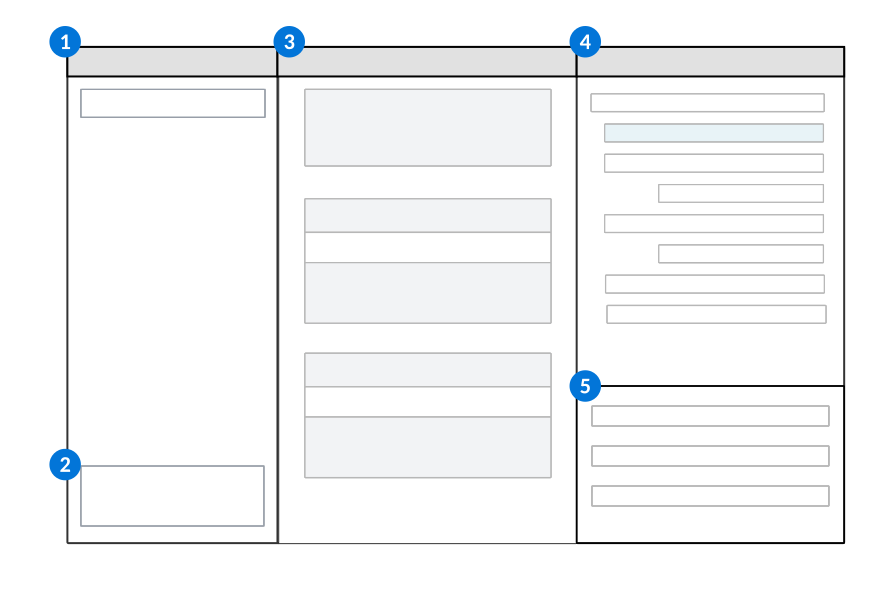
 | Ed the Builder panel—View the progress of your project and answers to your questions. Ed the Builder provides real-time updates as he processes your requests. |
|---|---|
 | Request field—Enter your prompts and questions for Ed the Builder. You can ask Ed the Builder to add, delete, or update components of your project. |
 | Viewer panel—View the object you have selected in the Artifacts panel. For example, you can review the Project Specifications used to build your project, or a preview of your application or logic blocks. |
 | Artifacts panel—Navigate between different components of your project. Select an object to view information about it in the Viewer panel. |
 | General Configuration information—View project details such as the Application Name, description, or Product Family. |
Artifacts
Artifacts created in projects are private by default. This means the artifacts cannot be referenced or used in other projects. You can change a project artifact to Public to make it available for other projects and integrations. For example, if you want to create an application link to your project built application from another application, or allow an outside logic block to call one of your project logic blocks, the application would need to be Public. Public artifacts cannot be modified outside of their original project.
Attachments in Project Builder
Create logic blocks within Project Builder to manipulate attachments in your agentic applications. Agentic logic blocks have additional attachment operations due to the underlying use of an LLM.
Within Project Builder, you can prompt Ed the Builder to create agentic logic blocks that perform the following operations:
- Copy or delete attachments associated with a record.
- Retrieve attachment metadata, such as file name, size, description.
- Read attachments to search for attachments that meet specific criteria or to compare attachment data against application data
- Create attachments by reading records or other attachments and generating a new file attachment based on that data
Example prompts
For example, you could prompt Ed the Builder to:
- "Read through the attached invoice and look for price mismatches between the record and the attachment."
- "Generate an audit report in PDF format that covers any issues found with the application data."
- "Search the attachments on my record and find any that contain xxx date in the file name."