


.svg)


The diagram below illustrates the different configuration options for your table layout:
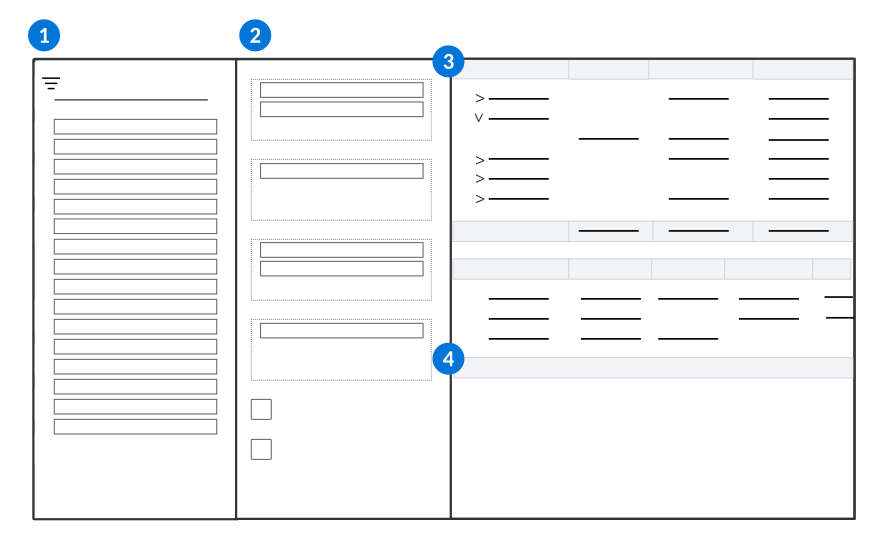
 | Fields—Select fields from your data source to use in your Report Data and Row Detail tables. You can drag and drop fields into the table configuration options, or select the Add Field button in the field's box to open a dropdown menu of options, such as button in the field's box to open a dropdown menu of options, such as Add as Row Group. The Search  icon indicates the field is a lookup on another application's data. You can select multiple fields from that application, or use the dropdown arrow to view additional related fields which may be available for your report. For example, a Company lookup field that points to the Directory application provides fields like Company and Org Unit Number to use in your report. icon indicates the field is a lookup on another application's data. You can select multiple fields from that application, or use the dropdown arrow to view additional related fields which may be available for your report. For example, a Company lookup field that points to the Directory application provides fields like Company and Org Unit Number to use in your report. Expand Date and Date Time fields to add more granular components of the stored Date values to your report. For example, you could show just the Month or Year from the stored Date value, rather than the entire date. |
|---|---|
 | Table configuration options:
Optionally, select the Format Configuration button to apply a style definition to field in your table layout. By default, interactive reports use a single currency code designated in the Table Layouts section. You can optionally configure Associated Currency to enable use of multiple currency codes. Learn more in Enable multi-currency in interactive reports. |
 | Report Data table—The visual representation of your business data which is organized based on your configuration selections. |
 | Detail Table—Select values inside the data table to see the related values specified by the Display Column fields. |
Example
You could create a table layout with the following values:
- Columns: Org Unit, Customer, Transaction
- Group Rows: Company
- Pivot: Status
- Aggregated Values: Transaction
- Include Row Aggregations: Selected
- Include Column Aggregations: Selected
With these layout selections, the Report Data table would show:
| Company | Status 1 | Status 2 | Status 3 | Transaction (Aggregate) |
|---|---|---|---|---|
| Company 1 | Number of transactions for Company 1 that are in Status 1 | Number of transactions for Company 1 that are in Status 2 | Number of transactions for Company 1 that are in Status 3 | Total number of transactions for Company 1 |
| Company 2 | Number of transactions for Company 2 that are in Status 1 | Number of transactions for Company 2 that are in Status 2 | Number of transactions for Company 2 that are in Status 3 | Total number of transactions for Company 2 |
| Company 3 | Number of transactions for Company 3 that are in Status 1 | Number of transactions for Company 3 that are in Status 2 | Number of transactions for Company 3 that are in Status 3 | Total number of transactions for Company 3 |
| Total number of transactions in Status 1 | Total number of transactions in Status 2 | Total number of transactions in Status 3 | Total number of transactions |
If you selected the row for Company 2 in the Report Data table, the Row Detail table would show:
| Company | Org Unit | Customer | Transaction |
|---|---|---|---|
| Company 2 | Org Unit 1 in Company 2 | Customer 1 of Org Unit 1 | Number of transactions for Customer 1 of Org Unit 1 |
| Company 2 | Org Unit 1 in Company 2 | Customer 2 of Org Unit 1 | Number of transactions for Customer 2 of Org Unit 1 |
| Company 2 | Org Unit 2 in Company 2 | Customer 1 of Org Unit 2 | Number of transactions for Customer 1 of Org Unit 2 |
Enable multi-currency in interactive reports
Configure Associated Currency in interactive reports to enable use of multiple currency codes in report layouts.
By default, interactive reports use a single currency code designated in the Table Layouts section. This limits the data which can be shown in a single report layout.
Associated Currency enables you to see currency fields with different currency codes in the same report, and to create report layouts with distinct groupings for different currency fields. This allows you to report over multiple currency types in a single report layout.
Configure
In the Table Layouts section of your report, add the Currency fields you want into your report layout. Select the Associated Currency  icon on each Currency field and select the field that defines the currency code.
The system automatically introduces a new row grouping for currency fields identified with the same associated currency code together in your report layout.
How to use hierarchies in interactive reports
Use hierarchies to display interactive report data in a hierarchal format within a single column of your report. This helps you track how business data, such as financial information, exists in a hierarchal structure.
Hierarchies are dictated by existing relationships between records and are only available for certain fields. Access available hierarchies in your interactive report by dragging a search field, also known as a table lookup field, into the Group Rows section of table layouts. Select the Apply a hierarchy definition  button on the field to view the available hierarchies.
For example, a company structure table could store hierarchal relationships between companies and different types of org units, such as:
- Company: Holds aggregate business data about all of the warehouses within each company.
- Region (type of Org Unit): Used to categorize warehouses, but does not hold any business data.
- Warehouse (type of Org Unit): Holds business data about this specific warehouse.
- Region (type of Org Unit): Used to categorize warehouses, but does not hold any business data.
An interactive report without a hierarchy selected could have a Group Rows for Company, and one for Org Unit, but would only show rows for Warehouses in the Org Unit column since Regions don't hold any business data.
The table below shows a summary table in an interactive report with the following field selections:
- Group Rows: Company, Org Unit
- Pivot: TransactionType
| Company | Org Unit | Customer Invoice |
|---|---|---|
| > Company A | 9999 USD | |
| v Company B | 800 USD | |
| Warehouse A | 200 USD | |
| Warehouse B | 300 USD | |
| Warehouse C | 300 USD |
If there is a hierarchy configured on the Company field, you can select it in order to use the hierarchal structure that exists on the company structure table in your report. Once selected, the parent relationship defined in the hierarchy, in this case Company, is shown in an expandable tree structure within one column. Each company record can then be expanded to show the regions that exist underneath them, and each region can be expanded to show the existing warehouses. This would enable you to see aggregated business data for the warehouses within each region.
The table below shows a summary table in an interactive report with the following field selections:
- Group Rows: Company (Hierarchy definition selected)
- Pivot: TransactionType
| Company | Customer Invoice |
|---|---|
| > Company A | 9999 USD |
| v Company B v Region 1 > Warehouse A v Region 2 > Warehouse B > Warehouse C | 800 USD 200 USD 200 USD 600 USD 300 USD 300 USD |