


.svg)


The studio opens to whichever application or page you previously had open, or the Welcome Page if you have no pending work. The diagram below highlights features on the Welcome Page of the studio:
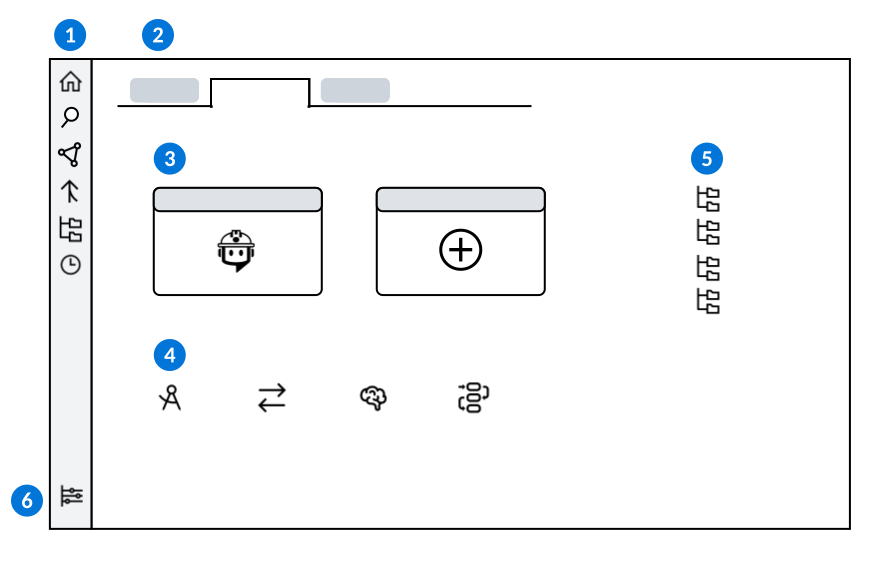
 | Open different components of the Developer Studio with the following navigation buttons:
|
|---|---|
 | Navigate between open applications and records by selecting different tabs. You can leave unsaved records open and return later to continue working. Pending work is held in a NATE container when you navigate between different lifecycles, or away from the Developer Studio. NATE containers only hold pending work for 48 hours. If you don't return within that time, your unsaved changes are discarded. |
 | Select the Create New Project or Create New Application buttons to begin development. |
 | Open the Application, Interoperability, Intelligence, or Workflow Home pages. Each home page contain links to related applications, as well as Quick Start buttons for development. Learn more in the following topics: |
 | Create or access recent lifecycles. |
 | Open the Settings menu to configure settings such as automatic tab grouping, hiding or showing metadata types, or enabling auto checkout. menu to configure settings such as automatic tab grouping, hiding or showing metadata types, or enabling auto checkout. |
 Welcome Page—Navigate between recent work, access different Home pages, or use start development on a new project or application. Your most recent work opens automatically when the studio is opened. If no tabs are left open the studio opens to the Welcome Page by default.
 Explorer—Access the applications used to view, edit, copy and create new metadata.
  Where Used—Track where an object is being used or track what objects are being used by the selected object.
  Merge Requests—View, create, and track merge requests. Merge requests allow you to merge your changes to objects into base lifecycle.
  Branch Lifecycles—View the list form of your lifecycles. In the row action menu you can activate, deactivate, or change lifecycles.
  Unsaved Work—View metadata objects which you have worked on, but have not saved.
Quick Start options
Quick Start options are available on the Welcome Page and Home Pages of the Developer Studio. Quick Start provides a simplified creation process for different types of metadata, such as applications, data imports, prompt definitions, and model definitions. For example, when you create an application with the Quick Start tool, you can create a new application, table, and workflow in one process.
Quick Start features, along with the ability to build applications, table lookups, and list lookups using Ed, are powered by Nextworld Intelligence.
Learn more in the following topics:
Project Builder
Project Builder enables you to design and create an application and all of its associated components by entering prompts into Ed the Builder. Application design and creation is done automatically by Nextworld Intelligence without requiring manual refinement and configuration. Learn more in Project Builder.
Application Home
The Application Home Page within the Developer Studio provides links to Quick Start features and applications used for application development.
Application Quick Start enables you to efficiently create applications, data items, tables, and workflows in one process. You can also create an application using data imported from a spreadsheet, or use Ed to create an application.
Learn more in:
- Create an application from a spreadsheet
Use the Developer Studio's Spreadsheet Quick Start option to build an application with the data from a spreadsheet.
- Build with Ed
Use Ed to create or modify metadata objects such as data items, tables, list and table lookups, workflow, applications, and interactive reports.
- Create a data import with Nextworld Intelligence
Use the Developer Studio's Data Import Quick Start option to import data with Nextworld Intelligence.
Applications
Application development applications include:
- Applications
Build applications to collect, process, and store data. Applications are built and configured using data items, tables, logic blocks, and other platform objects.
- Application settings
Application settings allow you to create variations of the application's user interface for different audiences through use of preconfigured filters, layouts, and buttons. Users can have different experiences with the application based on their roles.
- Calendars
Calendars are configured in the Calendar Definitions application and can be used in internal applications and dashboard cards to plan and schedule events.
- Data items
The data item is the most granular building block of an application. Each data item represents one unit of information. Every attribute, property, and field is built on top of data items.
- Format fields
Application developers can use the Format Definitions and Field Format Definitions applications to control different aspects of how fields are formatted. The Format Definitions application creates field formats which tell users what values to enter into complex data items such as name and address fields. The Field Format Definitions application controls how values are displayed or formatted once entered in a field.
- Logic blocks
Logic blocks are groups of logical expressions which are configured to update table data, modify an application's user interface, test other logic blocks, and validate data entry.
- Lookups
A lookup is a feature that retrieves existing values from a list or table, and lets the user select from those values when entering information in a field.
- Menu entries
Menu entries are how you view and open available applications and reports from the Navigation Menu.
- Style definitions
Style definitions enable you to change the appearance or behavior of different UI elements, such as fields and links. For example, you could change the text size of an application link, change the font color of a field in an interactive report, or configure conditionally required fields in an application.
- Tables
Tables are the foundation for an application. A table is a collection of related data items that display as fields in your application. Applications store data in, and retrieve data from, tables.
- Validation Setup application
Application developers use the Validation Setup application to create and modify field validations. Field validations restrict what values are allowed within a field. For example, you can specify if no lowercases, uppercases, numbers, spaces, or special characters are allowed.
- Attachment Cross Reference Inquiry - Core Tables application
Use the Attachment Cross Reference Inquiry - Core Tables application to view information about attachments, such as the date the attachment was created, the table it is stored in, the user who attached it, and the status of the file, saved to tables containing metadata. By default, you are only able to see records associated with your own user account.