


.svg)


AI in your applications
Use AI in the business logic of your applications by developing and running models.
For example, you could develop a machine learning model that automatically predicts the price of a house based on attributes like square footage and location, or you could create a form action using a large language model (LLM) that generates a summary of the work completed at a job site.
Intelligence Quick Start enables you to create:
- Automated machine learning model definitions
- Anomaly detection model definitions
- Prompt definitions
Ed's network of agents
Ed is an agent that can answer questions and perform functions in the platform on the behalf of users. He is powered by LLMs that allow users to interact with him in natural language using the chat interface. Ed relies on a network of agents, each with specific tools, to perform tasks in the platform. In order to equip Ed with additional capabilities related to your applications and processes, you must create your own agents and tools.
For example, you could develop a Financials agent equipped with tools such as creating new invoices or generating budgets. Then, when a user directs Ed to invoice one of their customers, he can access your Financials agent to complete the user's request.
Intelligence components
Intelligence components include:
- Models
Application developers create model definitions and prompt definitions that incorporate AI models directly into the business logic of applications and processes.
- Components of the agent framework
Agents, skills, tools, tool sets, and MCP bundles are the core metadata types that make up the agent framework. This topic introduces each component and uses a non-technical comparison to help you understand how they work together.
- Model Context Protocol (MCP)
Model Context Protocol (MCP) is an open protocol standard for AI integrations. It enables you to build secure, standardized connections between organizational data and AI consumers, such as large language models (LLMs), without requiring custom integrations for each system.
- Semantic search
Semantic search is powered by Nextworld Intelligence, and enables agents to find records related to a user's search term that may not be found in a traditional search.
- Nextworld Intelligence development best practices
These best practices ensure that the Nextworld Intelligence development tools are used consistently and effectively throughout Nextworld.
Models
Application developers create model definitions and prompt definitions that incorporate AI models directly into the business logic of applications and processes.
A model is the combination of an algorithm, or set of algorithms, and the training it receives on a set of data. Simply, models are the foundation of all AI and have the ability to make predictions.
Nextworld Intelligence includes applications that allow you to incorporate machine learning models, which are trained using the business data in an individual environment, and large language models (LLMs), which are managed by external organizations such as OpenAI. Both machine learning models and LLMs are implemented with the Model or Prompt Definitions application and the Call Model or Prompt logic block action.
Machine learning models
A machine learning model can recognize patterns in a dataset and make predictions about records in that dataset. There are different types of machine learning models, such as regression models, which can predict a number, and classification models, which can predict a value from a list of options.
Machine learning models are trained using the data in a single environment and table. The usefulness of these predictions relies on many factors, such as the quantity and quality of the training data and the suitability of the algorithms for the given task.
For example, you could use machine learning to predict the value of a house based on attributes such as square footage and location. These predictions vary based on the set of data the model was trained on.
Implement classification and regression models using automated machine learning model definitions. Application developers define a table and an attribute to predict. Then, system administrators can automatically create and train a set of candidate models using the data in their environment. They evaluate these candidates and select the model that gives the best predictions for their data. Learn more in Automated machine learning model definitions.
Large language models (LLMs)
A large language model (LLM) is intended to understand and generate human language. You can leverage LLMs that exist and are trained outside of the platform, such as OpenAI's ChatGPT, by creating prompt definitions that can dynamically incorporate input values. These models can produce outputs in natural language as well as structured data like JSON. Unlike machine learning models, LLMs are not trained using any data in the platform.
For example, you could use an LLM to determine whether a new directory record is a person or an organization with a prompt such as, "Does ${DirectoryName} resemble the name of a Person or an Organization?" Learn more in Prompt definitions.
Model and prompt definition process overview
The following diagram shows how model and prompt definitions are used in logic blocks that can handle the specified inputs and outputs for the model:
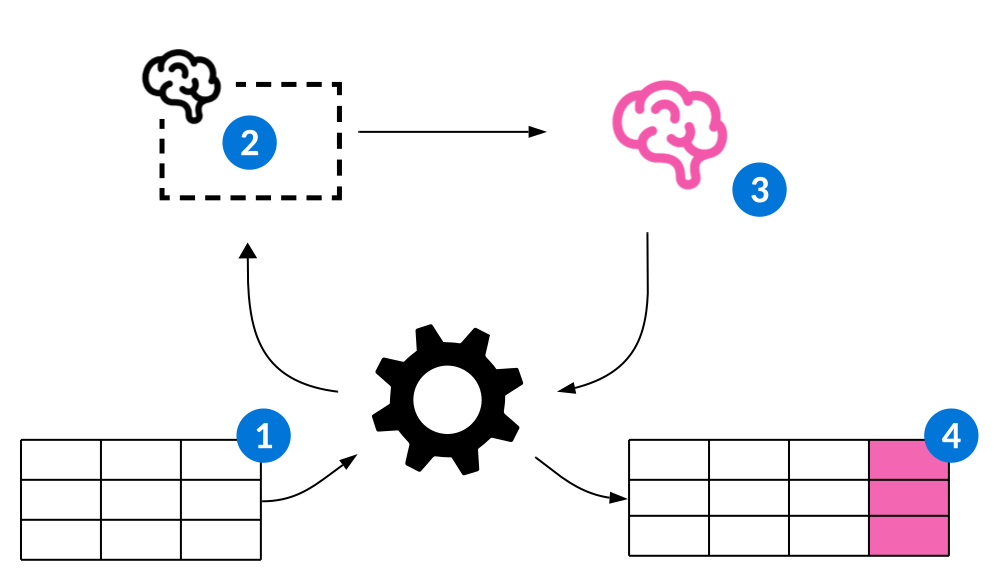
 | Inputs—Records or DSNs are used in the Call Model or Prompt action within a logic block to pass values to a model. Learn more in Call Model or Prompt action. |
 | Model or prompt definition—The definition describes the related metadata needed to connect the logic block to the model and pass the model the appropriate inputs. Learn more in Model and Prompt Definitions application. |
 | Model—The model runs and produces a prediction, which is passed back to the logic block as an output. |
 | Outputs—The outputs from the model are available in the logic block, allowing you to conduct more operations and insert the output values into a table. |
Prompt definitions
Application developers can leverage large language models (LLMs), such as OpenAI’s ChatGPT, in their applications by creating prompt definitions. These definitions include a written prompt that dynamically incorporates inputs from a logic block.
For example, a prompt definition used in the Directory Integration application effectively predicts the Contact Type of a directory record based on its Directory Name. The prompt definition has an input of DirectoryName, an output of ContactType, and includes the following prompt:
Does ${DirectoryName} resemble the name of a Person or an Organization? Respond with either Person or Organization.
When the prompt definition is run on a record with a Directory Name value of Wang, Evelyn, this value is dynamically inserted into the into the prompt sent to the LLM. Most likely, the response returned is "Person," and the Contact Type is set correctly.
In order to dynamically interpolate field values and attachments into your prompt, you must use merge text template syntax. Learn more in Dynamically include field values in prompt definitions.
Prompt definitions are created with the Prompt Definitions application and then used in logic blocks with the Call Model or Prompt action. Learn more in Models, Prompt Definitions application, and Call Model or Prompt action.
Process attachments with prompt definitions
You can also use a prompt definition to send an attachment, such as a PDF or an image, to an LLM for it to process. For example, you could create a prompt definition that summarizes key clauses of a contract, or that evaluates the condition of an item in a warehouse based on an image.
Use the ${AttachmentGroupID} syntax in your prompt to dynamically interpolate the attachment. These prompt definitions must run on records with only a single attachment.
PDF attachments are processed differently depending on the type of LLM you specify in your prompt definition. When you select a vision model, such as GPT 4.1 Vision, each page of the PDF file is sent to the LLM as an image for visual processing. When you select other models, such as GPT 4.1, the text of the PDF is scraped and sent to the LLM instead.
If you need to extract data from a PDF, you should consider the strengths and weaknesses of these different types of models. Models that scrape the text of the PDF are better at character recognition, but may not interpret the file correctly if the PDF has a complex layout. Vision models can successfully process PDFs with different layouts, as well as any graphs or images within them, but they may occasionally misinterpret different characters, such as 0s and Os. If the attached PDFs were created by scanning printed materials, you must use a vision model.
LLM considerations
Unlike the machine learning models created on the platform and trained on the business data in an environment, LLMs are already trained by external providers. These providers do not store any inputs, prompts, or outputs when a prompt definition runs. Data from the Nextworld Platform is never used to train external models.
The LLMs available to use in your prompt definitions are defined in the AI Model Version Setup application. You must obtain and register the appropriate API keys to use model definitions, and other Nextworld Intelligence features, in your environment. Learn more in Enable AI models in your environment.
Dynamically include field values in prompt definitions
Dynamically interpolate field values into your prompt definitions using syntax.
The format of the syntax is as follows:
${ payloadValuePath }
The payloadValuePath is a period-delimited name that references an input field, and is required for every input field you use in your prompt definition. The syntax is whitespace insensitive, so ${name} and ${ name } are treated the same by the LLM.
For example, to interpolate the value of the StorageTemperature field in your prompt, use the syntax ${StorageTemperature}.
You can also interpolate values of composite data items, table lookup fields, join table fields, and more:
- Composite data items—For example,
${MyCurrency:CurrencyCode}interpolates the currency code of the MyCurrency data item. - Table lookup fields—For example,
${MyCompany_CompanyName}interpolates the value of CompanyName related field on the MyCompany table. - Join table fields—For example,
${JoinTable$FieldName}interpolates the value of FieldName from the table JoinTable. - Attachments—The syntax
${AttachmentGroupID}interpolates an attachment from the record in your prompt, such as a PDF or image. PDFs are processed differently depending on the LLM you select. Learn more in Prompt definitions.
Automated machine learning model definitions
Application developers create automated machine learning model definitions and reference them in the business logic of their applications. This allows system administrators to automatically create and train a model suited for the their business and unique business data in their environment.
Machine learning models are always created and trained using the data in a single environment. The best algorithm for each machine learning model may depend on the business data available in the given environment.
System administrators can use automated machine learning model definitions to automatically create a series of candidate models that are trained on their business data. Each candidate includes a thorough analysis of the model's accuracy, reliability, and more. After they compare these candidates, they can activate the model best suited for their business needs.
Create an automated machine learning model definition
Application developers create automated machine learning model definitions, and then use them in logic blocks with the Call Model or Prompt action. Learn more in Models.
Create automated machine learning model definitions in the Model and Prompt Definitions application. Specify a table, and the field in that table a model should predict values for. Additionally, you can specify a filter and any fields that should not be used for training or those that are empty when the model runs. Learn more in Model and Prompt Definitions application and Automated Machine Learning Models application.
Create, train, evaluate, and activate candidate models
System administrators use the Automated Machine Learning Model Definitions application within the Model and Prompt Definitions application to activate machine learning in their environment. After they navigate to an automated machine learning model definition, they can select the Continue form action to start generating a series of candidate models. This process takes some time, but they receive a notification when the process is complete.
Then, they can view a list of models, along with an evaluation of each model that includes detailed information such as the accuracy and performance of each model. After they select the model that's best suited for their business and their data, they can activate it. Learn more in Automated Machine Learning Models application.
Anomaly detection model definitions
Application developers create anomaly detection model definitions that describe the algorithms and metadata used to create, train, and run machine learning models intended to detect anomalies. Using these definitions, anomaly detection models are created and trained with the business data in an individual environment.
Anomaly detection models predict whether a value is unusual and should be examined. For example, the Payment Anomalies dashboard relies on an anomaly detection model that uses a Single Field Numeric Statistical Anomaly Detection algorithm to predict whether a payment amount is an anomaly.
Use the Anomaly Detection Model Definitions application to create and train anomaly detection models. You can use the View Models row action to train models, evaluate models, and more. Learn more in Anomaly Detection Model Definitions application.
Model and Prompt Definitions application
The Model and Prompt Definitions application contains all prompt definitions, automated machine learning model definitions, and anomaly detection model definitions. Application developers use this application to create new model and prompt definitions, and system administrators use it to train and activate machine learning models in their environments.
The Model and Prompt Definitions application lists all the model and prompt definitions. When you create a new model definition, however, you are navigated to one of the following applications:
- Prompt Definitions application
Application builders use the Prompt Definitions application to define prompts for large language models. Prompt definitions are used in logic blocks to incorporate AI into business logic.
- Automated Machine Learning Models application
Application developers use the Automated Machine Learning Model Definitions application to create automated machine learning model definitions they can use in the business logic of their applications. System administrators use it to automatically create, train, evaluate, and activate models in their environment.
- Anomaly Detection Model Definitions application
Application builders use the Anomaly Detection Model Definitions application to create and train machine learning models intended to detect anomalies.
Prompt Definitions application
Application builders use the Prompt Definitions application to define prompts for large language models. Prompt definitions are used in logic blocks to incorporate AI into business logic.
Unlike machine learning model definitions, prompt definitions don't create new models. Instead, they leverage external large language models (LLMs).
To create a prompt definition, define input fields, output fields, and write both a User Prompt and a System Prompt that instruct the LLM on the type of the output you want it to return. The System Prompt should provide general context to the LLM, similar to a persona, while the User Prompt defines the task the LLM should complete.
When the prompt definition runs on a record using a logic block, input values are dynamically inserted into the prompt sent to the LLM provider. Then, the LLM returns a response that populates the output fields. To dynamically include values in your prompt, you must define input fields on the Input Definitions page and include them in your prompt using Merge Text Template Syntax. Learn more in Dynamically include field values in prompt definitions.
Define your output fields on the Output Definitions page. Unless you're describing the JSON structure in the prompt yourself, select the Describe Output Shape checkbox. This automatically amends instructions to the prompt on how OpenAI should structure its response. Using the output fields you define, this ensures that the logic block that runs the prompt definition is able to populate these fields.
Learn more in Prompt definitions.
Input Definitions page
Use the Input Definitions page to define the fields that the model can act on when it runs. The field(s) you select must be on the Table table.
The inputs you define are used in a logic block with the Call Model or Prompt action, which passes the input values from a record to the model.
Output Definition page
Use the Output Definition page to define the fields where the output is stored when the model runs. The fields you select must be on the Output Data Shape table.
Try It Out page
Use the Try It Out page to test the effectiveness of your prompt using sample input values.
The Input Fields subtable includes all the input fields you defined on the Input Definitions page. Specify a Value for each input, and then select the Run field action. After the LLM processes your request, you can view the complete prompt that was sent and the LLM's response. You can run multiple tests without saving the prompt definition record.
For example, if your prompt was "What is the current sales tax rate for the ${ZipCode} area code?" you could test the accuracy of this prompt by specifying different values for the ZipCode field and validating the results.
Automated Machine Learning Models application
Application developers use the Automated Machine Learning Model Definitions application to create automated machine learning model definitions they can use in the business logic of their applications. System administrators use it to automatically create, train, evaluate, and activate models in their environment.
Application developers create new automated machine learning model definitions. When a system administrator is ready to create and train a series of candidate models, they select the Create New Models form action.
Learn more in Automated machine learning model definitions.
Definition page
Application developers use the Definition page when creating new automated machine learning model definitions. They can apply a filter for the data, and prevent certain fields from being used to train models.
They use the Excluded Fields subtable to list any fields that should be excluded when a system administrator creates and trains models using this definition. They should list fields that they know are empty when the model runs, or those that may influence the training of the model. They should not list any fields to exclude simply because they feel they may not be relevant in training the model.
For example, an application builder may be creating an automated machine learning model definition using a table with fields such as Revenue, Costs, and Profit. If they need to predict Profit a week before Revenue is known, they should list the Revenue field in the Excluded Fields subtable. This is because that value is unknown at the time the model runs. If Revenue is used to train the models, the accuracy metrics may appear very high, but the model will not be successful when actually making predictions.
Field Analysis page
Use the Field Analysis page to view a list of all the fields that may be used to train each model. You can remove any of these fields by selecting them and using the Remove Selected Fields row action. You should remove fields if you have added a field, or created a customer defined attribute, which could adversely influence the training each model receives. This is similar to the Excluded Fields subtable, which application builders use when creating the automated machine learning model definition. Learn more in the Definition page section above.
When you're ready to create and train the candidate models, select the Continue form action.
Candidates page
Use the Candidates page to review the series of candidate models and activate the one best suited for your business needs and data. All of the models include the same Training Data Quality value, which indicates how reliable the models are based on the amount of business data available in the table.
Select each model to view a series of attributes you can use to evaluate it. For classification models, the Accuracy displays the percentage of time the model correctly identifies the correct attribute for the record. For regression models, the Accuracy value is the average distance between the prediction and the actual value.
While the accuracy of each model is important, you should also review the Mean Absolute Error, which displays for regression models, or the Confusion Matrix, which displays for classification models. These visualizations can provide you with important context beyond the accuracy of the model alone so that you can pick the best model for your business.
For example, you may be evaluating a series of classification models that predict whether items have a Fragility Level of Low, Medium, or High. While one model may have a higher overall accuracy, you may look at the Confusion Matrix of each model and discover that another model is more accurate when predicting High fragility levels. If your business processes require that extra care be taken with only items that have a Fragility Level of High, but not Medium or Low, you might choose to use the latter model, even if it's less accurate overall.
Additionally, the Feature Importance visualization illustrates how important each attribute of your data is for each model to make accurate predictions.
When you chose a model, use the Make Candidate Selection action to activate it. When you activate a model, all other candidate models are deleted. If you decide not to activate a model, use the Cancel Training form action to delete them all.
Evaluation page
Use the Evaluation page to review the current active model.
Anomaly Detection Model Definitions application
Application builders use the Anomaly Detection Model Definitions application to create and train machine learning models intended to detect anomalies.
To create an anomaly detection model definition, define the Type of model(s) you need to create, the algorithm the model should use, and the input and output data sources.
In the Table field, select the table that contains the data used to train and run the model(s). You can use the Filter field to further refine this dataset so that the model is trained on the correct data. For example, you can define a model that's only trained on records in particular workflow states.
Depending on your use case, you may need different models for different records in the table. Use the Group By Field field to create a distinct model for each unique value in that field. For example, the Login Anomaly Detection dashboard uses models that are created and trained on the login history for each unique user.
Use the Create Model form action to create the model(s), and the View Models action to open the Models mini app, where you can train models, rebuild models, and more. Learn more in Models mini app.
Input Definition page
Use the Input Definition page to define the fields that the model can act on when it runs, as well as the field where the model should store its output. The fields you select must be on the Table table. The inputs you define for an anomaly detection model definition are used to both train and run the model(s). These inputs are crucial to the accuracy of the models you create.
To specify a field as the output field for your model, select the Model Output checkbox. You can only specify a single output field.
Depending on the algorithm you select, only certain data item types are supported for output fields. For example, the output field for a One Class SVM algorithm must be a True False data item.
Models mini app
Application developers use the Models mini app within the Anomaly Detection Model Definitions application to train and evaluate anomaly detection models created in the current environment.
In order for a model to be used in the business logic of your applications, it must be trained. Use the Train Model row action to train the model on the business data in the environment. If the anomaly detection model definition uses a Group By Field field, there may be multiple models in the environment. Use the Train Model Group action to start training each of them.
Depending on the type of algorithm and the available business data in the environment, some models may be more accurate than others. For models that use supervised machine learning algorithms, you can use the Evaluate Model action to calculate the Accuracy and the Training Data Quality of the model.
Use the Rebuild Model row action if changes occur to the metadata in your environment related to the model. For example, you need to rebuild the models if new input or output fields are added to the anomaly detection model definition, or if there are changes to the data sources themselves.
Model aliases
Model aliases are built over Foundation Model records in the AI Model Version Setup application. They provide a single access point to update the model used in different configurations across the platform.
Foundation Model Records
Every model available in the platform has a Foundation Model record in the AI Model Version Setup application. Foundation Model records make a specific model version available for use in prompt definitions and agents. You can reference a Foundation Model record directly in a configuration, or you can create an alias that points to it.
Because model providers release new versions periodically, Foundation Model records can become outdated. Model aliases solve this problem by giving you a stable reference point that you can update without touching individual configuration records.
Alias Records
Alias records are also created and managed in the AI Model Version Setup application. An alias references a Foundation Model record and can be assigned a user friendly display name, such as PLATFORM_FAST_STABLE, instead of a specific model version name like Claude Opus 4.6. This makes aliases easier to identify and select in configuration records.
Delivered Aliases
Nextworld delivers alias records for the following models:
- PLATFORM_FAST
- PLATFORM_STANDARD
- PLATFORM_REASONING
Each model includes two versions:
- STABLE—The recommended version. Nextworld updates this alias after a new model version has been tested and stabilized.
- PREVIEW—The version used to test new models before they become the stable version.
These aliases are available for selection in Model fields across configuration records.
Components of the agent framework
Agents, skills, tools, tool sets, and MCP bundles are the core metadata types that make up the agent framework. This topic introduces each component and uses a non-technical comparison to help you understand how they work together.
Often, an agent is called upon after a user enters a prompt into a chat interface. In the Nextworld platform this could be in Ed, or Ed the Builder inside Project Builder. Once the agent receives the prompt, it looks at its hierarchy of child agents and skills to determine whether it is capable of fulfilling the request, or if it needs to delegate it to one of its child agents.
Compare this experience to a carpentry project. You, the user, have a project that you want completed. You can provide a detailed plan or a high level description of what you want to Ed, the foreman. Ed determines what parts of the project he himself can do, and then looks at his network of specialized contractors and delegates the tasks that are best suited to each of their skills.
The table below reviews the different metadata types used in our agent framework, and compares each component to a part of this hypothetical carpentry project:
| Component | Description | Non-Technical Comparison |
|---|---|---|
| Agents | Agents perform tasks across your platform on behalf of users and automated processes. | The top most agent in the hierarchy, Ed, is the foreman on the job site. He is who you talk to when you need something built. He takes the request, figures out the requirements, then coordinates the right agents and resources to get it done. Agents in Ed's hierarchy are the skilled contractors. Each agent has their own expertise, skills, and tools. |
| Skills | A skill defines how an agent thinks and behaves when handling a request. It is comprised of instructions written in natural language that are embedded in an agent's system prompt at runtime. An agent can have many skills, or none at all, depending on the complexity of the tasks it handles. | A skill is a blueprint. It gives the contractor plain-language instructions on how to complete a task. |
| Tools | A tool is an individual action that an agent can execute. A tool could be as simple as retrieving data, or as complex as a multi-sequence operation that requires other agents and tools. Tools can be:
| Agent tools are the tools in a contractor's toolbox that they can use to perform tasks. Once a contractor receives a project, they determine which tools they need to use. MCP tools are the tools that come with the job site. They are available for any contractor to use. |
| Tool set | A group of agent tools. A tool set can be used by one, or many agents, once it has been defined and added to their configuration. | A toolbox that contains all of the contractor's personal tools for completing their tasks. A contractor (agent) could have many different tool sets that they use for different tasks. |
| MCP Server | The MCP server is the infrastructure that gives agents the ability to take action in the platform, such as updating records, triggering workflows, and interacting with application data. Without it, agents can reason and retrieve but cannot make changes. The platform builds and maintains the server and determines what tools and resources it provides. | The building's systems, such as electrical plumbing, and infrastructure. Without being connected to these systems, a contractor can plan and measure, but cannot make real changes to the structure. |
| MCP Bundle | An MCP Bundle is how you define which metadata, such as tables and logic blocks, are exposed through the MCP server. Partners and customers build and maintain their own bundles, packaging the specific resources they want available to MCP clients. | A bundle specifies which rooms the contractor has access to. |
Agents
Agents perform tasks across your platform on behalf of users and automated processes. Equip your agents with skills and tools to accomplish these tasks, and trigger them through Ed, logic blocks, or other agents.
For example, a SalesAgent might be equipped with tools to retrieve, create, update, and delete sales order records, and a skill that guides how the agent handles sales data requests. If you ask Ed, "Show me total sales by customer for this month," Ed reviews the agents available to it and determines that the SalesAgent is best suited to handle your request. The SalesAgent invokes its sales data skill which instructs the agent to fetch the relevant sales order records and present the results as a table with columns for Customer, Total Sales, and Order Count. This ensures the response is clear and consistently formatted every time the request is made, regardless of any underlying changes to the AI model.
If you then ask Ed to update a specific order, the SalesAgent handles this directly using its update tool, without needing to invoke a skill. The agent is able to fulfill straightforward requests like this using its tools alone.
The following diagram illustrates how agents with different skills and sets of tools operate in Ed's network:
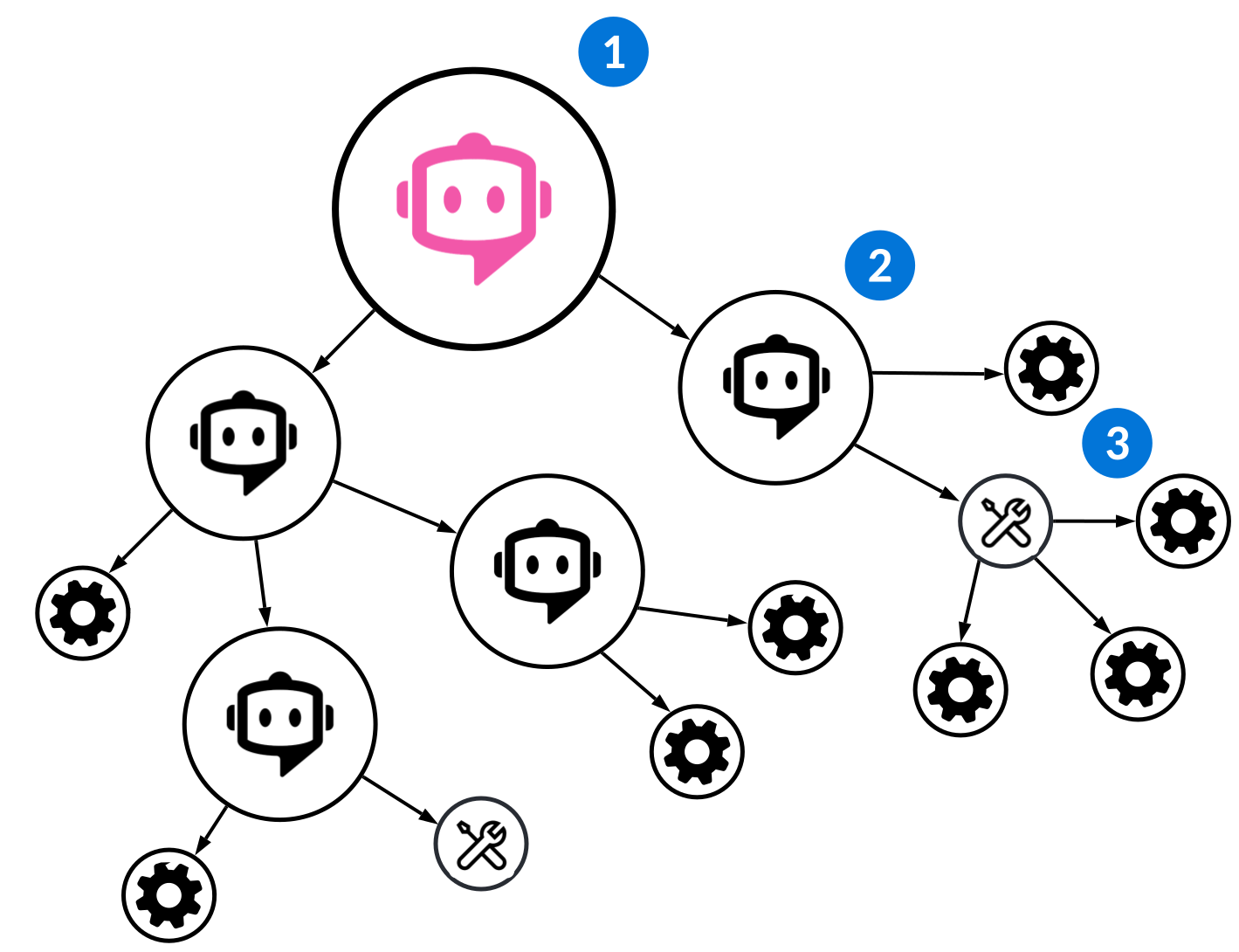
| Ed—Built over a network of agents that enable him to perform different tasks within the platform. Users send their requests to Ed in the chat interface, then Ed calls upon agents in his network to complete the tasks. He can only call on agents that list him as a parent agent. |
| Agents—Every agent includes an Agent Description Prompt that describes their capabilities to Ed and other related agents. This helps Ed determine which agents to call upon. When an agent is called, it determines which of its tools to execute or which of its related agents to pass the user's request to. The agent makes this decision using:
Learn more in Agent Builder application. Multiple agents may be called upon and multiple tools may be executed in order to fulfil a user's request. This group of actions and the order they are performed in is referred to as an agent flow. Learn more in Agent flows. |
| Skills—Describe the agent's capabilities to itself and guides how it behaves and reasons when it's executing. For example, a skill that aggregates and summarizes sales order data. Tools—Describe the specific actions the agent can perform. For example, tools for running a logic block or retrieving data. Each tool includes descriptions of fields. Using these descriptions, the agent can extract the appropriate field values from the user's request, and perform an action in the platform. Learn more in Agent tools. |
Ambient agents
Logic blocks can call agents to perform tasks that run in the background. You can also call an agent from a logic block that gives it a task to complete. These agents are known as ambient agents.
For example, you could build a logic block that is triggered when the quantity of an item drops below a certain threshold. The logic block could call an ambient agent that you configured with the tools needed to create a purchase order to restock the item.
Learn more in Ambient agents.
Agent flows
When a request is given to an agent, including Ed, multiple agents may be called upon, skills be invoked, and tools may be executed.. This group of actions is referred to as an agent flow, and is completed when the initial request is fulfilled.
In order to process user requests and provide responses in natural language, every agent, including Ed, leverage large language models (LLMs). Every action in an agent flow triggers an individual prompt sent to the LLM, and results in a response from the LLM.
When you create agents, skills. and tools, you provide context for the LLM to accurately generate the necessary information required to complete the user's request in the platform. For example:
- An agent's persona provides the LLM with the context necessary to determine which of its tools to execute.
- An agent's skills provide the LLM with instructions that guide how it approaches and executes complex tasks, and define how results should be formatted and returned. Skills are incorporated into the agent's prompt before any tools are executed, meaning they directly influence the order and approach of the agent flow.
- The description of an input field on a logic block tool provides the LLM with the context necessary to extract the correct input value from the user's request.
Because skills are incorporated into the agent's system prompt at runtime, they also make agent flows more predictable and consistent. Without skills, the agent relies solely on its own reasoning to determine how to fulfill a request, which can vary depending on the underlying AI model. Skills ensure the agent handles requests and formats responses the same way every time, regardless of any underlying changes to the AI model.
The agent flow is determined in part by the Thought Reasoning that each agent is equipped with. There are different types of Thought Reasoning allows agents to perform multiple actions in a logical order. Learn more in Agent thought reasoning.
You can examine agent flows in detail with agent traces, which allow you to view each action in an agent flow, as well as the complete requests to and responses from the LLM. Learn more in Agent traces.
Agent thought reasoning
All agents are equipped with Thought Reasoning, which allows them to execute multiple tools and call upon their related agents in a logical order to complete multiple tasks based on a single user prompt.
Each time a user sends a request to Ed, and each time his agents are accessed, a unique prompt is sent to the LLM. The external providers of the LLMs do not use any of these prompts to train their models. In order for Thought Reasoning to work, the responses returned by the LLM must be stored in the platform for upcoming agents and tools to access.
To provide this context for thought reasoning, the logic block associated with each of the agent's logic block type tools should typically produce an output in natural language that indicates the result of the logic block's execution, as well as the values produced by the logic block. The agent that executed the tool uses this output to determine whether to execute another tool, call on another agent, or respond to the user.
For example, the AppBuilderAgent can create a standard application. It's equipped with tools to create data items, include them in a table, and create an application over that table. However, these tools must be executed in a specific sequence in order to create the application, since these different metadata objects build upon one another.
When the AppBuilderAgent is tasked with creating a Movie Collection application, it first uses its data item tool to create the fields necessary for the application, such as MovieTitle and ReleaseDate. When this tool is executed, the associated logic block produces an output in natural language which indicates that these data items were created. When the AppBuilderAgent is called again to determine which tool to execute next, the prompt that is sent to LLM automatically includes the output from the first tool. This context enables the LLM to know that it should tell the AppBuilderAgent to execute its table creation tool to using those data items next.
There are multiple types of Thought Reasoning, including:
Chain of Thought—Allows an agent to perform an action, either by executing a tool or calling another agent, and then evaluate the results of that action to determine whether another is necessary to satisfy the user prompt. After the agent determines the user's prompt is satisfied, a response is sent and the chain of thought concludes. This is the default form of thought reasoning.Single Selection—Allows an agent to either execute a tool or call on another agent. Only one action occurs each time the agent is called.Directed—Allows an agent to execute its tools in the order you define. Learn more in Agent Toolset Builder application and Agent Builder application.
Agent traces
Examine an agent flow in detail with agent traces. Each trace is sequential, and includes all the agents accessed and tools executed as part of the agent flow. Additionally, traces include the complete requests made to the LLM, and its responses.
During an agent flow, each agent that's called upon and each tool that's executed results in an individual request to an LLM. For example, when Ed calls upon an agent on behalf of a user, the prompt that's sent to the LLM that contains the user's request, the agent's persona, descriptions of related agents, and descriptions of the agent's tools. Using this information, the LLM responds with instructions to either call a related agent or execute a tool, and the agent flow continues.
When you view these LLM inputs and outputs in an agent trace, you can better understand how your agents and tools perform in context of one another. This allows you to troubleshoot any unexpected behavior in the agent flow and make modifications to improve the performance of your agents.
For example, you might create an agent with the capability to display the contact information of your suppliers. The agent has a logic block tool that uses a semantic search configuration to determine the correct supplier, and a data retrieval tool to provide their phone number and email address.
However, when you test your agent, it's repeatedly unable to successfully retrieve the supplier's contact information. When you examine the agent trace, you determine that the logic block tool isn't being executed, which means that the data retrieval tool cannot work properly. With this information, you can modify the Agent Persona and the Agent Description Prompt of the agent's tools to indicate that the logic block tool should be executed first.
Learn more about accessing agent traces in the Agent Conversations application topic.
Agent Conversations application
Use the Agent Conversations application to access the conversations you've had with Ed and other agents in the chat interface, and to access in-depth agent traces.
Every conversation you've had in the chat interface is stored, and the Conversation Name matches what you see in the chat history dropdown. Open a record in the detail form to access the complete conversation. By default, you can only access your own conversations.
Conversations you have with Ed have a Agent Conversation Type of Conversational. However, some agents run in the background. These agents may require additional input from you in the chat interface. These agents have a Agent Conversation Type of Automation.
Access agent traces
Application developers who are designing their own intelligent agents can access agent traces to examine agent flows in detail. Learn more in Agent traces.
In the detail form of a conversation, use the View Agent Traces row action on a message to view the details of each agent flow. This action only appears on the first message of an agent flow with a Message Type of User.
There may be multiple agent traces in a single conversation, as each agent trace includes the details of a single agent flow. An agent flow starts when Ed, or another agent, receives a request, and ends when that request is satisfied. During a conversation with Ed, a user can make a series of requests, resulting in multiple agent flows.
However, an agent may need additional information from the user in order to satisfy the request. Even though this results in an additional User message, it is still part of the original agent flow and is captured in the same agent trace.
Learn more about interpreting agent traces in the Agent Traces application topic.
Agent Traces application
Application developers use the Agent Traces application to access the details of individual agent flows.
Each record in the agent trace represents a single action performed throughout the agent flow. By default, each action is in order.
You can get a sense of the agent flow by examining the Trace Type of each action. In complex flows, you'll likely see many actions of type Agent and Tool, allowing you to determine if the agents called and tools executed were what you expected based on the the request.
Additionally, you will likely see multiple actions of type Language Model. Each time an agent is called or a tool is executed, an individual prompt is sent to an LLM. Examine the details of these Language Model actions to view the complete JSON data of the request, and of the model's response. This allows you to examine your related agents and tools in context of one another. Learn more in Agent traces.
Ambient agents
You can use a logic block to provide an agent with a task to complete in the background. When an agent works in the background, it’s known as an ambient agent.
For example, you could configure an agent that can order additional items in a warehouse. The agent could have tools to examine the order history for an item, consider price trends, check the quantities at other warehouses in your system, and create either a purchase order or a transfer order to restock the item. You could configure a logic block to call this agent on a schedule, or when the quantity of a particular item drops below a certain threshold. After the agent runs, it notifies a user who can approve or reject the purchase order it created.
Unlike agents that are a part of Ed's network, when you call an agent from a logic block, it always runs asynchronously and in the background. When the agent completes its task, or if it requires additional information or input, a notification is sent to the user, where they can follow a link to open the conversation with the agent. Notifications are sent to the user that triggered the logic block, or the user listed as the JobCompositionRunAsUserId_UserName of the scheduled job.
Additionally, ambient agents are limited to a single agent flow, which means that the conversation with the agent closes when it completes its task. Conversations with these agents have a Agent Conversation Type of Automation.
All agents can be called from a logic block, be included in Ed's network of agents, or both. If the agent should only be called from a logic block, you don't have to list any Parent Agents. However, you should always consider your agent relationships. When an agent is called from a logic block, it only has access to its own tools and child agents. It cannot access Ed or any of its parent agents to complete its task.
Use the Queue Agent logic block action to define the task the agent should complete. Learn more in Queue Agent action.
Agent Builder application
Use the Agent Builder application to create agents. Agents use tools, skills, and other agents in their hierarchy, to complete actions within the platform. Agents may be called by Ed in the chat interface, or by a logic block.
Each time an agent is called upon, a prompt is sent to an external large language model (LLM). This prompt contains:
- The user's original request to Ed, or the agent task that's passed from a logic block.
- The Agent Persona and skills.
- A list containing the tools the agent can execute, and a description of those tools.
- A list containing each related agent, and a description of each of those agents.
Based on this prompt, the LLM determines which of the agent's tools to execute, or which of its related agents to pass the user's original request to.
Agents typically operate in a hierarchy beneath Ed. However, they can also be called from a logic block. Learn more in Agents.
Persona and Description
Write a Agent Persona that describes the purpose of the agent. The contents of this field should be written in second person in order for the agent to understand its purpose and capabilities.
For example, the Agent Persona for the AppBuilderAgent reads, "You are an intelligent agent designed to create and update applications."
You must also write a Agent Description Prompt for the agent. While there may be overlap between the Agent Description Prompt and the Agent Persona, the Agent Description Prompt is used by Ed or another parent agent to determine whether to call upon this agent. The contents of this field should be written in third person. Learn more in Prompting guidelines for agent development.
Toolsets
Include the sets of tools the agent can execute. Group tools into toolsets with the Agent Toolset Builder application.
Toolsets are not available for agents with a Thought Reasoning of Directed.
Parent Agents
Include the Parent Agents that can call upon this agent.
Ensure you understand the relationships between Ed and the agents you create. All user requests are submitted to Ed in the chat interface. In order for your agent to complete tasks for a user, you must either:
- Include Ed in the Parent Agents subtable.
- Include another agent in the Parent Agents. This agent must have Ed listed as a parent agent, or be a list a parent agent that does.
Display Options
Configure how the agent appears and is described in the chat interface.
Skills
Include the skills that guide the agent's reasoning when it performs tasks. Write skills in the Agent Skill Definitions application. Learn more in Agent Skill Builder application.
Skills are not available for agents with a Thought Reasoning of Directed.
Directed Flow page
This is only available for agents with a Thought Reasoning of Directed.
Define the toolsets that a Directed agent should execute in order.
Define the order of the tools within a toolset in the Agent Toolset Builder application. If the agent has multiple toolsets that it should execute in order, ensure each toolset is in order in the Execution Order subtable. Learn more in Agent thought reasoning.
Agent skills
A skill defines how an agent thinks and behaves when handling a request. It is comprised of instructions written in natural language that are embedded in an agent's system prompt at runtime.
Unlike tools which perform individual actions, skills coordinate reasoning to accomplish multi-step work.
For example, a FinancialsAgent might be equipped with an invoice management skill. If you ask Ed, "Create John Smith a $250.00 invoice for automobile parts and then show me all of his unpaid invoices," the FinancialsAgent invokes its invoice management skill. The skill instructs the agent to create an invoice with the relevant inputs, then retrieve and display John Smith's open invoices. Then, it specifies that the results should always be returned as a table with columns for Invoice Number, Customer, Amount, and Status.
Without the skill, the agent could still execute individual tools to create or retrieve invoices, but the format and structure of the response would vary depending on how the agent interprets the request. The skill guides the agent to handle these requests consistently and returns results in a predictable format, regardless of any underlying changes to the AI model.
Create skills with the Agent Skill Definitions application. Learn more in Agent Skill Builder application.
Agent Skill Builder application
Use the Agent Skill Builder to create skills that are embedded in an agent's system prompt at runtime. Skills define how an agent thinks and behaves when handling a request.
Use skills when a task requires multiple steps, reasoning, or coordination between tools.
General Configuration page
Select the product family and product module for your skill. These must be the same as the agent using the skill.
Instructions page
Write detailed instructions that define this skill's behavior. Include the purpose, trigger conditions, expected inputs and outputs, and examples. Markdown is supported but not required.
Example instructions
Invoice Management Skill Instructions:
Purpose: You are responsible for handling customer invoice requests, including creating new invoices and retrieving existing ones. Use this skill when a user asks to create, view, or inquire about customer invoices.
Trigger conditions: Use this skill when the user's request involves creating a new customer invoice, retrieving or displaying existing invoices, requests that involve both creating and retrieving invoices in a single interaction.
Expected inputs:
- Customer name
- Invoice amount
- Memo or description
- Any filters for retrieval (such as customer name, status, or date range)
Steps:
- If the request involves creating an invoice, execute the Create Invoice tool first before retrieving records.
- If the request involves retrieving invoices, apply any filters specified by the user.
- Always confirm with the user before creating a record if any required inputs are missing or unclear.
Response format: Always return invoice results as a table with the following columns: Invoice Number, Customer, Amount, Due Date, Status. Do not return results as a list or paragraph.
Constraints:
- Do not create invoices without a customer name, amount, and memo.
- Do not delete or modify existing invoices unless explicitly instructed.
Agent tools
A tool is an individual action that an agent can execute in the platform to fulfill a user's request to Ed. Agents can have tools that run logic blocks, retrieve and display records, and more based on inputs derived from the user's prompt.
Create tools with the Agent Tool Builder application. Learn more in Agent Tool Builder application.
Tools are the most granular part of the framework that allows agents to perform tasks for users when they interact with Ed. Agents can run multiple tools based on a single user request. Learn more in Agents and Agent thought reasoning.
There are multiple types of tools, including:
- Data retrieval tools
Data retrieval tools allow agents to find and display records for a user.
- Logic block tools
Logic block tools allow agents to execute processes in the platform using a logic block.
- Share values between agent tools
Use the output of a logic block tool as a fetch field option or logic block input for a different tool later in the agent flow.
- Agent Tool Builder application
Use the Agent Tool Builder application to create tools that can be executed by agents.
- Agent Toolset Builder application
Use the Agent Toolset Builder application to create groups of agent tools. Toolsets are added to agents that can execute the tools defined in the toolset.
For example, you might have a financials agent that's equipped with the following tool related to customer invoices:
- Create invoices—A logic block tool type, that creates customer invoices based on the input values for Customer, Amount, Memo, and more derived from the user's prompt. The financials agent would execute this tool if a user told Ed, "Create James Kirk a $250.00 invoice for starship parts."
- Retrieve unpaid invoices—A data retrieval tool type, that displays all of the open customer invoices and their amounts for the user. The financials agent would execute this tool if a user told Ed, "Show me all unpaid customer invoices."
Data retrieval tools
Data retrieval tools allow agents to find and display records for a user.
To create a data retrieval tool, specify the fields used as filter criteria needed to fetch the correct records for the user, and describe how the agent should determine the values for these fields. When an agent executes the tool, it determines the filter criteria and uses it to retrieve and display the data.
Use the Fetch Field Options subtable to specify the filter fields. The way the agent determines each field value depends on the Value Mapping Type you select for each field:
Prompted—These values are determined by the agent using the user's request. For example, you could have aPromptedfetch field option for the Status field. If a user requested to see a list of their inactive customers, the agent would determine that it should filter the Status field byInactive.Logic Block Output Mapping—Optionally, you can specify a Pre-Run Logic Block that runs before the any records are queried. This means that the agent can use these logic block outputs as filter values to retrieve records.Tool Output Mapping—Use the output of a logic block tool executed earlier in the agent flow as a filter criteria. Learn more in Share values between agent tools.
Data retrieval tools rely on a related application when the fetched records are displayed in the conversation window. Select the application, and the fields you want to display, on the Display Configuration page of the Agent Tool Builder application. The field labels that appear for these data items when the specified app is launched are what appear in the conversation window. In addition, Ed displays a link to this application alongside the data. When a user selects this link, the application opens with the same filters applied by default.
For example, the Directory agent is equipped with a tool to find active directory holds on their customers. This tool retrieves records from the DirectoryHolds table with the Fetch Field Options of Contact and Effective From.
A user could tell Ed to show them all of the holds on their customer, Lumon Industries, placed after February 10. When the Directory agent executes this tool, any holds with a Contact of Lumon Industries and Effective From date of February 10 are displayed in a table in the chat interface, along with a link to view or modify those holds in the Customer Hold Manager application.
Logic block tools
Logic block tools allow agents to execute processes in the platform using a logic block.
To create a logic block tool, define and describe the specific Input Fields required to run the logic block. When an agent executes the tool, it uses these descriptions to extract the appropriate values from the user's prompt, and use them to run the logic block.
For example, a financials agent could have a tool to create an invoice for a customer. This tool runs a logic block with input fields that include Customer, Amount, and Memo.
A user could tell Ed to create an invoice for James Kirk in the amount of $250.00 for starship parts. Ed would then pass this prompt to the Financials agent, who would execute its invoice creation tool. The agent uses the descriptions of these input fields and the user's request to determine the following input values:
James Kirk, for the Customer field.$250.00, for the Amount field.Starship parts, for the Memo field.
The logic block then runs with these inputs, creating the invoice in the platform.
Logic block outputs
The agent uses the Output Fields of the logic block. They use these values to either determine their next steps in the agent flow, or to respond to the user.
You should configure an output that describes the details of the action that was completed, or any errors that occurred.
You can select the Shared checkbox for an output to allow the agent to use the output value in a different tool later in the agent flow. This is particularly useful when the agent needs to execute multiple tools using a specific record. Learn more in Share values between agent tools.
Agent Tool Builder application
Use the Agent Tool Builder application to create tools that can be executed by agents.
To create a tool, it's important to write accurate descriptions of the tool itself. Agents determine which of their tools to execute based on the Agent Description Prompt. Describe the purpose and capabilities of the tool in natural language that can be understood by the agent.
General Configuration page
Use this page to define the logic block information for a logic block tool, or the table and filter criteria for a data retrieval type tool.
For logic block tools, use this page to select the logic block that runs when the tool is executed, and define the logic block's inputs and outputs.
In order for the agent to accurately generate input field values and execute the skill, you must describe their purpose and how to derive them in the Description Prompt field in the Input Fields subtable.
For logic block tools, use the Load Tool Signatures field action to automatically load the Input Fields and Output Fields of the selected logic block. By default, input field values are not required for the tool to be executed. If the tool should error if the input is required, specify an Tool Input Enforcement of Required.
For data retrieval tools, define the table to query records from. Specify the Fetch Field Options that instructs the agent how to determine the filter criteria to execute the tool.
Display Configuration page
This page is only available for data retrieval type tools.
Use this page to configure the fields and application that are displayed for the user after the data retrieval tool is executed. The Display Fields determine the columns in the table that displays in the chat interface. The Destination Application and Destination Application Setting determine the labels that display for those columns.
When a data retrieval tool is executed, a link to the application you select, including mapped filters matching the returned data, displays with the table in the conversation window.
Advanced Configuration page
This page is only available for data retrieval type tools.
Use this page to specify a Pre-Run Logic Block, and any input or output fields for that logic block. This functions similarly to a logic block tool, but always runs before the data is retrieved and displayed.
Agent Toolset Builder application
Use the Agent Toolset Builder application to create groups of agent tools. Toolsets are added to agents that can execute the tools defined in the toolset.
In order for an agent to access a tool, it must be included in a toolset. The same tool can be added to multiple toolsets.
Create tools with the Agent Tool Builder application. After you add tools to a toolset, you can provide the toolset to an agent in the Agent Builder application.
Unlike the Agent Builder and Agent Tool Builder applications, descriptions in the Agent Toolset Builder application are not consumed by a large language model (LLM) and are for application developer use only.
Directed agents
When an agent with a Thought Reasoning of Directed is given a toolset, the order of the tools matter. On the toolset definition, list each tool in the Tools subtable in the order the agent should execute each tool.
If the agent has multiple toolsets, those must also be in order. Learn more in Agent Builder application.
MCP tools
To connect Ed to an MCP server, you must have an Agent Toolset record of type MCP Tools.
The MCP Server Type dictates whether you are connecting to an external MCP server, or to an internal application, MCP bundle, or project.
You do not need to configure Agent Tools for your Agent since they are provided by the MCP server. Learn more in Connect Ed to Nextworld's MCP server and Connect Ed to external MCP servers.
Semantic search
Semantic search is powered by Nextworld Intelligence, and enables agents to find records related to a user's search term that may not be found in a traditional search.
For example, a user may ask Ed to find all open invoices for "Bobby Jones." In order for an agent to find these invoices, it needs to determine which directory record matches the user's request. While there may be no exact matches for "Bobby Jones" in the directory, a semantic search can return records such as "Bob Jones," "Robert Jones," and "Bob Johnson." After the user indicates the correct contact in the chat interface, the agent can proceed with finding any open invoices. However, if there was an exact match in the directory for "Bobby Jones," the agent can find their open invoices without requiring the user to confirm the correct contact.
Semantic search leverages OpenAI's text embedding models. These models are used to calculate the similarity between text strings by measuring the distance between vector representations of each string. Each of these vectors are known as embeddings.
To configure semantic search for a table, use the following applications:
- Embedding Definitions—Create an embedding definition to create embeddings for the records in a table. You determine the key identifying fields that are included in each embedding. Learn more in Embedding Definitions application.
- Semantic Search Definitions—Configure a semantic search definition that specifies how a search should be conducted. This includes how to handle exact matches in combination with a semantic search. Learn more in Semantic Search Definitions application.
Semantic search definitions are built over embedding definitions. The embedding definition connects to the OpenAI embedding models and creates the embedding for each record. The semantic search definition describes how records are searched over using these embeddings.
For example, you might create an embedding definition using the Directory table. You could filter out any inactive contacts embed the Name and Nickname fields, since those tend to be the fields used to identify each contact. After you save, embeddings are created for each of the active records in the table by creating individual strings in the format of <Name>,<Nickname>.
Then, you could create multiple semantic search definitions over that embedding definition, each for a different purpose. One could be specific to employees, and another could be for suppliers. You could apply filters in each semantic search configuration to only display results that match the specific contact type.
Embedding Definitions application
Use the Embedding Definitions application to create embeddings for the records in a table based on key identifying fields. Embedding definitions enable semantic searches of a table.
To create an embedding definition, specify the table you need to be able to search semantically. Then, add the fields used to identify the records in the table to the Embedding Source Table Fields subtable.
You can also apply a Source Table Filter to narrow down the records you want to embed. For example, you may want to filter out any inactive contacts for an embedding definition built for the Directory table.
Use embedding definitions in semantic search definitions. Learn more in Semantic Search Definitions application.
Embedding synchronization
After you save the embedding definition, the embeddings are automatically synchronized each day to uptake any modifications to table records. If you want to test the embedding definition immediately, you can use the Synchronize Embeddings action.
Optionally, you can select the Real Time Embedding checkbox to queue a background task to re-embed for every insert, update, and delete on the table . This allows semantic search to access any changes within seconds, rather than waiting for the bulk update at night.
Embedded field considerations
Embed the text fields used to identify each record in the table. These field values from each record are concatenated into a single string, and each of these strings are processed by a model from OpenAI that turns them into an embedding.
The more fields you embed, the longer each string, and the less likely that semantic search results are helpful. Do not embed number fields, or fields that are commonly empty.
For example, an embedding definition for the Directory table may contain the Name and Nickname fields. However, an embedding definition over the DataCatalog table contains the DataCatalogName, DataCatalogDescription, and DataCatalogSourceTextTL fields. This is because searches of the data catalog may be by either the data catalog name, or, less commonly, the source table. The description field is included to add weight to searches by the data catalog name, since the description is often similar.
Test an embedding definition
You should always evaluate the quality of the embedding fields you choose. Use the Search Embedded Content action to test sample search terms against the embedding definition. Then, enter a search term and select the Run Test field action.
The results are sorted by the Similarity Score. This percentage is influenced the number of fields embedded, the content of those fields, and more, and may be lower than you expect. You should, however, confirm that the top results are what you expect based on your search term.
If you want to test any changes you make based on these results, use the Synchronize Embeddings action and test again.
Semantic Search Definitions application
Use the Semantic Search Definitions application to specify how searches are conducted, including how exact matches are handled in combination with a semantic searches. Semantic search definitions can be used in the Agent Tool Builder application to derive input values for table lookup fields from a user prompt.
In order to search a table semantically, you must specify an existing embedding definition in the Embedding Configuration Name field. You can create multiple semantic search definitions using the same embedding definition. Learn more in Embedding Definitions application.
You can refine the results returned on a search using a Source Table Filter. For example, you may have an embedding definition built over the Directory table. In one semantic search configuration, you could filter the possible records down to customers only. In another, you could filter only for employees.
In addition to searching semantically, you can also specify any Exact Match Fields. The system always checks for any exact matches in these fields before semantic search results are displayed.
For example, you may want to search the Directory table for contacts semantically, so you specify the related embedding definition. However, you may also expect users to occasionally search by the ContactID field. Since this is a number field, where values have no semantic meaning, specify it as an exact match field. This allows user prompts such as "Show me all the open invoices for Clementine Kruczynski," and "show me open invoices for customer 1291," to both return relevant results.
Semantic search definitions can be referenced in agent tools and logic blocks. Learn more in Agent Tool Builder application and Semantic Search action.
Nextworld Intelligence development best practices
These best practices ensure that the Nextworld Intelligence development tools are used consistently and effectively throughout Nextworld.
The following topics cover the best practices you should adhere to:
Agent development best practices
These best practices ensure that agents and tools are developed consistently and effectively throughout Nextworld.
General
Ensure each of your agent's handles a specific role, and that each of your tools accomplishes a specific task. In general, large language models (LLMs) perform better when they're given specific prompts. For example, you might need to to create an agent that summarizes each section of a document. It would be more effective to give the agent two tools, one to break the content into sections, and then another to summarize each section, than it would be to create a single tool.
Check that every table that your agents can access or modify has the proper security defined. Agents acting on behalf of your users are only able to display data or perform actions the user would otherwise be allowed to do.
Agents
Consider the structure of your agent relationships. Keep in mind that the more agent relationships and tools a single agent has, the less likely a LLM is to accurately determine which child agents to call upon or which tool to execute.
The following table describes the suggested agent hierarchy:
| Level | Description and considerations | Examples |
|---|---|---|
| Family-level agent | Typically, each product family should have a single agent that includes Ed as its parent agent. Each module level agent should be a child of this agent. However, there are some cases where it may be appropriate to create multiple agents for a single family. For example, for the Foundation product family, it makes sense to have multiple top-level agents, such as Directory, TimeEntry, and ItemMasterData. | Financials, Sales, Inventory |
| Module-level agent | Each of your product modules should have a distinct agent. These agents should include the family-level agent as a parent agent, but not Ed. | AccountsRecieveable, AccountsPayable, Items |
| Application-level agent | If your module-level agents become too robust, you may also create an additional tier of agents, called application-level agents. These agents should list the module-level agent as their parent agent, and should not have any child agents. Typically, these agents relate specifically to a single application or process. | SalesOrders, SalesCredits, CustomerInvoices |
If you create two similar agents, they should not share a parent agent. For example, if you create a SalesInvoicing agent as well as a Sales agent and specify Ed as a parent agent of both, Ed may struggle to determine which agent to call upon.
The name and Agent Description Prompt for each of your agents should be unique.
Tools
Tools should be specific to a single action on the platform.
Avoid using the exact user prompt as a tool input.
You should configure an output that describes the details of the action that was completed, or any errors that occured.
If the display application for your data retrieval tool uses company or org-unit overrides, use a pre-run logic block to default these filter values from the user.
If any of the inputs for your tools is a table lookup, you must use a semantic search definition to allow the user to select the correct record. To ensure the user only needs to select the record once in the course of an agent flow, you should create a tool to identify the correct entity. Learn more in Logic block tools that identify a specific record.
Logic blocks
All logic blocks used in agent tools should have a Security Option of Public.
Naming conventions
Across all agents, toolsets, tools, and logic blocks, avoid any obvious or unnecessary words such as ‘agent,’ ‘chat,' 'tool,' or 'toolset.' Keep names short, clear, and descriptive. Do not use any proper nouns. All object names should be unique.
| Object | Naming convention | Considerations | Examples |
|---|---|---|---|
| Family-level agents | <Family><Context> | <Context> is optional. |
|
| Module-level agents | <Module><Context> | <Context> is optional. | AccountsReceivables, AccountsPayable, Items |
| Application-level agents | <Application><Context> | <Context> is optional. <Application> may also refer to a single process spanning multiple applications. | SalesOrders, SalesCredits, SalesQuotes, WorkOrders, CustomerInvoices |
| Toolsets | <Toolset>Actions | Name the toolset according to the general functionality of the included tools. Append the word 'Actions' to the end of each toolset. | SalesOrderActions, SharedDirectoryActions |
| Tools | <Verb><Object> Acceptable verbs: Create (not Write), Answer, Display (not Retrieve), Determine, Release | Acceptable verbs:
For data retrieval tools, use the verb 'Display.' Do not use the verb 'Retrieve.' | Logic block tools: DetermineSalesQuoteInformation,SendSalesQuote,ReleaseSupplierHoldsCalculateTaxForSalesOrderData retrieval: DisplaySalesOrderLines, DisplayInventoryCommitments |
| Embedding definitions | <TableName><Context> | <Context> is optional, but should be a singular noun if included. | ReceivablesHeader, SalesOrderHeader, Items, ShipmentHeader, Directory |
| Semantic search definitions | <NameOfEmbeddingDefinition><Grouping> | <Grouping> is optional, but should be a plural noun if included. You should always create at least one semantic search definition with no filters applied. | SalesOrderHeaderOrders, DirectoryCompanies, DirectoryEmployees |
Logic block tools that identify a specific record
If an agent needs to perform an action or retrieval data using a specific record, you should build a logic block tool that leverages semantic search to determine the correct record and then include the tool in the agent's toolset.
When an agent runs one of these tools, options that match the user's request are presented to them in the chat interface. After they indicate the correct record, the agent flow can continue. Learn more in Semantic search.
Each of these tools should follow the naming convention of Determine[Entity Name]. For example, DetermineCustomerInformation. Most user queries require that an agent act on an existing record. Your agents should have one of these logic block tools for each type of record the agent can act on.
Configuration
To configure a logic block tool to identify a record, add the table lookup data item as an input field and specify a semantic search definition in the Search Configuration field.
Additionally, you should configure your logic block to output the nwID of record the user selects. These outputs should always be Shared, so that the agent can use the nwID later in the agent flow. Rename the outputs using the convention of <Entity>RecordID.
Example
The Directory agent is equipped with a data retrieval tool called DisplayCustomerHolds. In order to properly execute this tool, the agent must first determine the customer to display holds for, so it uses a different tool, DetermineCustomerInformation.
The DetermineCustomerInformation logic block tool includes a prompted input field of Customer, which includes a semantic search definition. It also includes a Shared output field of CustomerRecordID. This allows the DisplayCustomerHolds tool to include a fetch field option that maps in the CustomerRecordID value determined in the first tool.
When a user asks Ed, "Show me all the holds placed on Bobby Jones," Ed calls on the Directory agent. The agent executes its DetermineCustomerInformation tool, which pauses the agent flow until the user determines the correct customer in the chat interface. After the agent has the CustomerRecordID for Bobby Jones' directory record, it can execute its DisplayCustomerHolds tool and show all of Bobby's active holds to the user.
Prompting guidelines for agent development
Each time an agent is accessed or a tool is executed, a prompt is sent to a large language model (LLM). This topic describes how to effectively write the content that's sent to a LLM at runtime, such as agent personas, tool descriptions, and more.
General guidelines
In general, keep all content simple. As you test your agents, you can add more information where it's appropriate to improve the agent's performance.
Use consistent language across your agents' personas, descriptions, and tools. Don't use multiple terms to indicate the same objects or entities.
To describe the agent's capabilities, use the word "action." Don't use the word "tool," even though it's used in the agent builder applications.
For fields which require more content, such as agent personas, use Markdown syntax. Always write in complete sentences, end each sentence with a period, and don't add extra line breaks. Only use one space between sentences.
Guidelines for specific fields
| Application | Field | Guidelines | Example |
|---|---|---|---|
| Agent Builder | Agent Persona | The agent persona is sent to the LLM when the agent is called upon. Start with a clear definition of the agent's role and its domain of knowledge. Include any information helpful for the agent to understand the platform. Outline the general capabilities of the agent, and describe the entities the agent can handle, such as customer invoices, customer credits, or cash receipts. Include brief examples. | Directory agent persona:You are a specialized directory agent designed to find information about entities within the directory module of an enterprise resource planning system. # Core capabilities ## Identify entity: For example, determines and validates related record information. ## Prompt clarification: Asks the user targeted clarification questions to ensure the best action is used. ## Directory: For example, displays directory related records such as customers, suppliers, employees, etc. ## Directory Basic Operations: For example, maintains contact details, holds management, addresses, organizational structures, or other directory information. You do not need to clarify customer or supplier when managing holds. When performing basic operations, determine today's date unless a date is provided by the user. Only display holds when a user asks to view them. |
| Agent Builder | Agent Description Prompt | The agent description is sent to the LLM when its parent agent is called upon, and uses the description to determine whether to call upon the agent. Similar to the agent persona, you should broadly define the agent's capabilities. However, you shouldn't go into nearly as much detail. Don't include all the agent's capabilities. | Directory agent description:An agent capable of finding actions that will access and manage the directory module including basic operations, which usually handles inquiries on customers, suppliers, employees, and contacts, and specialized operations, which usually handles management of customer and supplier holds. |
| Agent Tool Builder | Agent Description Prompt | Start with a concise description of the tool. For data retrieval tools, use the word "display." For logic block tools, use consistent verbs across all your agent's tools.tool requires an input value that's determined by another tool, explicitly state which values the agent needs to determine before executing the tool. Learn more about shared values in Share values between agent tools. | DisplaySupplierHolds tooldescription:A directory action that displays supplier holds. You only need to determine and validate the supplier when it is provided by the user before executing this action. Supplier holds include general hold information such as hold type, reason, effective dates, and associated supplier information. |
| Agent Tool Builder | Description Prompt field, in the Input Fields subtable | Briefly describe the field to instruct the LLM on how to derive the input from the user's request. | DetermineSupplierInformation logic block tool input field description for the Supplier field:The user provided name used to identify a supplier (individual or organization) that provides goods or services to the company. |
Semantic search and embeddings best practices
These best practices ensure that embedding definitions and semantic search definitions are configured consistently and effectively throughout Nextworld.
Embedding definitions
Embed the text fields used to identify each record in the table. These field values from each record are concatenated into a single string, and each of these strings are processed by a model from OpenAI that turns them into an embedding. The more fields you embed, the longer each string, and the less likely that semantic search results are helpful. Do not embed number fields, or fields that are commonly empty.
For example, an embedding definition for the Directory table may contain the Name and Nickname fields. However, an embedding definition over the DataCatalog table contains the DataCatalogName, DataCatalogDescription, and DataCatalogSourceTextTL fields. This is because searches of the data catalog may be by either the data catalog name, or, less commonly, the source table. The description field is included to add weight to searches by the data catalog name, since the description is often similar.
Limit the number of filters you include in the Source Table Filter field. This allows for additional flexibility for any semantic search definitions built over the embedding definition.
Semantic search definitions
Include nwId as an exact match field for each of your semantic search definitions in case another tool has already determined the nwId for the record.
When you include the Name field as an exact match field, always use NameName, as Name is a complex data item. If you expect your users to search using a Last Name, First Name format, you can also include NameNameInverted.
Nextworld Intelligence documentation best practices
The following best practices ensure features that use Nextworld Intelligence are documented consistently across the platform.
Terminology for different audiences
For content serving general audiences, such as business users and system administrators, use the term Nextworld Intelligence when you refer to features that leverage machine learning models, automated machine learning models, prompt definitions, agents, or tools. For example, you can say that a feature is "powered by Nextworld intelligence," or that "the value in this field is derived using Nextworld Intelligence."
For content serving application builders, it's okay to reference machine learning, large language models, prompting, and other terminology that is important for application development with Nextworld Intelligence.
Use AI note and attribute icon in Content Builder
When you create a new topic on an AI feature, select Artificial Intelligence in the Attribute Icon field. This adds an icon next to the topic when viewed in Nextworld Help, indicating that it's about an AI feature.
You can use the AI note in Content Builder to inform the user about an AI feature. You can also use it to direct them to more content on the AI feature.
For example:
Adhere to the Nextworld ethics policy of digital transparency
When you use Nextworld Intelligence features in your applications, you should include complementary documentation and help text that informs your users that they are interacting with an intelligent solution, and if applicable, how their data is used. Describe the inputs used, capabilities, intended purpose, potential impacts, and limitations of the features. Learn more in the Nextworld AI ethics policy.
The following table provides some examples of AI features with different scopes, and how they are documented:
| Feature | Scope | Necessary help text and documentation |
|---|---|---|
Prompt definition runs to determine if the Contact Type of a new directory record is a Person or Organization |
| Help text for the Contact Type field should indicate that the value is derived by Nextworld Intelligence. |
| Creating a new application in Developer Studio by uploading a spreadsheet |
| AI notes in the Application Builder and and Developer Studio topics that lets application developers know about the feature and its potential limitations. |
| Login anomaly detection |
| Comprehensive documentation in Nextworld Help, application listings, and field level help. Appropriate warnings about limitations, requirements, and the use of user data. |