


.svg)


Review the following topics for ongoing requirements of a system administrator:
- Security
Business data and platform metadata, such as tables, applications, reports, and menu entries, are secured by default. Application developers and security administrators design security groups, permissions, and roles to control access to the different components of the platform.
- Users
Once security groups, permissions, and roles have been established for the platform, system administrators create user accounts to maintain user permissions and security settings. The user account is granted roles which control their access level to components of the platform.
- Audit data access levels
Audit records are created each time a record inside a table with audit enabled is updated. Audit data stores information about the update, such as the user who made the change, the time it occurred, and what the change was.
- System log monitoring
Monitor system logs for activities such as API Requests, logic blocks, and database errors for a given environment. This enables system administrators to view system operations, investigate issues, and understand application behavior.
- Review reported issues
The Internal Help Desk enables you to have help desk functionality within the platform for your company's internal support team and processes. System administrators must periodically review issues reported through the Internal Help Desk application to determine how they can be resolved.
- System Administrator Dashboard
Use the System Administrator Dashboard to monitor the state of key systems that drive the platform and identify issues with these systems.
- Monitor logins with the Login Anomaly Detection dashboard
System administrators use the Login Anomaly Detection dashboard to monitor your system for suspicious login activity.
- Managed and managing tenants
System administrators use managing tenants to access, troubleshoot, and manage their tenants.
- Approval Cycles application
System administrators use the Approval Cycles application to review the approval requests and current state of a specific record’s approval process.
- Approval Request History application
Use the Approval Request History mini app to display a list of all approval requests. System administrators can can use this mini app to view the status of an individual request, the name of the user who requested the approval, and the assigned approvers.
- Attachment Cross Reference Inquiry application
Use the Attachment Cross Reference Inquiry application to view information about attachments, such as the date the attachment was created, the table it is stored in, the user who attached it, and the status of the file, saved to tables containing business data. By default, you are only able to see records associated with your own user account.
Security
Business data and platform metadata, such as tables, applications, reports, and menu entries, are secured by default. Application developers and security administrators design security groups, permissions, and roles to control access to the different components of the platform.
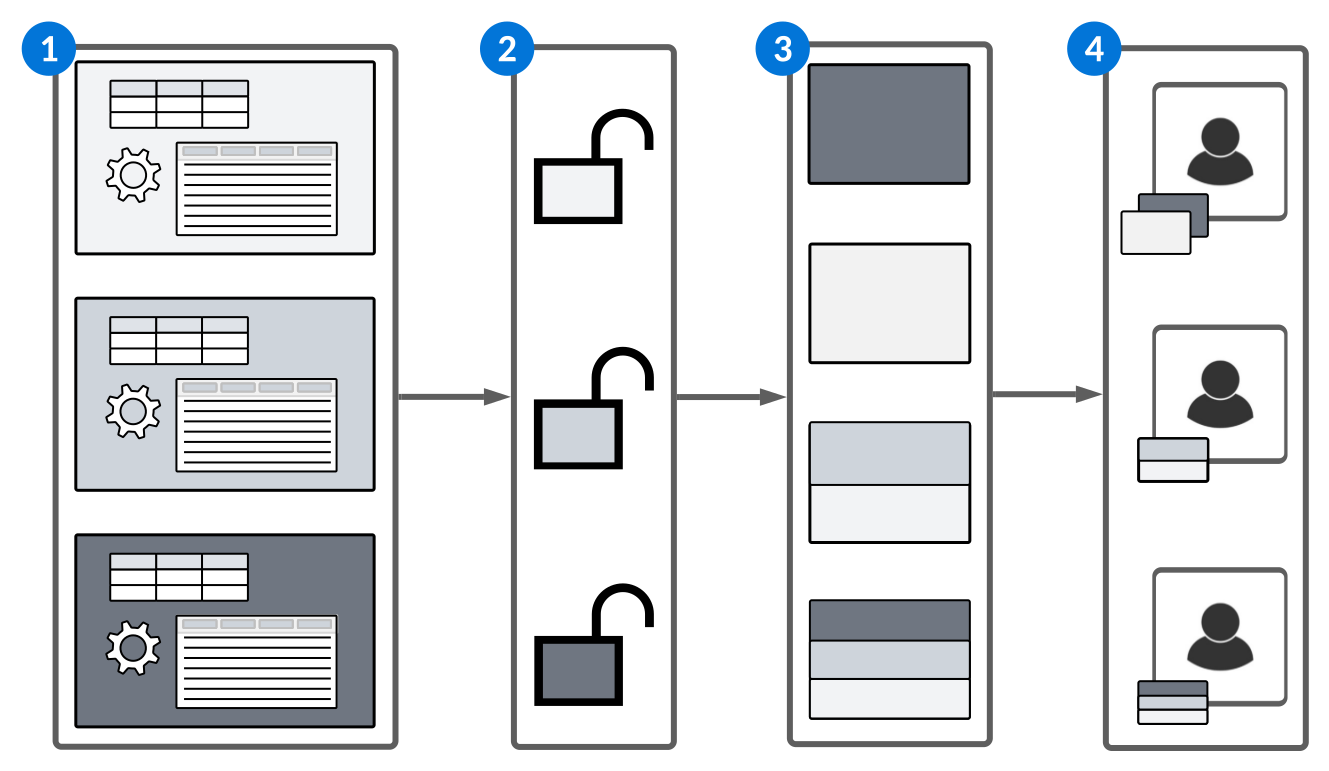
The diagram below shows the structure of Nextworld security:
| Description | |
|---|---|
 | Security Groups—Groups related metadata such as applications, application settings, tables, and logic blocks. This enables you to define permissions that grant access to all objects in the security group to simplify security implementation. Learn more in Security groups. |
 | Permission Definitions—Define the level of RUID (read, update, insert, or delete) access that users have to a security group or to a specific object. Once created, a permission can be assigned to many roles. Learn more in Permissions. |
 | Role Definitions—Assign the combination of permissions needed to accomplish a job function to a role.
Learn more in Roles and Role hierarchies. |
 | Users—Assign roles to users to grant the access defined in the permissions. Once a user is given a role that grants access to an object, the only way to remove that access is by revoking or removing the role. Learn more in Users. |
Security groups
Security groups group related tables, applications, logic blocks, and application settings together so security administrators can define permissions for the entire group, rather than individual objects.
A security group is defined through the Security Group Definitions application. Once a security group exists, it can be added to tables, applications, logic blocks, and application settings using the Security Group field. If you want to apply the same security group to all applications and logic blocks associated with the table, use the Sync Security row action on the table.
In some cases, not all applications and logic blocks associated with a table should have the same security group. For example, there are several applications built over the Directory table including Employees, Customers and Contacts, and Suppliers and Contacts. Each of these applications exist for a different purpose and audience. Use the Prevent Security Group Sync checkbox to prevent the Sync Security row action from assigning the table security group to any associated applications or logic blocks.
After assigning security groups to tables, the next step is to create permissions. Permissions are the building blocks of Nextworld access control.
See Permissions for more information on building permission profiles.
Security Group Definitions application
Permissions
Permissions grant users the ability to read, update, insert, or delete information in fields, tables, logic blocks, and workflows. You can also grant RUID access to table data for specific org units, and enable users to launch applications from the Navigation Menu.
Permission definitions define which platform objects you want to grant access to, as well as the level of access that should be granted. There are many levels of permissions that can be granted, as detailed in the topics below:
- Row security
Row security permissions controls the level of access a user has to a table. You can filter what records a user sees, and define what type of data mutations they can perform in the table. Additional permissions may also be necessary to access tables depending on what type of data they contain.
- Field security
Field security deals with hiding or disabling certain fields. Field security can use filters to apply restrictions on a field based on the value in it or a related field. If one permission grants access to something, another permission cannot remove that access.
- Action security
Action security controls user access to run logic blocks, add attachments to records, and export records through the export action that is embedded in applications. Action security controls are found on the Action security page of the Permission Definitions application.
- Application security
Application security controls application access. With application security, you can hide an application from the menu so that a user can't launch it from that location.
- Workflow data and transition security
Workflow data security permissions control a user’s ability to see and interact with data based on the workflow state or state type combination. Workflow transition security permissions grant a user permission to perform secured transitions for a specific workflow.
- Org unit security
Security administrators can enable org unit security in their environments to control read, update, insert, and delete (RUID) access to data based on the org unit to which the business data belongs.
- Permission Definitions application
System administrators use the Permission Definitions application to create permission profiles. These profiles grant user groups access to view or change information in tables, run logic blocks, launch applications, interact with and transition workflow, and gain access to records with specific org units.
- Permission Access Granted Inquiry application
Security developers and systems administrators use the Permission Acess Granted Inquiry application to identify which permissions grant access to specific objects on the Nextworld Platform.
- Permissions Where Used application
Security developers and system administrators use the Permissions Where Used application to identify which roles use a specific permission.
Once permission definitions have been created, they can be assigned to one, or many, role definitions. The role definitions are then assigned to users to grant the permissions. Learn more in Security and Work fields.
Row security
Row security permissions controls the level of access a user has to a table. You can filter what records a user sees, and define what type of data mutations they can perform in the table. Additional permissions may also be necessary to access tables depending on what type of data they contain.
Row security is configured in the Access Rules subtable in the Permission Definitions application. You must define either a security group or table in a row security profile, you cannot define both. While row security is primarily configured on a security group, you may need to configure it on individual tables.
For example, if you want to limit the tables a user has access to, or grant broader access to tables, in a security group. If a user should only have update access to the header to transition workflow and they don't need update access to the details, you could configure a permission to only use a specific table.
With row security you can grant user access to either all records in the table, or you can filter it. Specify filters using either specific tables or security groups. When you filter using security groups, only records that contain the filter field are shown to a user. If a table within a security group does not have the filter field, the user does not see those records.
Enable row security
Define a field value or a value of a related field brought in through a table lookup to enable row security.
You can use a related field to grant access to Table B which has a table lookup field for Table A. This grants access to rows in Table B based on the value stored in Table A.
For example, the ContactNotes table stores notes about contacts in the Directory table. The security built for ContactNotes uses related table fields to grant access based on the ContactRoleGrouping in the Directory record that the note is about. This allows system administrators to grant one user access to notes about suppliers and another user access to notes about customers.
Additionally, row security can also grant exclusive access. When exclusive access is granted, a user is given access to all records in the table except where the specified filter is satisfied. In this context, it’s important to remember that the Nextworld security model is additive. If one permission grants access to something, another permission cannot remove that access.
Dashboard permissions
In addition to the standard permissions that are created, there are special permissions that need to be configured when you grant or restrict access to dashboard pages or dashboard sites.
Although dashboard pages are delivered as metadata, their security is treated as business data. In order to grant access to see a dashboard on their home page, a user needs read access to the DashboardPages table. In order for users to have access to dashboard sites, they need read access to the SiteBuilder table.
To control which dashboards are granted, the Row Security page in the Permissions application should be configured to use the data items and list lookups that are specific to dashboard pages and dashboard sites. The list lookups contain values that pertain to specific audiences.
For example, one value for the dashboard pages list lookup might be AP. If there are several dashboard pages that exist for members of the AP team, all that needs to be done to grant access is to use the AP dashboard grouping within the Dashboard Page Builder application.
Learn more in the Dashboard page permissions configuration and Dashboard site permissions configuration topics.
Dashboard page permissions configuration
System administrators and application developers configure dashboard page permissions in the List Lookup Definitions, Dashboard Page Builder, and Permission Definitions applications. This ensures users can view dashboard pages based on their Nextworld roles.
Before configuring dashboard permissions, decide how you would like to group your dashboard pages together based on which users should see which dashboard pages.
List lookup Definitions
In the List Lookup Definitions application, you must navigate to the DashboardPageGrouping record, then add a new Lookup Key for each of your user groups.
Dashboard Page Builder
In the Dashboard Page Builder application, configure each of your dashboard pages by setting the Dashboard Page Group to the value you created in the List Lookup Definitions application.
Permission Definitions
In the Permission Definitions application on the Row Security page, add an Access Rule with the following details:
| Field | Value |
|---|---|
| AccessRules.SecurityGroup | sysDashboardPages |
| AccessRules.FilterFieldChameleon | DashboardPageGroup |
| AccessRules.FilterValueChameleon | The list lookup value created for the group of dashboards a user accesses |
Role Definitions
In the Role Definitions application, add your dashboard page permissions to a new or existing role.
Users
In the Users application, add the role for every user that requires access to a group of dashboard pages.
Dashboard site permissions configuration
Dashboard site permissions are configured by system administrators and application developers. Both the dashboard site and the dashboard pages within the site have their own user roles configured for permissions.
Users who are granted permissions for the dashboard site can still only see and access the dashboard pages they have permissions for. Different users may have access to different pages within the configured site.
List lookup
If your dashboard site isn't using an existing site group, you must create a lookup key for it in the List Lookup application. If your dashboard site uses an existing site group, you can navigate to the Dashboard Site Builder application directly.
To create a new lookup key, navigate to the List Lookup application, select the SiteGrouping record, then add a new Lookup Key for your site group.
Dashboard Site Builder
In the Dashboard Site Builder application, select the Site Group you created in the List Lookup application or select a preexisting one.
Permission Definitions
In the Permission Definitions application, create a new record and add an Access Rule on the Row Security page with the following details:
| Field | Value |
|---|---|
| Table | SiteBuilder |
| Filter Field | SiteGrouping |
| Filter Value | The list lookup value you created or selected for the group of dashboards a user accesses. |
Role Definitions
In the Role Definitions application, add your dashboard site permissions to a new or existing role.
Users
In the Users application, add the role for every user that requires access to the dashboard site.
Field security
Field security deals with hiding or disabling certain fields. Field security can use filters to apply restrictions on a field based on the value in it or a related field. If one permission grants access to something, another permission cannot remove that access.
To set up field security, you must begin by creating a restricted field profile through the Restricted Field Definitions application. Use a restricted field profile to define the fields from a single table that you want to be restricted. Restrict fields on a field-by-field basis by hiding, disabling, and/or partially concealing fields. There are no limits to how many restricted field profiles can be set up for a single table, but it is a good practice to group fields, or list them within the same restricted field profile, if they are intended for a single audience.
For example, in the Directory application the Primary Phone field and the Phone Number subtable are defined in a single restricted field profile. This is because it makes logical sense that if the user is able to see a primary phone number, then they should also be able to see any additional phone numbers captured in the Phone Numbers subtable.
Grouping fields can also present some challenges. When fields are grouped in a profile in the Restricted Field Definitions application and that profile added to the Field Security page in Permission Definitions, a security administrator must make a decision to give a user read, update, or delete access to all or none of the fields in the profile.
Restricted Field Definitions application
Use the Restricted Field Definitions application to create a profile that specifies which fields from a table should be restricted.
Once a profile is created, the specified fields are automatically restricted for everyone. To allow access to the fields, you must configure permissions in the Permission Definitions application, on the Field Security page. There are different levels of permissions for fields, such as:
- Read—Permission that grants read access is needed.
- Update—Permission that grants read and update access is needed.
- Insert—Permissions that grants read and insert access is needed.
Once the permissions are created, assign them to roles. Roles are collections of permissions that are defined in the Role Definitions application.
To learn more about roles and permissions, see the Permissions and Roles topics.
Action security
Action security controls user access to run logic blocks, add attachments to records, and export records through the export action that is embedded in applications. Action security controls are found on the Action security page of the Permission Definitions application.
Logic Blocks
Logic block security is configured in the Logic Blocks subtable. Security can be applied to a single logic block, or to a security group which encapsulates multiple logic blocks. There are also additional security options that are configured during logic block configuration. Logic blocks can be configured as Private, Public-Secured, or Public. Learn more in Logic block security options.
Logic blocks configured as Public enforce the user's row, field, and workflow security. Users need access to the tables being read or modified through a logic block.
Logic blocks configured as Public-Secured enforce action security. If no action security is configured, user permissions are applied. This includes workflow restricted fields.
Action security consists of the following options:
- Full Read Access—When selected, logic blocks are granted full read access to the tables which they read and write from, without needing explicit row, field, or workflow permissions to the tables being read or modified.
- Full Update, Insert, Delete Access—When selected, logic blocks are granted full update, insert, and delete access to the tables which they read and write from, without needing explicit row, field, or workflow permissions to the tables being read or modified.
- Apply Org Unit Security—When selected, Org Unit security is applied when the logic block is run. Row security and workflow security are still disabled. If the user has another permission for the logic block that does not apply Org Unit security, Org Unit security is not applied, even if this checkbox is selected.
Logic block security always runs on the security of the first logic block. If Logic Block A is Public-Secured and calls logic blocks B and C, then logic blocks B and C run with the same security as logic block A. This includes the ability to bypass security limitations.
System Actions
Action security grants access to system actions including generations, attachments, and exports. All three of these system actions can be granted based on either a security group or a table.
There is an existing role in all developer role hierarchies that allows developers to generate all objects in all security groups, so that permission is not necessary to maintain.
Attachment permissions allow a user to view and modify attachments on a record using the Attachments row action.
Export permissions allow a user to use the Export to CSV form action that exports the existing data in the application to .csv file. Exports still maintain a user's org security so they are not able to export records that they don't have access to.
Application security
Application security controls application access. With application security, you can hide an application from the menu so that a user can't launch it from that location.
Define either the security group or the specific application that you want secured. Setting up application security for a security group is sufficient for users to be able to launch all of the apps in that security group.
Workflow data and transition security
Workflow data security permissions control a user’s ability to see and interact with data based on the workflow state or state type combination. Workflow transition security permissions grant a user permission to perform secured transitions for a specific workflow.
See Workflow security for more information on securing workflow through the Permission Definitions application.
Org unit security
Security administrators can enable org unit security in their environments to control read, update, insert, and delete (RUID) access to data based on the org unit to which the business data belongs.
Org unit security must be enabled within an environment. Once enabled, users must have both row security permissions which grant access to the tables and applications, as well as additional permissions that define the level of access they should have to the org unit records. Org unit permissions can be applied broadly to an environment, or be specific to single org units or tables. For example, you could create permissions that grant access to records:
- For a specific org unit in all tables.
- For a specific org unit in a specific table.
- For all org units in a specific table.
- For all org units in all tables.
- With no org unit specified in the Org Unit Security Field. For example, if Company is defined as the Org Unit Security Field on a table, any records that an empty or null value in the Company field would be included in this permission. This enables you to grant access to only records with an empty value, while restricting access to the other records in the table.
Optionally, you can also apply org unit permissions based on the company structure. The company structure is where system administrators create org units and define the hierarchal structure for the organization. This allows you to apply the same permissions granted on one org unit to any org units which fall beneath it in the hierarchy. Learn more in Company structure.
Org unit security is additive, meaning it can further restrict access to records, but can not grant more access than whatever row security permissions a user has to the table.
Learn more in Org unit security configuration and [link: ''].
Org unit security configuration
Application developers configure org unit security using the Table Definitions, Company Structure, Org Unit Security Setup, Permission Definitions, and Role Definitions applications. Security administrators enable org unit security in their environments using the Tenant Environment Setup application.
Table Definitions
Org unit security can optionally be applied to tables. Most org unit security is configured without specifying specific tables. Table specific permissions are only required for families or modules with table based org unit security permission requirementsTo configure, in the Table Definitions application, you must:
- Open the record for each table you want org unit security applied.
- On the General Configuration page, select a value in the Org Unit Security Field field. The value is a data item which holds the name of the org unit associated with the table's records.
Company Structure
In the Company Structure application, you must:
- Define the hierarchal structure of org units within your company.
- If a change is made to the hierarchy, select the Flatten Structure form action. Flattening the company structure rebuilds a flattened view of the relationships between org units. This process must be completed any time a new org unit is added, moved within the tree, or removed.
Learn more in Company structure and [link: 'CompanyStructureApplication'].
Org Unit Security Setup
In the Org Unit Security Setup application, you can batch create all of the roles and permissions needed for companies and org units defined in the company structure from a single location. To create, you must:
- Define the appropriate product family and product module.
- Select the type of roles you want to create. You can create roles of type
Duty RoleorOrg Unit Security Template Role. - Specify whether you want to create roles and permissions for all companies, all org units, a single company, or a single company and all associated org units.
- Select the appropriate RUID access.
Once you select the Create Roles and Permissions form action, individual records for each role, permission, and company or org unit combination are created.
Permission Definitions
In the Permission Definitions application, create any other permissions you need for org units in your org unit security, or edit the records created in the Org Unit Security Setup application. For new permissions, you must:
- On the Org Unit Security page, in the Org Security subtable, create a new row and specify the:
- OrgSecurity.OrgUnitPermissionType—Determines how to implement org unit security for a given org unit. Options include:
All Org Units—Grants access to all org units in all tables, including records with an empty or null value, if no table is defined. If a table is defined, grants access to all org units in the specified table.Specific Org Unit—Grants access to the specified org unit in all tables if no table is selected,. If a table is defined, grants access to the org unit within the specified table.Empty Org Units—Grants access to all records in all tables which have a null or empty value in the defined Org Unit Security Field. If a table is defined, grants access to all records in the specified table which have a null or empty value. For example, if Company is defined as the Org Field on a table, any records that have an empty or null value in the Company field would be included in this permission. This enables you to grant access to records with an empty value, while restricting access to the other records in the table.
- OrgSecurity.OrgUnitPermissionType—Determines how to implement org unit security for a given org unit. Options include:
- Select the RUID access for the org units or tables you defined.
- Optionally, select the OrgSecurity.ApplyHierarchy checkbox. This grants access to the org unit Org Unit defined in the OrgSecurity.OrganizationalUnit_Name as well as all the child org units defined beneath it in the Company Structure.
Learn more in Permissions and Company structure.
Role Definitions
In the Role Definitions application, edit the records created in the Org Unit Security Setup application, or apply the permissions you created to duty roles, then assign them to the appropriate Org Unit Security Template Role in role hierarchies. These roles can then be assigned to user profiles. Learn more in Roles and Role hierarchies.
Enable org unit security in a your environments
In the Tenant Environment Setup application, navigate to the Global Settings application step. Open the detail view of the appropriate environment, then select the Org Unit Security checkbox.
Org Unit Security Setup application
System administrators use the Org Unit Security Setup application to bulk create the permissions and roles needed for an environment that has org unit security enabled.
Select the Role Type you want to create. You can configure Duty Role or Org Unit Security Template Role.
Once you've selected your role type, determine whether you want to create roles for:
- All companies in the company structure
- All org units in the company structure
- A single company in the company structure
- A company and all associated org units in the company structure
Then, select the appropriate RUID access for your permissions.
Once you select the Create Roles and Permissions form action, individual role and permission records for all of the companies or org units selected are automatically created. There are standard naming formats for the records created. Learn more in Security naming conventions and standards.
Org unit filtering on filtered table lookups
Apply org unit filtering to filtered table lookups in the Table Definitions application. This ensures users can only select org units which they have permission to access.
Select the FilteredSchemaLookups.ApplyOrgUnitFiltering checkbox on org unit fields where you want filtering enabled. The table definition does not have to have org unit security applied in order to use org unit filtering.
Org unit security filtering also applies when a logic block tries to insert a record into the underlying table. If you don't have access to an org unit defined in a record, you cannot insert the record into the table.
Example: Global org unit security
This topic reviews a hypothetical example of how global org unit security can be applied to a company structure.
For global org unit security configurations, you must have the company structure configured and org unit security enabled in your environment.
In this example, we are assuming the following configurations are already in place:
- Row security permissions that grant RUID access.
- Org unit security enabled in your environment.
- A company structure defined with the following org units and hierarchy:
| >Headquarters |
| >Denver Office |
| >Denver Distribution Center |
| >Kansas Office |
| >Kansas Distribution Center |
With org unit security enabled and this company structure configured, you could create different types of permissions for different users. The table below reviews some of the possible permissions you could create:
| Access | Result | Configuration in the Org Security subtable |
|---|---|---|
| Read access to all org units. | Grant permission to read all org units in your environment. | In the OrgSecurity.OrgUnitPermissionType field, select All Org Units. Select the Read checkbox. |
Read and update access to the Denver Office org unit. | Grants read access to the Denver Office org unit | In the OrgSecurity.OrgUnitPermissionType field, select Specific Org Unit.In the OrgSecurity.OrganizationalUnit_Name field, enter Denver Office. Select the Read and Allow Update checkboxes. |
| Read and update access to Kansas Office, with OrgSecurity.ApplyHierarchy selected. | Grants read and update access to the Kansas Office and Kansas Distribution Center org units. | In the OrgSecurity.OrganizationalUnit_Name field, enter Kansas Office. Select the OrgSecurity.ApplyHierarchy checkbox. In the OrgSecurity.OrgUnitPermissionType field, select Specific Org Unit. Select the Read and Allow Update checkboxes. |
| Read and update access to the Headquarters org unit, with OrgSecurity.ApplyHierarchy selected. | Grants read and update access to all org units in the company structure in Table A and Table C, while retaining RUID access to Table B. | In the OrgSecurity.OrganizationalUnit_Name field, enter Headquarters. Select the OrgSecurity.ApplyHierarchy checkbox. In the OrgSecurity.OrgUnitPermissionType field, select Specific Org Unit. Select the Read and Allow Update checkboxes. |
| RUID access to any records that do not have an org unit specified. | In the OrgSecurity.OrgUnitPermissionType field, select Empty Org Unit.Select the Read, Allow Update, Allow Insert and Allow Delete checkboxes. |
Learn more in Org unit security configuration and [link: ''].
Example: Table specific org unit security
This topic reviews a hypothetical example of how table specific org unit security can be applied to a company structure.
For table specific org unit security, you must have the company structure configured, org unit security enabled in your environment, and have org unit security applied to tables in your environment. Table specific permissions are only required for families or modules with table based org unit security permission requirements.
In this example, we are assuming the following configurations are already in place:
- Row security permission that grant RUID access for a security group which contains Table A, Table B, and Table C.
- Org unit security enabled in your environment.
- Org unit security enabled in Table A and Table C.
- A company structure defined with the following org units and hierarchy:
| >Headquarters |
| >Denver Office |
| >Denver Distribution Center |
| >Kansas Office |
| >Kansas Distribution Center |
With org unit security enabled and this company structure configured, you could create different types of permissions for different users. The table below reviews some of the possible permissions you could create:
| Access | Result | Configuration in the Org Security subtable |
|---|---|---|
| Read access to all org units in Table A. | Grant permission to read all org units in Table A, retains RUID permission for Table B, but grants no access to table C. | In the OrgSecurity.TableSchema field, enter Table A. In the OrgSecurity.OrgUnitPermissionType field, select All Org Units. Select the Read checkbox. |
Read access to the Denver Office org unit. | Grants read access to the Denver Office org unit in Tables A and C, while retaining the RUID access for Table B. | In the OrgSecurity.OrganizationalUnit_Name field, enter Denver Office. Select the Read checkbox. |
RUID access to the Denver Distribution org unit in Table C. | Grants read, update, insert, and delete access for the Denver Distribution org unit in Table C, retains RUID permission for Table B, but grants no access to Table A. | In the OrgSecurity.TableSchema field, enter Table C. In the OrgSecurity.OrgUnitPermissionType field, select Specific Org Unit. Select the Read,Allow Update, Allow Insert and Allow Delete checkboxes. |
| Read and update access to Kansas Office, with OrgSecurity.ApplyHierarchy selected. | Grants read and update access to the Kansas Office and Kansas Distribution Center org units in Table A and Table C, while retaining RUID access to Table B. | In the OrgSecurity.OrganizationalUnit_Name field, enter Kansas Office. Select the OrgSecurity.ApplyHierarchy checkbox. In the OrgSecurity.OrgUnitPermissionType field, select Specific Org Unit. Select the Read and Allow Update checkboxes. |
| Read and update access to the Headquarters org unit, with OrgSecurity.ApplyHierarchy selected. | Grants read and update access to all org units in the company structure in Table A and Table C, while retaining RUID access to Table B. | In the OrgSecurity.OrganizationalUnit_Name field, enter Headquarters. Select the OrgSecurity.ApplyHierarchy checkbox. In the OrgSecurity.OrgUnitPermissionType field, select Specific Org Unit. Select the Read and Allow Update checkboxes. |
| RUID access to any records in Table A that do not have an org unit specified. | In the OrgSecurity.TableSchema field, enter Table A. In the OrgSecurity.OrgUnitPermissionType field, select Empty Org Unit. Select the Read, Allow Update, Allow Insert and Allow Delete checkboxes. |
Learn more in Org unit security configuration and [link: ''].
Company structure
The company structure enables you to define the hierarchal structure and function of the internal org units within your company.
To configure a company structure in the Company Structure application, you must first define the different org unit types. Nextworld delivers several options including Company, Balance Sheet and Elimination Company, but you can add additional values into the list lookup if necessary. Once the types are defined, create a record for each org unit in your company. Records include information such as the org unit name, org unit number, contact information, and function. Learn more in [link: 'CompanyStructureApplication'].
Org units are placed within the company structure in a hierarchy. The hierarchy can then be used in other processes such as reporting and org unit security. For example, security administrators can use the company structure to grant permission to records associated with specific org units, as well as the org units which fall beneath them in the hierarchy. Learn more in Org unit security.
Often, org units of the same type are placed at the same level of the hierarchy, though this is not required.
Example
For example, in the following company structure, divisions are always at level 2 of the tree, departments are at level 3, and cost centers are at level 4:
| Company Structure |
|---|
| >Company AA |
| >Division 1 |
| >Department X |
| >Department Y |
| >Division 2 |
| >Department Z |
| >Cost Center Z1 |
| >Cost Center Z2 |
| >Division 3 |
When transactions are entered, the segments are populated based on the org unit entered for each transaction. Where transactions are associated with departments and cost centers, you could see the following values:
| Segment 1 | Segment 2 | Segment 3 | Segment 4 |
|---|---|---|---|
| Company AA | Division 1 | Department X | |
| Company AA | Division 2 | Department Z | Cost Center Z1 |
| Company AA | Division 1 | Department X | |
| Company AA | Division 1 | Department Y | |
| Company AA | Division 2 | Department Z | |
| Company AA | Division 3 |
When in the list form of this application, you could filter for Segment 2 to view all transactions associated with divisions.
In contrast, a company structure that does not require that org units of the same type be at the same level of the tree might have the following structure:
| Company Structure |
|---|
| >Company AA |
| >Division 1 |
| >Department X |
| >Department Y |
| >Area XYZ |
| >Division 2 |
| >Department Z |
| >Cost Center Z1 |
| >Cost Center Z2 |
| >Division 3 |
This would result in segments populated like the following:
| Segment 1 | Segment 2 | Segment 3 | Segment 4 | Segment 5 |
|---|---|---|---|---|
| Company AA | Division 1 | Department X | ||
| Company AA | Area XYZ | Department Z | Department Z | Cost Center Z1 |
| Company AA | Division 1 | Department X | ||
| Company AA | Division 1 | Department Y | ||
| Company AA | Area XYZ | Department Z | Department Z | |
| Company AA | Division 3 |
When filtering for for different divisions, you would need to filter for both Segments 2 and 3 to get the full results. Similarly, you would need to filter for both Segments 3 and 4 to see all department results.
Solution specific org unit security
Solutions may each have unique org unit security implementations and recommendations.
Review the following topics for solution specific org unit security recommendations:
Permission Definitions application
System administrators use the Permission Definitions application to create permission profiles. These profiles grant user groups access to view or change information in tables, run logic blocks, launch applications, interact with and transition workflow, and gain access to records with specific org units.
Once permissions have been created, they must be assigned to roles. Once permissions are assigned to a role, users who are assigned that role are granted the permissions. Learn more in Roles and Security.
Each page of the application is used to assign different permissions. You can assign the permissions to a security group, or to the specific object or record referenced in the subtable.
Row Security
Configure permissions for accessing a table's data. You can specify a single table, or a security group which the table is contained in, then select the RUID access this permission grants on the table.
Field Security
Configure permissions for restricted field profiles. Only base restricted field profiles can be included in permissions.
Action Security
Configure permissions for logic blocks, system actions, or audit tables. Security rules only apply to Public-Secured logic blocks. Public-Secured logic block can be granted Full Read access or Full Update, Insert, and Delete.
Application Security
Configure permissions for applications. If a user does not have Application access, that application's menu item will not appear on the Navigation Menu.
Workflow Security
Configure permissions for workflow security profiles.
Org Unit Security
Configure permissions for org unit security. Specify either a table name, org unit, or both. If an org unit is selected, you must specify the org unit permission type. This determines if permissions are applied to all org units for the selected table, or only the org unit selected in the row.
Permission Access Granted Inquiry application
Security developers and systems administrators use the Permission Acess Granted Inquiry application to identify which permissions grant access to specific objects on the Nextworld Platform.
To use the application, select the type of object in question in the Access Type field.
You can filter for a list of permissions that grant access to a specific:
- Logic Block
- Application
- Application Setting
- Menu Item
- Table
- Workflow
- Restricted Field Profile
The results from this application can be used in the Permissions Where Used application to determine which role or roles must be assigned to a user to grant access to the desired Nextworld metadata object.
Permissions Where Used application
Security developers and system administrators use the Permissions Where Used application to identify which roles use a specific permission.
To review a list of the roles that have a specific permission assigned to them, enter the permission name in the Permission Name field.
Once a valid permission has been entered, the detail table populates with a list of roles that explicitly reference this permission. The list does not include roles that inherit the permission through the role hierarchy.
Roles
Roles are collections of permissions that enable you to access and use components of the platform which are required for your job.
Roles can be assigned to users, configured in a role hierarchy definition to inherit all of the permissions of roles placed beneath it, or used to define permissions which should be included in user templates. The role type determines how it can be used. For example, the SYS - Dashboard Developer role grants access to create dashboard pages, cards, and sites, as well as related components such as announcements, dashboard clocks, and content items. It is a functional role, meaning it is assigned to users and inherits the permissions of the duty roles found beneath it in the role hierarchy definition, but does not have permissions defined within its own record.
When creating roles, it is likely that several permissions should be included in a single role. For example, the ME - Production Lead role coordinates production activities, troubleshoots problems, and ensures quality and safety. Permissions for this role enable users to maintain safety incidents and work orders, record and discard work order operation and production completion transactions, and record and discard work order close transactions.
A role should only include a single security group. This helps with troubleshooting security issues, as well as allowing for flexible security access within an organization.
Learn more in Role Definitions application and Security.
Role Definitions application
System administrators use the Role Definitions application to create roles and assign permissions to those roles.
The type of role you create determines the function of the role. For example, duty roles are a collection of permissions that enables a user to complete a task, but are not directly assigned to users. Functional roles are comprised of multiple duty roles, and are assigned to users so they have all of the permissions associated with the the duty roles.
General
Select the permissions which should be associated with this role. Permissions grant user groups access to view and change information in tables, run logic blocks, launch applications, interact with and transition workflow, and gain access to records with specific org units.
When creating roles, it is likely that several permissions should be included in a single role. For example, the ME - Production Lead role coordinates production activities, troubleshoot problems, and ensures quality and safety. Permissions for this role include maintaining safety incidents and work orders, recording and discarding work order operation and production completion transactions, and recording and discarding work order close transactions.
A role should only include a single security group. This helps with troubleshooting security issues, as well as allowing for flexible security access within an organization.
Environments
Apply this role definition to a specific environment. If environments are defined in the Server Zones subtable, this role, as well as any roles that fall beneath it in a role hierarchy definition, are only available within the specified environments. If no environments are defined, the role definition can be used in any environment.
Menus
Grant access to menu pages, sections, or categories. To view a menu entry, you must have the location of the menu entry added to the role definition assigned to you. Additionally, you must have access granted to the application through application security in a permission definition assigned to the role. Learn more in
For more information on Nextworld roles, see Roles.
Application Access By Role Inquiry application
Systems administrators and security auditors use the Application Access By Role Inquiry application to review the security configuration for a family
Use the Populate form button to create a new role query. In the resulting mini app, select a Product Family to filter for roles in that product family. If desired, you can specify a specific role that you'd like to review. If you do not specify a role, the query looks for all roles in the family.
When you click Run, the query performs in the background. You'll receive a notification when the process is complete.
View the results in the Application Access By Role Inquiry application. Every role for the specified family will have an entry in the application. Open the record associated with a role to see a list of all applications that a user with that role can see, along with the unique menu key that identifies the application in the navigation menu. This list includes applications to which the role inherits access through the role hierarchy.
This list represents a comprehensive list of all applications that a user with the specified role can launch from the menu.
Role Assignments by User Inquiry application
System administrators use the Role Assignments by User Inquiry application to review information about the roles assigned to each user. This enables you to see which roles a user has and the status of those roles to ensure security best practices are followed and users don't use deprecated roles.
Every role assigned to a user has a unique record in the list form. You can review the role type, description, and deprecation status for each role.
Select the User Record row action to open the user record in the Users application.
User Role Access Utility application
System administrators use the User Role Access Utility application to review what roles have been assigned to a user, which tables the role gives access too, and what type of access was granted on the tables.
To view information for a user, select the Configure Run form action then enter the user's name. Select Execute and wait for the background task to complete. Once it has finished, use filters to find the records that are relevant to that user. Each record shows the name of the role, the type of role, the name of a table the role gives access to, and the RUID access for that table.
Use the Purge All Records form action to purge all of the records in your current tenant.
Role hierarchies
Role hierarchies enable security administrators to organize related roles in a hierarchal structure. Roles inherit the permissions of roles placed beneath them in the hierarchy, so only the topmost role must be assigned to user profiles.
Roles should only grant access to one security group. Role hierarchies create a relationship between a single role and many child roles, and can include roles from multiple security groups. The type of role, permissions associated with that role, as well as other configuration options, are configured in the Role Definitions application. There are several role types which are used in role hierarchies, such as:
- Duty Role—A logical collection of permissions that grants access to tasks someone performs as part of a job. Can contain many permissions and other duty roles.
- Functional Role—A job or abstract role that inherits the permissions of duty roles included beneath it in a hierarchy.
- Aggregate Role—A role that combines functional roles.
Duty roles are not assigned directly to users. Instead, collections of related duty roles are included in a hierarchy underneath a functional role. The functional role can be assigned to users, or it can be included with other functional roles underneath an aggregate role which is then assigned to users.
For example, you could have roles applied in the following hierarchy:
>Administrator (Aggregate role)
>Accountant (Functional role)
>General Ledger Exporter (Duty role)
>General Ledger Auditor Unrestricted (Duty role)
>Check Payment Update (Duty role)
>Check Payment Delete (Duty role)
>Invoicing (Functional role)
>General Ledger Viewer (Duty role)
>Check Payment Viewer (Duty role)
>Check Payment Add (Duty role)
In this instance, the Administrator role would inherit the permissions of the functional and duty roles that fall beneath it in the hierarchy. The Accountant role would inherit the permissions of the four duty roles beneath it, while the Invoicing role would inherit the permissions of the three duty roles beneath it.
Role Hierarchy Definitions application
Use the Role Hierarchy Definitions application to define role hierarchies. Role hierarchies allow roles to inherit the permissions of any roles that exist below them.
Create a hierarchy by assigning roles as children to other roles. Roles can be configured as different Role Types, such as:
- Duty Role—A logical collection of permissions that grants access to tasks that someone performs as part of a job. Can contain many permissions and other duty roles.
- Functional Role—A job role that focuses on a specific job a user performs, or an abstract role that represents common functionality that is not job specific. Roles of this type are assigned to users.
- Aggregate Role—A role that combines functional roles.
- Template—A role used to configure user templates. See the Configure User Templates for quick entry topic for more information.
To view a flattened, read only list of current role hierarchy records, select the Flattened Role Hierarchy button. See the Role Hierarchy Flattened Inquiry application topic for more information.
Role Hierarchy Flattened Inquiry application
Use the Role Hierarchy Flattened Inquiry application to access a Read Only view of existing role hierarchy records.
Access the application through the navigation menu, or with the Flattened Role Hierarchy button in the Role Hierarchy Definitions application.
Run the update process before viewing the records to ensure you have the most recent data.
Hide application actions with user permissions
Show or hide application links, field, row, and form actions based on a user's permissions in the Tenant Environment Setup application.
By default, most field, row, and form action buttons appear to users, regardless of their security permissions. If a user selects a button which they don’t have permission to execute, they receive an error message.
To hide these buttons instead, navigate to the Global Settings application step of the Tenant Environment Setup application and select the Secure App Actions. Once applied, the permissions required for different types of buttons are:
- Application Links—Requires
Readrow security access to the destination application's table. - Logic Blocks—Requires access to execute the logic block. This is determined by the type of security applied to the logic block:
- Public—All users are authorized to execute.
- Public-Secured—Users must have access to the table, logic block, or security group that allows them to execute.
- Private—Called from other logic blocks, so users can't execute directly.
Learn more in Row security and Logic block security options.
Security Comparison Utility application
System administrators use the Security Comparison Utility application to generate a record of the changes made to their security model between two environments.
Use the application to examine the differences in security between your current version of the platform and the new version. If you have copied and modified a role for your users, you can determine whether you need to update it so that they still have the proper authorization. Learn more in [link: 'SecurityReleaseComparison'].
Generate security comparison
When you create a record in the Security Comparison Utility application, the environments you specify determine how the the results are generated and where they are saved.
For example, new permissions may be added to an existing role in a development environment. If you specified the development environment in the From Environment field and a production environment in the To Environment field, the generated results would show the permissions that would migrate to production with the next code push.
If you clear the Save Results to Prior Release checkbox, the results are saved to the environment you entered in the To Environment field.
After you save your security release comparison record, use the Generate Comparison action so that you can examine the differences.
Examine results
After the comparison has been generated, use the View Results action to view a list of every role where there is a difference detected between environments. You can only view results in the environment where the results were saved. Differences include changes to the role hierarchy, roles, permissions, and workflow security. Open the detail form of a record and parse the Changes field to see the differences.
For example, you might filter for your functional financial roles and see that the FINS - AP Manager role has been modified. When you open the detail form, you determine that this is because the Reporting - User child role has been updated to include the ReportBucketDefinitions permission. In this instance, the value in the Changes field appears as follows:
{
"Changes": [
{
"FINS - AP Manager changed ": [
{
"Child changed": [
{
"finBaseUser changed ": [
{
"Child changed": [
{
"Reporting - User changed ": [
{
"Role definition changed": [
{
"PermissionsList subtable changed": [
{
"Referenced Permission changed": [
{
"Reporting - User changed": [
{
"AccessRules subtable changed": [
{
"ReportBucketDefinitions changed": "added"
Security Group Comparison Utility application
System administrators use the Security Group Comparison Utility application to generate and review records of the changes made to security groups between releases. Each generated record contains information for the security group changes made on individual tables, applications, application settings, and logic blocks.
Generate security group comparison
To create a record you must specify the environment to use as the basis for comparison, as well as the environment that you want to compare to it.
Examine results
Once the comparison has been generated, you can open the detail form of the record to review the list of every security group change between the two environments. Each detail line has a Security Group Status which indicates if the security group on an object has been added, removed, or modified.
Security best practices
These best practices ensure that security is configured consistently throughout Nextworld.
Nextworld solutions must be shipped with security enabled through security groups, permissions, roles, and role hierarchies. Role and role hierarchies should reflect typical business processes.
Granular security groups and permissions provide flexibility in creating roles, but can make it more complicated for a customer to configure their own permissions and roles.
For org unit security, always identify the org unit field at the table level. If this field is not identified at the table level, a customer cannot implement org unit security for the table.
Always deliver workflow security to provide options for the customer to secure transitions.
Design considerations
There are several considerations when designing security, such as:
- Segregation of duties—An internal control designed to prevent fraud by ensuring at least two individuals are responsible for separate parts of a process.
- This design considerations applies to security groups, permissions, roles and role hierarchies. Construct all the pieces with enough granularity to construct roles that allow segregation of duty possible.
- Field updates—Certain groups of fields need to be secured from update. Decide where in the process they should be restricted, and whether the field should be considered private information.
- Logic block classification—Some logic blocks should be classified as public secure.
- Workflow transitions—Determine at which steps security is required, and at which steps fields can no longer be changed. Consider the different roles and who might perform specific transitions.
- Permissions based on security groups rather than individual objects—Makes the upgrade process easier as new objects are easily introduced into a security group and may not require any changes to permissions, roles, or role hierarchy.
- Security groups cannot be customized by a customer. Consider separate security groups by task or function to provide greater flexibility of separating duties. For example, a person who can enter a transaction may not have the authority to void the transaction.
Granularity
Nextworld uses a granular security model which defines who can access each part of the system, and what they can do with that access. There are several different permissions to choose from, such as:
- Read Only access
- Full RUID (Read/Update/Insert/Delete) access
- Logic block (public secured) permission with read access
- Logic block (public secured) permission with full RUID access
- Application access
- Attachment permission which includes both read and write access
- Export permission
- Audit permissions, one audit permission to view audit information for a record (restricted) and one to view all audit records (unrestricted)
Public/Private setting best practices
These best practices ensure that the Security Options field in the Logic Block Builder application is configured with the correct Public, Public - Secured, or Private option.
The Security Option field controls how and when a logic block can be run. Learn more about these configurations in the Logic block security options topic.
Use the table below to determine which privacy setting to use based on the setup and type of logic block.
When choosing between Public and Public-Secured, by default we should use Public whenever possible. Do not use Public-Secured unless necessary. The use case of why it needs to bypass security should be thought out and it should not be blindly changed to Public-Secured. Adding a Public logic block to an existing feature may require additional security permissions to execute. Consult with your security point of contact if your use case requires additional access other than read-only.
| Logic Block Type/Function | Called From | Called Across Families | Configuration | Additional Considerations |
|---|---|---|---|---|
| Any Type | Any source | Yes | Public |
|
| Transaction or Validation | Any source | Yes | Public-Secured |
|
| Transaction or Validation | Logic block | No | Private |
|
Learn more about the different types of logic blocks in the Logic block types topic.
Security group best practices
These best practices ensure permissions and roles are configured consistently throughout Nextworld using security groups, even when new objects are introduced into production.
When new objects such as tables, applications, or logic blocks are released into production, users must have the proper access to use them. Security groups make it easier to release objects into production, especially if customers have defined their own permissions and roles, since new objects are automatically included in security based on the group.
Security groups should be granular when creating permissions to ensure segregation of duties is possible. For example, entering a supplier and a supplier invoice and then making a payment against a supplier invoice should each have their own security groups. This allows for permissions and roles to be configured where a single person cannot perform all duties. If all were in the same security group, the customer would have to instead configure security for every individual object which requires in depth knowledge of the system.
All objects for each function should have the same security group. For example, in the same security group include the tables, applications, application settings and logic blocks to perform a single function, such as entering a supplier invoice. Keep in mind the top level logic block dictates the security for any subsequent logic blocks they call. When securing a logic block that is a common object used by more than one module, the security group on that logic block should be the same as the main table(s) that the logic block is dealing with.
Security groups for specific applications should have the name of the application in the security group name.
Write the description of the security group with the purpose of the group or a summary of what is in the group.
Restricted Field Profile best practices
These best practices ensure that permissions are configured consistently throughout Nextworld.
Create restricted field profiles for fields that should not be updated. Do not put each field in its own restricted profile unless absolutely necessary. This creates complexity and overhead for the customer to configure.
Consider the grouping of fields that naturally go together and that should be restricted together. For example, if specific users can update the birth date of an employee but not update the marital status, then the fields must be in different restricted profiles.
Workflow security best practices
These best practices ensure that workflow security, workflow restricted fields and workflow transitions are configured consistently throughout Nextworld.
Workflow security must be configured for every table which uses workflow.
Workflow security can be designed to provide for read access versus update access, based on the different workflow steps.
While restricted fields can be used at any state type, for workflows with a closed state type, add a restricted field profile to lock the fields at a closed state. In particular, lock fields that may cause data integrity issue such as dates, quantity, and amount fields.
Design Considerations:
- Map out the different roles performing the transitions. Keep in mind workflow type.
- Determine if and which fields should be locked at certain transitions
- Determine RUID access at each step based on role
- Determine which steps in your workflow are secured and required permission to perform the step.
Permissions best practices
These best practices ensure that permissions are configured consistently throughout Nextworld. This includes row security, field security, action security, application security, workflow security and organizational (org) security.
Design Considerations
There are several considerations when designing permissions, such as:
- Segregation of duties
- If only rows for the specific user should display (use the system value _DirectoryUser)
- If your permission needs different restricted field profiles, in particular if a field is considered private information
- The granularity of permissions. Permissions are additive and can be re-used in multiple roles
- Logic blocks that are classified as public secured and whether elevated access is needed
- Map out workflow transition and determine at which steps security is required and which steps fields must be locked. Consider the different roles and who might perform specific transitions
- Descriptions should be user friendly to clearly describe the permission to a customer. (i.e. Role = arCashReceipts - R - Misc CR, Description = Accounts Receivable Miscellaneous Cash Receipts Data Accessor)
RUID (read/update/insert/delete) access
Create combinations of RUID to provide flexibility when assigning a permission to roles. Based on requirements create the following:
- Create one permission with full RUID access
- Create separate permissions for Read only access
- Create separate permission for read/insert/update (RUI) access or create separate read/insert (RI) and read/update RU)
- Create separate permission for read/insert RI) and for read/update RU)
- Create separate permission with Read/Delete, if needed
Row Security
Security groups can have multiple tables included that have a shared function. For example, there are different tables to store payment information and each table requires access in order to create a payment. Using a security group makes the permission easier to configure and understand. Nextworld delivers row security as a separate permission.
Only create permissions with a specific filter if it is common industry practice. Otherwise, create row security with your preferred RUID access and no fields or values selected. This allows customers to customize for more specific granularity, and is more performant than creating individual rows for each filter value.
Use table lookup fields and filter fields instead of storing duplicate data in your data model. For example, if you want row security based on the supplier's class code of Materials, use the table lookup field for Supplier and the filter field of SupplierClassification and the filter value of Materials (user defined). When using row security and defining a filter field, make sure an index is defined on the table. Otherwise, you could have performance issues. However, there are some caveats when the index gets used based on the data set. Learn more on Index best practices.
Restricted Fields
Critical transaction fields should be restricted once a record is in a closed state. For example, once a payment is posted, the amount fields, dates, and supplier field should not allow update. However, a note or memo field may be updated.
Action Security
For attachments and export, we recommend using security group. Nextworld creates separate permissions for attachments and exports.
For audit security, we recommend setting to be restricted (unrestricted access is unchecked) where a user can only view audit for the records they can see. Nextworld creates a separate permission for audit access, one for access is restricted and one for access is unrestricted.
For logic block access security, we recommend using the security group. Nextworld creates separate permissions for logic blocks as they are used in both entry applications and integrations. Only logic blocks that are classified as public secured must be specified in action security. Other logic block classifications can be called by any user, however, depending on the classification, a users security is applied.
Application Security
Always include your applications within a permission so the user only sees applications they have access to use. Nextworld creates a separate permission for application security.
Workflow Data Security and Workflow Transition Security
If your table has workflow defined, you must deliver workflow security. If you do not define workflow security, a user cannot perform any transitions or perform updates at certain steps.
Nextworld delivers workflow data security and transition as a separate permission. Always include a permission for workflow transition if your workflow has secured workflow transitions. Workflow transition applies to all transitions checked as Secured (all or nothing).
Org Security
For any table with an organization unit, always define the Org Field at the table level. If delivering org unit security, deliver only with the setting of User Orgs checked along with the RUID.
Roles best practices
These best practices ensure that security roles and role hierarchies are configured consistently throughout Nextworld.
Roles
There are three types of roles Nextworld defines:
- Duty Roles— Describes the access a user has for a record.
- Functional Roles—Describes the task and activities a user can perform.
- Aggregate Roles—Combines multiple functional roles.
Nextworld delivers functional roles for each family and module and duty roles with varying RUID (read, update, insert, delete) access, such as:
- Accessor—Read access to data only (R) with no application access.
- Viewer—Read access to data and app access (R).
- Create—Read and insert access to data (RI).
- Updater—Read and update to data and application access to all update records (RU).
- Admin—Read, update, insert and delete access to data (RUID).
- Delete—Access to data and app access to delete records (RD).
- Export—Access to export function.
- Attachment Accessor—Access to view attachments.
- Attachment Admin—Access to manage attachments.
- Auditor—Access to view the audit history.
- RecordAuditor provides access to view the audit history for a specific record. The user must have access to the record through other permissions.
- AuditorUnrestricted provides access to view the audit history regardless if they have access to the record.
Best Practices
There are several best practices to consider, such as:
- Include the Menu Family only when the role gives access to an application. Only include the family menu where the application is included.
- Descriptions should clearly describe the role to a customer.
- Define roles at a granular level. This enables the ability to create role hierarchies that combine multiple roles as well as include one role in multiple role hierarchies.
- Duty roles should not use permissions directly from another family; a functional role can be made up of duty roles from different families.
- As a best practice,
- Duty Roles describe a task
- Functional roles comprise of Duty roles and describe a job function.
- Aggregate roles group other functional roles.
- Permissions are assigned to Duty Roles only.
- Create two functional roles specific for audit history.
- Role to view audit of the record.
- Role to view all audit history.
- Create two functional roles specifically for attachments:
- Accessor to view the attachments
- Admin to manage the attachments.
Role Hierarchy
Define role hierarchies for different functional roles and levels of functional roles. For example, define roles for the data entry level (AP Accountant), department manager (AP Manager) up through different levels of the organization (Financial manager or controller).
With Nextworld, manager and higher level roles may have only read, update and approval permissions.
Do not set duty role as a top level in the role hierarchy.
The functional roles for audit should be placed as a top level. This allows the user to assign these roles to specific users with a role.
Aggregate roles are created for companies whose personnel perform many of the functions for a department. These roles contain Admin as part of the role name.
Security best practices for dashboards
These best practices ensure that dashboard security is configured consistently throughout Nextworld.
Configure dashboard security by functional area. One or more dashboards can be assigned to the functional area.
Ensure users are granted appropriate access for each dashboard.
Use DashboardPageGrouping to make configuration of permissions and roles sustainable as new objects are introduced into production.
Security naming conventions and standards
These best practices ensure naming conventions for security objects are done consistently throughout Nextworld.
The follow chart depicts the different naming conventions for each security type.
| Type | Format | Notes | Example |
|---|---|---|---|
| Security Group | <module name/acroynym><FunctionalTask or Area> Application setting specific security group (App Setting Specific groups that are for a specific audience/role ) <module><Audience/Role>AppSettings Filtered Application Settings (such as based on the Contact Role Grouping of the contact on record )(i.e. Hold Codes - Suppliers vs Hold Codes - Customers vs Hold Codes - Students) <module><Submodule/Area>AppSettings<FilterValue> | Module name/acroynm is lower case. Functional task or area is granular enough to separate different tasks throughout a business process process. | invBackordersRelease invReorderPoint invInventoryOverview apPayments apPaymentsVoid eduStudentAppSettings dirDefinitionsAppSettingsSuppliers |
| Permissions | <security group name><access modifiers> | There are different permissions for the same security group with different access modifiers. | invBackordersRelease - Apps invBackordersRelease - R all invBackordersRelease - RI all invBackordersRelease - RU all invBackordersRelease - RD all invBackordersRelease - RUID all invBackordersRelease - Apps invBackordersRelease - Logic Blocks invBackordersRelease - Logic Block R Only invBackordersRelease - Attachments invBackordersRelease - Attachements R Only invBackordersRelease - Export invBackordersRelease - Record Audit invBackordersRelease - Unrestricted Audit invBackordersRelease - Apps Setting |
| Permissions - Dashboards | <module>Dashboard - <dashboard group value> | module acronym is lower case. contains the word Dashboard | apDashboard - AP apDashboards - AP Portal External |
| Permissions - Org Unit Security | <org name><accessmodifers> <org name><apply hierarchy><accessmodifers> | EmeraldSmart - R all EmeraldSmart - RUID all EmeraldSmart - Apply Hierarchy - R all EmeraldSmart- Apply Hierarchy - RUID all | |
| Roles (Duty) | <securitygroup><access types> | Access Type examples include: Accessor Admin Viewer Create Updater Delete Export Auditor Record Auditor Unrestricted AttachmentAccessor AttachmentsAdmin | invInventoryReceiptAccessor invInventoryReceiptAdmin invInventoryReceiptViewer InvInventoryReceiptCreate invInventoryReceiptUpdater invInventoryReceiptDelete InvInventoryReceiptExport invInventoryReceiptAttachmentsAccessor invInventoryReceiptAttachementsAdmin invBackordersReleaseAuditorRecord invBackordersReleaseAuditorUnrestricted invBackordersReleaseApplicationSettings |
| Roles (Duty) - Dashboards | <module><module name><dashboard security group value>Dashboard<access types> | apPayablesAPDashboardAccessor apPayablesAPPortalExternalDashboardAccessor | |
| Roles (Duty) - Org Unit Security | <org name><accesstype> <org name><apply hierarchy><accesstype> | meraldSmartViewer EmeraldSmartAdmin EmeraldSmartAllHierarchyViewer EmeraldSmartAllHierarchyAdmin | |
| Roles (functional) | <module acronym> - <functional role name> | module acronym is capitalized | FINS - AP Invoicing PUR - Purchasing Buyer |
| Roles (Functional) - Org Unit Security | <ORG - ><org name><access type> <ORG - ><org name><apply hierarchy><access type> | ORG - Emerald Smart Viewer ORG - Emerald Smart Admin ORG - Emerald Smart All Hierarchy Viewer ORG - Emerald Smart All Hierarchy Admin | |
| Roles (aggregate) | <module acronym> - <functional role name>Admin | module acronym is capitalized Contains the word "Admin" | FINS - AP Admin PUR - Purchasing Admin |
| Workflow Security - Permissions | <module acronym>Workflow<table> - <functional area> OR <module acronym>Workflow<table> - <functional role indicator> | module acronym is lower case Contains the word Workflow | apWorkflowPayablesHeader - Invoicing purWorkflowProcurementReturnsHeader - Purchasing Buyer |
| Workflow Security - Duty Role | <module acronym>Workflow<table><functional area> OR <module acronym>Workflow<table> - <functional role indicator> | module acronym is lower case Contains the word Workflow Generally the same name as the Permission | apWorkflowPayablesHeaderInvoicing purWorkflowProcurementReturnsHeaderPurchasingBuyer |
| Workflow Security Profile | <table> - <functional role> | PayablesDetails - AP Invoicing PayablesDetail - AP Supervisor | |
| Workflow Transition Permission | <module acronym>Workflow<table name><State>to<State> | purWorkflowProcurementOrderClosedToReopen | |
| Workflow Restricted Field Profiles | Restricted Field - Profile Name: <module><table><Field>Hide Restricted Field - Permission: <RestrictedFieldProfileName> - <access modifier>Restricted Field - Duty Role: <RestrictedFieldProfileName> - <type of duty role> | Profile Name:
Permission:
Duty Role:
| |
| Restricted Field Profiles | <Module><TableName><DataItemName>[Hide|Disable] | module acronym is lower case. contains the word Hide or Show | arReceivablesHeaderHideSoldTo apPayableHeaderSupplierHide |
Audit security development
Application developers must create the related security objects required for users to access the audit data in the tables they develop.
By default, each new table definition has the Create Audit checkbox selected. This means that audit data is collected when records are added to, modified in, or deleted from the table. However, users require additional roles to access this audit data, even when they have access to the records themselves. It's important to configure these security objects consistently across all product families so that system administrators can easily provide their users with audit access across their enabled solutions.
Audit access security structure
Each product family requires multiple functional roles that provide different levels of access to the audit data for records in that product family:
- A record-audit access role—Allows a user to view the history of individual records in a table.
- A table-level audit access role—Allows a user to view the history of all records in entire tables.
Learn more about record-audit and table-audit access in Audit data access levels.
For both record-level and table-level audit access, you should configure an individual permission and duty role for each security group in your product family. Then, you should add these duty roles to a single functional role.
For example, the Financials product family has both the FINS - Record Audit and FINS - Unrestricted Audit roles, each of which provide different levels of access to audit data in the family. Both roles are comprised of different duty roles that provide the the appropriate level of access to records in the Financials family tables.
Record-level audit
The following table describes the structure of the different security objects needed to provide record-level audit access to tables in a product family:
| Security object | Description | Naming convention | Example |
|---|---|---|---|
| Permission | Provides record-level audit access to all the tables within a single security group within the product family. | <product family abbreviation><security group> - Record Audit | dirHolds - Record Audit |
| Duty Role | Provides record-level audit access to all the tables within a single security group within the product family. Each audit Duty Role should contain only the record-level audit permission for the security group. Each audit Duty Role for the product family should be provided to the associated record-level audit Functional Role. | <product family abbreviation><security group>AuditorRecord | dirHoldsAuditorRecord |
| Functional Role | Provides record-level audit access to an entire family. Every record-audit duty role should be included in this functional role in the Role Hierarchy Definitions application. | <capitalized product family abbreviation> - Record Audit | DIR - Record Audit |
Table-level audit
The security structure for the security objects that provide table-level audit access is similar to that of record-level audit, but each permission has the Unrestricted Access checkbox selected, and the naming conventions are different:
| Security object | Description | Naming convention | Example |
|---|---|---|---|
| Permission | Provides table-level audit access to all the tables within a single security group within the product family. | <product family abbreviation><security group> - Record Audit | dirHolds - Unrestricted Audit |
| Duty Role | Provides table-level audit access to all the tables within a single security group within the product family. Each audit Duty Role should contain only the table-level audit permission for the security group. Each audit Duty Role for the product family should be provided to the associated table-level audit Functional Role. | <product family abbreviation><security group>AuditorRecord | dirHoldsAuditorUnrestricted |
| Functional Role | Provides table-level audit access to an entire family. Every table-audit duty role should be included in this functional role in the Role Hierarchy Definitions application. | <capitalized product family abbreviation> - Record Audit | DIR - Unrestricted Audit |
Org unit security best practices
These best practices ensure org unit security is configured consistently and efficiently throughout the product.
Whenever you enable or disable org unit security on a table, publish a release note that explains the change. After a table with org unit security enabled is delivered to customers, you cannot remove the org unit without approval.
Only enable org unit security on Header, Detail, or Main type tables.
If you enable org unit security on a Header table, enable it on all associated Detail tables. If Detail tables are not secure, users can build custom applications and gain access to the data. Consider adding the Header org unit field to all the associated Detail tables and enabling that org field for org unit security.
Do not enable org unit security on tables that do not permanently store data, such as report flat tables, dashboard common context, logic block tables and test harnesses tables.
For report flat tables, you should instead secure all the data source tables that the logic block fetches data from before it inserts data into the flat table.
Do not enable org unit security using org unit fields that might be empty because users cannot access these records. The only exception to this is if the org unit field is on a detail table that is automatically populated with a logic block or common context.
Setting the Apply OUS filter on Filtered Table Lookup fields
This will filter the orgs a user can select to only those they have access to. Be mindful that this will also apply the OUS filter when inserting a record to the table via logic.
The Apply OUS filter can be set on any org unit fields. The table does not have to have OUS enabled to set the apply ous filter for a field.
You should always set the Apply OUS filter on a field used to enable org unit security on a table.
Integration tables by best practice do not have filtered table lookups setup. An exception is that the Apply OUS filter should be set on org for which OUS is enabled on the integration tables, providing for filtering when records are entered manually. This filter will not cause data import restriction issues as the table is already secured for OUS.
Report versions should not be secured as the org unit field in the table is almost always an optional field and therefore can be empty. This will allow users access to all of them. When they run a report version, however, the report will only include data for org units they have access to.
Secure integration tables by org unit, just like the transaction tables.
Do not enable org unit security on module settings. Modules settings are inherited based on the company structure. Limiting the view by org unit in settings will prohibit the user from being able to view the settings configuration.
Be aware of where Public Secured logic blocks are used as they bypass all security, including org unit security. If you want org unit security enforced in public secured logic blocks you need to set up the action security permission to the logic block to indicate that.
In the base product our best practice is to move the public secured logic block to a new version of the security group it is in with Restrict on the end of the name and then add a new row to the existing permission to secure that security group with apply org unit security.
Be aware that users cannot access values from a table lookup if they do not have access to the referenced table.
Users
Once security groups, permissions, and roles have been established for the platform, system administrators create user accounts to maintain user permissions and security settings. The user account is granted roles which control their access level to components of the platform.
Depending on the customer configuration and security requirements, the user account can control not only what the user can access in Nextworld, but also how the user connects.
Users are defined in the Users application, or the User Quick Entry application. See Create new users for more information on setting up user profiles.
All users need the SYS – Base User role, as well as any hierarchies that are necessary for the user to fulfill their job responsibilities. Once a user has been created, the user needs to be linked to their directory record. To do this, launch the Directory–User Configuration application and find their name as it appears in the directory to add the user's username.
Security roles that are assigned to a user are stored at login. This means that changes to any changes on the role level are done immediately without the user needing to logout. However, if a change is made on the user level, for example, a new role is assigned to a user, then the user must log out and back in for the changes to apply.
Deactivation Delegates
When a user's Active checkbox is set to false, the user becomes deactivated. Once a user becomes deactivated, this user's jobs and approval requests can be assigned to another delegated user in the DeactivationDelegate_UserName field.
The delegated user does not receive notifications for the approval requests, but they can still access the approval record and approve or reject on that users behalf.
User Quick Entry
Users can also be created in the User Quick Entry application. This allows you to use user templates to fill in settings like user interface profiles, security roles, and sign in options. See Configure User Templates for quick entry for more information.
Default environment bulk update
If you need to update multiple user's default environment, filter the list form records in the Users application for the appropriate users, then select the Update User Default Environment form action. If you do not filter the list form, all user records are updated.
Create new users
System administrators create new user records in either the Users, User Quick Entry, or User Integrations applications.
A user record is required for every person on the platform, and contains information such as:
- Personal information—The users information such as first and last name, username, and email.
- Default environment and lifecycle—The environment and lifecycle that the user sees when they sign in, unless a different environment is selected during the sign in process. Users must also be granted permission for this environment in their assigned roles.
- Assigned roles—The roles assigned to this user. Roles are configured by application developers and are given specific security permissions in the Role Definitions application. Learn more in Security.
- User interface profile—Simplifies the user interface (UI) for the user based on the options selected in the profile. This is an optional feature. Learn more in User Interface Configuration Profile Setup application and Configure a User Interface Configuration Profile.
After a user record has been created, an employee directory record must also be created and associated with it. You can associate a directory record with a user record in the Directory User Tenant Setup application, or select the View Directory Configuration form action in the user record. Learn more in Directory User Tenant Setup application.
Before a user can sign in to Nextworld, a system administrator must activate the user using the Activate row action in the Users application. When you activate any user that is not set as SSO Login Only, the system sends an email to the user's email address containing a temporary password. Once they sign in, the user is required to set a new password.
User Quick Entry application
Create multiple user records with the same settings quickly through use of a template. Templates contain template roles, a user interface profile, default environments, and sign in options. Using templates enables you to apply or update the settings to a group of user records at one time.
Security administrators create roles of type User Template Role or Org Unit Security Template Role which contain all of the functional roles necessary to complete a job. This helps you build and name template roles that are meaningful for your organization. Learn more in User Template Setup application and Configure User Templates for quick entry.
User Integration application
Batch import a large group of user records into the UserIntegration table, then assign the appropriate user settings to those records as part of initial implementation. Learn more in User Integration application.
Users application
Create individual user records manually. Once a user record has been created, user settings and roles can be applied. Learn more in Users application.
Configure User Templates for quick entry
Configure user templates to use in the User Quick Entry application with the Role Hierarchy Definitions, User Interface Configuration Profile Setup, and User Template Setup applications. If your environment has org unit security enabled, configure org unit security templates to apply to existing User Quick Entry records.
Role Hierarchy Definitions
In the Role Hierarchy Definitions application, you must:
- Create a new role and select
User Template Rolein the Role Type field. - On the Relationships page, add the child roles for that job function. For example, the
SYS – Base Userrole which gives access to all basic platform features.
See the Roles and Role Hierarchy Definitions application topics for more information.
User Interface Configuration Profile Setup
Optionally, you can create simplified user interface profiles for individuals in your organization in the User Interface Configuration Profile Setup application.
See the Configure a User Interface Configuration Profile topic for more information.
User Template Setup
In the User Template Setup application, you must:
- Create a new template of type
User Template. - Configure user settings such as the default lifecycle, environment, and sign in options.
- If you created a user interface configuration profile, enter its name in the User Interface Configuration Profile field.
- In the User Template Roles subtable, add all of the roles you want associated with the template. Only roles of type
User Templatecan be used. Org Unit Security Template Roles are included in their own template. Review the subheading for org unit security environments for more information.
See the User Template Setup application topic for more information.
User Quick Entry
In the User Quick Entry application, select the Create User By Template form action and reference the user template.
Existing user records are not automatically updated if changes are made to the template. To apply changes from a template to one or more users, select the Apply Template to User form action. If you have implemented org unit security templates, you must apply both the User Template and Org Unit Security Template if changes have been made.
See the User Quick Entry application topic for more information.
Org unit security environments
If you need to add additional roles for org unit security to an existing User Quick Entry record, you must:
- Configure your org unit security permissions and roles. Learn more in Org unit security configuration.
- In the User Template Setup application, create a new template of type
Org Unit Security Template. Add your org unit security template roles to the User Template Roles subtable. Learn more in User Template Setup application. - In the User Quick Entry application, select the Apply Template to User row action on the record where you want to add the org unit security permissions.
User Template Setup application
System administrators use the User Template Setup application to configure templates to be used in the User Quick Entry application.
There are multiple template types to select from, such as User Template and Org Unit Security Template. The template type selected determines what configuration options are available, and how it can be used.
User Templates
User templates can be configured with many user settings, such as:
- Roles—Collections of permissions whose purpose is to use several permissions to build a complete access level.
- Default environment—The environment which a user opens to when they sign in.
- Default lifecycle—The lifecycle which a user opens to when they sign in.
- User interface configuration profiles—Simplified user interface (UI) profiles for individuals configured in the User Interface Configuration Profile Setup application. Learn more in see User Interface Configuration Profile Setup application.
- Allowed environments—The environments users may access.
- Sign in options—Options like SSO Log In and Two Factor Authentication.
Once a user template has been configured, it can be referenced in User Quick Entry records. This enables you to quickly create user records with the template configurations applied.
Org Unit Security Templates
Org unit security templates are only required for environments with org unit security enabled. This is a simplified template type which only contains org unit security roles and can be added to existing User Quick Entry records.
This enables you to apply your org unit security roles to multiple User Quick Entry records. This is useful since the user templates included in these records are a collection of functional roles specific to a certain job or duty, while org unit security roles can be widely applied to any business user.
Learn more in Configure User Templates for quick entry.
Configure a User Interface Configuration Profile
System administrators can configure a simplified Nextworld Platform user interface by creating a profile in the User Interface Configuration Profile Setup application and applying the profile to individuals in the Users application. This allows individuals with limited needs to have a simplified experience.
For example, an individual on a manufacturing shop floor may access the Nextworld Platform from a tablet and use a limited number of applications. A user interface profile can hide the unnecessary platform features.
User Interface Configuration Profile Setup
In the User Interface Configuration Profile Setup application, you must:
- Create a new profile. Name the profile something that is unique to the environment.
- Select the environment in which the profile is active. If you do not select an environment, the profile is active across all environments for the designated users.
- Select which elements you want hidden for the users.
- Optionally, select a theme for the profile.
Users
In the Users application, you must select an existing user and open the detail view. On the User Settings page, enter the name of the profile in the User Interface Configuration Profile field.
Alternately, you can apply a User Interface Configuration profile to a user template in the User Quick Entry application. Learn more in Configure User Templates for quick entry.
User Interface Configuration Profile Setup application
System administrators use the User Interface Configuration Profile Setup application to create user interface (UI) profiles for individuals within their organizations. User interface profiles enable you to simplify the UI of the platform by hiding elements like Ed, the Navigation Menu, Guided Tour, and Header and Footer elements such as Nextworld Help icons and the current date and language.
Certain users can benefit from a simplified user interface that only shows them the Nextworld Platform elements they need to access. System administrators can choose to exclude UI elements from the user interface by creating profiles. These elements are grouped by the following types:
- Navigation Elements–Assists users in moving around the platform, such as menus.
- Information Elements–Gives users information about the platform, such as the language being displayed in the interface and the current platform version.
- Functional Elements–Controls the look and feel of the interface, such as themes and settings.
If an environment is specified, the User Interface Configuration Profile only applies in that environment. If no environment is specified, it would apply to all environments.
Once the profile has been configured, it can be applied directly to a user record in the Users application, or referenced in a user template. Learn more in Configure User Templates for quick entry.
For more information on the user interface elements found in the platform, see Elements of the Nextworld interface.
Connect a user profile to a Directory record
Nextworld system administrators use the Directory User Tenant Setup application to associate a Nextworld user account with that user's Directory record.
It's necessary to link directory records to user profiles in order to:
- Grant a user access to see records with their name on it.
- Configure workflow approvals.
- To work with applications dependent on the current logged in user's Directory record, such as for filtering or for pre-populating a field, or for logic blocks that default things like the user's email, phone number, or any other directory information.
A Nextworld User record can only be associated with a single Directory record. However, a single Directory record can be associated with more than one Nextworld User record.
To add a link between a Nextworld user and a directory record, create a new record in the Directory User Tenant Setup application. Enter the Username from the Users application in the Username field, and select the user's directory record in the Associated Directory Record field.
Users application
System administrators use the Users application to create and manage users in the Nextworld system, including two factor authentication, default environment, and behavior on trusted IP addresses.
Before a user can log in to Nextworld, a system administrator must activate the user using the Activate row action. When you activate a user, the system sends an email to the user's email address containing a temporary password. Once they sign in, the user is required to set a new password.
There are additional row actions for user records, including:
- Deactivate–Disables a user account.
- Reset Two-Factor–Removes the user's two-factor authentication configuration. Resetting two-factor authentication removes the two-factor authentication configuration, and unless two-factor authentication has been disabled, requires the user to reconfigure two factor authentication upon logging in again.
- Reset User–Resets everything, including both the two-factor authentication and the user password. Resetting the user password sends the user an email with a new temporary password, and requires the user to create a new password upon logging in. For more information on resetting passwords, see Password controls.
Update user's default environment
If you need to update multiple user's default environment, filter the list form records for the appropriate users, then select the Update User Default Environment form action. If you do not filter the list form, all user records are updated.
User Quick Entry application
System administrators use the User Quick Entry application to quickly create users with roles, user interface profiles, default environments, and sign in options through use of templates.
Select the Create User By Template form action to create a user. Reference a user template to add configuration settings, such as roles, default environment and lifecycle, and sign in options, to the user.
Select the Apply Template to User row action to load any template changes, change the template used, or to add a Org Unit Security Template to the record.
Users created in the User Quick Entry application are saved to the Users table. Changes made to a record in the Users application override any initial settings configured in the Quick Entry User application.
See Configure User Templates for quick entry for more information.
User Integration application
System administrators use the User Integration application to hold and configure user records batch imported with the Data Import Definitions application.
Once you've imported records into the UserIntegration table, filter for your data import using the Run Number in the User Integration application. Open the record to review the default values associated with the user records. Add or change any user values, then save the record. From the list form, select the Process Run form action. Once the background task has completed, the user records become available in the Users application.
The user integration process does not support use of User Templates. If you plan to use User Quick Entry and User Templates to manage users after the initial import, the roles assigned to users in the User Integration process should be of type User Template Role or Org Unit Security Template Role. Any values included in a user template override initial values configured in the user integration. Learn more in Create new users.
Directory User Tenant Setup application
System administrators use the Directory User Tenant Setup application to associate a Nextworld user account with that user's Directory record.
It's necessary to link directory records to user profiles in order to:
- Grant a user access to see records with their name on it.
- Configure workflow approvals.
- To work with applications dependent on the current logged in user's Directory record, such as for filtering or for pre-populating a field, or for logic blocks that default things like the user's email, phone number, or any other directory information.
A Nextworld User record can only be associated with a single Directory record. However, a single Directory record can be associated with more than one Nextworld User record.
To add a link between a Nextworld user and a directory record, create a new record in the Directory User Tenant Setup application. Enter the Username from the Users application in the Username field, and select the user's directory record in the Associated Directory Record field.
Audit data access levels
Audit records are created each time a record inside a table with audit enabled is updated. Audit data stores information about the update, such as the user who made the change, the time it occurred, and what the change was.
Your assigned roles determine what level of access you have to audit data. Options include:
- Record-level audit access—Users with record-level audit access can use the Audit History for Record action in an application. This opens the Audit History Viewer mini app, where they can view a detailed history of all the changes made to the record.
- Access to audit data relies on using a row action on a record, which means these users must first have access to view the record itself.
- Table-level audit access—Users with table-level audit access can open the Audit History Viewer mini app from the Navigation menu and view a history of all the changes made to all records in a given table.
- Security administrator-level access—Security administrators can use the Audit Log Configuration Utility and Audit Log applications to view the changes made to records across the environment based on defined filter criteria. They can also export these records.
Learn more about the different audit applications in the Audit History Viewer mini app and Audit log topics.
Audit security administration
With a few exceptions, the ability to access audit data for records also requires access to the records themselves. For example, a user with record-level audit access cannot view the audit data associated with a record they do not otherwise have permission to access.
System administrators can learn about providing their users with the necessary roles to access audit data in Audit security administration.
Audit security development
Application developers must create the related security objects required for users to access audit data when they develop new table definitions for their applications. They should follow best practices to ensure the security administration process is consistent. They can learn more in Audit security development.
Audit security administration
System administrators assign different roles to their users to determine whether those users have access to the audit data in a particular product family, and how they are able to access that audit data.
For example, you could assign roles to a user that allow them to view the history of changes made to entire tables in the Manufacturing product family, view the history of changes made to individual records in the Directory product family, and prevent them from viewing any audit data in the Financials product family.
In general, for a user to access audit data for one or more records, they need to have different roles that allow them access to:
- View the records.
- Use either the Audit History Viewer or Audit Log applications.
- The audit data for the records. There are different audit roles available for each product family.
Roles to access audit applications
The following table describes the roles needed to access the different audit applications:
| Functional role | Audit applications | Considerations |
|---|---|---|
SYS- Record Auditor SYS - Compliance Officer | Audit History Viewer Audit History Generation Utility | Users do not need these roles to open the Audit History Viewer application using the Audit History for Record row action, provided they have access to the audit data for that record. However, users need one of these roles to access these applications from the menu. |
SYS - Security Administrator | Audit Log Configuration Utility Audit Log | Users with this role cannot use the Audit Log Configuration Utility application to generate a query for audit data they do not have access to. However, if another user generates that data, they can see it in the Audit Log application. For example, a security administrator without access to financial records could view any financials audit data generated by a different security administrator in the Audit Log application. |
Roles to access audit data in a product family
The following table describes the functional roles required to access audit data in a particular product family:
| Access level | Description | Example functional role | Considerations |
|---|---|---|---|
| Record-level | Allows access to the audit history of individual records in a given product family using the Audit History for Record action. | DIR - Record Audit—Allows access to the audit data for individual records in tables that are in the Directory product family. | A user may be able to view restricted fields in the audit data for a record, even if their roles and permissions prevent them from accessing them in the application. |
| Table-level | Allows access to the audit history of all records in all tables in a given product family. |
| A user may be able to view audit data for records that they are prevented from accessing due to org unit security. |
Example role assignments
For example, you may have a group of users that all have access to records in the Directory product family. The following table describes each user, the different roles they have, and how those roles result in different levels of audit access:
| User | Assigned audit roles | Description of audit access |
|---|---|---|
| Austin | None | Austin cannot access audit data. |
| Shannon | DIR - Record Audit | Shannon has record-level access to audit data in the Directory product family. She can use the Audit History for Record action to see the history of changes made to the record in the Audit History Viewer application. |
| Tori | SYS - Compliance Officer | Tori has table-level access to audit data in the Directory product family. She can launch the Audit History Viewer application from the navigation window and see a history of changes made to the records in a Directory table.They can also use the Audit History for Record action to audit a single record. |
| Dara | SYS - Security Administrator | Dara has:
|
| Kimberly | SYS - Compliance Officer | Kimberly can open the Audit History Viewer application from the Navigation menu, but she is not able to view any audit data for records in the Directory family. |
| Duncan | DIR - Unrestricted Audit | Duncan technically has access audit data for records in the Directory family, but he cannot use the Audit History Viewer or Audit Log applications to view the audit data.A system administrator should evaluate the audit roles assigned to Duncan. |
Learn more in Audit security administration best practices.
Audit log
System administrators use the Audit Log Configuration Utility and Audit Log applications to examine the changes made to records across their environment from a central location.
By default, audit data is stored alongside the records they capture information about in secured tables. Users with table-level audit access can view all the changes made to records in a single table, but the only way to view audit data from across your environment, and the only way to export audit data, is to add it to the audit log.
Use the following applications to collect and view audit data in a central location and determine if business protocols are being followed:
- Audit Log Configuration Utility application—Define criteria for the audit data you need to examine, and select the Generate Audit action to populate the
SystemLevelAudittable with the audit data matching that criteria. Your audit can be specific to certain users, tables, timeframes, and more. - Audit Log application—View the audit data that's been added to the
SystemLevelAudittable. This application stores all results of all generated Audit Log Configuration Utility records. To view the results of a single configuration, filter the records by its Label, which is a unique identifier of an audit log configuration record.
For example, you could configure and generate a query of all the changes made to Directory records by Eli Cash last March. Then in the Audit Log application, filter for that query to examine Eli's activity.
Export audit data
The only way to export audit data is from the Audit Log application, which is built over the SystemLevelAudit table. There are multiple ways to export audit data:
- Directly from the Audit Log application with the Export CSV form action. The CSV file contains the records exactly as they display in the application, including filters, sorts, and column order.
- Using a data export. The export can be downloaded or sent directly to an external system. Learn more in Data export process.
Audit Log Configuration Utility application
System administrators use the Audit Log Configuration Utility application to specify a criteria of audit data and add that data to the Audit Log application, where it can be viewed and exported.
You can filter audit records by date, time, users, and tables to access a history of the changes made to data across the environment. Each record in the Audit Log Configuration Utility application represents one unique filter criteria of audit records.
The Audit Log application stores the results of all those criteria in a single table. Enter a unique name for your audit log configuration record in the Label field to access the results of a specific configuration in the Audit Log application.
To create an audit log configuration record, specify the parameters of the data you need to audit. For example, you could configure a query to find all the changes to records made in the Directory table by Blake Jones in March of 2021, or to find all the changes made by all users to all system tables yesterday.
After you save your audit log configuration record, use the Generate Audit button to populate the Audit Log application with the audit records that match the criteria of your configuration.
Audit Log application
System administrators use the Audit Log application to view and export audit data.
Each record in the Audit Log application represents an instance when a user inserted, updated, or deleted a record. You can see the table where the change was made, when the change was made, the user who made the change, and exactly what the change was. Each change is automatically assigned a unique Audit ID. In the detail form, you can see additional information about workflow and a complete view of the old record, the new record, and the difference between them.
Learn more in Audit log.
Audit History Viewer mini app
Use the Audit History Viewer application to view a history of changes made to different records.
Each record in the Audit History Viewer application represents a single modification to a record. You can see what the changes are, who made those changes, and when the changes were made. Use the Edit button to examine the modification in more detail.
For example, if you notice that a customer record was deactivated, you could audit the customer record to determine how long they have been deactivated, and the user who deactivated them.
Learn more about audit data in Audit data access levels.
Depending on your level of audit access, you may be able to view a history of changes made to a single record, or a history of changes made to all records in a given table:
- Record-level audit access—Users with record-level audit access can open the Audit History Viewer application using the Audit History for Record action on a record in an application. This allows them to view all the changes made to the record.
- Table-level audit access—Users with table-level audit access can open the Audit History Viewer application from the Navigation menu and specify a specific table to audit. Unlike users with record-level audit access only, these users are able to view all changes made to all records in the specified table.
System administrators can provide their users with these different levels of audit access. They can learn more in Audit security administration.
Audit History Generation Utility application
System administrators use the Audit History Generation Utility application to generate values in the Change List field on the audit data for different tables. This application only needs to be used if filtering on the Change List field is required while auditing table records.
To generate the Change List values, select the Create button and enter a list of tables that require filtering on the Change List field. Then, select the Generate Audit History form action. After the job is complete, you can use the Audit History Viewer application to view a history of changes made to records in those tables, and filter the audit data using the Change List field.
Audit security administration best practices
These best practices ensure the roles needed to access different levels of audit data are administered consistently across the platform.
In general, you should provide:
- Record-audit access to business users, for the business domains they operate in.
- Table-level audit access to system administrators, for the business domains they operate in.
- Security administrator-level access to security administrators who can be trusted with potentially sensitive data.
Learn more in:
- Audit data access levels, for general information about audit data and the different access levels.
- Audit security administration, for information on administering audit data access, and the different considerations for each access level.
System log monitoring
Monitor system logs for activities such as API Requests, logic blocks, and database errors for a given environment. This enables system administrators to view system operations, investigate issues, and understand application behavior.
By default, log data is shown for the last five minutes. You can use the filter fields at the top of the application refine your date range, time, level, activity type, and user. Log information is limited to the last seven days. If you need to retain log data, you can export to CSV.
There are different levels of log data which you can view for system events. Levels include:
- Error—Provides information on critical events.
- Warning—Provides information on events that don't prevent operation, but could indicate potential issues.
- Info—Provides important event and operational milestones.
- Debug—Provides detailed diagnostic information used for troubleshooting and tracing execution flow.
Activity logging for info, warning, and error messages is always active. Debug logging must be enabled within the System Log Configuration application. Once enabled, it remains active within the specified start and end times, not to exceed eight hours. You can only enable one debug session per activity type at a time.
Applications used for system log monitoring are:
- System Log Inquiry application
Use the System Log Inquiry application to view activity for events such as API Requests, logic blocks, and database errors for a given environment.
- System Log Configuration application
Use the System Log Configuration application to increase the logging level for an activity type to Debug for a specified time. Debug provides more detailed diagnostic information than is automatically available in the System Log Inquiry application.
Monitoring tool comparison
There are multiple monitoring tools offered by the platform. Each monitoring tool captures a different type of information. Options include:
| Tool | Captures... | Applications | How to enable |
|---|---|---|---|
| System logging | Information for specific activities such as endpoint calls, logic blocks, and database errors. | System Log Inquiry application System Log Configuration application | Always active for Info, Warning, and Error levels. Must enable Debug in the configuration application. |
| Application monitoring | Information for actions done by a specific user in an application. This allows you to troubleshoot issues and optimize your applications. | Application Monitoring Utility application Application Monitoring Workbench applications | Must be turned on in the Sidebar Menu. |
| Endpoint logging | Information on successful and failed endpoint calls. | Endpoint Log Inquiry application | Must be enabled on the endpoint definition record. |
| Workflow instances | Workflow execution information and enables you to resubmit failed workflow instances. These applications cover multiple types of transitions, while system logging only captures information on auto-transitions. | Workflow Queued Transition Inquiry application Workflow Queued Auto Transition Inquiry application Workflow Queued Effective Date Transition Inquiry application | Always active. |
System Log Inquiry application
Use the System Log Inquiry application to view activity for events such as API Requests, logic blocks, and database errors for a given environment.
To view activity information, specify the date range and criteria for the activities you want to view. For example, you could specify you want to see Inbound API Requests for the last 24 hours. Or, you could say you want to see the logic block activity for a certain user.
Log activity is retained for seven days. If you want to save information before it is purged, you can export to a CSV file. Log data is not accessible within other platform applications, such as logic blocks, data exports, or interactive reports.
The Log Level indicates the severity of the activity you are viewing. Logging levels include:
| Log Level | Provides information about... | What is captured |
|---|---|---|
| Error | Critical errors. | |
| Warning | Events that don't prevent operation, but could indicate potential issues. |
|
| Info | Important business events and operational milestones. |
|
| Debug | Detailed diagnostic information used for troubleshooting and tracing execution flow. |
|
Debug logging is disabled by default. Use the System Log Configuration application to enable debug level logging for up to 8 hours.
System Log Configuration application
Use the System Log Configuration application to increase the logging level for an activity type to Debug for a specified time. Debug provides more detailed diagnostic information than is automatically available in the System Log Inquiry application.
Select the activity which you want to enable debugging for, as well as a start and end time.
Once enabled, debug logging remains active within the specified start and end times, not to exceed eight hours. You can only enable one debug session per activity type at a single time. Once a debug session has ended for an activity type, you must delete the debug record in order to create a new one. Existing debug records cannot be edited or reused.
Review reported issues
The Internal Help Desk enables you to have help desk functionality within the platform for your company's internal support team and processes. System administrators must periodically review issues reported through the Internal Help Desk application to determine how they can be resolved.
Process
To review records of reported issues, you must:
- Open the Internal Help Desk Management application periodically.
- Review open tickets to determine if you can resolve them.
- Escalate any tickets which you can't resolve to platform support.
- Notify the reporter of the issue when their issue has been resolved.
Learn more in the Internal Help Desk Management application topic.
Add external help desks
Once the help desk is enabled, the system allows you to send issues to the Internal Help Desk and Freshdeck Helpdesk. You can also integrate additional help desks, such as SalesForce, by:
- In the List Lookup Definitions application, open the
ChooseHelpDesklist lookup record and add your new help desk. - In the Logic Block Builder, open the
ReportIssuelogic block and add the additional logic you need for the help desk. - In the Internal Help Desk Integration Definitions application, add the name of your list lookup value and the logic block.
Internal Help Desk Integration Definitions application
System administrators use the Internal Help Desk Integration Definitions application to integrate external help desks with the Internal Help Desk application.
Before you can add a record in the application, you must:
- In the List Lookup Definitions application, open the
ChooseHelpDesklist lookup record and add your new help desk. - In the Logic Block Builder, open the
ReportIssuelogic block and add the additional logic you need for the help desk.
Once you have completed those steps, create a record in the Internal Help Desk Integration Definitions application.
Internal Help Desk Management application
System administrators use the Internal Help Desk Management application to review issues submitted through the Internal Help Desk application.
Records provide information such as the environment, lifecycle, reporter, and additional details the reporter provides about the issue.
Select the Show Captured Data row action from the list form, or form action from inside the record, to execute a job to pull in the data captured at the time of the issue submission.
Select the Create Nextworld Case action to send a request to Nextworld support if you are unable to resolve the issue.
Outside applications can also be reported on within the Internal Help Desk. Freshdesk Helpdesk is available for selection, but you can optionally implement additional applications such as SalesForce.
System Administrator Dashboard
Use the System Administrator Dashboard to monitor the state of key systems that drive the platform and identify issues with these systems.
The System Administrator Dashboard is made up of the following dashboard cards:
- Failed Scheduled Jobs dashboard card
The Failed Scheduled Jobs dashboard card displays scheduled job submissions that have encountered an issue and are now in a failed state.
- Long Running Jobs dashboard card
The Long Running Jobs dashboard card displays jobs that have been running for an excessive amount of time.
- Endpoint Logging Issues dashboard card
The Endpoint Logging Issues dashboard card displays REST endpoint calls that failed.
- Message Events dashboard card
The Message Events dashboard card displays message events that have not been internally delivered to the system that then emits notifications and emails.
- Message Records dashboard card
The Message Records dashboard card displays message records that failed to send or are in a problematic state. These messages are typically attempts to send an email.
- Stale Approvals dashboard card
The Stale Approvals dashboard card displays approvals that have been waiting for an extensive period.
- Failed Workflow Transitions dashboard card
The Failed Workflow Transitions dashboard card displays workflow-queued transitions that have errored with a low level error that is not the result of a post transition or conditional logic block error.
- Current Workflow Transitions dashboard card
The Current Workflow Instances dashboard card displays workflow-queued transitions that are in a pending state.
- Effective Date Workflow Transitions dashboard card
The Effective Date Workflow Transitions dashboard card displays all effective date transitions in ascending order by the time they were triggered.
Failed Scheduled Jobs dashboard card
The Failed Scheduled Jobs dashboard card displays scheduled job submissions that have encountered an issue and are now in a failed state.
The default filter criteria are:
- Last Submission Status = Failed to Submit
- Job Composition = Active
- Less than 30 Days old
This dashboard card is included on the System Administrator Dashboard.
Long Running Jobs dashboard card
The Long Running Jobs dashboard card displays jobs that have been running for an excessive amount of time.
The default filter criteria are:
- Status is not:
- Completed
- Failed
- Stopped
- Submitted
- Success
- Warning
- Running Time is greater than 5 hours
- Less than 30 Days old
This dashboard card is included on the System Administrator Dashboard.
Endpoint Logging Issues dashboard card
The Endpoint Logging Issues dashboard card displays REST endpoint calls that failed.
The default filter criteria are:
- Response code is 400 or greater
- Less than 30 Days old
This dashboard card is included on the System Administrator Dashboard.
Message Events dashboard card
The Message Events dashboard card displays message events that have not been internally delivered to the system that then emits notifications and emails.
The default filter criteria are:
- Status does not = Delivered
- Less than 30 Days old
This dashboard card is included on the System Administrator Dashboard.
Message Records dashboard card
The Message Records dashboard card displays message records that failed to send or are in a problematic state. These messages are typically attempts to send an email.
The default filter criteria are:
- Status is:
- Failed
- Skipped (no recipients found)
- Bounced
- Complaint Received
- Less than 30 Days old
This dashboard card is included on the System Administrator Dashboard.
Stale Approvals dashboard card
The Stale Approvals dashboard card displays approvals that have been waiting for an extensive period.
The default filter criteria are:
- Round State = In Progress
- Created Date > 7 days ago
This dashboard card is included on the System Administrator Dashboard.
Failed Workflow Transitions dashboard card
The Failed Workflow Transitions dashboard card displays workflow-queued transitions that have errored with a low level error that is not the result of a post transition or conditional logic block error.
The default filter criteria are:
- Status = Error
This dashboard card is included on the System Administrator Dashboard.
Current Workflow Transitions dashboard card
The Current Workflow Instances dashboard card displays workflow-queued transitions that are in a pending state.
The default filter criteria are:
- All transitions that are not Effective Date transitions
- Status is not Error
There is no direct trouble shooting if a high number of records is showing. Jobs that are spawning a high number of workflow transitions may be terminated if appropriate. Ideally, figure out what is causing a large number of workflow transitions to be submitted and what changes can be made to reduce the chances of a future backlog.
This dashboard card is included on the System Administrator Dashboard.
Effective Date Workflow Transitions dashboard card
The Effective Date Workflow Transitions dashboard card displays all effective date transitions in ascending order by the time they were triggered.
The default filter criteria are:
- Trigger Type = Effective Date Transition
- Status is not Error
The results are displayed in ascending order by trigger time. There may be a problem if any are overdue and have a trigger time that is in the past.
This dashboard card is included on the System Administrator Dashboard.
Monitor logins with the Login Anomaly Detection dashboard
System administrators use the Login Anomaly Detection dashboard to monitor your system for suspicious login activity.
The Login Anomaly Detection dashboard uses machine learning to evaluate the behavior of users signing into your tenant and determine when a login deviates from what's normal. Each login is categorized by risk level, which is determined by a combination of factors, including IP address, login time, and more. The more factors that are determined to be outliers, the higher the risk level.
For example, if a user usually signs into Nextworld during normal working hours at their home address, a login from an IP address in a different country in the middle of the night would likely be identified as high risk. If the same user signed in late at night from their normal location, the login would likely be identified as a low or medium risk.
After a user has sufficient login history, the machine learning model evaluates each new login attempt against the user’s own logins. New users are evaluated against all logins in your tenant, but this is less accurate. A user is considered new until they reach the New User Threshold.
The Login Anomaly Detection dashboard is made up of the following dashboard cards:
- Login Anomaly Detection Settings dashboard card
Use the Login Anomaly Detection Settings dashboard card on the Login Anomaly Detection dashboard to enable and configure login anomaly detection.
- Login Attempts dashboard card
Use the Login Attempts dashboard card on the Login Anomaly Detection dashboard to examine individual login attempts, improve the machine learning models, and terminate the sessions of users whose logins appear suspicious.
- Risk Level Counts dashboard card
Use the Risk Level Counts dashboard card on the Login Anomaly Detection dashboard to compare the risk level of logins into your tenant over time.
- Login History application
System administrators use the Login History application to examine logins into their environments.
Login Anomaly Detection Settings dashboard card
Use the Login Anomaly Detection Settings dashboard card on the Login Anomaly Detection dashboard to enable and configure login anomaly detection.
To enable login anomaly detection, select the Enable Login Anomaly Detection checkbox. This checkbox is disabled until you have at least ten thousand total logins into your tenant. Once enabled, login attempts into your system are evaluated and categorized by their Risk Level. Learn more in Monitor logins with the Login Anomaly Detection dashboard.
Filter login history records
Use the Users to Skip subtable to specify users that the login anomaly detection tool shouldn’t evaluate, such as test users or demo users. Logins by these users don’t affect the machine learning model.
By default, every login into your tenant is evaluated regardless of environment. If you specify any environments in the Enabled Environments subtable, only those logins are evaluated.
For example, if you don’t want the login anomaly detection tool to evaluate logins into your development or test environment, specify your production environment only.
Login Attempts dashboard card
Use the Login Attempts dashboard card on the Login Anomaly Detection dashboard to examine individual login attempts, improve the machine learning models, and terminate the sessions of users whose logins appear suspicious.
The Login Anomaly Detection dashboard uses machine learning models to evaluate each login into your tenant and determine whether or not attributes of the login are normal for that user. Those attributes include:
- Login Time—The time of day the user signed in to Nextworld.
- MLIDLoginHistoryRecord_IPAddress—The general geographic location from which the user signed in. If the user has a VPN, their IP address is based on their VPN configuration.
- MLIDLoginHistoryRecord_AuthenticationStatus—Whether the user's login attempt was successful.
- MLIDLoginHistoryRecord_UsageCount—Relates to the total times a user is authenticated. For example, if the user changes their settings in the user menu more than usual, they are authenticated frequently and their MLIDLoginHistoryRecord_UsageCount may be identified as an outlier.
The number of these attributes that are anomalous determine the Risk Level of the login. Fewer than two outliers is considered , two outliers is considered , and more than three outliers is considered .
In addition to examining these attributes individually, the system also examines whether the combination of these attributes is anomalous. If it is, the Login Behavior Is Outlier checkbox is selected and the Risk Level is escalated.
For example, if a user's Login Time and MLIDLoginHistoryRecord_UsageCount are both anomalous, the system would consider the login . However, if this combination of outliers is determined to be strange for that particular user, they system classifies the login as .
Train models
In order to accurately assess he machine learning models are not trained on login records of . If you notice that the models incorrectly determined that a login was anomalous, you can adjust the risk level to train the models on the record. To adjust the risk level, clear the Login Time Is Outlier, IP Address Is Outlier, and Usage Count Is Outlier checkboxes as appropriate.
For example, if a user works from home and moves to a new address, their logins are likely determined to have an anomalous IP address. You can clear the IP Address Is Outlier checkbox on their login records to train the models to recognize that their new address is normal.
Sign users out of Nextworld
Use the Terminate Current Session row action to sign the user out of their current session. After the user is signed out, they can sign in again, provided they are still successfully authenticated by the system.
Risk Level Counts dashboard card
Use the Risk Level Counts dashboard card on the Login Anomaly Detection dashboard to compare the risk level of logins into your tenant over time.
You can view risk counts for each day, or for each environment in your tenant.
Login History application
System administrators use the Login History application to examine logins into their environments.
Managed and managing tenants
System administrators use managing tenants to access, troubleshoot, and manage their tenants.
A managing tenant is a non-base tenant which is created to manage the rest of your non-base tenants. Users of the managing tenant are able to access all of their managed tenants, and can perform any actions within those tenants which their managing tenant permissions allow.
Data sync
You can also use the Managed Table Utility application to sync data from a specific table and environment within your managing tenant into all of the managed tenants. This is helpful for:
- Initial setup of a tenant—Provide default values for each new tenant created.
- Updating existing tenants—Push updates to table values in every managed tenant.
For example, you could configure OAuth for endpoint calls within the managing tenant, then use that same token within each of your managed tenants. This would enable you to only configure a single authorization setup record, rather than having to set them up individually.
Learn more about the applications available for data sync in Managed Table Utility application.
Managed Table Utility application
System administrators use the Managed Table Utility application to sync data from a specific table and environment in your managing tenant into the same table within all of your managed tenants.
This is helpful for:
- Initial setup of a tenant—Provide default values for each new tenant created.
- Updating existing tenants—Push updates to table values in every managed tenant.
Application tables that are available for data sync include:
| Table Name | Application Name |
|---|---|
| ApiKeys | API Key Setup application |
| ClientSwitches | User Interface Configuration Profile Setup application |
| EndpointConfig | Endpoint Definitions application |
| EndpointJWTokens | Endpoint JWT Setup application |
| EndpointSecrets | Endpoint Secret Setup application |
| OAuthAuthorization | OAuth Setup application |
Learn more in Managed and managing tenants.
Approval Cycles application
System administrators use the Approval Cycles application to review the approval requests and current state of a specific record’s approval process.
Records in the Approval Cycles application display information such as:
- The name of the table which holds the business record the approval is associated with.
- The status of the approval.
- If the definition is configured with automatic approvals.
Use the row actions menu on a record to open the associated approval definition or workflow.
Approval Request History application
Use the Approval Request History mini app to display a list of all approval requests. System administrators can can use this mini app to view the status of an individual request, the name of the user who requested the approval, and the assigned approvers.
To view the approval cycle associated with each request, select Approval Cycle from the row actions menu next to an entry.
Attachment Cross Reference Inquiry application
Use the Attachment Cross Reference Inquiry application to view information about attachments, such as the date the attachment was created, the table it is stored in, the user who attached it, and the status of the file, saved to tables containing business data. By default, you are only able to see records associated with your own user account.
Every attachment saved into a tenant table automatically has a record created within the application. The record persists even if the attachment is deleted from the table record, and includes a copy of the attached file.
For example, a record with a status of DeleteMark indicates the attachment has been deleted from the business record and is no longer accessible within the table. The user who attached the file, or a system administrator with attachment permission to the table, would still be able to see and access it from within the attachment cross reference record.