


.svg)


- Application link naming best practices
These best practices ensure that application links are named consistently throughout Nextworld.
- Content and documentation best practices
These best practices ensure that documentation and other materials created in Content Builder are created consistently.
- Customer defined attribute profile development best practices
These best practices ensure that customer defined attribute (CDA) profiles are configured consistently.
- Dashboard best practices
These best practices ensure that dashboards are configured consistently throughout Nextworld.
- Data transform best practices
These best practices ensure that data transforms are configured consistently throughout Nextworld.
- Nextworld naming conventions and standards
These naming standards ensure that objects across Nextworld follow the same conventions so that developers can easily identify and classify them. This includes a list of approved acronyms.
- Development and design concepts
This topic describes the design methodologies at Nextworld.
- Specifications best practices
These best practices ensure that the specifications for Nextworld objects are written consistently throughout Nextworld.
- Data item best practices
These best practices ensure that data items are configured consistently throughout Nextworld.
- List lookup best practices
These best practices ensure that list lookups are configured consistently throughout Nextworld.
- Tables best practices
These best practices ensure that tables are configured consistently throughout Nextworld.
- Applications best practices
These best practices ensure that applications are configured consistently throughout Nextworld.
- Application settings best practices
These best practices ensure that application features are consistently and logically configured based on the user's influence on the application.
- User interface best practices
These best practices ensure that the user can view and navigate the optimal version of an application user interface on any device.
- Menus best practices
These best practices and naming conventions ensure that menu definitions are consistently configured and applications are predictably named.
- Logic block best practices
These best practices ensure that logic blocks are configured consistently throughout Nextworld.
- Batch job best practices
These best practices ensure that batch jobs are configured and maintained consistently throughout Nextworld.
- Workflow best practices
These best practices ensure that workflow is configured consistently throughout Nextworld.
- Reports best practices
These best practices ensure that reports are built consistently throughout Nextworld.
- Security best practices
These best practices ensure that security is configured consistently throughout Nextworld.
- Best practices for objects released to production
Once Nextworld objects have been developed and delivered, they are considered active in production. To minimize disruptive changes, follow the best practices for each object type that is active in a production environment.
- Best practices for Nextworld solution development partners
These best practices are for Nextworld solution development partners only, and serve to provide a seamless experience for all customers.
Application link naming best practices
These best practices ensure that application links are named consistently throughout Nextworld.
Application links should be named with a clear explanation of their purpose.
If the application link is used to perform a process, the name should be <Verb><Noun>. For example, Process Payments or Print Checks.
If the application link is used to view information, the name should be <View><Noun>. For example, View GL transaction, or View <Report Name>.
If the application has multiple links to the same application, consider having one application link with the name <Maintain><Noun>. For example, instead of having application links for Create Item Pricing and View Item Pricing, have a single Maintain Item Pricing application link. The Maintain Item Pricing application can be used to View or Create item prices.
If the application link is used to search applications, the name should be <Search><Application name>. For example, Search GL accounts or Search CIP assets.
Content and documentation best practices
These best practices ensure that documentation and other materials created in Content Builder are created consistently.
Naming conventions and standards
The Internal Topic Name and Authored Content Name should reflect the intent of the topic and follow the upper camel case convention. Preface the internal name with a module name when a similar topic may be needed in multiple modules.
The preferred format of the Topic Title varies by topic type:
| Type | Topic Title |
|---|---|
Concept that covers the whatand why of a feature (a basic concept) | Title convention: plural Noun phrase This is a name or phrase that describes the concept; capitalize like you would capitalize a sentence. For example:
|
Concept that covers the how of a feature (a configuration topic) | Title convention: <Feature name> configuration Configuration topics are usually structured as a single topic with subheadings for each application where something must be configured to make the feature work. For example:
|
Concept that covers best practices for a feature or application | Title convention: <Feature name> best practices For example: Naming conventions and standards – Optionally, include a subsection for naming conventions and standards at the end of your best practice topic. |
Application Listing | Title convention: <Application Name> application Capitalize the name of the application, because it’s a name; don’t capitalize “application”. For example:
|
Document Map | Title convention: <Family Name> or <Module Name> A Document Map topic should only be used to indicate a large document, usually a family or module. |
Media | Title convention: MEDIA: <descriptive name> Preface all Media topic titles with the word MEDIA to make them easily-identifiable in the Content Builder tree. |
How to write a specification
These best practices ensure that the specifications for Nextworld objects are written consistently throughout Nextworld.
The purpose of the Specification field is to ensure that future application developers are able to understand how to change, troubleshoot, or integrate Nextworld objects.
Best practices
The specification should never be just the object name. It should always be different than what is written in the object's Description field. The description should be a brief explanation of functionality and purpose. The specification should be a much longer description. If you specification matches your description either your specification is too short, or your description is too long.
The specification text should consist of the following:
- Purpose
- Why was the object created?
- Function
- What does the object do?
- What is the object used for?
- Technical details
- What technical information does the developer need to know?
- What are the relevant prerequisites and interdependencies?
- What does this object require from other objects?
- What does this object do that is unique? For example, call out in the specification if a logic block uses a Fetch and Lock action or calls a logic block in a separate database transaction.
- Context
- What are the consequences of changing this object?
- What are the implications of using this object?
- Is this object part of something? For example, call out in the specification is a table is part of a header detail application or a join table.
Don't place easy-to-find information in the specification if you know the developer can find it on their own.
Remember that the person who is reading your specification may be:
- Someone on a different team.
- Someone with less experience than you.
- Your future self after you have not worked on the object for a while.
Nextworld example specification: WorkOrders
WorkOrders, a standard header detail application, contains a helpful example of specification text.
WorkOrders
The WorkOrders header detail application connects the WorkOrderHeaders header application to the RoutingInstructions, PartsList, and ProductionOutputs detail applications. Information about the logic, actions, and links associated with WorkOrders can be found in these header and detail applications. The WorkOrders workflow is associated with this app as they are both built over the WorkOrders header detail table.
A work order is the authorization to start work on an activity or product. The statement of work includes the material, labor, and machine time needed to complete the work. These are used to plan the time and costs. During execution, the work order captures the actual costs and time that was required to complete the work. Work orders can be created for an item or a process. When an item is specified, the item must be defined as a make type for the item organizational unit. Work orders can be created for phantom assemblies.
Nextworld example specification: WorkOrderHeaders
WorkOrderHeaders, a standard header application, contains a helpful example of specification text.
WorkOrderHeaders
The WorkOrderHeaders application is the statement of work to complete an activity or product. As the work order progresses through the workflow lifecycle this application records quantities completed and scrapped as well as important lifecycle dates and times.
Types of work orders supported:
- Discrete manufacturing – Builds an identifiable item. A discrete work order is typically created for an item and quantity, with a product definition attached to create the parts list and routing instructions from the BOM and routing.
- Rework work order – Used to rework the product to bring it into compliance with specifications. A rework work order can be created for a product that is still in production or one that was finished into inventory and needs to be returned to production for rework.
- Job shop work order – Supports built-to-order production where the work order is associated to a specific job number.
The characteristics of a work order are determined by:
- Organizational Unit (Manufacturing Execution Module Settings)
- Allow Partial Completion – Determines if the completion of the work order can be reported in incremental quantities.
- Allow Over Completion – Determines if completion over the planned quantity is allowed.
- Definition Type
- Production Mode – Identifies the manufacturing production mode. When production mode is Discrete, the item is required on the work order.
- Item Field Setting, Process Field Setting, Variant Field Setting – Determine whether the item, process, and variant fields are required, optional, or hidden on the work order.
- Work Order Type
- Job Number Field Setting – Determines whether the job number is required, optional, or hidden on a work order.
- Work Order Header Fields
- Non-standard – Determines whether a product definition is required to create and release the work order.
Workflow applies for both the header and the details. The workflow manages the work order from initial creation through release, completion, and closing. The work order can also be placed on hold or canceled. Fields on the Progress page of the application specify the date and time these transitions occur.
As the work order is completed, transactions update the work order with applicable quantities, dates, and states. Actions are:
- Attach Product Definition is a row action that copies the components on the parts list from the bill of material, the outputs from the bill of material, and the routing instructions from the routing associated to the product definition. The production definition can be attached when the work order is in the initial state type. When a work order that has a production definition associated is released, the product definition is automatically attached to the work order.
- Delete Work Order Details is a row action that deletes all detail records associated with the work order except for the product output if an item is specified on the work order header. The details can only be deleted if the work order is in an initial state type and no transactions have been reported against the work order.
- View Work Order Ledger is a row action that navigates to the WorkOrderLedgerComposite application where transactions recorded against the work order can be viewed.
- Retrieve Recommended is a field action on the product definition that finds and sets a valid production definition based on the following key fields:
- Inventory Organizational Unit
- Item
- Process
- Variant
- Quantity
- Product Definition Date
- Definition Type
If the non-standard checkbox is cleared and the product definition is empty, the table trigger also runs this logic on save to set a valid product definition if one exists. The user can override this value and select another valid product definition.
To prevent fraud and gaps in automatic numbering, a work order cannot be deleted.
This application uses:
- Definitions from the Manufacturing Execution Settings
- Definitions from the DefinitionTypes application
- Definitions from the WorkOrderTypes application
- Defaults and definitions from the ItemOrgUnits application
- BOM and Routing information form the ProductDefinitions application
- WorkOrders workflow
This application calls the following logic blocks:
- RetrieveProductDefinitionWorkOrder
- AttachProductDefinitionWorkOrder
- DeleteProductDefinitionWorkOrder
- HideShowWorkOrdersFields
- DefaultWorkOrderHeadersFields
- RetrieveLastWOOperationSequence
- DefaultWorkOrderHeadersItemOrgUnitFields
- ValidateMinimumPlannedQuantity
- ReattachProductDefinitionWorkOrder
The following applications use information created in this application:
- WOMaterialTransaction
- WOTimeTransaction
- WOOperationTransaction
- WOOutputTransaction
- DispatchList
- EmployeeTimeEntryByWO
- EmployeeTimeEntryByWOInquiry
- WOCostSummary
- WorkOrderLedger
- WorkOrderMaterialLedger
- WorkOrderTimeLedger
- WorkOrderOperationLedger
- WorkOrderOutputLedger
- ProcurementOrderDetail
Nextworld example specification: RoutingInstructions
RoutingInstructions, a standard detail application, contains a helpful example of specification text.
RoutingInstructions
The work order routing instructions provides step-by-step instructions or operations that describe the production process as well as the related work centers where the work is performed. Work order routing instructions are typically a copy of the routing for the specified product definition or may be entered manually. They also include the times required to perform each operation and quantities are updated as work is completed.
The characteristics that control defaults and calculations of time/quantities are determined by:
- Organizational Unit (Product Data Management and Manufacturing Execution Module Settings):
- Yield Management Method – Determines whether work order quantities and production time is increased based on cumulative yield.
- Allow Network Routings – Determines whether network routings can be defined on the work order routing instructions.
- Operation Sequence Increment – Used to increment the operation sequence number when adding operations to the work order.
- Sequential Completion Required – Used to enforce sequential completion of operations based on the operation sequence.
The calculated fields are updated on the save from logic blocks called by the post trigger on the header detail table (WorkOrdersPostTriggerWrapper).
This application uses:
- Definitions from the Manufacturing Execution Settings
- Information from the WorkCenters application
- Routing information from the ProductDefinitions application
- WorkOrders workflow
This application calls the following logic blocks:
- DefaultWorkOrderOperations
- DefaultWorkOrderOperationsWCFields
- ResentLastWOOperationSequence
The following application use information created in this application:
- WorkOrderOutputs
- WOTimeTransaction
- WOOperationTransaction
- WOOutputTransaction
- DispatchList
- EmployeeTimeEntryByWO
- EmployeeTimeEntryByWOInquiry
- WOCostSummary
- WorkOrderLedger
- WorkOrderTimeLedger
- WorkOrderOperationLedger
- WorkOrderOutputLedger
How to write an error message
When you're writing an error message, your main goal is to tell the user what went wrong and how to fix it.
Bottom line
Let the user know exactly what the error was, why it happened, and what they can do about it.
Ask yourself:
- Will the user know where the problem is?
- Will the user know what to do to fix the problem?
- Is there a clear first step?
Tips
- Use complete sentences with proper punctuation.
- Avoid slang, jargon, colloquialisms, pop-culture references, and jokes.
- In general, you should address the user in second person using "you." However, you should never blame the user. It's better to use passive voice than to say "you messed up."
Words to avoid
- Oops
- Error
- Failed
- Problem
- Invalid
- Wrong
- Prohibited
- Sorry
When to reference object names that can be customized
Application names, field names, and field values can be customized by users in downstream environments. If you reference the name of the object in your message and a user customized the synonyms or menu entries for the object in their environment, it may confuse the user.
In general, strive to refer to generic concepts instead specific object names. If the object you need to reference in your message is a generic concept, great! Just don't capitalize the object's name so that it appears to be a generic concept.
However, there are cases where the risk that the user is unable to resolve the cause of the error without a reference to a particular object outweighs the risk that the object's name may be different in a customer environment. Use your best judgement.
How to write field names and help text
Follow these guidelines when creating synonyms for the data items in your applications.
When writing help text, refer to the Nextworld style guide and the Microsoft Writing Style Guide.
In particular:
- Keep things simple. (Common words, shorter sentences.)
- Remember who your audience is and what they might be wondering about.
- Use complete sentences.
- Write to the reader, in second person. ("You"...)
- Use active voice as much as possible.
- Use inline styles to format your field values, as well as application, field, and button names. Learn more in Nextworld custom styles and Nextworld custom style examples.
Guidelines
| Field type | Labels and short labels | Help text | Example |
|---|---|---|---|
| Default (most fields and data item types) | A word or phrase that describes the information captured by the field. Don't use ending punctuation. | Start the description with a one-sentence statement describing the purpose of the field. Do not simply restate the field name in sentence form. Try to:
If the field label seems very self-explanatory to you and you have trouble composing a longer description, ask yourself under what circumstances someone might be confused. If it's a name field, is there any chance they might not know which name to choose? If they're entering a social security number, could they be worried about how their data is protected? | Label: Budget Owner Help text: The name of the person responsible for managing the budget for the organization. The budget owner receives workflow notifications and reports. |
| List lookup | A word or phrase that describes the information captured by the field. Don't use ending punctuation. | Follow the default guidelines, with these additional considerations. In most cases, you should not describe or define the options in the list. Only define the values when:
| Label: Country Help text: The country where the organization is based. Label: Customer Defined Attribute Profile Type Help Text: There are multiple types of CDA profiles, including:
|
| Subtable | A word or phrase that describes the information captured by the field. Don't use ending punctuation. | Start the help text with "Lists ..." and a brief description of the information the table captures. In the detail form of a record, a subtable with no entries appears with just the label and an Add button. Help text should provide enough information to explain the purpose of the subtable to a user who doesn't see a table. Remember the columns within the subtable have their own help fields. You only need to give a brief description of the table as a whole. | Label: Emails Help text: Lists all email addresses associated with the organization. You can make changes to the emails associated with the organization here. |
| True False | A word or phrase that describes the selected (or true) checkbox. Don't use ending punctuation. Provide a label that implies two opposite states. The label should describe the selected state. (The behavior if the box is checked.) For longer labels (where you need a longer phrase), write the check box label as a phrase or imperative sentence with no ending punctuation. If there's any ambiguity in the label, explain the states clearly in the help text. | This data item type creates a checkbox. Use selected to described a checked box, cleared to describe an unchecked box. (Don't talk about it being checked or unchecked.) Use language like:
| Label: Track Budgets Help text: When selected, budgeting applications automatically create budgets for this organization in the budget cycle process. If this checkbox is cleared, you can still create budgets for the organization manually. |
Customer defined attribute profile development best practices
These best practices ensure that customer defined attribute (CDA) profiles are configured consistently.
Create CDA profiles for each of your users' business processes so that they are able to create CDAs and apply them to fit their needs.
profiles should represent the flow of data between one stage of a business process to the next. This allows users to configure their CDAs at a granular level. For example, data flows from the ItemReceipts table to the ItemLedgerTransactions table, and then to the GeneralLedgerHeader and GeneralLedgerDetail tables. There are two CDA profiles for this flow of data: Item Receipts to Item Ledger and Item Ledger to GL. This allows your users to apply a CDA that flows from the ItemReciepts table to the ItemLedgerTransactions table, but not on to the GL tables, for example.
profiles should represent the flow of data from multiple transaction tables to a single report flat table.
Provide specifications for your CDA profiles that make it clear to your customers how their data is affected when they configure the profile.
You should also provide clear descriptions for your tables and applications. Customers see these descriptions when configuring CDA profiles. Learn more in Tables best practices and Applications best practices.
Naming conventions and standards
Profile names should be clear and readable to the customer. Include spaces. Never include symbols.
Name CDA profiles based on their type:
| CDA Profile Type | Naming convention | Examples |
|---|---|---|
| Use the source business process, table, or application, followed by the word "to," and then the destination process, table, or application. |
| |
| (Integration) | Use the name of the integration table. |
|
| Use the name of the report. Do not include the word "report." |
| |
| Use the name of the source of the master data. |
|
Dashboard best practices
These best practices ensure that dashboards are configured consistently throughout Nextworld.
Cards
For better performance, limit the number of cards. The more cards that are placed on a dashboard, increases the time to load the dashboard page. Best practice is to limit to five cards. The browser has a limit of the number of six requests at a time. Additional requests are queued and processed as a request is completed. The number of requests should be considered when creating a dashboard page. We will not limit the number of cards or requests, but the developer should understand the implications of performance.
Each aggregation and visualization is a request to the server. Our best practice is to limit to aggregations and/or visualizations to more than two.
Other considerations that increase the time it takes to render a dashboard page.
- Aggregations - consider if your mini app in a card needs totals in the footer. Every aggregation is an individual request to the server.
- Visualizations - consider the number of visualizations on your page. Each visualization is an individual request to the server.
- External callouts to 3rd party system (iFrame)
Common context filter field placement
When configuring a publishing filter card in a dashboard using common context, the card should be positioned in the top left corner of the dashboard page as users typically read a page starting at the top left.
RSS and iFrame Security
Consider the security implications of iFrames from third party systems.
Data transform best practices
These best practices ensure that data transforms are configured consistently throughout Nextworld.
Use of data transforms should be identified as early in the development process as possible, ideally during the design phase.
Data transforms should run quickly and repeatedly without re-processing all the records again in order to limit environment downtime.
A data transform should be responsible for only updating one table. If one table is dependent on the success of another table’s data transform, this can be handled by configuring the transform’s dependency on the Data Transform Record.
Use a Set Message of type Data Transform Message to communicate critical and summary information only.
Data transform logic block best practice
Bulk Update is the preferred method of transformation, as it grabs all the records that match the filter criteria and updates them with the fields set in the Field Mappings.
There should only be one logic block for a table. If there is an existing data transform for the table you need to convert, add to that logic block instead of creating another one.
Data transform logic blocks cannot be built over Header/Detail tables. If you want to transform a Header/Detail table, build an individual transform for the header, and one for each detail related to that table.
Nextworld naming conventions and standards
These naming standards ensure that objects across Nextworld follow the same conventions so that developers can easily identify and classify them. This includes a list of approved acronyms.
Naming a Nextworld object is a critical part of its creation, so keep these naming standards in mind before you start designing Nextworld objects. Once an application is built, it is very difficult to change object names, so make sure the name you use is one that can stand the test of time.
When naming a Nextworld object, you must not use:
- Any numbers, spaces, or special characters or symbols.
- Abbreviations unless they are on the approved list.
- The object type in the name. For example, do not include the word Table in the name of a table, or the word Application in the name of an application.
Upper camel case
Upper camel case is a format in which each word is capitalized with no spaces between them. You must use the upper camel case convention when naming any Nextworld internal object. For example, PurchaseOrderEntry, Contracts, and JournalEntry are all acceptable names for Nextworld objects.
The only exceptions to the upper camel case naming convention are list lookups and automatic numbers. Learn about these naming conventions in:
Approved abbreviations
Approved abbreviations can be used in externally-facing documentation, such as syntax fields or authored topics in the Content Topic Utility application. If the abbreviations are being used in the longer form topics, you should define the acronym the first time you use it, and include the abbreviation in parentheses immediately following the expanded form. If the abbreviation is mentioned in the same topic or article, you can use the abbreviation without spelling it out.
For example: If you have a question, you should always check the frequently asked questions (FAQ) page first. If many people have asked the same question as you, then you have a good chance of finding it on the FAQ page.
The Nextworld approved abbreviations are listed in the table below:
| Approved Abbreviation | Full Name |
|---|---|
| ACH | Automated Clearing House |
| AP | Accounts Payable |
| AR | Accounts Receivable |
| ATP | Available to Promise |
| BAI | Bank Administration Institute |
| BOL | Bill of Lading |
| BOM | Bill of Material |
| CIP | Construction in Progress |
| CTA | Cumulative Translation Adjustment |
| CRM | Customer Relationship Management |
| DOA | Delegation of Authority |
| FA | Fixed Asset |
| FOB | Freight on Board |
| GL | General Ledger |
| ICN | Intercompany Network |
| IHU | Inventory Handling Unit |
| IPU | Inbound Packing Unit |
| ISV | Independent Software Vendor |
| ITGC | Information Technology General Controls |
| LPN | License Plate Number |
| Misc | Miscellaneous |
| NRP | New Release Preview |
| NTE | Not to Exceed |
| OPU | Outbound Packing Unit |
| Org Unit | Organizational Unit |
| PO | Purchase Order |
| POR | Purchase Order Return |
| PRO | Progressive Number (transportation) |
| PR | Procurement |
| PR PREQ | Purchase Request |
| QTY | Quantity |
| RCCP | Rough Cut Capacity Planning |
| RFQ | Request For Quote |
| RMA | Return Material Authorization |
| SD | Solution Developer |
| SO | Sales Order |
| SOC | System and Organization Controls |
| SOP | Standard Operating Procedures |
| SSO | Single Sign On |
| TO | Transfer Order |
| TOC | Total Cost of Ownership |
| UOM | Unit of Measure |
| VMI | Vendor Management Inventory |
| WBS | Work Breakdown Structure |
| WC | Work Center |
| WCAG | Web Content Accessibility Guidelines |
| WO | Work Order |
| WIP | Work in Progress |
Development and design concepts
This topic describes the design methodologies at Nextworld.
Nextworld design methodologies are centered around:
- Clean code summary
Nextworld follows the concepts of Clean Code (Robert C. Martin: Clean Code: A Handbook of Agile Software Craftsmanship, Prentice Hall 2008).
- The -ilities concepts
As we design and architect a solution, we consider five main "-ilities".
- Customer impact considerations
Changes to our software is inevitable and continuous. When adding new functionality, consider how to minimize or eliminate the impact to customers by thinking about backwards compatibility. Keep in mind, partners may have extended your functionality and customers may have customized your objects.
- Design with workflow in mind
Nextworld workflow is used to move transactions through a business process and to provide customers to optionally include approvals.
- Batch processing best practices
During design, identify processes that process large data sets and/or have complex logic. These processes are better designed as batch processes and ran as a background task. Logic blocks structure is important so large data sets are not processed in one transaction boundary, which includes reports using a logic block to insert into a report table.
General Concepts:
- When designing and creating any new meta data, read the restrictions of changes after the objects are in production so your initial design puts Nextworld in the best position to not impact customers.
- It is better to be more restrictive and loosen later, as the the other way around, causes disruption. Examples include the customization pattern or module setting initially set at company level, rather than org unit level as you cannot change an org unit level to company.
- Do not add fields in anticipation of future functionality. It is better to add those fields as needed as once designed, your data model may go in a different direction.
- Remember referential integrity can prevent a record from being deleted when another record is tied to it. You do not need to add logic as the platform will enforce.
Clean code summary
Nextworld follows the concepts of Clean Code (Robert C. Martin: Clean Code: A Handbook of Agile Software Craftsmanship, Prentice Hall 2008).
Clean code is code that is easy to understand and change, no matter who originally development the code. When code is messy, it is difficult to maintain and changes can easily create regressions in the logic (i.e. bugs).
When creating new objects, provide a meaningful name for each object which easily states the intent of the object. Specifications should be concise, accurate and easy to maintain. Do not use acronyms, unless it is an accepted approved industry term.
Consider modularity (functions) when designing logic blocks. Ideally, each logic block should perform one function, even though it may call other logic blocks. Repeated and common logic should be self contained within its own logic block for reusability and maintainability. Do not leave commented out code within a logic block.
Comments are automatically created for each logic action. This provides consistency of comments. If the code is clean and concise, no other comments should be necessary. If additional comments are added, they should explain the why or the background, not the how.
Unit testing (test harnesses) test each code path within a logic block. Ensuring each logic block performs as intended helps prevents future regressions in the logic. Logic blocks calling other logic blocks should be assured the results from the called logic block is accurate and should not have to test the results of the called logic block. Modularizing logic blocks makes it easier to create and maintain test harnesses.
The -ilities concepts
As we design and architect a solution, we consider five main "-ilities".
There are varying lists to describe the aspects of software engineering. We will start with these since they offer the most application in Nextworld application development. Another aspect that is almost always on this list is Performance, which is covered under a separate topic. When creating new applications you should keep these in mind.
Scalability - a system is considered scalable when it maintains effective performance during a steep increase in workload.
Reusability - is the process of implementing or updating software systems using existing software components.
Testability -is degree to which a software artifact (logic blocks) supports testing in a given test context.
Maintainability - is the way to know that your software can change and that the impact of those changes are not catastrophic.
Usability - is how effectively end users can use and learn the system.
Performance is an important concept that needs to be considered during design as well. See Logic block performance best practices
Customer impact considerations
Changes to our software is inevitable and continuous. When adding new functionality, consider how to minimize or eliminate the impact to customers by thinking about backwards compatibility.
Keep in mind, partners may have extended your functionality and customers may have customized your objects.
Customer impact is defined as any change that breaks the customer's business process and requires the customer to uptake the change upon upgrade. Since Nextworld is a platform and software as a service, changes affect all customers upon an upgrade. They do not have a choice of whether to take the upgrade or not. There is a small timeframe where customers can make changes which is during upgrade, however, our goal should always be to think backwards compatibility to mitigate any impact to our customer's business.
Different backward compatibility strategies can be utilized. Our customization strategy does help prevent rework by the customer but other changes may not be as obvious.
- Since Nextworld tables and Logic Blocks automatically create endpoints, a customer may have an integration from an external system to any table or logic block that may break if you now require a new field or if you remove a field or if you change the intent of a logic block.
- Adding new functionality that changes a customers business process or cause re-training of employees.
- Even a simple change such as menu name can be disruptive as an end user can no longer type the name as they did before.
Some general backwards compatibility techniques include
- Module setting to enable new features.
- New configuration applications which enable features.
- Deprecating objects and providing a time frame for customers to move to new objects.
- Defaulting values into new required field.
- Design your logic to consider fields being empty.
- Converting the data on the fly. For example, when a record is processed or opened, defaulting a value at that time.
- Determine if a tool enhancement can help prevent rework.
These strategies give time for a customer to uptake changes. With the proper release notes and communication, once all customers have adopted to the new change, fields and logic can be removed.
We recognize that we still have a lot of functionality to build, but every effort must still be made to lessen the impact. During the design phase, please discuss different strategies to determine the best solution.
Follow the best practices for post release and if you are not able to make the change backwards compatible or if you need a data transform, approval is required.
Design with workflow in mind
Nextworld workflow is used to move transactions through a business process and to provide customers to optionally include approvals.
If your transaction will require workflow, it is best to include the workflow in the beginning rather than after production. Designing with workflow in mind helps you understand the lifecycle of a record through a business process.
How you structure your logic blocks must also be considered. Your logic may be separated into more distinct logic blocks that are called from different steps in workflow, rather than in one transaction boundary through the action block or triggers. For example, a payable transaction, once approved, is transitioned to Ready to Post. An auto transition from Ready to Post to Posted to GL calls a logic block to write to the GL rather than writing to the general ledger in the payables action block. In this example, the logic block is modular and has a distinct purpose of writing to the GL but it must also be built over the header table, instead of the header/detail. (as is with the action block).
During design, create a process flow of your transaction to determine how to structure your workflow and what logic must be performed, if any, at each step. If your table is a header/detail, the workflow can be over the header/detail table or it can be orchestrated (header and detail each have their own workflow but can orchestrate each others statuses). Selecting the proper workflow method is important as it is difficult and disruptive to change after it is in production.
Batch processing best practices
During design, identify processes that process large data sets and/or have complex logic. These processes are better designed as batch processes and ran as a background task. Logic blocks structure is important so large data sets are not processed in one transaction boundary, which includes reports using a logic block to insert into a report table.
Best practices for batch processing:
- Nextworld enforces a transaction batch size. Consider how to process records in smaller groups or individually by calling a separate logic block outside the transaction boundary.
- For batch jobs, consider if it is better to process line individually so if one record fails, the entire batch is not rolled back. It might be better to process what you can and only reprocess records that errored.
- Workflow logic blocks should not process large set of records in one transaction boundary. For header/detail, consider how many details a header may have.
- For reports that will insert large set of records into a report table, structure your logic block to insert into the report table in smaller increments or individually outside the transaction boundary.
- Records may process simultaneously so if your batch job is updating the same record (for example, a header record), consider using the Fetch and Lock action when fetching the header record to update (see best practice for fetch and lock so you do not lock a record for a long period of time).
Specifications best practices
These best practices ensure that the specifications for Nextworld objects are written consistently throughout Nextworld.
The purpose of the Specification field is to ensure that future application developers are able to understand how to change, troubleshoot, or integrate Nextworld objects.
Best practices
The specification should never be just the object name. It should always be different than what is written in the object's Description field. The description should be a brief explanation of functionality and purpose. The specification should be a much longer description. If you specification matches your description either your specification is too short, or your description is too long.
The specification text should consist of the following:
- Purpose
- Why was the object created?
- Function
- What does the object do?
- What is the object used for?
- Technical details
- What technical information does the developer need to know?
- What are the relevant prerequisites and interdependencies?
- What does this object require from other objects?
- What does this object do that is unique? For example, call out in the specification if a logic block uses a Fetch and Lock action or calls a logic block in a separate database transaction.
- Context
- What are the consequences of changing this object?
- What are the implications of using this object?
- Is this object part of something? For example, call out in the specification is a table is part of a header detail application or a join table.
Don't place easy-to-find information in the specification if you know the developer can find it on their own.
Remember that the person who is reading your specification may be:
- Someone on a different team.
- Someone with less experience than you.
- Your future self after you have not worked on the object for a while.
Nextworld example specification: CheckJournalBalanceAndGLAccount
CheckJournalBalanceAndGLAccount, a logic block, has a helpful specification example.
This logic block is called from the JournalEntry application. It runs on Row Exited event action.
It checks if the RemainingAmount (TotalDebits - TotalCredits = RemainingAmount) = 0. If it does, the logic block sets JournalBalanceCheck = Balanced, if not then it sets JournalBalanceCheck = NotBalanced.
It also checks to make sure one detail line does not have both a debit and credit amount, or neither a debit or credit amount\. If either of those conditions are true the logic block errors.
In addition, this logic block ensures the GLAccount exists, is a posting account, bank currency matches the transaction currency, allows manual entry, if a UnitAmount is present, checks if the account allows units, and it checks if the GL account has any GL restrictions.
Nextworld example specification: JournalEntry
The JournalEntry application, a standard header detail application, has a helpful specification example.
The Journal Entry application is used to log transactions into accounting journal items based on the Company, Transaction Type, and TransactionNumber. A Journal Entry can consist of several detail line items, each of which is either a debit or a credit. The total of the debits must equal the total of the credits or the journal entry is unbalanced. Journal Entries
The approval process of a Journal entry is handled by the GLJournalEntryWorkflow in the Workflow Builder application. A Journal Entry can be deleted or changed as long as it is not been approved or posted to the GLBalances table.
If multi-currency is on and the transaction currency are different than the company currency of the parent company, the exchange rate is retrieved, although, the user (based on security) can override the exchange rate.
The fiscal year and period are automatically determined based on the transaction date and the fiscal calendar of the company. The Journal Entry application writes to the GeneralLedgerHeader and GeneralLedgerDetail tables to create a General Ledger Transactions record using a common logic block, WriteGLTransaction. This logic block writes the initial entry to the primary ledger / company and, if configured, write additional entries to each additional ledger configured in the General Accounting settings. It is placed on the Insert / Update in the table so it controls the save.
Application Links: Using Dynamic App Linking, and the Source Field of TransactionType, a user is able to view their Source Transaction by using the field mappings 'SourceTransaction=LinkID'. The concatenation of Contact ID (from the Company), Transaction Type, and the Automatic Number that is stored in the SourceTransaction field, was depending on the Journal Entry's transaction type, passed into the GeneralLedgerTransaction table or concatenated by the GLTransactionPostTrigger. There are few exceptions for App Links to use the field mapping SourceTransaction=LinkID. They are GLVoid, and ViewLinkedTransaction.
There is a Dynamic App Link, ViewSubTransaction that links to Cash Receipt Transactions. Cash Receipts currently has one Transaction Type (Cash Receipt), but multiple Cash Receipt Types. The app links that link using the Cash Receipt Type, using the Dynamic App Link, are ViewSubTransactionCRAR, ViewSubTransactionCRAP, ViewSubTransactionCRMisc, ViewSubTransactionADDR. While the app links and dynamic app links are set up, it currently is NOT set up as a row action. This is due tonot having the ability to hide and show row actions. Having two row actions of Drill Down, or Drill Down to Cash Receipt Transaction is confusing for the user and thus we removed the Row Action set up. When we have the ability to conditionally hide and show row actions that link to other applications, the row action using the app link name 'ViewSubTransaction' will NEED to be added back. Also the ViewSourceTransactionCR Application Link will need to be removed once changes are made.
Voiding a Journal Entry: To void a Journal Entry, users click the Row Action GLVoid, which opens a Mini Application that prompts the user to enter in basic information to void a Journal Entry. Upon committing the Void, a reversing entry is made. The SourceTransaction links the original Journal Entry and the Reversing Entry together.
Nextworld example specification: WriteGLTransaction logic block
WriteGLTransaction, an action block, contains a helpful specification example.
This logic block is called on +INSERT and +UPDATE actions blocks on the GeneralLedgerTransactions table. It takes over the save for a journal entry, and serves as the one source to insert records to the GeneralLedgerTransaction table.
This is an action block. If another application calls WriteGLTransaction, the unique ID (automatic number) of the transaction needs to be passed in to the GeneralLedgerHeader as the SourceTransaction. This allows the user to view the source transaction from the journal entry that was made. Some fields passed in to the logic block are written directly to the table, such as PayeePayor and CheckReferenceNumber, while others are retrieved and calculated, such as ExchangeRate, FiscalYear, LedgerFiscalPeriod, and the GL Segment fields.
If a validation is not passed the logic block sets errors, stops processing, and exits. This prevents the user from entering journal entries with invalid data. This logic block calls ValidateGLTransactionHeader and ValidateGLTransactionDetails to perform validations and defaulting on the header and detail records.
Nextworld specification example: WriteitemLedgerTransaction
WriteItemLedgerTransaction, a logic block, has a helpful specification example.
This logic block takes over the save and is the single entry point to write records to the ItemLedgerTransactions table. Various applications including InventoryAdjustments, InventoryTransfers, WorkOrderIssue, WorkOrderCompletion, PurchaseOrderReceipts use this logic block to validate and write transactions.
All model layer validations for the ItemLedgerTransactions table are included in this logic block. Any inserts or updates to the ItemLedgerTransaction table should all be done through this logic block only.
All records are intercepted by WriteItemLedgerTransactions and if it ImmediatePosted is True it calls WriteItemBalance and WriteItemLedgerTransactionsGL and auto update workflow to Posted. If ImmediatePost is False it is intercepted by WriteItemLedgerTransactionsGL , but not call WriteItemBalance and WriteItemLedgerTransactionsGL and workflow step is an initial state.
To call WriteItemBalance and WriteItemLedgerTransactionsGL you must manually change workflow Ready To Post. Work Order Component Scrap transaction does not write to the ItemBalance table.
There are different transactions that in the application are a positive quantity but create a decrease in inventory. Inventory Scrap, Work Order Issue, Transfer Order Issue, and Sales Order Issue are a positive quantity in the UI but when the transactions is processed it decrements inventory levels so in this logic block we multiply those quantities by -1 and pass that negative value into WriteItemBalance. Inventory transfers is entered by the user in 1 line with a positive quantity, location from and location to. We split these lines into 2 item ledger records: a positive quantity into the location to and a negative quantity out of the location from.
When Calling this Logic Block: It is important to note that we are always overwriting the TransactionDate to be in sync with the TransactionDateTime. When this is called from another logic block, only TransactionDateTime needs to be passed in, and we handle setting the TransactionDate.
IMPORTANT NOTE: This logic block does a Fetch and Lock on the ItemBalances table if posted immediately. When calling this action block, it is very important to know how you are calling it. If you call this LB within a large loop of item records you will lock up the item balances table for all of those items which you should never do. Instead, when calling this logic block you need to structure your calls so that each item is within it's own DB transaction boundary. So when the WriteItemLedgerTransaction is called you either call this in it's own database transaction boundary OR you structure your logic blocks so that your logic block is over a single detail item row and that is in it's own transaction boundary before calling the WriteItemLedgerTransaction.
Data item best practices
These best practices ensure that data items are configured consistently throughout Nextworld.
Labels and synonyms
There are several best practices to follow, including:
- Size fields based on the length of the short label and the expected length of the value of the field. Do not make the field big just to fill up empty space.
- Always include Help Text, a Label, and a Short Label when a you define synonyms.
- Do not include any punctuation, special characters, or symbols in the Label and Short Label.
- Labels for
True Falsedata items must be formatted as statements. If the statement is true, then the checkbox is selected. If the statement is false, then the checkbox is not selected.
Data items can be shared across families as synonyms can be specific to family, module and/or application. If any of the formatting and validation options, such as storage decimals, extended precision or min/max value are changed, should those changes affect your table or do you want to ensure consistency across tables. For example, the unit cost field is used in many tables. All tables throughout the entire business process flow must have the same extended precision, otherwise rounding will occur as the value moves from one table to another. In this case, it is better to use the same data item.
Naming conventions and standards
Name data items so that they are free of numbers, special characters, and spaces. Once a data item is created, the name cannot be changed at a later date. All words must be written in upper camel case, which means the first letter of each word should be capitalized. The name should reflect the type of information that is being stored in the table. For example, ItemNumber or TaxAmount.
The name of the data item should reflect the intent of the field and follow the upper camel case convention. For example, ItemNumber, TaxAmount, and AccountingMethod are all acceptable data item names.
If the data item is a Message type, the naming format is <ProductFamily>Msg####. The number is not automatically assigned, so you must find the number used in that product family's last created message data item to determine what the new message number should be. For example, PlatformMsg10, FinancialsMsg9, and ManufacturingMsg12 are acceptable names for message data items.
For data item groups, the naming format is <DataItemPurpose>Fields. For example, SupplierFields or ItemOrgUnitFields.
If the data item has the Automatic Number checkbox selected, the field name should contain ID or Number. For example, ContactID and PurchaseOrderNumber.
If the data item is used in the Action Label field in the Workflow Definition application, the data item needs to be defined as a Label type with the naming format of <ProductFamilyDescription>WFAction<ActionLabel>. The <ActionLabel> being the label used for the workflow transition. If the same workflow action label is used across many families, each family should have their own data item label. Do not share workflow action data items across families. For example, FinancialsWFActionPost, FinancialsWFActionActivate, and FoundationWFActionActivate are acceptable names for workflow action label data items.
Table Lookup Definition
When a data item is defined as a and a Primary Search Field, Secondary Search Field, or Tertiary Search Field is defined, that field will override the field defined in the table definition. At a minimum, an index should be established for whatever field is specified as the primary search field. You should also not define a data item as a primary, secondary, or tertiary search field if it's optional or could be empty.
Automatic numbers best practices
These best practices ensure that automatic numbers are configured consistently throughout Nextworld.
Automatic numbers are configured in the Data Item Definitions application. They must also be configured in the Automatic Definitions application after the data item has been created.
Use the the Automatic Number checkbox for fields that need a unique identifying number. Do not use a logic block to fetch the table and then take the the previous row's automatic number and just add 1 to it. Applying an automatic number avoids conflict because it ensures that the same number is not applied to two records.
Check the Locked field when configuring automatic number fields in the table configuration. This prevents the automatic number from being changed once a number has been assigned.
If you have an automatic number field in a table, you must add the automatic number field to the table's unique index.
Automatic number records have the option of specifying a Dependent Field field. If an automatic number contains a Dependent Field field, then those chosen fields should also be part of the unique index. If the chosen fields are not included in the unique index, then you receive a duplicate key error, which is an error stating that a record with the same unique key already exists.
Consider if the automatic number may be configured to use an automatic format, either by Nextworld or by a customer, or if the automatic number will only be a number.
If an automatic format is defined, all fields specified in the Automatic Format Definitions application must be fields in the table and must be of type text.
Naming conventions and standards
Automatic number names should have spaces and do not follow the UpperCamelCase convention that most Nextworld objects adhere to. Automatic number names should be descriptive enough for someone to know what the automatic number is for. It can be helpful to use the name of the data item you are setting the number up for. For example, Asset ID or Agreement Number are acceptable names for automatic numbers.
Data items in tables best practices
These best practices ensure that data items added to tables are organized consistently throughout Nextworld.
Data items must be added and configured as application fields using the Table Definitions application.
Use Table Lookup fields to establish foreign keys to other tables. The primary and secondary lookup fields are rendered as the typeahead values of the foreign key record in applications. At a minimum, an index should be established for the field that is specified as the primary search field. You should also not define a data item as a primary, secondary, or tertiary search field if it's optional and could be empty.
Organize data items in a logical order.
- List fields that make up the unique key first in the same order they are listed in the unique key.
- Place fields that serve a similar purpose together. For example, if there are several amount fields that work together such as
TransactionAmount,PaidAmount, andOpenAmountin a table. - Fields that establish a range be listed together with the From field followed by the Through field. For example,
EffectiveFromandEffectiveThrough. - Fields that establish a relationship should be listed parent followed by the child. For example,
ParentItemandChildItem. - Fields that establish a hierarchy should be listed for highest level to lowest level. For example,
Company,OrgUnit,InventoryLocation,Lot. - Place work fields at the very end of the list of fields.
For statistical information, use a Work Field to dynamically calculate the value rather than storing the value in the table where it requires to be constantly updated.
Do not add Work Field to store current value of a record. Instead, use the Fetch Original Record logic action.
The usage of common fields that are in both the main and subtable or header and detail should be limited since this denormalizes the table. Mapping of common fields should be configured in the table definition rather than writing code in logic block to keep the data in synch. The following situations may justify the need for a common field:
- To filter a table lookup field or mini app. It needs to be common field so it can be accessed.
- To use the field as part of the unique key in the subtable or detail table.
- To access data via a table lookup for display in an application.
- A field in the detail table is defaulted from the header, but can be overridden.
- When a table uses a Subtable Main, an integration table should also be created. See the Data import integration configuration section for more information on how to build and design a integration application. A Subtable Main would follow the standards for a Header Detail integration table.
Validation best practices
These best practices ensure that validations are configured consistently throughout Nextworld.
Validation names should reflect the type of information in the validation. If the validation is for one field only, the name of the validation should be the same name as the field. If the validation is generic and can be applied to multiple data items, name the validation with purpose of the validation, for example, TextOnly and IntegrationName.
Field format best practices
These best practices ensure that field format definitions are configured consistently throughout Nextworld. Field format names should be a descriptive value of what is being formatted, for example SocialSecurityNumber and CreditCard.
Synonyms best practices
These best practices ensure that data item synonyms are configured consistently throughout Nextworld applications.
Data item synonyms are configured on the Synonyms page in Data Item Definitions.
Label and Short Label
The synonym should not contain any numbers, special characters, or punctuation in the Label or Short Label fields.
The list form field name you put in the Short Label field should be a shorter, more concise version of the detail form field name you have in the Label field. For example, if Unit of Measure is the name of the field in the detail form field, you can abbreviate the list form field as UOM.
Help Text
Write help text to be as reusable as possible. Data items need a different synonym when the field serves a different purpose. For example, the data item Notes can be used for many different purposes and requires multiple synonyms. If both the foundation and manufacturing families want to use Notes for their applications, they would make synonyms to use the same data item for different purposes. For an application in the foundation family the label may be Contact Notes, and in an application in the manufacturing family the label may be Work Order Notes.
Avoid creating a synonym where the labels and help text match another synonym. The family and module are multiple selection fields, so add your family or module to the existing synonyms. This helps control translation cost.
Avoid adding references to specific application or table names in the synonym help text, because these references reduce the reusability of the synonym and increase the likelihood that the help text has to be updated over time.
Use the examples below as reference when writing help text:
| Convention | Example: data item | Example: help text |
|---|---|---|
| Construct help text that defines the field’s purpose and avoids stating instructions. | DiscountDate | The last day that an invoice can be paid and still receive a discount. |
| Provide information in your help text about the attributes of a field. | FullCardNumber | The 15 or 16 digit number on the front of the credit card. If the card is an American Express card, there is a 15 digit number. Otherwise, there is a 16 digit number. |
| Provide examples in your help text that help users understand the field’s meaning clearly. | DirectoryDescription | A description of the contact, such as what their purpose is and how your company is associated with them. |
The help text must be written in full sentences and adhere to the Nextworld Style Guide. Learn more in Nextworld style guide and How to write field names and help text.
Synonym specificity
Create at least one generic synonym for every data item. A generic synonym has no family, module, or application entered. This synonym appears in applications that use the data item, but do not have a specific family, module, or application synonym defined.
When you define an application for a synonym, you should also define a family and module. When you define a module for a synonym, you should also define a family.
Best practices by data item type
Some data item types have their own best practices. If you are using a data item of one of these types, follow the best practices for that type.
Currency data item best practices
These best practices ensure that Currency data items are configured consistently throughout Nextworld.
Currency data items are used for total amounts as well as individual amounts. For example, a unit price for an item is $1.10. If an order for a quantity of 10 is entered, the total or extended amount is $11.00.
Extended Precision
Data items that represent Unit Cost and Unit Price in Nextworld can hold more precision than what is determined by the currency code. For example, a unit cost in USD may have 7 decimal precision although the USD currency precision is set to 2 decimals. When the unit cost is calculated into the Total or Extended Amount (quantity x unit cost), it is rounded to the currency precision for the currency code. In the example above, if the unit price is set to $1.0981, the total amount is now $10.98.
Nextworld delivers two Precision Profiles. One for cost and one for price. Data items that need to follow the extended precision must have proper precision profile set in the data item.
Considerations:
- Consider the entire business process flow of the data item, so there is no loss of precision. For example, a unit price in a sales quote flows into a sale orders which flows into account receivables. The data item in different tables may be different. All data item must have the same precision profile.
- Only re-use data items with a precision profile if you need the precision. If you data item does not need the precision, then use a different data item.
Date and Date Time data item best practices
These best practices ensure that Date and DateTime data items are configured consistently throughout Nextworld.
Date and DateTime data items are configured in Data Item Definitions.
If you have data that crosses timezones, then use DateTime fields. If the data does not cross timezones, then use a Date field. For example, data items like BirthDate, StartDate, and EffectiveDate are Date fields that do not cross any timezones, but if you need to use a data item to track dates of flights, then use a DateTime field. Using the DateTime field always displays the correct time zone that the user is in.
When adding the EffectiveFrom Date or DateFrom DateTime data items to a table, consider adding EffectiveThrough Date or DateTo DateTime data items as well to create a date range. It is easier and more intuitive to fetch a date when it is within a range.
When using Date data items on an application and the default should be "today", these fields should be defaulted from the application settings whenever possible. This is because application setting defaults can use the user’s browser time zone and users will expect “today” to mean their current date. Use the following example, if the tenant time zone is UTC -6, the application’s Organizational Unit time zone is UTC -4, the user’s browser time zone is UTC +10, and the current UTC Time is 1:00:00. If the field is just defaulted to "today" in logic when using the Set Value action, a time zone must be specified in either the tenant time zone or the application’s Organizational Unit time zone, both of which are “yesterday” to the user. Using System (Current Date) Today from an application setting, will be in the context of the user’s browser time zone and give the appropriate value for “today.”
When using DateTime data items to an application and the default should be "now", it does not matter if this field is defaulted using a logic block or an application setting because "now" is always in UTC and is already handled by the system for display purposes.
Message data item best practices
These best practices ensure that Message data items are configured consistently throughout Nextworld.
Message data items are configured in Data Item Definitions.
If you are configuring a Message type data item, you must follow the Message type naming standards. See Data item best practices to find the naming standards for Message type data items.
Place the content of the message in the Description field when entering the description of the data item. This allows you to filter for messages when needed.
Use a unique Message type data item for each product module family. For example, you may need to create a message data item for an error in procurement even though an existing message data item in manufacturing has the exact message you want. You cannot reuse the manufacturing message. You must make a new Message data item exclusively for procurement.
When using the message in a logic block, include inputs to provide additional relevant information to the user.
If the message or input references workflow, use the workflow state type as the workflow state can be user defined.
Number data item best practices
These best practices ensure that Number data items are configured consistently throughout Nextworld.
Number data items are configured in Data Item Definitions.
Ensure that the settings for data precision and display precision are correct. Caution must be taken if the display precision stored is changed as rounding issues may occur.
When adding the QuantityFrom data item to a table, do not add the QuantityTo data item as well. Including a range may cause a quantity gap when a user enters values with decimals. For example, a user may enter from 1.0000 to 2.0000, with four decimals, and then from 3.000 to 4.000, with only three decimals. This could cause a discrepancy between stock amounts available from suppliers and stock amounts needed by customers.
Quantity Fields
When creating a Number data item that represents a quantity, the best practice is to set the Data Precision to 8 and the Display Precision to 2.
Extended Precision
Extended precision profiles can be configured and associated to a set of data items where the number precision must be the same for all the data items in the group.
Considerations:
- Consider the entire business process flow of the data item, so there is no loss of precision. For example, a quantity field in a sales quote flows into a sale orders which flows into account receivables. The data item in different tables may be different. All data item must have the same precision profile.
- Only re-use data items with a precision profile if you need the precision. If you data item does not need the precision, then use a different data item.
Static text data item best practices
These best practices ensure that Static Text data items are configured consistently throughout Nextworld.
Static Text data items are configured in Data Item Definitions.
Only use Static Text data items in applications when the application has parameters that are complex enough that it needs specific instruction and/or a major action is non-reversible. For example, the application Supplier Invoices has a Void row action that opens a mini app that allows you to add information on why you are voiding a record. The static text in this mini app provides instruction on what information is necessary and what you must do once that information is entered: Enter a date, and click Void to continue or Close to exit.
Configure the display size of the data item as Full. The Full size reliably covers the amount of space that a Static Text data item should cover in the generated application. For more on the amount of space that should be covered in the generated application, see the Application pages and rows best practices section.
Subtable data item best practices
These best practices ensure that Subtable data items are configured consistently throughout Nextworld.
Subtable data items are configured in the Data Item Definitions application. Tables built on top of Subtable type data items are configured in the Table Definitions application.
Always use a table of type Main when creating a table to attach a Subtable type data item to.
Subtables are limited to 700 entries per record. For example, in an application capturing contact details, a subtable of email addresses can store up to 700 emails for each contact.
Always position fields on the left and checkboxes on the right.
Use a standard application with a subtable when:
- You have a one to many relationship where the list of fields and the number of rows in the subtable is small.
Table lookup data item best practices
These best practices ensure that Table Lookup data items are configured consistently throughout Nextworld applications.
Table Lookup data items are created in the Data Item Definitions application, and configured in the Table Definitions application.
Use a Table Lookup type data item when the value in the Child Field of the table can change and you want the change to be reflected in all tables that are pointing to the record. For example, EmployeeName is a data item table lookup to Directory. If the employee changes their name, you want any expense reports or transactions to automatically reflect the new name.
Common best practices
Whenever configuring, use a table lookup to:
- Link fields from one table to another. Do this instead of storing values in multiple tables and using logic blocks to fetch them.
- Store a value in one table, and reference that value from other tables without duplicating the value. In other words a table lookup ensures that you don't have to store the value twice.
If you create a chain of table lookups, it should not be longer than two links beyond the source. If more than two levels are used in the table lookup chain, then an error appears when you try to generate an application over the table that is third level from the source.
Type Ahead Best Practices
These best practices ensure that type aheads are configured consistently throughout Nextworld.
Primary and Secondary type ahead should be configured at a table level. This ensures consistency in all applications.
The primary and secondary type ahead configured on the data item overrides the table type aheads and should be used sparingly. The exception is a data item that represents the Org Unit. Configure these data items to have the Primary Type Ahead as Org Unit Number and the Secondary Type Ahead as Org Unit
Best practices for data items released to production
These best practices ensure that, once data items have been released to production, you are not making changes that will be disruptive to customers. Changing data item configurations may negatively affect the purpose of data item.
Once data items have been developed and delivered, they are considered active in a production environment. Additional considerations apply.
Do not make the following changes:
- Delete a data item
- Delete a data item and add it again with the same name to change the data item type
- Change which list lookup is attached to a data item
- Change the related table fields for data items of type table lookup
Backwards compatibility strategy:
- Mark the item as deprecated and create a new field, if needed.
List lookup best practices
These best practices ensure that list lookups are configured consistently throughout Nextworld.
List lookup configurations are done in the List Lookup Definitions application.
The Display field must always be configured to only show Description. Do not use any of the other options. The lookup key descriptions are intended for an external audience, while the values are used for internal purposes.
Lookup keys
The values entered in the Lookup Description field must be under 20 characters in length and must only include numbers and letters. The value should not include any special characters.
When configuring Lookup Keys, the names entered in the Lookup Value and Lookup Description fields should follow these standards:
| Standard | Example | |
|---|---|---|
| Lookup Value | Upper camel case or UPPERCASE | USER |
| Lookup Description | Title Case | Current Username |
Customization
Configure any list lookup that is used for a workflow to have the Allow Additions customization pattern so that application developers can add additional steps/statuses to their workflow.
Ensure that any data item that uses a list lookup with the Complete Unlock customization pattern doesn't have a default value configured. List lookups that have a customization pattern of Complete Unlock do not have list values delivered to end users. If a user opened the application using that data item with a default that doesn't exist, an error will display.
Naming conventions and standards
List lookup names should have spaces and do not follow the upper camel case naming convention that most Nextworld objects adhere to. List lookup names should be descriptive enough for someone to know what the list lookup is for. For example, Bank Deposit Status and Contact Classification are all acceptable names for list lookups.
The Lookup Value field entries should only include numbers if the entry is considered a code. Numbers should not be used unless it makes sense, for example, 1 through 12 to represent the calendar months. If the value is a code, use enough letters to have it make sense. Try not to use only one letter.
If the Lookup Value field entry is considered a code, then the entry should be written in all capital letters. For example, if the code value for Financials is fins, the entry in the Lookup Value field would be FINS. If the code value for Release Management is rlsmgt, the entry in the Lookup Value field would be RLSMGT.
The Lookup Description field should contain a longer version of the value entry, but should not be a full sentence.
List lookup text color best practices
These best practices ensure that field text colors in applications are configured consistently throughout Nextworld.
Text colors are configured in the List Lookup Definitions application.
If no background color is configured, either do not specify a value for the Text Color field or use one of the spectrum colors for your text color. If you do not enter a text color, the color is automatically determined.
When you configure Background Color, the text color chosen for that background color in the current theme is applied if you leave Text Color unassigned. Be sure that text color appears clearly with your selected background color. For example, if you chose the background color the text would not appear clearly if the text color was configured as .
List Lookup background color best practices
These best practices ensure that field background colors in applications are configured consistently throughout Nextworld.
Background colors are configured in the List Lookup Definitions application.
Do not select a color for rows. A themed color will automatically be applied to rows in the range of Header Row and Header Row To configured in Application Builder on the Pages and Rows page. Do not use any other colors for the header. The exception to this is if you configure your header as Card to make it appear white.
If the application displays a status, use one of the spectrum background colors.
Not all status fields should use a background color. For example, don't use background colors if there would be too many colors that might overwhelm the user. Use a text color instead.
Best practices for list lookups released to production
These best practices ensure that, once list lookups have been released to production, you are not making changes that will be disruptive to customers. Changing list lookup configurations may negatively affect the purpose of list lookups.
Once list lookups have been developed and delivered, they are considered active in a production environment. Additional considerations apply.
Do not make the following changes:
- Do not delete a list lookup.
- Do not change Customization Pattern to be more restrictive. For example, do not change Complete Unlock to Changes Only or Allow Additions to Changes Only.
- Do not change the values of Changes Only and Allow Additions. There is usually logic tied to those values.
Reverse dependent lookups
You must manually update records using the RefreshContactRoleDependencies logic block when you make changes to reverse dependent lookups. The lookup dependencies of existing records do not automatically update, so you must run the logic block using a form action from the application.
Considerations:
- Partners may have extended your list lookup.
- Customers may have customized your list lookup.
Backwards compatibility strategy:
- Mark the list lookup as deprecated if no longer in use.
- Mark a value as disabled. Any existing values are still valid, but the value will not display to be selected on any new records.
Tables best practices
These best practices ensure that tables are configured consistently throughout Nextworld.
Table configurations are done in the Table Definitions application.
Name tables so that they are free of numbers, special characters, and spaces. Once a table is created, the name cannot be changed at a later date. All words must be written in upper camel case, which means the first letter of each word should be capitalized. The name should reflect the type of information in the table. For example, GeneralLedgerBalances.
The table category for application and solution developers must be set to Customer - Business Data. To set to a different category, require approval.
Design your table based on the requirements for a family or module and with consideration for any extensions or features that you expect to add in the future. Spend enough time on your table design to minimize future disruptive changes, but do not add fields until you have functionality to use them. Make sure to think about interactive reports and views when creating a new table and when making changes. Customers will heavily use interactive reports and views over these tables.
Design changes to be backwards compatible. Backwards compatible changes are changes that do not require any user downtime during an upgrade. For example, backwards compatible changes include:
- Adding a field that is not used in a logic block.
- Adding a field that is not required and doesn't have a default value.
Disruptive changes are changes to the table that require any existing records in the table to be updated to match the new table settings. For example:
- Adding a new required field. When the table in production is updated, the required field is added to existing records without a value. This means older records cannot be saved until a value is entered into the new field. When records are modified through logic blocks, this can cause the logic block to error when the older record is saved.
- Adding a new True False field that has a default value of
True. Any records created before the field was added will have a default value ofFalse. This can cause a variety of issues with logic blocks, or even with application settings or user searches or filters
Ensure that the Create Audit check box is selected in tables built to capture setup and transaction data. This captures when records are created, updated, and deleted in those tables.
There are tables that do not require the Create Audit check box to be selected. If the check box is selected in these tables, you are creating unnecessary records that are often not actionable. Do not select the Create Audit check box if:
- Your table is not built to capture setup and transaction data. For example, if it's built to capture flat report, report parameters, integration, or hierarchy flattened data (table is used in an Hierarchy Definition).
- The table type is Component, Sub, Join, Header Detail, Work Table, View, or Summary.
Naming conventions and standards
Table names should reflect the type of information in table and follow the upper camel case convention. For example, GeneralLedgerBalances, SalesSettings, and RoutingOperations are all acceptable names for tables.
When a table performs a specific purpose, additional naming conventions may be necessary. The naming convention should only be in the Table Name field, not the Description field.
| Table purpose | Naming convention | Example |
|---|---|---|
Join | If the table is used as a join table, include Join in the name.Start the name with the primary table followed by the secondary table and then include Join.If there are more than two tables in the join or multiple joins over the same 2 tables, include a word that will provide context after the second table name. Optionally, name the table for the application that is using it. | CashReceiptsInvoiceJoinBOMComponentsBOMHeadersJoinDispatchListJoin |
Integration | If the table is used for integrations, end it with Integration. | StudentScheduleIntegrationCashReceiptsIntegration |
Header | If the table is used as a header table for a header detail table, include Header in the name. | GeneralLedgerHeaderWorkOrderHeaders |
Detail | If the table is used as a detail table for a header detail table, include Detail in the name.Optionally, choose a name that is descriptive of the details. | GeneralLedgerDetailWorkOrderOperations WorkOrderComponents WorkOrderOutputs |
| Header Detail | If the table is used as a header detail table, the table name should be plural. | GeneralLedgerTransactionsWorkOrders |
Work Table | If the table is a logic block table, use the name of the logic block and end it with LB. (work tables were previously known as Logic Block tables, hence the LB) | ExchangeRatesLB |
Main | The table name should be plural. Note the exceptions below:
| AccountTypes
BalanceSheetReport
BalanceSheetFlat
|
Settings | The table should begin with the module name followed by Settings. | FixedAssetSettings GeneralAccountingSettings |
View | The view table can be created to limit the fields from the base table. It is common to use the views for interactive reporting or as a related view in a data item or a related view in a table. See the Data Item Definitions application and Table Definitions application For a view that will be used for reporting the naming standard should be: <Table><TransactionType/Doc Type/Entity (if needed)>View For a view that will be used for as a related view in a data item or table: <Table><Entity(if needed)>TLView or <Table><Entity(if needed)><Product Family/Module>TLView | Reporting view examples: DirectoryEmployeeView, DirectoryCustomerView, SalesOrderView, SalesOrderSalesCreditView, SalesOrderSalesQuoteView Related view on data item or table examples: DirectoryEmployeeTLView (generic/default, used on a Employee TL data item used by many) DirectoryEmployeeMfgTLView (perhaps has fields from directory for employee that are specific to Mfg using this in a Mfg table view) DirectoryOrgUnitMfgTLView ItemsMfgTLView |
The Description field entry may match the name of the table, but should include spaces. Table descriptions should always reflect the data stored in the table. Don't use complete sentences when writing descriptions. For example:
| Table Name | Table Description |
|---|---|
SalesOrderHeader | Sales Orders, Sales Quotes, and Sales Credits |
SalesOrderDetail | Sales Order, Sales Quote, and Sales Credit Details |
SalesOrderFlat | Sales Orders, Sales Credits, Sales Quotes, Deposit Invoice Reports |
ProcurementOrderIntegration | Supplier Quotes, Purchase Orders, Subcontract Orders, Value Only Purchase Orders, and Value Only Subcontract Orders Integrations |
ReceivablesHeader | Customer Invoices and Customer Credit Memos Headers |
ReceivablesDetail | Customer Invoice and Customer Credit Memo Details |
If you are configuring a join table, the Specification text entry should list the two tables used in the join table and the intended use of the join table.
When creating indexes, the Index ID should be named A, B, C, and so on.
Name the Unique key index as UK1, UK2, and so on.
When creating a table, it is best practice to create a table lookup over the table that can be used as a foreign key reference to the table. On tables that have a plural name, create the table lookup using the singular name. For example, the table lookup for WorkOrderTypes is WorkOrderType.
It is best practice for most tables to use the Customization Pattern of AllowAdditionsAndTriggers. This helps partners extend and customers customize the base tables. It is also best practice for tables to use the Customization Pattern of AllowAdditions. In this case, tables usually need the ability to use Customer defined attributes making this Customization Pattern necessary, but not allowing the customization of triggers for performance implications. As with all standards, there could always be an exception.
Field lock best practices
These best practice ensure that table field lock check boxes are configured consistently and correctly throughout Nextworld.
Fields are locked in the Table Definitions application.
Use the Locked check box to prevent a field value from changing after the record is saved. Simply disabling a field in the application using a logic block or application setting will not ensure that the field cannot be changed.
- Fields that are populated by automatic numbers should be locked. Locking the automatic number field ensures that it will not be changed causing a gap in numbering or collision with a future automatic number.
- A field that is used as the Workflow Type must be locked. If it is not locked, the workflow instance may become corrupt and unable to progress.
- Typically, fields that make up the unique key that is used to identify a specific record should be locked w/ the exception of fields in the unique key that establish effective date ranges. For example, the unique key for
SupplierItemRelationshipisSupplier,Item,OrganizationalUnit, andEffectiveFrom.Supplier,Item, andOrganizationalUnitare locked.EffectiveFromis unlocked so the effective date range of the record can be modified. - Lock additional fields as needed to maintain data integrity or to meet business needs.
Index best practices
These best practices ensure that all indexes are configured consistently and correctly throughout Nextworld.
Indexes and index fields are created and configured in the Table Definitions application. Indexes that are part of fetch actions should be designed to perform efficiently throughout Nextworld.
Common best practices
Name index identifiers in alphabetic sequence. For example, the first index ID should be named A, the following should be named B, and the next C.
Unique index
Optionally, the unique index can be named UK1, UK2 as a reference to the unique key on the data model.
Every table automatically has a unique key created for the nwId. Do not create a unique index over the nwId.
There should be at least one unique index created for the table which is human readable that can be used to uniquely identify the record using one or more data items that are in the table. For example, Item is the unique key for the Items table. Item and OrganizationalUnit combined are used to uniquely identify a record in the ItemOrgUnits table. There can be exceptions to this rule since on occasion there are tables that do not have a unique key.
Avoid creating unique indexes on the NwHeaderID field in Detail tables. A unique index is only appropriate on Header tables or in rare 1:1 header-detail relationships. The standard header-detail pattern assumes a 1-to-many relationship so applying uniqueness at the Detail level contradicts this design. If a 1:1 mapping is required, a different construct should be explored.
Position unique index fields at the top of the list on the Fields page. Additionally, list these fields in the same order on the Fields page as they appear on the Indexes page.
Once the table is in production and contains data, the these additional considerations apply:
- A field cannot be removed from the unique index that will cause existing data to be non-unique.
- A unique index cannot be modified or added that will cause a unique key violation on existing data.
Learn more about what an nwId is in the nwId topic.
Performance considerations
NwId is a unique-friendly field and ideal for identifying a single record. It is not included in user-defined indexes by default, but including it manually in indexes can boost performance
Ensure that you don't create too many indexes, which may create performance issues. Keep in mind the auto generated indexes count towards the number of indexes against a table. A list of auto generated indexes display for any list lookup or table lookup field. The list of auto generated indexes can be found on the table definition by using the Refresh Auto Generated Indexes button. Disable the auto generation of these indexes if you do not need them. Each insert, update, and delete to the table requires all indexes to be maintained and updated accordingly.
Do not create index that has the same fields as another index in the same order. For example, if index A has Field A, B, C and index B has Field A, B, C, and D, only index B is needed as partial indexes will be used.
Do not create additional indexes that include the unique key plus additional fields, since the unique key is already unique, you cannot make it more unique.
All fetches in logic blocks should be backed by an appropriate index. Indexes can be used for fetches with partial filtering fields. Indexes with the correct filter but different sort may identify the result set efficiently but force the database to do a costly extra sort step. See Index sequencing for more information on index and fetch sequences.
Index selection is determined by:
- Index definitions
- Fetch filtering criteria, which also includes sorting
- Data distribution, or the nature and characteristics of the data in the table
Missing table indexes can result in a full table scan, which is a sequential read-through of all records to determine which records should be in the result set.
Index query restrictions
Index Query Restriction should be turned on for transaction tables and tables that contain a large amount of data.
When Index Query Restriction is enabled on the table, additional indexes will need to be created to allow filtering using the table filter. Be cautious on the number of indexes created which will defeat the purpose of turning on index query restrictions to limit the filtering.
Limit the enablement the Text Pattern on the index which will allow wildcard and case insensitive searches on the fields that are listed in the index.
Table Lookup typeahead best practices
These best practices ensure that table lookups are configured consistently and correctly throughout Nextworld.
Table lookups are defined as Data Items that are associated to the table in the Table Definitions application for use as the foreign key to the table.
Create at least one data item as the table lookup for each table.
Create additional table lookup data items for a table as needed. The primary reasons for creating additional table lookup data items for the same table is either when there are multiple foreign key references to the same table by the same base table or when the use of a data item of a different name adds clarity to the foreign key reference. For example, in the case of multiple foreign key references, the work center table has a foreign key references to the IssueLocation and the CompletionLocation which are both table lookups over the InventoryLocations table. For example of the case of adding clarity, there are multiple table lookups over the directory to reference a Supplier, Employee, Customer, etc.
If only one field is needed to uniquely identify a record, make that field the primary type ahead field. This will make integrations to the table easier since only the primary field will need to be mapped.
Ideally, the primary and secondary lookup fields will uniquely identify a record. The type ahead search will only display distinct occurrences of the primary and secondary lookup fields. When the combination of the primary and secondary are not unique, the user will need to use the magnifying search icon to select record in the case of duplicates.
Identify a limited set of additional fields that will be available to applications over tables that have a foreign key reference to the table. Choose only the fields that will be broadly used by many applications. Start with a conservative list and add additional fields as needed.
Select the Typeahead Only if the field is a table lookup field and you know you don't need any of the lookup fields except the primary and secondary search fields. This ensures that the unnecessary fields do not appear in the application.
Company and Org Unit best practices
This topic describes best practices for the Company and Org Unit table lookup data items.
Org Unit name and numeric code do not need to be unique in Nextworld. This requires every table with a field that represents an Org Unit (table lookup to Directory) also have a Company in the table.
Add a Filter Table Lookup to filter Org Unit by Company.
Filtered table lookup best practices
These best practices ensure that filtered table lookups are configured consistently throughout Nextworld.
Filtered table lookups are created and configured in the Table Definitions application.
Filter table looks will restrict the records that are allowed to be associated to the table via the table lookup foreign key reference. Therefore, when adding a filtered table lookup to the table, the filters need to be applicable to all interfaces to the table including but not limited to applications, logic blocks, and integrations.
Removing or modifying a filter table lookup will remove or modify the validation of allowed values into the table lookup field and may require additional logic to be added to applications, action blocks or table triggers to restrict values based on the specific business purpose of the application.
Referential integrity best practices
Referential integrity ensures that the user cannot delete a record in a table if the record is being referred to in another table.
Referential integrity is configured for tables in the Referential Integrity Setup application. New foreign key relationships can be loaded by using the Reload Data action and should always be reviewed at the end of every release.
New foreign key relationships are loaded with the referential integrity set to . Each instance should be evaluated and changed to or . Once a referential record has been updated to or , the Reload Data action will not overwrite that selection. If the Integrity Mode is set to use the Notes field to give an explanation. The Enable row action can be used to set the Integrity Mode to and the Disable row action can be used to set the Integrity Mode to .
Some records will be loaded with a Integrity Mode of . These are usually for tables, which should be deleted when the base record is deleted. If referential integrity is enabled, all subtable records would have to be deleted prior to deleting the record that contains the subtable records. The system recognizes this relationship and automatically sets the Integrity Mode for these types of records. A record can be deleted from the Referential Integrity Setup application, but if the table was not altered and the Reload Data action is used, that record would be brought back in at .
Set the Integrity Mode to for the following type of tables and data:
- Any table that contains setup, master, or transactional business data that should not be deleted if it is referenced in another table. For example, an item should not be deleted if it is referenced by an inventory location, item ledger transaction, purchase order, or sales order. Or a sales order should not be deleted if it was used to create a drop ship purchase order. Or once a transaction is recorded in the item ledger for a procurment order detail, that procurement order detail should not be deleted.
- The examples above can be found in any combination of the following Table Type: , , , or . Each table and field relationship should be evalauated and understood prior to enforcing referential integrity.
- tables, the report will break if the data it references is deleted.
Set the Integrity Mode to for the following type of tables and data:
- , these types of table never store data, they just show data from other tables.
- , and , these types of tables are not loaded into the Referential Integrity Setup application.
- For any tables that are designed to move data or temporarily use the data for a process, rather than store it. This statement could apply to any table type.
- explicity means the data is not stored, but other tables could have similiar use cases even if the table type is not set that way. , , , or tables could also be used this way, if so, referential integrity is not needed.
- For example, BackorderReleaseHeaderLB and BackorderReleaseDetailLB tables are loaded and used for a process, but the data in this table is never stored long-term, so no referential integrity needs to be setup for items or sales orders that are referenced in these tables.
- Any table used for integrations, these are designed to move data from an external source. Once the data is uploaded successfully, the data in the integration table is typically deleted.
- Any table used for reports, these are designed to only be used when running a report. The data in these tables is purged on a schedule.
- Any tables used for Test Harnesses.
- Any table referencing the CurrencyConfig table, these values are delivered and can never be deleted by an end user.
- Any field that is configured as a common field on a table, that is already on the table.
- Any fields that are already enforced in an upstream transaction and the downstream transaction requires and enforces integrity with that upstream transaction. For example, the directory fields on the work order transaction tables (i.e. WOMaterialTransactionLines) do not need to be enforced since they were enforced on the work order header table (i.e. WorkOrderHeaders) and the work order tables are (i.e. WorkOrderComponents and WorkOrderOperations) required and enforced on the transaction table (i.e. WOMaterialTransactionLines). Production capacity tables (i.e. ProductionCapacitySupplyOrders) do have referential integrity turned on for directory fields, since a work order is optional on these transactions.
- Any fields in report parameter tables, these are tables that that define the inputs for reports. These are typically downstream from transactional data and would provide very little value to check since most field would have already been enforced in the transaction record. For example, directory fields on the sales order report do not need to be enforced because those fields would have been enforced on the sales order table itself.
- Most report parameter tables will have the following fields included in the of ReportAppConfigFields. These should be set to :
- ReportSettingNameTextTL - table lookup of type text to ReportSettings
- ReportLayoutTextTL - table lookup of type text to Reports
- BucketDefinition (Optional in some tables) - table lookup of type text to ReportBucketDefinitions
- Most report parameter tables will have the following fields included in the of ReportAppConfigFields. These should be set to :
Manually create a User Defined Referential Integrity record that has a Integrity Mode of for tables that contain the following type of data:
- Foreign key references that are not defined as table lookups.
- For example, most transaction tables do not store a table lookup to the ItemOrgUnits table. Instead, they store a table lookup to the Directory (i.e. OrganizationalUnit field) and Item tables. If the relationship between the Item and Organizational Unit should remain intact for that table, create a User Defined referential integrity record to prevent the deletion of that item/org unit relationship.
- User Defined: True
- Base Table: the table that needs the item and org unit relationship to remain intact.
- Foreign Table: ItemOrgUnits
- Base Table Fields: data item in the table representing the item, data item in the table representing the organizational unit
- Foreign Table Fields: Item and OrganizationalUnit
- For example, most transaction tables do not store a table lookup to the ItemOrgUnits table. Instead, they store a table lookup to the Directory (i.e. OrganizationalUnit field) and Item tables. If the relationship between the Item and Organizational Unit should remain intact for that table, create a User Defined referential integrity record to prevent the deletion of that item/org unit relationship.
Workflow and tables best practices
These best practices ensure that workflow is configured correctly in applications that require workflow statuses.
Workflow is configured in the List Lookup and Workflow Builder applications.
Use Workflow to enable business process flows and/or approvals:
- If a record (transaction) must go through different states or statuses. Workflow automatically places the workflow state on a table, so there is no need to add a field for state.
- To configure active/inactive status for records. For example,
ChartofAccountsuses workflow to indicate inactive accounts. Use workflow, instead of a true/false field on master data tables to allow a customer to add approvals.
The table is automatically configured with the workflow fields required to support workflow. You do not need to add workflow state or state type to the table.
If the table already has workflow and another status is needed to represent additional information, a static list lookup or checkbox can be used. For example, in the General Ledger, the state represents the state of posting. A checkbox is used to show the transaction was voided. Workflow should be considered first before adding a static field.
Best practices for tables released to production
These best practices ensure that, once tables have been released to production, you are not making changes that will be disruptive to customers. Changing table configurations may negatively affect the purpose of tables.
Once tables have been developed and delivered, they are considered active in a production environment. Additional considerations apply.
Do not make the following changes:
- Do not delete fields.
- Do not change the data type of a data item that is in a table.
- Do not delete a table.
- Do not change security groups.
- Do not remove a subtable from a table.
- Do not change a subtable from type Sub to Main or vice versa. Changing from sub to main does not automatically migrate data. Our best practice is to always use a main table so this is not an issue.
- Do not remove unique fields from a table after data has been stored in the table. Removing the unique field negatively affects the data and possibly the logic blocks that are relying on the unique index.
- Do not make unique indexes more restrictive after they are in production. For example, if a table has fields A, B, C, and D and a unique index was created including field A and B, then you cannot add C and D after it goes into production. The unique index may not build if the customer's data already violates the new unique index. You can add a new field and make it part of the unique index if all the previous records have a null or blank value.
Considerations:
- Partners may have extended your table.
- Customers may have customized your table.
These changes are permitted:
- Changing order that the data items listed in the table
- Moving a field from or to a data item group within the table.
- Adding new optional fields.
- Adding new indexes.
- Changing existing non-unique indexes.
- Modifying the primary index. However, this will modify the default sort on all applications over the table.
- Adding new required field only if the new field can be defaulted if not passed in or entered.
Backwards compatibility strategy:
- We currently do not have a method to deprecate an individual field in a table. Each application team is documenting and tracking these fields.
- If a new field is required at the table level, consider defaulting the field from another field. For example, if a new date field is added, can the field be defaulted from another date field such as transaction date. A new module setting to determine where the default will come from may also be helpful.
- Determine if a the field can be populated as a record is edited or processed.
- If a new field is added that replaces an existing field, populate from the old field to the new field in a trigger or action block, providing notice to customers to adopt the new field throughout an entire release.
- If a data model change is needed and fields needs to be moved from one table to another, consider keeping the old fields in the original table, even though it may not be the ideal data model. With proper notification to customers, the fields can be removed in a later release.
Applications best practices
These best practices ensure that applications are configured consistently throughout Nextworld.
Application configurations are done in the Application Builder application.
Name applications so that they are free of numbers, special characters, and spaces. Once an application is created, the name cannot be changed at a later date. All words must be written in upper camel case, which means the first letter of each word should be capitalized. The name should reflect the purpose of the application. For example, PurchaseOrderEntry.
When entering information in the Application Builder header, the Description field entry should be short and concise. The entry should not contain any punctuation or complete sentences.
Use Application Builder to enforce UI standards based on patterns. For example, fields and checkboxes, header layout, and detail and list forms should always appear in the same place across different applications within the same family.
Always name the detail form pages of your application, even if there is only one page.
Create an Application Setting for each application to make it easy for customers to configure defaults without having to customize the application.
Naming conventions and standards
Application names should reflect the purpose of the application and follow the upper camel case convention. For example, PurchaseOrderEntry, ApplyCustomerCredits, and BillOfMaterial are all acceptable names for applications.
Give your application layout a name format of Layout. For example, a layout for the TrackandTraceBatchJobs application would be named TrackAndTraceBatchJobsLayout. If an application has multiple layouts for different purposes, the naming format should be Layout. For example, the ServiceContract application has layouts for warranty and performance that are named ServiceContractWarrantyLayout and ServiceContractPerformanceLayout.
When an application performs a specific purpose, additional naming conventions may be necessary. The naming convention should only be in the Name field, not the Description field.
| Application purpose | Naming convention | Example |
|---|---|---|
Search | If a mini application is used to search another table for a record to select, include Search in the application name. | DirectorySearch |
Integration | If the application is used for integration, end the name with Integration. | StudentScheduleIntegration |
Header | If the application is used for a header application, end the name with Header. | GeneralLedgerHeader |
Detail | If the application is used for a detail application, end the name with Detail. | GeneralLedgerDetail |
Header Detail | If the application is used for a header detail application, the name should be plural. | GeneralLedgerTransactions |
The Description field entry may match the name of the application, but should include spaces. Application descriptions should always reflect the type of data the user will access from the application. Don't use complete sentences when writing descriptions. For example:
| Application Name | Description |
|---|---|
SalesOrderHeader | Sales Order, Sales Quote, and Sales Credit Headers |
SalesOrderDetail | Sales Order, Sales Quote, and Sales Credit Details |
ServiceContractHeader | Warranty and Performance Contract Headers |
ServiceContractDetail | Warranty and Performance Contract Details |
ClaimsIntegration | Customer and Supplier Claims Integration |
ClaimsSearch | Search for Customer and Supplier Claims |
When you are creating a menu entry record for your application in the Menu Definitions application, the Menu Title should have the basic name of the application with no verb. For example Purchase Order, Manual Checks, or Company Structure are all acceptable names for the menu title. If the application you are creating the menu for is a mini search application, do not put the word Search in the Menu Description. The Menu Description is what displays in the mini search application. The description should be what the mini application is searching on and should be plural. For example, GL Accounts.
Header best practices
These best practices ensure that users experience a consistent header design throughout Nextworld applications.
Configure field placement in the Application Builder application.
Position check boxes to be as far right as possible. The exception to this is when there are fields that are being hidden or shown by the checkbox. The check box should be positioned to the left of those fields.
If the header looks too large, consider moving the pages to the top of the header. Moving pages to the top of a header requires not specifying a header row. With no header specified, the pages automatically display at the top of the application. Follow these steps to move pages to the top of an application with an existing header:
- In Pages and Rows, clear the Header Row and Header Row To fields.
- In the Rows subtable, find the rows that you want to be in your header, and select App Header Area from the Row Color list lookup.
- Generate and then launch the application to see the pages at the top and the rows beneath configured to look like a header.
If the header looks too large, but you have at least six core context fields that are necessary for every page, consider configuring a single header row. If the header consists of only one row with pages directly beneath it, configure the header color to display as white. Follow these steps to create a single row header with a white background color:
- In Pages and Rows, specify the header row. Make sure the Header Row and Header Row To display the same value.
- In the Rows subtable, find the header rows that you want to be in your header and select Card from the Row Color list lookup.
- Generate and then launch the application to see the single row header above the pages, displayed in the same color as an open page.
Sample header template
A header template is one way to ensure that users see a consistent, predictable field layout across Nextworld applications, particularly those applications that are part of the same family or module. This makes use and navigation of applications more intuitive.
Field positions should remain consistent throughout applications to avoid a disorganized user interface. Consider making a field placement template for groups of applications. For example, manufacturing application headers and education application headers may be different, but should remain consistent within their families or modules.
Below is an example template for a header. This template displays the maximum amount of header fields in a family to demonstrate the purpose of different field regions:
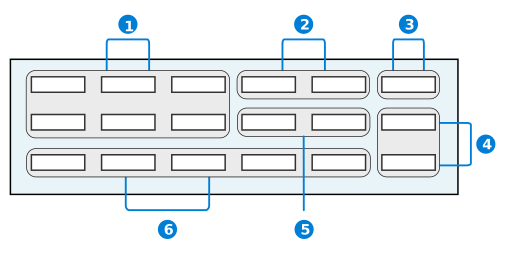
These different regions place fields in certain locations on the header depending on what kind of information they capture for the record.
Use this region to place:
| Region | Description | Examples |
|---|---|---|
 | Fields that capture basic background information about the record. | Name, Type, and Description |
 | Fields that capture status information. These fields are not workflow related and are primarily list lookups. | TaskPriority |
 | Fields that capture the organizational unit of a record. | OrganizationalUnit |
 | Fields that capture location information about the record. | PrimaryAddress and BirthCountry |
| Fields that have default values. These are fields that require numbers generated from other field values or IDs generated from the creation of records. | ContactID and TransactionAmount | |
| Fields that are check boxes. | Inactive or CustomerOnHold | |
 | Fields that capture date and time information about the record. | SentDate and BirthDate |
 | Fields that capture additional information that does not fit into the other regions. | Notes |
List form field layout best practices
These best practices ensure that application list forms are configured consistently throught Nextworld.
Configure the list view on the List Form Fields page in the Application Builder application.
Place the most important fields in the beginning of the list.
Limit Primary and Available fields to 10 fields that support the main purpose of the application. The exception to this rule is the list view for integration applications. These may exceed the 10 field limit. List other fields as available hidden to provide options for customers to set their column preference. The limit on the number of fields that can be displayed is 40.
Only use an Aggregation feature for a list form field if the application either restricts the number of records that can be viewed or is over a table that does not contain a large amount of records. In applications with a significant amount of records, the system has to go through all the details to recalculate an amount whenever you make a change in the filters. This can greatly affect the performance of the system. A possible exception to this is if you are using a Header Detail application. In a Header Detail application, the amount of detail records displayed in the list view is limited to those that are associated to the header. If you use the filters and the amount field must be recalculated, performance is typically not impacted if the Header Detail doesn't contain too many detail records associated with a header.
Position ItemDescription to the right of Item in both list and detail forms. If you need to use ItemType, place it to the right of ItemDescription.
Position the most important fields to the left, and the less important fields to the right. Fields that:
- Create context should be positioned to the left.
- Require entry in the list view should follow the fields that create context.
- Are defaulted or not required should go to the right.
Configure the display types so that only fields that support the main purpose of the application are visible. The display type options are:
| Display Type | Used for |
|---|---|
| Primary Tree | Required tree fields in a tree style relationship application. |
| Primary | Required fields that are critical to the application. |
| Expansion | Disabled or defaulted fields that are rarely used for filtering. |
| Excluded | Fields that do not need to be displayed. |
| Available | Fields that are important to the business process. The user will be able to hide these fields if they are not used as part of their business process. |
| Available-Hidden | Additional fields that the user may want to show. These fields can be shown if needed. |
Expansion rows should be limited to two rows.
Always configure the Notes field to display as Expansion.
Index Query Restriction
If your table holds a large data set that is often queried, use index restriction query to limit the choices of fields to query to maximize performance.
Fetch option best practice
Use the Fetch Options field in Application Builder to control the list view filtering options. This best practice describes when to use each option.
The Fetch Options field controls what filters a user must enter when filtering application records. The configuration of this field should be based on the amount of records in a table, the type of data stored in the records, and an understanding of how users filter and use the records.
The list below describes the different options and when to use them:
- Require Single Filter—use for tables that store transactional data where the user filters with one unique value, such as Application Name when filtering for a specific application record.
- Require All Header Filters—use for Advanced List applications when the header filters create a unique key, such as Buyer and Status when searching purchase requisitions. Use this option for Advanced List applications built over Join tables.
- User Action Required—use for tables that store a high volume of transactional data where users add one or more filters before viewing results, such as Transaction Type, Organizational Unit, and Transaction Date or GL Account and Transaction Date when filtering for transactions. Use this option when there is a significant number of records that can take longer to load.
Detail form field layout best practices
These best practices ensure that application detail forms are configured consistently throughout Nextworld.
Configure the detail view on the Detail Form Fields page in the Application Builder application.
Always position:
- The
Inactivecheckbox in the top row and to the far right under the Save button. - The
OrganizationalUnitfield in the top row and to the far right.- The exception to this is if you are configuring
OrganizationalUnitin a module settings application. If you are configuringOrganizationalUnitin a module settings application, position it in the top row and to the far left.
- The exception to this is if you are configuring
- The Company field in the top row right before Organizational Unit. This field is required to be entered prior to the Organizational Unit. Disable Organization unit until a Company is entered. A company can be defaulted by an application setting.
- The exception to this is if you are configuring Company in a module settings application. If you are configuring Company in a module settings application, position it in the top row and to the far left.
- The
ItemDescriptionfield to the right ofItemin both list and detail views. If you need to useItemType, place it to the right ofItemDescription.
Try to place the Notes field on a separate page. If the application purpose requires Notes to be more visible, the field can be displayed where needed.
Additional status fields, such as BudgetStatus or CompleteStatus, should be positioned in the top row of the header and to the far right.
Application pages and rows best practices
These best practices ensure that application pages and rows are configured consistently throughout Nextworld.
Configure pages and rows on the Pages and Rows page in the Application Builder application.
Pages
Only use a maximum of six pages in an application. Any more than six would appear overcrowded. Configure the pages as A through F, with A being the first page and F being the last page.
Be descriptive and concise when adding a titles to pages. Page names should not repeat any field names or row separator titles. Avoid creating page titles like Other or More Information.
Pages should be used when there are enough differentiating fields to logically separate the sections.
Fields should be placed on pages that logically reflect the purpose of the field. For example, the application Purchase Orders has multiple pages including Accounting, Supplier, and Terms. The field SupplierPaymentTerms_PaymentTerms logically belongs on the Terms page, not on Accounting or Supplier.
Rows
Only use a maximum of:
- Six fields in a row. Any more would result in unnecessary side scrolling.
- Six columns across the page. Any more than six would appear overcrowded.
Row separators can be configured using the Hide Row Separator checkbox. If you don't select the checkbox, a row separator appears above the row associated with the unselected checkbox. If you do select the checkbox, the row separator is hidden and does not appear on the user interface.
When configuring row separators in the header, you must:
- Hide the row separator that would appear above the header. The header's position as the topmost section of the application which means it does not need to separated from anything above it.
- Place a row separator below the header. The exception is when there are pages immediately below the header.
- Add a collapsable row separator in the header if there are too many fields and the header appears disorganized.
When configuring row separators in the detail form, you must:
- Keep row separator titles consistent. If some row separators have titles, then all row separators must have titles except for the row separator directly beneath the header.
- Titles should provide value and should not repeat the page title.
- Make all row separators collapsible so that the end user has control over which field areas they want displayed or which ones they don't want displayed.
- Avoid having row separators on every row. Row separators should be used to logically organize fields. Do not use a row separator when the fields don't logically fit together in the context of an application.
Assign a Static Text data item its own row in the Row field, and only one column in the Columns in Row field. Assigning only one column to a Static Text data item ensures that the text is fully extended across the generated application. If you assign more than one column to a row with a Static Text data item, the text becomes condensed in the generated application.
When configuring row assignments in the Row field, only use the single letters. For example, use A instead of A Custom 01. If you try to use the custom format, you will receive an error when you try to save your application. The custom format is used for customizing Nextworld applications only. For more on when to use the custom format, see [link: 'AppProductionRules'].
Application actions best practices
These best practices ensure that application actions are configured consistently throught Nextworld.
Build action events in the Logic Builder in the Logic Block Builder application, and then apply them in the Actions page of the Application Builder application.
Logic blocks run in the order they appear in the Event Actions subtable on the Actions page in Application Builder. Multiple logic blocks can be associated with the same events and are bundled to make only one call to the server.
If you need to fetch all detail rows, do not have two logic blocks on Row Exited fetching all detail rows. To prevent the logic block from fetching and refetching all detail rows whenever you exit or change a row, use the current row option to fetch the details instead.
On Form is Initialized logic blocks, defaulting field values should be conditioned to only default if the value is blank, so it does not override the value that was entered or overridden.
Logic blocks ran on Field Value Changed, Field Entered or Field Exited need to consider if the value is likely to be defaulted via an application setting. In this case, the logic must also reside on Form is Initialized .
Use a Row Changed event and Field Value Changed events instead of Row Exited and Field Exited. Field Exited and Row Exited always call a logic block on the event in which the logic block always runs regardless if the value has changed or not. Using Row Changed and Field Value Changed events instead prevents the logic block from running when a value didn't change. For these events to trigger, a user must enter and exit the row or field and the value must be different from when the user entered the row or field. If a logic block changes the value, this does not trigger a change event.
Application links
For application links with data mappings, map the nwId as the Source Related Field for table lookup fields. This enhances performance, while using the table Primary Search Field field hinders performance. The nwId value does not display in the column header when mapping nwId.
To reduce the number of records fetched, use Exact Match as the Filter Prefix when possible.
If Form or Row action are hidden via a logic block. Run the Logic block in both the detail form and list form for consistency.
Multi row select in advanced list applications best practices
These best practices ensure that the Datatable True/False Click (With Multiple Selection) action is used consistently and correctly throughout advanced list applications in Nextworld.
Don't use the Datatable True/False Click (With Multi-Select) action when there is logic configured to run for individual records. That is, don't use this action if logic blocks would run after each record changes, and have to finish running before the next record is updated. Running a lot of logic all at once causes performance issues.
For example, in the advanced list form of an application you can display 15 records on a page. If all of the records on the page have actions configured such as Row Entered, Row Exited, Row Changed or Field Value Changed, those actions would all be triggered when the Datatable True/False Click (With Multi-Select) action is used. This means that the user would have to wait for 15 logic blocks to run before they can do anything else.
Setup applications best practices
These best practices ensure that global configuration for setup applications is done consistently. Setup applications are applications used to identify how a family or module works.
When global configuration is performed, it indicates that the Company field is not required during setup, and that those configuration options are for all companies in the organization. Customers may still choose to set up data for individual companies if they have unique configurations.
To implement global configurations for all companies in an organization:
- Do not require Company and Organizational Unit fields for any tables that can be configured across companies.
- Add the data item
GlobalRecordto the table. - Validate that when
GlobalRecordis True, the Company and Organizational Unit must be empty. - Validate that when
GlobalRecordis False, the Company is required.
Best practices by application type
Some application types have their own best practices. If you are using an application of one of these types, follow the best practices for that type.
Relationship application best practices
There are two relationship application types, which have their own best practices. If you are using a relationship application of one of these types, follow the best practices for that type.
Standard style relationship application best practices
These best practices ensure that all standard style relationship applications are configured consistently throughout Nextworld.
When to use
Use a relationship application with standard style when you have a parent child relationship, but you want to show them as a list and not as a tree. This relationship could be a one to one, one to many, or many to many.
For more on standard style relationship application form flow and configuration, see Standard style Relationship applications.
Tree style relationship application best practices
These best practices ensure that tree style relationship applications are configured consistently throughout Nextworld.
When to use
Use a relationship application with a tree style when you have a parent child relationship and you wish to show it in a hierarchical, tree view. This relationship could be a one to one, one to many, or many to many.
For more on tree style relationship application form flow and configuration, see Tree style Relationship applications.
Advanced list application UI best practices
These best practices ensure that advanced list applications are configured consistently throughout Nextworld.
When to use
Use an advanced list application when you have data that you want to maintain quickly on a single page and where each row is treated independently. This also is considered a single maintenance application pattern. Each row can be edited immediately, or a set of rows can be grouped together and then edited.
For more on advanced list application form flow and configuration, see Advanced list application.
UI design
If you are setting up an application with fewer than ten fields, then the application should be developed as an advanced list application.
Only fields that are used for one of the following purposes should be placed in an advanced list header:
- Required search fields.
- Fields used to propagate data during the create. For example, the advanced list application Work Areas has the field
OrganizationalUnitin the header where you can filter the rows for a specific organizational unit. - Work fields used to control processing. For example, the advanced list application Bills of Material Integration has the Purge Processed checkbox in the header. If Purge Processed is selected when creating a new record, then successfully processed integration records are automatically purged.
- Used to create a form action, or map a field to a logic block or another application. For example, the advanced list application Bills of Material Integration sends the run numbers to a logic block when you select Process.
If you are filtering fields that don't follow the purposes of header fields, you should configure them in the column header filters. The filter capabilities in the column headers are more straightforward compared to filtering in the header.
Header Detail application best practices
These best practices ensure that header detail applications are configured consistently throughout Nextworld.
When to use
Use a header detail application when you have a one to many relationship where the transaction represents one document that stays together throughout the process, including workflow. A header can have multiple details; however, details should not always be required. Most transactions should allow the header to be saved without any details when it is first created. Each transaction can have different requirements for when the details become required. The application should require the details and issue an error prior to moving the transaction into that state. For example, a Purchase Order allows you to create a header without any details when the header is at a NEW status. Details become required when the order is moved to PROGRESS, but it does not move the transaction to PROGRESS, until there is at least one detail.
For more on header detail application form flow and configuration, see Header Detail application.
General best practices
- Do not run logic blocks in the header that update all detail rows because of field value changes. This causes performance issues when the row count is high. If your detail row is dependent on one or more fields in the header, disable the header fields when one detail row is entered.
- Do not directly insert a record to a Detail table. Always work within an HD Structure. Inserting directly can cause data integrity issues because common fields are not populated and post insert logic blocks do not run. Even if those constructs are not used in the current application configuration, future development could introduce both them and data integrity issues. See HD Structures and logic blocks for more information.
- In the detail application list, specify a Display Name. The display name is translated. If no display name is specified, then the internal object name (which is not translated) is used.
- If the header contains multiple pages, configure the detail to be inline with the header pages. This is configured in Application Builder.
- If an application is needed to display information from the detail, create a read only or list only application over a join table (header and detail table). Or create a read only or list only standard application over the detail table. Records can only be added to the detail table through a header/detail application.
- A join table should be listed in the RQS Data Source field. If a join between the header and detail already exist, that can be used. If one does not exsit, the Create Join Table for HD action can be used to automatically create one for you. This ensures that when an interactive report is created over the Header Detail application with the Report Quick Start form action, both the Header and Detail table information is included. This option only works for Header Detail applications configured with a single Detail table.
Module settings application UI best practices
These best practices ensure that module settings applications are configured consistently throughout Nextworld.
When to use
Use a module settings application when settings must be configured for all applications in a module.
List form
Display from left to right the GlobalSetting checkbox, the OrganizationalUnit field, the OrganizationalUnitType, and the Directory followed by the list of settings from the detail page in the order that they appear on the detail page.
Detail form
- When configuring the headings in that display in the detail form:
- Display the
GlobalSettingcheckbox to the far left for the global settings header. - Configure the organizational unit header to display five columns with the
OrganizationalUnitfield as column one and theOrganizationalUnitTypefield as column two andDirectoryas column three. - Hide the row separator above the header row in the Pages and Rows page.
- Display the
- When configuring the rows that display in the detail form:
- Configure the detail form to display three columns.
- Show the row separator below the header and between detail rows.
- Word the help text for the settings table data items consistently.
- When configuring a field that will traverse the company structure, determine if you want to provide the customer flexibility to avoid traversing for the No Value option.
- For example, the Receipt Routings field in Inventory Settings has the following options:
In-Transit,On-Dock, andStock. If this field is left empty, it means receipt routings are not used. However, since this field will traverse the company structure (Do Not Traverse = false), it could pick up the Receipt Routings value from a higher level in the company structure. If you want to provide the flexibility that allows them to have the field traverse for some Organizational Units but not others, you should provide an option in the list lookup calledNo Receipt Routing.
- For example, the Receipt Routings field in Inventory Settings has the following options:
- When configuring the help text for a data item that uses a Lookup Name, make sure that the formatting for all the possible list lookup selections are formatted in the same manner. They should be written and formatted in the following way:
This indicates <explanation>
- Value1 - Explanation of what it does
- Value2 - Explanation of what it does
If <field> is empty, explanation of what happens.
Composite application best practices
These best practices ensure that Composite applications are configured consistently throughout Nextworld.
When to use
Use a Composite application when you have a group of applications that you want to be easily accessible for users from one location. Use this type to enforce a navigation flow between applications by having the user save a specific application before moving on to the next application in the composite header.
Do not design a Composite application so that it contains an application with the sole purpose of linking to another application. Instead, consider adding the linked-to application into the Composite application.
Deprecated application best practices
On rare occasions, existing applications need to be deprecated. These are the deprecation best practices that should be used when deprecating an application.
Deprecation Strategy for Applications:
- Deprecate the application by checking the Deprecate checkbox in Application Builder.
- When the application is launched (form init) or when trying to be used, call a Logic Block that sets an error that says: "This application is obsolete. Use NAME application."
- Each application could have a slightly different implementation of the error. If launching the application doesn't allow for an immediate error, it is possible to throw the error when trying to edit the record or when pressing a button. The main goal is to ensure that the customer's data integrity remains intact. Implement the error in a way, that the user cannot used the deprecated application to change their data.
- A release note with the Action Required and Within this Release should be set to true and delivered in the release when the application was deprecated. The release note should say that the application is being deprecated in this release and will be removed in the next. Give instructions on how to move off from the deprecated application. The application should not be moved to the Family until the following release.
- In the following release, the application can be moved to the Family. This will prevent it from being delivered to downstream environments. Another Action Required release note is needed to inform users that the application has been fully deprecated and will no longer exist.
- Any dependent objects, like application settings or menus, may also need to be deprecated or moved to the Family following the same release cycle as the application.
It is very important to notify an end user that the application they are using is no longer supported. An end user could have an application favorited and they need to be notified to change to the new application. We cannot expect that every end user has read release notes. When an application is considered deprecated, it means the application is now obsolete.
Application settings best practices
These best practices ensure that application features are consistently and logically configured based on the user's influence on the application.
Application settings are configured in the Application Setting Definitions application. The features that can be configured in Application Setting Definitions are ones that users have permission to change. Configuring on this level makes it easy for users to change because they are allowed access to this application.
There are features that can also be configured in Application Builder. Configuring on this level makes it more difficult for users to change because they have limited access to the configuration level of the application.
When creating an application link or search action, always include an application setting so a client can easily change the settings without having to customize the application in Application Builder.
If you want users to be able to change filters and default values, configure these in Application Setting Definitions.
When creating application settings for header detail applications, create application settings for the header detail application, header application, and all detail applications. Learn more in the Header Detail application setting configuration topic.
For more on application settings configuration, see Application settings.
User interface best practices
These best practices ensure that the user can view and navigate the optimal version of an application user interface on any device.
Best practices
Keep the design of objects consistent throughout the entire user interface for easier navigation throughout different applications.
Consider the approach for the same functionality across all applications. If other applications have similar behavior, make sure the application handles the process in the same manner. End users want consistency and assume taking the same action in one application should be done in the same manner as any other application.
Consider using Application layouts. Not every field is used or even necessary. Using an alternate layouts can help streamline the user interface.
Consider notifying an end user when a process has been completed. End users want to know when an action they have taken is complete. Some options include using a status, workflow, or a notification.
Consider whether you show/hide fields rather than enable/disable fields. Make it easy for an end user to understand why a field is disabled and what actions need to be taken for it to be enabled. All help text for fields should be clear and specific.
Consider using a row action or a field action. Row actions tend to get buried and they take the end user away from what they were doing. If the action is tied to a specific field, perhaps a field action should be used instead.
Consider the performance of the application and keep the number of clicks to process a transaction to a minimum.
Avoid scrolling the best you can. Vertical scrolling is generally acceptable, but avoid horizontal scrolling. Horizontal scrolling on list view are acceptable, but avoid it in the detail view if possible.
Consider user navigation when designing your user interface. Spend enough time on your user interface design to minimize:
- Unnecessary scrolling.
- Excessive clicking.
Consider the tabbing order when configuring an application. Nextworld tabbing navigates the user from left to right and from top to bottom through rows. Organize fields that should be navigated:
- From left to right into the same row across multiple columns.
- From top to bottom into the same row under one column.
- Think about the field sequence from an end user's point of view as they tab through the application.
Design applications so that users can view them on multiple devices. The field positions must not change when viewing applications on different screen resolutions. Optimize applications for:
- Desktop view. For example, 1366 x 768px.
- Tablet view. For example, 768 x 1024px.
- Mobile view. For example, 375 x 667px.
List lookup color best practices
Best practices for color configuration is used in the List Lookup application. Follow the best practice based on what the color is used for and how it is configured.
UI guidelines by application type
Some application types have their own best practices. If you are using an application of one of these types, follow the best practices for that type.
Hiding application components best practices
These best practices ensure that application developers hide application components such as actions, pages, rows, and fields consistently throughout Nextworld. Use application settings, control actions, and logic blocks to hide these components.
In applications, there are different ways that you can hide fields, pages, rows, and buttons from the user. How you decide to hide these things can depend on why you are hiding them. Sometimes hiding something changes the function of the application.
The different methods you can use to hide application components include:
- Application settings
- Create an application setting to hide application actions, pages, rows, and fields when doing so does not change the function of the application. For example, hiding fields that aren't relevant to the application when it is opened from a certain menu entry.
- This can be changed through customization.
- Control actions
- Configure a control action for an application to hide application actions to change the function of the application or it is part of the design of the application that a user can't use a specific action. For example, hiding a Save button in an application where a user can't edit any fields.
- This can't be changed through customization.
- Logic blocks
- Configure a logic block to hide application actions, fields, rows, and pages to change the function of an application or it is part of the design. For example, conditionally hiding and showing a page based on the value of a field or hiding the Edit button of a read-only application.
- This can't be changed through customization.
Hide individual fields instead of entire rows. That way if the field layout is later changed, no other rework is required.
Style Definitions best practices
Use the following standards when defining and implementing Style Definitions.
Style Definitions can be applied to dashboards or by using the Apply Styles action. For more information, see Style Definitions application and Apply Styles action.
Always use display text size = Extra Small and Display Text Alignment = Center. If the clickable link is used only within your own module, you can create your own standards by creating groups for the same function or role. For examples, see the deliveredfor Manufacturing in the Style Definitions application. However, if you have a dashboard where clickable links may be used across modules, then a new standard needs to be determined.
Below are the defined use cases when a style can be used on a field using the Apply Styles logic block action. If you need a different style for a use case defined below or if you have a new use case a new standard should be determined within application development.
| Use Cases | Style Defintion To Use |
|---|---|
| Comparing fields and style the field when the values are different | FieldComparisonStyle or FieldComparisonStyleReadView Highlight the background yellow and use the indicator that shows the field has changed. We will leave the text color blank so that the tool would dynamically pick the right text color based on the user’s current theme. |
| Indicating when a date field or transaction is past due | PastDueDateFieldStyle or PastDueDateFieldStyleReadView Text color is red. Currently, there is no visual indicator to the past due field. This is currently being defined. |
| Indicating when a field is conditionally required in an application | FieldConditionallyRequiredStyle The Conditionally Required field is set to true. This will add the required field indicator to field where this applied. |
| Indicating that additional actions needs to take place | Standards are currently being defined for this use case. |
| Increase focus on an item by increasing text | Standards are currently being defined for this use case. |
| Highlight a negative value either cost or quantity | Standards are currently being definied for this use case. |
Logic block best practices
These best practices ensure that logic blocks are configured consistently throughout Nextworld.
Logic blocks are configured in the Logic Block Builder application.
Name logic blocks so that they are free of numbers, special characters, and spaces. Once a logic block is created, the name cannot be changed at a later date. All words should be written in upper camel case, which means the first letter of each word should be capitalized. The name should reflect the function being performed. For example, CalculateNetValue or CheckInventory.
You should describe your logic block and include descriptions of any logic blocks that are called in the Specification field. The specification is a technical description of the logic block for application developers. Use the Specification field to detail the function and implications of the logic block. If any significant changes are made to the logic block, ensure that the specification is updated accordingly.
Naming conventions and standards
Logic block names should reflect the overall function being performed, for example CalculateRequiredQuantity and ValidateWorkGroup.
If you are creating the logic block to void GL records for an application you need to name your logic block Void<ApplicationName>, and your mini app, from which you run the logic block, <ApplicationName>Void. For example, the application Payments is associated with the logic block VoidPayments and the mini app PaymentsVoid. Avoid using the term 'wrapper' to describe logic blocks that calls other logic blocks.
Logic blocks names typically start with verbs. Here is a list of some standard logic block verbs:
| Verb | Use if the logic block... | Example |
|---|---|---|
| Write | Inserts or updates into a table. All action blocks should start with Write. | WriteGLTransaction |
| Retrieve | Only retrieves data. These are often shared service/ common logic blocks. | RetrieveExchangeRate |
| HideShow (suffix of Fields or RowActions) | Hides or shows fields. If hiding/showing row actions, add suffix of Fields. If enabling/disabling Row Actions, suffix with RowActions | HideShowAddressFields or HideShowInventoryCountRowActions |
| Integrate | Is used to move data from an integration table to the actual table. | IntegrateStudentSchedule |
| Test | Is a unit test logic block. Test should be the prefix of the logic block name, followed by the primary logic block name. | TestValidateCostCenter |
| Multi Row Select | Runs on the Datatable True/False Click (With Multi-Select) event. | MultiRowSelect<ApplicationName> |
| Void | Voids a transaction | VoidWOTransaction |
| EnableDisable (suffix of Fields) | Enable or disable fields. | EnableDisableBankDepositFields |
| Change | Field Value Change. If logic only runs when a field value change has occurred. | ChangeSupplierNameForPOHeader or ChangeGLAccountForPODetail |
Variable names should reflect the intended content or value that will be stored in the variable. Do not place 'Var' or 'Variable' as part of the name.
Inputs and outputs
When the logic block uses the Inputs and Outputs subtable the following best practices should be used.
The Specification field for each row in the Inputs and Outputs subtable should briefly explain how the field or record is used. Reserve larger notes, such as how to call the associated logic block, for the logic block’s Specification field.
If the logic block uses multiple fields from the same table you can include each field as ainput LogicBlockInputsAndOutputs.LogicBlockRecordType or provide all fields from a larger data source as a singleinput LogicBlockInputsAndOutputs.LogicBlockRecordType. Passing record inputs has a slight performance implication. There are several considerations, such as:
If the list of input fields for a single data source may change or grow, you should select the entire data source record instead of individual values. This is a more maintainable approach that minimizes technical debt in the future.
If the necessary input fields are well defined and should not be amended in the future, map individual fields as values rather than an entire data source record.
If the logic block is designed for a common use case, constructing individualinputs or using a singleinput where the record is a can make the logic more accessible than using an existing data source.
In cases where modification of a logic block’s input data could lead to data integrity issues, such as logic blocks configured with a Security Option of , consider the Customization Pattern of the logic block and whether it should be a CompleteLock.
Naming conventions and standards for inputs and outputs
| LogicBlockInputsAndOutputs.LogicBlockRecordType | LogicBlockInputsAndOutputs.LogicBlockInputOutputName | LogicBlockInputsAndOutputs.LogicBlockShape |
|---|---|---|
| The standard is to either use the same name as the data item or to choose a name that is as descriptive as possible for your use case. OR Use a generic data item in the product family, the name should be as descriptive as possible for your use case. | Select a data item. OR Use a generic data item in the product family.
| |
The standard is to match the name of the table listed in the LogicBlockInputsAndOutputs.LogicBlockShape, though it is required to be the same if the logic block is used as an application event, a table trigger, or an action block. For example, a shape defined using WorkOrderHeaders, the name should be WorkOrderHeaders.If there are two records with the same LogicBlockInputsAndOutputs.LogicBlockShape, make the names descriptive as to how each one is being used in the logic block. For example, if there are two SalesOrderDetail:
| Select a table. |
Using inputs and outputs in logic block builder
When the called logic block requires a defined set of fields, it is nominally more performant to input only those fields, but any reliance on a large or uncertain number of fields means that the entire record is more valuable for maintainability.
Many logic blocks contain an extra call to a common logic block like
RetrieveInventoryCommitments: if the calling logic block has already made a call, that logic block can add a dynamic input to the call.This is more performant than doing the call again when that call would provide the same information as the first call.
Certain logic blocks like
RetrieveItemOrgUnitsare built to be called multiple times and store prior information to provide the caller. In these cases, it is not a problem to call a second time, so the decision to pass input values or call again does depend on the circumstances.
Mark outputs that overwrite an object with an inline comment to indicate that the object has changed.
For example,
WritePurchaseOrderscalls a logic block titledDefaultValidateContractsForPODetailand overwrites the header detail DSN in this manner, so it contains an inline comment of: “Output: ProcurementOrderHeader DSN, ProcurementOrderDetail DSN”.
Using inputs and outputs with header detail structures
When a logic block is built over a header detail table (HD) and calls another logic block that uses the same HD structure, you can eliminate a fetch from the called logic block by passing the current detail record as an input. This prevents the need to pass the HD structure alongside a “Current Row” that may then be fetched in the called logic block; instead, the called block has immediate access to the current DSN.
Logic block data source naming conventions
These naming standards ensure that logic block data source names across Nextworld follow the same conventions so that application developers can easily identify and classify them.
Data source names, or the name that you give a logic block action, should be written to reflect the function being formed. Below are examples of data source formats and names for different logic block actions:
| Action | Data source name format | Example |
|---|---|---|
| Add Subtable Record | Add<SubtableName>Subtable | AddEmailsSubtable |
| Call a Logic Block | Call<LogicBlockName> | If you have to call the same logic block multiple times within your logic block, you will want to make the data source names unique. For example, if you have to call the DeriveGLAccount logic block two times in your logic block you can make your data source names: CallDeriveGLAccountAP and CallDeriveGLAccount. |
Call Primary Logic Block (only available for use in Test logic blocks) | <test case name> | The primary logic block is usually called multiple times within a test logic block, so using the test case name as the data source will make it easy to identify which call belongs to which test case. |
| Create HD Structure | <HDTableName>HD | AdminAttendanceHD |
| Create a Temp Table | <TableName>TT | GLDetailTT |
| Fetch Records | Fetch<TableName> | FetchReceivablesDetailAll |
| Fetch a Table Lookup | <FieldName>Pointer | CompanyPointer |
| Insert Records | Insert<TableName> | Insert StudentGrades [InsertStudentGrad |
| Loop Multiple Select | Loop<MultipleSelectionName> | LoopGradeLevels |
| Loop Subtable | Loop<SubtableName>Subtable | LoopEmailsSubtable |
| Retrieve Module Settings | <ModuleSettingType>Settings | RetrieveSISSettings |
| Save HD | Save<HeaderDetailTable> | SaveGeneralLedgerTransactions |
| Traverse Tree | Traverse<TableName> | TraverseOrgUnitRelationships |
Logic block performance best practices
These best practices ensure that logic blocks are built to perform efficiently and consistently throughout Nextworld.
Initial design
Every logic block should have a clear and concise purpose. Never pollute a logic block with extra nonessential logic.
A Nextworld entity is a table or a set of tables like header/details. The business rules that govern the state and behavior for an entity should be implemented in one logic block or set of logic blocks. This ensures that there is no duplicate code.
There are key principles that application developers should use as performance-enhancing tools when building logic blocks. The following are terms that application developers should keep in mind to ensure the quality and efficiency of logic block design:
- Modularity—Defines how independent logic blocks are from one another. Modular logic blocks can be swapped in or out without causing many issues.
- Reusability—Determines the degree to which logic blocks can be reused. The reusability of a logic block is usually related to how tightly coupled it is with other logic blocks.
- Maintainability—Measures the ease with which a logic block can be enhanced or modified. This involves anticipating the need for future changes and structuring the logic to accommodate them.
- Readability—Ensures that logic blocks are easy to understand and follow logically. Good comments and descriptive variable names increase the readability of the code significantly.
- Complexity—Measures of the number of independent paths within a logic block. Avoid designing highly complex logic blocks because this can lead to a number of performance issues.
General organization
Sequence actions wisely within the logic block. Your logic block should be efficiently organized and evaluated for duplicates to ensure that no two logic blocks are accomplishing the same goal.
As you are designing a logic block, consider how new logic can be added to an existing application. New logic can be added by:
- Attaching the new logic to an application's existing logic. Ensure that the new logic is added to the structure in a location where the new logic is relevant.
- Creating a fit-for-purpose logic block centered specifically around the new logic if the new logic is substantial or does not fit with the existing logic of the application.
- When developing the logic block, the Logic block inputs and outputs framework should be used where possible, even when modularizing the code. Even though modularization, makes the logic block more readable and easier to maintain, the performance of the logic could be poor because of the amount of refetching that might need to happen. By using the inputs and outputs framework, it can help eliminate the need to refetch tables, which in turn will make the logic block more performant.
Avoid designing logic blocks with deeply nested conditionals. These can be an indication of overly complex logic. In a situation like that, you can either refactor or modularize the logic block:
- Refactor—Restructure the logic to simplify the logic flow.
- Modularize—Break up the logic into multiple logic blocks.
Complex logic blocks also make it difficult for developers to modify a logic block because the complexity makes the flow confusing. Simple ways to enhance readability are writing clear, concise, and complete comments and provide descriptive and consistent variable names.
Actions
Logic block actions consume execution time that could be used for another purpose, so you must make sure that all added actions serve a required purpose. A single unnecessary or inefficient action or set of actions may not seem like something to worry about, but the action may be executed a large amount of times during a report generation causing unnecessary and significant performance issues.
When creating a background task logic block, it is more efficient to submit one background job doing many things rather than submitting a background job for each thing separately.
Fetch performance best practices
These best practices ensure that fetch actions are designed to perform efficiently and consistently throughout Nextworld.
It is important to understand the scope of your fetches. In other words, you must understand how many records you want included in the fetched result set. By understanding and knowing how many records you are expecting, you can make sure that you are structure the fetch correctly with an appropriate set of filtering criteria. This can also help you understand whether synchronous or asynchronous processing is appropriate.
General best practices
Use the Limit=n query option whenever possible. This option tells the database that it can stop looking for matching records as soon as it finds the first records that matches the filtering criteria and sort order. This can help minimize the amount of work that the database has to perform in order to satisfy the query. In other words, fetching one record is more efficient than fetching 1000 when the user only wants the first one.
Test with a representative data set to better identify performance problems early on.
Be careful making assumptions about customer data. Customer data volumes, the complexity of setup data, depth of hierarchies, and so on can sometimes surprise you.
Don’t fetch from two or more tables separately when a Join table allows you to perform a single fetch. Round trips to the database (I/O) are some of the most expensive actions.
If possible, avoid fetching the same record multiple times in a single logic flow.
Do not fetch using the unique index plus additional fields. For example, nwId and another field. nwId is already unique so adding additional fields either will return the already unique record or no records.
Fetch actions are closely linked to table indexes. When fetching, configure indexes on the table-level of an application if a logic block is performing a lot of work across a large volume of records. The indexes should be configured in the order same order as the logic block layout. For more on configuring indexes, see the following topics:
Fetch filters
Use precise filtering criteria to exclude records that aren’t required. Don’t use minimal filtering on the fetch action itself and conditionals within the fetch loop to exclude a record from processing. If precise filtering isn’t possible, use sorting and the Exit Loop action to minimize your execution time. Sort by the significant field(s) and exit the fetch loop when the data changes. This can be a good option for a Fetch Detail Records action. You should ensure that a table index supports the fetch filtering criteria and sort. If precise filtering isn't possible, this can sometimes be accomplished by using Join tables.
When using a fetch detail, use the disposition when possible. This will help eliminate fetching all detail rows. For example, if your logic requires to update a Total field in the header, fetch using the disposition and add/subtract from the Total rather than fetching all details and summing.
Fetch sorting
Avoid sorting your fetch, if possible, as it may cause unnecessary work on the database. There are times where the logic requires records be returned in a specific order, so for these situations, use the appropriate fields to sort. For example, if the logic relies on grouping records and performing specific logic when one or more field values change, then sorting the records is important. This type of "group breaking" logic requires the conditional include a check for the last record so you do not need to repeat the logic after the loop is complete.
Logic block builder best practices
These best practices ensure that logic blocks are built consistently throughout Nextworld.
Logic blocks are built on the Logic Builder page in the Logic Block Builder application.
Use the Set Values action to define variables at the start of the logic block configuration rather than in the middle. After a variable is defined, it can be used in subsequent actions. Defining variables at the top makes them easy to locate and helps other application developers that interact with your logic block to know what variables are used.
Your logic block should be efficiently organized and modular. Evaluate your logic blocks for duplicates to ensure that no two logic blocks are accomplishing the same goal.
When developing the logic block, the Logic block inputs and outputs framework should be used where possible, even when modularizing the code. Even though modularization, makes the logic block more readable and easier to maintain, the performance of the logic could be poor because of the amount of refetching that might need to happen. By using the inputs and outputs framework, it can help eliminate the need to refetch tables, which in turn will make the logic block more performant.
Rather than specifying an entire Header Detail (HD) structure, it is more performant to use logic block inputs and outputs to pass specific data sources which you need for your logic block. Only use the entire HD Structure when it is necessary. For example, logic blocks built over Header Detail applications must be built over the HD Structure. Any logic blocks called after that logic block, however, can be developed without specifying the structure. Learn more in Logic block inputs and outputs.
As you are designing a logic block, consider how new logic can be added to an existing application. New logic can be added by:
- Attaching the new logic to an application's existing logic. Ensure that the new logic is added to the structure in a location where the new logic is relevant.
- Creating a fit-for-purpose logic block centered specifically around the new logic if the new logic is substantial or does not fit with the existing logic of the application.
Comments are automatically generated for each logic action.
Add a comment block only if the section needs additional explanation.
Try and keep logic blocks no more than 100 lines, unless it's used as an Action Block, which then the best practice is 150 lines or less. The number of lines represents the number of active actions, that count does not include comments or disabled actions.
Avoid too many nested statements. The more nested statements, the more complex the logic block is to read and maintain. Modularize or flatten the code so the nesting is not too large.
A single set action should be used for common assignments. For example, when mapping output values from one logic block to another, use a single set action for multiple fields. Do not create a single set action for each assignment. The fewer actions in a logic block the better it will perform.
Conditional actions best practices
These best practices ensure that logic block conditional actions are built consistently throughout Nextworld.
A Conditional should always have actions in the true branch. The false branch does not always need an action and can be left empty. If possible, don't structure conditional expressions so that only a false case is used.
You can build your logic block so that conditional actions reside, or nest, within other conditional actions. Build logic blocks so that conditional actions are not deeply nested within one another. Logic blocks that contain several conditional actions nested within one another can be difficult to read and debug. If your logic block contains deeply nested conditional actions, consider calling another logic block.
When you are using conditional logic block actions to enable or disable fields, configure the conditionals to have both the Enable and Disable actions if you only want the current detail row to have enabled or disabled fields. If you want fields on all the rows to be disabled or enabled the same way, you only need one of the conditions.
When you are using active or inactive workflow in your conditional, keep in mind customers can customize workflow and add approvals or extra steps. To prevent unintentional behavior, consider how your conditional checks for the status:
- State Type equals
Active - State Type is not equal to
Inactive
Depending on the situation, you may process records unintentionally. For example, if a workflow is delivered with active and inactive state types only and your conditional is set to 'not equal to Inactive', when a customer creates an approval step, the state type is pending and will go into the True section of your conditional.
Call a logic block action best practices
These best practices ensure that the Call a Logic Block actions are built consistently throughout Nextworld.
When you use a Call a Logic Block action, use one of the following actions for On Error section of that call that appears in the Logic Block panel. You can use a Set Message to set an error or warning for the On Error, but you can also use the Show Called Logic Block Messages action. If you have a specific error you want the user to see based on the failure of that called logic block, use the Set Message action. If you just want to show the error that the called logic block has configured, use the Show Called Logic Block Messages action.
Create Message action best practices
These best practices ensure that logic block Create Message actions are built consistently throughout Nextworld.
When displaying an error message using the Create Message action or Interrupt with Error action, you should add Inputs in the Log Data section and an Error Source to provide more information to the user. For example, if a GL Account is no longer active, display which GL Account. If a row has an error and the line number of the row is available, display the value of the line number. The Error Source should be used to highlight the field in the application so the user can see which field is causing an error.
If the error message displays an input for Org Unit, also display Company and Org Unit Number since the organizational unit may not be unique in Nextworld.
Learn more in the Create Message action topic.
If displaying Org Unit in your input, include the following in the specified order:
Org Unit Number
Org Unit
CompanyNumber
CompanyName
Database Fetch actions best practices
These best practices ensure that logic block database fetch actions are built consistently throughout Nextworld.
In general, it is important to avoid unnecessary database fetches. This means that you should not attempt a fetch if you can easily determine that no data exists to be found. Configure your logic so that a fetch is only attempted if data is likely to be found.
If the goal of your fetch is to verify the existence of records (such as for filtering), use the Limit value in the Query field in your fetch action to limit the fetch to only 1 record. This means that you only fetch one record to verify if records exist.
Common logic blocks
Call a common logic block, or a logic block built specifically to be used in other families to access data, when you need to fetch a table that is not in the same family as your logic block. Do not directly fetch tables that are not in your family. This allows family owners to control how others interact with their tables. There are two exceptions:
- Fetch a table lookup. This is because table lookups fetch the related fields to a table as read only.
- Fetching multiple records. Nextworld does not provide a logic block that returns multiple records in one call.
For example, in the ProcessWOMaterialTransactionLines logic block you need to retrieve an item cost. In this case, you call the common logic block RetrieveItemCost rather than fetching the ItemCosts table directly.
Learn more about the different fetch actions in the Logic block fetch actions topic.
Fetches and indexes
It is important to consider table indexes when configuring a fetch action to ensure efficient fetches. Use expressions to configure the order of the fields in a fetch action to match the sequence of the table index. While you don't have to use all of the index fields in the fetch, the fields you use must match the order of the index. Remember that when you're developing logic blocks and testing them, you could be running them with small amounts of data, which doesn't impact performance too much. When the logic blocks run in production environments, they could be running with significant volumes of data, which could drastically impact performance.
Read more in the Index sequencing topic.
Fetches and workflow
Customers can customize workflow and add new states within the workflow. The following are the best practices when fetching using workflow fields.
- Fetch using the state type. Remember, you can add new state types for your workflow if the standard five options are not sufficient.
- For master data tables, such as Directory, consider fetching equal to Active rather than not equal to Active as you may get more records than intended. If a customer adds steps to approve, your logic most likely will not want records that are not approved and if you use 'not equal to active', the pending records will be fetched.
Determining the best fetch action to use
There are multiple fetch actions that are possible to use and knowing which one to use is situational and not a universal rule. Below are some general performance considerations to take into account when choosing whether to use a Fetch action or a Fetch Details action. These statements are generally true, but won't always fit based on architecture, table size, table indexes and database load. Performance testing is always recommended and will give you the best answer for any given scenario and can take scalability, server, and database conditions into account.
Fetch records and fetch detail records actions are inherently the same, but may have downstream performance considerations.
- There should be no direct performance difference between Fetch Detail Records (with an existing HD structure) and Fetch Records (with an nwHeaderId)
- However, there are notable performance differences downstream of that first fetch. Usage of the HD structure means maintenance on the Header and Detail tables together, which is worse for performance. Having said that, usage of the full HD is necessary when working in the action block or passing the structure to/from another logic block with the same shape. It is typically better to not use the HD structure if it is not necessary.
- If there is no need to define and maintain the relationship to a header table (because the logic only needs to interact with a detail table), it will be more performant to avoid the HD structure.
- Not using an HD structure in some situations, can introduce data integrity issues. There is a lot of processing that happens for you with the HeaderDetail (H/D) concept (e.g. common fields, HeaderDetail Triggers) whose behavior is bypassed when dealing with header or detail tables directly. This can result in inconsistent data between the detail, its header, and other data in the system.
Dynamic Expressions in Fetch actions best practices
These best practices ensure that the Build Dynamic Expression is used consistently in Fetch actions in logic blocks throughout Nextworld.
When you use the Build Dynamic Expression action, make sure to build your dynamic expression at the beginning of your logic block to ensure it is in scope for all actions.
If the logic block runs frequently, such as when it is used as an action block, you must verify that the sequence of fields in a logic block and the sequence of indexed fields in the table at least partially match. For example, if the dynamic expression is (1 and 2 and 3) and the fetch is (4 and 5 and the dynamic expression), then at runtime the expression is interpreted as (4 and 5 and (1 and 2 and 3)). An index must be configured using that order: 4, 5, 1, 2, and 3.
| Dynamic expression | Fetch | Runtime interpretation | Index order |
|---|---|---|---|
| (1 and 2 and 3) | (4 and 5 and the dynamic expression) | (4 and 5 and (1 and 2 and 3)) | 4, 5, 1, 2, and 3 |
While not required, it is best practice for the where clause to order the fields in the same order as the index. This allows you to more easily compare the logic block fetches with indexes on the table.
When building an additive expression list, you can add dynamic expressions within dynamic expressions. For example, in the LoadBackorderReleaseLines logic block the SalesOrderDetailExpression dynamic expression is initialized in action 5 and is used throughout the logic block. Then, in action 17 the SalesOrderDetailExpression dynamic expression is initialized, and is comprised of the SalesOrderDetailExpressionForCustomer and SalesOrderDetailExpression, configured using the OR operator.
Fetch Detail Records action best practices
These best practices ensure that logic block Fetch Detail Records actions are built consistently throughout Nextworld.
Use this action when you want the logic block to automatically determine which detail records you want to fetch. The logic checks the Header Detail Structure Name you defined and fetches the details from it.
The Fetch Detail Records action only works if there is a Header Detail structure for it to fetch detail records from. Use Fetch Detail Records if:
- The table the logic block is built over is a Header Detail table.
- You create a Header Detail structure in your logic block with the Create HD Structure action.
For better performance, use Fetch Current Row as the Fetch Type if applicable or the Disposition (created, changed, unchanged, removed).
Only use Fetch All as the Fetch Type if you must process all detail records. For example, use the Fetch All option if you need to sum a field's values from all records.
If you use Fetch All, use one of the sort options to make your logic more efficient.
Limitations
The Fetch Detail Records action only allows you to fetch all records or fetch current records. The action does not have any additional filtering capabilities. In order to add filters to incoming detail records, you must either:
- Call another logic block to narrow down the fetched results.
- Fetch the detail records with the Fetch Records action to use that action's expressions to narrow down the results. The Fetch Records action must contain an expression that links the nwHeaderId = nwId (Header table).
Fetch Original Record best practices
These best practices ensure that logic block Fetch Original Record actions are built consistently throughout Nextworld.
Configure your logic so that this action only runs when there is an existing record. Use the Conditional action to check if the Entry Mode is equal to either Update or Delete, and not Create. This means that the action only runs when the user is updating or deleting an existing record.
Fetch Records action best practices
These best practices ensure that logic block Fetch Records actions are built consistently throughout Nextworld.
Ensure that the sequence of fields in a fetch logic block matches, or partially matches, the sequence of indexed fields in a table if the logic block is one that runs often. It is not required to create an index for every combination used in a logic block, but it is important to consider the maintenance of indexes and the size of the table. A table with 100 records may be small enough to never need an index because processing the table doesn't affect performance that much, but a table with millions of records needs indexes for almost every kind of fetch that could be done because a full table scan can significantly affect performance.
Use in the Options section of the Details panel when you don't want to fetch and loop through more records than needed. For example, when you are trying to find a default value in a field in the logic block and the value of the field is going to be the same for all records in the table, it makes more sense to fetch just one record to retrieve the default value instead of fetching all of the records.
can also be used in combination with the sort options and . For example, when you are trying to fetch records from the ContactAlerts table for the Directory table and you want find the maximum or minimum value of the Start Date field in ContactAlerts, you would configure the Options section of the Fetch Records action as such:
| Query | |
|---|---|
| Value Type | Field |
| Table | FetchContactAlerts |
| Field | StartDate |
| Query | |
|---|---|
| Value Type | Constant |
| Value | 1 |
This gives you the single record with the most recent value in Start Date.
When you want to retrieve a record based on a specified nwId, use a Fetch Table Lookup action instead of a Fetch Records action with a nwId filter. The Fetch Table Lookup action is a simplified version of the Fetch Records action with a nwId filter, making the logic easier to read and understand.
Learn more about the different fetch actions in the Logic block fetch actions topic.
Fetch Records and Lock action best practices
These best practices ensure that logic block Fetch Records and Lock actions are built consistently throughout Nextworld.
Record Locking
Locks can be applied when fetching records to help minimize the possibility of multiple users attempting to fetch and update the same table record at the same time. When you lock a record, other users are unable to make modifications to the record. When locks are in place, records are updated individually only for the time it takes for execution to return to the calling logic block. Fetch locks only concern record updates.
Only use Fetch Records and Lock on tables that need to be updated. Use the Fetch Records action on tables that do not need to be updated.
The default choice should be not to lock.The use of a Fetch Records and Lock should be a deliberate decision, the reasoning for which should be noted in a Comment action. Locks only make sense when there is a need to update table records. Never use a lock simply to retrieve information from another table when there is no intent to update.
Transaction boundaries
If a fetch lock is necessary, then you must also have a firm understanding of the transaction boundary. A record lock is held until all processing within the transaction boundary is finished. Structure your logic blocks to minimize the duration of the lock by controlling the transaction boundary of its record updates.
Timeout errors and deadlocks become less likely as the transaction boundary gets smaller. The transaction boundary may need to be reduced, but remember that the transaction boundary must be large enough to encompass all interdependent table updates in order to preserve data integrity.
Spend time figuring out how to make the transaction boundary smaller. In your initial logic block that fetches many records, do not perform updates on the records. Instead, within the fetch loop, call a second logic block passing one record at a time to be updated. Define the second logic block to run in a separate transaction boundary. That is, refetch the record with a lock in the called logic block.
Conflict considerations
Consider the impact of conflict error compared to timeout error. When a user gets an error, it may indicate that a business process is not working properly. A timeout error may be a bad user experience, but it may also be necessary to ensure the successful completion of another task. Visualize the scenarios involving concurrent processing. If they cannot be avoided entirely, choose the least harmful condition, apply fetch lock accordingly, and document your reasoning.
Manage the likelihood of conflicts between multiple applications. Conflict errors become more likely when asynchronous jobs that process a large number of records are kicked off while users are using applications that update the same records. Avoid these conflicts by running asynchronous jobs at night or find an external way of containing the amount of users who can run those types of jobs.
Integration jobs that update a large number of table records should not be run while users are updating the same tables. However, the business may require that some integrations be done concurrent with users working on the same table. You must decide if the integration job is important enough to lock records and cause users to experience timeouts or conflicts.
You must determine a fetching protocol to prevent a deadlocking scenario such as the one described below:
- A logic block always fetches and locks from
Table AbeforeTable B. - User 1 calls a logic block that locks record
A. - User 2 calls a logic block that locks record
B. - The transaction of User 1 then requires record
B, while the transaction of User 2 requires recordA. - Each user locks out the other.
Learn more about the different fetch actions in the Logic block fetch actions topic.
Minimizing Deadlocks
When using the Fetch Records and Lock action that could return multiple records, it should always contain a sort order or a limit of 1. This would indicate that it's expected to only lock one record. Without a sort order, multiple records could be locked, but in an arbitrary order. If this happens, it can cause deadlocks.
Date and DateTime logic block best practices
These best practices ensure that logic block Date and DateTime actions are built consistently throughout Nextworld.
Always check that Date or DateTime fields are not empty before doing any Date or DateTime comparison. If it is empty, or null, you get a null date error. When dates are in logic blocks they are in UTC time zone. For example, if the user selects a date in the UI, that date would be in the browser's time zone. Once inside the logic block, that date will be represented in UTC. Logic blocks are unaware of a browser's time zone and there is no ability to set a date to the browser's time zone inside a logic block. The best practices below address handling comparisons and conversions.
DateTime to Date
It is often necessary to convert a DateTime data item to a Date in logic for defaults, validations, or retrieval of data with effectivity dates. This can be done using either a Set Values action or a DateTime Decomposition action in logic blocks. Learn more about the Set Values action in the Set Values action topic and the DateTime Decomposition action in the Date and Date Time calculations topic.
- When doing financial reporting, conversions from a DateTime to a Date should always be done using the company's time zone. Similarly, when retrieving exchange rates, the DateTime of a transaction should always be converted to the Company’s time zone for the exchange rate effective date.
- For conversions of DateTime to Date that are not for financial reporting or exchange rates, the following rules should be used:
- If the table has an Organizational Unit field, the input time zone should be the organizational unit’s time zone.
- If the table does not have an Organizational Unit field but has a Company field, the input time zone should be the company’s time zone.
- If the table does not have either an Organizational Unit or Company field, the input time zone should be the tenant time zone.
Date to DateTime
It is often necessary to convert a Date data item to a DateTime data item in logic for temporal reporting where a report is ran for a specific Start Date and End Date, and the data is stored using Date Times. It is recommended to use the DateTime Composition action in these instances, and not the Set Values action in logic blocks. The DateTime Composition action will take the Time Zone into account. Learn more about the DateTime Composition action in the Date and Date Time calculations topic. See the ShippedNotClosedFlatExecution logic block for an example of how to properly use a Date to a DateTime.
- When converting a financial date to a date-time format, default to the company's standard time zone.
- For all other date conversions, use the organizational unit's standard time zone if specified. If not, default to the company's standard time zone.
- Grouping for Temporal Reports
- If a temporal report includes multiple companies and/or organizational units, group the data by organizational unit to ensure consistent reporting within the same time zone.
- For financial reports, group the data by company and adhere to the company's standard time zone.
- Start Date and End Date Conversions
- When a temporal report uses a start and/or end date and relies on data stored in a date-time format:
- The start date must be converted to a date-time with a time of 00:00:00.0000 in the time zone determined using the Time Zone Standards above.
- The end date must be converted to a date-time with a time of 23:59:59.9999 in the time zone determined using the Time Zone Standards above.
Insert/Update Records action best practices
These best practices ensure that logic block Insert and Update Record actions are built consistently throughout Nextworld.
Do not insert or update tables that are outside of the logic block's product family. Call a logic block within that product family instead.
Place the Update Records action inside the database fetch action to update each record that it loops through. If you place the Update Records action outside of the fetch action, the only record that gets updated is the last one the fetch looped through.
Logic block comment best practices
Comments are created automatically by the system for each logic action. Additional comments can also be manually added to explain things such as the intent, and use of that logic block.
Select the Advanced Action toggle in the Logic Builder to see more details about the logic block. Well designed logic blocks generally should not warrant additional comments.
Comments should not be used to repeat information that can be learned from the logic block actions, dictate task numbers, or as a change log.
If the logic block is not easy to use and understand, consider updating the logic block instead of using comments.
Loop conditional best practices
These best practices ensure that logic block loop conditional actions are built consistently throughout Nextworld.
Make sure that you have an exit condition when using a Loop Conditional. Without an exit condition, the logic times out and you receive an error. For example, if using the conditional Variable <= 10, then the variable must decrement the variable in the loop.
Table triggers best practices
These best practices ensure that table triggers are configured consistently throughout Nextworld.
Table triggers are built in Logic Blocks and configured in the Table Definitions application.
When to use
Pre-triggers execute before the record is saved to the table. Post-triggers execute after a record has been saved to the table. Use each type of table trigger for different purposes, such as:
- Pre-Insert: Use to validate, populate default fields, or populate derived fields.
- Pre-Update: Use to validate, set default fields, or set derived fields.
- Post-Insert: Update or insert to other tables, or update one of its own derived fields with a fresh auto number.
- Post-Update: Update or insert to other tables.
Any logic block that is run from the UI to validate field values should also be a table trigger. Using both the UI and table triggers may cause you to validate twice, but validating twice is better than receiving invalid data.
Considerations for using an action block instead of a trigger.
- Create an action block if other families will be inserting records.
- If you have large complex logic for the table.
Common best practices
A trigger logic block cannot have any UI-only logic actions such as Hide, Show, Disable, or Enable.
Ensure you don't have recursive logic. One exception is populating the LinkId field. The LinkId is a concatenation of three fields including an auto number. An auto number is not available until the post trigger. Only configure this option on the post-insert to avoid recursion.
Include default values in triggers on a case-by-case basis. If the user wants a non-required field to be left blank and clears out the UI defaulted value, the table trigger overrides the field the user intended to leave blank.
When possible, call only one logic block for a trigger event. That logic block can call other logic blocks to keep your logic modularized and also allows a logic block to be called from the UI.
If you are placing a trigger on a Header Detail table, the trigger must be placed appropriately. See Configure table triggers for Header Detail applications for more information.
Event action best practices
These best practices ensure that logic blocks configured as event actions are built consistently throughout Nextworld.
Logic blocks built on the Logic Builder page in the Logic Block Builder application, and then added to the Actions page in the Application Builder application.
If multiple fields are joined together for a purpose, put all the validations and defaults for those fields into one logic block. For example, the values of fields A and B determine the default of field C. Instead of using separate logic blocks for fields A and B, use one logic block for both fields so that the two values can be validated and provide an appropriate default value into field C in one action rather than multiple event actions.
Logic block security option best practices
These best practices ensure that the Security Options field in the Logic Block Builder application is configured with the correct Public, Public - Secured, or Private option.
The Security Option field controls how and when a logic block can be run. Learn more about these configurations in the Logic block security options topic.
Use the table below to determine which privacy setting to use based on the setup and type of logic block.
When choosing between Public and Public-Secured, by default we should use Public whenever possible. Do not use Public-Secured unless necessary. The use case of why it needs to bypass security should be thought out and it should not be blindly changed to Public-Secured. Adding a Public logic block to an existing feature may require additional security permissions to execute. Consult with your security point of contact if your use case requires additional access other than read-only.
| Logic Block Type/Function | Called From | Called Across Families | Configuration | Additional Considerations |
|---|---|---|---|---|
| Any Type | Any source | Yes | Public |
|
| Transaction or Validation | Any source | Yes | Public-Secured |
|
| Transaction or Validation | Logic block | No | Private |
|
Learn more about the different types of logic blocks in the Logic block types topic.
When to configure a logic block as an event action, a table trigger, or an action block
These best practices ensure that logic blocks are configured consistently as event actions, table triggers, and action blocks.
Logic blocks can be configured as event actions, table triggers, or action blocks. The way you configure the logic block depends on the function of the logic block and the application or table where it is being used.
Event actions
Event actions run in the UI as a result of user interaction. Configure a logic block this way when:
- Validation is required before the save is processed. For example, if a field value should be validated and saving the record could take longer, like a header detail record with several hundred details.
- You want to interact with the user. For example showing warning messages before a record is saved, hiding or showing fields, or populating a field value.
Learn more in Logic blocks and event actions.
Action block
Action blocks are logic blocks that run instead of a save, update, or delete when a user clicks a button to save or delete a record. Action blocks contain logic actions to update the table they are configured for. Configure a logic block this way when:
- Other families will be inserting records into this table. This ensures there is only one point from which records can be inserted into a table.
- This logic block inserts and updates transactional records. That is, records that could also result in updates to multiple tables.
- The logic block should only run conditionally.
- The table this logic block is built over is only used for data entry, and you want to save the records in a different table.
- The security should be controlled by the logic block, instead of the table.
Learn more in Action blocks.
Table trigger
Logic blocks configured as table trigger run any time a record in a table is altered. Table triggers allow you to validate record data and update multiple tables. Configure a logic block this way when:
- The logic block should run every time a record in the table is altered. For example, if it should run when a user adds a new record, when records are imported to the table, and when another logic block inserts a record into the table.
- The logic block needs to use the completed record, after it has been saved, validated, and persisted to the table.
- The logic block is validating the data that is being inserted or updated.
Learn more in Table triggers.
Best practices for logic blocks released to production
These best practices ensure that, once logic blocks have been released to production, you are not making changes that will be disruptive to customers. Changing logic block configurations may negatively affect the purpose of the logic block.
Once logic blocks have been developed and delivered, they are considered active in a production environment. Additional considerations apply.
Do not make the following changes:
- Delete a logic block.
- Delete a field from a logic block table .
- Do not add a new required field to a logic block table.
- Change security groups.
Consider:
- Logic blocks are used an integration point through a REST call or from another logic block.
- Adding a new required field to a Logic Block table will cause rework for those calling the logic block.
- Partners may have extended your logic block.
- Customers may have customized your logic block.
Backward compatibility strategy:
- If a new required field is added to the logic block, consider if the field can be defaulted.
- If refactoring a logic block, keep the main interface point the same. If you must create a new logic block instead, the old logic block must still work so it does not break someone calling the logic block. With proper notification to the customer, the logic block can be removed in a later release.
- Mark the original logic block as deprecated.
Batch job best practices
These best practices ensure that batch jobs are configured and maintained consistently throughout Nextworld.
When designing and creating any new batch job that will process large amounts of data, the following methodologies should be understood. Use the methodology below that best aligns with the requirements.
Nextworld batch job methodologies are centered around the following types:
- Ad-hoc batch job best practices
These best practices ensure that ad-hoc batch jobs are configured and maintained consistently throughout Nextworld.
- Recurring batch job best practices
These best practices ensure that recurring batch jobs are configured and maintained consistently throughout Nextworld.
- Record batch processing - System administrators can enable record batch processing to efficiently process records regardless of the volume of transactions in a table. This is a good candidate if there could be record contention and the process is trying to update the same record multiple times.
Ad-hoc batch job best practices
These best practices ensure that ad-hoc batch jobs are configured and maintained consistently throughout Nextworld.
Ad-hoc batch jobs should be used when an end user needs to create a one-time batch process at a specific moment in time for a specific purpose or situation. This methodology would be used when the situation, point in time, or criteria could always be different anytime someone needs to run the batch. This situation always involves an end user that needs to interact with an application to search and select specific records and use that selection to run a batch job that runs in the background. This method differs from the Recurring batch job best practices that would run a batch job at regular intervals with minimal user interaction.
Since ad-hoc batch jobs require more user interaction, the application standards between ad-hoc and recurring batch jobs are different.
Applications should:
- Mimic the layout of the application that is used to manually update the same records. Each ad-hoc batch job will look more like the source application, rather than all ad-hoc applications looking like each other.
- Give any or all of the following options for an end user to select the records to process.
- Allow records to be selected using header criteria - Fetch Records action using header criteria
- Allow records to be selected using the column filter - Fetch Records action using a combination of header criteria and
- Allow records to be selected using the selection radio button - Fetch Records action using a combination of header criteria and
- There is a limitation that only 50 records can be selected from the application, which is why we recommend offering several options for an end user to select a list of records to process. Only having this option is not viable for most batch jobs.
- See the Fetch Record action and Logic block expressions for more information.
Many of the same rules apply to ad-hoc batch jobs that apply to recurring batch jobs.
Ad-hoc batch jobs must:
- Run as a background task once the records to be used have been selected. However, it's also possible to take into account the number of records selected and only submit the process as a background task when it's a large selection.
- Have at least one, hopefully more, required criteria in your application. This limits the number of records processed. You should never allow an end user to select all records in a table.
- Be able to restart or re-run the job if it ends abnormally.
Ad-hoc batch jobs should:
- Consider the transaction boundary for each record and ensure it is as small as possible.
- Use a field to determine if the record is successfully processed and include that field in the fetch to avoid reprocessing the same records.
- Consider how multiple jobs which run at the same time, on the same record, will work. Race conditions and record locks need to be prevented.
- Consider the effects of submitting the same job twice. If the Queue Background Logic Block action is used, give it a Sequential Execution Key so the first execution is completed before the second execution starts. A field in your table should be set so your second execution will not reprocess the same records.
- Have error handling that helps a user determine what went wrong. Make sure to include any information that can help the user find additional background jobs that could be kicked off from the UI. It can be hard for a user to find an error from a background task if it is not displayed in the UI itself. Give them direction on how to find that information.
Some examples of existing ad-hoc applications used for batch processing are:
- Open Payables Transactions (PaymentCreationRunPayables) - OpenPayables (inline application used by Open Payables Transactions)
- Can load details into the Open Payables inline application by entering the required fields on the header. The records are limited by the required fields in the header which are used as minimum filter criteria.
- Uses a common context between the header and inline applications. See Common Context configuration for more information.
- Can further filter the detail list by using the column filters or row selection. If the end user uses the row selection, they will be limited to 50 records.
- Once the detail records are loaded, filtered, or selected, the Create Payment Batch for Records action can be used to process the records in a background task.
- Escheatments - EscheatmentsBulkPrompt (Logic prompt application)
- Can use the list view to filter or select the records and use the Escheatments Bulk Update action.
- The Escheatments Bulk Update action uses a logic block prompt to allow the end user to enter in criteria prior to updating the records. See Logic Block Prompts for more information.
- This logic block prompt allows the user to specify whether the bulk update should Update Selected or Update Filtered records. If Update Selected is used, they will be limited to 50 records.
- This logic block prompt also allows the user to specify whether it should move the workflow to Process. This would work similiar to the bulk workflow option in the list view, but they would be limited to 50 records.
Recurring batch job best practices
These best practices ensure that recurring batch jobs are configured and maintained consistently throughout Nextworld.
Recurring batch jobs should be used for an on-going process that occurs on a pre-defined frequency and with a pre-defined set of criteria.
Recurring batch jobs must:
- Run as a background task.
- Have at least one criteria in your application. This limits the number of records processed. You should never use an open fetch to update all the records in an application.
- Be schedulable.
- Be able to restart if the job ends abnormally.
Recurring batch jobs should:
- Use versions so users can save their parameters to run on a periodic basis, either through an application or through the enterprise scheduler.
- Process each record with individual logic blocks called outside the transaction boundary. This creates smaller NATE boundaries which process as many records as possible and minimizes the amount of record the user needs to correct. Use a field to determine if the record is successfully processed and include in the fetch to avoid reprocessing the same records.
- Consider how multiple jobs which run at the same time, on the same record, will work.
- Consider the effects of submitting the same job twice. If the Queue Background Logic Block action is used, give it a Sequential Execution Key so the first execution is completed before the second execution starts. A field in your table should be set so your second execution will not reprocess the same records.
- Consider if the job should run on demand from an application.
Error Handling
When a batch job fails, error handling helps a user determine what went wrong. The error is inserted into an error log that is accessible to the user through an application link. The error log provides several key pieces of information, such as the batch version that failed, the record that failed to update, and the reason the record failed to update.
Data Items
There are several common fields used in batch jobs, including:
BatchVersion—Used as the unique identifier for jobs if your job is scheduled. This is a required text field.Description—Used to specify the purpose for this batch version.Selection Criteria—Used to specify the selection criteria for your batch job. These fields are often identical to the fields of the table being updated.Input Parameters—Used to specify any additional data used to help update the records.
Table
All tables involved in the batch job, such as the Error and Batch Version tables, must be of type Main.
The Batch Version table must include:
BatchVersiondata item set up as a unique index and as the Primary Search Field on the table.- Selection Criteria to limit the number of records to process.
- Input Parameters to specify which fields should be updated or altered in the batch process.
The Error table must include the following data items:
BatchVersionBatchJobDateTimeincluded in the index with a descending sort.ErrorsMessageDescriptionErrorsDataItemNameErrorsMessageTypeErrorsSeverityErrorsInputValuesErrorsLogicBlockErrosSourceErrorsFunctionNumber
Application
The application layout for the batch job should mimic the layout of the application that is used to manually update the same records. Consider creating sections of the fields as groups. For example, Batch Version, Selection Criteria, and Input Parameters.
Other configurations include the:
- List Form—Add the
BatchVersiondata item first, and mark as Primary. All other fields should be listed as available or available-hidden. - Detail Form—Configure the sections.
- In the batch job identifier section, include the
BatchVersionandDescriptiondata items. - In the selection criteria section, if a description field for a table lookup is provided. verify a synonym exists or is added to the added to the app with the name "<Table Lookup> Description".
- An input parameters section is optional.
- In the batch job identifier section, include the
- Application Link—Add to manually submit the job. Label the row action based on what the job is doing. For example, Calculate Lead Times. Add an Error log, if capturing and logging errors
- Application Setting—Select the Read Only Application checkbox.
The Error Log should be a List Only min app, with a large pop-up size. Configurations for the list form include:
BatchVersionlisted first - primaryBatchJobDateTime- availableErrorsMessageDescription - availableErrorsInputValues- availableErrorsDataItemName- available-hidden- E
rrorsMessageType- available-hidden ErrorsSeverity - available-hiddenErrorsLogicsBlock- available-hiddenErrorsSource- available-hiddenErrorsFunctionNumber- available-hidden- Disable and hide all form and row actions
Logic Blocks
Generally, you need several logic blocks for your batch jobs, including a:
- Initial logic block—Built as a background task which should not use a NATE container during execution. Additionally, this logic block should:
- Give an error to the user if there are issues with the batch job.
- Call the second logic block.
- Fetch messages. If they aren't empty, give an error that causes the background task to error and send a notification to the user. There may need to be conditionals to match the received message to the error which should be given. If they are empty, give a success background summary notification to the user.
- Fetch records logic block—Finds records that satisfy the selection criteria. This logic block should be called in a new database transaction by the calling logic block in order to find valid records, then pass the records with the correct input parameters to be updated. Additionally, this logic block should:
- Consider using chunk fetch option in the Fetch Record action. This helps with high volume processing.
- Insert any error messages to the error log, then delete the original message. Error messages are created when a record fails to update.
- Call the third logic block. If there is an error on the third logic block, this logic block may choose to not display the error to allow the processing to continue.
- Update records logic block—Updates the records passed to it, potentially with help from the input parameters. This logic block should be called in a new database transaction by the logic block which found the records. Additionally, if there are any error messages, this logic block should provide input values information to help the user identify which record failed.
Scheduling a job
A user may want a batch version to be scheduled to run periodically. This can be accomplished through the Job Scheduler application which allows the logic to be run on records on a recurring scheduled.
To set up a batch job, in the Job Scheduler application, on the Jobs page, you must:
- Reference the jobs by the Batch Version when you create the scheduled job record and add jobs. Then:
- Select
Logic Blockfor the type. - Select the name of the initial logic block you created which calls the other logic blocks. This should populate the table field with the table the logic block is built over.
- Assuming
BatchVersionis the primary search field, Logic Block Driver Records should be able to reference records by Batch Version. - Do not make the date required, if the batch date is empty, then it should default to today's date.
- Select
Recurring batch job naming conventions
These best practices ensure that recurring batch jobs are configured and maintained consistently throughout Nextworld.
Recurring batch jobs
- Table name: <field/update (optional)><table>BatchJobs. For example, LeadTimeItemProductDefinitionsBatchJobs
- Application name: <process (optional)><table>BatchJobs. For example, LeadTimeProductDefinitionsBatchJobs
- Application setting name: <Application name>Setting
- Process logic block name: Process<batch job table>. For example, ProcessLeadTimeProdcutDefinitionsBatchJobs
- Updating logic block name: <Action><batch job table>. For example, CalculateLeadTimeProductDefintion
Error Log
- Table name: <Batch Job Table>ErrorLog. For example, LeadTimeItemOrgUnitsBatchJobsErrorLog
- Application name: <Batch Job App>ErrorLog. For example, LeadTimeItemOrgUnitsBatchJobsErrorLog
- Application setting name: <Error log application>Setting
- Error handling logic block name: <Action><batch job table>. For example, CalculateLeadTimeProductDefinitionsBatchJobs
Workflow best practices
These best practices ensure that workflow is configured consistently throughout Nextworld.
State and state type
Common state and state types should be used throughout the system to maintain consistency.
Usage of the colors and icons should also be consistent across workflows.
A new workflow state list lookup should be created for each new workflow. This ensures that additional new states can be created without affecting other workflows.
A new workflow state type list lookup should be created for each new workflow. This ensures that additional new state types can be created without affecting other workflows. At a minimum, a new workflow state type list lookup should be created for each product family. This will allow each product family to make changes to the state types without affecting other families.
WorkflowStateTypes list lookup is a common list lookup shared by many workflows. The values in this list lookup should not be changed or extended without permission as it could impact several workflows that are sharing the list lookup.
All workflows should include the standard five state types. At a minimum, a standard list lookup for each family should be created with the standard five state types:
| Lookup Value | Lookup Description | Lookup Icon | Text Color |
|---|---|---|---|
| INIT | Initial | ||
| ACTIVE | Active | ||
| INACTIVE | Inactive | ||
| CLOSED | Closed | ||
| PENDING | Pending |
The Pending state type can only be used for approvals. Pending is used when a workflow transition requires approval and is configured as the To State Type value alongside the To State value.
Workflow steps
The first step of every workflow must be configured with the From State Lookup Value = NEW and From State Type Lookup Value = INIT. However, the description of the NEW workflow state can be changed in the list lookup. For example, in the WorkOrderTransaction workflow the description for the NEW state type is 'Ready to Post'.
| From State | From State Type |
|---|---|
NEW | INIT |
Workflow steps should be sequenced in a logical order. Sequence the steps in increments of 10 or 100 to allow for room to insert additional steps. The sequencing of workflow steps does not affect processing, it is simply used for organization of steps in a logical order.
Transitions
If you use the Auto workflow transition with an Queue Immediately, Process Asynchronously duration, you must define an error state.
Do not have Post-transition Logic Blocks on Manuals. This works great for the delivered base application, but if a customer customizes the workflow and changes the Manual to an Auto, the end user will never see an error thrown by the Post-transition Logic Blocks. The record's workflow will be stuck in an error state. If a logic block on the Manual could fail, that transition needs to be either a Logic Block, or the validation should be moved to the Action Blocks or an Event Definition that has a Workflow State Change. This ensures the workflow of the record will not get stuck.
Minimize transaction processing and keep logic simple in any workflow transitions. Having large amounts of processing within workflow will slow the transition of the record.
Description Field on Transitions
All Logic Block Controlled Transitions should use this field to describe how and where those transitions are invoked. This includes listing the logic blocks that queue the transition. This is important for those that need to extend or customize our workflows. Do not add information to this field that provides no value or is just duplicating obvious information that can be found on the workflow transition. For example, a description is not needed to explain what a manual transition is doing, this just creates more noise. Focus on adding information to the description field that will help those who are extending or customizing the transition.
Approvals
A workflow with approvals should never be shipped because approvals should be entirely customizable for the customer. If there is an approval that you think should be delivered with a workflow, then the approval must be considered absolutely necessary to the workflow's definition. A notification that is separate from an approval can be configured and shipped with a workflow as long as they are tied to a role and not a user. The customer must configure the user list when the workflow is shipped to them, but the shipped roles stay the same.
Always include the SYS - Base User role in the Roles subtable of the approval definition.
Effective Date Transition Trigger Type
Effective date transitions will automatically retry 3 times back to back. However, a manual transition to allow the user to get out of the state where a failed effective date transition ended up should be delivered. For example, if there is an effective date transition from Pending Active to Active, but it fails, the record will stay at Pending Active (or an Error state if the workflow is setup that way). You need to give the end user a way to manually get out of Pending Active to Active or Error to Active (or Pending Active).
Informational status
The purpose of an informational status field is to track an additional status that is a sub-status to the workflow status. This is done with an additional field that is managed by the business logic and is not part of the workflow. It is simply another status field added to the table.
If an informational status field is added to a table that has workflow, the field should be qualified with a descriptive word before the word Status. This is needed so the field will not be confused with the workflow status field. For example, in the Supplier Invoices application, a transaction that can be U, PP, FP, Pend, NA, or PH using the SupplierInvoicePaymentStatus field. The transaction record can be in its final state, PTGL, but multiple payments can be made against the supplier invoice record, so the SupplierInvoicePaymentStatus field is used to convey the status of the payment against the invoice. Using workflow to convey partial states can be difficult to manage and can cause a lot of back and forth in workflow.
Updating existing workflows
Avoid saving workflows in base lifecycles. If a workflow is saved in a base lifecycle, any customized workflows are automatically notified of a change, even if nothing was updated. This causes an update to be required in the customized workflow.
Workflow common pattern best practices
The best practices ensure that common workflow patterns are used throughout Nextworld.
Workflows are categorized as one of the following types for the purpose of standardizing the workflows across Nextworld:
Active/Inactive workflow pattern best practices
These best practices ensure that all workflows used to identify Active and Inactive records follow a consistent workflow pattern.
Tables with Master, or core business, data must use workflow when a status of Active or Inactive must be applied to records. By using workflow, customers can add approvals to master data.
Use state and state type names and their associated icons and colors consistently so that they are that are similar to other Active/Inactive workflows.
The following table demonstrates the necessary state types you must use and the standard states to use alongside the state types in Active/Inactive workflows.
| State type | State |
|---|---|
| NEW | |
| ACTIVE ERR | |
| NON-STANDARD state type | PENDING PENDING ACTIVE |
(reserved for approvals) | |
| INACTIVE | |
Workflow steps delivered cannot be removed by the customer.
- Do not deliver pre-configured approvals.
- Deliver the smallest subset of steps for the business flow to allow customers to add their own steps
Sequence the workflow steps to order the flow according to the normal flow of events. Sequence numbers should initially skip by 100 to accommodate inserting new steps in the future.
Business process workflow pattern best practices
These best practices ensure that all workflows used to manage business processes follow a consistent workflow pattern.
Create new workflow state and state type list lookups for business processes since they are unique to the business process and likely to change over time.
Business process workflows must be unique to each business process, but should still maintain consistency by using common state, state types, icons, and colors.
The following table demonstrates the necessary state types you must use and the standard states to use alongside the state types in business processes workflows.
| State type | State |
|---|---|
| NEW HISTORICAL | |
| OPEN | |
| NON-STANDARD state type | HOLD |
(reserved for approvals) | |
| CLOSED HISTORICAL CANCELED |
Workflow steps delivered cannot be removed by the customer.
- Do not deliver pre-configured approvals.
- Deliver the smallest subset of steps for the business flow to allow customers to add their own steps
Sequence the workflow steps to order the flow according to the normal flow of events. Sequence numbers should initially skip by 100 to accommodate inserting new steps in the future.
Alternate Flows:
Workflow Type is used to transition a record differently than the normal flow based on a one or more values in a record. For example, both a sales order and a sale quote are stored in the SalesOrder table (header/detail). A sales quote has a different business flow than a sales order. The workflow type utilizes the field, SalesOrderType, to configure the different business flow.
- Name the workflow type to represent the intent of the flow. For example, SalesQuoteHeader.
- The name of the workflow should be in upper camel case.
- Do not add Workflow Type in the name.
Chosen by Decision option is used to set the To state to different states depending on various conditions.
- Use this option when the from state can transition to more than one state, based on the decision criteria.
- There is no error state. If an error state is required, use a conditional logic block.
Success/Error
- Use this option to determine if the transaction succeeded or failed. An error must be set in the logic block to set the record to an error state.
- Do not auto transition a error state to a non-error state.
GL transactions workflow pattern best practices
These best practices ensure that all workflows used to process transactions to the General Ledger follow a consistent workflow pattern.
GL Transaction workflow
Transactions writing to the General Ledger must use workflow to post to the GL. For example, a supplier invoice posts to the GL using a workflow transition from Ready to Post to Posted. This allows a customer to add approvals for a supplier invoice prior to posting to the GL.
Use state and state type names and their associated icons and colors consistently so that they are that are similar to other transaction workflows.
Transaction workflows that post to GL must contain a RTP and PTGL states.
The following table demonstrates the necessary state types you must use and the standard states to use alongside the state types in transaction workflows.
| State type | State |
|---|---|
| NEW HIST | |
| RTP NMI ERR | |
| NON-STANDARD state type | |
(reserved for approval) | |
| PTGL HIST CSD |
Transaction Workflow - Immediate Post
Use this pattern when the transaction should be submitted for processing immediately. For example, WorkOrderTransactions workflow automatically triggers posting a transaction as soon as the record is created.
A transaction that results in an error should be discarded by moving it to DISCARD where it is processed and then DISCARDED.
Historical transactions are moved to HISTORY/Closed without processing the transaction.
The following table demonstrates the necessary state types you must use and the standard states to use alongside the state types in immediate post transaction workflows.
| State type | State |
|---|---|
| NEW HISTORY | |
| ERROR DISCARD | |
| NON-STANDARD state type | |
(reserved for approvals) | |
| POSTED HISTORY DISCARDED |
Workflow list lookup best practices
These best practices ensure that all workflows list lookups follow a consistent workflow pattern.
For each workflow, define a unique workflow state list lookup and workflow state type list lookup. Do not share across workflow so customers can customize their workflows independently.
- Add the words 'Workflow Status' to the name of the State list lookup. For example, SalesOrderDetail Workflow Status
- Add the words 'Workflow State Type' to the name of the State Type list lookup. For example, SalesOrderDetailWorkflow State Types
Set both list lookups customization pattern to Allow Additions.
Workflow State list lookup:
- Include New as a standard value in the State list lookup. The user interface defaults to New on create.
Workflow State Type list lookup:
- Include the standard 6 values for a State Type list lookup: Initial, Active, Inactive, Closed, Pending, Exit Subflow.
- Create a unique state type value only if the original six values do not suffice and you need to uniquely identify a state type. For example, in manufacturing, the state type of Release has sufficient meaning to drive logic.
- Do not hard code in a logic block against the State Type values. You can only hard code against the State Type list lookup.
- Exception: In an integration, a logic block can set the value to a state type that is combined with a state type of Initial. This provides the ability to migrate data and set to a Historical/Initial status which auto transitions to a Historical/Closed status.
- Pending is reserved for approvals and cannot be used for any other purpose.
- Exit Subflow is reserved for use in subflows only.
Workflow standard icons and colors
In general, there needs to be consistency in the usage and meaning of an icon in workflow.
As much as possible, use the following set of icons to convey the stated meaning, presented in the standard color.
Never use a spinning icon for a workflow that may persist for a period of time, needs user interaction, or may have long processing time. For example, never use for a Closed state as the transaction may stay at this state indefinitely. However, that type of icon may be permitted if you need a Processing state that does not need user interaction and has a quick processing time.
When selecting the color be aware of when to use a spectrum color versus a semantic color. Semantic colors should be used if you want the color to show meaning and hold true to a theme. For example, in some locales the color red means bad or error, but in other places, that color may mean good or success. If your state is truly a bad state, choosing is better than . That means will be colored based on the theme or locale. While using will always be red regardless of the theme or locale. Learn more in Theme color types and Themes best practices.
| Icon | Meaning | Color |
|---|---|---|
| New | ||
| Draft | ||
| Review | ||
| Review | ||
| To Do | ||
| Pending | ||
| Ready (ASAP) | ||
| Ready (conditional move) | ||
| Pending | ||
| Pending Approval | ||
| Active | Automatic | |
| In progress | ||
| Done | Automatic | |
| Closed, Locked | Automatic | |
| Canceled | ||
| Inactive | ||
| History | ||
| Hold | ||
| Past Due | ||
| More Information | ||
| Error | ||
| Priority, Critical | ||
| Discarded |
Best practices for workflow released to production
These best practices ensure that, once a workflow configuration has been released to production, you do not making changes that will be disruptive to customers. Changing workflow configurations may negatively affect current transactions.
Once a workflow has been developed and delivered, it is considered active in a production environment. Customers can customize a workflow and add additional steps, change the type of transition, and add approvals and notifications. When a new release is delivered, customers are not immediately required to merge any workflow changes. They can continue to use the existing customized version, but they cannot make any further changes to the old workflow until they merge.
Do not make the following changes:
- Do not delete workflow states that are included in the workflow.
- Do not delete workflow state types that are included in the workflow.
- Do not delete a workflow transition that would leave existing records stranded at an intermediate step with no path to progress to completion.
- Do not remove a workflow type from the workflow.
- Do not remove a value from a workflow type.
- Do not move from a standard workflow to an orchestrated workflow or vice versa. If this is necessary, approval is needed.
If you replace a logic block that is called in the workflow with a new logic block, ensure the old logic block will still work as it did in a previous release, since the customer is not required to immediately merge the updated workflow.
Considerations:
- Customers may have customized your worfklow.
Backwards compatibility strategy:
- Create a new version of workflow. The new version will apply to new records, but the old records will follow the old workflow. Any logic blocks on the old workflow must continue to work as before.
- Add additional steps if needed to preserve the original flow.
Reports best practices
These best practices ensure that reports are built consistently throughout Nextworld.
Reports are built with the Report Builder application.
General
Throughout the report, follow these Nextworld text best practices:
| Field | Value |
|---|---|
| Report Font | Plex Sans |
| Font Size | 12px or 10px |
| Text Color | Black—RGBA(0, 0, 0, 1) or Hex (#000000) |
The content labels you use should come from data item labels instead of constants. If someone changes the label of a synonym, it appears across applications and reports consistently.
The height and width of the report must align with dimensions for letter or legal paper format dimensions.
Do not create colon (:) content labels. For example, if you may have the label Supplier and the label ABC Supplier in a report. Do not link the labels with a constant (:) content label to create Supplier : ABC Supplier.
Always apply a sort in Report Builder if you want records in the report output to display in a particular order. If you are expecting data to be returned from a table in the order that it was added by a logic block, apply a sort in Report Builder on the nwCreatedDate field.
Report Title
Repeat the header on each page. To create pixel perfect reports, or reports in which you can control every component of the report down to the pixel level, the header must not repeat.
The report title must be Bold and follow the standards of the other report parameters in Report Title such as company, fiscal year, period, as-of date, etc for a financial report. These standards are:
| Field | Value |
|---|---|
| Style | Horizontal Align Center, Vertical Align Bottom |
| Font Size | 16px |
Column field labels
Place column field labels in the Detail section under Sections. Column field labels must follow these standards:
| Field | Value |
|---|---|
| Style | Bold, Horizontal Align Center, Vertical Align Bottom |
| Border Bottom | Size 2, Solid |
| Border Top | Size 2, Solid |
Group Header fields
| Field | Value |
|---|---|
| Style | Bold, Horizontal Align Left |
Totals
Sub totals and grand totals in a report must be added to the Group Footer section. Sub total text must have a Style of Horizontal Align Left. Sub total numbers and amounts must be aligned under their appropriate column.
Line Separators
Line separators between rows and sub totals must be placed in the Detail or Group sections. Use separate lines if your detail line layers multiple fields or if you have a group total. If your detail line fields are only on one row, then do not use line a separator.
| Field | Value |
|---|---|
| Border Bottom | Size 1, Solid |
Data Items
| Data item type | Style |
|---|---|
| Currency | Horizontal Align Right |
| Date | Horizontal Align Center |
| Number | Horizontal Align Right |
Page Footer and Last Page Footer
Both the Page Footer and the Last Page Footer sections must contain the information on when the report was run and display the report page numbers.
The data item you use to display when the report was last run must be configured according to the following:
| Field | Value |
|---|---|
| Type | System |
| System | Current Date and Time or Current Date |
| Style | Horizontal Align Left |
The data item you use to display the report page numbers must be configured according to the following:
| Field | Value |
|---|---|
| Type | System |
| System | Page Number or Page Number of Count |
| Style | Horizontal Align Right |
No Data
By default, if no data is found when a report runs, Nextworld displays a default message. Select the Use Custom No Data check box if you want to display specific content instead of the default.
Watermark
If you use a watermark in your report, you must use either a System or Input Type.
Indexes
Add a unique index to your report table that contains the ReportVersion data item. This prevents users from creating multiple versions of a report with the same Report Version value and ensures that jobs that run the report run the intended version.
When you apply a sort in Report Builder, add indexes for the fields you are sorting with to improve performance.
When building a report over a flat table, create a primary index on the table for the ReportExecutionID data item. This improves performance. You should also ensure that the Use NATE container checkbox is cleared on your logic block that flattens the data.
Report application standards
Build a Report Version application over a Report Builder record. The Report Version application is the tool that end users use to input their specific parameters for the report.
Configure these standards in the Application Builder application for a report type application.
Pages and Rows
You must define at least two rows to be used in the detail form. You can add more rows depending on the specific report version application requirements. Only use pages if multiple pages are necessary.
The different rows must be configured as such in the Rows subtable:
| Field | Top row | Second row | Subsequent rows |
|---|---|---|---|
| Title | No title | Report Parameters | No title |
| Collapsible | False | False | False |
| Hide Row Separator | True | False | False |
List Form Fields
The list form of a report version application is only displayed if the report version application is immediately accessed through the list view. If the report version application opens directly to the detail form, users cannot access the list form.
The order of the list form Primary fields must always begin with ReportVersion. If it is displayed in the detail form, then ReportTitle should be the next Primary field visible.
The list form Primary fields should follow this order of precedence:
ReportVersionReportTitleReportLayout- Date and DateTime fields
OrganizationalUnit- Additional parameter fields (these must not be Date, DateTime or True False fields)
- True False fields
After you include the above, you must also include the ReportDisplay field as Available-Hidden.
Detail Form Fields
The top row should only contain the following fields in the Detail Form Fields page:
ReportDisplayReportVersionReportTitleReportLayout
The second row must contain selection criteria specific to the type of report. For example, the second row could contain work order selection criteria or item ledger summary selection criteria.
Report naming conventions and standards
These naming standards ensure that reports across Nextworld follow the same conventions so that application developers can easily identify and classify them.
Do not use the word Report in the report name because it is added on to the table and application names. Format the report objects according to the conventions listed below:
| Nextworld object | Naming convention | Example |
|---|---|---|
| Report | <Report name> | SalesOrder |
| Sub Report | <Report name><Sub report>Subreport | SalesOrderSubreport or WOTravelerOperationsSubreport |
| Report table | <Report name>Report | SalesOrderReport |
| Report version application | <Report name>Report | SalesOrderReport |
Flat tables
When you are building a report over a flat table, you must create some additional objects to the standard report building process that is mentioned above. Format the flat report objects according to the conventions listed below:
| Nextworld object | Naming convention | Example |
|---|---|---|
| Flat table | <Report name>Flat <Report name><Subreport>Flat | SalesOrderFlat WOTravelerOperationsFlat |
| Logic block | <Flat table name>Execution | SalesOrderFlatExecution |
Security best practices
These best practices ensure that security is configured consistently throughout Nextworld.
Nextworld solutions must be shipped with security enabled through security groups, permissions, roles, and role hierarchies. Role and role hierarchies should reflect typical business processes.
Granular security groups and permissions provide flexibility in creating roles, but can make it more complicated for a customer to configure their own permissions and roles.
For org unit security, always identify the org unit field at the table level. If this field is not identified at the table level, a customer cannot implement org unit security for the table.
Always deliver workflow security to provide options for the customer to secure transitions.
Design considerations
There are several considerations when designing security, such as:
- Segregation of duties—An internal control designed to prevent fraud by ensuring at least two individuals are responsible for separate parts of a process.
- This design considerations applies to security groups, permissions, roles and role hierarchies. Construct all the pieces with enough granularity to construct roles that allow segregation of duty possible.
- Field updates—Certain groups of fields need to be secured from update. Decide where in the process they should be restricted, and whether the field should be considered private information.
- Logic block classification—Some logic blocks should be classified as public secure.
- Workflow transitions—Determine at which steps security is required, and at which steps fields can no longer be changed. Consider the different roles and who might perform specific transitions.
- Permissions based on security groups rather than individual objects—Makes the upgrade process easier as new objects are easily introduced into a security group and may not require any changes to permissions, roles, or role hierarchy.
- Security groups cannot be customized by a customer. Consider separate security groups by task or function to provide greater flexibility of separating duties. For example, a person who can enter a transaction may not have the authority to void the transaction.
Granularity
Nextworld uses a granular security model which defines who can access each part of the system, and what they can do with that access. There are several different permissions to choose from, such as:
- Read Only access
- Full RUID (Read/Update/Insert/Delete) access
- Logic block (public secured) permission with read access
- Logic block (public secured) permission with full RUID access
- Application access
- Attachment permission which includes both read and write access
- Export permission
- Audit permissions, one audit permission to view audit information for a record (restricted) and one to view all audit records (unrestricted)
Public/Private setting best practices
These best practices ensure that the Security Options field in the Logic Block Builder application is configured with the correct Public, Public - Secured, or Private option.
The Security Option field controls how and when a logic block can be run. Learn more about these configurations in the Logic block security options topic.
Use the table below to determine which privacy setting to use based on the setup and type of logic block.
When choosing between Public and Public-Secured, by default we should use Public whenever possible. Do not use Public-Secured unless necessary. The use case of why it needs to bypass security should be thought out and it should not be blindly changed to Public-Secured. Adding a Public logic block to an existing feature may require additional security permissions to execute. Consult with your security point of contact if your use case requires additional access other than read-only.
| Logic Block Type/Function | Called From | Called Across Families | Configuration | Additional Considerations |
|---|---|---|---|---|
| Any Type | Any source | Yes | Public |
|
| Transaction or Validation | Any source | Yes | Public-Secured |
|
| Transaction or Validation | Logic block | No | Private |
|
Learn more about the different types of logic blocks in the Logic block types topic.
Security group best practices
These best practices ensure permissions and roles are configured consistently throughout Nextworld using security groups, even when new objects are introduced into production.
When new objects such as tables, applications, or logic blocks are released into production, users must have the proper access to use them. Security groups make it easier to release objects into production, especially if customers have defined their own permissions and roles, since new objects are automatically included in security based on the group.
Security groups should be granular when creating permissions to ensure segregation of duties is possible. For example, entering a supplier and a supplier invoice and then making a payment against a supplier invoice should each have their own security groups. This allows for permissions and roles to be configured where a single person cannot perform all duties. If all were in the same security group, the customer would have to instead configure security for every individual object which requires in depth knowledge of the system.
All objects for each function should have the same security group. For example, in the same security group include the tables, applications, application settings and logic blocks to perform a single function, such as entering a supplier invoice. Keep in mind the top level logic block dictates the security for any subsequent logic blocks they call. When securing a logic block that is a common object used by more than one module, the security group on that logic block should be the same as the main table(s) that the logic block is dealing with.
Security groups for specific applications should have the name of the application in the security group name.
Write the description of the security group with the purpose of the group or a summary of what is in the group.
Restricted Field Profile best practices
These best practices ensure that permissions are configured consistently throughout Nextworld.
Create restricted field profiles for fields that should not be updated. Do not put each field in its own restricted profile unless absolutely necessary. This creates complexity and overhead for the customer to configure.
Consider the grouping of fields that naturally go together and that should be restricted together. For example, if specific users can update the birth date of an employee but not update the marital status, then the fields must be in different restricted profiles.
Workflow security best practices
These best practices ensure that workflow security, workflow restricted fields and workflow transitions are configured consistently throughout Nextworld.
Workflow security must be configured for every table which uses workflow.
Workflow security can be designed to provide for read access versus update access, based on the different workflow steps.
While restricted fields can be used at any state type, for workflows with a closed state type, add a restricted field profile to lock the fields at a closed state. In particular, lock fields that may cause data integrity issue such as dates, quantity, and amount fields.
Design Considerations:
- Map out the different roles performing the transitions. Keep in mind workflow type.
- Determine if and which fields should be locked at certain transitions
- Determine RUID access at each step based on role
- Determine which steps in your workflow are secured and required permission to perform the step.
Permissions best practices
These best practices ensure that permissions are configured consistently throughout Nextworld. This includes row security, field security, action security, application security, workflow security and organizational (org) security.
Design Considerations
There are several considerations when designing permissions, such as:
- Segregation of duties
- If only rows for the specific user should display (use the system value _DirectoryUser)
- If your permission needs different restricted field profiles, in particular if a field is considered private information
- The granularity of permissions. Permissions are additive and can be re-used in multiple roles
- Logic blocks that are classified as public secured and whether elevated access is needed
- Map out workflow transition and determine at which steps security is required and which steps fields must be locked. Consider the different roles and who might perform specific transitions
- Descriptions should be user friendly to clearly describe the permission to a customer. (i.e. Role = arCashReceipts - R - Misc CR, Description = Accounts Receivable Miscellaneous Cash Receipts Data Accessor)
RUID (read/update/insert/delete) access
Create combinations of RUID to provide flexibility when assigning a permission to roles. Based on requirements create the following:
- Create one permission with full RUID access
- Create separate permissions for Read only access
- Create separate permission for read/insert/update (RUI) access or create separate read/insert (RI) and read/update RU)
- Create separate permission for read/insert RI) and for read/update RU)
- Create separate permission with Read/Delete, if needed
Row Security
Security groups can have multiple tables included that have a shared function. For example, there are different tables to store payment information and each table requires access in order to create a payment. Using a security group makes the permission easier to configure and understand. Nextworld delivers row security as a separate permission.
Only create permissions with a specific filter if it is common industry practice. Otherwise, create row security with your preferred RUID access and no fields or values selected. This allows customers to customize for more specific granularity, and is more performant than creating individual rows for each filter value.
Use table lookup fields and filter fields instead of storing duplicate data in your data model. For example, if you want row security based on the supplier's class code of Materials, use the table lookup field for Supplier and the filter field of SupplierClassification and the filter value of Materials (user defined). When using row security and defining a filter field, make sure an index is defined on the table. Otherwise, you could have performance issues. However, there are some caveats when the index gets used based on the data set. Learn more on Index best practices.
Restricted Fields
Critical transaction fields should be restricted once a record is in a closed state. For example, once a payment is posted, the amount fields, dates, and supplier field should not allow update. However, a note or memo field may be updated.
Action Security
For attachments and export, we recommend using security group. Nextworld creates separate permissions for attachments and exports.
For audit security, we recommend setting to be restricted (unrestricted access is unchecked) where a user can only view audit for the records they can see. Nextworld creates a separate permission for audit access, one for access is restricted and one for access is unrestricted.
For logic block access security, we recommend using the security group. Nextworld creates separate permissions for logic blocks as they are used in both entry applications and integrations. Only logic blocks that are classified as public secured must be specified in action security. Other logic block classifications can be called by any user, however, depending on the classification, a users security is applied.
Application Security
Always include your applications within a permission so the user only sees applications they have access to use. Nextworld creates a separate permission for application security.
Workflow Data Security and Workflow Transition Security
If your table has workflow defined, you must deliver workflow security. If you do not define workflow security, a user cannot perform any transitions or perform updates at certain steps.
Nextworld delivers workflow data security and transition as a separate permission. Always include a permission for workflow transition if your workflow has secured workflow transitions. Workflow transition applies to all transitions checked as Secured (all or nothing).
Org Security
For any table with an organization unit, always define the Org Field at the table level. If delivering org unit security, deliver only with the setting of User Orgs checked along with the RUID.
Roles best practices
These best practices ensure that security roles and role hierarchies are configured consistently throughout Nextworld.
Roles
There are three types of roles Nextworld defines:
- Duty Roles— Describes the access a user has for a record.
- Functional Roles—Describes the task and activities a user can perform.
- Aggregate Roles—Combines multiple functional roles.
Nextworld delivers functional roles for each family and module and duty roles with varying RUID (read, update, insert, delete) access, such as:
- Accessor—Read access to data only (R) with no application access.
- Viewer—Read access to data and app access (R).
- Create—Read and insert access to data (RI).
- Updater—Read and update to data and application access to all update records (RU).
- Admin—Read, update, insert and delete access to data (RUID).
- Delete—Access to data and app access to delete records (RD).
- Export—Access to export function.
- Attachment Accessor—Access to view attachments.
- Attachment Admin—Access to manage attachments.
- Auditor—Access to view the audit history.
- RecordAuditor provides access to view the audit history for a specific record. The user must have access to the record through other permissions.
- AuditorUnrestricted provides access to view the audit history regardless if they have access to the record.
Best Practices
There are several best practices to consider, such as:
- Include the Menu Family only when the role gives access to an application. Only include the family menu where the application is included.
- Descriptions should clearly describe the role to a customer.
- Define roles at a granular level. This enables the ability to create role hierarchies that combine multiple roles as well as include one role in multiple role hierarchies.
- Duty roles should not use permissions directly from another family; a functional role can be made up of duty roles from different families.
- As a best practice,
- Duty Roles describe a task
- Functional roles comprise of Duty roles and describe a job function.
- Aggregate roles group other functional roles.
- Permissions are assigned to Duty Roles only.
- Create two functional roles specific for audit history.
- Role to view audit of the record.
- Role to view all audit history.
- Create two functional roles specifically for attachments:
- Accessor to view the attachments
- Admin to manage the attachments.
Role Hierarchy
Define role hierarchies for different functional roles and levels of functional roles. For example, define roles for the data entry level (AP Accountant), department manager (AP Manager) up through different levels of the organization (Financial manager or controller).
With Nextworld, manager and higher level roles may have only read, update and approval permissions.
Do not set duty role as a top level in the role hierarchy.
The functional roles for audit should be placed as a top level. This allows the user to assign these roles to specific users with a role.
Aggregate roles are created for companies whose personnel perform many of the functions for a department. These roles contain Admin as part of the role name.
Security best practices for dashboards
These best practices ensure that dashboard security is configured consistently throughout Nextworld.
Configure dashboard security by functional area. One or more dashboards can be assigned to the functional area.
Ensure users are granted appropriate access for each dashboard.
Use DashboardPageGrouping to make configuration of permissions and roles sustainable as new objects are introduced into production.
Security naming conventions and standards
These best practices ensure naming conventions for security objects are done consistently throughout Nextworld.
The follow chart depicts the different naming conventions for each security type.
| Type | Format | Notes | Example |
|---|---|---|---|
| Security Group | <module name/acroynym><FunctionalTask or Area> Application setting specific security group (App Setting Specific groups that are for a specific audience/role ) <module><Audience/Role>AppSettings Filtered Application Settings (such as based on the Contact Role Grouping of the contact on record )(i.e. Hold Codes - Suppliers vs Hold Codes - Customers vs Hold Codes - Students) <module><Submodule/Area>AppSettings<FilterValue> | Module name/acroynm is lower case. Functional task or area is granular enough to separate different tasks throughout a business process process. | invBackordersRelease invReorderPoint invInventoryOverview apPayments apPaymentsVoid eduStudentAppSettings dirDefinitionsAppSettingsSuppliers |
| Permissions | <security group name><access modifiers> | There are different permissions for the same security group with different access modifiers. | invBackordersRelease - Apps invBackordersRelease - R all invBackordersRelease - RI all invBackordersRelease - RU all invBackordersRelease - RD all invBackordersRelease - RUID all invBackordersRelease - Apps invBackordersRelease - Logic Blocks invBackordersRelease - Logic Block R Only invBackordersRelease - Attachments invBackordersRelease - Attachements R Only invBackordersRelease - Export invBackordersRelease - Record Audit invBackordersRelease - Unrestricted Audit invBackordersRelease - Apps Setting |
| Permissions - Dashboards | <module>Dashboard - <dashboard group value> | module acronym is lower case. contains the word Dashboard | apDashboard - AP apDashboards - AP Portal External |
| Permissions - Org Unit Security | <org name><accessmodifers> <org name><apply hierarchy><accessmodifers> | EmeraldSmart - R all EmeraldSmart - RUID all EmeraldSmart - Apply Hierarchy - R all EmeraldSmart- Apply Hierarchy - RUID all | |
| Roles (Duty) | <securitygroup><access types> | Access Type examples include: Accessor Admin Viewer Create Updater Delete Export Auditor Record Auditor Unrestricted AttachmentAccessor AttachmentsAdmin | invInventoryReceiptAccessor invInventoryReceiptAdmin invInventoryReceiptViewer InvInventoryReceiptCreate invInventoryReceiptUpdater invInventoryReceiptDelete InvInventoryReceiptExport invInventoryReceiptAttachmentsAccessor invInventoryReceiptAttachementsAdmin invBackordersReleaseAuditorRecord invBackordersReleaseAuditorUnrestricted invBackordersReleaseApplicationSettings |
| Roles (Duty) - Dashboards | <module><module name><dashboard security group value>Dashboard<access types> | apPayablesAPDashboardAccessor apPayablesAPPortalExternalDashboardAccessor | |
| Roles (Duty) - Org Unit Security | <org name><accesstype> <org name><apply hierarchy><accesstype> | meraldSmartViewer EmeraldSmartAdmin EmeraldSmartAllHierarchyViewer EmeraldSmartAllHierarchyAdmin | |
| Roles (functional) | <module acronym> - <functional role name> | module acronym is capitalized | FINS - AP Invoicing PUR - Purchasing Buyer |
| Roles (Functional) - Org Unit Security | <ORG - ><org name><access type> <ORG - ><org name><apply hierarchy><access type> | ORG - Emerald Smart Viewer ORG - Emerald Smart Admin ORG - Emerald Smart All Hierarchy Viewer ORG - Emerald Smart All Hierarchy Admin | |
| Roles (aggregate) | <module acronym> - <functional role name>Admin | module acronym is capitalized Contains the word "Admin" | FINS - AP Admin PUR - Purchasing Admin |
| Workflow Security - Permissions | <module acronym>Workflow<table> - <functional area> OR <module acronym>Workflow<table> - <functional role indicator> | module acronym is lower case Contains the word Workflow | apWorkflowPayablesHeader - Invoicing purWorkflowProcurementReturnsHeader - Purchasing Buyer |
| Workflow Security - Duty Role | <module acronym>Workflow<table><functional area> OR <module acronym>Workflow<table> - <functional role indicator> | module acronym is lower case Contains the word Workflow Generally the same name as the Permission | apWorkflowPayablesHeaderInvoicing purWorkflowProcurementReturnsHeaderPurchasingBuyer |
| Workflow Security Profile | <table> - <functional role> | PayablesDetails - AP Invoicing PayablesDetail - AP Supervisor | |
| Workflow Transition Permission | <module acronym>Workflow<table name><State>to<State> | purWorkflowProcurementOrderClosedToReopen | |
| Workflow Restricted Field Profiles | Restricted Field - Profile Name: <module><table><Field>Hide Restricted Field - Permission: <RestrictedFieldProfileName> - <access modifier>Restricted Field - Duty Role: <RestrictedFieldProfileName> - <type of duty role> | Profile Name:
Permission:
Duty Role:
| |
| Restricted Field Profiles | <Module><TableName><DataItemName>[Hide|Disable] | module acronym is lower case. contains the word Hide or Show | arReceivablesHeaderHideSoldTo apPayableHeaderSupplierHide |
Audit security development
Application developers must create the related security objects required for users to access the audit data in the tables they develop.
By default, each new table definition has the Create Audit checkbox selected. This means that audit data is collected when records are added to, modified in, or deleted from the table. However, users require additional roles to access this audit data, even when they have access to the records themselves. It's important to configure these security objects consistently across all product families so that system administrators can easily provide their users with audit access across their enabled solutions.
Audit access security structure
Each product family requires multiple functional roles that provide different levels of access to the audit data for records in that product family:
- A record-audit access role—Allows a user to view the history of individual records in a table.
- A table-level audit access role—Allows a user to view the history of all records in entire tables.
Learn more about record-audit and table-audit access in Audit data access levels.
For both record-level and table-level audit access, you should configure an individual permission and duty role for each security group in your product family. Then, you should add these duty roles to a single functional role.
For example, the Financials product family has both the FINS - Record Audit and FINS - Unrestricted Audit roles, each of which provide different levels of access to audit data in the family. Both roles are comprised of different duty roles that provide the the appropriate level of access to records in the Financials family tables.
Record-level audit
The following table describes the structure of the different security objects needed to provide record-level audit access to tables in a product family:
| Security object | Description | Naming convention | Example |
|---|---|---|---|
| Permission | Provides record-level audit access to all the tables within a single security group within the product family. | <product family abbreviation><security group> - Record Audit | dirHolds - Record Audit |
| Duty Role | Provides record-level audit access to all the tables within a single security group within the product family. Each audit Duty Role should contain only the record-level audit permission for the security group. Each audit Duty Role for the product family should be provided to the associated record-level audit Functional Role. | <product family abbreviation><security group>AuditorRecord | dirHoldsAuditorRecord |
| Functional Role | Provides record-level audit access to an entire family. Every record-audit duty role should be included in this functional role in the Role Hierarchy Definitions application. | <capitalized product family abbreviation> - Record Audit | DIR - Record Audit |
Table-level audit
The security structure for the security objects that provide table-level audit access is similar to that of record-level audit, but each permission has the Unrestricted Access checkbox selected, and the naming conventions are different:
| Security object | Description | Naming convention | Example |
|---|---|---|---|
| Permission | Provides table-level audit access to all the tables within a single security group within the product family. | <product family abbreviation><security group> - Record Audit | dirHolds - Unrestricted Audit |
| Duty Role | Provides table-level audit access to all the tables within a single security group within the product family. Each audit Duty Role should contain only the table-level audit permission for the security group. Each audit Duty Role for the product family should be provided to the associated table-level audit Functional Role. | <product family abbreviation><security group>AuditorRecord | dirHoldsAuditorUnrestricted |
| Functional Role | Provides table-level audit access to an entire family. Every table-audit duty role should be included in this functional role in the Role Hierarchy Definitions application. | <capitalized product family abbreviation> - Record Audit | DIR - Unrestricted Audit |
Org unit security best practices
These best practices ensure org unit security is configured consistently and efficiently throughout the product.
Whenever you enable or disable org unit security on a table, publish a release note that explains the change. After a table with org unit security enabled is delivered to customers, you cannot remove the org unit without approval.
Only enable org unit security on Header, Detail, or Main type tables.
If you enable org unit security on a Header table, enable it on all associated Detail tables. If Detail tables are not secure, users can build custom applications and gain access to the data. Consider adding the Header org unit field to all the associated Detail tables and enabling that org field for org unit security.
Do not enable org unit security on tables that do not permanently store data, such as report flat tables, dashboard common context, logic block tables and test harnesses tables.
For report flat tables, you should instead secure all the data source tables that the logic block fetches data from before it inserts data into the flat table.
Do not enable org unit security using org unit fields that might be empty because users cannot access these records. The only exception to this is if the org unit field is on a detail table that is automatically populated with a logic block or common context.
Setting the Apply OUS filter on Filtered Table Lookup fields
This will filter the orgs a user can select to only those they have access to. Be mindful that this will also apply the OUS filter when inserting a record to the table via logic.
The Apply OUS filter can be set on any org unit fields. The table does not have to have OUS enabled to set the apply ous filter for a field.
You should always set the Apply OUS filter on a field used to enable org unit security on a table.
Integration tables by best practice do not have filtered table lookups setup. An exception is that the Apply OUS filter should be set on org for which OUS is enabled on the integration tables, providing for filtering when records are entered manually. This filter will not cause data import restriction issues as the table is already secured for OUS.
Report versions should not be secured as the org unit field in the table is almost always an optional field and therefore can be empty. This will allow users access to all of them. When they run a report version, however, the report will only include data for org units they have access to.
Secure integration tables by org unit, just like the transaction tables.
Do not enable org unit security on module settings. Modules settings are inherited based on the company structure. Limiting the view by org unit in settings will prohibit the user from being able to view the settings configuration.
Be aware of where Public Secured logic blocks are used as they bypass all security, including org unit security. If you want org unit security enforced in public secured logic blocks you need to set up the action security permission to the logic block to indicate that.
In the base product our best practice is to move the public secured logic block to a new version of the security group it is in with Restrict on the end of the name and then add a new row to the existing permission to secure that security group with apply org unit security.
Be aware that users cannot access values from a table lookup if they do not have access to the referenced table.
Best practices for objects released to production
Once Nextworld objects have been developed and delivered, they are considered active in production. To minimize disruptive changes, follow the best practices for each object type that is active in a production environment.
- Best practices for data items released to production
- Best practices for tables released to production
- Best practices for list lookups released to production
- Best practices for applications released to production
- Best practices for adding a new feature
- Best practices for logic blocks released to production
- Best practices for workflow released to production
- Best Practices for reports released to production
Best practices for applications released to production
These best practices ensure that, once applications have been released to production, you are not making changes that will be disruptive to customers. Changing applications configurations may negatively affect the purpose of the application.
Once applications have been developed and delivered, they are considered active in a production environment. Additional considerations apply.
Do not make the following changes:
- Do not make module settings applications more restrictive. For example, a setting that is configured at an org unit level should not be changed to a company level setting because it invalidates the org unit setup.
- Do not delete an application. Remember, the customer may have their own menu option with this application or may have customized the application.
- Do not force user to enter new required fields.
- Do not force new functionality to be used.
Consider
- If the change to the application will cause re-training of employees.
- Even moving fields in the application may disrupt the user as they know the key strokes to do heads down entry.
- Removing or renaming row actions may confuse the user.
- Partners may have extended your application.
- Customers may have customized your application.
Backwards compatibility strategy:
- Utilize opt in methodologies. See the Best practices for adding a new feature topic.
- Default value for new required field (in application and in a trigger/action block).
Best practices for adding a new feature
These best practices ensure that when new features are added to Nextworld, they are done consistently.
Nextworld aims to provide an opt-in framework for new features. There should be no disruption to the end user. Nextworld does not provide an opt-in for individual fields.
You can opt-in a feature by:
- Enabling the feature through Module Settings.
- Create configuration applications.
- If there no records in the configuration, then the feature is not enabled.
- Logic is configured to handle empty value in a new field as not opted in.
Best Practices for reports released to production
These best practices ensure that, once reports have been released to production, you are not making changes that will be disruptive to customers. Changing report version application configurations may negatively affect the purpose of the application.
If your report has a report version application where a user can create different versions, adding a new required field should be avoided.
Currently customers cannot customize a report, but can customize the report version application. Changes to report will require the customer to re-uptake the changes if they are required.
Backwards compatibility strategy:
- Default the value in the report version application on forminit.
- Make any additional functionality in the report as an opt in, via the report version application or module setting.
- If you cannot avoid a new required field, create a data transform to convert the customer's version.
Best practices for Nextworld solution development partners
These best practices are for Nextworld solution development partners only, and serve to provide a seamless experience for all customers.
In addition to the best practices listed here, you should also follow all platform best practices as you develop your solutions. Learn more in Nextworld Platform best practices.
Naming conventions
- When you create or extend applications and application pages, do not use your solution brand name. Name applications and pages based on their function.
Data items
- Synonyms can't be extended. If you need to add custom synonyms, or if any of the formatting options are different, create your own data items.
- Reuse common list lookups, such as unit of measure, so that customers do not have to configure the same values twice. You can still create a new data item, but you should configure against an existing list lookup when possible.
Tables
- Do not insert, update, or delete data into Nextworld tables, with the exception of
Directory. - Do not insert, update, or delete data in a table that is in a different family. Instead, call a logic block from that family. For any fetch to a Nextworld table, check with partner development support to see if there is a logic block you should call.
Module Settings
- Do not fetch a module settings table directly. Use the
Retrieve Module Settingaction.
List Lookups
- Do not hard-code against any Nextworld list lookup that is marked as
Complete Unlock.
Extensions and Customizations
- Do not customize objects as this configuration type is reserved for customers only, and customizations will not migrate to production. To add fields and logic to Nextworld objects, use extensions.
Security Groups
- All flat report tables must be in the
FlatReportDatasecurity group. - Test your security groups early. You can easily turn roles on and off by clicking on the roles dropdown in the top navigation bar.
Directory
- Do not hard-code against a specific contact role. This list lookup is a complete unlock and customers manage their own values. Instead, use the
ContactRoleGroupingfield to code in a logic block. If you need a specific contact role grouping, extend the lookup to add your own value. - If you create your own directory application, add the
ValidateContactRolelogic block to the Before Save event. - Set any organizational unit data item to have the primary typeahead as
NumericCode, and the secondary type ahead asName. - For any table with a data item that represents the organizational unit, add the
Companydata item to the table and set the Filtered Table Lookup on the table. Specifically, any transactional table must include theCompanyfield. The exception is module setting tables. For these tables, use the tertiary typeahead to display theCompanyfield.