


.svg)


Base objects are products that have been built and maintained by Nextworld or a Nextworld partner. Objects with this status cannot be changed or customized. If you want to make changes to a Base object, you must use the Customize row action.
When you use the Customize action on an object, a copy of the object is created that remains connected to the base version of the object. The original object and the new version share the same name, but the newer version has a Customized ownership, while the original still has a Base ownership. An object's ownership is shown in the list view of the object application. Learn more about the different object ownerships in the Metadata ownership and namespacing topic.
In the customized version of the object, you can make selected changes to the object without the Base object being impacted. The changes you can make to an object depend on which customization pattern is configured for the object. Learn more about the different customization patterns in the Customization patterns topic.
When an object has both a Base version and a Customized version, the Customized one is always used instead of the Base one.
Update customizations
Updates to Nextworld, such as new releases or patches issued between the releases, may change Base objects that you have already customized. Any changes that are applied to the Base versions are also applied to the connected customized objects. When Nextworld software is updated, all customizations that you've already made are preserved and the changes made in the Base version are merged into the Customized object.
There are exceptions to this, such as updating workflow. Learn more about customizing and updating workflow in the Customized workflow and base workflow updates section.
Repeated records and values
When you add a record or value to a customized version of an object and the base version is updated with a matching record or value, the record or value stay the same in the customized version. However, the restrictions on the record or value are now enforced as a Base object.
For example, you have a customized list lookup in which you added the following because it was not originally in the list lookup's base version:
| Lookup Value | Lookup Description |
|---|---|
Company | Company Type |
In the newest base version of the list lookup, the following record was added:
| Lookup Value | Lookup Description |
|---|---|
Company | Company Org |
When the Customized object is updated, your customized Company Lookup Value and the base Company Lookup Value are merged and your customized list lookup maintains Company Type as the Lookup Description. The merged Company Lookup Value acts as a Base object now, so if the list lookup has a customization pattern of Allow Additions you are no longer able to delete the Company Lookup Value in the customized version.
Customizations and lifecycles
Customize objects in the base lifecycle when you want that customization to always be used. If you want to try out different customizations before you commit the object to a production lifecycle, you can check the object into different lifecycles. You can customize the object differently in each lifecycle. When you are satisfied with a customization, you can check the object back into a production lifecycle. The only exception to this are list lookups and workflows, which are not dependent on lifecycles.
Customizations, customer defined attributes (CDAs) and extensions
Customizations, CDAs, and extensions all provide ways to modify base objects to fit your needs.
CDAs are unique fields that you can create and add to any of the applications, reports, or View tables involved in one of your business processes. Learn more in Customer defined attributes.
Extensions, however, are a development feature only available to Nextworld and Solution Developers. Customers do not create extension objects.
Customization patterns
The customization pattern are rules that specify what users can do to a customized version of a Base object. When an object is customized, the customization pattern set for that object determines which fields in that table are locked or unlocked, and whether a user can add, delete, modify, or move subtable records on that table.
The customization pattern of an object is indicated in the Customization Pattern field found in most Nextworld objects.
An application can have multiple customization patterns available that can be applied to different records. For example, a record in the List Lookup Definitions application may use the Complete Lock pattern, which prevents users from making any changes to customized versions of that record. Another record in the application may use the Allow Additions pattern, which allows users to add more lookup keys to their customized record, but not edit any existing values.
Follow the links below to learn more about the Nextworld objects that have customization patterns:
- Application customization
This section describes the different customization considerations for the applications.
- Application setting customization
This section describes the different customization patterns supported by the application setting object type.
- Dashboard card customization
This section describes the different customization considerations for the dashboard card object type.
- Dashboard page customization
This section describes the different customization considerations for the dashboard pages object type.
- Data item customization
This section describes the different customization considerations for the data item object type.
- Endpoint definition customization
This section describes the different customization considerations for the endpoint object type.
- List lookup customization
This section describes the different customization considerations for the list lookup object type.
- Logic block customization
This section describes the different customization considerations for the logic block object type.
- Menu customization
This section describes the limitations of customizing records in the Menu Definitions application.
- Restricted field customization
This section describes the limitations of customizing the restricted field object type.
- Roles customization
This section describes the limitations of customizing the role object type.
- Table customization
This section describes the different customization considerations for the table object type.
- Workflow restricted fields customization
This section describes the different customization considerations for workflow restricted fields.
- Agent customization
This section describes the different customization considerations for the agents configured in the Agent Builder application.
- Automatic number and automatic format customization
This section describes the different customization considerations for automatic number and automatic format defintions.
Application customization
This section describes the different customization considerations for the applications.
Considerations
Only Owned data items, or items you create, can be changed in a Customized application. Base data items cannot be updated.
If you customize an application with the Allow Additions customization pattern, you can only add fields in custom rows. Each base row may have two custom rows. Custom rows, such as A Custom 01, display below the corresponding base row. For example, if you place a field in row B Custom 01, it displays immediately below row B. If both custom rows are used, they can be flipped in order, but they cannot be sorted away from their base row. Custom rows have the same Sort Sequence value as their base row, with either .1 or .2 appended to the end based.
Additionally, Base data items in an application cannot be added to any of the custom rows.
Customization patterns
| Pattern | Description |
|---|---|
| Complete Lock | No changes can be made. |
| Allow Additions | Modify any fields added to the table the application is built over in the List Form Fields, Detail Form Fields, and Subtable Fields subtables. You can also add new pages, rows, and actions to customized applications. All non-subtable fields are locked. The Allow Additions customization pattern also allows for customization of camera scannable fields. Camera scannable fields allow users to scan a barcode with a phone or tablet to fill in detail form fields while using the mobile platform. When customizing an application with camera scannable fields, you can set an existing base data item, or add a new owned data item, as camera scannable. Learn more in Camera scannable fields for mobile users. |
Application setting customization
This section describes the different customization patterns supported by the application setting object type.
| Pattern | Description |
|---|---|
| Complete Lock | No changes can be made. |
| Allow Additions | Edit any enabled field and add new items to all subtables. Modify, add, and delete configurations in all data mappings in the Data Mapper tool. The Allow Additions customization pattern also allows for customization of camera scannable fields. Camera scannable fields allow users to scan a barcode with a phone or tablet to fill in detail form fields while using the mobile platform. When customizing an application setting with camera scannable fields, you can remove the camera scannable feature from existing fields, set an existing base data item, or add a new owned data item, as camera scannable. Learn more in Camera scannable fields for mobile users. |
Dashboard card customization
This section describes the different customization considerations for the dashboard card object type.
There are no customization patterns for dashboard cards. When a dashboard card is customized, you can only make changes to fields that hide a card on all dashboard pages.
Dashboard page customization
This section describes the different customization considerations for the dashboard pages object type.
There are no customization patterns for dashboard pages. When a dashboard page is customized, you can only make changes to fields that hide a page, or make the dashboard page a global favorite.
Data item customization
This section describes the different customization considerations for the data item object type.
Considerations
If you customize a data item to add or update a Synonym, you don't need to generate the application to see the updated synonym in the application.
Customization patterns
| Pattern | Description |
|---|---|
| Complete Lock | No changes can be made. |
| Change Synonyms Only | Make changes to any fields on the Synonyms page. |
| Change Synonyms, Formatting, and Validations | Make changes to any fields on the Synonyms page or any fields in the Formatting & Validation row on the Formatting & Validations page. |
Endpoint definition customization
This section describes the different customization considerations for the endpoint object type.
| Pattern | Description |
|---|---|
| Complete Lock | No changes can be made. |
| ChangeSecretsAndIntegrationConfig | Change Secrets and Integration Configuration values, but all other fields are locked. |
List lookup customization
This section describes the different customization considerations for the list lookup object type.
Considerations
If you customize a list lookup, and then update a Lookup Description, you don't need to generate the application to see the updated Lookup Description in the application.
Customization patterns
| Pattern | Description |
|---|---|
| Complete Lock | No changes can be made. |
| Complete Unlock | Make changes to all fields except for the object name and other internal fields. |
| Changes Only | Only make changes to the following fields in the header:
Only make changes to the following fields in existing lookup keys:
|
| Allow Additions | Add new list lookup keys, but you cannot change existing keys. |
Logic block customization
This section describes the different customization considerations for the logic block object type.
Considerations
During implementation, decide whether a customer can add logic into the beginning or end of your logic block, or whether you want it completely locked.
Customization patterns
| Pattern | Description |
|---|---|
| Complete Lock | The logic block is not customizable. |
| AllowCustomBlock | Another logic block can be called and values can be set at the start or end of the logic block. This is the default pattern used if no pattern is specified. |
Provide additional logic block prior to Insert, Update, or Delete Actions
When creating an action block, or any other logic block that performs the basic table actions of insert, update, or delete, consider adding an additional logic block that is empty and has the Customization Pattern of AllowCustomBlock. This allows an easy way for partner's to add an extension or customer's to add a customization prior to inserting, updating, or deleting the data. This logic block would act as a pre-insert, pre-update, or pre-delete to the record and gives them the ability to alter the data or perform additional actions. An few examples of this can be found in the following:
- In the
WriteDirectorylogic block, an additional logic block calledDirectoryPreInsertUpdateDeletewas delivered in the base code. TheDirectoryPreInsertUpdateDeleteis delivered empty and has the Customization Pattern set to AllowCustomBlock. This logic block can be extended or customized and provides an easy way to alter the data prior to inserting, updating, or deleting the record. - In the
WriteNettingTransactionJElogic block, an additional logic block calledExtendWriteNettingTransactionJEwas delivered before callingWriteGLTransactionlogic block. It's delivered empty and has the Customization Pattern set to AllowCustomBlock. This gives the ability to add additional JE lines before the GL API runs by extending or customizing theExtendWriteNettingTransactionJElogic block.
Restricted field customization
This section describes the limitations of customizing the restricted field object type.
There are no customization patterns for restricted fields. When a restricted field is customized, only the Active field can be changed. While you can change a restricted field from inactive to active, you cannot change it from active to inactive.
Roles customization
This section describes the limitations of customizing the role object type.
There are no customization patterns for roles. When a role is customized, only the Active field can be changed. This allows you make a role inactive in a delivered role hierarchy.
Table customization
This section describes the different customization considerations for the table object type.
Considerations
Only Owned data items, or items you create, can be added to a table. You cannot add Base data items to a Customized table.
Like other table types, summary tables can be customized and any fields added must be Owned. Any customization added added STFAsOfDataSources.STFDataSourceAlias need to be namespaced. Learn more in Metadata ownership and namespacing.
Customization patterns
| Pattern | Description |
|---|---|
| Complete Lock | No changes can be made. |
| Allow Additions | You can add new fields or modify the Required field on the Fields page. Existing fields cannot be changed. You can add new indexes on the Indexes page. Existing indexes cannot be changed. |
| AllowAdditionsAndTriggers | You can add your own triggers, rather than customizing an existing trigger on the table. Learn more in Table triggers. |
| AllowViewChanges | You can add new fields to tables of type View. Learn more in View tables. |
Workflow restricted fields customization
This section describes the different customization considerations for workflow restricted fields.
Considerations
Customizing a workflow restricted field definition enables you to add any customized fields added to the workflow controlled application in downstream development.
Customization patterns
| Pattern | Description |
|---|---|
| Complete Lock | No changes can be made. |
| Allow Additions | You can add new fields to the workflow restricted field definition. Existing fields cannot be changed. |
Agent customization
This section describes the different customization considerations for the agents configured in the Agent Builder application.
Customization patterns
| Pattern | Description |
|---|---|
| Complete Lock | No changes can be made. |
| Allow Additions | You may add new toolsets to the agent. |
Automatic number and automatic format customization
This section describes the different customization considerations for automatic number and automatic format defintions.
Considerations
Changes to automatic number definitions can have unintended consequences in applications with existing records.
You can only define an automatic format on numeric automatic number definition's if there is a value defined in the Automatic Format Field.
Customization patterns
The table below shows the customization patterns for automatic number definitions.
| Pattern | Description |
|---|---|
| Complete Lock | No changes can be made. |
| AllowAutoFormat | Allows you to change the Auto Format applied to the automatic number definition. |
| AllowGroupedSequencing | Allows you to change the Group By Lookup field. This pattern is only available if automatic number by company or org unit is enabled in the definition. |
| AllowGroupedSequencingAndAutoFormat | Allows you to change the Auto Format and the Group By Lookup field. |
Workflow customizations and subflows
Customize workflows to add or modify existing processes in the workflow such as transitions, orchestrations, logic blocks, and approvals.
Select the Customize row action on a workflow definition to create a customized definition. You can customize a workflow by making changes in the workflow definition, or by adding a subflow definition.
Workflow definition customizations
This table describes the different customizations you can do in a workflow definition:
| Workflow feature | Customization |
|---|---|
Logic blocks | Add new post-run or multi-transition logic blocks to existing workflows. You cannot modify or remove any of the base or post logic blocks. |
| Existing transition fields | Change the values of the following fields in existing workflows as long as the workflow's validations allow for it:
|
| Notifications | Add new notifications into the Action Type field. |
Subflow definition customizations
This table describes the different customizations you can do in a subflow definition:
| Workflow feature | Customization |
|---|---|
| Approvals | Add new approvals to existing workflows. You cannot modify existing approvals. |
| Workflow Types | Add a new workflow type to existing workflows. Add new transitions to your customized workflow with that workflow type specified. |
| Orchestration | Add new orchestrations to existing workflows. You cannot modify or remove any of the base orchestrations. |
| Transitions | Add new transitions to existing workflows. |
| State and State Types | You can create new transitions which exist between existing You can use any of the values from the list lookups defined in the State Lookup and State Type Lookup fields. If you want to use a new value that does not exist in the current list lookup, you must customize that list lookup to add it in. You can only add new values to the lookup if it has a customization pattern of |
Subflows can be added to both workflow definitions and inside of other subflows. Only transitions with the Allow Subflows checkbox selected in the parent definition may have subflows attached to them.
A transition path is the Base sequence of states a record must go through from start to finish. For example:
New / Initial | > | To Do / Active | > | In Progress / Active | > | Done / Closed |
When you configure a subflow definition you can add steps in between the transition path's sequence of states, but you can't change the states or the order of the sequence they are in. For example:
New / Initial | > | To Do / Active | > | In Progress / Active | > | Review / Active | > | Reviewed / Active | > | Exit Subflow / Active | > | Done / Closed |
Learn more in Subflows and Subflow configuration.
Learn more about how to update a Customized workflow in the Customized workflow and base workflow updates and Configure customized workflow updates topics.
Customized workflow and base workflow updates
Customized workflows do not automatically receive updates whenever the Base version changes in a new release or patch.
The Customization Status field in the list form of the Workflow Builder application shows a customized workflow's state in relation to the base version. The values of this field are automatically generated and are only used on customized workflows. Custom workflows with a Current status are up-to-date with the latest base version. When the Customization Status field shows an Update Available status, this indicates that a new base version exists for that workflow and you are able to begin a merge of your current customizations with the newest base version features.
You can continue to use your customized workflow version as your Active workflow without immediately updating the newest Base version, but you cannot make any additional changes to that custom workflow until the updates have been applied.
To update your workflow, you can create a draft of what your current customizations would look like when merged with the latest base version before you commit to the update. The workflow draft merge preserves your current, In-Active custom workflow while it creates an updated version that combines your current customizations with the newest base version features. When the draft merge is complete, you can review the updated version and mark it as your Active workflow if you are satisfied with the merge, or you can reject the draft merge and create a new customized workflow over the latest base workflow.
Draft merge process flow
The following diagram outlines the steps that make up a successful workflow draft merge process:
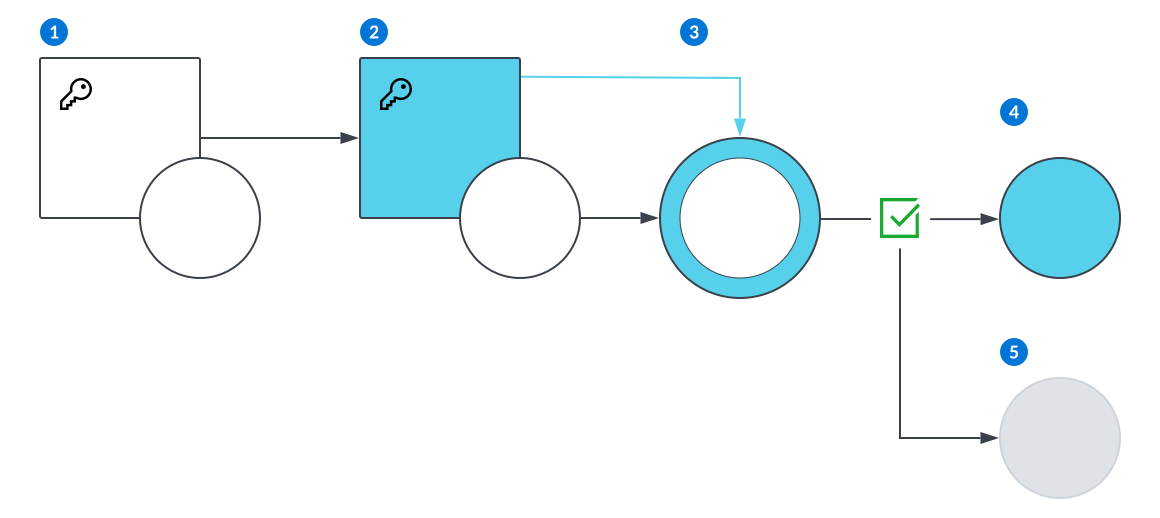
 | Original version of objects. |
|---|---|
 | Updated version of objects. |
 | A customized workflow exists over a base workflow. |
 | The base workflow is automatically updated when a new version of the base workflow is released. The custom workflow does not receive any updates and remains the same as it was before. The Customization Status fie |