


.svg)


Buttons and other navigation tools
Throughout Nextworld, common button styles and icons help you navigate applications and enter new records.
The location of a button determines how it impacts the application. Some buttons only effect a single record, while others apply to all records in the application.
Action buttons, which have an arrow that expands to open a menu of additional options, are available in row, field, and form buttons. For example, field actions are found inside the detail form of applications. They are often nested below a field and provide actions related to the field they are attached to. Learn more in Action buttons and Fields and field actions.
The diagram below shows some common buttons you'll see in Nextworld applications:
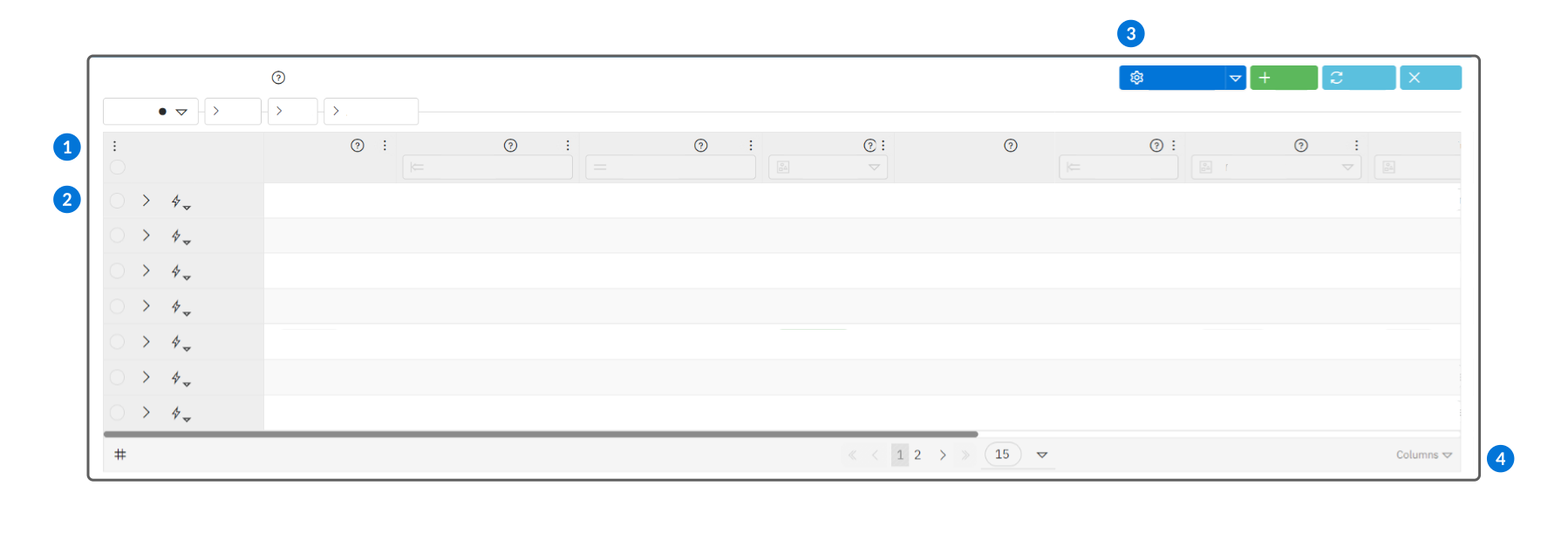
 | Table Menu—Hide or show different UI elements in the list form of the application. For example, you can hide or show row actions, row selection options, or the filter fields in the column headers. |
|---|---|
 | Row buttons—Only impacts the record associated with the button. Access row buttons using the action button at the beginning of every row in the list form. Learn more in Standard row buttons. |
 | Form buttons—Impact varies depending on the form. A form button on the list form affects multiple records in the application. A form button on a detail form affects only the open record. Additional form buttons may be available in action menus accessible from existing form buttons. Learn more in Standard form buttons. |
 | Column Controls—Allows you to rearrange, hide, or show columns in your application. You can also drag and drop columns into new locations, or access additional column controls in the Column Menu accessible on each field in the column header. |
There are additional buttons that are only available on certain types of applications. For example, applications which have a tree region in the list form show buttons when you hover over a record in the tree. Learn more in Tree buttons.
Action buttons
Action buttons have an arrow that expands to open a menu of additional options.
The icons next to the action names indicate the action type:
 | A link to another application, report, or dashboard. Choosing an action of this type opens the new location. Closing out of that location navigates you back to where you selected the link. |
 | A computation or event. Actions of this type can perform a calculation, update records, or start a background process. |
Form actions
Form actions appear at the top of the application page. Form actions apply to the entire page, and can impact a single record in the detail view, or all the records in a list view.
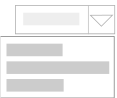
Form action buttons can have a default action which appears as the button name. Select the button to perform the default action. When the button name is Actions, there is no default and all options are available through the expansion arrow.
Row actions
Row actions are action buttons that appear next to a row in an application. Row action buttons do not have a default action. Select the row action to open a menu of actions, such as edit or delete, that are available for the chosen record.

Column action
Column actions are action buttons that can appear next to a column name in the list form of an application and standard detail lists. Use the column action button to access the multiple select option. This enables you to select or clear the checkbox field for all of the records visible on the page.
Using the multiple selection action updates all the records on the current page, and saves the changes immediately.
How to create record notes
When available, the record notes feature allows you to attach a note or comment to a record in an application. The note can include clarifying information or commentary that does not belong in the record itself.
For example, you could add a record note to indicate that the item you are shipping requires refrigeration.
If record notes are enabled for an application, the Notes button is available in the Actions menu for each record. You must save a record before you can add a note to it. After creating a new note, you must save the record to save the note.
Multiple notes can be added to the same record. You can review the series of notes to see the flow of communication regarding a record. For example, if an account is passed from one account manager to another, the new account manager could review the record notes made by the previous account manager to get a sense of the account history.
In the list form, records with notes attached are indicated by the Notes  icon next to the row action button. Select the icon to review all notes that have been added to the record. Reply, edit, or delete a previous note within the record note thread.
How to create record templates
Use record templates when you are creating records with consistent data within an application. Record templates can be used manually, or scheduled to create records with predefined values recurrently.
Applications which allow you to build and use templates have a Create form action menu where you can create, manage, and select templates. There are two types of templates you can create:
- Manual templates—Autofill information when you create a record within an application. You can select a Manual template from the top of the Create action menu once they are made. Manual templates are useful when the information you are filling out in an application is consistent but does not occur on a regular basis. For example, in the Journal Entries application you could make a manual template where the GL Account, Account Name, Company, and Org Unit are already defined in the record, but the credit or debit amount differs and does not take place on a schedule.
- Recurring templates—Creates records with predefined field information on a recurrent, specified basis. Success and failure notifications are sent out at the time of record creation. For example, in the Journal Entries application you could make a recurring template for an invoice that occurs once a month with the same account information and transaction amount.
The Manage Templates button allows you to modify your templates after they have been created. There are several pages used for configuration:
- Manual Templates page—Create favorites. If a user has favorited templates, these are the only manual templates that show up when you select the Create action menu. You can also create records from the Actions menu on the Manual Templates page.
- Recurring Templates page—Modify when records are created with the Edit Recurrence Rules action.
Standard row buttons
Row buttons are available through the row action button that appears next to each row in the application list form. These buttons impact the associated record.
These buttons are commonly available through Nextworld row action buttons:
 | Open the record in the detail form for editing. |
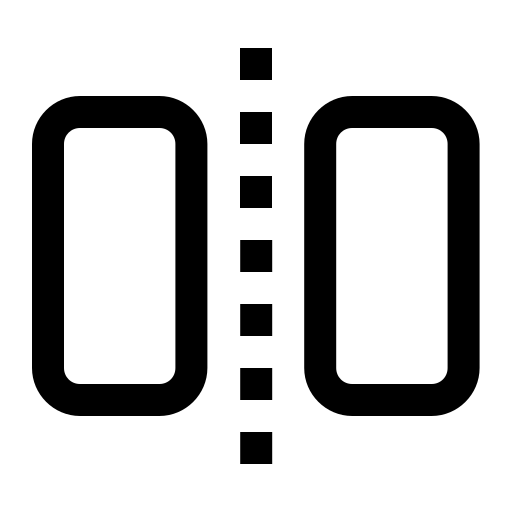 | Open the side-by-side view. This row action button is only available in certain application types, but allows you to navigate between records in the list form, while having a fully editable detail on the right side of your screen. You can also open this view by holding Option (Mac) or ALT (PC) and double selecting the record from the list or detail list. When the view is open, you can filter and page between records, but you cannot use row actions, select multiple records, or pin other pages such as the application level help or keyboard shortcuts. |
 | Delete the record. |
 | Unlink or remove the record from the hierarchy. This row action button is only available in applications designed to store records in a hierarchy. |
 | View the report configured by the record. This row action button is only available in report version applications. |
Tree buttons
The tree region of a list form offers buttons when you hover over a record in the tree.
These buttons are commonly available in Nextworld trees:
 | Create a new record beneath the selected record. Use this button to add a new record under the selected record in the hierarchy. |
 | Open the record in the detail form for editing. |
 | Unlink or remove the record from the hierarchy. This row action button is only available in applications designed to store records in a hierarchy. |
 | Delete the record. If a record has other records beneath it in the hierarchy, you must delete those records before you can delete the parent. |
 | View the direct parent of the record in the tree hierarchy. The parent is the record immediately above the selected record in the hierarchy. Use this button to identify where in the tree the record exists. |
 | View all parents of the selected record in the tree hierarchy. If the record is used as a child record in multiple sections of the tree hierarchy, then all its parent records display below the selected record. Use this button to identify all of the locations in the tree in which the record is a child. |
 | Expand a parent record to see all of its child records. If this symbol doesn't display next to a record in the tree, it doesn't have any child records. |
Fields and field actions
Application fields follow intuitive and predictable patterns. This topic describes some of the common field types you'll see in applications.
Required fields
Required fields are indicated by the Required  icon. Before you can save a record, you must enter a value in all required fields.
Help text buttons
Every field has help text associated with it. Select the Help  icon next to the field name to view the help text for a field.
Drop-down lists
Drop-down lists are fields with predetermined options that can be chosen from. Lists that allow multiple selections include selection buttons at the top of the list, such as:
- All—Selects every entry in the list.
- None—Clears all selections.
- Invert—Changes the selection status of all entries in the list. Entries that were selected are cleared, and entries that were notselected are checked.
Search fields
Search fields are indicated by the Search  icon. These fields reference information that is maintained in other applications and require that you enter a value that matches a record from the linked application.
Type in the field to show the matching records that you can select from. If you don’t see the value you’re looking for, select the magnifying glass to open a search form which has more robust search and filter options. If you don’t find what you need in existing records, you can also create a new record from the search form.
Mini Apps
A mini app is an application that opens in a floating window over the current application. This allows you to perform some actions without navigating away from the main application. Mini apps are often used with search fields to let you locate a record from another application.
Name fields
In many applications, name fields have advanced formatting options that give you control over how a name is stored. For example, you can choose a Company Name format to store the name of a company or department, or a Simple name format to store the first, middle, and last names of people.
Select the name  icon to open the name panel and enter a name, and optionally chose a different name format.
Address fields
In many applications, address fields have advanced formatting options that give you control how addresses are stored. Address formats give you the correct fields to store an address, such as a domestic or international address, so that stored addresses can be used to generate mailing labels.
Select the location  icon to open the address panel and enter an address. Optionally, you can also choose a different address format.
Date fields
Date fields have a calendar  icon that help you select and format a date. Select the icon to open a calendar where you can select the desired date.
Camera scannable fields
Camera scannable fields have a barcode  icon that indicates mobile platform users can scan a barcode with a phone or tablet to fill in detail form fields. Once you select the icon, you can scan a barcode to update the field's value. If a value already exists in the field, the barcode value overrides it.
This feature is useful for mobile users who want to scan barcodes to complete tasks while working. For example, warehouse workers that are scanning inventory items.
Standard list forms
The list form displays all the records in an application, and gives you the ability to find, filter, and search for records. Because it provides access to all records in an application, the list form is the default entry point for most applications. When you locate a record in the list form, you can open it to review additional details.
The list form always presents a list of records in the application. However, the regions available in a list form can vary based on the application type. For example, these diagrams represent standard list forms and their regions:
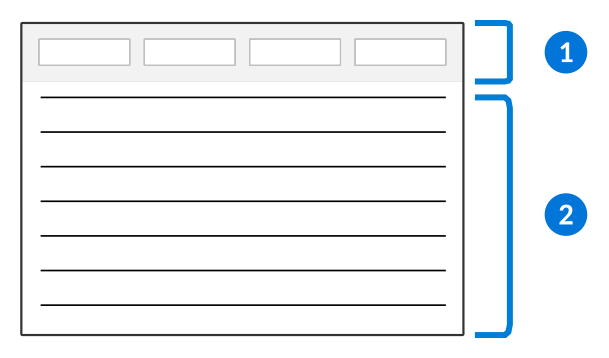
| Column headers—Represents the fields within your application. Often, column headers contain filter fields which you can use to sort and search the list. Learn more in Column header filters. |
|---|---|
| Detail list region—This is a list of records in the application with columns representing key fields in the records. Depending on the application, you may or may not be able to edit fields directly in the detail list. You can also open the detail for a record and see any additional fields that are not included in the list form. |
Some applications have a filter header region above the column header. Learn more in Filter headers.
Advanced navigation
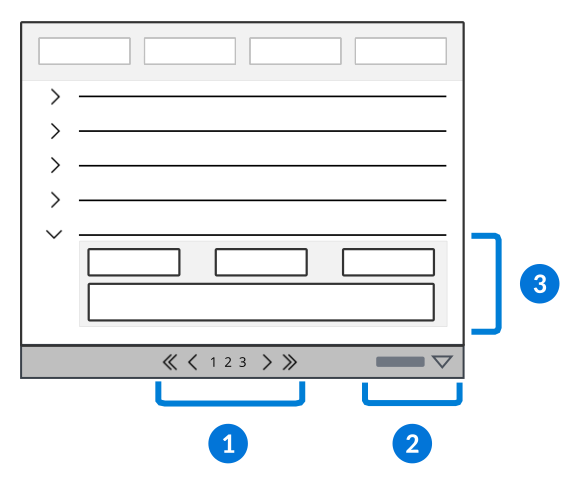
| Page navigator—Page navigation controls appear at the top and bottom of detail list regions, and offer a way to control how many rows appear on a single page. Use the page numbers and arrow buttons to load additional pages of results, and the drop-down to determine whether the list shows 15, 25, or 50 results on a page. |
|---|---|
| Column controls—The Columns Menu gives you control over the order of columns, as well as the ability to hide, show, freeze, or unfreeze different columns in the list form. Depending on the application, the menu is accessible from either the column header or the bottom of the list form. |
| Row expansion—Some applications include additional details for a record that can be viewed from the list form by expanding the row. When available, select the row expansion icon to see these additional fields. |
Stacked View
List forms viewed on smaller screens, such as mobile devices or compressed browser screens, have the option to toggle between the Stacked View and Table View. The Stacked View displays records from the list form in a stacked format, while the Table View reverts to the default list form format.
Mobile devices open to the Stacked View by default, but you can select the Table View  icon at the bottom of the list form to switch views.
Visualization controls
Visualizations are charts, graphs, or boxes that represent application data which are displayed in interactive reports, the list forms of applications, and dashboard pages.
When you open the application or dashboard page, you see the visualization, the visualization controls, and the detail list region. The visualization displays data from application records. Use the column header filters to change which records display can also filter what information shows in the visualization.
When an application has more than one visualization configured they're listed in the Selected Visualization menu. To hide a visualization, clear the selection in this menu. To hide and how the detail list of the application use the Detail List toggle. To see more details like specific values or labels use your mouse in the plot area to hover over different parts of the visualization.
The diagram below shows the different areas and controls of a visualization in the list form of an application:
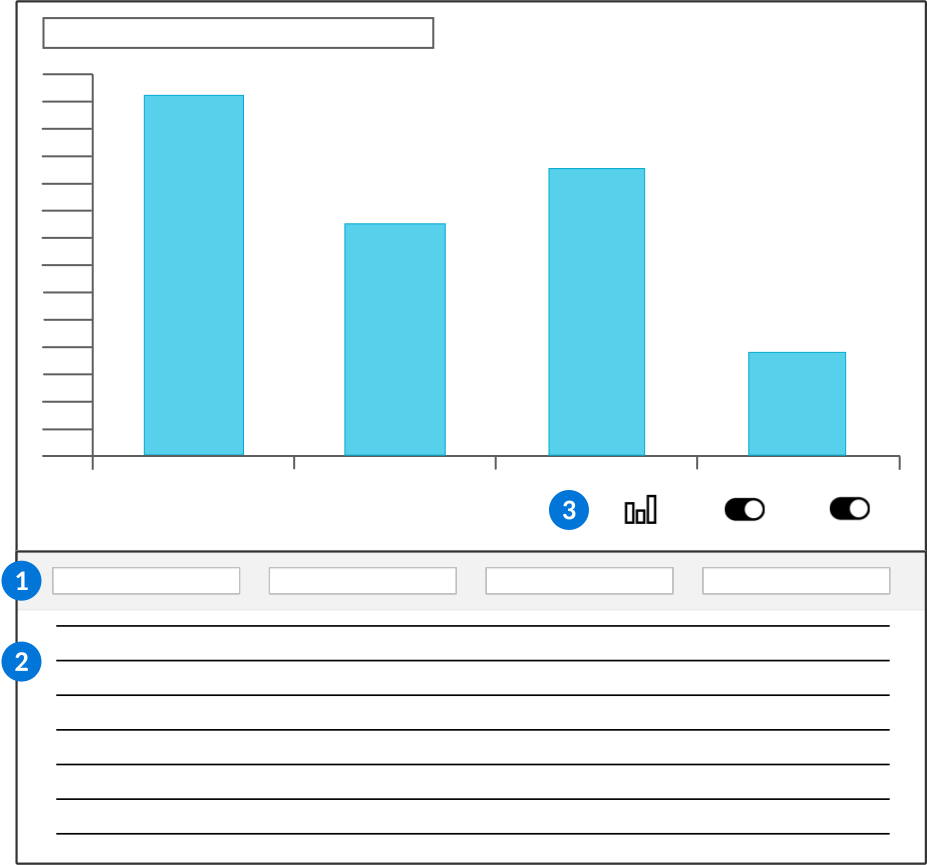
| Column Header—Use the filters fields in the column header to sort and search the list. Filtering the records in the detail list also filters the information that displays in the visualization. |
|---|---|
| List form—View the application records which are summarized in the visualization. |
| Visualization controls—Control aspects of your visualization, such as:
|
Columns Menu
Control the display and order of columns in the list form of an application using the Columns menu.
In the list form of an application, you can drag columns to new positions, and drag the edge of a column to change its size.
There are additional options to adjust columns in the Columns menu, located at the bottom of the list form. You can:
- Change the order of columns.
- Freeze and unfreeze columns by moving them between the Frozen Columns and Unfrozen Columns lists using the Previous
 and Next
  buttons. Frozen columns do not move when you scroll left and right.
 - Reset the visibility, sort, order, and size of the columns.
- Clear any filters applied in the column header filter fields using the Clear Table Filter button. This does not override a saved filter applied from the Filter menu.
Row action menus
The Row action menu is the entry point to actions available for individual records. Primarily, you'll use this menu to edit a record.
In the list form, select the Action  icon located next to each record in the list to open the Row Action menu.
Actions available in this menu vary by application. The following are the most common menu options:
| Edit | Open the detail form of the record. |
| Delete the record. |
 Get Shareable Link Get Shareable Link | Generate a link that opens to the environment, lifecycle, and record. |
 Attachments Attachments | Open a dialog box to view all images and files attached to the record. From this dialog box you can select the attachments you want to download, or upload new attachments. |
 Export CSV Export CSV | Download a CSV file of the records displayed. |
Favorite actions
Add actions you use frequently as favorites. When the row action menu is open, press and hold the Option ⌥ key on Mac or the Shift key on PC, and then click the action you want to add as a favorite.
When you select a row in the list form, your favorite actions display. Learn more in Favorite buttons.
Filter headers
Some application list forms have a filter header in addition to the filter fields in the column headers. Use the filter header to enter values and quickly find the records that you need.
When the list form of an application has a filter header, it appears above the normal column headers. Enter values in the filter header fields to display the records that match your criteria.
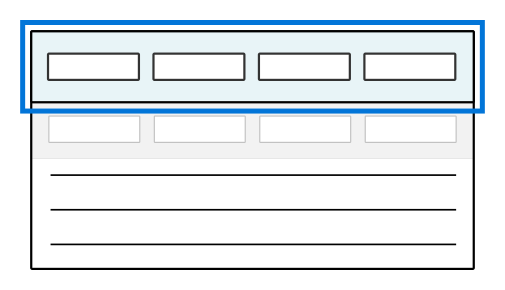
You can further refine the visible records with the filter fields in the column headers, but some applications require that you enter values in all filter header fields before displaying records. If this is the case, you will see the following message in the application: Apply all header filters to get records.
Editable lists
Applications can be configured so that records can be edited in the list form. When the list form of an application is editable, you can quickly edit and create records in the list form.
Select a field to make changes when the list form is editable. If the list not editable, you can double-click the record to open the detail form. If the list is editable, you must use a row action to open the detail form.
After you've made changes, you can either select the Save  button to save your changes, or the Cancel
  button to discard your changes. If you exit the application without saving your changes, you may lose them.
Select the Add button at the bottom of the form to add a new record. You won't be able to save the new record until you've completed all required fields.
Gantt
The Gantt application pattern displays event and task based records for project scheduling in list and visualization regions.
This application pattern is useful for showing tasks which must be completed, and the time required. The following diagram represents a Gantt application pattern and its regions:
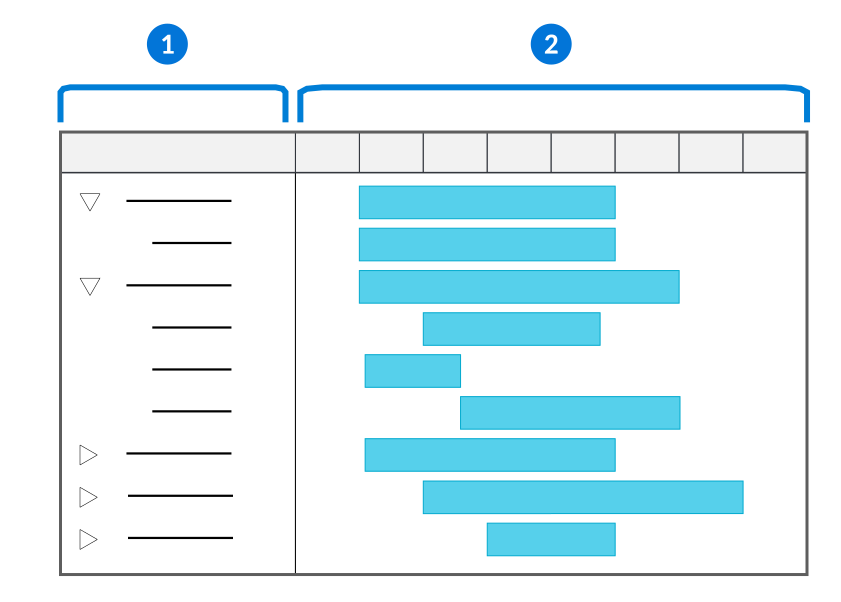
| List region—Expand records in the list region to see the components that make up each record, and to view them in the visualization. |
|---|---|
| Visualization region—Each record or component of a record is represented by a bar and shows the start date, duration, and end date of the event or task. |
Gantt applications are often read-only, though some allow editing by selecting components of the visualization or a record from the list region.
Standard detail forms
The detail form displays the fields for one primary record, although depending on the application configuration you may also see some information that is maintained in other applications. In most applications, record maintenance is done in the detail form.
The detail form varies some by application type and configuration. This diagram represents a detail forms and its regions:
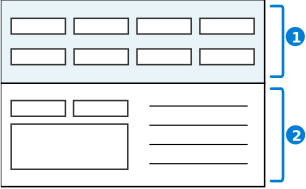
| Header region—In the detail form, the header region contains the primary or most significant fields of the record. When the application has multiple pages, the header is positioned above the pages, visible at all times. |
|---|---|
| Detail region—This region contains additional fields related to the application. In many cases, fields in the detail region are organized in to pages. |
Some applications open in the detail form and require you to enter values into header fields then select the Add button to see records. The diagram below represents a detail form with a header region and Load button:
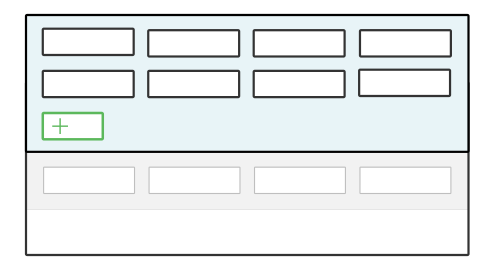
In these application values from the header fields are automatically applied to records when you create them. Form action buttons are applied to all detail records at once, meaning all changes are processed and committed to the database together.
Additional regions
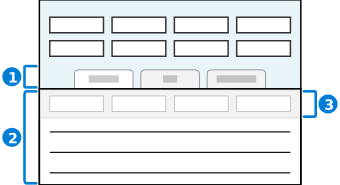
| Pages selection region—Detail forms with many fields often organize the fields into pages. Click the page to open it in the region below.
|
|---|---|
| Detail list region—A detail form can include a subtable or list region that shows information related to the current record. Detail lists regions have many of the same navigation and control options as a list view. |
| Column headers—If available, use the filter fields in this row to sort and search a list. Filter fields are available at the top of most list regions in the column headers. |
Detail list
A detail list is a table of records. It can be included in a list form or a detail form. The records in a detail list can be tied to an application or implicitly linked to a specific record.
In some instances, the detail list isn't visible until you select the Add button. Once records have been added to the list, you can see the table. When the Add button is visible, you can add as many records as you want to the detail list.
You can filter records in a detail list using the filter icon. To show the filter fields on a detail list select the  Filter button. To hide the filter fields, select the
  Hide Filter button.
There are multiple styles of detail lists:
Standard detail list
The standard detail list always displays a table, even when there are no records in the table. You interact with rows of this table just as you interact with rows in a list form. After you've made changes to a record, either select the  Save button to save your changes, or the
  Cancel button to discard your changes.
Field detail list
The field detail list does not open a list until records have been added. To create the list and add a record, use the Add button located below the field name. The field detail list does not have an action menu. After you make changes to a record, select either the Save button to save your changes, or the Delete button to discard your changes.
Column header filters
Many applications open in the list form, which displays multiple records each in their own row. The displayed information can be modified by using the filter fields located in the column headers at the top of the list form.
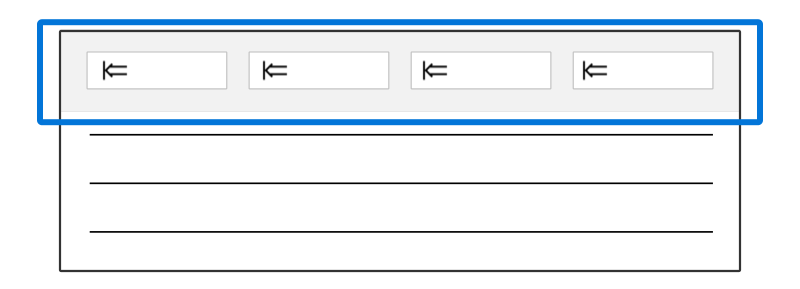
To use filter fields in the column headers to sort and filter records, you can:
- Select the arrows next to the column name to sort records in ascending or descending order based on the values in the column.
- Enter values into the filter fields to filter records to match your criteria. Filters are applied when you select outside of the filter field, hit the Enter key, or select the Refresh button.
- Select an operator using the dropdown menu located on the left side of the filter field.
Filter Operators
Filter operators control how the filter value is used to filter down records. For example, if you wanted to filter for dates greater than 01/01/2022, you can select the Greater Than operator and enter the date into the filter field.
Filter Modifiers
Filter modifiers are used to either include or exclude empty values in a filter field, and can be used on any filter that already has a value applied.
You can modify your applied filter to:

Include Empty—Displays all records with empty values for that field. If there's a filter value specified, the application displays all records with empty values for that field in addition to the records with the specified filter value.
Exclude Empty—Displays only record with values in the filter field. If there's a filter value specified, the filter works normally, displaying only records that match the filter value in the application.
For example, if you wanted to filter for any employees that have not been assigned to a supervisor, you can select the filter modifier to Exclude Empty, on the Primary Supervisor field, in the Employees application. This filters out all employees that already have an assigned supervisor, and displays all the employees that do not.
Saved Filters
You can save your filter configuration to use later using the Filter menu. Learn more in Filter menu.
Composite application navigation
Composite applications, often called workbench applications, group together related applications that you can access together from one entry point.
For example, the Fixed Asset Workbench application is a composite application that allows you to manage your company's fixed assets, depreciation schedules, disposals, and costs using different applications in single location.
The following diagram shows the different elements of a composite application:
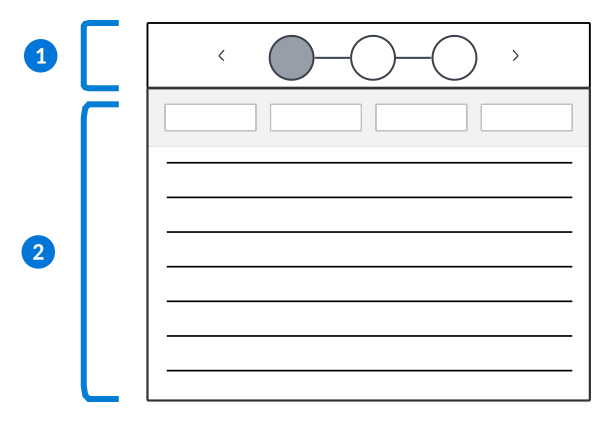
| Composite header—Contains the Previous and Next buttons to navigate between each application. Some composite applications allow you to navigate between different application steps using icons in the Header regions, while others require you to navigate between steps in a specific order and may not have the application icons. |
| Application region—Displays the current application step. Depending on how the application is configured, you can open records in the detail form, follow application links, and more. Some application steps may be also available in the Navigation Menu as standalone applications. |
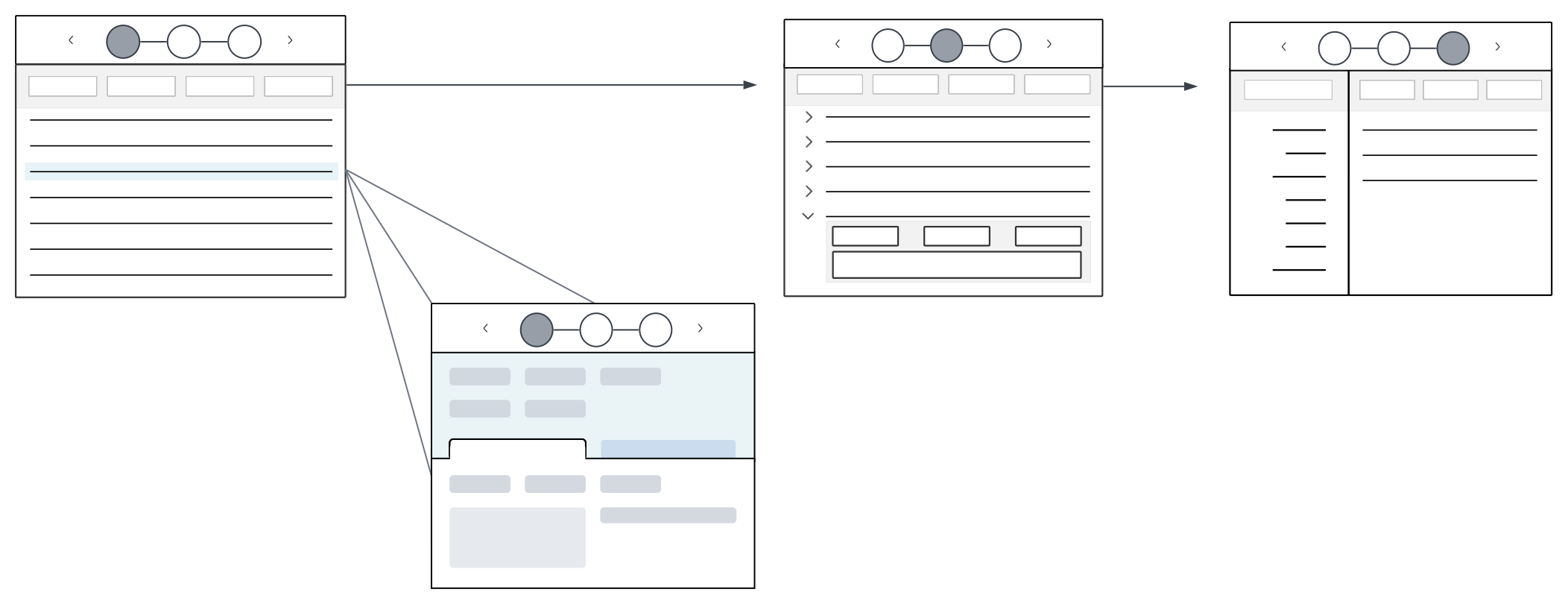
The following diagram shows how you might navigate through the different application steps in a composite application:
Mobile application navigation
The Nextworld platform can be viewed and used within mobile devices. The interface is adapted for smaller screens, and has some additional navigation options available.
Review navigation tips in the table below:
| To... | You must... |
|---|---|
| Create records | Select the Create  button. Depending on the size of your screen, this may be at the top or bottom of the list form. button. Depending on the size of your screen, this may be at the top or bottom of the list form. |
| Refresh | Scroll to the top and pull down on the screen. |
| Close/Cancel a record | Scroll to the far left of the record and pull right from the left edge of your screen. If you aren't in a record, this opens the Sidebar menu. |
| Access the Main Menu bar buttons | Open the Sidebar menu. The number of buttons visible on the Main Menu bar depends on the size of your screen. Any that do not fit can be found within the Sidebar menu. |
| Access action buttons, such as Edit Menu, Edit Application, or Generate Application, on Navigation menu entries | Hold down the menu entry and drag to the left. |
| View tooltips on icon-only buttons. | Hold down the button. |
| Scroll to the top of an application or dashboard | Tap the dashboard or application name. |
Application access points
Users can access applications through multiple paths, or access points, within the Nextworld Platform.
Access points are created by applying application settings to the point of access. For more information, see Application settings.
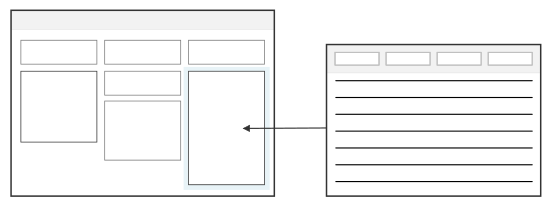
Dashboard cards
Users can access applications through a dashboard card on a dashboard page. This allows users to see and interact with selected application fields from multiple applications on one dashboard page. For more information, see Dashboards.
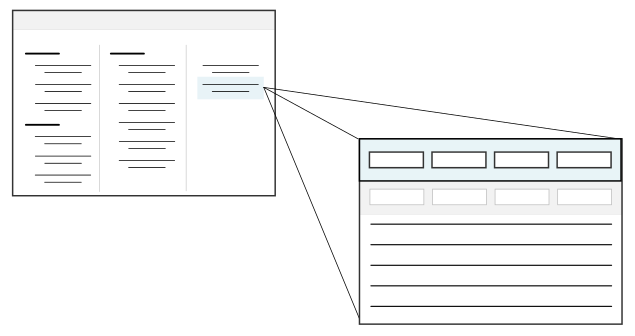
Menus
Users can access applications through a menu title. Multiple menu entries can be created for the same application, which allows for different user experiences with the application based on the application setting configurations. For more information, see Menu Definitions application .
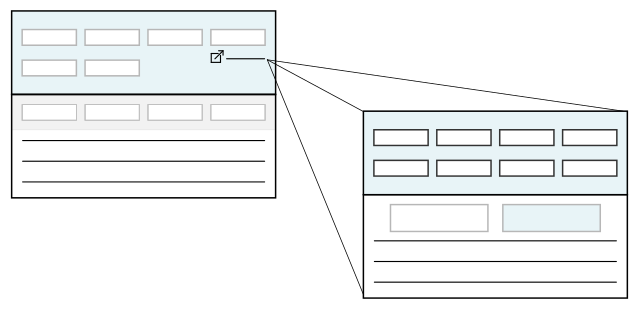
Application links
Users can access applications by following an application link from within the current application to a different one. This can be configured with an application setting to allow for a specific user experience in the linked application. For more information, see Application links.
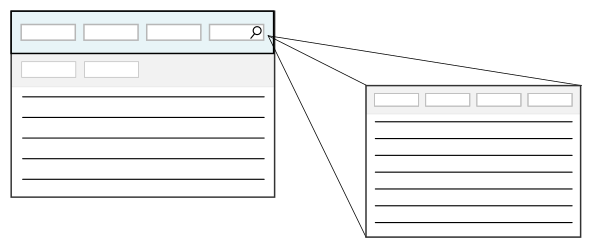
Search actions
Users can access applications by using search actions to open a mini app within an application. This allows for users to search records in another application without leaving the current application. For more information , see the Search actions and search applications.
How to use calendars
Use calendars to schedule and monitor events.
Calendars can be viewed inside applications they are placed in, on the Viewer page in the Calendar Definitions application, or in the Calendars application. Calendars inside an application can display as Inline, which means they are visible in a field of the application. They can also appear as Pop-up, which means they are accessible from the icon.
Calendars are useful in many different processes. For example:
- Resource scheduling—Using dashboard calendars to assign qualified resources, such as employees or machines, to events that need to be completed within a scheduled timeframe, such as projects or work orders.
- Available and unavailable time—Using calendars set up with work hours and holidays to help estimate things like bank transfers. This time can lapse days, for example from 10:00pm—4:00am.
Use the Calendar Definitions application to define, view, or make changes to the calendar. There are several configuration options for calendars available, such as:
- Read Only—Configures the calendar so it can't be changed, or have events added to it. Read Only calendars are rendered with a
 icon in the calendar name.
 - Subscriptions—Configures the calendar to subscribe to other calendars, allowing users to monitor multiple calendars and events in one location. The calendar only sees its own events, and the events which were created on the specific calendars it subscribes to. To subscribe to a calendar, navigate to the Data & Subscriptions page and type in the name of the calendar you want to subscribe to in the Subscriptions field.
Events for calendars can be created on the calendar itself if the calendar isn't set to Read Only, from the Calendar Definitions application, or the Calendar Event Definitions application. Events can be set to recur at different intervals, such as daily for twelve days, or every second Tuesday in every third month.
There are multiple types of events, such as:
To-Do—Schedules an event on the specified day without a time slot designated.Event—Schedules an event on the specified day with a time slot designated.Available Time—Schedules a time block where events can be placed. These time blocks can lapse days, for example from 10pm-4am. They can also recur.Unavailable Time—Schedules an unavailable time slot where events can't be placed. Unavailable time also automatically fills in areas outside of available time slots for either the rest of the day, or until the next available time is scheduled.]
Resource scheduling
Resource scheduling is the ability to assign qualified resources, such as employees or machines, to events that need to be completed within a scheduled timeframe, such as projects or work orders.
Resource scheduling is useful in many business functions, such as:
- Projects—Match available, qualified resources with the steps of a project. Each step may have different labor and skill requirements.
- Manufacturing—Match the labor requirements to steps of a manufacturing process. This could be teams of employees assigned to steps based on required skillsets, or machines assigned to work orders.
- Field Service—Schedule short duration projects dictated by customers, such as repairs or installations. Events can vary in location, skill, and duration, and are matched against the available, qualified labor pool on the resource calendar.
- Asset Management—Schedule routine maintenance and equipment repairs, based on production schedules and available materials.
- Sales—Schedule specific task to highly differentiated and specialized resources in a sales engagement.
To use resource scheduling, you need to have a directory with qualified resources and their skillsets, as well as calendars where they can be scheduled. This can be configured using applications, calendars, or dashboards.
To learn more about calendars, see the How to use calendars topic.
To learn more about resource dashboards, see the How to use resource scheduling dashboards topic.
How to use resource scheduling dashboards
Dashboards can be configured with cards that enable users to perform resource scheduling.
To use your resource scheduling dashboard, drag events from the list form onto the calendars. Each calendar represents a resource, like an employee, or a machine in a warehouse. The diagram below shows how the event details are copied onto the resource calendar.
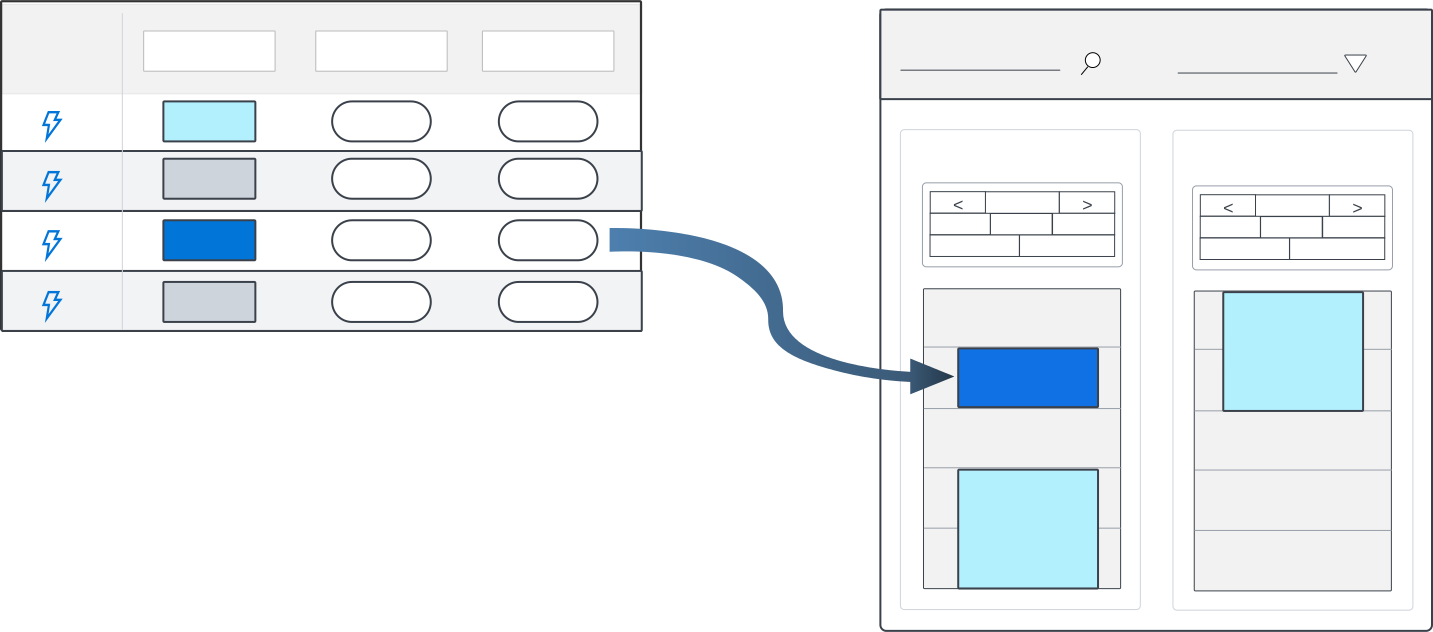
| A dashboard card is built over an application which contains the events, their details, and their requirements. This could include length of time, address, materials, staff needs, and necessary skills. For example, you could have an event for a sink installation. The necessary skills would be plumbing, and carpentry. It would take four hours of labor to complete the job, it is a billable event, and it is a high priority. The client wants it completed in the afternoon between 12:00-5:00pm. |
| A dashboard card is built over an application which contains the resources and details about them. For employees or crews, this could include things like labor wage, skills, language, role, education, licenses, or previous customers. For machines and equipment, there may be details on required staff, volume, and time. For example, you could search in the Skills field for resources with carpentry and plumbing. You have one resource who is a plumber, and another resource who is a carpenter. You can filter their calendars for a Start Time of 12:00pm, and and End Time of 5:00pm. You can look at their calendars from a day view, week view, or month view. When the event is scheduled on each resource's calendar, the details for that event, including the address, estimated time, and priority are included. |
Some resource scheduling dashboards are configured with icons. Icons are automatically attached to the calendar events when the event is dragged from the list form onto a calendar. Events that are created manually be a user can also use icons by navigating to the Styling page of the events dialog box. The dialog box is opened by selecting an existing event on the calendar, or by selecting an open slot on the calendar where you want to add an event.
Learn more about calendars in the How to use calendars topic.
How application settings can affect your application
Some applications in Nextworld use application settings. Application settings can change what you see in an application, and how you interact with it.
An application setting can be added to any application entry point, including:
- Navigation menu. Open the navigation menu and click on an application.
- Application link. Use a field, row, or form action that opens an application.
- Search action. Click a search action on a field to open a mini application.
- Dashboard card. Open a dashboard page containing dashboard cards with mini applications.
Application settings can apply default values to fields, as well as hide or disable different elements of an application.
Default filter value
When the application is opened to the specific form, an application setting can populate a filter field with a set value. You can change or remove these filter values. For example:
- An application setting can be set to filter for the current day when the Bank Deposits application is opened from the menu. This would be helpful if you use the application each day to review bank deposit records for the current day.
- When the Directory application is opened from a search action configured on the Company field, an application setting can automatically filter directory records for companies, excluding other contact types.
Default field value
When a new record is created, an application setting can enter a default value into a field. Unless the field is also disabled, you can change or remove the field value.
For example, an application setting can be used in the Expense Reports application to enter your name into the Filed By field when you create a new report.
Hide or disable
Application settings can control how you see and interact with the application by hiding or disabling different elements including:
- Fields
- Pages
- Rows
- Buttons
For example, if you are assigning an office to a new employee and open a mini app to select the room, an application setting can hide the Delete button from the mini app.
Attachments
Users can view and manipulate file, image, and hyperlink attachments in the Attachments dialog box that is accessible within applications.
Access attachments with Row or Form actions. Applications can also be configured to show the attachment options inline in the detail form of application records.
Depending on the application, attachments can be Read-Only, disabled completely, or available to attach to any record.
The diagram below shows the components of an application that allows attachments to be included.
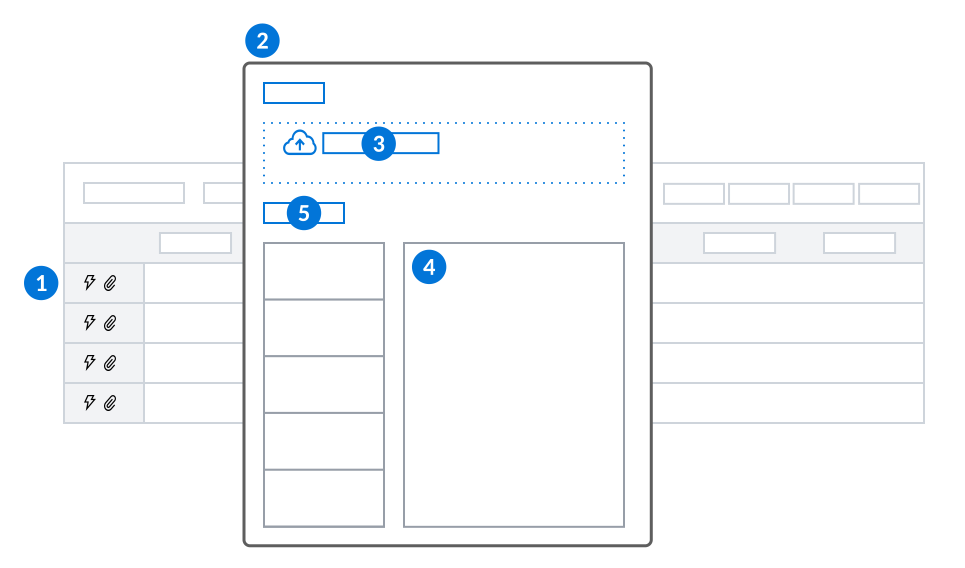
| Row Action—Select the Attachments |
|---|---|
| Attachments dialog box—Manage the attachments associated with the record. Select the pin  icon to pin the Attachments dialog box to the right side of the application. To unpin the dialog box, select the pin icon again. icon to pin the Attachments dialog box to the right side of the application. To unpin the dialog box, select the pin icon again. |
| Add Attachments—Browse and select a file, or drag and drop a file from outside the application. Select the Upload button to attach it to the record. |
| Preview—View the selected attachments in this section. Files that exceed the threshold do not automatically preview. Select the Click to Preview button to load the attachment. Certain file types cannot be previewed. |
 | Link—Expand this section to enter URLs and a display name for the link. Once added, the link becomes an item in the Attachments section. Select the attachment to view the hyperlink. |
Attachment Cross Reference Inquiry application
Use the Attachment Cross Reference Inquiry application to view information about attachments, such as the date the attachment was created, the table it is stored in, the user who attached it, and the status of the file, saved to tables containing business data. By default, you are only able to see records associated with your own user account.
Every attachment saved into a tenant table automatically has a record created within the application. The record persists even if the attachment is deleted from the table record, and includes a copy of the attached file.
For example, a record with a status of DeleteMark indicates the attachment has been deleted from the business record and is no longer accessible within the table. The user who attached the file, or a system administrator with attachment permission to the table, would still be able to see and access it from within the attachment cross reference record.