.svg)


We believe you cannot write clearly if you do not think clearly. And conversely, learning to write clearly teaches you to think clearly.
Documentation management includes these core areas:
- Content Builder
Content Builder is composed of multiple content applications which work together to create and maintain documentation in Nextworld Help topics.
- Nextworld style guide
Clear, concise writing is key to effective writing about technology. Follow these guidelines to ensure that documentation is clear and consistent across Nextworld.
- Documentation templates and best practices
These best practices ensure that templates are developed and used consistently throughout Nextworld.
Content Builder
Content Builder is composed of multiple content applications which work together to create and maintain documentation in Nextworld Help topics.
It has several features for content contributors, such as:
- Self-updating content—Use live text to reuse individual pieces of metadata such as field names, list lookup values, or links to other topics which update automatically when the metadata objects are changed. Application listings include automatically generated metadata references which consist of help text for every field in the application.
- Content reuse—Use the same authored content in different sections of the Nextworld Help tree. This allows content that is important for multiple audiences and processes to be integrated with other topics. The text is sourced from one location, meaning if it is changed there, it updates itself in every topic it is referenced in.
- Version control—Use version control to create drafts of content which remain hidden until they are published. Published content already in Nextworld Help is not impacted while a draft is created and worked on. Once new content is published, the old version is archived and has the ability to be restored.
- Visibility control—Use the Classification and Functional Area fields to control who can view the topics.
Content Builder structure
The diagram below highlights the key components of Content Builder.
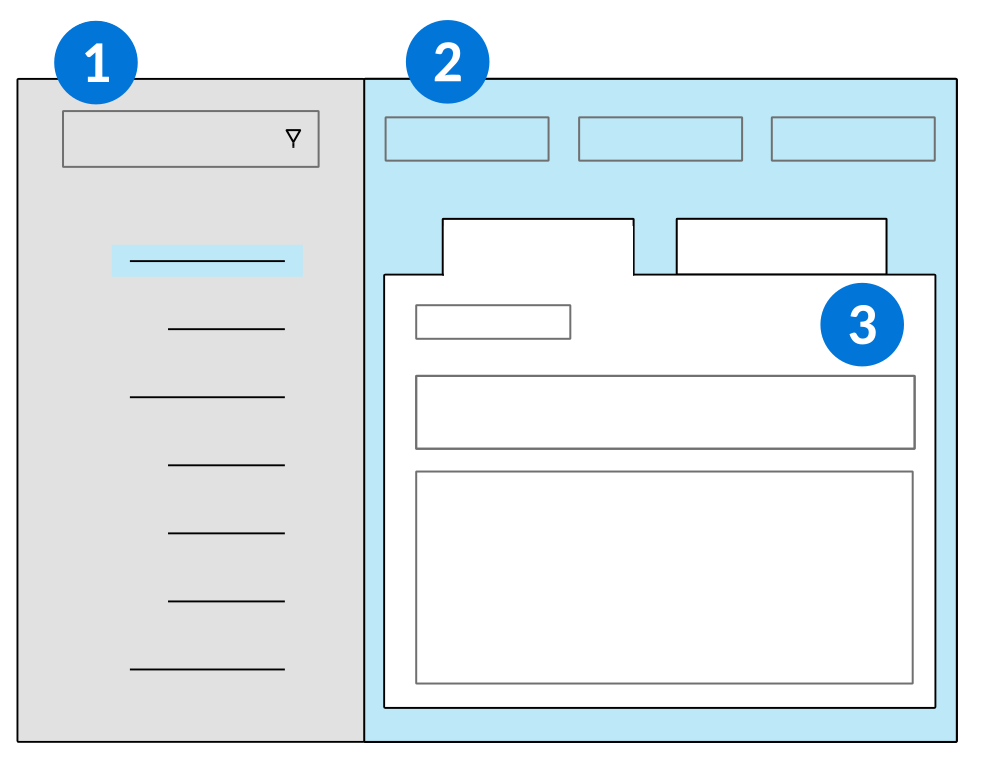
 | Relationships—This section shows topic hierarchy in the tree. You can use the drag-and-drop functionality to rearrange the topics. |
|---|---|
 | Topic configuration—This section is used to configure the topic name, type, classification, functional area, and family. This controls the visibility of the topic, as well as how the content is displayed. |
 | Authored Content—This section controls the text associated with the content topic. This is also where you access the Create Draft, Update Draft, and View All Versions buttons. |
Each of these sections has an associated application where you can view flat versions of all the records created in Content Builder. See the Content creation applications topic for more information.
Create a new topic
The information here describes how to create a new content topic in the tree region of the Content Builder application.
To create a new topic, hover over a topic in the tree hierarchy and select the  Create Entity button. The new, empty content topic appears in detail panel of Content Builder. When you save the topic, it appears in the tree beneath the topic on which you selected the Create Entity button.
Topic names and titles
The content topic must have a unique, internal name. When you save the content topic in Content Builder, the topic is stored in the Content Topic Utility application. In this application, you can search for a topic by its internal name.
The topic title you choose defines the content topic in Content Builder and Nextworld Help. The title appears as the topic heading in Nextworld Help. It also serves as the topic label in the tree hierarchy of both Content Builder and Nextworld Help.
Topic types
The Topic Type field determines what kind of information the topic holds. Use the following topic types to document and organize content:
| Type | Content |
|---|---|
| Concept | Only authored content which contains general written descriptions and explanations. This is the most commonly used topic type. |
| Application Listing | Both authored content and several fields that allow you to reference a specific application and application setting. This automatically generates a list of all the fields and their corresponding help text from the application in the topic. This topic type is used to document an application's purpose and possible use cases. |
| Document Map | Automatically organizes child content topics into a table of contents in Nextworld Help. Only use this type to organize large portions of information. |
| Media | An image or other supported media. This topic type does not appear in Nextworld Help. Media must be inserted into authored content using live text before it is visible in Nextworld Help. |
Topic visibility
The Classification and Product Family fields control the topic visibility in Nextworld Help.
A topic's classification secures the topic so that only certain audiences can access it in Nextworld Help. For example, an unfinished topic that is not ready for a wide-spread audience should have a classification that allows an internal audience to view it, while excluding the external audience.
A topic's product family controls how documentation is migrated. A topic's product family ensures that only relevant topics are added to an environment. For example, a content topic's product family prevents topics about Manufacturing from being delivered to an educational environment. The value of this field should be the family that owns the application or feature the content is about.
Create authored content
Create authored content to add to a content topic in the Content Builder application.
To create authored content, select the Create Draft button located on the Authored Content page of the topic. This opens the Authored Content Utility application where you can enter the authored content name, short description, and topic information.
Authored content names and text
Best practice is to name the authored content the same internal name as the content topic. When you save the authored content, the topic is stored in the Authored Content Utillity application. You can search for authored content by its internal name in the application.
Write one or two sentences that introduce the main points of the topic in the Short Description field. This could be a brief overview of the topic, or a definition of the topic's concept. Include searchable keywords in the short description. In Nextworld Help, the search function in the tree uses keywords from the short description to find related topics.
The Content field contains the content that appears in a Nextworld Help topic. This may include configuration information, details, tables, images, and so on. Do not repeat the same sentences used in the Short Description field in the Content field. The fields are separate in Content Builder, but appear as one text body in Nextworld Help.
Learn more about how to format Nextworld authored content in the Styles and custom styles topic.
Product family
The product family of authored content ensures that only relevant authored content ships to an entity. For example, the product family of an authored content record prevents content about Manufacturing from shipping to a financial institution. The value of this field should be the family that owns the application or feature the authored content is about.
Edit, publish, and restore authored content
The information here describes how to edit previously published content, access previous versions, and restore previous content to topics in Content Builder.
Create Draft
To edit authored content, you must select the Create Draft button on the Authored Content page in Content Builder. This opens the Authored Content application where you can make changes to the content. Select the Save and Exit button to keep the content in draft state. The published content in Nextworld Help is not changed while the new content remains in draft state.
Update Draft
To work on your draft, select the Update Draft button on the Authored Content page in Content Builder. The draft remains available to update until you publish it.
Preview Content
To preview your content, select the Preview Content button at the top of the authored content window. This opens the content in a new window where you can view the format of live text, links, and your content paragraphs. Select the pin  icon at the top of the window to move the preview content to the side of your screen. This allows you to work on your draft and view the preview content feature at the same time.
Publish Draft
Once the authored content is ready to be published in Nextworld Help, you must save it then select the Publish Draft button from the Preview Content button drop-down menu. Content that has not been published does not show in Nextworld Help.
View All Versions
If you want to view previous versions of the authored content, select the View All Versions button from the Create Draft/Update Draft action button menu on the Authored Content page. This opens the Authored Content Version Utility application where you can preview all the previous versions of the authored content. You can also access this application through the Navigation Menu using the name Authored Content Version Utility.
Restore Content
If you want to restore an older version of the authored content, use the View All Versions button or the Authored Content Version Utility application to open the archived version record then select the Restore Content button from the row action menu. The current authored content becomes archived and the old version becomes published in Nextworld Help.
Move and organize topics
Move and organize topics in the tree region of the Content Builder application to build relationships between content topics.
The tree in Content Builder shows hierarchies between topics which consist of parent and child relationships. You can create parent/child relationships and organize the sequence of topics with the drag-and-drop function in the tree hierarchy, or on the Relationships page of the Content Builder application.
Drag and drop
You can use the drag and drop function to move a topic from one location in the tree to a new location under a parent topic. Move the topic to the place in the tree you want it. This removes it from its original location and makes it a child topic to the topic above it. The child topic also appears on the parent topic's Relationship page.
Relationships page
You can use the Relationships page to reuse a topic in different parts of the tree and to organize the sequence of child topics.
To reuse a topic, select the topic in the Content Builder tree and open the Relationships page on the right-hand detail of the topic. Use the page filters to search for the topic or topics you want organized beneath the current topic. When you save, all the topics you defined in the Relationships page appear as child topics beneath the parent topic. The topics also stays in its original location. Learn more about how to reuse content topics in the Reuse topics and content topic.
After you have defined multiple child topics in the Relationships page, you can define the order in which the topics appear beneath the parent topic. Use the Sequence field to assign numbers to each child topic listed. This creates the order in which the topics should appear in the tree.
When you are done, save the content topic. After you save, the tree rearranges the topics to match your specified hierarchy.
Saved relationships are stored in the Content Relationship Utility application. In this application, you can use various filters to search for topic relationships.
Reuse topics and content
The information here describes how to reuse topics and authored content from the Content Builder application.
Content Builder is built so that topics and authored content can be reused in multiple places in the tree. For example, an application's best practice topic might be found as a child topic to the application listing, as well as in a best practice node in another section of the tree.
Reused content appears exactly the same in every location. To reuse content, create a new topic and enter the name of the topic you want to reuse in the Internal Topic Name field. That topic's saved content populates the new topic.
When you reuse authored content, the topic container is different, but the information that makes up the content is the same. For example, content used in the Nextworld Platform tutorials and content used in a Nextworld navigation can be the same, but the container topics should be different. The topics are different because the different sections they are in require different titles and classifications. To reuse authored content, enter the authored content name in the Authored Content Name field or use the field's table lookup functionality to search for the authored content.
Connect a topic to an application
In Content Builder, you must link application listing topics to their application. This allows the fields and help text from the application to generate in the Nextworld help topic, and shows the written content from the topic in the application's help.
An application listing topic is the only topic type that combines authored content with a generated reference of fields and associated help text from an application and application setting. The metadata reference does not appear in the Content Builder application, but does appear in Nextworld Help after the topic's authored content.
After you create or open a content topic and choose Application Listing in the Topic Type field, open the Authored Content page. This page looks similar to when you choose Concept in the Topic Type field, but with two additional fields you must interact with:
| Field | Purpose |
|---|---|
| Application Name | Connects an application to the content topic. When you specify an application in this field, a metadata reference containing the application's field-level help generates for the topic. |
| Application Setting Name | Connects an application setting that exists over the specified application. Many application settings can exist over an application, so you must choose the application setting that matches with the specific application you chose. This ensures that the appropriate help text populates the topic content. |
Either enter the internal names of the application and application setting in the fields, or use the fields' table lookup functionalities to search for and select them.
You must choose a value for both of these fields. The only exception to this is if no application setting exists for the specified application. When there is an appropriate application setting, the combination of application and application setting must be unique to the content topic. In other words, you can't have two topics in the Content Builder application with the same combination. Nextworld Help cannot process the same combination used in different content units.
See also
Add images, video, or other media to a topic
Use Media topics to add supported media types, such as images, video, and audio, to your Nextworld Help topics in the Content Builder application.
Media topics can be referenced in multiple authored content units, but are managed from a single location. This means if you update the media topic, all instances of the attached media in Nextworld Help are changed. Media topics themselves are not visible in Nextworld Help, they are only visible once they are referenced in another topic type with live text.
Media topics also offer an easy way to manage captions and alt text for accessibility.
Create a Media topic
In Content Builder, create a topic with the type Media.
In the Media Type field, select the type of media for the topic.
You must save the topic before you can upload your file to the Media page.
The Alt Text and Caption are optional. When alt text is provided, it is associated with the media every time the media is included in Nextworld Help. When a caption is provided, you choose whether to include the caption each time you reference the media in a topic.
Reference the Media topic in authored content
Use live text to insert media into any authored content in Nextworld Help. The parameters available for media live text let you control whether or not captions are included, how your media is aligned in the text, and its size. You can specify a size relative to the screen size, or give an absolute size in pixels.
For more information about the live text syntax and options that you use to insert an attachment from a Media topic into another topic, see Media and live text.
Delete content
Delete topics from the tree region of the Content Builder application in the Authored Content mini app.
To delete a content topic, select the  Delete Entity button. When selected, the topic is deleted from the Nextworld database. If a topic has child topics beneath it in the hierarchy, you must delete or unlink those topics before you can delete the parent topic.
Any authored content associated with the deleted topic does not get deleted. Authored content is still searchable in the Authored Content Utility mini app.
Unlink a topic
Unlink topics from the tree region of the Content Builder application with the Content Topic Utility application.
To unlink the topic from the hierarchy. select the  Unlink Entity button. The topic is no longer visible in the section of the tree it was unlinked from. If the topic was reused in other sections, the topic remains in those sections.
The topic title is no longer searchable in the tree, but is still searchable in the Content Topic Utility application. Authored content that was associated with the unlinked topic is still searchable in the Authored Content Utility mini app.
Content creation applications
Use the content builder applications to view and manage documentation.
These applications include:
- Content Builder application
Content contributors use the Content Builder application to write, configure, and publish documentation and other content in Nextworld Help.
- Authored Content Utility application
The Authored Content Utility application is used by content contributors to write the content for Nextworld Help topics.
- Authored Content Version Utility application
The Authored Content Version Utility application makes it easy to view and manage the version history of an authored content record. Content contributors use this application as an access point to open all versions of an authored content record, including archived, draft, and published versions.
- Content Relationship Utility application
Content contributors use the Content Relationship application to view relationships between existing topics in the list form view.
- Content Topic Utility application
Content contributors use the Content Topic Utility application to search for existing topics in the list form view.
Content Builder application
Content contributors use the Content Builder application to write, configure, and publish documentation and other content in Nextworld Help.
You can use Content Builder to create and link authored content and content topics, as well as organize the topic hierarchy. The content topics are seen in the Nextworld help tree and their organization is dictated by their relationships.
Content Topic
To create a content topic, you must define the type of topic, classify who can view the topic, and give it an internal name and a topic title. Define the Product Family to associate the topic with related items, like data items, tables and applications associated with the same solution.
Authored Content
Select the Create Draft button to open the Authored Content application. In the application, you can write the short description which contains key phrases and search terms, and the content paragraphs which includes specific details, steps, and requirements. Live text or application listings can be included to produce self-updating documentation. You can save the draft and exit if you aren't ready to publish it, or you can save it then select the Publish Draft button from the Preview Content button drop-down menu to create the topic in Nextworld Help.
If you don't publish the draft, you can select the Update Draft button from the topic's Authored Content page when you're ready to work on it again.
If the topic is an application listing, enter the name of the application and its application setting on the Authored Content page of Content Builder to display the metadata for that application. The metadata table appears below authored content in the Nextworld Help topic.
You can reuse the authored content in topics with different titles and child topics. For example, the topic covering flat report tables has child topics in the Nextworld Platform section, but does not have those child topics in the tutorial section.
Learn more in the Authored Content Utility application topic.
Relationships
Assign content topics as children to your topic. These child topics do not bring their own linked topics with them. This can be achieved through the drag and drop function within the tree, or by defining the existing topic’s Internal Topic Name in the Relationships page. Entities can be linked, unlinked, or created from this page.
Content Relationship Utility application
Content contributors use the Content Relationship application to view relationships between existing topics in the list form view.
This application contains a list form filter header that allows you to search for content topics based on things like their internal topic name, topic type, parent content, or sequence number.
Content Topic Utility application
Content contributors use the Content Topic Utility application to search for existing topics in the list form view.
This application contains a list form filter header that allows you to search for a content topic based on things like its topic type, created date, modified date or classification.
You can edit content topic fields in the list form, or open content topics to edit authored content. Relationships and child topics are not visible from this application.
Styles and custom styles
Styles are applied to identify and style different elements consistently in documentation. Styles are a common feature in word processing and publishing documentation.
Styles help keep documentation consistent, since each style has an existing format that dictates how the specific elements look in documentation. For example, using the same text formatting for all application names, the same formatting for all field names, and for all note call-outs to look the same.
There are multiple types of styles available, including:
- Inline—Applies to selected text within a paragraph. For example, identifying the application name in a sentence.
- Paragraph—Applies to an entire paragraph. For example, creating a subheading in the documentation.
- Table—Applies shading and header rows to a table. Table styles should not be used in addition to the button or other Table menu formatting tools, as it can create inconsistent formatting.
- Cell—Applies shading to cells within a table.
- Insert Special Text—Creates styled notes, such as Note, Tip, or Caution. Live text templates can also be accessed from this menu. Learn more in the Live text topic.
For details about the custom styles available in Nextworld, see Nextworld custom styles.
If a word doesn't fall into a preexisting style, it shouldn't be formatted as anything but plain text.
Nextworld custom styles
This section covers the formatting styles used in Nextworld documentation. This includes inline styles, paragraph styles, cell styles, table styles, and insert special text styles.
Paragraph styles
Access the paragraph style menu in the editor field using the Paragraph Style  menu.
menu.
Apply paragraph styles to an entire paragraph.
| Style name | Use for |
|---|---|
| Subheading | Use to create a heading or new section within a topic. Only one level of heading is available. It should only be used on sections that are fully dependent on the current topic. If you need more than one level of heading, you need to create separate topics. |
| Author Comment | Use to indicate questions, call out updates, or mark other unfinished items. This is intended for temporary content and it should be removed before a topic is delivered to a production environment. |
| Monospace | Use to mark a code snippet or other text that needs to retain monospace line formatting. |
Inline styles
Access the inline style menu in the editor field using the Inline Style  menu.
menu.
Apply inline styles to specific words or characters in a paragraph.
| Style name | Use for |
|---|---|
| Button or Field Name | Use for field and button names. For example, the styled word here is a field name: “The Name field is used to record a contact’s legal name.” |
| Field Value | Use to flag anything that a user should type or select. For example, the styled word here is a field value: “Select |
| Application Name | Use to indicate the name of a Nextworld application. Do not use for non-Nextworld programs or applications. For example, the styled word here is an application name: "The Menu Definitions application is used to manage menu entries." |
| Object Internal Name | Use to indicate the name of a Nextworld object that is not a UI element. For example, the styled word here is an Object Internal Name: "Copy the actions from the |
| New Term | Use to indicate a word in the sentence that is being defined for the first time. This style should only be applied to words when they are defined in the current sentence, and when the topic is the the primary location where the concept is described. For example, the the styled word here is a New Term: "The data item is the most granular building block of an application." |
| Monospace | Use for API names or other code snippets. For example, the the styled word here is a Monospace: "You can find instances of the Author Comment paragraph style by searching Nextworld Help for this text: |
| User Determined Value | Use to mark words or letters that should be replaced with user-provided values. For example, the styled word here is a User Determined Value: "The tutorials use NNAddressBook to indicate that the reader should replace the NN with their own initials." |
Table and cell styles
Access the table and cell styles menus with your pointer inside a table. The Table Style  icon opens the table styles menu, while the Cell Style
  icon accesses the cell styles menu.
| Style name | Use for |
|---|---|
| Table Header Top | Create a table with a top shaded header row. |
| Table Header Side | Create a table with a shaded header column on the left side. |
| Table Header Top and Side | Create a table with a top shaded header row and a left shaded header column. |
| Shaded | Shade the selected cells in order to create a highlighted row or column within a table. |
Insert special text menu
Access the special text options using the Insert Special Text  menu.
menu.
Special text options are advanced formatting tools. Use special text to include formatted notes or to insert live text. Notes are described below. For more information on live text, see Live text.
| Style name | Use for |
|---|---|
| Note | Create a note to call attention to important information. |
| Tip | Create a tip to share useful but not essential information with the reader. For example, a good tip might be an alternative way to do something described in a previous paragraph. |
| Caution | Create a caution to call attention to something that could be damaging or cause problems to the reader. |
| Artificial Intelligence | Create an AI note to describe a feature that relies on artificial intelligence to function. These features are only available when AI is enabled in the environment. |
| Author Comments | Create a note to call out temporary or internal information. These notes are hidden when the Show Comments toggle in Nextworld Help is off. Ideally, these notes should be removed before topics move from development to production. |
| Security | Use security notes to provide security-related information in a topic that is not primarily about security. |
Nextworld custom style examples
The examples here show how custom Nextworld styles, including inline, paragraph, table, and note styles, render in Nextworld Help.
See Nextworld custom styles for official documentation of these styles.
Inline styles
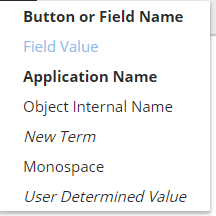
Button or Field Name (renders as bold in NW Help)
Field Value (renders as a bold monospace value)
Application Name (renders as bold)
Object Internal Name (renders as monospace)
New Term (renders as italic)
Monospace (renders as monospace)
User Determined Value (renders as italic)
Paragraph styles
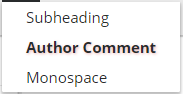
Subheading (renders as a small heading; should be applied to a paragraph only)
Monospace (renders as a monospace paragraph block)Table styles
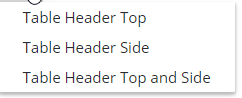
Table Header Top: top row shaded
Table Header Side: side column shaded
Table Header Top and Side: Top row and side column shaded
Table cell styles
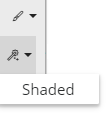
Shaded: selected cell is shaded the same color as the header
| Shaded cell |
Special text
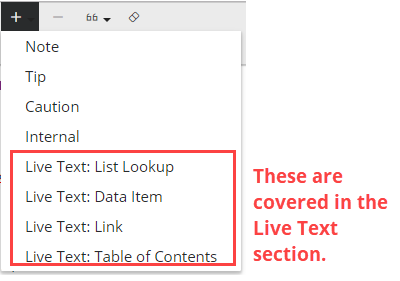
Note: live text doesn't work outside of Nextworld Help. These options should not be available (or used) anywhere but in Content Builder.
Live text
Live text is a feature available in Content Builder that lets you insert generated elements into a topic. When the topic is displayed in Nextworld Help, the live text elements are evaluated and displayed based on the viewer's environment and settings.
The standard syntax is as follows:
{* <substitution type> '<value 1>'=<key 1>,'value2'=<key 2> *}
The live text options are:
- Data items and live text
Use live text with the dataitem parameter to obtain the synonym associated with a data item in a given application. You can retrieve either the synonym label or help text.
- List lookups and live text
Use live text with the listlookup parameter to obtain either a single list lookup value, or a list of all values in the list lookup.
- Links and live text
Use live text with the link type to create an inline cross reference to another topic, or to create a list of links to topics in a table of contents.
- Media and live text
Use live text with the media parameter to insert supported attachments from a Media topic into authored content. Use this to embed images, audio, and video in Nextworld Help.
- Workflow diagrams and live text
Use live text with the workflowdiagram parameter to obtain the visualization associated with a workflow.
Data items and live text
Use live text with the dataitem parameter to obtain the synonym associated with a data item in a given application. You can retrieve either the synonym label or help text.
The following parameters are allowed:
name— the name of the data item.application— the application where the data item is used. SpecifyGLOBALto always use the default, global synonym for the data item and not tie it to a specific application.display(optional) — currently displays the following options:- '
help' — display the full help text in a new line.
- '
For example, this:
{* dataitem 'DocAuthoredContentComment'=name,'DocAuthoredContent'=application *}
Obtains the synonym label (or field name) used for the DocAuthoredContentComment data item in the Authored Content Utility application, and produces the label inline, like this: Publication Note.
To obtain the help text for the same synonym, add the display parameter:
{* dataitem 'DocAuthoredContentComment'=name,'DocAuthoredContent'=application,'help'=display *}
Which displays (in a new line) the synonym help text:
<p>A note describing the changes made when publishing draft content. This field is required when publishing a draft version of authored content.</p>
List lookups and live text
Use live text with the listlookup parameter to obtain either a single list lookup value, or a list of all values in the list lookup.
The following parameters are allowed:
name— the name of the list lookup.value(optional) — a value from the list lookup.'apply'=formatting(optional) — when specified, formats the list lookup values according to the Display setting on the list lookup.
When a value is not included, the result is a bulleted list of all values in the list lookup. When a value is included, only that value is displayed.
For example, this:
{* listlookup 'ApplicationType'=name *}
Produces the a list of values in the ApplicationType list lookup:
Including a value parameter like this:
{* listlookup 'ApplicationType'=name,'Multi-Record Detail'=value *}
Produces a single, inline value, like this: Advanced List.
Apply formatting
Use the 'apply'=formatting parameter to use the Display setting for the specified list lookup to format the value. Adding the 'apply'=formatting parameter to the same examples to see how this works.
{* listlookup 'ApplicationType'=name,'apply'=formatting *}
Produces the a list of values in the ApplicationType list lookup, which has a display option of :
Including a value parameter like this:
{* listlookup 'ApplicationType'=name,'Multi-Record Detail'=value,'apply'=formatting *}
Produces a single, inline value, like this: .
Links and live text
Use live text with the link type to create an inline cross reference to another topic, or to create a list of links to topics in a table of contents.
The following parameters are allowed:
name— the Internal Topic Name of the content unit to link to.title(optional) — when specified, gives the name used for the link text. When absent, the default is the linked topic's Topic Title. When used with the'children'=displayparameter, the title is a subheading introducing the table of contents.display(optional) — when specified, displays something other than the single content link. Currently supported display options are:'children'— display links for all of the child records of this link in a table of contents.
'true'=shortdesc(optional) — when specified, includes the short description below the link to the topic title.depth(optional) — can be used with the children display option to control the depth of children. For example, enter'1'=depthto show only immediate children. When absent, all children, regardless of depth, are included.'true'=numbered(optional) — can be used with the children display option to control the type of list. When specified, topics are displayed in a numbered list. When absent, the default is a bulleted list.
Inline link examples
To create a link to a single topic, which can be embedded inline, use the link type without the children display option. For example, this:
{* link 'LiveText'=name *}
Produces Live text, which links to the LiveText content unit in this map.
Optionally, include the title argument to change the link text. For example, this:
{* link 'this is a link'=title,'LiveText'=name *}
Produces Live text, which also links to the LiveText content unit.
Content list examples
To create a list of topics, include the display parameter with the children option. For example, this:
{* link 'children'=display,'NextbotContentTopics'=name *} Produces a list of all the topics beneath the NextbotContentTopics content unit:
To list the topics in a numbered list, add the numbered parameter. For example, this:
{* link 'true'=numbered,'children'=display,'LiveText'=name, *} Produces this numbered list of topics beneath the LiveText content unit:
To limit how many levels of hierarchy are displayed, include the depth argument. For example, this:
{* link '1'=depth,'children'=display,'NextbotContentTopics'=name, *} Produces a list with only the topics immediately below the NextbotContentTopics topic:
To include a title on the list, include the title parameter. For example, this:
{* link 'children'=display,'NextbotContentTopics'=name,'Contents'=title *} Produces this list:
Short description examples
To create a list of topics with their associated short descriptions, include the shortdesc parameter along with the 'children'=display parameter. For the most readable results, also limit the depth of the children to 1. For example, this:
{* link 'NextbotContentTopics'=name,'children'=display,'true'=shortdesc,'1'=depth *} Produces this list:
- How to use Content Builder
Content contributors use the Content Builder application to create, edit, add, delete, and unlink content to Nextworld Help.
- Content creation applications
Use the content builder applications to view and manage documentation.
- Styles and custom styles
Styles are applied to identify and style different elements consistently in documentation. Styles are a common feature in word processing and publishing documentation.
- Live text
Live text is a feature available in Content Builder that lets you insert generated elements into a topic. When the topic is displayed in Nextworld Help, the live text elements are evaluated and displayed based on the viewer's environment and settings.
Media and live text
Use live text with the media parameter to insert supported attachments from a Media topic into authored content. Use this to embed images, audio, and video in Nextworld Help.
Except where noted, all parameters are supported for all media types. The following parameters are allowed:
name— the Internal Topic Name of the media topic.'true'=caption(optional) — when specified, includes a caption with the media, if one is specified in the media topic.align(optional) — when specified, controls where the media is placed in the browser relative to the text. Options are:left— aligns to the left of the screen.start— aligns the media with the start of the text. When text reads left-to-right, this means the media is left-aligned. When text reads right-to-left, the media is right-aligned.center— aligns in the center of the screen.right— aligns to the right of the screen.end— aligns with the end of the text. When text reads left-to-right, this means the media is right-aligned. When text reads right-to-left, the media is left-aligned.inline— aligns within the text phrase. This is the option used to insert an icon or other small image within a sentence. It is not supported and is ignored when used with a Video media type.
size(optional) — a relative or absolute size.tiny— size is extra small relative to the screen. The image size scales with the screen size.small— size is small relative to the screen. The image size scales with the screen size.medium— size is medium relative to the screen. The image size scales with the screen size.large— size is large relative to the screen. The image size scales with the screen size.full— the media displays at the full width of the screen.Npx— displays the media in pixel width, where N is the number of pixels.Nrem— displays the media relative to the font-size of the root HTML element, where N is a whole number.
For example, this:
{* media 'LiveTextMediaExample'=name,'100px'=size *}
Inserts the image associated with the Media content topic named LiveTextMediaExample at a size of 100 pixels wide.

To use an inline image, control for both the alignment and size:
This sentence uses live text to insert the image {* media 'LiveTextMediaExample'=name,'inline'=align,'10px'=size *} inline with the text.This sentence uses live text to insert the image inline with the text.
For more information on including media in Nextworld Help, see Add images, video, or other media to a topic.
Workflow diagrams and live text
Use live text with the workflowdiagram parameter to obtain the visualization associated with a workflow.
The following parameters are allowed:
name— the name of the workflow.'true'=collapse(optional) — collapses the visualization into an expandable section. Readers must click the expansion to see the visualization.
For example, this:
{* workflowdiagram 'Items'=name *}
Obtains the visualization associated with the Items workflow, and inserts it in the topic like this:
[workflow diagram placeholder]
To insert the visualization collapsed, add the 'true'=collapse parameter:
{* workflowdiagram 'Items'=name,'true'=collapse *}
Which includes the diagram in a collapsed section that the reader can expand:
[workflow diagram placeholder]
Nextworld style guide
Clear, concise writing is key to effective writing about technology. Follow these guidelines to ensure that documentation is clear and consistent across Nextworld.
The topics that follow cover Nextworld guidelines and preferences for writing-related things as diverse as spelling, formatting for headings, and whether or not to use a serial comma (also known as an Oxford comma). If you have style-related questions that are not covered here, refer to the Microsoft Style Guide.
Keep it short
Shorter sentences are better than long, complex sentences. If something starts feeling a bit long, see if you can split the idea into two sentences rather than cramming it into one. This idea also applies to word choice and descriptions. Say what you need to say in as few words as possible.
You might have heard this principle referred to as KISS: Keep it Simple, Stupid. It's a design principle so well known that it has its own Wikipedia entry.
Here are a couple of excellent quotes on the subject, from writers you may have heard of:
"Perfection is achieved not when there is nothing more to add, but when there is nothing left to take away."
~ Antoine de Saint-Exupery
"Don't use a five-dollar word when a fifty-cent word will do."
~ Mark Twain
Know your audience
Before you start writing, consider who you're writing for. Who are they, what do they already know, and why are they reading what you wrote?
For example, if you're writing about coast guard programs, ask yourself how familiar your reader is with boats. Are you writing for people already participating in the program, or for those who are interested in applying, or even for the casual browser who wants to learn what the coast guard is? If you're using any technical words or talking about any specific ideas associated with the boating world, do you need to define them--or will 99% of your readers already know them? The answer to that question is different, depending on who your audience is.
Think about why your reader is using the product, and when they're looking at the documentation.
Answer the why
When writing about a new feature, focus on the user's goal when using the feature, rather than on the feature name. Think about what the end user is trying to do. What problem does this solve?
When you're introducing something, make sure you say early on what problem it solves, why the feature would be used. (Often, answering the why is a great way to write a heading.)
Very, very few people read technical documentation for fun or casual interest. More often, readers look at documentation because they have questions. Before you start writing, list out those questions and then make sure you answer them.
Chunk your information
In this case, "chunking" means to break your text into smaller pieces and concepts, and organize those chunks into different sections, lists, and tasks.
Readers skim far more often than they read. Most of the time when someone's looking at documentation, it's because they have a specific question. It might be How do I..., or possibly What is.... Either way, they'll be scanning your text to find the answer to their question. Chunking your information makes scanning easy.
Use headings and subheadings
Use headings and subheadings to break up topics into separate ideas.
Use bullets and lists
Any time you notice a sentence with three or more items separated by commas, ask yourself if it can be a list. Use bullets if order doesn't matter; numbers if it does.
Keep lists short
Have you ever seen a procedure with 20 steps in it? A list with 15 bullets? When a list gets too long, it can start to feel intimidating, and readers can get lost or lose track of where they are. More often than not, lists like this can be broken up further. Think of a step with substeps, or series of three bulleted lists with category subheadings.
There's no hard and fast rule about when to break up a list, but try to start thinking about whether something can or should be broken up when it grows to 8 or more items.
Strive for parallelism
Parallelism is a rather big word, but it boils down to a basic principle: like things should be alike in both format and language.
Here, format really means appearance. Language means grammatical structure. When you are parallel in these things, there are two huge benefits for the reader:
- It's easier for the reader to organize and internalize information. Parallel content is more predictable, letting readers know what to expect from something even before they start reading. That helps the reader retain information, too.
- It's easier for readers to scan for content. Again, this is about predictability.
"Like things" can refer to a lot of different elements in a document, and you can apply this rule to great effect nearly any time you notice that two things are similar. Here are a few areas where you should always think about parallel structure.
Headings
- Align the language. We think of topics as falling into two basic categories: concept and procedure. Know what type of information you're writing about, and use the same grammatical structure for all headings covering topics of that type. This means you don't write about "Customizing the application" in one place, and "How to create a custom application" in another place. We have guidelines, but what you should remember first and foremost is to be consistent within the document you're working on.
- Procedures: start headings with an imperative (an action verb, like build, run, etc.).
A procedure explains how to do something. It usually includes steps in a numbered list.
For example:- Build an application
- Create a data item
- Concepts: start headings with a noun or noun phrase.
A concept is a topic that explains what something is. It doesn't include steps describing how to use it.
For example:- Zones
- Introduction to logic blocks
- Procedures: start headings with an imperative (an action verb, like build, run, etc.).
- Align the format. Every heading of the same level (Heading 1, Heading 2, and so on) should use the same font, font color, font size, and so forth. If you're using styles (available in Confluence or Word), this comes naturally. If you're manually choosing the style, pay attention to your settings so you can duplicate them.
Lists
This applies to both numbered and bulleted lists. Apply this rule to each individual list. You don't need to set up every single list in your document to be parallel.
- Align the language. Start every item in the list with the same grammatical structure. That could be a noun, an imperative verb, a phrase...whatever works for your list. The various lists in the writing fundamentals section all follow this rule.
- Align the format. Use the same format indicators for every entry in the list. This goes hand in hand with aligning grammatically. For example, if you bold the first phrase or introductory word in one bullet (as you can see done in this list), do the same for all bullets. If you end one item with a period, end all items with a period.
Simplify steps
When you're writing a procedure or set of instructions, make sure each action is a separate step, and each step is clearly identified.
It can be easy to think of something you do often as a single step, even though in reality you're performing a series of actions. Because of this, sometimes you'll lump a series of related steps into a single task. For example, "Open a command prompt from the application directory and then invoke the XYZ.exe installer located in the ABC directory." That should be two steps, not one.
| Original | Simplified |
|---|---|
| Open a command prompt from the application directory and then invoke the XYZ.exe installer located in the ABC directory. |
|
Assume your readers speak English as a second language
This can help you decide when your sentences are too complex, or if you're using language that's either too obscure or is jargon that is not generally known.
Readers come from different educational backgrounds, and not everyone reads at the same level. Many readers are also not native English speakers. Write for those readers.
Define acronyms
The first time you use an acronym, define it. Usually you do this by spelling out the word and then putting the acronym in parenthesis after. For example, "Report the unidentified flying object (UFO) to your local alien enthusiast."
There are two scenarios where you don't need to define the acronym first:
- If your first use is in a heading. In this case, you can define the acronym in the first sentence or two below the heading.
- If the acronym is so commonly known that defining it is ridiculous. For example, you don't need to define HTTP or URL. (And arguably defining UFO in the example above is overkill as well.) If you're not sure, check the American Heritage Dictionary. If an acronym has an entry in the dictionary, you may use it without defining it first.
Avoid jargon, slang, and colloquialisms
Make sure you're using language your audience is familiar with, and which can be easily translated to other languages. Stick to words you can find in the American Heritage Dictionary.
Avoid Latin, too
Like jargon, Latin abbreviations can cause problems for some readers.
| Instead of... | Use... |
|---|---|
| e.g. | for example |
| ergo | therefore |
| etc. | and so on (but go ahead and use .etc if space is an issue) |
| i.e. | that is |
| viz. | namely |
Use active voice
Make sure your sentences have a clear subject performing every action, rather than a passive object receiving an action. (The grammatical terms for these constructs are active voice and passive voice.)
Rather than saying, "The thingamabob should be set to Yellow," use "Set the thingamabob to Yellow."
When the widget you're writing about does something, say what item is doing it. For example, say something like, "The server sends a message to the application," instead of "A message is sent to the application."
Avoid future tense
This is more a guideline than a rule, but future tense is rarely necessary. Search your writing for the word "will" and ask yourself if you can use the present tense instead. "The engine starts" is a stronger sentence than "The engine will start."
Use second person
Address your reader directly.
The Microsoft Style Guide puts it this way:
"In second person, you write as though you're speaking to the reader. Second person often uses the personal pronoun you, but sometimes the word you is implied. It supports a friendly, human tone and helps avoid passive voice by focusing the discussion on the reader. Consider omitting you can whenever the sentence works without it."
Use contractions
Like second person, contractions are just fine. (In case your grammar is a bit fuzzy, in this context a contraction is a concatenation of two words where a missing letter is replaced with an apostrophe: can't, won't, don't, and so forth.)
Use contractions in your writing the way you do in your speaking.
That said, there are a couple of guidelines:
- Never form a contraction from a noun and a verb. That is, never use a construction such as "Nextworld’s developing a lot of new products and services."
- Use common contractions, such as it’s, you’re, and don’t, but avoid more ambiguous ones such as there’d, it’ll, and they’ll.
- Don't use double contractions, like "wouldn't've" or "you'd've".
Use headings appropriately
Follow these guidelines when composing headings.
Use sentence case for titles and subtitles
Write most titles and subheadings using sentence case. This means that you capitalize the first word of the heading, and leave the rest lower case as you would for a sentence. However, you should still capitalize proper nouns, acronyms, and so on. For example:
- Create a new table
- Design a Nextworld application
These elements of Nextworld are treated as proper nouns, and so should always be capitalized:
- Application page names
- Application names when the reference is to the application itself, rather than to the concept represented by the application
- Field names when the reference is to the field itself, rather than to the concept represented by the field
- Field or list lookup values when included without using live text, for example in a short description
- Logic block action names
Define an acronym in a heading right away
Define an acronym used in a heading in the first or second sentence after the heading.
Use the right grammatical structure for the content
Follow the guidelines described in the Standard content topic categories topic when writing titles for your content.
Use a serial comma
When writing a list of things separated by commas, always include a comma before the final conjunction. This is known as an Oxford or serial comma.
For example:
- An application is a way to add, edit, review, and manipulate records.
- Applications can be of different types, including Standard, Header Detail, and Relationship.
- The synonym displays in all applications unless you enter a module, family, or application.
Use one space after a period
Use one space after a period. Do not use two spaces.
Respect the trademark
In text, Nextworld (and any other trademarked item) is always capitalized and should never be made possessive.
For example:
- Correct:
...the Nextworld application developer... - Incorrect:
...nextworld's application developer...
Wondering why? This is to protect the trademark and keep it from becoming diluted.
Limit screenshots
Limit the use of color
Use font colors and highlighting judiciously, or even not at all. Limit the use of color in your writing as much as possible.
In Content Builder
Color options are limited in the Content Builder application. Use color only through application of styles.
Use the right file format for diagrams and screenshots
If you are embedding an image in your content, choose the source image format based on the type of diagram.
- Diagrams — Use the Scalable Vector Graphics (SVG) file format.
- Screenshots — Use the Portable Network Graphics (PNG) format.
Documentation templates and best practices
These best practices ensure that templates are developed and used consistently throughout Nextworld.
Get started with a new content project
If you are a content creator beginning work on a new solution or major feature, use the topics in this section to help decide what content to create and how to write and organize it.
Creating and writing technical content is an iterative process. For the purposes of this discussion, we are dividing it into phases, but in practice the content creator may start in one phase, move to the next step, then return to their first phase after gathering more details or seeing how things pull together. It's helpful to have an overarching understanding of the phases as you get started, but don't be surprised if the writing process doesn't exactly follow the sequence described here.
- How to decide what to write
Nextworld follows a topic-based, task-oriented writing approach, which means that every page (or topic) of the documentation should answer a single, identifiable question that a user might ask. To get started quickly, use the Nextworld standard topic categories to help identify likely questions for a feature. Topic categories also have best practices and templates that help you compose and format topics.
- How to organize your content
Structure and nest topics starting with larger ideas and then delving into smaller ideas or specifics. It may help to think about how you would organize a slide presentation introducing the product or feature. Documentation is similar.
- How to write your content
Whether or not you see yourself as a writer, this topic offers an introduction to Nextworld philosophy and guidelines for writing.
How to decide what to write
Nextworld follows a topic-based, task-oriented writing approach, which means that every page (or topic) of the documentation should answer a single, identifiable question that a user might ask. To get started quickly, use the Nextworld standard topic categories to help identify likely questions for a feature. Topic categories also have best practices and templates that help you compose and format topics.
For example, in the table below you can see how topic categories align with common questions.
| User Question | Topic Category |
|---|---|
What can I do with Feature X? | Concept |
How do I use Feature X application? | Application Listing |
How do I enable Feature X? | Configuration |
How do I use Feature X to accomplish Goal Y? | Configuration |
How does Feature X fit in with Feature B? | Process Overview |
You would answer each question by starting with a template from the topic category. Each question would be answered in a separate topic.
Standard topic categories
In support of a topic-based writing approach, Nextworld has identified a set of standard topic categories. Every topic should fall into one of these defined categories, and follow the template and writing patterns for that category.
These categories are described in Standard content topic categories.
Minimum recommended documentation
Even if technical documentation isn't a focus for you during a product's release, providing basic content gives users a smoother experience with a solution. At a minimum, you should have:
- A root content node for your product.
- An About overview topic .
- An Application Listing topic for every application in the menu.
- Well-thought synonym help text for all fields in the application.
Most of the above are described in Standard content topic categories and are created and managed in Content Builder. However, synonym help text is written in the Data Item Definitions application.
Standard content topic categories
This reference topic describes the common categories of topic that Nextworld uses when creating documentation for a product family or module.
All topics in Content Builder should fall into one of the topic categories described here. Depending on the topic or feature being documented, you may create topics in one or more of the categories described. See How to organize your content for guidelines on which categories to include in your topic structure, and how to organize them.
| Topic category | Configuration details | Description |
|---|---|---|
| Root content node | Topic Title: Family Name, or the name of the solution or solution module. For example, Financials. Topic Type: | This the document container topic, or table of contents. It should not have content. All documentation relevant to the module should be inside this node. |
| About | Topic Title: Topic Type: | Summary of the module, its features, benefits, and so on. Think of this as a high-level marketing overview. This should be the first topic to appear beneath the Module Name container topic. Optionally:
|
| Application Listing | Topic Title: the application name (as it appears in the menu followed by Topic Type: | At a minimum, we hope that all applications in the Nextworld menu have an application listing topic in Content Builder. These do not need to be organized into a special section, but should be integrated into any other content (as it makes sense). The application listing topic is connected to a unique combination of application name and application setting, and displays when the user opens the application-level Help. When viewed in Nextworld Help, the application listing also includes automatically generated reference tables built from the field-level help text in the application. For more details and examples, see How to write an application listing topic. |
| Concept | Topic Title: A noun or noun phrase that describes the concept. For example, Foreign currency journals. Topic Type: | Cover those major features or ideas that are mentioned in your About summary, in the general order that they are covered there. The most important/general topics should be first. Organize your application listing topics so that they are beneath the relevant concept topic. For more details, see How to write concept topics. |
| Configuration | Topic Title (option 1): Concept Name followed by Topic Title (option 2): an imperative verb phrase identifying the task covered. For example, Enable column controls for checkboxes. Topic Type: | Configuration topics provide detailed requirements for using or setting up a particular feature. Instead of offering step-by-step instructions, Configuration topics lay out configuration requirements in a straightforward fashion. Configuration topics assume that the reader is already familiar with the concepts surrounding the feature describe, and links to concept topics instead of repeating explanations. For more details, see How to write configuration topics. |
| Process Overview | Topic Title: the module or feature name followed by Topic Type: | Process Overview topics are used to describe the interaction of multiple applications. This category of topic is a concept that shows how all the discrete components of a complex process are tied together. |
| Menu category container topics | Topic Title: Family Name followed by the Menu Category name (lower case). For example, Financials basic operations. Topic Type: Concept | If you are beginning with the minimum recommended content (application listings and an About concept) or are just struggling to begin writing and need an initial framework around which to organize content, you can organize your application listing topics into container nodes that follow your menu structure. Common menu categories include:
If you follow this structure, we recommend using a Concept topic for your menu category topic, and using a live text link with the short description parameter in the content body to create a table of contents for applications in the node. For more information about this live text option, see Links and live text. |
Additional topic categories
These less frequently used topic categories may also be helpful to round out content for a family or module. Not every category shown here is relevant to all product families.
| Topic category | Configuration details | Description |
|---|---|---|
| Family Security | Topic Title: Family Name followed by Topic Type: | Family security topics describe the functional roles delivered as part of a family or module, and the access those roles grant to applications and functions in the module. This topic should be reviewed and updated every release. For a template, see Security documentation template. |
| Best Practices | Topic Title: the concept or area name followed by Topic Type: | Best Practice topics describe behavior we recommend users follow when using an application or suite of applications. Contrast application best practices—which describe behavior that is desirable or recommended, but not enforced by the software—with application configuration requirements, which include any behavior that is enforced by the software. If an application will not work unless a behavior is followed, that behavior should be described in the Configuration topic. However, if the behavior is recommended for optimal performance or to ensure consistency of development, it should be described in a best practice topic. If a product family has numerous best practice topics, reuse the topics so that each is a child to the concept or application listing it describes and also resides in a separate best practices node. |
| Navigation | Topic Title: Either follow standard concept topic naming suggestions, or begin with Topic Type: | Navigation topics are used to describe common processes or patterns that are used across many (or all) applications. The focus is on describing a generic use of the feature, not tied to a specific implementation. When you need a visual to support a navigation topic, use a diagram rather than a screenshot whenever possible. |
| Example | Topic Title: If there are multiple examples for the same feature or concept, include an object name in the topic title. For example, Example: application links in the Directory application. Topic Type: | Example topics provide robust examples of features and applications. They are used when the example is complex or long enough that it overwhelms a related concept or configuration topic. Example topics can describe either hypothetical scenarios or concrete configurations that the reader can refer to and explore in the platform. Most concrete examples are part of the platform documentation. Always place an example topic beneath the concept topic for the related feature. Learn more in How to write an example topic. |
How to organize your content
Structure and nest topics starting with larger ideas and then delving into smaller ideas or specifics. It may help to think about how you would organize a slide presentation introducing the product or feature. Documentation is similar.
Most readers begin exploring documentation by searching for a topic of interest, rather than by navigating the tree. However, once the user finds a topic of interest, they often return to the tree to explore adjacent topics. To make that exploration easier, organize your topics logically, with introductory and easier concepts appearing higher in the tree, and more complex and less universal features further down.
To help users find related content when they are exploring using the tree, locate all the different topics for a feature in the same part of the tree. For example, if a feature has a Concept, a Configuration topic, and an application listing, put the Concept first and then add the Configuration and Application Listing topics as children to the concept.
The examples below offer possible ways to organize your topics based on the topic categories you're working with, and depending on the complexity of your product and how much content you're writing.
Example structure—minimum recommended
If your solution only has the minimum recommended documentation, you may choose to organize the application listing topics into sections that follow your menu categories. In the Standard content topic categories, these are called menu category container topics. When giving titles to the container topics, always include the family or module name, to assist in search. The organization of topics would look something like this:
- Solution Name
- About Solution Name
- Solution Name basic operations
- Application Listing
- Application Listing
- Solution Name inquiries and reports
- Application Listing
- Application Listing
- Solution Name specialized applications
- Application Listing
- Application Listing
- Solution Name setup
- Application Listing
- Application Listing
- Solution Name imports and exports
- Application Listing
- Application Listing
Example structure—simple content
Once you move away from the recommended minimum content and introduce additional topic types, your structure should shift.
Include a separate conceptual topic for each area of solution, describing the value, purpose, and features of the area. If you think of your content as following the structure of a slide presentation introducing a prospective customer to your solution, each conceptual topic might align to a slide in the presentation.
The conceptual topics may provide a better organizational foundation than the menu category container topics. Remove the menu category topics if they are no longer useful. For exmaple:
- Solution Name
- About Solution Name
- Concept
- Configuration
- Application Listing
- Best Practices
- Concept
- Configuration
- Application Listing
- Application Listing
- Application Listing
- Best Practices
Example structure—complex content
As you add even more content, your structure may shift to include additional layers. How these layers fit together will depend on the type of content you add and the complexity of the solution.
This example shows a structure with more conceptual information added:
- About Solution Name
- Concept
- Process overview
- Concept
- Configuration
- Application Listing
- Concept
- Configuration
- Application Listing
- Concept
- Configuration
- Application Listing
- Best Practices
Here is a structure that supports different configuration options, rather than a single configuration path. This is useful when configuration is especially complex, or if there are multiple pathways a user might take:
- Concept
- Process Overview
- Concept
- Concept
- Concept
- Configuration overview
- Configuration option
- Configuration option
- Configuration option
- Application Listing
- Application Listing
- Best Practices
How to write your content
Whether or not you see yourself as a writer, this topic offers an introduction to Nextworld philosophy and guidelines for writing.
As you write, keep these core principles in mind:
- We are topic-based. Each topic should have a single, limited purpose. It should answer a clearly defined question.
- We are task-oriented. Focus your content not on what the features are, but on what the user's goal is. What users want to accomplish is not always aligned with the feature names, and content should always focus on user needs.
- We do not write procedures. We rely on the consistency of the Nextworld Platform to assist users in most common activities (such as creating a new record), and rely on Configuration and Process Overview topics to support applications and processes that are complex enough to require additional guidance. Common application behaviors and processes are described in Navigation topics.
- Field level help belongs in the synonyms. We do not include detailed explanations of every field in an application in the body of content. The use of a field should be well documented in its synonym (managed in the Data Item Definitions application), and is included as part of the metadata reference attached to every application listing topic. We may call out or describe key fields to add additional context—but if you find yourself just echoing information from the synonym, ask yourself whether that really needs to be repeated.
Use the Nextworld topic categories to help determine what to write and how to format it. For more information, see How to decide what to write and Standard content topic categories.
How to write concept topics
Content creators should follow these guidelines to write concept topics. Concept topics cover the general information about applications, features, and processes, without describing the specific fields and buttons.
Use the Concept topic type when creating concept topics in Content Builder.
Topic Title
Give your concept a topic title that will help users search for your topic. Use sentence case for your titles. For example:
- How to use Nextworld Calendars
- Menu tools for application developers
Attributes
If your concept involves a feature powered by Nextworld Intelligence, select the Artificial Intelligence Attribute Icon. This places the  icon next to the topic title in Nextworld Help.
Short Description
Summarize the subject you're discussing in one to two sentences and, if appropriate, define the target audience. For example:
- Use Nextworld calendars to schedule and monitor events.
- Application developers can enable a view of the Navigation Menu that includes technical details about the applications, and quick access to configuration records.
Content
The main body of the concept description covers general information and use of the feature. Questions you should try and answer include:
- What feature or process are you describing?
- What can users accomplish?
- Why would users use it?
- What components make up the feature or process?
Examples
These concept topics are good examples:
How to write an application listing topic
Content creators should follow the following guidelines when writing application listing topics topics. Application listings describe the purpose of an application and provide information on how to use the application. These topics are available in Nextworld Help, as well as from the application-level help.
Use the Application Listing content topic type when creating application listings in Content Builder. Specify the application and the application setting. To find this information, open the Sidebar menu by selecting the Toggle sidebar menu  button. Expand the Application Information section.
Topic Title
In Content Builder, give your application listing topic a Topic Title with a name format of <Application Name> application.
Capitalize the name of the application, because it’s a name. Don’t capitalize “application”.
Short Description
The first one to two sentences should be a brief summary that describes what the application does and possibly who it's for. For example:
- The Application Name application records/configures/controls/lists...
- User Role use the Application Name application to... For example, "System administrators use the Tenant Environment Setup application to..."
You can also include any important details about how the application works in the larger context of the module or family.
Content
The main body of the application description covers what the application does, and possibly how it works with other applications. Questions you should try to answer include:
- Who will use this application?
- When will they use this application?
- What will they use the application for?
- What other big picture implications does this application have? Does it interact with any other applications? Does it impact anyone in another department or role?
- Is there anything the user needs to do or set up before using this application? Think at the task level, not initial set up. Assume all initial setup is done. Do cover recurring tasks or process flows. For example:
"The Check Runs application includes invoices that have been selected in the Pay Single Supplier application. After the invoices are selected, use the Check Runs application to enter payment information, and then print checks using the Check Stub report."
If the application has multiple pages in the detail form, create a subheading for each page with a name format of <Page Name> page. Underneath the subheading for each page, describe the function of that page and what you configure. For example, under the List Form Fields page subheading for the Application Builder, it says, "Configure the fields that you want to appear in the list form of your application. This includes whether certain fields display, how they display, and if the field is disabled or required."
You should also describe any form, field, or row actions configured for the application, and a description of their purpose and function.
Optionally, end with any notes or sentences about things you don't do with this application, or closely related functions that happen in a different application (give that application's name if possible).
Attributes and view options
If your application is powered by Nextworld Intelligence, select the Artificial Intelligence Attribute Icon. This places the icon next to the topic title in Nextworld Help.
If you are writing an application listing that you want visible in the application-level help but not visible in Nextworld Help, select the Hide in Viewer option in the View Options field.
Examples
These application listing topics are good examples:
See also
Applications with quick import enabled
If your application has quick import enabled, add a subheading for "Quick import" in the topic. Include a brief explanation of what the quick import feature does, such as, "Quick Import enables you to incorporate external data into your application's records. Access Quick Import inside of the record where you want the external data. Open the form action menu, select Import Data, then download and fill out the CSV template."
Include a list of columns which are included in the CSV template, as well as an explanation of what can be included in each column and any requirements. For example:
In the Journal Entries application the CSV template has columns for:
- Currency value—Designates the amount of the credit or debit, and must be filled out in the template. The value must be a whole number, no decimals are permitted. For example, if the amount is 10.52, enter the amount as 1052. The columns for currency value are:
- TransactionDebitAmount.CurrencyValue
- TransactionCreditAmount.CurrencyValue
- Currency decimals columns
An example of filling out the columns for the Debit amount of $10.52 U.S. Dollars would be as follows:
TransactionDebitAmount.CurrencyCode | TransactionDebitAmount.CurrencyValue | TransactionDebitAmount.CurrencyDecimals |
|---|---|---|
USD | 1052 | 2 |
These application listing topics are good examples:
- Journal Entries application
How to write composite application topics
Content creators should follow these guidelines to write effective Composite application topics.
Composite applications are comprised of multiple related applications grouped together from a single access point. For documentation, you should include a concept topic and an application listing for each individual application that is part of the Composite application.
Concept
The concept topic should describe the purpose of the Composite application. This topic should also be the parent topic to the application listings.
Include the names of the applications in the Short Description, and live text links for each application listing in the Content.
To learn more about how to write a concept topic, see the How to write concept topics.
Application listing
Create a separate application listing for each application step used in the Composite application. You must use the application's internal name and application setting name when you create the application listing topics. To find this information, you can:
- While in each application step, open the Sidebar menu by selecting the Toggle sidebar menu icon. Expand the Application Information section.
- Open the composite application definition and navigate to the Composite Configuration page. Each application step and their application settings can be found in the Composite Application Steps subtable.
Follow these guidelines when you create the application listings:
- For the topic Title use the format
<Application Name> application step. For example, "Session Summary application step". - In the Short Description, describe the purpose of the application step. For example, "The Session Summary application step contains an overview of each of the session analyses generated in your environment."
- In the Content section, start with a paragraph that identifies the composite application that the step is part of. For example, "Session Summary is a step in the Application Monitoring Workbench application."
- Order the application listings beneath the parent topic based on the order they are in the Composite application. For example, the first application step in the Composite application should be the first child topic beneath the concept topic.
To learn more about how to write an application listing, see the How to write an application listing topic.
Examples
These Composite application topics are good examples:
How to write configuration topics
Content creators should follow these guidelines to write configuration topics. Configuration topics provide detailed information on the applications a user needs to use to configure a feature, process, or application.
Use the Concept topic type when creating configuration topics in Content Builder.
Topic Title
Give your configuration a topic title of <Feature Name> configuration. For example:
- Data transform configuration
- Table lookup configuration
Attributes
If your concept involves a feature powered by Nextworld Intelligence, select the Artificial Intelligence Attribute Icon. This places the icon next to the topic title in Nextworld Help.
Short Description
Write a short description of what feature the user is configuring, and what the feature is used for. Include the names of each application used for configuration. For example:
- Configure a data transformation using the Logic Block Builder application, Data Transform Definitions application, Personal Test Tenant Builder application, and Data Transform Execution Plan application to update business data so that the data can operate with a changed application.
- Configure a table lookup to retrieve and show information that's stored in a different table using the Table Definitions application and Data Item Definitions application.
Content
Create a subheading for each application used in the configuration process. If applicable, organize the subheads by the order in which the user should visit the applications.
Describe the requirements for each application in their respective subheadings. Include information on parts of the configuration that are unique or not intuitive. Do not use step by step instructions.
Occasionally, there may be processes that are too complex to work in this structure and may require a different format. For example, if you have a topic with multiple configuration pathways that each require configuration settings in different applications, you could create a parent topic with child topics that each describe a different pathway.
Examples
These are good examples of traditional configuration topics:
These topics are good examples of configuration with multiple configuration paths:
- Configure workflow and child topics
- Configure actions for an application and child topics
These topics are good examples of configuration topics with sequenced steps:
How to write a tutorial
Content creators make Nextworld Platform tutorials so that users can learn conceptual and procedural information about different features of the platform. The organization of the topics that make up a tutorial follow a pattern. This topic explains the organization pattern, the process of creating the different topics, and naming conventions.
Users, including application developers, go through Nextworld tutorials to understand how different parts and features of the platform work, and how they can use them together. They also learn how different objects are used to complete business processes. That is, they learn how developers use the platform to build applications, and then how end users use the applications. Only including technical information without explaining how objects are used can make it harder to see how things work together in a process. Similarly, it is important to include procedures where someone can create something, and not just read conceptual information or look at examples. Tutorials have two goals:
- Teach a user what something is and how it is used (conceptual)
- Teach a user how to create and use something (procedural)
Tutorials are independent of one another, and shouldn't rely on anything created in other tutorials. Tutorials should rely on as little specific business data as possible, and there shouldn't be any tutorial-specific business data. This is all so that users could go through the tutorials in any downstream environment. Expect that the audience of the tutorial is external users working in a downstream environment.
Topics
A tutorial generally has the following types of topics, in this basic order:
- Introduction
Explains goal of the tutorial, the parts used to complete it, an overview of the process, and defines the goal. This is the top-level topic for a tutorial. - Understanding topic
Introduces the conceptual information relevant to the tutorial, and gives examples to illustrate the concept. Depending on the tutorial, there may be just one understanding topic or multiple. This topic should if possible, contain a diagram, explain what fields must be configured, and contain a link to a more in-depth topic.- Conceptual topics
Explain additional conceptual information. These are generally going to be children to the understanding topic, and provide more information about specific concepts. For example, in the Introduction to logic blocks tutorial there is an Understanding logic blocks topic, a Logic block foundations topic, and a Logic Builder naming conventions topic. This conceptual information is organized using smaller topics, instead of one really big topic. - Examples
Describe an existing object and explains the specific configuration elements of the object. This example should also explain how the object is used and why it is a useful example. Usually not every concept needs an example, just the more complex ones.
- Conceptual topics
- Procedures
Explains step-by-step instructions to complete tasks. This includes what application a user should be in, what they need to click, what values to use, and additional information to explain the process. Each task section should be 10 steps or less. For tasks with more than 10 steps, consider combining steps or making it more than one task. For example to combine steps you can say Save and generate your application instead of one step to click a save button and another step to click Generate. - Checkpoint
Identifies the learning objectives of the tutorial.
Exercises and complexity
Understanding your audience helps you determine what exercises to include in the tutorial, the complexity of the exercises, and the level of detail to include in the procedures. Sometimes, you can assume that a user already knows about something based on their experience. For example if a user is working on an advanced logic block tutorial, you can assume that they have more knowledge about the application development process than a user creating data items.
Spend some time analyzing your audience to identify things like who the user is, how familiar they are with the platform, what processes they are familiar with, or what level of information they would expect.
Process
When you create a tutorial, don't create topics in the same order that they're read by users. This is because in order to identify what a user needs to know, you must first identify what they'll be doing. After you tell the user what to do and provide the knowledge in which to do it, then you create your introduction and checkpoint to summarize the tutorial.
It is important to understand who your user is, and how much experience using the platform they have. For example it is a safe assumption that someone building a logic block has more experience than someone creating a data item.
1. Decide the goal the user needs to accomplish. This is usually also the name of the tutorial, such as Build an Application.
As you start developing the tutorial, start creating a Checkpoint. Use the checkpoint to outline the learning objectives of the tutorial, and then include it at the end for users to check off what they're learned.
2. Identify the tasks that make up that goal. These are usually smaller tasks that make up the bigger goal, such as creating data items, adding them to the table, and then building the application.
3. Decide what the user needs to know to accomplish the tasks. This is how you start outlining the conceptual information for the tutorial. For example, a user should understand what a data item and how it is used before they create one. Sometimes the same conceptual topic will inform multiple tasks. but try to keep content granular.
As you identify the information the user will learn, add it to the checkpoint. For example, Understand how data items are used.
4. Organize the conceptual information. This is usually more than one topic. The conceptual topics in tutorials don't need to be as in-depth as the other documentation, and should link to a more detailed topic. For example the Understanding data items concept links to the Data items topic where users can learn more.
5. Start determining the structure of your tutorial. Do you need one conceptual topic with multiple headings? Or do you need a conceptual topic, followed by a procedure, followed by another conceptual topic, followed by another procedure?
6. Develop the procedures. Write the step-by-step instructions for completing the tasks you've identified. Be sure to test them and make sure you're not missing any steps.
7. Write the introduction. This introduction should provide an overview of the tutorial, and include what the user will be learning, what they'll be doing, what process they'll complete, and the tools they'll use. This is also a helpful way to make sure what you've put together so far aligns with your goal.
8. Double-check everything with the checkpoint. Make sure what you have in the tutorial fulfills all the points in the check point. The checkpoint should focus on what the user learned more than just what they did.
Naming conventions
The table below describes the naming conventions for the different tutorial sections:
| Tutorial section | Topic Title Convention | Example |
|---|---|---|
| Introduction | Nouns | Validation logic blocks |
| Understanding topics | Understanding [noun] | Understanding validation logic blocks |
| Conceptual topics | Noun | Set Message action |
| Examples | Nextworld example: [ObjectName] [Object type] | Nextworld example: |
| Procedures | [Imperative verb] a [noun] | Build a logic block |
| Checkpoint | [Introduction topi name] checkpoint | Validation logic blocks checkpoint |
Formatting tips
When writing procedures in your tutorial, you must manually add the numbers to the steps. This is because adding any notes, tips, warnings, and such in a set of steps resets the numbered list.
When including configuration information for a logic block action, such as adding a assignment to a Set Values action, use the following HTML to insert a two-sided table:
<table class="nw-table-header-topside" style="width: 100%;"> <tbody> <tr> <td colspan="2" style="width: 40%; text-align: center;">To</td> <td style="width: 20%;">Action</td> <td colspan="2" style="width: 39.9296%; text-align: center;">From</td> </tr> <tr> <td style="width: 20%;"><span style="-nw-inline: button-or-field-name;">Type</span></td> <td style="width: 20%;"> <br> </td> <td rowspan="4" style="width: 20.4293%;"><span style="-nw-inline: field-value;">{* listlookup &#39;LBNewVariableAssignActions&#39;=name,&#39;set&#39;=value *} </span></td> <td class="nw-shaded-cell" style="width: 19.9112%;"><strong><span style="-nw-inline: button-or-field-name;">Type</span></strong></td> <td style="width: 19.6151%;"> <br> </td> </tr> <tr> <td style="width: 20%;"><span style="-nw-inline: button-or-field-name;">Table</span></td> <td style="width: 20%;"> <br> </td> <td class="nw-shaded-cell" rowspan="3" style="width: 19.9112%;"><span style="-nw-inline: button-or-field-name;">System</span></td> <td rowspan="3" style="width: 19.6891%;"> <br> </td> </tr> <tr> <td><span style="-nw-inline: button-or-field-name;">Field</span></td> <td> <br> </td> </tr> <tr> <td><span style="-nw-inline: button-or-field-name;">Currency Attribute</span></td> <td> <br> </td> </tr> </tbody></table>The above HTML results in the following table:
| To | Action | From | ||
|---|---|---|---|---|
| Type | Set | Type | ||
| Table | System | |||
| Field | ||||
| Currency Attribute |
How to write an example topic
Content creators should follow the following guidelines when writing example topics. These topics cover in-depth examples of features, applications, or implementations to aid users in better understanding a concept or configuration.
Use the Concept topic type when creating example topics in Content Builder.
Topic Title
Use the format: Example: <feature or concept name>.
For example, 'Example: Relationship tree in a Detail application.'
If there are multiple examples for the same feature or concept, include an object name in the topic title. For example, 'Example: application links in the Directory application.'
Short Description
Include both the feature name or concept name as well as the name of the example objects.
For example, "The Multi-Level Bill of Material Inquiry application is an example of how a relationship tree in a Detail application is configured."
If the example is hypothetical, be sure to indicate this.
Content
At a minimum, you can split up your content between two subheadings:
- Object overview—In this section, describe the purpose of the example objects, what they are used for, and what need they meet for the user. Describe how they relate to other applications and objects.
- Configuration elements—In this section, describe how each object is configured, what is unique about them, and how they fit together. If the configuration embodies a best practice, describe how.
You can add additional sections as needed.
Examples
These topics are, well, good examples of example topics:
- Example: Relationship tree in a Detail application
- [link: 'NextworldTutorialsFlatReportExample']
How to write a solution specific org unit security topic
Product owners should follow these guidelines to write effective recommendations for org unit security enabled in their solutions.
Topic Title
Give your topic a title of <Solution Name> org unit security recommendations. For example:
- Inventory org unit security recommendations
- Directory org unit security recommendations
Short Description
Write a short description that notifies the reader they are viewing options and recommendations for org unit security in a specific solution. For example:
- The Directory solution offers flexible implementation of org unit security in order to limit the access that users have to directory records based on their contact role and how it was configured.
Content
The main body of the topic should cover any Solution specific security implementations, recommendations, notes, and tips. It should also provide the suggested global and table specific org unit security permissions in a table with the following structure:
| Table | Reason for implementation | Permission configuration |
|---|---|---|
| Directory | Limited global records: Grants all users access to access to records where the LimitTo field is empty, and grants access to only certain users for records where the LimitTo field has a value selected. | On the Row Security page, in the Access Rulessubtable, create two permissions with the following values:
|
Examples
These org unit security topics are good examples:
- [link: 'DirectoryOrgUnitSecurity']
- [link: 'InventoryOrgUnitSecurity']
How to write a specification
These best practices ensure that the specifications for Nextworld objects are written consistently throughout Nextworld.
The purpose of the Specification field is to ensure that future application developers are able to understand how to change, troubleshoot, or integrate Nextworld objects.
Best practices
The specification should never be just the object name. It should always be different than what is written in the object's Description field. The description should be a brief explanation of functionality and purpose. The specification should be a much longer description. If you specification matches your description either your specification is too short, or your description is too long.
The specification text should consist of the following:
- Purpose
- Why was the object created?
- Function
- What does the object do?
- What is the object used for?
- Technical details
- What technical information does the developer need to know?
- What are the relevant prerequisites and interdependencies?
- What does this object require from other objects?
- What does this object do that is unique? For example, call out in the specification if a logic block uses a Fetch and Lock action or calls a logic block in a separate database transaction.
- Context
- What are the consequences of changing this object?
- What are the implications of using this object?
- Is this object part of something? For example, call out in the specification is a table is part of a header detail application or a join table.
Don't place easy-to-find information in the specification if you know the developer can find it on their own.
Remember that the person who is reading your specification may be:
- Someone on a different team.
- Someone with less experience than you.
- Your future self after you have not worked on the object for a while.
Nextworld example specification: WorkOrders
WorkOrders, a standard header detail application, contains a helpful example of specification text.
WorkOrders
The WorkOrders header detail application connects the WorkOrderHeaders header application to the RoutingInstructions, PartsList, and ProductionOutputs detail applications. Information about the logic, actions, and links associated with WorkOrders can be found in these header and detail applications. The WorkOrders workflow is associated with this app as they are both built over the WorkOrders header detail table.
A work order is the authorization to start work on an activity or product. The statement of work includes the material, labor, and machine time needed to complete the work. These are used to plan the time and costs. During execution, the work order captures the actual costs and time that was required to complete the work. Work orders can be created for an item or a process. When an item is specified, the item must be defined as a make type for the item organizational unit. Work orders can be created for phantom assemblies.
Nextworld example specification: WorkOrderHeaders
WorkOrderHeaders, a standard header application, contains a helpful example of specification text.
WorkOrderHeaders
The WorkOrderHeaders application is the statement of work to complete an activity or product. As the work order progresses through the workflow lifecycle this application records quantities completed and scrapped as well as important lifecycle dates and times.
Types of work orders supported:
- Discrete manufacturing – Builds an identifiable item. A discrete work order is typically created for an item and quantity, with a product definition attached to create the parts list and routing instructions from the BOM and routing.
- Rework work order – Used to rework the product to bring it into compliance with specifications. A rework work order can be created for a product that is still in production or one that was finished into inventory and needs to be returned to production for rework.
- Job shop work order – Supports built-to-order production where the work order is associated to a specific job number.
The characteristics of a work order are determined by:
- Organizational Unit (Manufacturing Execution Module Settings)
- Allow Partial Completion – Determines if the completion of the work order can be reported in incremental quantities.
- Allow Over Completion – Determines if completion over the planned quantity is allowed.
- Definition Type
- Production Mode – Identifies the manufacturing production mode. When production mode is Discrete, the item is required on the work order.
- Item Field Setting, Process Field Setting, Variant Field Setting – Determine whether the item, process, and variant fields are required, optional, or hidden on the work order.
- Work Order Type
- Job Number Field Setting – Determines whether the job number is required, optional, or hidden on a work order.
- Work Order Header Fields
- Non-standard – Determines whether a product definition is required to create and release the work order.
Workflow applies for both the header and the details. The workflow manages the work order from initial creation through release, completion, and closing. The work order can also be placed on hold or canceled. Fields on the Progress page of the application specify the date and time these transitions occur.
As the work order is completed, transactions update the work order with applicable quantities, dates, and states. Actions are:
- Attach Product Definition is a row action that copies the components on the parts list from the bill of material, the outputs from the bill of material, and the routing instructions from the routing associated to the product definition. The production definition can be attached when the work order is in the initial state type. When a work order that has a production definition associated is released, the product definition is automatically attached to the work order.
- Delete Work Order Details is a row action that deletes all detail records associated with the work order except for the product output if an item is specified on the work order header. The details can only be deleted if the work order is in an initial state type and no transactions have been reported against the work order.
- View Work Order Ledger is a row action that navigates to the WorkOrderLedgerComposite application where transactions recorded against the work order can be viewed.
- Retrieve Recommended is a field action on the product definition that finds and sets a valid production definition based on the following key fields:
- Inventory Organizational Unit
- Item
- Process
- Variant
- Quantity
- Product Definition Date
- Definition Type
If the non-standard checkbox is cleared and the product definition is empty, the table trigger also runs this logic on save to set a valid product definition if one exists. The user can override this value and select another valid product definition.
To prevent fraud and gaps in automatic numbering, a work order cannot be deleted.
This application uses:
- Definitions from the Manufacturing Execution Settings
- Definitions from the DefinitionTypes application
- Definitions from the WorkOrderTypes application
- Defaults and definitions from the ItemOrgUnits application
- BOM and Routing information form the ProductDefinitions application
- WorkOrders workflow
This application calls the following logic blocks:
- RetrieveProductDefinitionWorkOrder
- AttachProductDefinitionWorkOrder
- DeleteProductDefinitionWorkOrder
- HideShowWorkOrdersFields
- DefaultWorkOrderHeadersFields
- RetrieveLastWOOperationSequence
- DefaultWorkOrderHeadersItemOrgUnitFields
- ValidateMinimumPlannedQuantity
- ReattachProductDefinitionWorkOrder
The following applications use information created in this application:
- WOMaterialTransaction
- WOTimeTransaction
- WOOperationTransaction
- WOOutputTransaction
- DispatchList
- EmployeeTimeEntryByWO
- EmployeeTimeEntryByWOInquiry
- WOCostSummary
- WorkOrderLedger
- WorkOrderMaterialLedger
- WorkOrderTimeLedger
- WorkOrderOperationLedger
- WorkOrderOutputLedger
- ProcurementOrderDetail
Nextworld example specification: RoutingInstructions
RoutingInstructions, a standard detail application, contains a helpful example of specification text.
RoutingInstructions
The work order routing instructions provides step-by-step instructions or operations that describe the production process as well as the related work centers where the work is performed. Work order routing instructions are typically a copy of the routing for the specified product definition or may be entered manually. They also include the times required to perform each operation and quantities are updated as work is completed.
The characteristics that control defaults and calculations of time/quantities are determined by:
- Organizational Unit (Product Data Management and Manufacturing Execution Module Settings):
- Yield Management Method – Determines whether work order quantities and production time is increased based on cumulative yield.
- Allow Network Routings – Determines whether network routings can be defined on the work order routing instructions.
- Operation Sequence Increment – Used to increment the operation sequence number when adding operations to the work order.
- Sequential Completion Required – Used to enforce sequential completion of operations based on the operation sequence.
The calculated fields are updated on the save from logic blocks called by the post trigger on the header detail table (WorkOrdersPostTriggerWrapper).
This application uses:
- Definitions from the Manufacturing Execution Settings
- Information from the WorkCenters application
- Routing information from the ProductDefinitions application
- WorkOrders workflow
This application calls the following logic blocks:
- DefaultWorkOrderOperations
- DefaultWorkOrderOperationsWCFields
- ResentLastWOOperationSequence
The following application use information created in this application:
- WorkOrderOutputs
- WOTimeTransaction
- WOOperationTransaction
- WOOutputTransaction
- DispatchList
- EmployeeTimeEntryByWO
- EmployeeTimeEntryByWOInquiry
- WOCostSummary
- WorkOrderLedger
- WorkOrderTimeLedger
- WorkOrderOperationLedger
- WorkOrderOutputLedger
How to write field names and help text
Follow these guidelines when creating synonyms for the data items in your applications.
When writing help text, refer to the Nextworld style guide and the Microsoft Writing Style Guide.
In particular:
- Keep things simple. (Common words, shorter sentences.)
- Remember who your audience is and what they might be wondering about.
- Use complete sentences.
- Write to the reader, in second person. ("You"...)
- Use active voice as much as possible.
- Use inline styles to format your field values, as well as application, field, and button names. Learn more in Nextworld custom styles and Nextworld custom style examples.
Guidelines
| Field type | Labels and short labels | Help text | Example |
|---|---|---|---|
| Default (most fields and data item types) | A word or phrase that describes the information captured by the field. Don't use ending punctuation. | Start the description with a one-sentence statement describing the purpose of the field. Do not simply restate the field name in sentence form. Try to:
If the field label seems very self-explanatory to you and you have trouble composing a longer description, ask yourself under what circumstances someone might be confused. If it's a name field, is there any chance they might not know which name to choose? If they're entering a social security number, could they be worried about how their data is protected? | Label: Budget Owner Help text: The name of the person responsible for managing the budget for the organization. The budget owner receives workflow notifications and reports. |
| List lookup | A word or phrase that describes the information captured by the field. Don't use ending punctuation. | Follow the default guidelines, with these additional considerations. In most cases, you should not describe or define the options in the list. Only define the values when:
| Label: Country Help text: The country where the organization is based. Label: Customer Defined Attribute Profile Type Help Text: There are multiple types of CDA profiles, including:
|
| Subtable | A word or phrase that describes the information captured by the field. Don't use ending punctuation. | Start the help text with "Lists ..." and a brief description of the information the table captures. In the detail form of a record, a subtable with no entries appears with just the label and an Add button. Help text should provide enough information to explain the purpose of the subtable to a user who doesn't see a table. Remember the columns within the subtable have their own help fields. You only need to give a brief description of the table as a whole. | Label: Emails Help text: Lists all email addresses associated with the organization. You can make changes to the emails associated with the organization here. |
| True False | A word or phrase that describes the selected (or true) checkbox. Don't use ending punctuation. Provide a label that implies two opposite states. The label should describe the selected state. (The behavior if the box is checked.) For longer labels (where you need a longer phrase), write the check box label as a phrase or imperative sentence with no ending punctuation. If there's any ambiguity in the label, explain the states clearly in the help text. | This data item type creates a checkbox. Use selected to described a checked box, cleared to describe an unchecked box. (Don't talk about it being checked or unchecked.) Use language like:
| Label: Track Budgets Help text: When selected, budgeting applications automatically create budgets for this organization in the budget cycle process. If this checkbox is cleared, you can still create budgets for the organization manually. |
How to write an error message
When you're writing an error message, your main goal is to tell the user what went wrong and how to fix it.
Bottom line
Let the user know exactly what the error was, why it happened, and what they can do about it.
Ask yourself:
- Will the user know where the problem is?
- Will the user know what to do to fix the problem?
- Is there a clear first step?
Tips
- Use complete sentences with proper punctuation.
- Avoid slang, jargon, colloquialisms, pop-culture references, and jokes.
- In general, you should address the user in second person using "you." However, you should never blame the user. It's better to use passive voice than to say "you messed up."
Words to avoid
- Oops
- Error
- Failed
- Problem
- Invalid
- Wrong
- Prohibited
- Sorry
When to reference object names that can be customized
Application names, field names, and field values can be customized by users in downstream environments. If you reference the name of the object in your message and a user customized the synonyms or menu entries for the object in their environment, it may confuse the user.
In general, strive to refer to generic concepts instead specific object names. If the object you need to reference in your message is a generic concept, great! Just don't capitalize the object's name so that it appears to be a generic concept.
However, there are cases where the risk that the user is unable to resolve the cause of the error without a reference to a particular object outweighs the risk that the object's name may be different in a customer environment. Use your best judgement.
How to use diagrams and callouts
Content contributors use diagrams and callouts in documentation to visually represent and explain concepts. This topic describes guidelines to use when creating diagrams and callouts.
In the diagram
When creating your diagram, use the numbers found in the the MEDIA: Diagram callouts topic. Download the SVG files you need and use them in your diagram. The size of the callouts should be relative to the other elements. Avoid using any text in the diagram itself as this poses translation challenges.
After your diagram is complete, download it as an SVG file and upload it as a new Media topic. Use live text to insert it into your topic, and size it appropriately. Learn more in Add images, video, or other media to a topic and Media and live text.
In the content
The diagram and callouts appear in topics after the paragraph explaining them. An introductory paragraph, which is usually 1-2 sentences, should appear between the paragraph and the diagram.
Callouts in the documentation should be in a table with the Table Header Side style. In the left column, use the live text found on the Comments page of the MEDIA: Diagram callouts topic to insert each number. In the right column, describe the element seen in the diagram. If applicable, use an em-dash between the label and the description.
Example: main menu bar
The example below shows the format for the introductory paragraph, the diagram, and the numbered list of descriptions in a table.
The diagram below shows the different elements of the main menu bar:
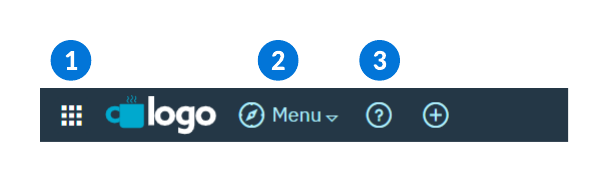
| Sidebar menu—Access pending work, saved work, and Nextworld support. |
|---|---|
| Navigation Menu—Search for and open applications. |
| Nextworld Help—Access Nextworld Help content. |
Security documentation template
The security and roles inside <Family Name> are designed to provide users access to the required applications to support specific job functions.
<Family Name> a number of key functional roles that allow users to perform the required functions for their jobs. Each of these functional roles is comprised of smaller duty roles that can be added to users in cases where the functional role grants more access than a user is required to have. The functional roles for this area are:
- Role Name — Brief description of the purpose of the role.
- Role Name — Brief description of the purpose of the role.
- Role Name — Brief description of the purpose of the role.
- Role Name — Brief description of the purpose of the role.
- Role Name — Brief description of the purpose of the role.
- Role Name — Brief description of the purpose of the role.
You can review these functional roles and see the duty roles that are contained within them using the Role Hierarchy Definitions application. Functional roles are broadly classified into these categories:
- View — Grants read-only access to records in the application. Users cannot create or delete any records, or perform any actions that change a record.
- Maintain — Users can update existing records and may be able to perform actions that modify a record, but cannot create or delete records.
- Admin — Grants full access to the records. Users can create new records and delete existing records.
The table below shows the access each functional role gives to applications and application areas.
| Role Name | Role Name | Role Name | Role Name | Role Name | Role Name | Role Name | Role Name | Role Name | Role Name | Role Name | Role Name | Role Name | |
|---|---|---|---|---|---|---|---|---|---|---|---|---|---|
| Application or App Area Name | Admin #F6D28A | Maintain #91C7EE | View #84C1B7 | ||||||||||
| Application or App Area Name | |||||||||||||
| Application or App Area Name | |||||||||||||
| Application or App Area Name | |||||||||||||
| Application or App Area Name | |||||||||||||
| Application or App Area Name | |||||||||||||
| Application or App Area Name | |||||||||||||
| Application or App Area Name |
Editing levels
Nextworld has defined three levels of editing for content passed to the documentation team for incorporation into Nextworld Help. Everything integrated by the documentation team goes through a first level edit. Second and third level are not automatic, and are only done upon request and as time allows.
First level edit
A level one edit provides basic, cursory review of topics. It is quick and ensures only that things are grammatically correct, use the Nextworld formatting, and contain no spelling errors.
The time required for a level one edit varies depending on the amount of content, but should be easy to determine up front.
- Basic word choice to optimize for globalization
- Basic spelling and grammar
- Basic edit of existing formatting and organization, including:
- Removing double-spaces
- Removing superfluous capitalization
- Changing headings to sentence style capitalization
- Removing possessives on trademarked terms (for example: Nextworld's software would be changed to the Nextworld software)
- Applying font and paragraph tags
- Adding live text where applicable
- Re-importing diagrams as .SVG files
- Removing unnecessary screenshots
- Identifying repeating patterns in topics
- Standardizing formatting when doing so is straightforward
- Identifying repeated deviations from the style guide (frequent errors)
- Providing them to the writer so they can improve future contributions
- Primarily relevant to significant contributions, not single topics
- Recommendations for second level edits:
- Identifying confusing content
- Identifying where larger level re-organization and re-formatting would be useful
First level does not include:
- Editing for voice
- Editing for organization/flow
- Rewriting or revising confusing content
- Writing anything new
Second level edit
A level two edit provides a deeper level of edit, and is primarily aimed at aligning voice and formatting so that content looks and feels unified.
The time required for a level two edit varies considerably, based on the style of the original author. Most often, the first level edit will have a provided enough information to estimate the time required for a second level edit. Second level edits may also be time-bound, to prevent scope creep.
- Making short descriptions consistent across all topics
- Updating existing ones
- Writing missing ones
- Closer examination of format and structure
- Notes, tips and warnings
- Tables and bullet lists
- Related reading/See also links
- Significant grammar revisions
- Simplifying sentences
- More substantial word choice examination
- Aligning voice
- More substantial revision to address:
- Revision of confusing content (not all content guaranteed to be in scope for 2nd level)
- Basic organization of content (sequencing)
- Aligning About overview topics with child topics
- Updating diagrams:
- Cleaning up or recreating diagrams that are not standard
- Creating new diagrams based on provided designs
- Recommendations for third level edits:
- Identifying repeated elements that could be added to templates and standardized
- Identifying areas that lack depth or explanation
Second level does not include:
- Writing substantial new content (entire sections, concepts, etc.)
- Complete and total reorganization
- Designing and creating new diagrams
Third level edit
A level three edit guarantees and in-depth consideration of and revision to the topic. It generally includes substantial additions and changes to existing content, with the goal being clear, concise, and easily maintained content.
Third level edits are time consuming. The second level edit generally identifies the most high impact focus areas, however there is more likely to be scope creep in a third level edit.
- Writing any new content beyond short descriptions or introductions
- Writing new content
- Adding depth to existing topics
- Revising confusing topics that were not in scope for second level
- Creating new, complex diagrams
Terminology for UI elements
These topics identify elements of the Nextworld Platform and the terms that should be used to describe those elements.
Terminology for icons
Follow these guidelines when referring to icons in help text.
- Always give the icon a name.
- Use the tooltip for the icon or the feature name, not what the icon looks like.
- Use the word "icon".
- Bold the name of the icon.
- Capitalize the name of the icon.
For example: Select the Help icon.
icon.
Terminology for dashboard pages
This topic identifies elements of the Nextworld dashboard and the terms that should be used to describe those elements.
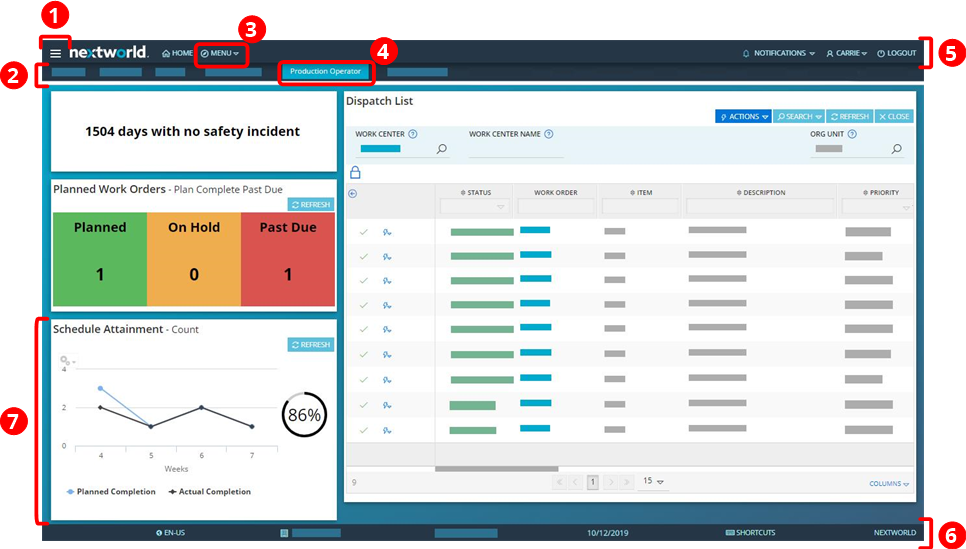
| Element | Term | How to use | Inline style | Example |
|---|---|---|---|---|
| 1 | Sidebar menu | Capitalize all menu names, including the Sidebar menu. You open or close the Sidebar menu. | None | Open the Sidebar menu to view work that has been saved for later. |
| 2 | Dashboard page bar | Do not give a text format to the dashboard page bar, and avoid mentioning this page element as much as possible. | None | From the dashboard page bar, open the Production Operator dashboard. |
| 3 | Navigation Menu | Capitalize all menu names, including the Navigation Menu. Note that Menu is capitalized for this menu name only. Most often, the Navigation Menu should be referred to as a location and does not need an associated action verb. | None | From the Navigation Menu, open the Directory application. Open the Navigation Menu to search for and open applications by name. |
| 4 | Dashboard page | Bold and capitalize the dashboard page name. You open a dashboard page. | Button or Field Name | Open the Production Operator dashboard. |
| 5 | Main menu bar | Do not bold or capitalize. | None | The main menu bar is located at the top of your screen. |
| 6 | Footer bar | Bold and capitalize buttons in the footer bar. | Button or Field Name | Click the Shortcuts button to open a dialog box containing a list of system-specific shortcuts. |
| 7 | Dashboard card | Bold and capitalize the dashboard card name, as you would an application name. | Application Name | The Schedule Attainment dashboard card shows the schedule or production attainment levels for the facility. |
Terminology for detail forms
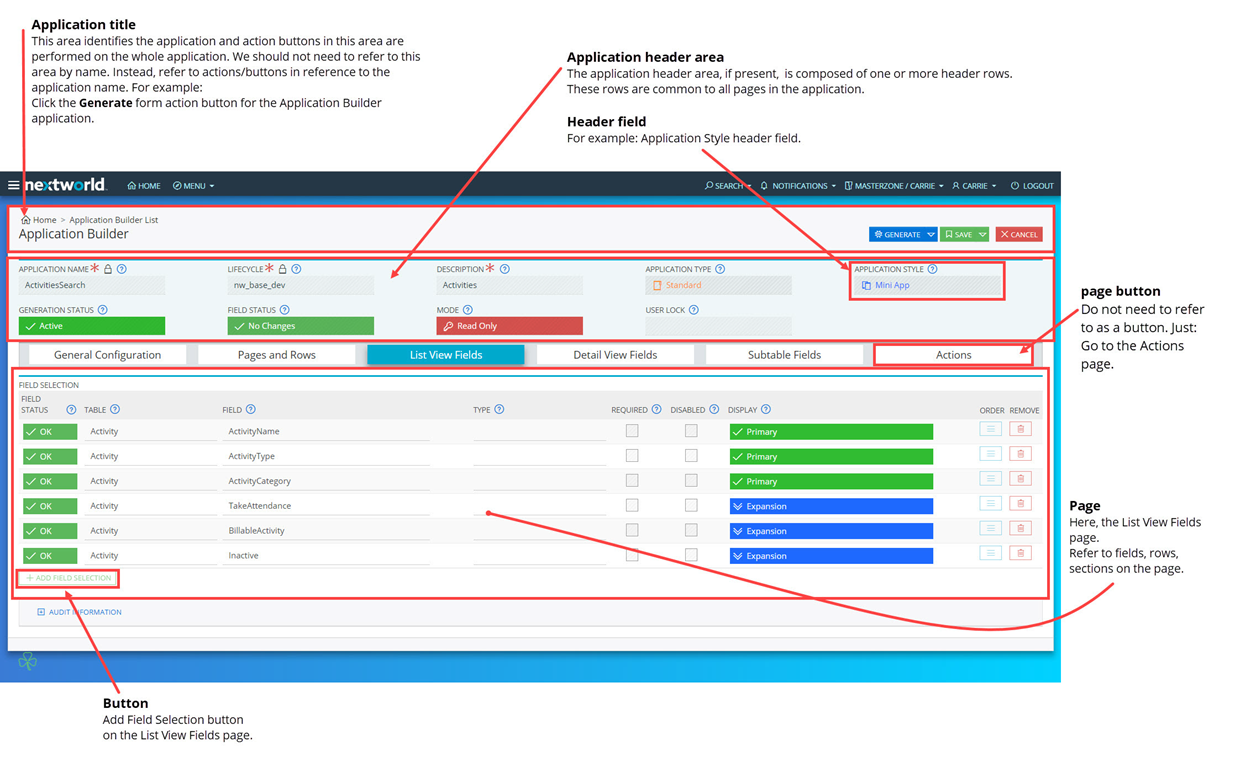
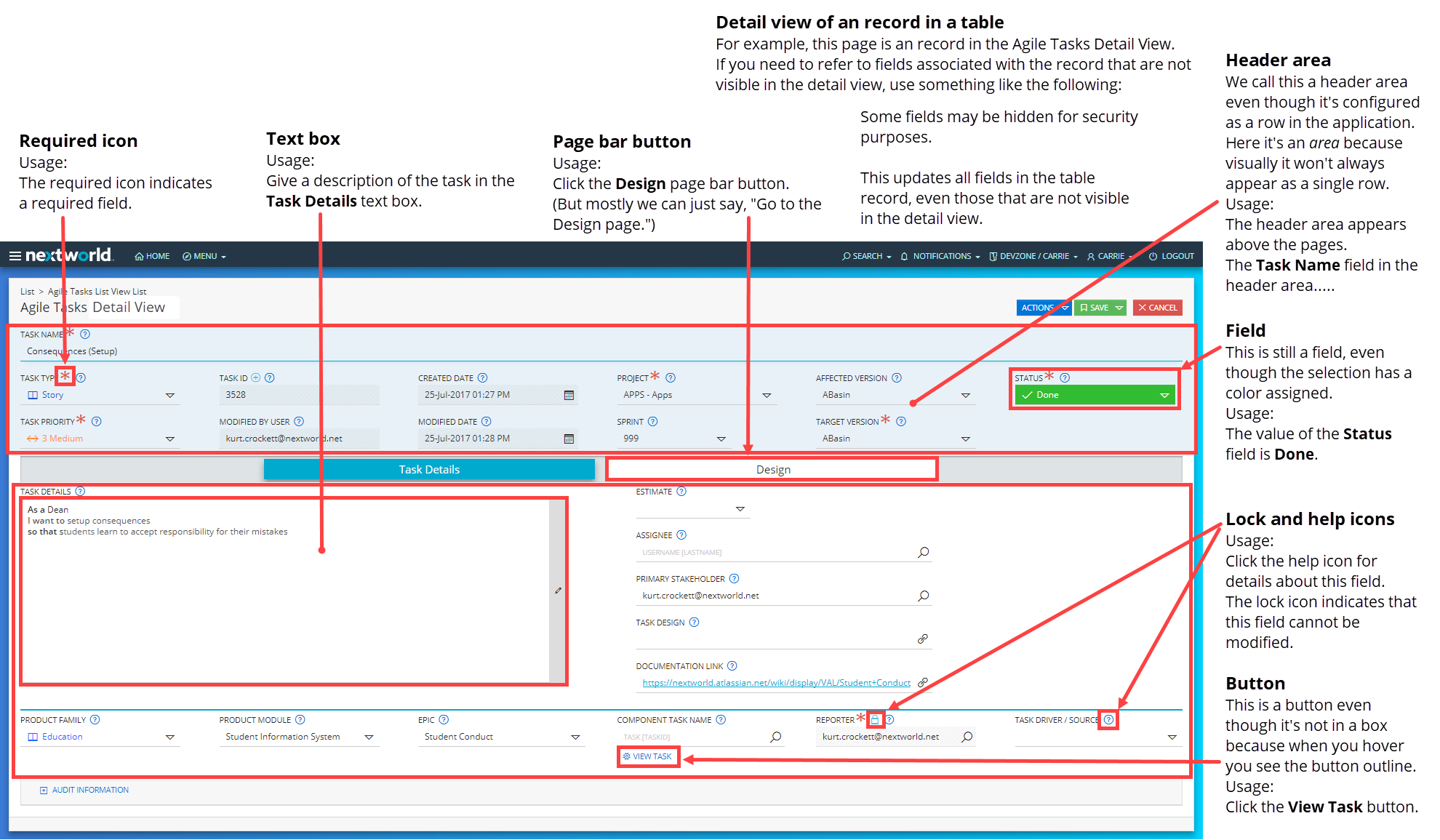
Terminology for list forms
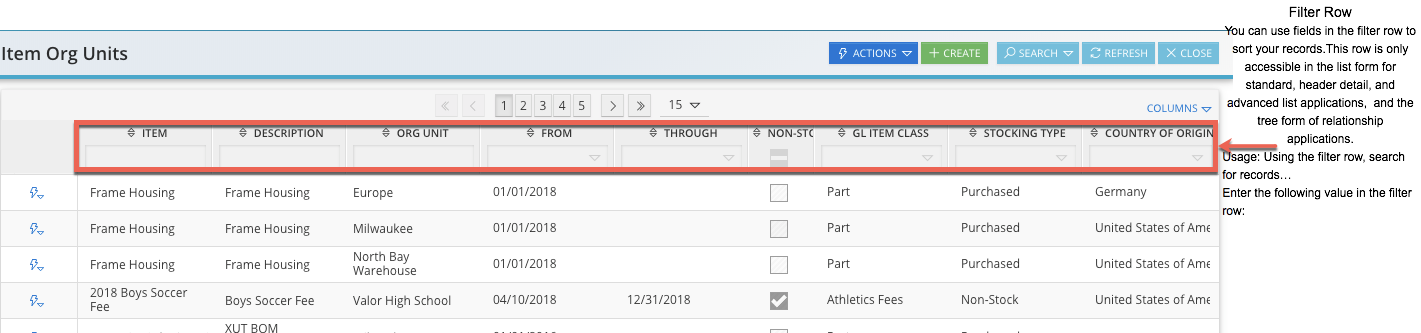
Terminology for the menu