















Header filter fields should only include data items that are valid for sorting. These are generally data items that share a common value across multiple records. For example, in a company directory, you might want to sort by location or department.
Additional configuration options are available, such as the ability to use row groups to organize records. Similar to Header Detail applications, row grouping makes each record in the list form a summary record that holds all of the related records. Open the detail form to view or create records that have the same Header filter field values. Learn more in Advanced List application configuration
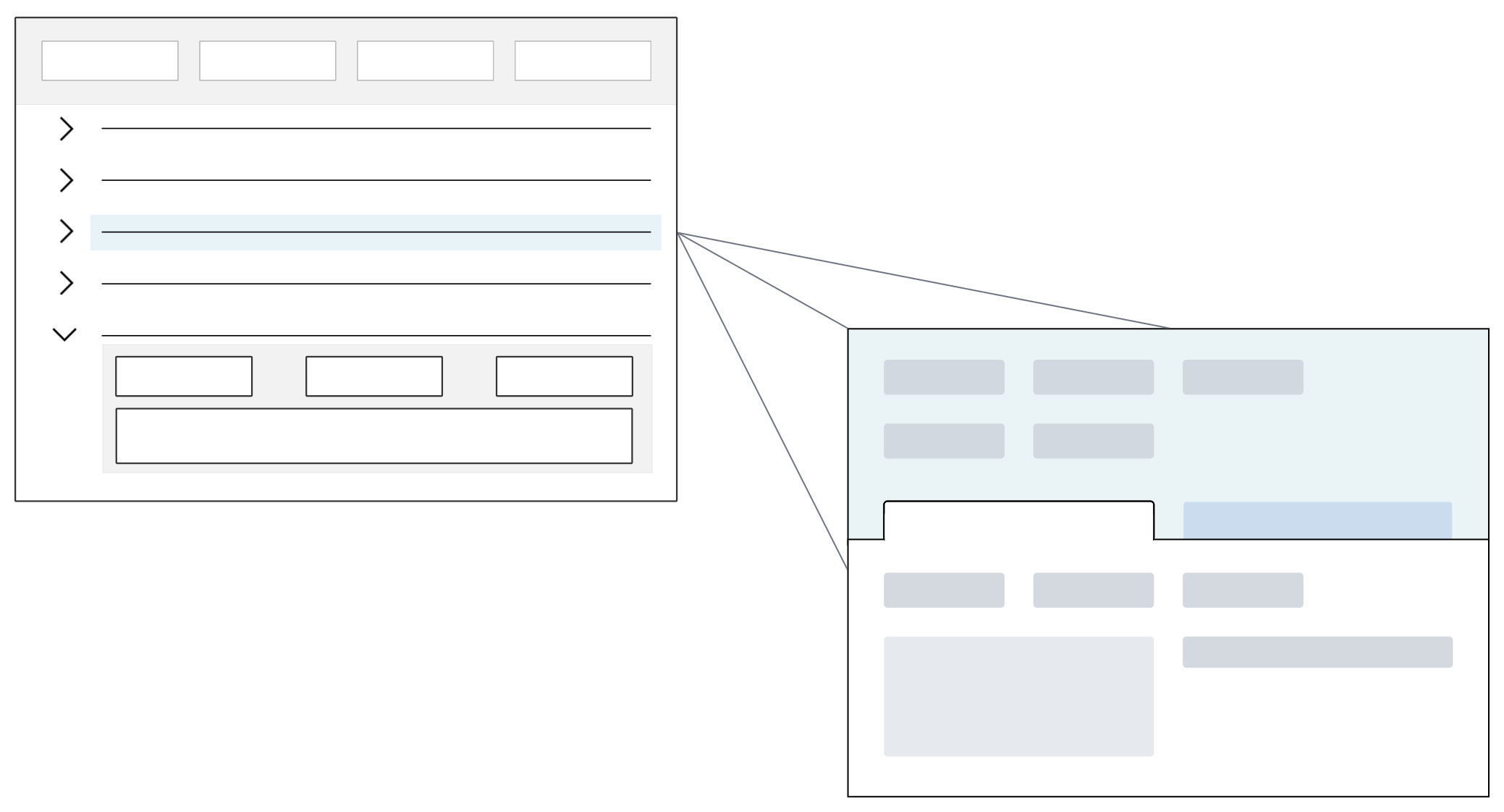
The diagram below represents a Standard style Advanced List application which opens to the list form. Records can be edited in the list form, or opened to the detail form.
Styles
Different styles can be applied to an advanced list application, such as:
Standard—Displays records in an editable list form. Optionally, configure Header filter fields that show meaningful combinations of filters to refine the visible records.Mini App—Opens a mini application over another application. You can search records without the main application closing. A mini app can be opened from the navigation menu or through an application action.Header—Configured as part of a Header Detail application. This enables Advanced List features such as Save as Group, and Grouped Detail in a Header Detail application. This style can't be selected from the Create Application window. You must either create the application in the Header Detail application or change the style once the application record is created.Learn more in Header Detail application.Card—Displays application records in a card format, rather than in a list form. Summary data for each record can be seen and visualized within the card.
Options
In addition to styles, there are several options you can apply to advanced list applications, such as:
- Grouped Detail—Opens the application in the list form, but provides a Load and Reset button. Records are not shown until values are entered in the Header filter fields and the Load button is selected. This feature uses row groups to group related records in the list form. Open one of the list form records to view, edit, or create records that share the same Header filter field values from one location. The Header values are defaulted into the records automatically. If you use this feature, you must also configure Save as Group. Learn more in Grouped Detail option for Advanced List application.
- Save as Group—Records are not saved when users exit the row or use the save row action. Instead, they are only committed to the database when you select the application's Save form action. This option can be selected without selecting the Grouped Detail option. Learn more in Save as Group option for Advanced List and Relationship applications.
Grouped Detail option for Advanced List application
The Grouped Detail option for Advanced List applications allows users to create and view records which are grouped together based on common header filter field values.
Each header filter field is configured as a row group. Row groups summarize the list form records into related groupings based on shared values. This means each record in the list form is a summary record that contains one, or many, records that all share the same header filter field values.
For example, the Grouped Detail option is enabled for the Time Entry Daily - Job application. This application is used to keep track of the hours worked by employees on specific projects during a given time period. Each record in the list form represents a project on a specific day, and exists as a summary record that holds all of the associated records for that project. When you open the detail form of the record, you can view, create, or edit the records associated with the project.
Forms
Advanced List applications with Grouped Detail enabled can open in either the list form, or the detail form with a list region, based on how the application is configured. The diagram below represents an application opening in the detail form:
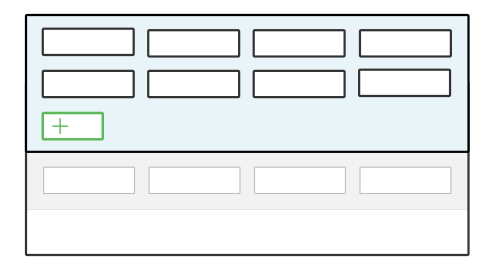
When opened in the detail form, you must enter values into the header fields and select the Load button to populate records. When you create a record, values from the header fields are automatically applied to the new record. Form action buttons are applied to all detail records at once, meaning all changes are processed and committed to the database together.
When opened in the list form, each record represents a group of records that have the same header field values. Open a record from the list to view individual records in the group. Depending on how the application is configured, you may be able to change header field values in the detail form. If you do, the changed record may no longer be part of the group from which you accessed it.
Grouped Detail configuration
Configure a Grouped Detail option for Advanced List applications in the Application Builder application.
Application Builder
In the Application Builder record there are several considerations for configuration, such as:
- Application Type must be
Advanced List. - Application Style must be either
StandardorMini App. - The Grouped Detail checkbox must be selected.
- Optionally, you can enable the single click to edit option in Application Properties. Learn more in Enable single click to edit fields.
In the List Form Fields section, there are several considerations for configuration of your header row, such as:
- You must have at least one field where Row Group is selected.
- The Row Group checkbox must be selected for each field you want included in the header. Only fields configured as a row group show in the header. For more information, see the Advanced List application configuration topic.
In the Detail Form Fields section, there are several considerations for configuration of your detail form, such as:
- The detail form must include all the header fields. That is, every field that is selected as a Row Group on the List Form Fields page must also be configured on the Detail Form Fields page.
- To load records from another table, add an Event Actions on the Actions page and select Load Button Clicked for the event action. In the Action field enter the name of the logic block for the event action.
Application Settings
To apply application settings to an Advanced List application with Grouped Detail enabled, you must select List in the Form field for the Control Actions on the Actions page.
To set control actions in a Grouped Detail view, on the Actions page, in the Form field, select Advanced List.
For more information see Advanced list application and Grouped Detail option for Advanced List application.
Save as Group option for Advanced List and Relationship applications
The Save as Group option for Advanced List and Relationship applications holds changes to the application's records in a NATE container. Changes are only commited to the database when the application's Save form action is selected, not when you exit a row or select the Save row action.
To configure, select the Save as Group checkbox in the application or application settings definition. The setting on the application setting overrides the configuration on the application.
Advanced List applications
The Save as Group option for Advanced List applications enables you to process batch records that share common values in the header fields. To validate the records before you save them, configure the Before Group Save event action in the Event Action section of the application.
For example, the Assign Serial Numbers Mini App has the Save as Group option enabled. This application allows a user to create serial number records and assign those serial numbers to inventory transactions in another application. The Save as Group option holds all the records for a single transaction in a NATE container and only writes them to the serial cross-reference table when the user has completed all changes for the transaction and selects the Save Form action.
Relationship applications (Tree and Standard)
The Save as Group option for Relationship application ensures that the the flatten hierarchy feature only occurs when the form action Save is selected within the application. This increases performance in Relationship type application. If Save as Group is not selected, the flattening of hierarchies happens automatically anytime a record is changed in the application.
Advanced List application configuration
Configure an Advanced List application with the Data Item Definitions, Table Definitions, and Application Builder applications.
Learn more about application configuration in Application configuration overview.
Data Items
You must have data items that are capable of being filtered for the header row fields. If you include an unsupported data item type in the header it is hidden in the list form display, but present in the detail form.
Data items can be created in the Data Item Definitions application, or in the Application Builder.
Table
Configure your table in the Table Definitions application.
Application Builder
In the Application Builder application, you must select the Advanced List type. Different styles can be applied, such as:
Standard—Displays records in an editable list form. Optionally, configure Header filter fields that show meaningful combinations of filters to refine the visible records.Mini App—Opens a mini application over another application. You can search records without the main application closing. A mini app can be opened from the navigation menu or through an application action.Header—Configured as part of a Header Detail application. This enables Advanced List features such as Save as Group, and Grouped Detail in a Header Detail application. This style can't be selected from the Create Application window. You must either create the application in the Header Detail application or change the style once the application record is created.Learn more in Header Detail application.Card—Displays application records in a card format, rather than in a list form. Summary data for each record can be seen and visualized within the card.
In addition to styles, there are several options you can apply to advanced list applications, such as:
Grouped Detail—Opens the application in the list form, but provides a Load and Reset button. Records are not shown until values are entered in the Header filter fields and the Load button is selected. This feature uses row groups to group related records in the list form. Open one of the list form records to view, edit, or create records that share the same Header filter field values from one location. The Header values are defaulted into the records automatically. If you use this feature, you must also configure Save as Group. Learn more in Grouped Detail option for Advanced List application.Save as Group—Records are not saved when users exit the row or use the save row action. Instead, they are only committed to the database when you select the application's Save form action. This option can be selected without selecting the Grouped Detail option. Learn more in Save as Group option for Advanced List and Relationship applications.
Advanced list application UI best practices
These best practices ensure that advanced list applications are configured consistently throughout Nextworld.
When to use
Use an advanced list application when you have data that you want to maintain quickly on a single page and where each row is treated independently. This also is considered a single maintenance application pattern. Each row can be edited immediately, or a set of rows can be grouped together and then edited.
For more on advanced list application form flow and configuration, see Advanced list application.
UI design
If you are setting up an application with fewer than ten fields, then the application should be developed as an advanced list application.
Only fields that are used for one of the following purposes should be placed in an advanced list header:
- Required search fields.
- Fields used to propagate data during the create. For example, the advanced list application Work Areas has the field
OrganizationalUnitin the header where you can filter the rows for a specific organizational unit. - Work fields used to control processing. For example, the advanced list application Bills of Material Integration has the Purge Processed checkbox in the header. If Purge Processed is selected when creating a new record, then successfully processed integration records are automatically purged.
- Used to create a form action, or map a field to a logic block or another application. For example, the advanced list application Bills of Material Integration sends the run numbers to a logic block when you select Process.
If you are filtering fields that don't follow the purposes of header fields, you should configure them in the column header filters. The filter capabilities in the column headers are more straightforward compared to filtering in the header.
Multi row select in advanced list applications best practices
These best practices ensure that the Datatable True/False Click (With Multiple Selection) action is used consistently and correctly throughout advanced list applications in Nextworld.
Don't use the Datatable True/False Click (With Multi-Select) action when there is logic configured to run for individual records. That is, don't use this action if logic blocks would run after each record changes, and have to finish running before the next record is updated. Running a lot of logic all at once causes performance issues.
For example, in the advanced list form of an application you can display 15 records on a page. If all of the records on the page have actions configured such as Row Entered, Row Exited, Row Changed or Field Value Changed, those actions would all be triggered when the Datatable True/False Click (With Multi-Select) action is used. This means that the user would have to wait for 15 logic blocks to run before they can do anything else.