















List lookups are useful when you have a stable list of values that are not likely to change significantly over time, and which do not require related details from other fields in the application. For example, you can use a list lookup to define a list of countries or payment methods. Lists of these values would be stable and not require frequent updates.
Entries in a list lookup are defined by value and description pairs. For example, in a list of countries, the value is a code (USA) and the description is the full country name (United States of America). Once the list is created, you can change a description or add a new value-description pair.
You should never delete values from a list lookup once it has been used. Deleting a value can cause data integrity issues in any records that reference that value. Instead, select the Disabled checkbox for values that should no longer be used. This prevents values from being selected in new records, but does not alter existing records or break any legacy processes that depend on the disabled value. Disabled list lookup values are still available for inquiries, but cannot be used for new records.
The diagram below shows different style options for list lookups in an application.
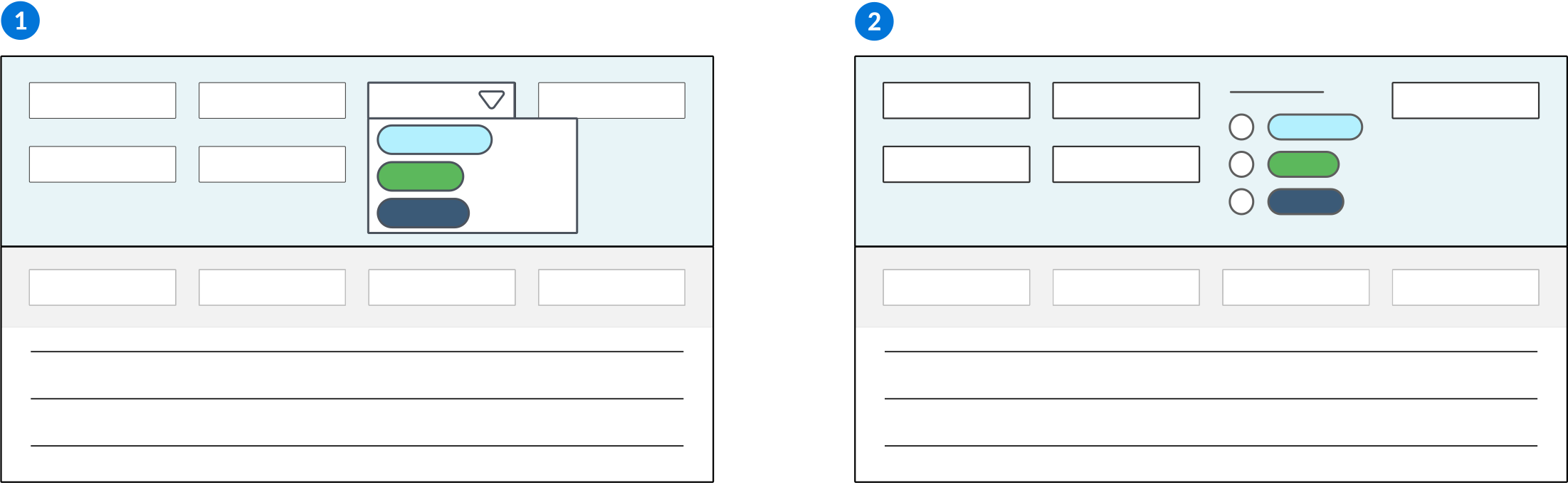
 | The field has a dropdown menu which a user can select from. By default, this is how list lookups are formatted in an application's field. |
|---|---|
 | The field shows inline values which a user can select from. |
Learn more in Basic list lookup configuration.
Basic list lookup configuration
Configure list lookups using the List Lookup Definitions and Data Item Definitions applications to create lists of selected values which you want available in the field of an application.
List Lookup Definitions
In the List Lookup Definitions application, you must:
- Create a list lookup, then configure it with values and descriptions. The values are used to reference the list lookup options, while the descriptions are what you actually see within the list lookup dropdown.
Data Item Definitions
In the Data Item Definitions application, open or create the data item where you want to populate the list lookup. Then:
- On the Settings page, specify the list lookup you created in the Name field.
- In the Lookup Type field, specify whether a user can select one or multiple list lookup values in the field.
- Some data item types allow you to optionally select a style for your list lookup in the Style Options field. By default, list lookups appear as a dropdown menu.
Control available list lookup values
Use different list lookup types to control the list lookup values available in your fields. These types include dynamic, selectable, dependent, reverse dependent, and filtered dependent list lookups.
The different types of list lookups are reviewed in the table below.
| Use type... | If you want to... | Example | Configure in the... |
|---|---|---|---|
| Dependent list lookup | Limit the choices in the dependent list lookup field based on a user's selection in the controlling list lookup field. | For example, if the dependent list lookup field is Car Models, and the controlling list lookup field is Car Make. Whichever lookup value the user selects in the Car Make field dictates what values are seen in the dependent lookup field of Car Models. | Table Definitions application. Learn more in Dependent lookup configuration. |
| Reverse dependent list lookup | Set the value in the controlling list lookup field based on a user's selection in the dependent list lookup field. The controlling field in a reverse dependent lookup is commonly hidden from the application user, while its value is used in logic blocks. | For example, if a user selects a model in the dependent list lookup field of Car Models, the system can automatically select the correct Car Make in the controlling list lookup field. | Table Definitions application. Learn more in Dependent lookup configuration. |
| Filtered dependent list lookup | Filter the values available in the dependent list lookup field based on values in the controlling list lookup. The values are not filtered based on user interaction, but instead based on the values selected during configuration. A common use case for this configuration is when you want to have multiple fields in an application with values from the same list lookup, but filtered using different controlling values. The controlling field does not need to be part of the table used in the application. This means the data item associated with the controlling list lookup does not need to be included in the table over which the application is built. | For example, an application could have two fields for car manufacturers. One field can be configured to only show values of domestic manufacturers, and the second field can be filtered to show only international manufacturers. All of the manufacturers are part of the same dependent list lookup, but the controlling list lookup determines international versus domestic. | Application Builder application. Learn more in Filtered dependent lookup configuration. |
| Filtered list lookup | Select which values are visible in the list lookup field for this application during configuration. The list lookup values which are not selected are not visible, but can still be defaulted in the field with logic blocks or the data mapper. | For example, a list lookup could contain values for all available car manufacturers. One application uses the list lookup and only orders domestic cars, so during application configuration only the domestic car manufacturers are selected to be shown. Another application uses the same list lookup but only sells international manufacturers, so at the time of application configuration only those values are selected to be shown. | Application Builder application. In the Filtered List Lookups subtable, select which values you want included in the application's field. |
| Dynamic list lookup | Show the values associated with a list lookup that is entered in another field. The controlling field is determined when the user is running the application. | For example, the List Lookup Definitions application uses a dynamic lookup to determine the dependent lookup values that are available for each row in the List Lookup Keys subtable. In this subtable, the Dependent Value field dynamically looks up on the Dependent List Lookup field in the header. When a user defines a list lookup in the List Lookup Definitions application, if a list lookup name is entered in the Dependent List Lookup field, then all the values of the chosen list lookup display in the Dependent Value field. | List Lookup Definitions and Data Item Definitions application. Learn more in Dynamic list lookup configuration. |
Dependent lookup configuration
Configure a dependent list lookup or reverse dependent list lookup with the List Lookup Definitions, Data Item Definitions, and Table Definitions applications. Dependent list lookups use values in one list lookup to choose the values for a different list lookup.
List lookup Definitions
In the List Lookup Definitions application:
- Create a list lookup that acts as the controlling lookup.
- Create a list lookup that is dependent on the controlling lookup. When configuring the dependent lookup:
- Enter the name of the controlling lookup in the Dependent List Lookup field. The values of the controlling lookup become accessible under the field Dependent Value.
- Configure values and descriptions.
- Associate the values and descriptions of the dependent lookup with the values from Dependent Value.
Data Item Definitions
In the Data Item Definitions application:
- Specify the controlling list lookup you created in the Name field of a data item.
- Specify the dependent lookup you created in the Name field of a different data item.
Table Definintons
In the Table Definitions application:
- Include the data items associated with the dependent and controlling list lookups in the table.
- On the Filtered Lookups page, under the Dependent List Lookups section:
- In the Controlling Field field, specify the name of the controlling list lookup.
- In the Dependent Field field, specify the data item that is connected to the dependent list lookup.
- To configure a reverse dependent lookup, select the Reverse checkbox. When a user updates a record in the application, this automatically sets the value in the controlling field based on what the user selects in the dependent field.
Applications
Applications
In the application that uses the dependent list lookup:
- Include both the controlling data item and the dependent data item. Dependent list lookups use the values on the application form, not the values stored in the table. If the controlling data item is not on the application, the dependent lookup has no value to work from, and users get an error.
- To keep the controlling data item from displaying, add it to the application, then configure a logic block on the
Form is Initializedevent action that applies a UI hint to hide the field.
Filtered dependent lookup configuration
Configure a filtered dependent list lookup with the List Lookup Definitions, Data Item Definitions, Table Definitions, and Application Builder applications. Filtered dependent list lookups filter the values available in the dependent list lookup field based on values in the controlling list lookup
List lookup Definitions
In the List Lookup Definitions application:
- Create a list lookup that acts as the controlling lookup.
- Create a list lookup that is dependent on the controlling lookup. When configuring the dependent lookup:
- Enter the name of the controlling lookup in the Dependent List Lookup field. The values of the controlling lookup become accessible under the field Dependent Value.
- Configure values and descriptions.
- Associate the values and descriptions of the dependent lookup with the values from Dependent Value.
Data Item Definitions
In the Data Item Definitions application specify the dependent lookup you created in the Name fields of any data items you want included.
When configuring data items for a filtered dependent lookup setup, you are likely to have more than one data item associated with the dependent list lookup.
Table Definintons
In the Table Definitions application, include the data items associated with the dependent list lookup in the table.
Application Builder
Configuration at the application level is required only for filtered dependent lookups.
In Application Builder, configure the filtered dependent lookup in the Configuration panel, in the Field Dependencies section, under the Filtered Dependent List Lookups section. You must:
- In the Lookup Field field, specify the data item in the application that is connected to the dependent list lookup.
- In the Controlling Lookup Name field, specify the name of the controlling list lookup.
- In the Lookup Values field, specify the values from the controlling lookup that should filter the dependent lookup.
Dynamic list lookup configuration
Configure a dynamic list lookup using the List Lookup Definitions application and Data Item Definitions application to configure a field to show the values associated with a list lookup that is entered in another field.
List lookup Definitions
In the List Lookup Definitions application, you must have defined the list lookups, along with their values and descriptions, that the dynamic lookup field should point to.
Data Item Definitions
In the Data Item Definitions application, you must:
- Create a data item that will act as the controlling field.
- Valid values for this field must be limited to names of list lookups already defined in the List Lookup Definitions application.
- For example, the data item can be a table lookup that points to the List Lookup Definitions application.
- Create a data item that will act as the dependent field.
- In the Dynamic List Lookup Field field, specify the name of the controlling data item.
When an application user selects a list lookup in the controlling field, the options in the dependent field are filtered according to the selection in the controlling field.
List Lookup Definitions application
Application developers use the List Lookup Definitions application to create and modify list lookups.
Use this application when you want to create a list of pre-determined values that the user can choose from when entering field data. The pre-determined values are connected to a data item so that when the data item is available as a field in an application, the values are displayed as the only options the user can select to fill the field.
When you create a list lookup, you must give it a name, a description, and assign it to a product family. You have the option to configure how you want the list of values to display and how the list should be sorted.
Dependent lookups
If your list lookup relies on a separate list lookup that your current lookup depends on, you can specify it in the Dependent List Lookup field.
Customization
If a list lookup can have changes made to the values, you can specify the type of customizations that can be performed in the Customization Pattern field.
See List lookup customization for information on customization patterns.
Lookup keys
You can configure the lookup keys, or the values that appear in the field list. This section is where you can configure the options that are visible in an application that uses the list lookup. Once a list lookup is in production, the entries in the Lookup Description can be changed, but the entries in the List Lookup Value field should never be changed.
Use the Default Value check box to assign one of your lookup keys as a default value for the field. Use the Disabled check box to disable a key if it is no longer a necessary value.
Release management
Use the Released With field to specify in which release the lookup key should be added to the list of field values.
For more information, see List lookups.
List Lookup background color best practices
These best practices ensure that field background colors in applications are configured consistently throughout Nextworld.
Background colors are configured in the List Lookup Definitions application.
Do not select a color for rows. A themed color will automatically be applied to rows in the range of Header Row and Header Row To configured in Application Builder on the Pages and Rows page. Do not use any other colors for the header. The exception to this is if you configure your header as Card to make it appear white.
If the application displays a status, use one of the spectrum background colors.
Not all status fields should use a background color. For example, don't use background colors if there would be too many colors that might overwhelm the user. Use a text color instead.
List lookup text color best practices
These best practices ensure that field text colors in applications are configured consistently throughout Nextworld.
Text colors are configured in the List Lookup Definitions application.
If no background color is configured, either do not specify a value for the Text Color field or use one of the spectrum colors for your text color. If you do not enter a text color, the color is automatically determined.
When you configure Background Color, the text color chosen for that background color in the current theme is applied if you leave Text Color unassigned. Be sure that text color appears clearly with your selected background color. For example, if you chose the background color the text would not appear clearly if the text color was configured as .
List lookup best practices
These best practices ensure that list lookups are configured consistently throughout Nextworld.
List lookup configurations are done in the List Lookup Definitions application.
The Display field must always be configured to only show Description. Do not use any of the other options. The lookup key descriptions are intended for an external audience, while the values are used for internal purposes.
Lookup keys
The values entered in the Lookup Description field must be under 20 characters in length and must only include numbers and letters. The value should not include any special characters.
When configuring List Lookup Keys, the names entered in the List Lookup Value and Lookup Description fields should follow these standards:
| Standard | Example | |
|---|---|---|
| List Lookup Value | Upper camel case or UPPERCASE | USER |
| Lookup Description | Title Case | Current Username |
Customization
Configure any list lookup that is used for a workflow to have the Allow Additions customization pattern so that application developers can add additional steps/statuses to their workflow.
Ensure that any data item that uses a list lookup with the Complete Unlock customization pattern doesn't have a default value configured. List lookups that have a customization pattern of Complete Unlock do not have list values delivered to end users. If a user opened the application using that data item with a default that doesn't exist, an error will display.
Naming conventions and standards
List lookup names should have spaces and do not follow the upper camel case naming convention that most Nextworld objects adhere to. List lookup names should be descriptive enough for someone to know what the list lookup is for. For example, Bank Deposit Status and Contact Classification are all acceptable names for list lookups.
The List Lookup Value field entries should only include numbers if the entry is considered a code. Numbers should not be used unless it makes sense, for example, 1 through 12 to represent the calendar months. If the value is a code, use enough letters to have it make sense. Try not to use only one letter.
If the List Lookup Value field entry is considered a code, then the entry should be written in all capital letters. For example, if the code value for Financials is fins, the entry in the List Lookup Value field would be FINS. If the code value for Release Management is rlsmgt, the entry in the List Lookup Value field would be RLSMGT.
The Lookup Description field should contain a longer version of the value entry, but should not be a full sentence.