















For example, you may need to run an automated test on the business logic of an application that handles a large amount of records. Rather than creating records manually in your seed environment, you can use the data generation applications to define the variability of the records you need.
The diagram below shows the components you need to generate business data:
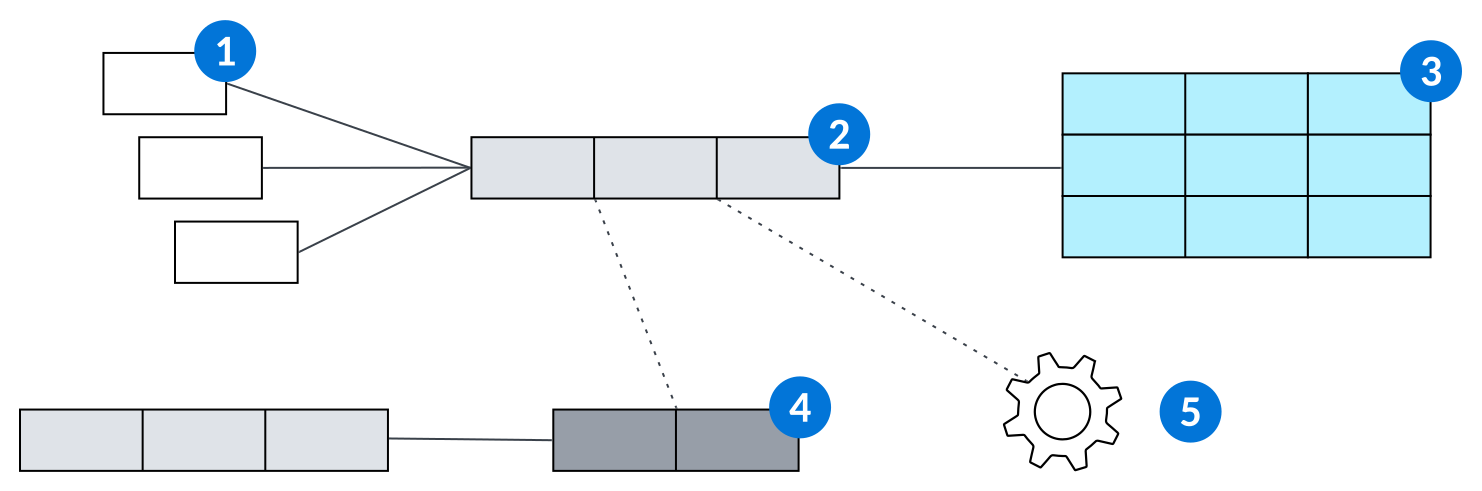
 | Field Value Generator application—Define the type of variability and distribution for the values in a field. Depending on the field type, you can set the field value to have a random value within a range, define values with custom distribution, and more. Field value generators can be reused in multiple record generators. Learn more in Field Value Generator application. | |
 | Record Generator application—Define a table you need to generate data for. Include all the relevant field value generators for the fields in that table. Record generators can be reused in multiple data generators, and you can create multiple record generators for the same table for additional variability. Learn more in Record Generator application. | |
 | Data Generator application—Define different record generators and how many time each should run. You can create up to one million records. Learn more in Data Generator application. | |
 | Data Generator Subtable/Detail Table Config application—Optionally, if you need to generate data in subtables or detail tables, create additional record generators for those auxiliary tables. For example, if you needed to generate detail records for a Header table, create a record generator for the header table and for the detail table. In the Data Generator Subtable/Detail Table Config application, define detail table and the variability in the number of detail records you need for each header record. Then, specify this configuration in the record generator for the header record. Each time the header record generator runs, associated detail records are also created. Learn more in Data Generator Subtable/Detail Config application. | |
 | Pre Insert Logic Block—Optionally, you can specify a Pre Insert Logic Block on a record generator, which runs after the record is generated, but before it's inserted into the table. For example, you may generate detail records that include randomized debits and credits, but need to ensure that they balance to not cause an error. You can create a logic block that inserts another detail record to balance the total amount before the header record and detail records are inserted. |
Field Value Generator application
Use the Field Value Generator application to define the variability of values created in a field during data generation.
Field value generators are defined in record generators, which are used to create records in bulk using the Data Generator application. Learn more in Data generation process.
There are different types of generation methods you can select depending on the type of field. For example, you could choose Random With Custom Distribution, which allows you to specify values and the percentage chance each value is inserted in the field each time the field value generator runs as part of a record generator.
There are multiple options when generating a field value for a table lookup field:
Table Lookup (Query for existing record)—Specify filters that narrow down the records in the referenced table.Table Lookup (Insert new record)—Specify a record generator that inserts a record into the referenced table. The generated record is then used to determine the table lookup field value.
Record Generator application
Use the Record Generator application to define how and where records are created during data generation.
Record generators are made up of field value generators, and are then defined in the Data Generator application to create records in bulk. Learn more in Data generation process.
To create a record generator, define the table to generate data for and include all the relevant field value generators for the fields in that table. Optionally, you can specify additional record generators for subtables or detail tables. You can also specify a Pre Insert Logic Block to modify the record before it's inserted into the table.
Data Generator Subtable/Detail Config application
Use the Data Generator Subtable/Detail Table Config application to assemble record generators for subtable or detail tables.
After you create record generators for your auxiliary table and define them in this application, specify the data generator subtable/detail table config on the record generator for the primary table. This creates the relationship between the primary record and it's auxiliary records. Learn more in Data generation process.
Use the Number Of Records To Insert and Record Variability subtables to create variability in the number and type of auxiliary records to generate when the primary record generator runs.
Data Generator application
Use the Data Generator application to create randomized sets of data for testing or demonstrations.
Data generators are made up of record generators, which are made up of field value generators. Learn more in Data generation process.
Specify all the record generators and the number of records that each should create. You can generate up to one million records in a single data generation job. Select the Delete Table Data checkbox for each record generator to delete all records from the table before new records are generated and inserted. This also deletes data from all detail tables or subtables that have auxiliary record generators configured for them and linked to the primary record generator.
Use the Execute row action to begin the data generation process. Track the data generation job in the Jobs application.