















For example, a SalesAgent might be equipped with tools to retrieve, create, update, and delete sales order records, and a skill that guides how the agent handles sales data requests. If you ask Ed, "Show me total sales by customer for this month," Ed reviews the agents available to it and determines that the SalesAgent is best suited to handle your request. The SalesAgent invokes its sales data skill which instructs the agent to fetch the relevant sales order records and present the results as a table with columns for Customer, Total Sales, and Order Count. This ensures the response is clear and consistently formatted every time the request is made, regardless of any underlying changes to the AI model.
If you then ask Ed to update a specific order, the SalesAgent handles this directly using its update tool, without needing to invoke a skill. The agent is able to fulfill straightforward requests like this using its tools alone.
The following diagram illustrates how agents with different skills and sets of tools operate in Ed's network:
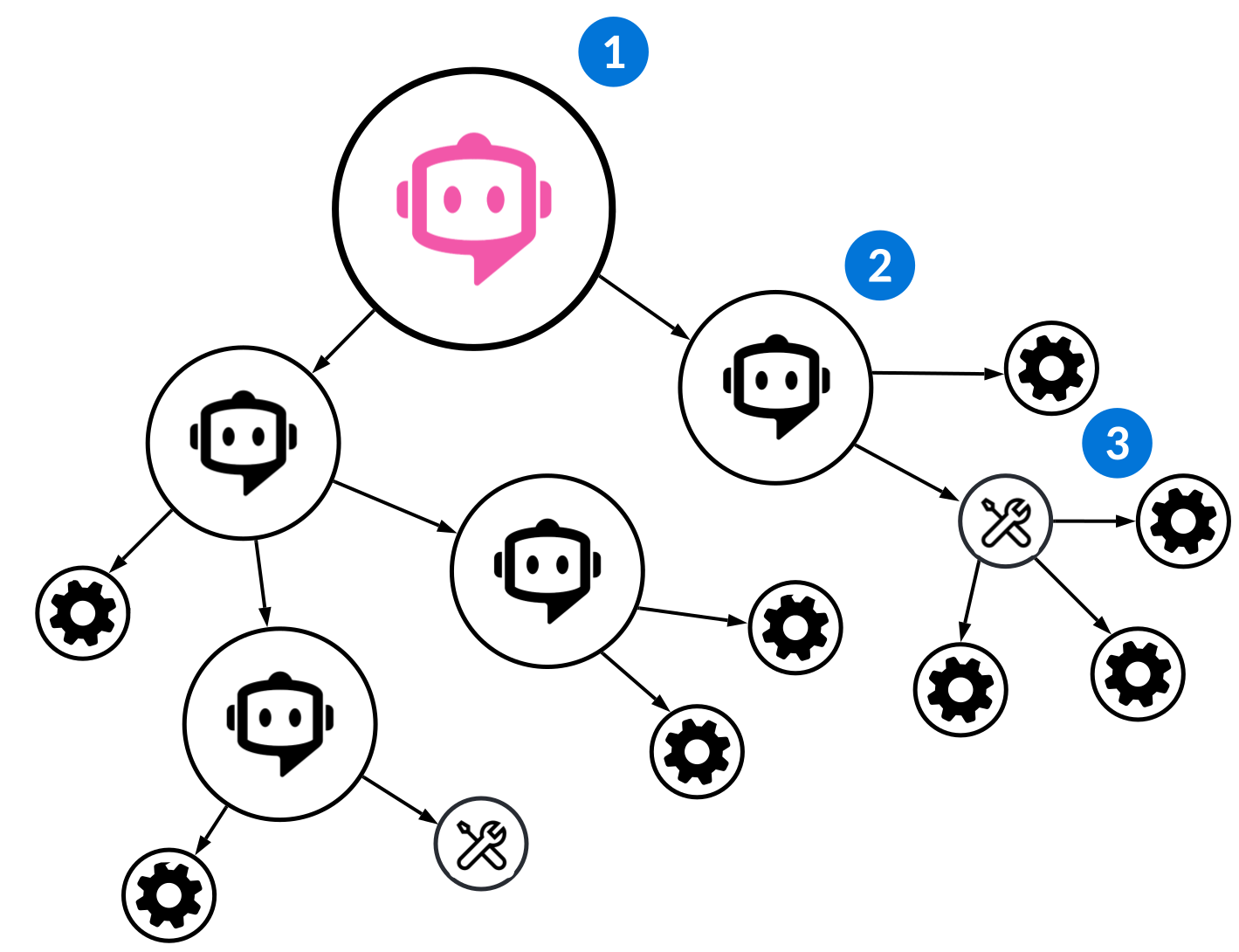
 | Ed—Built over a network of agents that enable him to perform different tasks within the platform. Users send their requests to Ed in the chat interface, then Ed calls upon agents in his network to complete the tasks. He can only call on agents that list him as a parent agent. |
 | Agents—Every agent includes an Agent Description Prompt that describes their capabilities to Ed and other related agents. This helps Ed determine which agents to call upon. When an agent is called, it determines which of its tools to execute or which of its related agents to pass the user's request to. The agent makes this decision using:
Learn more in Agent Builder application. Multiple agents may be called upon and multiple tools may be executed in order to fulfil a user's request. This group of actions and the order they are performed in is referred to as an agent flow. Learn more in Agent flows. |
 | Skills—Describe the agent's capabilities to itself and guides how it behaves and reasons when it's executing. For example, a skill that aggregates and summarizes sales order data. Tools—Describe the specific actions the agent can perform. For example, tools for running a logic block or retrieving data. Each tool includes descriptions of fields. Using these descriptions, the agent can extract the appropriate field values from the user's request, and perform an action in the platform. Learn more in Agent tools. |
Ambient agents
Logic blocks can call agents to perform tasks that run in the background. You can also call an agent from a logic block that gives it a task to complete. These agents are known as ambient agents.
For example, you could build a logic block that is triggered when the quantity of an item drops below a certain threshold. The logic block could call an ambient agent that you configured with the tools needed to create a purchase order to restock the item.
Learn more in Ambient agents.
Ambient agents
You can use a logic block to provide an agent with a task to complete in the background. When an agent works in the background, it’s known as an ambient agent.
For example, you could configure an agent that can order additional items in a warehouse. The agent could have tools to examine the order history for an item, consider price trends, check the quantities at other warehouses in your system, and create either a purchase order or a transfer order to restock the item. You could configure a logic block to call this agent on a schedule, or when the quantity of a particular item drops below a certain threshold. After the agent runs, it notifies a user who can approve or reject the purchase order it created.
Unlike agents that are a part of Ed's network, when you call an agent from a logic block, it always runs asynchronously and in the background. When the agent completes its task, or if it requires additional information or input, a notification is sent to the user, where they can follow a link to open the conversation with the agent. Notifications are sent to the user that triggered the logic block, or the user listed as the Run As User of the scheduled job.
Additionally, ambient agents are limited to a single agent flow, which means that the conversation with the agent closes when it completes its task. Conversations with these agents have a Agent Conversation Type of Automation.
All agents can be called from a logic block, be included in Ed's network of agents, or both. If the agent should only be called from a logic block, you don't have to list any Parent Agents. However, you should always consider your agent relationships. When an agent is called from a logic block, it only has access to its own tools and child agents. It cannot access Ed or any of its parent agents to complete its task.
Use the Queue Agent logic block action to define the task the agent should complete. Learn more in Queue Agent action.
Queue Agent action
Use the Queue Agent action to define a task for an agent to complete in the background.
Agents that run in the background are known as ambient agents. Learn more in Ambient agents.
After you add the action to your logic block and select the agent, define an Agent Task. This task must be a text string that's consumable by an LLM. This may be similar to a request a user might send to Ed, but you can dynamically interpolate values using the values and variables available in you logic block.
Use the Concatenate Text action to output a variable using a mix of constants, variables, and field values, and use this variable as your Agent Task. Learn more in Concatenate Text action.
Shared values
Some agent tools output field values that can be used throughout the subsequent actions in an agent flow. Learn more in Share values between agent tools.
The agent you call in your logic block may require a value that would have otherwise been generated by a tool executed earlier in the agent flow. If this is the case, use the Shared Values section to define how these values are derived. When your agent is called, these values are made available to it.
Agent Builder application
Use the Agent Builder application to create agents. Agents use tools, skills, and other agents in their hierarchy, to complete actions within the platform. Agents may be called by Ed in the chat interface, or by a logic block.
Each time an agent is called upon, a prompt is sent to an external large language model (LLM). This prompt contains:
- The user's original request to Ed, or the agent task that's passed from a logic block.
- The Agent Persona and skills.
- A list containing the tools the agent can execute, and a description of those tools.
- A list containing each related agent, and a description of each of those agents.
Based on this prompt, the LLM determines which of the agent's tools to execute, or which of its related agents to pass the user's original request to.
Agents typically operate in a hierarchy beneath Ed. However, they can also be called from a logic block. Learn more in Agents.
Persona and Description
Write a Agent Persona that describes the purpose of the agent. The contents of this field should be written in second person in order for the agent to understand its purpose and capabilities.
For example, the Agent Persona for the AppBuilderAgent reads, "You are an intelligent agent designed to create and update applications."
You must also write a Agent Description Prompt for the agent. While there may be overlap between the Agent Description Prompt and the Agent Persona, the Agent Description Prompt is used by Ed or another parent agent to determine whether to call upon this agent. The contents of this field should be written in third person. Learn more in How to write agent personas, skills, and descriptions.
Security Configuration
Use the Secure Agent checkbox to control who can run the agent. New agents are secured by default, which means only users with a permission that grants access to the agent can run it. Existing agents aren't secured until you select Secure Agent.
When Secure Agent is selected, you can optionally assign the agent to a security group in the Security Group field. A permission can then grant access to the security group instead of to each agent individually. Learn more in Security groups.
To grant users access to a secured agent, add the agent or its security group to a permission definition. Learn more in Permission Definitions application. A user without access gets a not-authorized error when they try to run the agent from Ed or a scheduled job.
Toolsets
Include the sets of tools the agent can execute. Group tools into toolsets with the Agent Toolset Builder application.
Toolsets are not available for agents with a Thought Reasoning of Directed.
Parent Agents
Include the Parent Agents that can call upon this agent.
Ensure you understand the relationships between Ed and the agents you create. All user requests are submitted to Ed in the chat interface. In order for your agent to complete tasks for a user, you must either:
- Include Ed in the Parent Agents subtable.
- Include another agent in the Parent Agents. This agent must have Ed listed as a parent agent, or be a list a parent agent that does.
Display Options
Configure how the agent appears and is described in the chat interface.
Skills
Include the skills that guide the agent's reasoning when it performs tasks. Write skills in the Agent Skill Definitions application, or create them on the Agent Builder canvas. Learn more in Agent Skill Builder application.
Skills are not available for agents with a Thought Reasoning of Directed.
Optionally, you can attach files, such as reference documents or spreadsheets, directly to a skill. The agent's file-reading tools automatically read these attachments, so a skill's instructions can reference them. To attach a file, drag it onto the skill in the canvas, or use the Attachments form action. Attached files are included when the skill is promoted to another environment or exported.
Directed Flow page
This is only available for agents with a Thought Reasoning of Directed.
Define the toolsets that a Directed agent should execute in order.
Define the order of the tools within a toolset in the Agent Toolset Builder application. If the agent has multiple toolsets that it should execute in order, ensure each toolset is in order in the Execution Order subtable. Learn more in Agent thought reasoning.
Schedule
Select the Schedule icon on an agent to configure a recurring run for that agent, without building a supporting logic block or Job Scheduler record yourself. Then:
- Enter a Prompt describing what you want the agent to do on this schedule. This works like a request a user would type to the agent directly, and can differ from the agent's persona and description.
- Optionally, specify a Run As User. If left blank, the schedule runs as your own user.
- Choose a recurrence. Use the simple view (hourly, daily, weekly, monthly) for common schedules, or switch to the advanced view for full access to the underlying recurrence rule options.
Saving a schedule automatically creates a corresponding recurring record in Job Scheduler. Updating or deleting the schedule here keeps that record in sync. Scheduling an agent more than once, with different timing, creates a separate record for each schedule.
How to write agent personas, skills, and descriptions
Each time an agent is accessed or a tool is executed, a prompt is sent to a large language model (LLM). This topic describes how to effectively write the content that's sent to a LLM at runtime, such as agent personas, tool descriptions, skills, and more.
General guidelines
In general, keep all content simple. As you test your agents, you can add more information where it's appropriate to improve the agent's performance.
Use consistent language across your agents' personas, descriptions, and tools. Don't use multiple terms to indicate the same objects or entities.
To describe the agent's capabilities, use the word "action." Don't use the word "tool," even though it's used in the agent builder applications.
For fields which require more content, such as agent personas, use Markdown syntax. Always write in complete sentences, end each sentence with a period, and don't add extra line breaks. Only use one space between sentences.
Guidelines for specific fields
| Application | Field | Guidelines | Example |
|---|---|---|---|
| Agent Builder | Agent Persona | The agent persona is sent to the LLM when the agent is called upon. Start with a clear definition of the agent's role and its domain of knowledge. Include any information helpful for the agent to understand the platform. Outline the general capabilities of the agent, and describe the entities the agent can handle, such as customer invoices, customer credits, or cash receipts. Include brief examples. | Directory agent persona:You are a specialized directory agent designed to find information about entities within the directory module of an enterprise resource planning system. # Core capabilities ## Identify entity: For example, determines and validates related record information. ## Prompt clarification: Asks the user targeted clarification questions to ensure the best action is used. ## Directory: For example, displays directory related records such as customers, suppliers, employees, etc. ## Directory Basic Operations: For example, maintains contact details, holds management, addresses, organizational structures, or other directory information. You do not need to clarify customer or supplier when managing holds. When performing basic operations, determine today's date unless a date is provided by the user. Only display holds when a user asks to view them. |
| Agent Builder | Agent Description Prompt | The agent description is sent to the LLM when its parent agent is called upon, and uses the description to determine whether to call upon the agent. Similar to the agent persona, you should broadly define the agent's capabilities. However, you shouldn't go into nearly as much detail. Don't include all the agent's capabilities. | Directory agent description:An agent capable of finding actions that will access and manage the directory module including basic operations, which usually handles inquiries on customers, suppliers, employees, and contacts, and specialized operations, which usually handles management of customer and supplier holds. |
| Agent Tool Builder | Agent Description Prompt | Start with a concise description of the tool. For data retrieval tools, use the word "display." For logic block tools, use consistent verbs across all your agent's tools.tool requires an input value that's determined by another tool, explicitly state which values the agent needs to determine before executing the tool. Learn more about shared values in Share values between agent tools. | DisplaySupplierHolds tool description:A directory action that displays supplier holds. You only need to determine and validate the supplier when it is provided by the user before executing this action. Supplier holds include general hold information such as hold type, reason, effective dates, and associated supplier information. |
| Agent Tool Builder | Description Prompt field, in the Input Fields subtable | Briefly describe the field to instruct the LLM on how to derive the input from the user's request. | DetermineSupplierInformation logic block tool input field description for the Supplier field:The user provided name used to identify a supplier (individual or organization) that provides goods or services to the company. |
| Agent Skill Builder | Skill Instructions | Define the skill's behavior by writing directly to the agent. Tell it what the skill is for, when to use it, and how to execute it. The instructions are injected into the agent's system prompt at runtime, so write them as direct instructions rather than descriptions. Structure your instructions in this order:
Keep each section focused. The more specific and concrete your instructions, the more reliably the agent executes the skill. | Purpose: Retrieve the status of an open customer order by order number. Prerequisites: An order number must be provided or retrievable from context. Procedure: 1. Identify the order number from the user's request. 2. Query the order record using the order number. 3. Retrieve the current status, expected ship date, and any open items. 4. Return a summary to the user. Output format: A brief summary including order number, current status, expected ship date, and any outstanding items requiring attention.Edge cases: If the order number is not found, ask the user to confirm the number before proceeding. |