















Temporary tenants are referred to as tenants because, like your own tenant, they have their own set of users and are isolated from your other environments. After it's created, you can sign in to a temporary tenant just like you sign into any of your other environments. However, you must use the usernames and passwords that are automatically generated when you create the temporary tenant instead of your own username and password that you use to sign into your standard environments.
Temporary tenants are automatically destroyed when they expire, and their data is never migrated to other environments. However, you can extend these expiration dates depending on your needs.
The following diagram shows how your business data and your metadata from different environments is used to create temporary tenants:
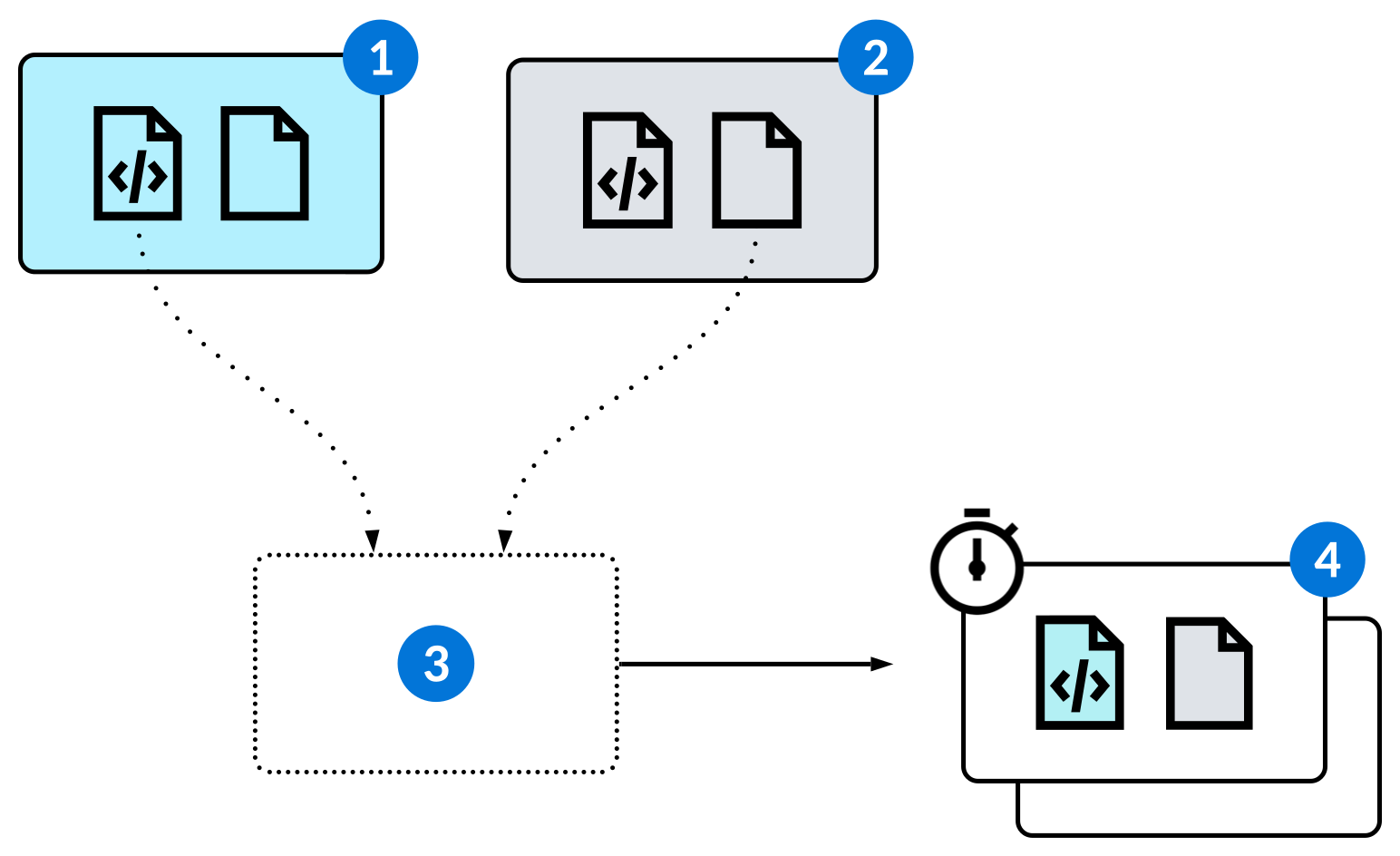
 | Base environment | The environment containing the metadata you need in your temporary tenants. For example, if you need a temporary tenant to test the metadata in your development environment, specify that environment as your base environment in the temporary tenant template. |
|---|---|---|
 | Seed environment | The environment containing the business data you need in your temporary tenants. For example, if you need a temporary tenant to test the metadata in your development environment, specify the environment where you manage your sample data as your seed environment in the temporary tenant template. |
 | Temporary tenant template | Set up temporary tenant templates to quickly create temporary tenants whenever you need them. The temporary tenant template record specifies the base environment and seed environment in which data is copied from to create temporary tenants using the template. You should always create temporary tenant templates in your development environment. There are different applications to create temporary tenant templates, depending on your use case. Learn more in: |
 | Temporary tenants | Each temporary tenant is created using a temporary tenant template. When a temporary tenant is created, it's populated with a copy of the business data and metadata from the environments defined in the template. There are different applications to create temporary tenants, depending on your use case. Learn more in: |
Temporary tenant users
When you create a new temporary tenant template, you specify a Base User. This user should have all of the roles needed to perform the necessary tasks in the temporary tenants. Each time a temporary tenant is created using the template, Actual Users with all the roles of the Base User are created. You sign in to the temporary tenant as one of these users.
Manual testing
Each time you perform a manual test, do so in a temporary tenant. This ensures that tests are repeatable and that the actions performed while testing don't affect data in other environments. Learn more in Application testing.
Automated testing
Each time a test action or test suite is submitted, a temporary tenant is created automatically. By default, the temporary tenant is destroyed as soon as the test is complete and results are recorded. However, when submitting a test action, you can specify an existing temporary tenant that is not automatically destroyed when the test is complete.
You should also use a temporary tenant when using the Nextworld recording tool to create test actions. Learn more in Create automated tests with the Nextworld recording tool.
Data transform testing
Use a temporary tenant to test a data transform and make sure it's working as intended before you run it in a shared environment. If the data in your seed environment isn't sufficient for your test, you may need to create or import additional records. Learn more in Data transforms.
Temporary Tenant Template Setup - Demo application
Use the Temporary Tenant Template Setup - Demo application to create templates for temporary tenants for use in demos. After you configure templates, use the Temporary Tenants - Demo application to create isolated environments where you can demo your features without compromising data in other environments.
To create a template, specify the environments in which to pull metadata and business data from in your temporary templates. Specify a Base User that has all the necessary roles to conduct your demonstrations. Learn more in Temporary tenants.
After you create a template, navigate to the Temporary Tenants - Demo application to create temporary tenants using your template. You can also use the Create Tenant action from the Temporary Tenant Template Setup - Demo application. Learn more in Temporary Tenants - Demo application.
Temporary Tenant Template Setup - Server application
Use the Temporary Tenant Template Setup - Server application to create templates for temporary tenants that require advanced configuration. After you configure templates, use the Temporary Tenants - Server application to create isolated environments where you can conduct tests and more without compromising data in other environments.
To create a template, specify the environments in which to pull metadata and business data from in your temporary templates. Learn more in Temporary tenants.
After you create a template, navigate to the Temporary Tenants - Server application to create temporary tenants using your template. You can also use the Create Tenant action from the Temporary Tenant Template Setup - Server application. Learn more in Temporary Tenants - Server application.
Migrations and Users page
On the Migrations and Users page, specify users in the Base Test Users subtable. These users should have all the roles required to complete your tests and other work.
In the Tables to Migrate subtable, include all the tables to migrate from the seed environment when a new temporary tenant is created using the template.
Secondary Zone page
On the Secondary Zone page, you can select an additional seed environment to migrate additional Tables to Migrate sample data from.
Temporary Tenant Template Setup - Test application
Use the Temporary Tenant Template Setup - Test application to create templates for temporary tenants for automated and manual tests. After you configure templates, use the Temporary Tenants - Test application to create isolated environments where you can test your applications without compromising data in other environments.
To create a template, specify the environments in which to pull metadata and business data from in your temporary templates. Specify a Base User that has all the necessary roles to conduct your automated and manual tests. Learn more in Temporary tenants.
In the Tables to Migrate subtable, include all the tables to migrate from the seed environment when a new temporary tenant is created using the template.
After you create a template, navigate to the Temporary Tenants - Test application to create temporary tenants using your template. You can also use the Create Tenant action from the Temporary Tenant Template Setup - Test application. Learn more in Temporary Tenants - Test application.
Temporary Tenant Template Setup - Test Harness application
Use the Temporary Tenant Template Setup - Test Harness application to create templates for temporary tenants for logic block test harness testing. After you configure templates, use the Temporary Tenants - Test Harness application to create isolated environments where you can test your logic blocks without compromising data in other environments.
To create a template, specify the environments in which to pull metadata and business data from in your temporary templates. Specify a Base User that has all the necessary roles to conduct your automated and manual tests. Learn more in Temporary tenants.
In the Tables to Migrate subtable, include all the tables to migrate from the seed environment when a new temporary tenant is created using the template.
After you create a template, select the Create Tenant form action, or navigate to the Temporary Tenants - Test Harness application and select the Create Test Harness Instance form action. Learn more in Temporary Tenants - Test Harness application and {* link 'TestAutomationLogicBlockTestingLogicBlockTestHarness'=name *.
Temporary Tenants - Demo application
Use the Temporary Tenants - Demo application to create temporary, isolated environments that you can use to demonstrate your features without affecting data in other environments. You create tenants using templates configured in the Temporary Tenant Template Setup - Demo application.
The Temporary Tenants - Demo application includes all the temporary tenants that have been created to demonstrate features. Open a record in the detail view to access the login information to access that tenant.
To create a new temporary tenant, select the Create Tenant form action, then:
- Select a temporary tenant template.
- Optionally, specify a Custom Expiration Date for the tenant, as well as Custom Usernames that you can sign into the tenant with.
- If you have demo data in another lifecycle you want to migrate, use the Lifecycle to Migrate From field on the Advanced page.
Use the Record in New Tab action to sign into the temporary tenant in a new tab and open the recording sidebar. Learn more in Create automated tests with the Nextworld recording tool.
Learn more in Temporary tenants.
Temporary Tenants - Server application
Use the Temporary Tenants - Server application to create temporary, isolated environments that require advanced configuration. In these tenants, you can conduct tests and more without affecting data in other environments. You create tenants using templates configured in the Temporary Tenant Template Setup - Server application.
The Temporary Tenants - Server application includes all the temporary tenants that require advanced configuration. Open a record in the detail view to access the login information to access that tenant.
To create a new temporary tenant, select the Create Tenant form action and select a temporary tenant template. Optionally, you can specify additional Roles for the base user of the tenant.
Use the Record in New Tab action to sign into the temporary tenant in a new tab and open the recording sidebar. Learn more in Create automated tests with the Nextworld recording tool.
Learn more in Temporary tenants.
Temporary Tenants - Test application
Use the Temporary Tenants - Test application to create temporary, isolated environments that you can use for automated and manual tests without affecting data in other environments. You create tenants using templates configured in the Temporary Tenant Template Setup - Test application.
The Temporary Tenants - Test application includes all the temporary tenants that have been created for testing. Open a record in the detail view to access the login information to access that tenant.
To create a new temporary tenant, select the Create Automation Instance form action and select a temporary tenant template. Optionally, you can specify additional Roles for the base user of the tenant. If you need to create an automated test that includes an approval, you can select Approval Test checkbox and specify the Approval Definition when you create the temporary tenant. Learn more in Validate approvals in automated tests.
Use the Record in New Tab action to sign into the temporary tenant in a new tab and open the recording sidebar. Learn more in Create automated tests with the Nextworld recording tool.
Learn more in Temporary tenants.
Temporary Tenants - Test Harness application
Use the Temporary Tenants - Test Harness application to create temporary, isolated environments that you can use for logic block testing without affecting data in other environments. You create tenants using templates configured in the Temporary Tenant Template Setup - Test Harness application.
The Temporary Tenants - Test Harness application includes all the temporary tenants that have been created for testing. Open a record in the detail view to access the login information to access that tenant.
To create a new temporary tenant, select the Create Test Harness Instance form action and select a temporary tenant template. Optionally, you can specify additional Roles for the base user of the tenant.
Learn more in {* link 'TestAutomationLogicBlockTestingLogicBlockTestHarness'=name *.