















Primary table types
| Use type... | If you want to... |
|---|---|
Main | Create a relational table whose unique values and data items create the rows and columns in the table. |
| Settings | Configure settings that apply to all applications in a module. |
| Header Detail | Create a table that either:
|
| Header | Build and configure fields for the header portion of a Header Detail table. |
| Detail | Build and configure fields for the detail portion of a Header Detail table. |
| Join | Create a view that joins one or more tables for use in a logic block, relationship application, standard application, or advance list application. The following relationships are currently supported:
Learn more in Join tables. |
| Sub Subtable Main | Create an abstracted form of a table which is referenced in a single field of an application. This is helpful when you want to provide specific information that goes with a parent record, but don't need all of the information from the referenced table. Subtables can be of type Sub, or type Subtable Main. Learn more in Subtables. |
| View | Create a read-only version of a table that displays a limited set of fields and records for use in reports. Learn more in View tables. |
| Summary | Use a dimensional modeling approach to capture and prepare transactional data from multiple tables. Summary tables are an advanced development feature for use in interactive reports. Learn more in Summary tables. |
Temporary and data structure table types
| Use Type ... | If you want to... |
|---|---|
| Work Table | Define a list of data items to pass data to and from a logic block. Work tables do not store data. Once the work table has been created, write any associated logic blocks over the table. See the Work tables topic. |
| Component | Define certain fields by using additional objects. For example, a Name object contains additional objects such as First Name, Last Name, Suffix, and so on. |
Join tables
Use a join table to connect multiple tables that share related data. A join table uses fields from each table to identify overlapping values and connect records based on the overlap. The result is a joined table that can be viewed in a new application.
When creating a join table, select the tables you are joining and the fields from each that you want to connect the tables. The primary table is the base of the join table you are building. Thesecondary tables are the tables that connect to the primary table through the join fields.
Join Fields are the fields that share common values, on which the tables are joined. For example, you could use the field of City Name from the primary table and the field of Birthplace from the secondary table as Join Fields if each has a record for Denver.
Join tables are useful when you want to view related records from multiple tables in one location. For example, the General Ledger application is built over a join table. The primary table shows multiple fields such as the Status, Company, Ledger, Transaction Date, and GL Account. The secondary table shows fields such as the Org Unit, Company Debit, Type, and Transaction Number. The join fields for this table are the Company and Org Unit. Though the fields are from different data items, they have shared records of the same companies. From the join table you are able to view the data from both tables about the company records that they have in common.
Join Cardinality
Join tables must have a join cardinality defined. Join cardinality defines the relationship which exists between the primary table and the secondary tables in your join table. This ensures aggregations are counted accurately.
The types of relationships available for join tables are:
- One-to-Many—The primary table has one record which is related to multiple records in the secondary table. For example, the primary table holds a header record which is related to multiple detail records in the secondary table.
- Many-to-One—The primary table has multiple records which are related to a single record in the secondary table. For example, the primary table has multiple detail records that are related to a single header record on the secondary table.
- One-to-One—The primary table has one record which is related to a single record in the secondary table.
- Many-to-Many—The primary table has multiple records which relate to a single record in the secondary table, and the secondary table has multiple records which are related to a single record in the primary table. This cardinality is not common.
To view a diagram of how join tables work, see the Join table types topic.
To see a theoretical example of how a primary and secondary table are connected in a join table, see the Join table example topic.
Join table types
The following diagram shows how two tables can be joined into either a left outer join table or an inner join table.
When values from the join fields match in both the primary table and secondary tables used in the Join table, those records are connected. How the records are connected depends on the join type you choose for the Join table.
The join types available are:
- Left Outer Join
- Inner Join
The shaded fields from each table represent join fields. Join Fields are the fields that share common values, on which the tables are joined.
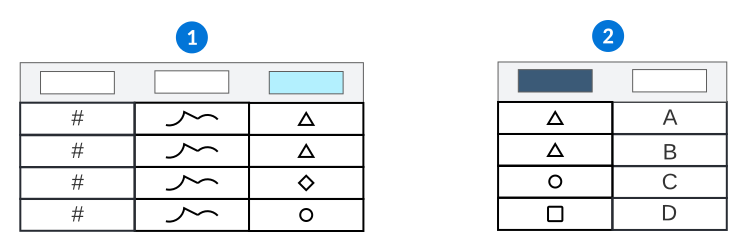
 | Primary Table—The table that forms the basis of the Join table you are building. |
|---|---|
 | Secondary Table—The table that connects to the primary table in the Join table you are building. Only the records that have a matching field in the join field from the secondary table are included in the Join table. For example, the  is found in the secondary table but not the primary table, therefore it is not included in either an inner or left outer join table. |
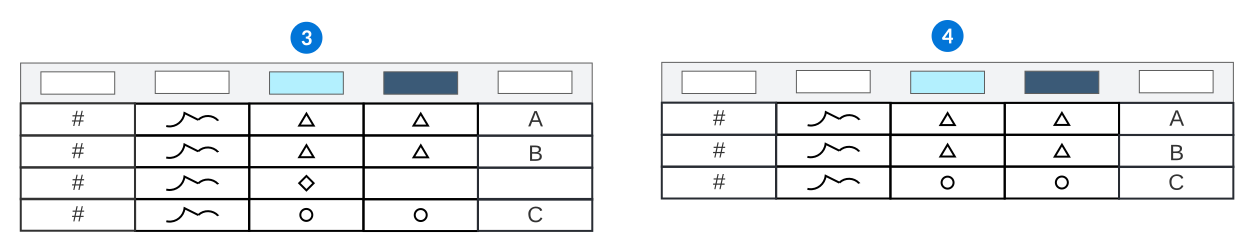
 | Left Outer Join table—All records in the primary table are part of the join table. Records from the primary table that do not have matching data from the secondary table are still shown. The fields where there is no data from the secondary table display as empty. |
 | Inner Join table—Only the records from both the primary and secondary tables that have matching fields in the join fields are included in the Join table. |
Join table configuration
Configure a join table using the Table Definitions application in order to show related records from from multiple tables in one place.
Table Definitions
Once you've selected a Type of Join, navigate to the Settings page. There are several fields to consider during configuration, such as:
- Join Type—Select either Left Outer Join or Inner Join.
- Primary Join Table—Define your primary table.
- Secondary Table—Select the Add button for each secondary table you want in the join table.
- Join Fields—Select the Add button for each join field you want in the join table.
- When you define multiple join fields on a inner join table, only the records from the primary and secondary table that match all the join fields criteria are included.
- When you define multiple join fields on a left outer join table, all the primary table records are included, but only records from the secondary table that match the join field criteria are included.
- Join Cardinality—Select the relationship which exists between your primary and secondary tables. This ensures aggregate counts are accurate. See the Join tables topic for more information.
Considerations
There are several things to consider about join tables, such as:
- Only filtered table lookups defined on the primary table are honored in the join table. You cannot configure a filtered table lookup directly on the join table, and any defined on the secondary table are not inherited.
- You cannot define indexes for Join tables. Nextworld determines the best index to use based on the primary and secondary tables.
- Join tables are view-only. You cannot add, delete, or edit records from a join table.
Join table example
The following is a hypothetical example of how two tables can be joined into either an inner join or left outer join table.
The following tables represent the two tables that are being joined through a Join table:
Table A (primary)
| Product | Quantity |
|---|---|
| Shirts | 100 |
| Pants | 75 |
| Shoes | 60 |
| Socks | 120 |
| Dresses | 50 |
Table B (secondary)
| Product | Price |
|---|---|
| Shirts | $15 |
| Pants | $30 |
| Dresses | $60 |
| Hats | $10 |
If you join these two tables with Product as a join field, the records that the Join table contains differ depending on the join type you choose:
Left Outer Join table
| Product | Quantity | Price |
|---|---|---|
| Shirts | 100 | $15 |
| Pants | 75 | $30 |
| Shoes | 60 | NULL |
| Socks | 120 | NULL |
| Dresses | 50 | $60 |
Inner Join table
| Product | Quantity | Price |
|---|---|---|
| Shirts | 100 | $15 |
| Pants | 75 | $30 |
| Dresses | 50 | $60 |
Any records found on the secondary table that don't match the primary table records are never included. For example, the secondary table in this example has a record for hats, but the primary table does not. Hats are therefore not included on either an inner or outer join table.
To view a diagram of how the inner and outer join tables work, see the Join table types topic.
Work tables
Use work tables to define a list of data items to pass information to and from a logic block. Work tables do not store data, but can be used to hold pending records for use with logic blocks.
There are several use cases for work tables, including:
- Hold pending records which can then be inserted or deleted through use of action blocks or logic blocks. These records are often used to update other tables.
- Provide values for fields in an application. Logic blocks are called to read the values in those fields.
- Call a logic block for a reusable purpose, such as retrieving the dates for a given fiscal year.
Often, mini apps are built over these tables to provide further user interactions.
Pending Records
You can use action blocks or logic blocks to insert or delete pending records. Once pending records are present in a work table, there must be a configuration to remove them, otherwise you receive an error.
Subtables
Subtables are a type of table that you can add as a field in the detail form of an application. They appear as lists embedded inside the record detail form. Subtables collect information related to a specific record.
For example, each contact in the directory application can have multiple phone numbers associated with it. These phone numbers are stored in a subtable that has fields for phone number and type. Within the detail form of the contact record, a user can add multiple phone numbers and specify whether each is a mobile, home, or work number.
Subtables can be built from a table of type Sub, or type Subtable Main.
Once you have configured your subtable, you must create a Subtable data item with the same name as the subtable. This allows you to add the data item into an application in order to show the subtable. See the Subtable configuration topic for more information.
Subtables have development considerations as outlined in the subheadings below.
| Subtable Main | Sub | |
|---|---|---|
| Can you fetch records? | Yes | No. You must loop through the subtable records to find the record you want. |
| Can you index? | Yes | No |
| Does security apply? | Yes | No. This can be helpful if you want a simplified security model and don't need a full table representation. |
| Can you access the subtable records outside of the parent record? | Yes, you can access the reference table to read or modify the subtable records. To modify the subtable with logic blocks, use the subtable specific actions. | No. |
Only subtables of type Sub can be used in Work tables.
View tables
View tables provide business users with a simplified data model of their business which can be used in reports. View tables are read-only tables built over another table, but limited to only the fields relevant for reporting.
Apply filters and sorts so that only the records from the underlying table that meet your criteria exist in the View table.
For example, the Directory table is made up of hundreds of data items. It contains information about all internal and external contacts, such as customers, suppliers, and employees. If a business user needs to create a quick report about their suppliers by selecting the Directory table as their data source, they see fields like EmployeeFunction and BirthDate, which aren't relevant to their report. Instead, they can select the SupplierDirectoryView table, which contains data about their suppliers only.
Related View
Narrow the returned fields from a table lookup in your View table with related views. A related view is a View table built over the table which the table lookup points to.
A related view can be defined on the Table Lookup data item, or from the Field Selections subtable in the View table definition. If the related view is defined on the View table definition, that related view is always used. If no related view is defined on the table, but one is defined on the data item, that related view is used. If a related view is not defined on either the data item or the table definitions, only the primary, secondary, and tertiary search fields defined on the data item are available.
For example, the Expense Reports table could include a table lookup for Org Unit in the Directory table. By default, the table lookup would include the primary, secondary, and tertiary search fields for Org Unit which are the Name, Numeric Code, and Nickname. For expense reports, you may want to include other information that is relevant to the Org Unit, such as the Org Unit Type, and omit details, such as the Nickname. To accomplish this, you can build a view table over the Directory table that specifies the fields you want included, and then reference it in the Related View field in either the table lookup data item configuration, or in the view table definition for the expense report.
For naming conventions and standards, see the Tables best practices topic.