















A filtered table lookup is configured in the Table Definitions application, and consists of the table lookup and the values used to filter it.
The configuration applies to both the table lookup typeahead dropdown menu and to the search action mini apps.
Learn more in the Data mapper and the Filtered table lookup configuration topics.
Development considerations
Filtered table lookups are only validated on records which are being created, not on record updates. If you want the filtered table lookup validated on record save, add that validation to the Action Block attached to the table which the record is in.
Filtered table lookup configuration
Configure a filtered table lookup in the Table Definitions application, on the Filtered Lookups page, to filter the results viewed in a table lookup field.
In the Filtered Table Lookups subtable, use the data mapper to specify the source as either where the filter value should be retrieved from, or as the value of the filter, and the destination as the field in the table lookup which the filter is applied to.
If you have multiple filtered table lookup mappings on the same destination field, the second table lookup overwrites the first one. For example, if you have two mappings with source values of 5 and 10 entered in this order with the same destination field, the destination field would be 10. If you want multiple filters for the same field, you need to use an advanced mapping and use the OR operator.
If you have multiple filtered table lookup mappings for different destination fields, the table lookup is filtered by all of them. In other words, the table lookup would have to match all of the filter criteria in order to populate. Learn more in the Data mapper topic.
Filtered table lookups configured through the data mapper can override search action mappings.
The available source types for filtered table lookups are described in further detail below.
Filter with a constant
Filters the table lookup by a value that you specify. To create a filter with a constant:
- Add a new mapping and select the source type Constant. Once you've selected a source type, the source value input field appears.
- The options for the source value input field depend on the type of the destination field. For example, if the destination field is type text, the source value is a text input field where you can enter the desired value. If the destination field is a list lookup, the source value input is a list lookup dropdown menu.
Here is is an example of a mapping using a constant on the table lookup field Company:
From | To | ||
| Source Type | Constant | Destination Field | OrganizationalUnitType |
| Source Value | Company | ||
This results in the table lookup field Company only showing results where its related field OrganizationalUnitType was equal to Company.
This diagram shows the process in which a table lookup points to its associated table and filters the table records using the specified constant value.
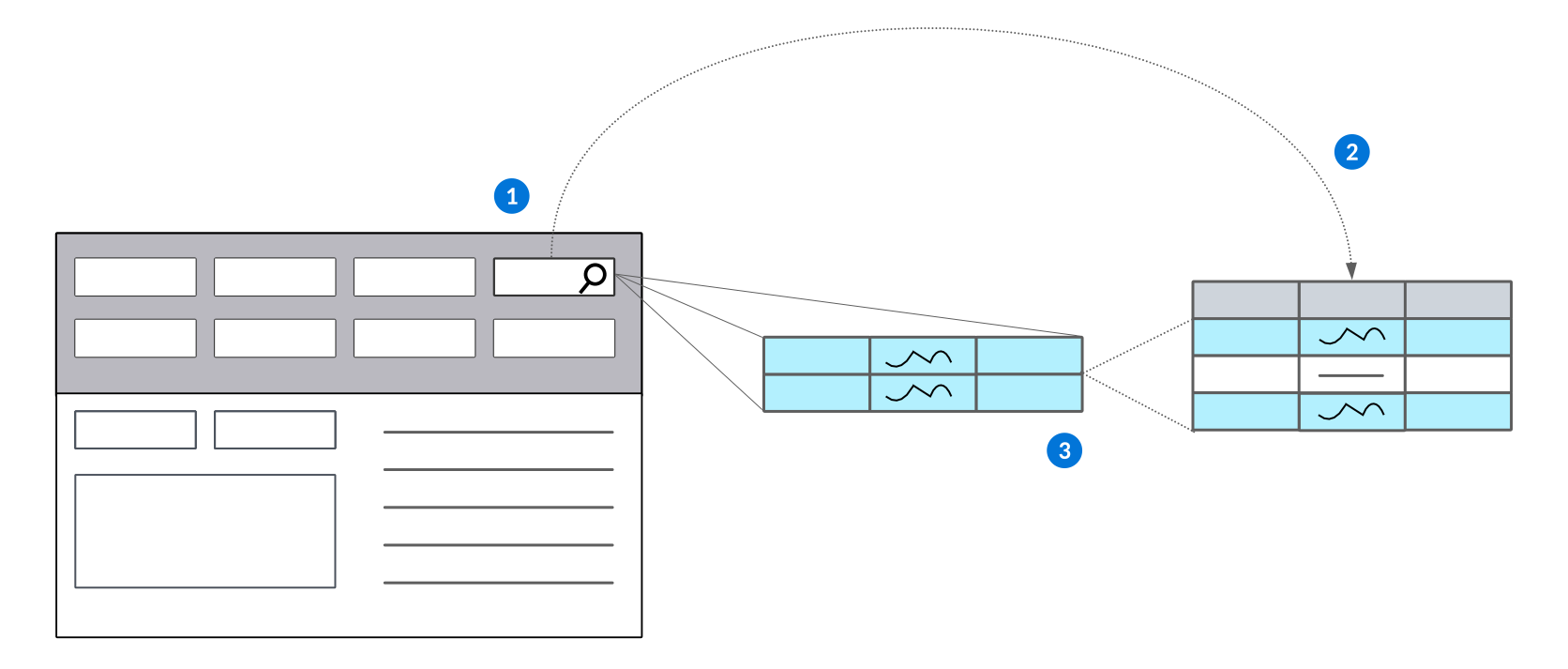
 | The table lookup points to another table. |
|---|---|
 | Records in the table are filtered based on the value constant value and data item field being filtered in the associated table that you specified in the Filtered Table Lookups subtable. |
 | Records that contain the specified value display as value options to choose from in the table lookup's typeahead dropdown menu. |
Filter with field values
Filters the table lookup by a value from a field defined on the table. To create this type of filter:
- Select the source type Field. Once selected, the source field input displays as a dropdown with all fields from the current table available to select.
- If the field you select is of type table lookup, an additional dropdown appears under the source field input where you select the related field. This filter mapping is equal to only show table lookup fields where the destination field equals the value stored in field on the source table.
This is an example mapping which filters the table lookup field GLAccount by the value from another field on the source table:
| From | To | ||
| Source Type | Field | Destination Field | Company |
| Source Value | Company | Name | |
| Name | |||
This results in the table lookup field GLAccount only showing results with its related field Company_Name equal to the value of Company_Name on the current record.
This diagram shows the process in which a table lookup points to its associated table and filters the table records using the value of the specified field.
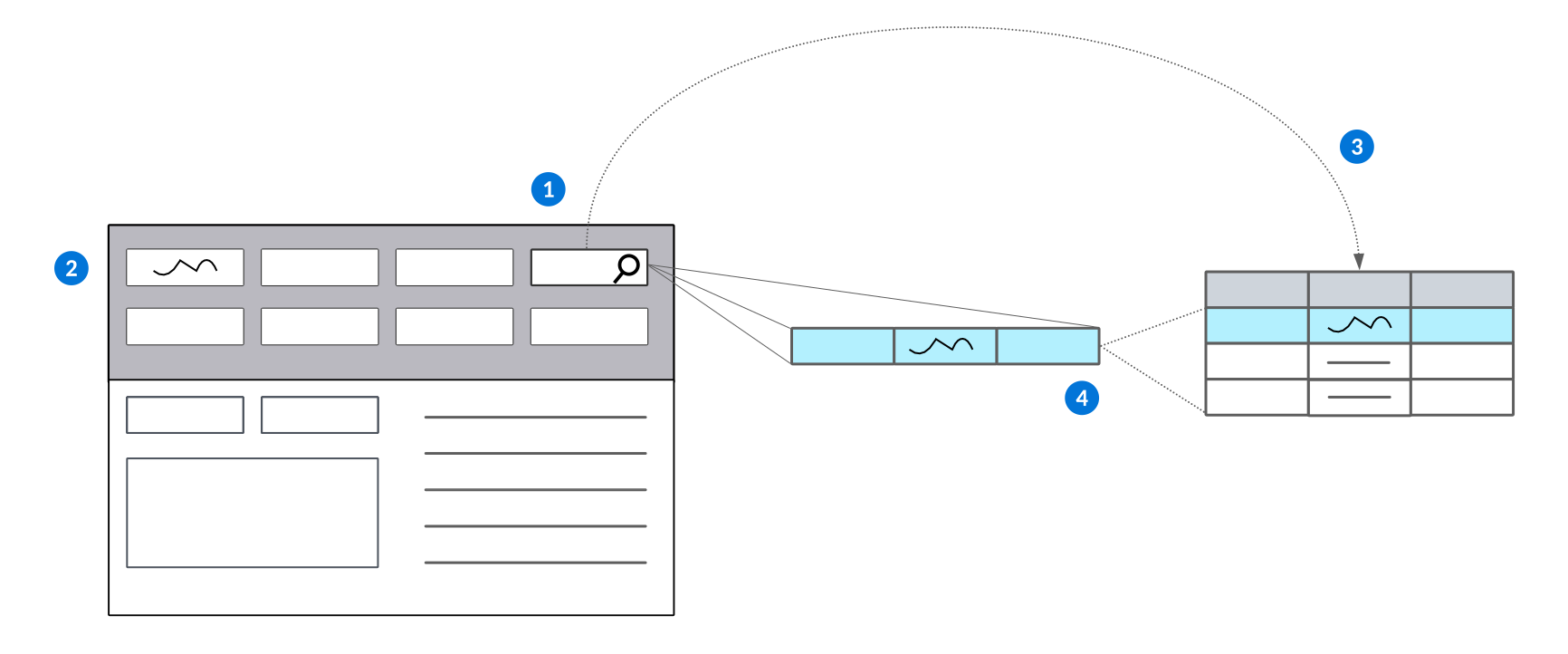
| The table lookup points to another table. |
|---|---|
| The value in this field becomes the filter for the table lookup. |
| Records in the table are filtered based on the value from the field in step 2 field to filter by and the table data item field being filtered in associated table that you specified in the Filtered Table Lookups subtable. |
 | Records that contain the same value in the field to filter by display as value options to choose from in the table lookup's typeahead dropdown menu. |
Filter with workflow
Filters a table lookup by a workflow state or state type. Workflow only shows as a source type option if the table of the table lookup field has workflow defined on it. To create a workflow filter:
- Select the source type Workflow. Once selected, a dropdown appears with the workflow states and state types from the
State List LookupandState Type List Lookupdefined on the workflow of the related table. - If you select multiple workflow state/state types, the table lookup can be any of the selected workflows.
- When creating a workflow filter, the destination field must be
znwWorkflowInstance.
This is an example mapping which filters the table lookup field OrganizationalUnit by the workflow state Active:
| From | To | ||
| Source Type | Workflow | Destination Field | znwWorkflowInstance |
| Source Value | Active | ||
This results with the table lookup field OrganizationalUnit only showing results for organizational units with workflow in the Active state.
Filter with a module setting
Filters the table lookup by a module setting value. To create a filter with a module setting:
- Add a new mapping and select the source type
Module Setting. - Use the dropdown menu to specify the table and the field value you want to filter by.
- Select the option
Tablefor the setting table location input and enter the table name for the desired module setting. - Specify either
GlobalorOrganizationallevel. IfOrganizationalis selected, specify the organizational unit you want to be used for the filter. The field type for the organizational unit is based on a field on the source table. The selected field should be where the organizational unitnwIdis stored. - Select the field on the module setting table you want to use as the filter value.
Here is an example mapping which filters the table lookup field Company by a global level module setting:
| From | To | ||
| Source Type | Module Setting | Destination Field | CompanyCurrency |
| Name of Table | |||
| Setting Table Location | Table | ||
| Module Settings Table | BaseSettings | ||
| Type of Setting | |||
| Setting Type | Global | ||
| Field in Setting | |||
| Type | Field from Table | ||
| Setting Field | CompanyCurrency | ||
This results with the table lookup field Company only showing results where its related field CompanyCurrency was equal to the global level module setting field CompanyCurrency from the module setting table BaseSettings.
Filter with a system value
Filters the table lookup by a system value. To filter by a system value:
- Add a new mapping and select the source type
System. The current system values available for filtered table lookups areTrue,False, andUser Directory ID. - True and false system fields act the same as a constant source type with true or false as the filter value. If
User Directory IDis selected, the id of the current user's directory record is used.
Here is an example system value mapping for the table lookup field Contact using the system value True:
| From | To | ||
| Source Type | System | Destination Field | Inactive |
| System Value | False | ||
This results in the table lookup field Contact only showing results with a value of False for its related field Inactive.
Example: filtered table lookup
The WorkCenters table is a helpful example of filtered table lookups because it contains both a constant value filter and a field filter.
Object overview
The WorkCenters
The following table lookup data items have filters configured for them:
WorkAreaWorkGroupInventoryOrgUnitCompletionLocation
Configuration elements
| Field | Filter type |
|---|---|
WorkArea | Field |
WorkGroup | Field |
InventoryOrgUnit | Constant |
CompletionLocation | Field |
Filter functions
WorkArea:
The table lookup field Work Area looks to the Org Unit field in the Work Centers application. For example, a value in Org Unit could be Charlotte.
Work Area then points to the table, WorkAreas. The table lookup filters for records in WorkAreas that contain the value Charlotte in the Org Unit field. The records that match the filter criteria display in the table lookup drop down menu and in the search mini application of Work Area.
The data mapping configuration for WorkArea is as follows:
| From | To |
|---|---|
Field | InventoryOrgUnit |
InventoryOrgUnit | nwId |
nwId |
WorkGroup:
The table lookup field Work Group first searches the Org Unit field in the Work Centers application. For example, a value in Org Unit could be Atlanta.
Work Group then searches the table, WorkGroups. The table lookup filters through records in WorkGroups that contain the value Atlanta in the Org Unit field. The records that match the filter criteria display in the table lookup drop down menu and search mini application of Work Group in the Work Centers application.
The data mapping for WorkGroup is configured as follows:
| From | To |
|---|---|
Field | InventoryOrgUnit |
InventoryOrgUnit | nwId |
nwId |
InventoryOrgUnit:
The table lookup field Org Unit points to the table Directory. The table lookup filters through the records in Directory for the records that contain the value Inventory in the Org Unit Function field. The records that match the filter criteria display in the table lookup drop down menu and search mini application of Org Unit in the Work Centers application.
This is what the data mapping configuration looks like:
| From | To |
|---|---|
Constant | OrganziationalUnitFunction |
Inventory Org Unit | |
CompletionLocation:
The table lookup field Completion Location first looks to the Org Unit field in the Work Centers application. For example, a value in Org Unit could be Charlotte.
Completion Location then points to the table InventoryLocations. The table lookup filters through the records in InventoryLocations for the records that contain the value Charlotte in the Org Unit field. The records that match the data mapping display in the table lookup drop down menu and search mini application of Completion Location in the Work Centers application.
This is what the data mapping configuration looks like:
| From | To |
|---|---|
Field | InventoryOrgUnit |
InventoryOrgUnit | nwId |
nwId |
Lookup validation configuration
Configure a lookup validation using the Table Definitions application and Application builder application. An enabled table look validation disables the filtered field (dependent field) until the field which contains the filter value (controlling field) has value. This ensures that a filtered table lookup field is disabled whenever its controlling field has no value.
Table Definitions
In the Table Definitions application, you must:
- Define the filtered table lookup
- Configure the filtered table lookup with the table lookup name and the filter fields in the Data Mapper
Application Builder
In the application where you want the validation applied, in the Configuration panel, in the Field Dependencies section, you must:
- In the Controlling Field Type select
Lookup Validation - In the Controlling Field, define the full field name, including any related fields, of the field being used to filter the table lookup which determines if the field is disabled
- In the Dependent Field, define the full field name, including any related fields, of the table lookup field which is disabled in the application until the controlling field is populated
Filtered table lookup best practices
These best practices ensure that filtered table lookups are configured consistently throughout Nextworld.
Filtered table lookups are created and configured in the Table Definitions application.
Filter table looks will restrict the records that are allowed to be associated to the table via the table lookup foreign key reference. Therefore, when adding a filtered table lookup to the table, the filters need to be applicable to all interfaces to the table including but not limited to applications, logic blocks, and integrations.
Removing or modifying a filter table lookup will remove or modify the validation of allowed values into the table lookup field and may require additional logic to be added to applications, action blocks or table triggers to restrict values based on the specific business purpose of the application.