















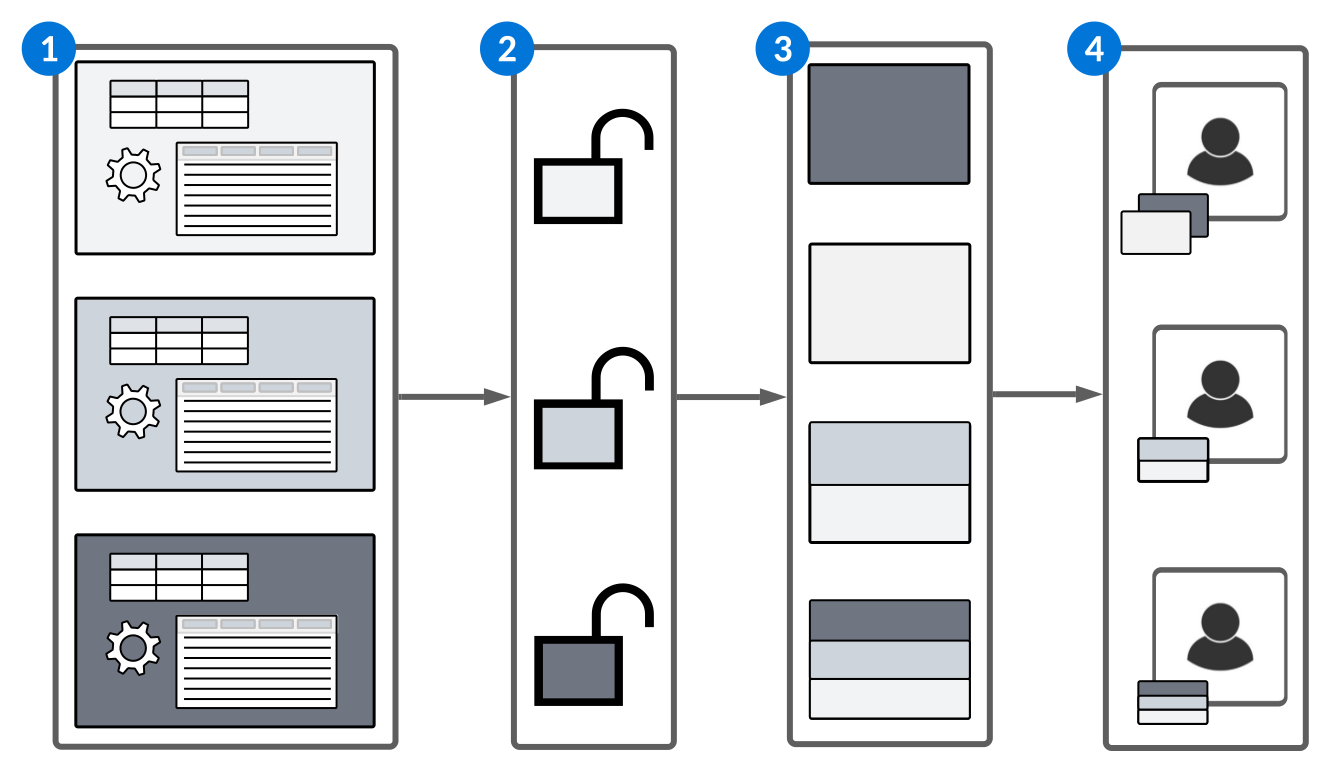
The diagram below shows the structure of Nextworld security:
| Description | |
|---|---|
 | Security Groups—Groups related metadata such as applications, application settings, tables, and logic blocks. This enables you to define permissions that grant access to all objects in the security group to simplify security implementation. Learn more in Security groups. |
 | Permission Definitions—Define the level of RUID (read, update, insert, or delete) access that users have to a security group or to a specific object. Once created, a permission can be assigned to many roles. Learn more in Permissions. |
 | Role Definitions—Assign the combination of permissions needed to accomplish a job function to a role.
Learn more in Roles and Role hierarchies. |
 | Users—Assign roles to users to grant the access defined in the permissions. Once a user is given a role that grants access to an object, the only way to remove that access is by revoking or removing the role. Learn more in Users. |
Security groups
Security groups group related tables, applications, logic blocks, application settings, and agents together so security administrators can define permissions for the entire group, rather than individual objects.
A security group is defined through the Security Group Definitions application. Once a security group exists, it can be added to tables, applications, logic blocks, and application settings using the Security Group field. If you want to apply the same security group to all applications and logic blocks associated with the table, use the Sync Security row action on the table.
In some cases, not all applications and logic blocks associated with a table should have the same security group. For example, there are several applications built over the Directory table including Employees, Customers and Contacts, and Suppliers and Contacts. Each of these applications exist for a different purpose and audience. Use the Prevent Security Group Sync checkbox to prevent the Sync Security row action from assigning the table security group to any associated applications or logic blocks.
After assigning security groups to tables, the next step is to create permissions. Permissions are the building blocks of Nextworld access control.
See Permissions for more information on building permission profiles.
Security Group Definitions application
Roles
Roles are collections of permissions that enable you to access and use components of the platform which are required for your job.
Roles can be assigned to users, configured in a role hierarchy definition to inherit all of the permissions of roles placed beneath it, or used to define permissions which should be included in user templates. The role type determines how it can be used. For example, the SYS - Dashboard Developer role grants access to create dashboard pages, cards, and sites, as well as related components such as announcements, dashboard clocks, and content items. It is a functional role, meaning it is assigned to users and inherits the permissions of the duty roles found beneath it in the role hierarchy definition, but does not have permissions defined within its own record.
When creating roles, it is likely that several permissions should be included in a single role. For example, the ME - Production Lead role coordinates production activities, troubleshoots problems, and ensures quality and safety. Permissions for this role enable users to maintain safety incidents and work orders, record and discard work order operation and production completion transactions, and record and discard work order close transactions.
A role should only include a single security group. This helps with troubleshooting security issues, as well as allowing for flexible security access within an organization.
Learn more in Role Definitions application and Security.
Role Definitions application
System administrators use the Role Definitions application to create roles and assign permissions to those roles.
The type of role you create determines the function of the role. For example, duty roles are a collection of permissions that enables a user to complete a task, but are not directly assigned to users. Functional roles are comprised of multiple duty roles, and are assigned to users so they have all of the permissions associated with the the duty roles.
General
Select the permissions which should be associated with this role. Permissions grant user groups access to view and change information in tables, run logic blocks, launch applications, interact with and transition workflow, and gain access to records with specific org units.
When creating roles, it is likely that several permissions should be included in a single role. For example, the ME - Production Lead role coordinates production activities, troubleshoot problems, and ensures quality and safety. Permissions for this role include maintaining safety incidents and work orders, recording and discarding work order operation and production completion transactions, and recording and discarding work order close transactions.
A role should only include a single security group. This helps with troubleshooting security issues, as well as allowing for flexible security access within an organization.
Environments
Apply this role definition to a specific environment. If environments are defined in the Server Zones subtable, this role, as well as any roles that fall beneath it in a role hierarchy definition, are only available within the specified environments. If no environments are defined, the role definition can be used in any environment.
Menus
Grant access to menu pages, sections, or categories. To view a menu entry, you must have the location of the menu entry added to the role definition assigned to you. Additionally, you must have access granted to the application through application security in a permission definition assigned to the role. Learn more in
For more information on Nextworld roles, see Roles.
Application Access By Role Inquiry application
Systems administrators and security auditors use the Application Access By Role Inquiry application to review the security configuration for a family
Use the Populate form button to create a new role query. In the resulting mini app, select a Product Family to filter for roles in that product family. If desired, you can specify a specific role that you'd like to review. If you do not specify a role, the query looks for all roles in the family.
When you click Run, the query performs in the background. You'll receive a notification when the process is complete.
View the results in the Application Access By Role Inquiry application. Every role for the specified family will have an entry in the application. Open the record associated with a role to see a list of all applications that a user with that role can see, along with the unique menu key that identifies the application in the navigation menu. This list includes applications to which the role inherits access through the role hierarchy.
This list represents a comprehensive list of all applications that a user with the specified role can launch from the menu.
Role Assignments by User Inquiry application
System administrators use the Role Assignments by User Inquiry application to review information about the roles assigned to each user. This enables you to see which roles a user has and the status of those roles to ensure security best practices are followed and users don't use deprecated roles.
Every role assigned to a user has a unique record in the list form. You can review the role type, description, and deprecation status for each role.
Select the User Record row action to open the user record in the Users application.
User Role Access Utility application
System administrators use the User Role Access Utility application to review what roles have been assigned to a user, which tables the role gives access too, and what type of access was granted on the tables.
To view information for a user, select the Configure Run form action then enter the user's name. Select Execute and wait for the background task to complete. Once it has finished, use filters to find the records that are relevant to that user. Each record shows the name of the role, the type of role, the name of a table the role gives access to, and the RUID access for that table.
Use the Purge All Records form action to purge all of the records in your current tenant.
Role hierarchies
Role hierarchies enable security administrators to organize related roles in a hierarchal structure. Roles inherit the permissions of roles placed beneath them in the hierarchy, so only the topmost role must be assigned to user profiles.
Roles should only grant access to one security group. Role hierarchies create a relationship between a single role and many child roles, and can include roles from multiple security groups. The type of role, permissions associated with that role, as well as other configuration options, are configured in the Role Definitions application. There are several role types which are used in role hierarchies, such as:
- Duty Role—A logical collection of permissions that grants access to tasks someone performs as part of a job. Can contain many permissions and other duty roles.
- Functional Role—A job or abstract role that inherits the permissions of duty roles included beneath it in a hierarchy.
- Aggregate Role—A role that combines functional roles.
Duty roles are not assigned directly to users. Instead, collections of related duty roles are included in a hierarchy underneath a functional role. The functional role can be assigned to users, or it can be included with other functional roles underneath an aggregate role which is then assigned to users.
For example, you could have roles applied in the following hierarchy:
>Administrator (Aggregate role)
>Accountant (Functional role)
>General Ledger Exporter (Duty role)
>General Ledger Auditor Unrestricted (Duty role)
>Check Payment Update (Duty role)
>Check Payment Delete (Duty role)
>Invoicing (Functional role)
>General Ledger Viewer (Duty role)
>Check Payment Viewer (Duty role)
>Check Payment Add (Duty role)
In this instance, the Administrator role would inherit the permissions of the functional and duty roles that fall beneath it in the hierarchy. The Accountant role would inherit the permissions of the four duty roles beneath it, while the Invoicing role would inherit the permissions of the three duty roles beneath it.
Role Hierarchy Flattened Inquiry application
Use the Role Hierarchy Flattened Inquiry application to access a Read Only view of existing role hierarchy records.
Access the application through the navigation menu, or with the Flattened Role Hierarchy button in the Role Hierarchy Definitions application.
Run the update process before viewing the records to ensure you have the most recent data.
Role Hierarchy Definitions application
Use the Role Hierarchy Definitions application to define role hierarchies. Role hierarchies allow roles to inherit the permissions of any roles that exist below them.
Create a hierarchy by assigning roles as children to other roles. Roles can be configured as different Role Types, such as:
- Duty Role—A logical collection of permissions that grants access to tasks that someone performs as part of a job. Can contain many permissions and other duty roles.
- Functional Role—A job role that focuses on a specific job a user performs, or an abstract role that represents common functionality that is not job specific. Roles of this type are assigned to users.
- Aggregate Role—A role that combines functional roles.
- Template—A role used to configure user templates. See the Configure User Templates for quick entry topic for more information.
To view a flattened, read only list of current role hierarchy records, select the Flattened Role Hierarchy button. See the Role Hierarchy Flattened Inquiry application topic for more information.
Hide application actions with user permissions
Show or hide application links, field, row, and form actions based on a user's permissions in the Tenant Environment Setup application.
By default, most field, row, and form action buttons appear to users, regardless of their security permissions. If a user selects a button which they don’t have permission to execute, they receive an error message.
To hide these buttons instead, navigate to the Global Settings application step of the Tenant Environment Setup application and select the Secure App Actions. Once applied, the permissions required for different types of buttons are:
- Application Links—Requires
Readrow security access to the destination application's table. - Logic Blocks—Requires access to execute the logic block. This is determined by the type of security applied to the logic block:
- Public—All users are authorized to execute.
- Public-Secured—Users must have access to the table, logic block, or security group that allows them to execute.
- Private—Called from other logic blocks, so users can't execute directly.
Learn more in Row security and Logic block security options.
Security Comparison Utility application
System administrators use the Security Comparison Utility application to generate a record of the changes made to their security model between two environments.
Use the application to examine the differences in security between your current version of the platform and the new version. If you have copied and modified a role for your users, you can determine whether you need to update it so that they still have the proper authorization.
Generate security comparison
When you create a record in the Security Comparison Utility application, the environments you specify determine how the the results are generated and where they are saved.
For example, new permissions may be added to an existing role in a development environment. If you specified the development environment in the From Environment field and a production environment in the To Environment field, the generated results would show the permissions that would migrate to production with the next code push.
If you clear the Save Results to Prior Release checkbox, the results are saved to the environment you entered in the To Environment field.
After you save your security release comparison record, use the Generate Comparison action so that you can examine the differences.
Examine results
After the comparison has been generated, use the View Results action to view a list of every role where there is a difference detected between environments. You can only view results in the environment where the results were saved. Differences include changes to the role hierarchy, roles, permissions, and workflow security. Open the detail form of a record and parse the Changes field to see the differences.
For example, you might filter for your functional financial roles and see that the FINS - AP Manager role has been modified. When you open the detail form, you determine that this is because the Reporting - User child role has been updated to include the ReportBucketDefinitions permission. In this instance, the value in the Changes field appears as follows:
{
"Changes": [
{
"FINS - AP Manager changed ": [
{
"Child changed": [
{
"finBaseUser changed ": [
{
"Child changed": [
{
"Reporting - User changed ": [
{
"Role definition changed": [
{
"PermissionsList subtable changed": [
{
"Referenced Permission changed": [
{
"Reporting - User changed": [
{
"AccessRules subtable changed": [
{
"ReportBucketDefinitions changed": "added"
Security Group Comparison Utility application
System administrators use the Security Group Comparison Utility application to generate and review records of the changes made to security groups between releases. Each generated record contains information for the security group changes made on individual tables, applications, application settings, and logic blocks.
Generate security group comparison
To create a record you must specify the environment to use as the basis for comparison, as well as the environment that you want to compare to it.
Examine results
Once the comparison has been generated, you can open the detail form of the record to review the list of every security group change between the two environments. Each detail line has a Security Group Status which indicates if the security group on an object has been added, removed, or modified.
See also Company Structure application.