















NATE holds data while it is being edited, and before it is saved. NATE is a safeguard for disaster recovery, and enables the Pending Work and Save for Later features.
These topics provide more detail about NATE, its features, and its implications for application developers:
- NATE containers
While records are being changed, they are held in a NATE container until the changes are saved or canceled. The NATE container accumulates data changes and then applies or discards them as a unit. NATE containers are created automatically and are managed by the Nextworld Platform.
- NATE development considerations
Certain aspects of the platform behave differently when they are inside NATE containers. Review the following sections to understand the implications of NATE during application development.
- Nested NATE containers
You can nest NATE containers within other NATE containers to control when actions performed across multiple applications are committed. For example, using nested NATE containers in a Composite application ensures that any actions performed within each application step are only committed when the entire Composite application record is saved.
- Will my row action run in a NATE container?
This topic reviews whether logic blocks initiated from row actions run inside or outside of NATE containers.
NATE containers
While records are being changed, they are held in a NATE container until the changes are saved or canceled. The NATE container accumulates data changes and then applies or discards them as a unit. NATE containers are created automatically and are managed by the Nextworld Platform.
The diagram below illustrates what happens to records as they move from being live in the database, to pending in the NATE container, to live again.
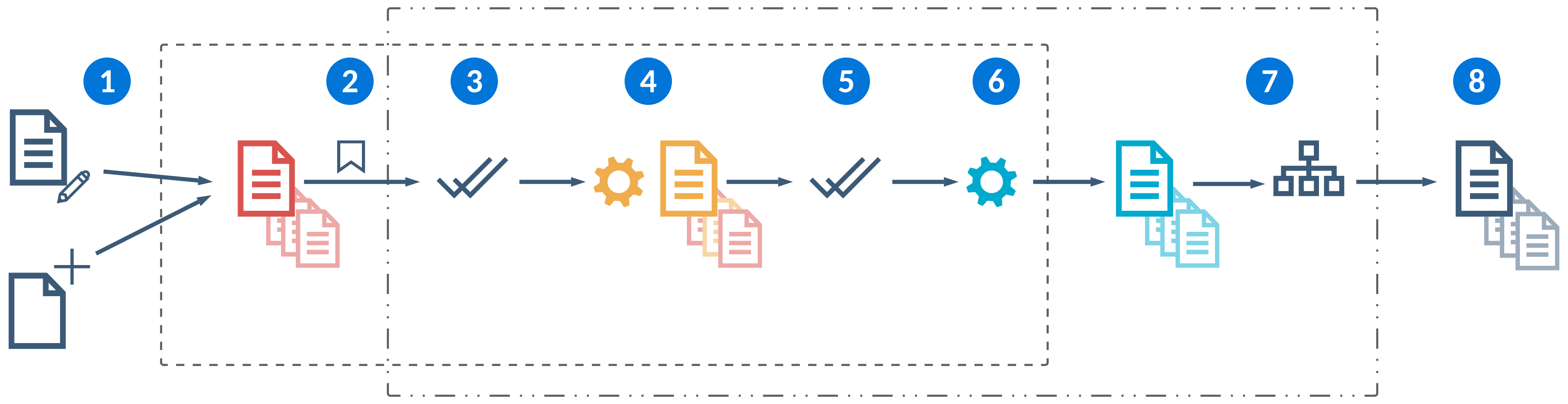
 | Records that have been successfully saved are live in the database, and are accessible to everyone. When a user begins to make changes, either by creating a new record or editing an existing record, those changes are stored as a pending record in a NATE container. Depending on the application configuration and what happens after the user starts making changes to that initial record, the NATE container may hold changes to one or more records from one or more tables. For example, an advanced list application that has configured the grouped detail option holds all detail records in the same NATE container until the entire group is saved together. Other options, such as field or event actions, can also prompt changes to multiple records. Only the active user can see the changes in the NATE container. These changes are not saved to the database or visible to other users. In the diagram, the NATE container boundary is indicated by the dashed line: | |
|---|---|---|
 | When the user selects Save, a series of automated processes takes place. The save action also opens the database transaction. In the diagram, the database transaction boundary is indicated by the dashed-and-dotted line: Changes within the same database transaction boundary are saved and committed to the database all at once. If there's an error, the user can correct the record and save again. If the application is configured to use | |
 | An initial validation takes place. This validates the changes that have been made to all records in the NATE container. The first check is to make sure that no changes have been made to the live versions of the records in the NATE container. If another user has made a change to the live record during the time the pending record has been in the NATE container, the save fails. This pass next validates:
If any validations fail, the user sees an error and can correct the record and save again. | |
 | Action blocks run. Action blocks can change some but won't necessarily change all records in the NATE container. The NATE container keeps track of which records were changed and which were not. If there are any errors in the action blocks, the user sees an error and can correct the record and save again. | |
 | Any records that were changed by the action blocks are validated again. Note that there may be records that are in the NATE container that were not modified by the action blocks and are not re-validated here. These are assumed to still be valid. If there are any errors during the validation, the user sees an error and can correct the record and save again. | |
 | Table triggers run. Triggers run in order:
If you have multiple triggers of each type, you can control their run order by changing their order in the table definition. The table triggers run in the order they are listed in the Triggers subtable.
Triggers operate on live records. If a trigger includes a fetch on the record that it's acting on, rather than using the record handed to it by NATE, the fetch returns the live record. This allows you to compare the changes made so far with the original, unchanged record. If there are any errors when the triggers run, the user sees an error and can correct the record and save again. If the triggers successfully complete, subsequent behavior depends on whether any modified records are governed by workflow:
See the next step for the behavior when workflow is applied. | |
 | If there is workflow on the table, workflow transitions take place. Any logic blocks and validations associated with the transitions run at this time. Workflow transitions do not take place within the same NATE container as the previous steps, but are still within the same database transaction boundary. Additionally, workflow transitions may be contained within their own NATE container. If the Use NATE container checkbox is selected on the workflow, then a new NATE container is created when workflow transitions initiate. If a workflow transition requires approval, the record is held in a live but approval pending state. It is not visible to users, but any logic blocks that fetch the record see the approval pending version. Subsequent behavior is determined by the workflow configuration. If there are any errors in the workflow transitions, the user sees an error and can correct the record and save again. The NATE container reopens and all records are returned to their state from step 2. If the workflow transition succeeds, if there were changes to the record, any associated triggers run again. If no changes occurred on the record, triggers do not initiate again. If triggers run again, it happens once at the end of NATE commit, or once per table update if not using NATE. Then, all records become live and the database transaction is closed. | |
 | All records move to live and are available to all users in the system. |


NATE development considerations
Certain aspects of the platform behave differently when they are inside NATE containers. Review the following sections to understand the implications of NATE during application development.
The following subheadings each review a different development consideration for application developers.
Pending Work and Save for Later
Pending work refers to any changes you have made to a record that have not yet been saved. This can be intentional, such as using the Save for Later form action, or accidental, such as computer crashes. Open the Sidebar menu and expand the Pending Work or Save for Later sections to open or delete a pending record.
Containers which are saved for later remain open for 31 days. Containers which are abandoned without saving remain open for two days before they are purged.
Async Save (Large Data Background Save)
Async save, also known as large data background save, is a feature you can configure in the Background Operations field of Application Builder. It provides the ability to push a long-running save into the background which ensures large records don't time out and users won't experience long wait times while the save finishes. By default, the async timeout is 25 seconds.
For example, Composite applications may have async save enabled when the application has save logic that has a run long time. If the save hits the threshold, users would receive a notification that the save is continuing in the background and would be navigated back to their previous location to continue working.
Composite applications have specific requirements for async save. Learn more in Composite application configuration.
Fetching records
Within a logic block, you can fetch a record which you want to update. Whether you receive the live or pending version of the record is determined by where and when the logic block is called, or what type of fetch action is used.
The type of fetch action used to retrieve the record controls whether you receive the live or pending record. If you are within a NATE container and want to retrieve a live record from outside of the container, use the Fetch Original action. To retrieve pending records from within the NATE container, use any other fetch action.
There are several fetch actions which can only be used within a NATE container, including:
- Fetch Original action
- Fetch with Disposition action
When a user begins to make changes, either by creating a new record or editing an existing record, those changes are stored as a pending record in a NATE container. Depending on the application configuration and what happens after the user starts making changes to that initial record, the NATE container may hold changes to one or more records from one or more tables.
How and when the user saves the record controls which record version is fetched. The table below describes what version of a record is returned based on when the fetch is performed:
| Container Save Phase | Logic block configuration | Record version fetched |
|---|---|---|
| Validation (Also applies to table triggers of type Validation) | UI type logic block | Pending |
| Action Block | Action Block | Pending |
| Pre Trigger | Table Trigger | Live |
| Post Trigger | Table Trigger | Live |
The behavior of fetch actions change in post triggers. You can't use the Fetch Original action in a post trigger since the record is already committed. If you build a pre trigger logic block, you can fetch the original record since the action hasn't been completed yet.
Record disposition
Processing logic blocks initiated by a user interaction within an application are assigned a call mode based on the record disposition. The record disposition is managed by the platform, and tracks the current state of the record.
If you are outside of a NATE container the record disposition is always PRISTINE. If you are within a container, records use other dispositions, such as:
INSERTED—Newly created records inside the container which are not saved.UPDATED—Preexisting records with unsaved changes inside of the container.DELETED—Deleted records that still exist outside of the NATE container. The data of a deleted record is hidden before the container commits. If you use a fetch action to try and fetch a deleted record, you are allowed to fetch within the NATE container. If you went outside the transaction boundary you'd see the live version but not the pending delete.
How to store a record created in a mini app in the same NATE container as the source record
If you configure an application link that navigates to a mini app, you can ensure records created there are included in a nested NATE container with full access to the contents of the parent container by using the Application (Extend Trans Boundary) link type in the Row Action configuration. Learn more in Nested NATE containers and Logic blocks and row actions.
Record mutations
Only 20,000 records at a time may be modified within a NATE container. If your record count exceeds that limit, consider restructuring your logic to process records in smaller batches using new transaction boundaries.
Nested NATE containers
You can nest NATE containers within other NATE containers to control when actions performed across multiple applications are committed. For example, using nested NATE containers in a Composite application ensures that any actions performed within each application step are only committed when the entire Composite application record is saved.
If the parent container is not saved, any changes made within the child containers are not committed.
You can nest NATE containers up to four levels deep. That is, a NATE container can open a nested NATE container, the nested NATE can open a second nested NATE container, the second container can open a third, but the third encounters an error if it attempts to open a fourth.
There are several application flows which can use nested NATE containers, including:
- Composite applications—Each application step is held within its own NATE container, but the parent container for the entire Composite application controls when changes are committed.
- Header Detail applications—Each detail application is held within its own NATE container, but the parent container for the entire Header Detail application controls when changes are committed.
- Application links—When you navigate from one application to another application with an application link of type
Application (Extend Trans Boundary), changes made in the new application are held within their own NATE container, but the parent container from the originating application controls when the changes are committed.
The diagram below illustrates a scenario where a nested NATE container is opened within a parent NATE container when a user opens an application link:
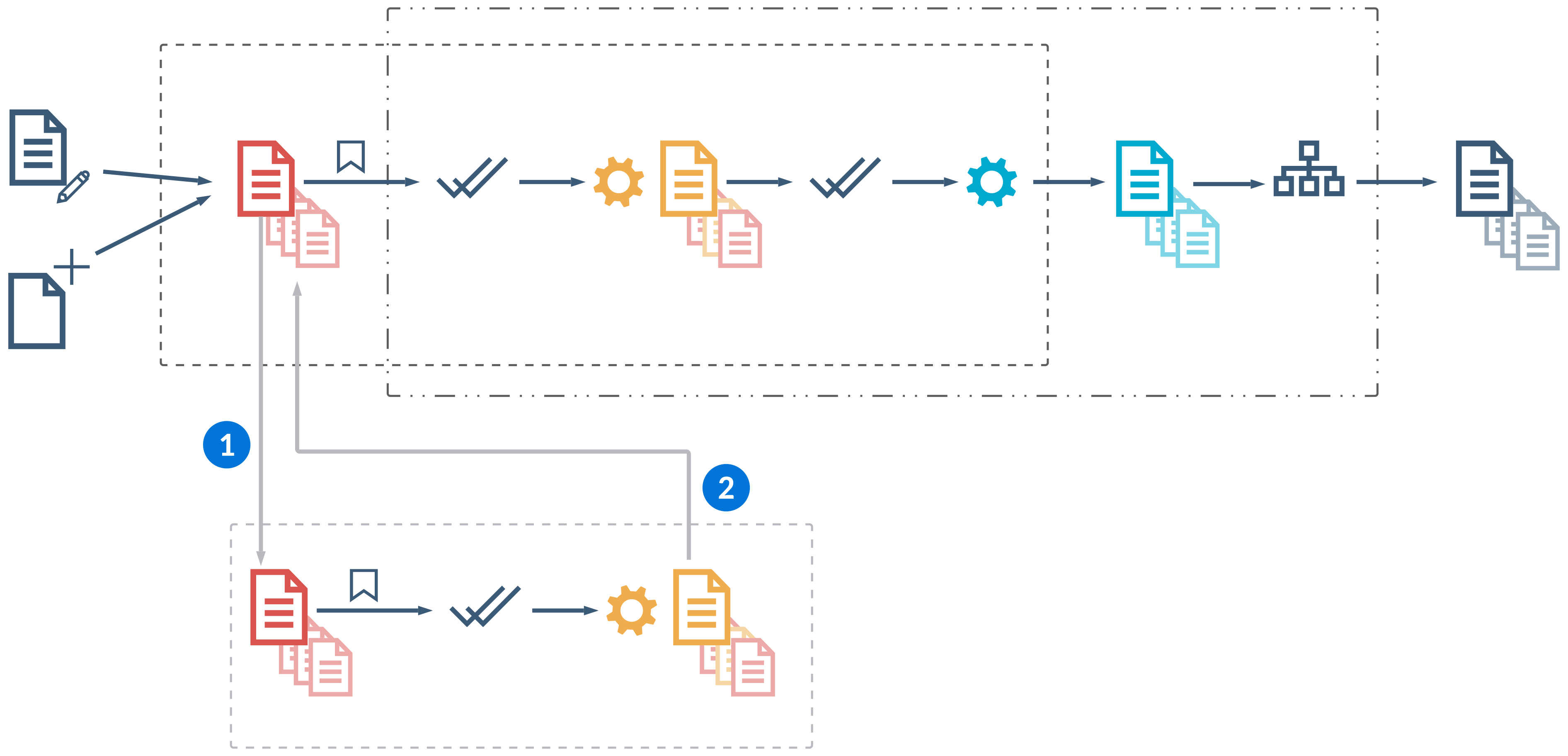
| A user selects an application link that has a link type of |
|---|---|
| When the user saves in the nested NATE container, a series of automated processes takes place in the background. Unless there is an error that requires action or prevents the save from completing, the user is then navigated back to the source application. By default, when you save in a nested NATE container, validation triggers and action blocks run. When the parent NATE container is saved, the validations run again if there are changes between the time the child NATE was saved and the parent NATE is saved. If the nested NATE has workflow implications, workflow changes are passed back to the parent NATE container but aren't queued until the parent NATE is saved. Table triggers never run until the parent NATE container is committed. |
Will my row action run in a NATE container?
This topic reviews whether logic blocks initiated from row actions run inside or outside of NATE containers.
There are multiple configuration selections which impact whether or not a row action runs in a NATE container, such as the:
- Application type
- Header Detail application
- Other application types
- Row action configuration Link Type
Logic Block - Not in Trans BoundaryLogic Block - Not in Trans Boundary (Save Required)Logic Block In Trans Boundary
- Logic block configuration
- Use Use NATE container checkbox selected
- Use Use NATE container checkbox cleared
The tables below describes whether a row action runs in a NATE container with different configurations selected.
Header Detail applications:
| Use NATE Container = True | Use NATE Container = False | |
|---|---|---|
| Not in Trans Boundary | Runs in new NATE container | Run in new NATE container |
| Not in Trans Boundary (Save Required) | Runs in new NATE container | Runs in new NATE container |
| In Trans Boundary | Runs in the same NATE container | Runs in the same NATE container |
Other application types:
| Use NATE Container = True | Use NATE Container = False | |
|---|---|---|
| Not in Trans Boundary | Runs in new NATE container | Does not run in NATE container |
| Not in Trans Boundary (Save Required) | Runs in new NATE container | Does not run in NATE container |
| In Trans Boundary | Runs in the same NATE container | Runs in the same NATE container |
If a calling logic block uses a NATE container, all of the called processing logic blocks run within the same container. The only exception is if the processing logic blocks are configured to run in a separate transaction boundary.
If the calling logic block does not use a NATE container, all of the called processing logic blocks run in new containers if they are configured with the Use NATE Container checkbox selected.