















The following diagram shows the standard environments you have access to in a typical implementation of the Nextworld platform:

 | Development—Use to develop customizations, customer defined attributes (CDAs), and any of your own metadata objects. This environment should not be used by business users. |
 | Test—Use to test the metadata you create or customize after development is complete. Like the development environment, this environment should not be used by business users. |
 | Production—Use to run your business. This environment is where all your important business data is stored, and where your business users operate. |
Learn more about environments, business data, and metadata in Environments, business data, and metadata.
Migrate metadata to your production environment
The following diagram shows how you should migrate the metadata you create or customize between your development, test, and production environments:
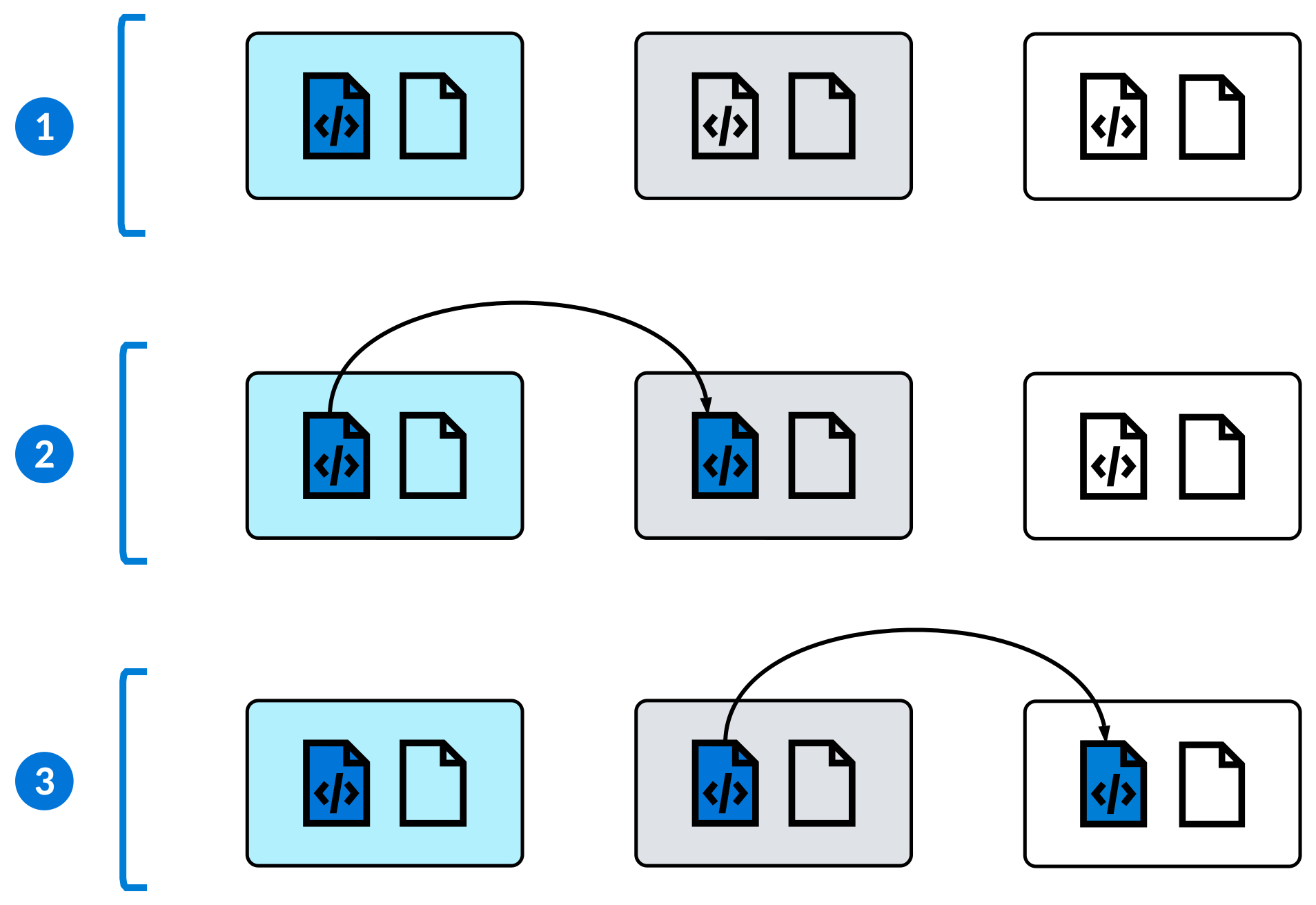
| Develop or customize metadata in your development environment. |
| After the changes to your applications are stable, migrate metadata from your development environment to your test environment. Test your applications in the test environment to make sure they're ready before you migrate them to your production environment, and to prevent conflicts with ongoing development in your development environment. |
| After you've tested your owned or customized metadata objects, migrate them to your production environment where your business users have access to them. |
To migrate the metadata you create or customize between your environments, use the Advanced Migration Utility application. However, you have additional tools at your disposal for different purposes. Learn more about all of these tools in Move your data between environments.
Move your data between environments
Nextworld customers have access to various migration applications to move data across their environments. The applications they use depend on whether they are developing or customizing metadata, or synchronizing data across their environments.
The following table describes the different migration applications at your disposal:
| Application(s) | Description | When to use | Example |
|---|---|---|---|
| Advanced Migration Utility | Used to migrate discrete sets of metadata between your environments. Learn more in Advanced Migration Utility application. | Use the Advanced Migration Utility application when you develop new metadata, or when you customize existing metadata, and want to make it accessible to your users in production. After you have created or modified metadata in your development environment, you can use this application to migrate it to your test environment. After you verify that it is working as intended, you can migrate it to production. | You develop an all-new application in your development environment, and you're ready to test it. To migrate it to your test environment, use the Advanced Migration Utility application to specify all the new metadata objects that make up your application, and migrate them. After testing, you can complete the same process to move the application and its elements to production. |
| Tenant Metadata Refresh Utility | Used to copy, or refresh, all of the metadata from one environment into another environment. Learn more in Tenant Metadata Refresh Utility application. | Use the Tenant Metadata Refresh Utility application to ensure that any changes you made to metadata are reflected in all of your environments. | You have to make a change to a few of your workflow definitions in your development environment. Once your changes are complete, you can use the Tenant Metadata Refresh Utility application to update your test environments with those changes, provided you don't have any active development going on within them. |
| Tenant Data Refresh Utility | Used to copy, or refresh, all business data from one environment into another environment. You can schedule a tenant data refresh to occur on a regular basis. Learn more in Tenant Data Refresh Utility application. | Use to keep your development and test environments updated with realistic business data. | You build a new application layout. Before you migrate it to production, you should ensure that the layout displays the way you intended. If you have scheduled a tenant data refresh for your development and test environments, you can test the application layout with data similar to that in your production environment. |
Advanced Migration Utility application
System administrators and application builders use the Advanced Migration Utility application to migrate the applications and other metadata they create between their environments.
Only use the Advanced Migration Utility application to move discrete sets of metadata between your environments. You can specify the specific applications, reports, and more that you develop and customize and migrate them to your users in production. Learn more about the other migration tools at your disposal and their purposes in Move your data between environments.
In general, you should develop new applications and customizations in your development environment, and then migrate them to your test environment. After you ensure they are working as expected, you can migrate them to your production environment, where your business users can access them. Learn more in Standard customer environments.
In the header fields, define the From Environment and To Environment for the migration. After you specify the metadata you need to migrate on the application pages, use the Submit action to start the migration. To limit the impact on users working in the target environment, don't submit a migration during peak business hours.
The Product Family you select is inconsequential, and the migration record does not migrate. However, you can access and submit advanced migration utility records from any of your environments, regardless of where they were created.
Configuration page
Use the configuration page to specify the product families containing the metadata you want to migrate, and specify whether to run the migration in Draft Mode.
Specify these product families in the Family Filter subtable. If the metadata objects you define on the other pages of this application are not in one of these product families, they are not migrated.
In the From Lifecycle and To Lifecycle fields, you must specify your Customer Default Lifecycle. This lifecycle is defined in the Tenant Environment Setup application.
All other pages
Use the other pages to define the discrete metadata objects you want to migrate. Each page has a series of subtables where you can add your metadata objects.
For example, to migrate an application you've created or customized, navigate to the Tables, Applications, and Logic Blocks page and specify its internal name in the Name field in the Application Transfers subtable.
Many of these subtables include checkboxes that, when selected, include related metadata objects in the migration.
For example, the Application Transfers subtable includes the Include App Settings checkbox. When this checkbox is selected, any application settings associated with that application are automatically migrated. If you select this checkbox, you don't have to specify these application settings in the App Setting Transfers subtable on the Data Items, Lookups, AppSettings, CDAs, and Style Definitions page.
Tenant Metadata Refresh Utility application
System administrators use the Tenant Metadata Refresh application to refresh the metadata in their non-production environments with metadata from their production environment.
Learn more in Move your data between environments.
Configure and submit tenant metadata refresh
Specify a From Environment and a To Environment to define a metadata refresh.
You should never specify your production environment as the To Environment. If you need to migrate newly developed metadata to production, use the Advanced Migration Utility application. Learn more in Advanced Migration Utility application.
In the From Lifecycle and To Lifecycle fields, you should specify your Customer Default Lifecycle. Ensure the From Environment checkbox is selected so that metadata such as list lookups are included in the refresh.
Use the Submit form action to start the refresh.
Tenant Data Refresh Utility application
Use the Tenant Data Refresh Utility application to schedule a recurring refresh of the business data in your development and test environments with data from your production environments to ensure you have realistic data.
Your test data should be similar to the data in your production environment to conduct the most accurate tests of your applications and customizations. You can set up a tenant data refresh that copies data from your production environment into your test environment. After your tests in your test environment pass, you can feel confident about migrating new or updated metadata to production. In addition to business data, a tenant data refresh also copies the audit history associated with each record.
Specify a Source Environment and Target Environment to define the tenant data refresh. When you save the record, the Name is automatically created.
After you've configured your tenant data refresh, use the Schedule Tenant Data Refresh action to schedule it to run later, during non-peak business hours. You can view the scheduled job in the Job Scheduler application. The name of the job follows the format of <namespace><Source Environment><Target Environment>_<ScheduledTime>.
If you'd like the refresh to run on a recurring basis, you can modify the Recurrence Type of the scheduled job. To cancel the refresh, delete the scheduled job.
Tenant data refresh prerequisites
Before you conduct a tenant data refresh, you must:
- Select the Allow tenant data refresh checkbox for the non-production environment you need to refresh. This checkbox is in the Environments application step in the Tenant Environment Setup application. Never select this checkbox for your production environment.
- Ensure your metadata is in-sync between your environments. The tables that exist in your production environment must also exist in your test environment in order to copy the business data in those tables.
- Review the Best practices for moving data between environments topic and make sure you consider how refreshing business data from production may affect your data, your integrations, and your users.
Best practices for moving data between environments
These best practices ensure you move data between your environments efficiently and without causing problems with your data.
Advanced Migration Utility application
To limit the impact on your users in production, don't submit a migration during peak business hours. Only migrate discrete sets of metadata.
You should always submit a migration in Draft Mode before officially conducting the migration to ensure you are moving the intended metadata.
In the Advanced Migration Utility application, do not use:
- The Data Copy, Security, or Data Transforms pages.
- The Bulk Migration or Advanced Options sections.
Tenant Metadata Refresh Utility application
Do not refresh the metadata in your development or test environments if you have metadata there you have not already migrated to production.
Tenant Data Refresh Utility application
Never refresh data in your production environment. In the Tenant Environment Setup application, the Allow tenant data refresh checkbox on the Environment application step is provided to prevent accidentally refreshing data in a given environment. This checkbox should always be cleared for your production environment.
Review any active scheduled jobs in your test environment, and if necessary, deactivate them. For example, if a table contains sensitive business data and there is a scheduled job to export from it, that job needs to be deactivated and the sensitive data should be reviewed and overwritten.
The only endpoints that should be functional in your test environment are those which are absolutely critical for testing. Be aware of the endpoint definitions configured in production and set up environment override definitions for those endpoints. Learn more in Environment override configuration.
You should also review business data that may be used in endpoint calls in production. For example, when you create a customer invoice in your test environment, a value from a field such as StoreID may interact with a third-party system as if the record is live in your production environment, which may have unintended impacts. Work with Nextworld Support to ensure your data and your endpoint definitions are configured correctly in your test environment.