















Automated tests simulate the actions of a real user, much like the actions you would take if you were manually testing an application. The following diagram shows the structure of the Nextworld objects that make up an automated test:
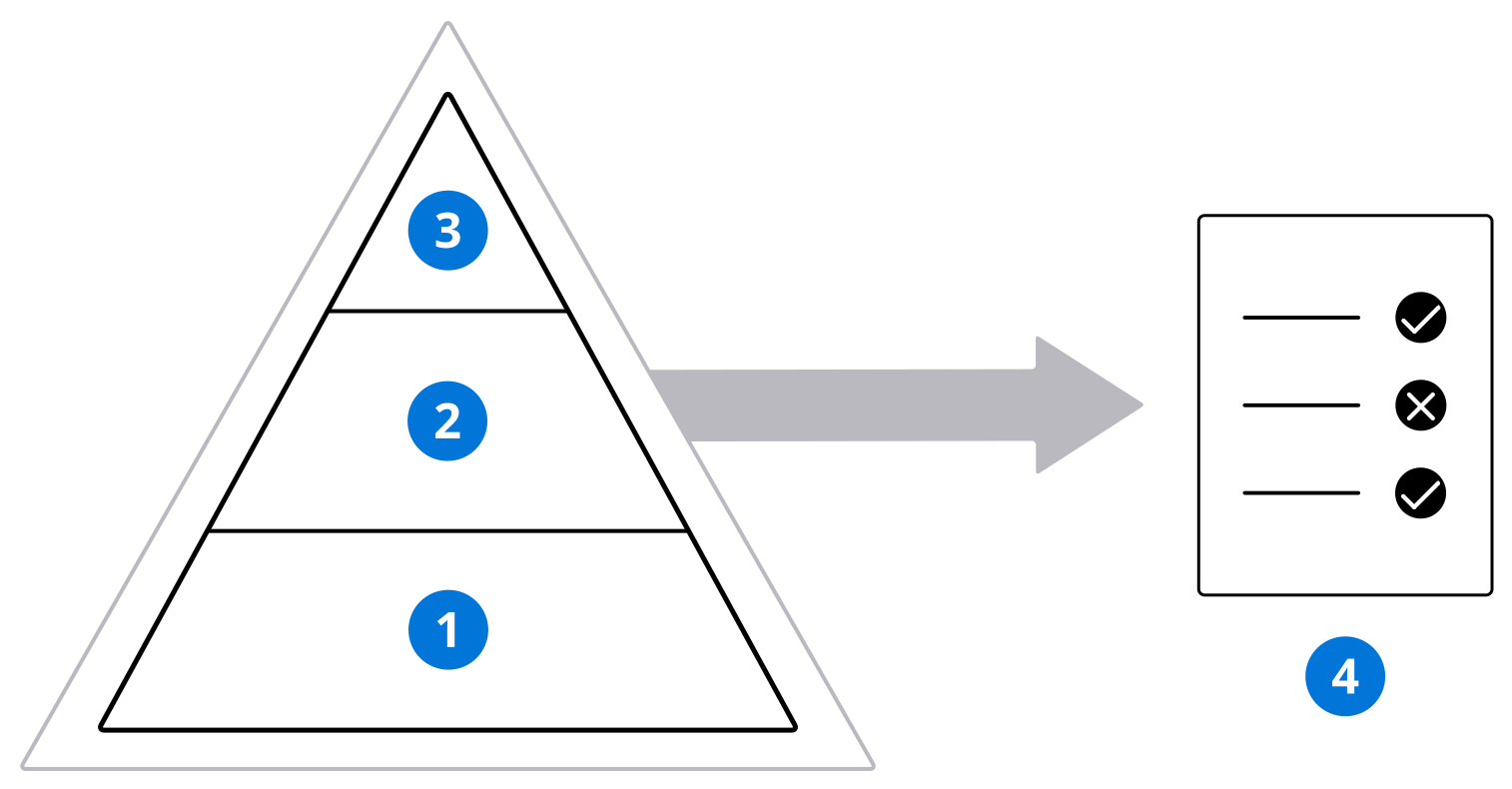
| Step | Application | Description |
|---|---|---|
 | Test Action Definitions | Test actions are the most basic component of an automated test. They reflect the different objectives that users complete while using the application. Test actions are added to test flows, and can be reused in multiple test flows. Test actions are made up of individual user actions and validations, called test steps, which run in a sequence. For example, one test action for the Company Directory application might be to create a new record. The test steps within this test action could be as follows:
Create test actions using the Nextworld recording tool. Learn more in Create automated tests with the Nextworld recording tool. Before you add the test action to a test flow, you can submit each test action individually to verify that the test action works. You can edit existing test actions manually in the Test Action Definitions and Test Action Steps Inquiry applications. |
 | Test Flow Definitions | Test flows are made up of test actions that run in a sequence. For example, a test flow for the Company Directory application might contain two test actions: first, one for creating a record, and after, one for deleting a record. Test flows are added to test suites, and can be reused in multiple test suites. They cannot be submitted individually. |
 | Test Suite Definitions | Test suites are the highest level component of an automated test. They are made up of test flows that run in a sequence. For example, a test suite for the Company Directory application might contain multiple test flows, such as one for creating and deleting a record, and one for using the different application links. Test suites should cover all the objectives a user needs to successfully accomplish with the application. Schedule your test suites to run at regular intervals. Learn more in Schedule automated tests. |
 | Test Results Inquiry | After a test suite or test action is submitted, either manually or via a scheduled job, you can view the results of the test. By default, tests that contain failures have videos attached to the test results record. These videos show the test being performed alongside each test step. Use them to determine exactly when and where the application failed to perform as expected so you can quickly identify the problem. Learn more in Review automated test results. |
The complexity of test actions, flows, and suites are not limited by the applications. However, there are some standards you should adhere to. Learn more in Application testing best practices.
Test Action Definitions application
Application developers use the Test Action Definitions application to create test actions, which are the most basic component of an automated test.
Test actions are made up of test steps. You can create test steps manually on the Test Steps page, or you can use the Nextworld recording tool to import your own user interactions into a test action. Learn more in Create automated tests with the Nextworld recording tool.
After your test action is configured, use the Submit Test action. By default, the test action runs in a new personal tenant that is automatically destroyed after the test is complete and its test results record is created. Use the Submit With Options action to specify an existing temporary tenant for the test to run in.
Use the Test Results Inquiry application to see if a test action you submitted passed or failed, and to examine details of the test. Submit test actions to validate their configuration before you add them to a test flow and then add the test flow to a test suite. Learn more in Automated testing.
On the Advanced page, you can select the Approval Test checkbox and specify an Approval Definition if this test action is validating an approval. Learn more in Validate approvals in automated tests.
Test Flow Definitions application
Application developers use the Test Flow Definitions application to organize their test actions in a sequence.
Test actions can be reused in different test flows, and test flows can be reused in different test suites. You can only add test flows to test suites, not individual test actions. That is, in order for test actions to run in a test suite, they must be added to a test flow.
Test flows cannot be submitted individually.
Learn more in Automated testing.
Test Suite Definitions application
Application developers use the Test Suite Definitions application to organize their test flows in a sequence. Create test suites to monitor the functionality of entire applications or business processes in the background.
Test suites are the highest level component of an automated test. They are made up of test flows, which are made up of test actions. Learn more in Automated testing.
There are multiple ways to submit a test suite after it's configured, including:
- The Submit Test Suite action—By default, the test suite runs in a new temporary tenant that is automatically destroyed after the test is complete and its test results record is created.
- The Submit With Options action—Specify an existing temporary tenant for the test to run in. This tenant is not destroyed after the test is complete.
- The Batch Submit form action—Specify multiple test suites that meet your criteria and submit them all at the same time. You can view the results of the batch submission in the Batch Job Metrics Inquiry application.
- Automatically, via a scheduled job—After you have scheduled your test suites to run on a regular interval, any test suites with the Active checkbox selected are included in each scheduled batch submission. Learn more in Schedule automated tests.
When a test suite is submitted, the test actions that makes it up run in a sequence. Every test action is processed, unless the Fail Fast checkbox is selected. If any test action fails, the entire suite is classified as a failure in the Test Results Inquiry application. Use the Suite History form action to view a history of results from each time the test suite was submitted.
Each time the test suite runs successfully, the test suite definition record is updated to include a video of the test being performed by the simulated user. This attachment is automatically replaced each time the test suite passes. When a test suite fails, you can compare the video of the failure with the video of the passing test to troubleshoot the issue.
Learn more in Review automated test results.
Schedule automated tests
Application developers schedule their automated tests to run at regular intervals.
Use the Job Scheduler application to schedule the AppTestSubmitNightly logic block to run periodically. This logic block submits every active test suite as a batch submission. As you configure and activate additional test suites, they are automatically included in the next batch submission. Learn more about scheduling jobs in Scheduled jobs.
Consistently submitting all your test suites allows you to continuously monitor the functionality of your applications. Every batch submission of your test suites is included in the Batch Job Metrics Inquiry application, where you can examine individual failures and view trends across all your applications. Learn more in Review automated test results.
Validate variable calculations in a test action
While editing test steps in a test action outside of the recording tool, you can create math expressions using variables to validate against. This ensures that calculations in your business logic are working as expected, and that validations in your test steps don't succeed by coincidence.
For example, you could validate that the true difference of multiple time values matches the Duration value set by your business logic. You can validate calculations of numbers, dates, times, or currency values, but be aware that an invalid expression causes the test to fail.
To validate a variable calculation, add a new test step in the Test Action Definitions application at the sequence where you need to make a validation. To configure this test step, you must:
- Select either
Detail View,List View, orDetail List Viewin the Action Group field. - Select
Variable Math Expressionin the Action field. - Select
Validate Expressionin the Action Options field. - Select the table containing the fields you need to build your expression with in the
Option Datafield. - Select the field you want to validate your expression against in the Form Data Item Value field.
- For example, if the difference between
StartTimeandEndTimeshould equal theDuration, selectDurationin this field.
- For example, if the difference between
- Build your expression using the data items from the table.
- For example, your expression could be
EndTime - StartTimeif you need to validate that your business logic sets theDurationfield correctly.
- For example, your expression could be
Enter table lookup values as text when editing test actions
While editing test steps in a test action outside of the recording tool, you can override table lookups by entering values as text. This is useful when you need to update the test action to include test steps that reference or validate records that don't exist in your seed environment.
The Form Data Item Value field on test steps is a table lookup to records that exist in the development environment. To specify a value from a record in your seed environment or a record that's created in the temporary tenant during the automated test, you must turn on the Input Value as Text toggle to specify the value as text.
For example, you may have an existing test action that creates a new customer, Joel Barish, in the Company Directory application, which is built over the Directory table. You need to add test steps to this test action that also create an invoice for Joel.
When you add the test step to specify Joel Barish in the Customer field, which is a table lookup to the Directory table, Joel Barish does not appear as an option to select. This is because the directory record for Joel is created during the automated test and does not exist in your development environment.
Use the Input Value as Text toggle to enter the text Joel Barish in the Form Data Item Value field. When the test action runs, the simulated user is successfully able to select Joel Barish in the Customer table lookup field, because the directory record was created in a subsequent test step.
Test Action Steps Inquiry application
Use the Test Action Steps Inquiry application to view test steps from all test actions in one place and perform updates to a test action with the Tool Kit form action.
Use filters to search for specific test steps across test actions. For example, you may need to add a validation step to test actions that access a particular application. Search for all the test steps that navigate to that application to determine the test actions that need to be updated.
Select the Tool Kit form action to add or update multiple test steps in a single test action. For example, you may change the name of a form action in your application and thus need to update your test actions. You can use the Tool Kit to search for all the test steps that perform that form action and update them with the new name.
After you select a test action, specify the filter criteria for the test steps. All test steps within that test action that match the criteria are modified when you select Submit. There are multiple ways to modify the test action with the Tool Kit, including:
Bulk Update—Adds the new test step to the test action after each existing test step that matches your search criteria, but also disables those test steps so that they are not performed in the automated test.Bulk Insert After—Adds the new test step to the test action after each existing test step that matches your search criteria.Bulk Insert Before—Adds the new test step to the test action before each existing test step that matches your search criteria.
Validate approvals in automated tests
You can validate that an approval definition functions as intended in an automated test by configuring a test action to perform the approval.
For example, you may be creating a test suite to validate that users can create and post a journal entry. However, the journal entry must be approved by a user with different roles before it can be posted, and you want to validate that the approval can be performed.
To create a test action to perform an approval, create a new temporary tenant to record the test, and then update the test action to indicate it's for an approval:
Create a new temporary tenant and record the test actions
In the Temporary Tenants - Test application, select the Create Automation Instance form action. On the Advanced page, select the Approval Test checkbox and specify the Approval Definition. When you create the temporary tenant, both your Base User and a second user with the roles needed to perform the approval are added to the Actual Users subtable.
Record your test actions in the temporary tenant. When you reach the point in the test where the approval needs to be made, sign into the tenant with the user assigned the appropriate roles and record the approval as a new test action.
Update the test action definition
After you record all the test actions for your test suite in the personal tenant you created, navigate to the test action that performs the approval. On the Advanced page, select the Approval Test checkbox and specify the Approval Definition.
When this test action runs as part of the test suite, the test user with the roles needed to perform the approval is automatically signed in. After the steps in the test action are complete, the Base User is signed back in before any subsequent actions run.
live text:
PersonalTenantInstance
Approvals
- PersonalTenantBaseUser
test action
NWATTestActions
- ApprovalTest
- ApprovalName
approval def
- ApprovalRoles
draft content:
Your test suite might contain a test action where the BASEUSER PersonalTenantBaseUser creates the record and transitions it from a Draft state to Accounting Review. Then, you could add an additional test action to approve the journal entry, and define the approval definition on the test action definition. When the test suite runs and the approval test action is reached, the BASEUSER is automatically signed out, and a simulated user with the roles defined on the approval definition is signed in. After the test action runs and the approval is performed, any subsequent test actions in the suite are performed as the BASEUSER.