















Parent records can have one, or many, child records associated with them, while child records may only have one parent. For example, the relationship between employees and cubicles, where each employee has only one cubicle, and each cubicle can have only one employee. Alternately, the relationship between a department and the employees who work there, where there can only be one department which each employee belongs to, but multiple employees belong to the same department.
Styles
How relationship records are organized and displayed in the application is based on the application style selected, such as:
Standard—Displays parent and child records in a list form without a hierarchy or indication of their relationship. Open the detail form of a record to view the associated relationship records.Tree—Displays parent and child records in a list form within the hierarchy defined by their relationship. Child records are nested below the parent records and are accessed by expanding the row. The detail form is always visible next to the list form, and shows information for whatever record you have selected in the list.Tree Only Mini App—Displays records in the Tree style, but from within a mini app. Mini apps launch from either the Navigation Menu or through an application action in a floating window. This style is often used for inline applications and dashboards.
The diagram below shows a tree style application on the left, and a standard style application on the right.

Relationship applications are a complex configuration requiring multiple steps. Learn more in the following topics:
- Standard style Relationship applications
Standard style relationship applications open in the list form and show a flattened view of the child and parent records. Open the detail form of a record and navigate to the Relationship page to view related records.
- Tree style Relationship applications
Tree style Relationship applications open in a list form with records displayed in a hierarchy. Child records are nested below parent records in a tree that can be expanded or collapsed. Select a record to show additional record information in a form located next to the tree.
- Relationship application structure
Relationship applications are composed of multiple tables and applications. This topic outlines the different components and objects needed to configure a relationship application.
- Relationship application configuration
Configure Relationship applications with the Data Item Definitions , Table Definitions , and Application Builder applications.
- Relationship application actions reference
This table shows where you configure the various application action controls for the relationship application forms.
Standard style Relationship applications
Standard style relationship applications open in the list form and show a flattened view of the child and parent records. Open the detail form of a record and navigate to the Relationship page to view related records.
The detail form is always controlled by a connected entity application that you must define in the Relationship application. Learn more in Relationship application structure and Relationship application configuration.
For example, you could have a directory application with contacts of type Organizational Unit and of type Person. In this application, the parent records would be Organizational Unit records, and the child records would be Person records. When you use the application to create directory records, you would associate person records with the organizational unit which they work at. This type of relationship application would be best organized with Standard style since an organization may have hundreds or thousands of child records associated with it. This would not be useful in a hierarchal tree structure.
The diagram below represents a Standard style Relationship application:
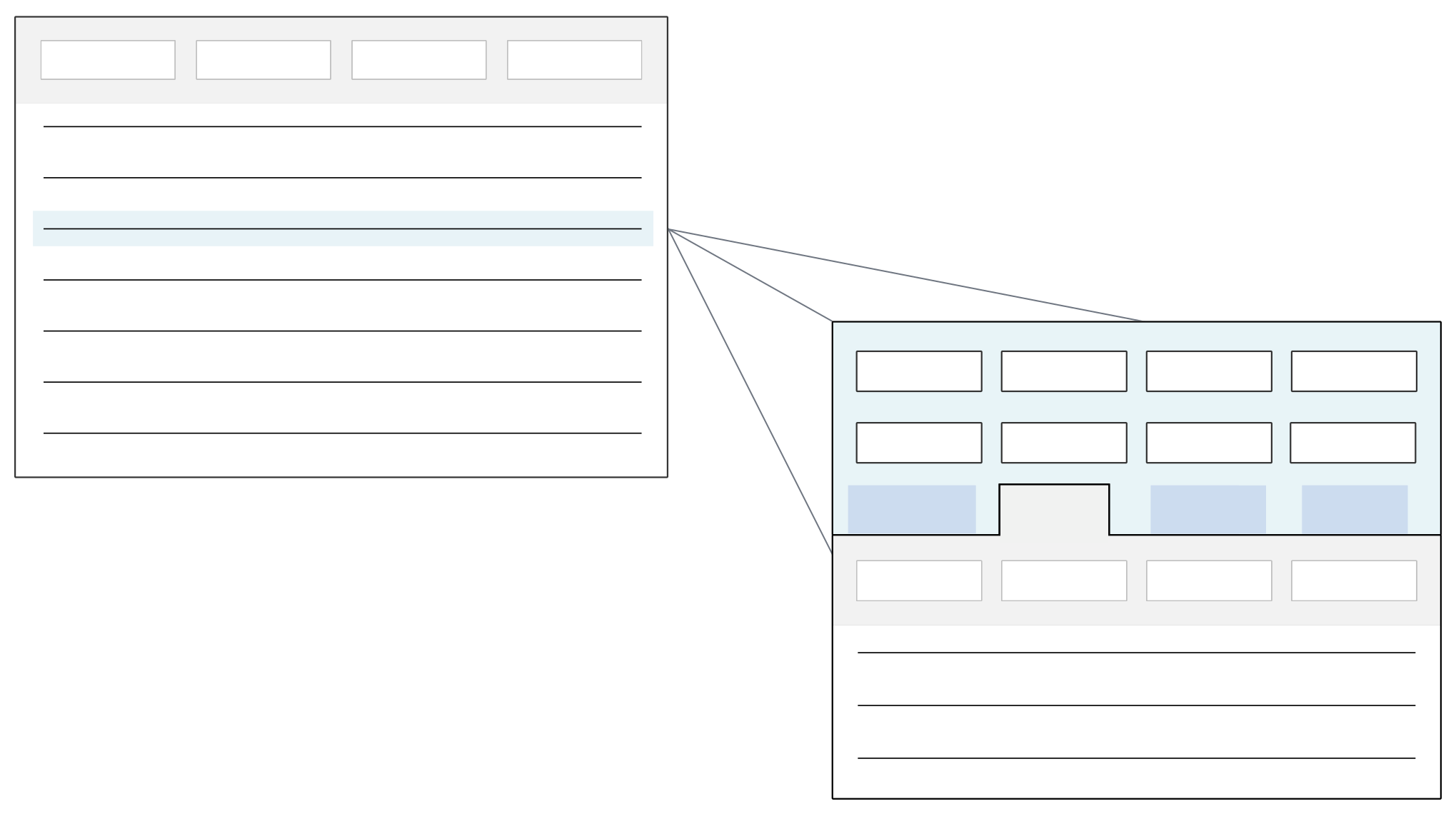
This application style supports a relationship cardinality of one-to-one and one-to-many.
Standard style relationship application best practices
These best practices ensure that all standard style relationship applications are configured consistently throughout Nextworld.
When to use
Use a relationship application with standard style when you have a parent child relationship, but you want to show them as a list and not as a tree. This relationship could be a one to one, one to many, or many to many.
For more on standard style relationship application form flow and configuration, see Standard style Relationship applications.
Tree style Relationship applications
Tree style Relationship applications open in a list form with records displayed in a hierarchy. Child records are nested below parent records in a tree that can be expanded or collapsed. Select a record to show additional record information in a form located next to the tree.
For example, you could have a project management application with activities of type Project and of type Task. When you use the application to create project and task records, tasks must be created and associated with the project which they belong to. This type of relationship application would be best organized with Tree style. Task records would be visible beneath their associated project in the list form of the application, and their details can be easily viewed without having to navigate away from the tree.
You can configure Tree style Relationship applications to display the detail form next to the list form, or to show a list of related records next to the list form once a record is selected. The diagram below shows these two views:
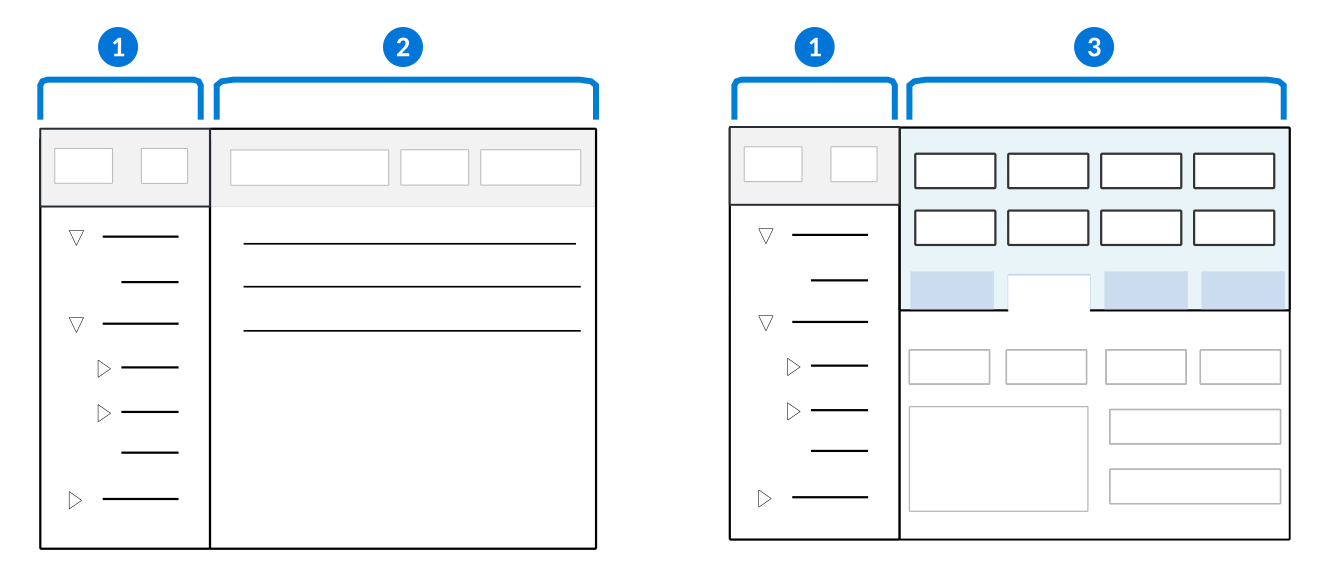
 | Tree—Displays records from the application in a hierarchy with child records below their parent records. See Trees for an overview of navigation in a tree. |
 | List form—The list form shows the child records of the parent record selected in the tree. You cannot edit records from the list form. Instead, open the detail form of the relationship application to modify them. The detail form displays a Relationships page where you can manage relationships. This configuration is only supported if you use a single application in your relationship. |
 | Detail form—The detail form shows the details of the record selected in the tree. This form ensures that you don't have to navigate away from the relationship application to edit record information. |
Learn more in Relationship application structure and Relationship application configuration.
Multi-entity relationship applications
Tree style Relationship application can be configured with multiple detail form entity applications. These applications, referred to as multi-entity relationship applications, are used when you have multiple applications you want combined into one tree style application. Within these applications, the different pages within a detail form represent the different relationship detail applications. This allows you to create, edit, and delete source records from all of the applications in one place. You can also define relationships between the attributes to create a hierarchal structure in the tree. Learn more in the Multi-entity relationship application configuration topic.
Relationship trees can also be included as Detail applications in Header Detail applications. Learn more in Relationship trees in Detail applications.
Tree style relationship application best practices
These best practices ensure that tree style relationship applications are configured consistently throughout Nextworld.
When to use
Use a relationship application with a tree style when you have a parent child relationship and you wish to show it in a hierarchical, tree view. This relationship could be a one to one, one to many, or many to many.
For more on tree style relationship application form flow and configuration, see Tree style Relationship applications.
Relationship application structure
Relationship applications are composed of multiple tables and applications. This topic outlines the different components and objects needed to configure a relationship application.
The diagram below represents a Standard style Relationship application:
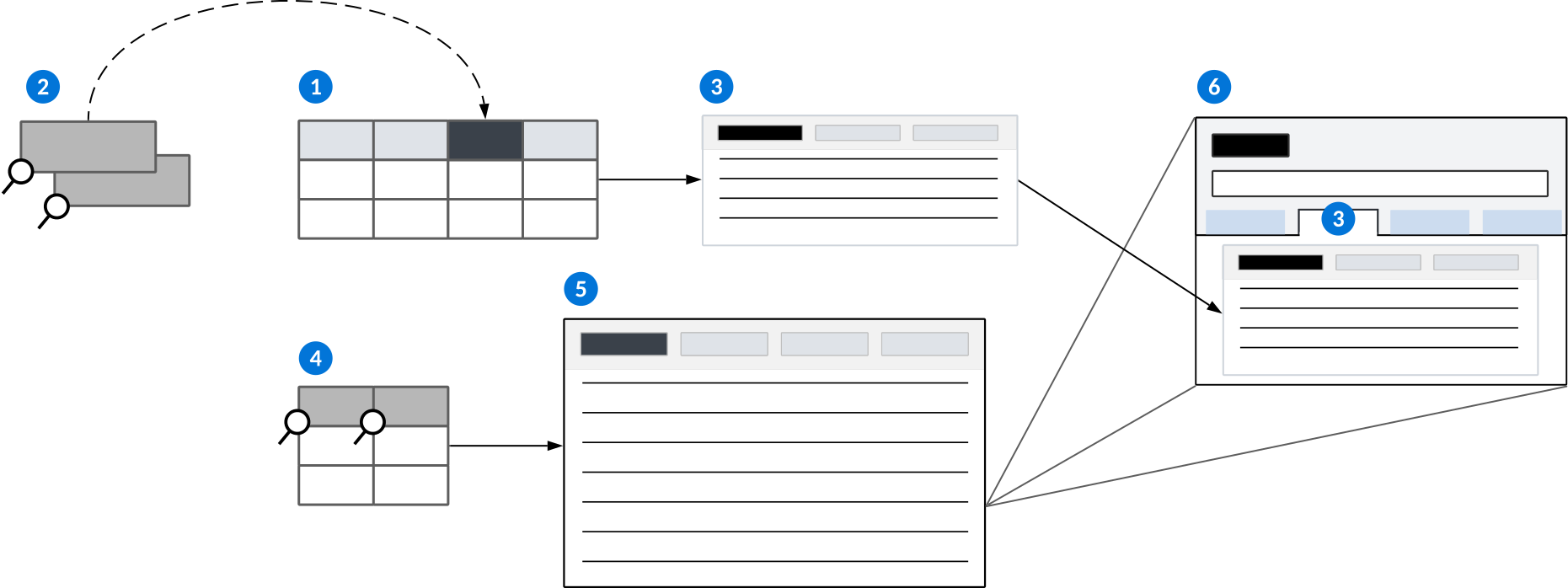
| Entity table—The table of type Main that stores the relationship application's records. This table should be configured with the data items you want used in the relationship application. |
|---|---|
| Child Field—The table lookup data item that identifies child records in the entity table. If using a Join table, the data item specified here should be the same data item used to connect the primary join table to the secondary table in the Join Definition. Parent Field—The table lookup data item that identifies parent records in the entity table. |
| Entity application—An application of type Standard or Advanced List built over the entity table. This application is referenced in the Relationship application configuration and controls the Relationship page in the detail form. |
 | Relationship table—The table of type Main that stores the relationships defined between the records in the entity table. This table must have the Child Field and Parent Field added as fields, and also defined on the Relationships page of the table record. |
 | Relationship application—The application of type Relationship that controls what you see when you open the application. This application is built directly over the relationship table for Standard style Relationship applications. |
 | Detail form of a relationship record—Open to view the related records. |
For example, Employees is a Relationship application built over the EmployeeRelationships table. In this table, the Child Field data item is Contact and the Parent Field data item is RelatedContact. Both of these data items are table lookups to the Directory table. This allows you to pull records from Directory to EmployeeRelationships so that you can build relationships between the records.
Tree style Relationship applications
Tree style Relationship applications have a few additional requirements, such as:
- You must create a Left Outer Join table over the entity and relationship table.
- The Primary Join Table is the relationship table. The join field from the primary table should be the same data item that is specified for the Child Field in the relationship table.
- The Secondary Tables are the entity tables. The join field from the entity tables should be a required field from that table, preferably one that is enabled for table lookups.
Learn more in Relationship application and Relationship application configuration.
Relationship application configuration
Configure Relationship applications with the Data Item Definitions, Table Definitions, and Application Builder applications.
Relationship applications are a multistep configuration which requires multiple objects. To review the structure of a relationship application, see the Relationship application structure topic.
Data Items
Relationship applications require two data items of type Table Lookup that point to the entity table:
- Child Field—The name of the data item that identifies the child entity record in the relationship. If using a Join table, the data item specified here should be the same data item used to connect the primary join table to the secondary table in the Join Definition.
- Parent Field—The name of the data item that identifies the parent entity record in the relationship.
Table Definitions
Relationship applications require two tables of type Main:
- Entity table—Stores the relationship application's record. The relationships are built between these records.
- Relationship table—Stores the relationship between records. The Relationship table must contain the data items that a relationship application can use in its initial list or tree form, as well as the Child Field and Parent Field data items added on the Relationships page. The Child Field and Parent Field are table lookups to the entity table. If your application is Standard style, you build it directly over this table.
If your application is a Tree style, you build an additional table of type Join which connects the entity and relationship applications. In the join table record, on the Relationships page of the table record, you must:
- In the Join Type field, select
Left Outer Join. - In the Primary Join Table field, specify the relationship table. The join field from the primary table should be the same data item that is specified for the Child Field.
- In the Secondary Tables subtable, specify the entity tables. The join field from the entity tables should be a required field from that table, preferably one that is enabled for table lookups.
Application Builder
Relationship applications require two applications. In the Application Builder, you must:
- Configure an entity application of type Standard or Advanced List over the entity table. This application controls the relationship page on the detail form of the relationship application.
- If the entity application does not have pages configured, any detail fields that are not part of the header appear on a blank page next to the Relationships page. You can specify a name for this page by configuring the detail application pages.
- Configure a Relationship application over the relationship table or a Join table which connects the relationship and entity tables. This application controls what you see when you open the application.
- Select your application style. Use Standard style if you are building over a table of type Main, or Tree style if you are building over a Join table.
- In Advanced, on the Relationship Configuration page, in the Entity Application field, enter the name of your entity application.
- Optionally, select the Tree-Detail Form checkbox if you want the application to use tree detail form. Learn more in Tree style Relationship applications.
- Optionally, select the Save as Group if you want records to only commit to the database when you select the application's Save form action. Records are not saved when users exit a row or select the Save row action. Learn more in Save as Group option for Advanced List and Relationship applications.
Learn more about application configuration in Application configuration overview.
Relationship trees can also be included as Detail applications in Header Detail applications. Learn more in Relationship trees in Detail applications.
Multi-entity relationship application configuration
Configure a multi-entity relationship application in the Data Item Definitions application, Table Definitions application, List Lookup Definitions application, and Application Builder application.
Create the entity applications
Each entity application you want to use in the multi-entity application must be fully configured with a table and application built over it.
In the Table Definitions and Application Builder applications:
- Build your tables. These are your entity application tables.
- You must include fields which are available as related fields, and have a primary search field defined.
- Build your applications over the tables. These are your entity applications.
Only Standard applications and Advanced List applications can be used.
In the List Lookup Definitions application:
- Create a list lookup. This is your entity list lookup which is referenced in the relationship detail application you configure later.
- Add List Lookup Keys for each of the entity applications you built. Provide a unique value and icon for each entity application.
These values and icons are the visible representation of the entity applications you just built. Learn more in Basic list lookup configuration.
Create a relationship detail application
In the Data Item Definitions application:
- Create a
Texttype data item. - In the Lookup Name field of the
Texttype data item, enter the name of the entity list lookup you created. - Create an individual
Table Lookupdata item for each entity application you built. - For each
Table Lookupdata item, enter the name of the entity table that the application is built over in the Related Table field on the Formatting and Validations page.- This populates each application in the multi-entity relationship application you build later.
- These data item table lookups should match the list lookup values you entered.
In the Table Definitions application:
- Create a
Maintype table. This is your relationship detail table. - On the Fields page, in the Fields field, add the
Texttype data item and all of theTable Lookupdata items.- This creates a dependent list lookup for the Type field on the Relationship Configuration page of the relationship application.
In the Application Builder application build a Standard type application. This is your multi-entity application. On the General Configuration page, in the Table field, enter the name of the relationship detail table.
Create the multi-entity relationship application
In the Data Item Definitions application:
- Create a
Table Lookupdata item. This is your primary multi-entity table lookup. - On the Formatting and Validations page, in the Related Table field, enter the name of the entity table you built.
- Create a
Table Lookupdata item. This is your parent multi-entity table lookup. - On the Formatting and Validations page, in the Related Table field, enter the name of the entity table you built.
In the Table Definitons application:
- Create a
Maintype table. This is your multi-entity table. - On the Fields page, in the Fields subtable, add the primary multi-entity and parent multi-entity
Table Lookupdata items you created. - On the Fields page, in the Fields subtable, add the
Texttype data item you created. - On the Relationships page, add the primary data item to the Child Field and the parent data item to the Parent Field.
In the Application Builder application:
- Build a
Relationshiptype application. - On the General Configuration page, in the Table field, enter the name of the multi-entity table.
- On the Relationship Configuration page of your application, in the Relationship Detail Application field, enter the multi-entity application you created.
- Select the Tree-Detail Form checkbox to open the Multi-Application Definition section.
- Reference the list lookup you created in the Type Field.
- Add a new row in the Applications field for each entity application.
Example: multi-entity relationship application
The Equipment Relationships application is a helpful example of how to configure a multi-entity relationship application.
Object overview
Use multi-entity relationship applications when you have records with unique attributes that you can't combine into one table to build a normal relationship application over. The Equipment Relationship application is built over the Directory application and Equipment application. Once configured, the data from both applications displays in a hierarchal tree detail in the multi-entity relationship application. A user can use the application to view, edit, create, or delete record entries for both application's in one place. They can also view the equipment that each organizational unit has since the application data was related to each other.
Configuration elements
This application was built as a configuration example for multi-entity relationship applications.
| Object | Object Type | How it works in the configuration |
| Entity applications | ||
| EquipmentMaster | Table - Main | This is an entity table. You build an entity application over it. |
| Directory | Table - Main | This is an entity table. You build an entity application over it. |
| EquipmentMaster | Application - Standard This application can also be Advanced List type. | This is an entity application. You build it over an entity table. In this instance, it was built over the EquipmentMaster table. Configured on the General Configuration page, in the Table field. |
| Directory | Application - Standard This application can also be Advanced List type. | This is an entity application. You build it over an entity table. In this instance, it was built over the Directory table. Configured on the General Configuration page, in the Table field. |
| Relationship Detail application | ||
| Equipment Entity Type | List Lookup | This List Lookup contains the values and icons you want displayed for the entity applications in the multi-entity application. Configured in the Lookup Keys field. There is a Value and Icon for each entity application. In this case, Organizational Unit and Equipment. |
| Equipment | Data Item - Table Lookup | This data item is a table lookup over one of the entity tables, in this case the EquipmentMaster table. Configured on the Formatting and Validations page, in the Related Table field. |
| OrganizationalUnit | Data Item - Table Lookup | This data item is a table lookup over one of the entity tables, in this case the Directory table. Configured on the Formatting and Validations page, in the Related Table field. |
| EquipmentEntityTypes | Data Item - Text | This data item holds the list lookup with the values and icons for the entity applications. On the Formatting and Validations page, in the Lookup Name field, enter the list lookup of Equipment Entity Type. |
| EquipmentMultiEntity | Table - Main | This multi-entity table holds the table lookups for the entity tables and the data item with the list lookup values. Configured on the Relationship page, in the Primary Search field, and on the Fields page, in the Fieldssubtable. The data items for Equipment, OrganizationalUnit, and EquipmentEntityTypes are entered. |
| EquipmentMultiEntity | Application - Standard | This Relationship detail application is built over the relationship detail table, in this case the EquipmentMultiEntity table. |
| Multi-entity relationship application | ||
| RelationshipExpansionDefaultFields | Data Item - Data Item Group | Groups the data items so they can be added in a number of tables or applications. This data item is added to every relationship table by default. It does not need to be created. |
| EquipmentMultiEntityParent | Data Item - Table Lookup | This data item is a table lookup over the entity table, in this case the EquipmentMultiEntity table. Configured on the Formatting and Validations page, in the Related Table field. |
| EquipmentMultiEntityPrimary | Data Item - Table Lookup | This data item is a table lookup over the entity table, in this case the EquipmentMultiEntity table. Configured on the Formatting and Validations page, in the Related Table field. |
| EquipmentRelationships | Table - Main | This multi-entity table holds the Table Lookup, Number, and Data Item Group data items. Configured on the Relationships page. The primary table lookup, in this case EquipmentMultiEntityPrimary, is entered in the Primary Field, while the parent table lookup, in this case EquipmentMultiEntityParent, is entered in the Parent field. Configured on the Fields page, in the Fields subtable. This is where the data items are entered. In this case, the EquipmentMultiEntityPrimary, EquipmentMultiEntityParent, and RelationshipExpansionDefaultFields. |
| EquipmentRelationships | Application - Relationship | This multi-entity relationship application is built over the multi-entity table. In this case, the EquipmentRelationships table. Configured on the Relationship configuration page, in the Relationship Details Application field, you enter the relationship detail application. In this case, the EquipmentMultiEntity application. To open the multi-entity application section, the Tree-Detail View checkbox must be selected. The Text type data item must be entered in the Type Field field to fill in the list lookup entity types it was associated with. In this case, the EquipmentEntityType. The entity applications must be entered and configured in the Application field. In this case EquipmentMaster and OrganizationalUnits. |
Relationship application actions reference
This table shows where you configure the various application action controls for the relationship application forms.
| Form | Action | Area | Defined in Application |
|---|---|---|---|
| Tree-List | Field Actions | List | N/A |
| Tree-List | Row Actions | List | Relationship |
| Tree-List | Form Actions | List | Relationship |
| Tree-List | Control Actions | Tree | Relationship |
| Tree-List | Event Actions | List | Relationship |
| Tree-List | Application Links | List | Relationship |
| Tree-List | Dynamic Application Links | List | Relationship |
| Tree-List | Search Actions | List | Relationship |
| Detail | Field Actions | Detail | Entity |
| Detail | Row Actions | Relationships page | Relationship |
| Detail | Form Actions | Detail | Entity |
| Detail | Control Actions | Detail | Entity |
| Detail | Control Actions | Relationships page | Relationship |
| Detail | Event Actions | Relationships page | Relationship |
| Detail | Application Links | Detail | Entity |
| Detail | Dynamic Application Links | Detail | Entity |
| Detail | Search Actions | Detail | Entity |
| List | Field Actions | List | N/A |
| List | Row Actions | List | Entity |
| List | Form Actions | List | Entity |
| List | Control Actions | List | Entity |
| List | Event Actions | List | Entity |
| List | Application Links | List | Entity |
| List | Dynamic Application Links | List | Entity |
| List | Search Actions | List | Entity |