















Logic blocks are initiated in many ways, including:
- User interactions in applications
- Table changes, such as saves, deletes, or updates
- Workflow in auto and post transitions
- Using Ed to start a process, such as creating an application, table, or list lookup
- Data transforms
- Scheduled jobs that run async
- Action blocks called from endpoints
In the Application Builder application, on the Action page, configure logic blocks to initiate based on user interactions, such as:
- Field actions—Initiates when a user interacts with individual fields in an application. See the Logic blocks and field actions topic.
- Row actions—Initiates when a user selects a row action. See the Logic blocks and row actions topic.
- Event actions—Initiates when a user interacts with an application, such as selecting a row or creating a calendar event. Event actions run automatically, without requiring an explicit user command. See the Logic blocks and event actions topic.
Learn about configuring actions in Configure actions for an application.
In the Table Definitions application, configure logic blocks to initiate based on table changes, such as:
- Table triggers—Initiates before or after a record is altered in a table. Table triggers allow you to validate record data and update multiple tables, and ensure data is processed the same way, regardless of how the data is altered. See the Table triggers topic.
- Action blocks—Initiates instead of a save, update, or delete when a user selects a button to change a record. Action blocks contain logic actions to update the table they are configured on. See the Action blocks topic.
Action blocks and table triggers occur any time a record is modified by a user action. Learn about the order in which logic blocks are executed Sequence of logic block execution on tables topic.
Logic blocks and field actions
Configure logic blocks to run when a user interact with individual fields in an application.
Use field actions when the logic block only applies to a field within a record, and not the entire record. Field actions can be configured with different display options, such as:
- Button Only—Displays the button on the detail form.
- Button and Field Label—Displays the button and a field label on the detail form.
- List View Action—Displays the button on the list form.
- Calendar Event Action—Displays the button in the calendar event.
- Subtable—Displays a button icon next to the subtable field.
By default, field actions display the label, field, and button on the detail form. The logic block only runs when the user selects the button, so use a field action if the logic block is optional.
For example, in the Supplier Invoices application, there is a field action configured for the Supplier Name field that loads the last invoice for the supplier. Other field values, such as the Billing Address, Organizational Unit, or Payment Terms do not change between invoices. If you load information from the last invoice you can save time and reduce the margin for error. It isn’t necessary for the last invoice to be loaded each time a new invoice is entered, or every time a new value is entered in the Supplier Name field. This field action displays under the Supplier Name field as the Load Last Invoice button.
Field actions are part of the application design and are configured on the Actions page of the Application Builder application. Learn about configuring actions in Configure actions for an application.
Logic blocks and row actions
Configure logic blocks to run when a user selects a row action. There are different row action link types, such as logic block in trans boundary, and logic block not in trans boundary.
Row actions apply to entire records. For example, in the Journal Entries application, the Void row action voids the current journal entry record. Depending on the application type, creating a row action can result in action menu options in the:
- Row action menu in the application list form.
- Detail list form of a Header Detail application.
- Detail list form on the Relationships page of a Relationship application.
- Row group of an Advanced List application configured with Grouped Detail.
- Form action menu at the top of the detail form of an application.
- Subtable of an application.
Row actions are part of the application design and are configured on the Actions page of the Application Builder application. Learn about configuring actions in Configure actions for an application.
There are several row action link types you can configure, such as:
Application (Extend Trans Boundary)—Extends the NATE container to the application you are opening with the application link. For more information, see the Nested NATE containers topic.Application (Save Not Required)—Does not require the user to save the record before the application link opens the new application. Runs outside of the transaction boundary. Often, changes are still available when the user navigates back to the first application.Application (Save Required)—Requires the user to save the record before the application link opens the new application. Runs outside of the transaction boundary.Logic Block - Not in Trans Boundary—Does not require the user to save the record before the logic block runs. Runs outside of the transaction boundary, which means if this logic block updates a record, the change is applied whether or not the current record is saved.Logic Block - Not in Trans Boundary (Save Required)—Requires the user to save any unsaved changes to the record before the logic block runs. Runs outside of the transaction boundary.Logic Block In Trans Boundary—Does not require the user to save the record before the logic block runs. Runs within the transaction boundary and any changes from the logic block are part of the same NATE container. This means that if the record is not saved, any changes to the record made by the logic block are discarded.
Header Detail row action configuration option
Header detail row actions always run within a transaction boundary, regardless of the Link Type selected. To have the row action run outside of a transaction boundary, there are additional configuration requirements.
There are several components for this configuration:
- Processing Logic Block—The logic block that contains the logic you want attached to the row action.
- Calling Logic Block—The wrapper logic block that calls the processing logic block. This is also the logic block referenced in the Row Action subtable.
- Row Action Subtable—The subtable in the Application Builder application where you configure the row actions.
These steps occur after you have built a Header Detail application over a Header Detail table. For more information, see the Header Detail application configuration topic.
Processing Logic Block
In the Logic Builder, you must:
- Build a logic block over the Header table used in the Header Detail table configuration.
- Add the Create HD Structure action.
- In the HD Table field, select the name of the Header Detail table
- Name your HD Structure.
- Add the Fetch Detail Records action.
- In the HD Structure field, enter the name of the HD Structure you created.
- Enter the name of the Detail table used in the Header Detail table configuration.
- Create the logic you want associated with the row action.
Calling Logic Block
In the Logic Builder, you must:
- Build a new logic block over the same Header Detail table as the Header Detail application you're configuring the row action in.
- Add the Call a Logic Block action.
- Enter the name of the processing logic block you configured.
- Select the Run In New Database Transaction checkbox.
- In the Data Source Name field of the action, enter the name of the Header table you built the called logic block over.
For more information, see the Call a Logic Block action topic.
Row Action Subtable
In the Application Builder application, navigate to the Actions page. In the Row Action Subtable, configure your row action and reference the calling logic block you created.
For more information, see the Logic blocks and row actions topic.
Logic blocks and event actions
Configure logic blocks to run when a user interacts with an application on the Actions page of the Application Builder. Event actions run automatically, without requiring an explicit user command.
The table below discusses the different types of event actions, and what user actions prompts the logic block to run.
| Event Action | The logic block runs when a user... | Notes |
|---|---|---|
| Advanced List Form is Initialized | Opens an advanced list application in the advanced list form. | Only applies to advanced list applications. |
| Before Calendar Event Created | Drags and drops a record into a calendar slot. | Only occurs when a record is dropped into a specific calendar slot. The calendar event definition record for that specific time slot is sent to the logic block to run against, not the entire calendar record. Logic blocks needs to be built over the CalendarEventDefinitions table. The event can stop a calendar event from being created if the logic block errors. For example, some events require certain resource skills in order to be scheduled. If the event is dropped on a resource calendar who doesn't have those skills, the logic block rejects the event and won't let it be created. |
| Before Calendar Event Updated | Changes a calendar event. | Runs before calendar event updated is completed, and saved. If there is an error the event does not get updated and the calendar event updated logic does not run. |
| Before Group Save | Selects Save, when Save as Group is enabled. | Only applies to advanced list applications. |
| Before Row Delete | Deletes a row or when Save As Group is is selected on advanced list application. | This action runs before the row is deleted. Only applies to header detail and advanced list applications. |
| Before Save | Selects Save. | This action stops data from being saved or updated if there are any errors or warnings. If the associated logic block has any warning messages associated with the Before Save event or the Before Save event initiates a warning from the logic block, a dialogic box appears in the UI with the associated warning message(s). If other actions in the logic block perform inserts or updates, this action does not stop them and changes are not rolled back if the logic block returns a warning. |
| Calendar Event Created | Creates a calendar event. | The calendar event definition record for that specific time slot is sent to the logic block to run against, not the entire calendar record. Logic blocks needs to be built over the CalendarEventDefinitions table. |
| Calendar Event Deleted | Deletes a calendar event. | The calendar event definition record for that specific time slot is sent to the logic block to run against, not the entire calendar record. Logic blocks needs to be built over the CalendarEventDefinitions table. |
| Calendar Event Updated | Changes a calendar event. | The calendar event definition record for that specific time slot is sent to the logic block to run against, not the entire calendar record. Logic blocks needs to be built over the CalendarEventDefinitions table. |
| Composite Initialized | Hides a step of a composite application. | When the composite application is launched, the logic block runs to apply UI hints that hide the selected composite step. |
| Datatable True/False Click | Selects or clears a true false field. | Enables users to select a checkbox without having to enter edit mode on the row. |
| Datatable True/False Click (With Multi-Select) | Selects the checkbox that has the event configured on it. Selects Select All or Clear All visible checkboxes using the actions menu in the column headers of the detail list for multiple selection. | Enables users to select a checkbox without having to enter edit mode on the row. Configure other event actions, such as Field Value Changed, on the field if you want these events to initiate when a user selects the checkbox while in edit mode of the row.This action also enables the Select All and Clear All checkbox options in column headers. Reference logic in the configuration to make the Select All and Clear All options event actions. Other event actions do not occur if only the Select All or Clear All buttons are selected. This configuration is available on the detail lines of Header Detail applications, the detail list of Relationship applications, and on subtables used in any application type. |
| Field Entered | Selects or tabs into a field. | |
| Field Exited | Selects or tabs out of a field. | |
| Field Value Changed | Changes the value in the defined field and then exits the field, or hits enter. | |
| Form is Initialized | Opens the application in an application form. | This event does not run when the list form of an application is initiated. |
| Gantt Double Click | Double clicks a component of a Gantt application. | This event action must be configured with an application link. When the action occurs, a mini app should open that allows editing of the underlying record. By default, Gantt applications are read-only. Learn more in Gantt application configuration. |
| Load Button Clicked | Selects Reset or Load button on the application page. | Only applies to group detail applications. |
| Load Data on List Form | Fetches business data from the table that the logic block is built over. For example, when an application is initially launched, or the Refresh button is selected. | The logic block configured on this event action is run over every record individually when the records are fetched. This means only the records visible on the list form are included in the event action. This is useful for conditional logic. This action is not supported in logic block debugging. |
| Pivot Row Group Changed | Changes any of the row group values and then exit the row group. | This action is specific to the cells in the row group values, not the cells under the pivot columns. |
| Record Drop | Drags and drops a record from one location to another. For example, from a list view to an advanced list record. | |
| Row Added | Selects the Add Row button in an Advanced List or Header Detail application. | If a Row Entered action is also configured, only the Row Added event runs when a row is added. When you apply UI hints, such as hiding or disabling a checkbox, to different fields on this logic block, those UI hints are applied only on the newly added record. This action is not supported in subtables. |
| Row Entered | Edits or double-selects a row. | Only applies to header detail, relationship, and advanced list applications. This action is not supported in subtables. |
| Row Exited | Selects out of a row or saves a row. | Only applies to header detail, relationship, and advanced list applications. This action is not supported in subtables. |
| Row Changed | Changes a value in a row, and then exits a row. | Only applies to header detail, relationship, and advanced list applications. This action is not supported in subtables. |
| Row Deleted | Deletes a row. | This action runs after the row is deleted. Only applies to applications with a list or detail-list form. This action is not supported in subtables. |
| Row Action Event | Selects a row. Selects to open the row action menu. Selects a button from the row tray. | This action is not supported in subtables. This event only runs when you select the row action, and not on a form action. |
| Tree Node is Selected | Selects a tree node. | Only applies to relationship tree applications. |
Event actions are part of the application design and are configured on the Actions page of the Application Builder application. Learn about configuring actions in Configure actions for an application.
Table triggers
Configure logic blocks as table triggers so that they run before or after a record is altered in a table. Table triggers occur any time a record is modified by a user action.
There are different types of triggers. Each type of trigger is comprised of a classification and a mode. The prefix determines when the table trigger runs. The options are:
Pre—The table trigger runs before the change is saved to the table. Use for data validation, defaulting values, or both.Post—The table trigger runs after the change is saved to the table. Use for data validation and to update associated tables with updated record information.Validation—The table trigger runs on both Pre-Insert and Pre-Update. Validation triggers can be run multiple times before being committed.
See the Pre-triggers, Post-triggers, and Pre- and post-trigger topics.
The mode is how the table is being altered. The table below reviews the modes for table triggers:
| Mode | The table trigger runs when... | Example |
|---|---|---|
| Update | An existing record is changed. | The PayablesHeaderPreTrigger logic block is a Pre-Update table trigger that sets the Payment Status field in Supplier Invoices after the record is created or updated, but before the change is persisted to the table. |
| Insert | A new record is created. | The UpdateSupplierInvoices logic block is a Post-Insert table trigger that updates the Pending Payment field in the header table when records are saved in the detail table. The BankDepositsPostTrigger logic block sets the value of the LinkID field with a value that is comprised of the ContactID, TransactionType, and DepositTransactionNumber values saved in the record. The logic block runs after a change is persisted to the table, and is used to update values in associated or secondary tables with values from the new record. |
| Delete | An existing record is removed. | A Post-Delete table trigger runs a logic block to send emails to recipients notifying them of an event deletion from a calendar. |
Table triggers for Header Details run in a particular sequence. Learn more in Sequence of logic block execution on tables.
Considerations
There are several considerations for table triggers, such as:
- The Transaction Scope checkbox prevents records from being saved if an error occurs in the logic block. This means that when an error occurs, the entire transaction is rolled back. By default, this checkbox is selected.
- If you make any changes to the underlying table during a Post-trigger logic block, you must follow them with an Update action since these logic blocks run over a record that is already committed.
- Triggers that run on save events must run within thirty seconds or they receive a time out. Async can be used for save events.
- Table triggers run when subtable records are updated from the main table.
- Table trigger not initiated by a logic block are deferred to the time of the NATE container commit. Learn more in NATE containers and Sequence of logic block execution on tables.
See the Table triggers best practices topic for best practices information.
Pre-triggers
Logic blocks configured as pre-triggers run before the record is saved to the table, and are used for data validation, defaulting values, or both.
While records are being altered, and when the save is attempted, records are NATE pending. While the save is being attempted, records are database uncommitted and the pre-trigger logic block runs. After the pre-trigger logic block finishes running and is successful, the records are committed to the database and the save is complete.
If the logic block errors, any data changes made by the logic block are rolled back, and the record is restored to before the save was attempted.
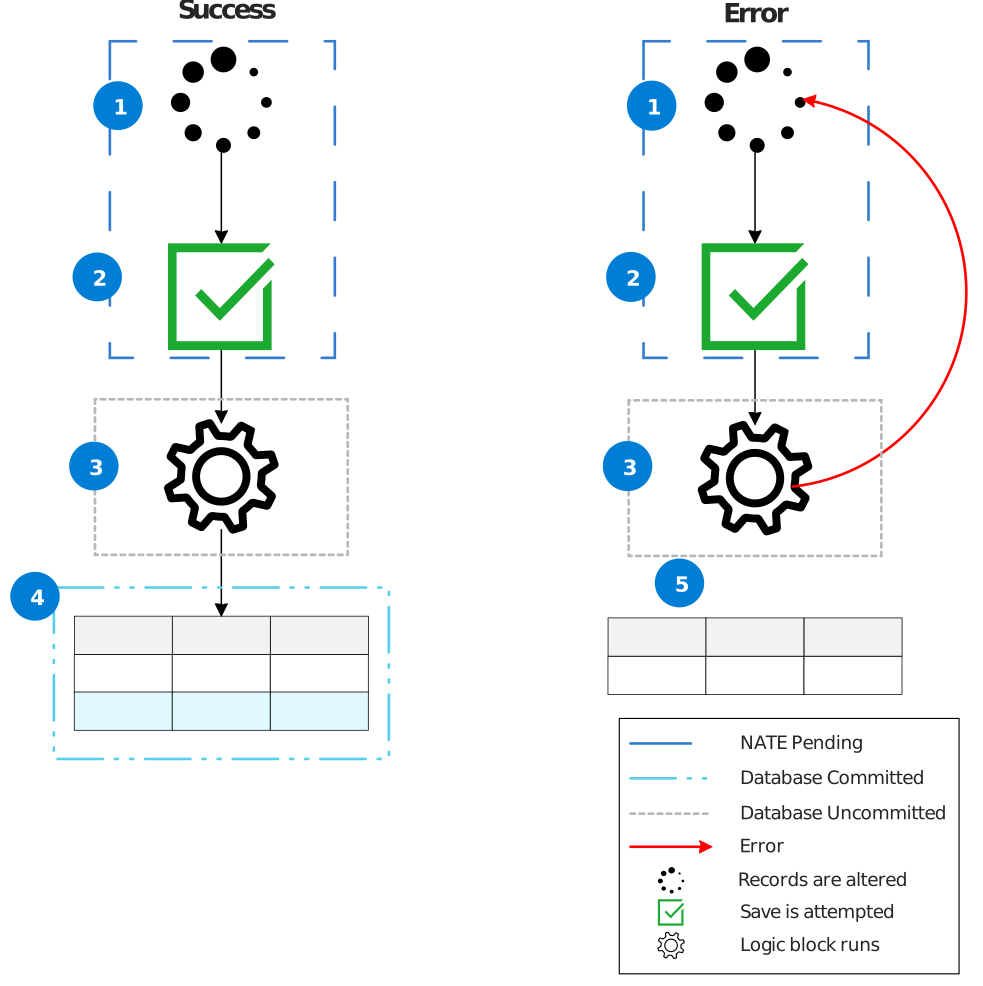
1. Records are altered
2. Save is attempted
3. Pre-trigger logic block runs
4. Records are committed
5. Data changes are rolled back
Post-triggers
Logic blocks configured as post-triggers run after the record is saved to the table, and are used for data validation and to update associated tables with updated record information.
While records are being altered, and when the save is attempted, records are NATE pending. The altered records are saved to the table, but are database uncommitted. While they are uncommitted, the post-trigger logic block runs. When it runs successfully, the post-trigger logic block updates additional tables with the altered record, and then the record is committed to the database. When a post-trigger logic block errors, records are reverted to before the save was attempted.
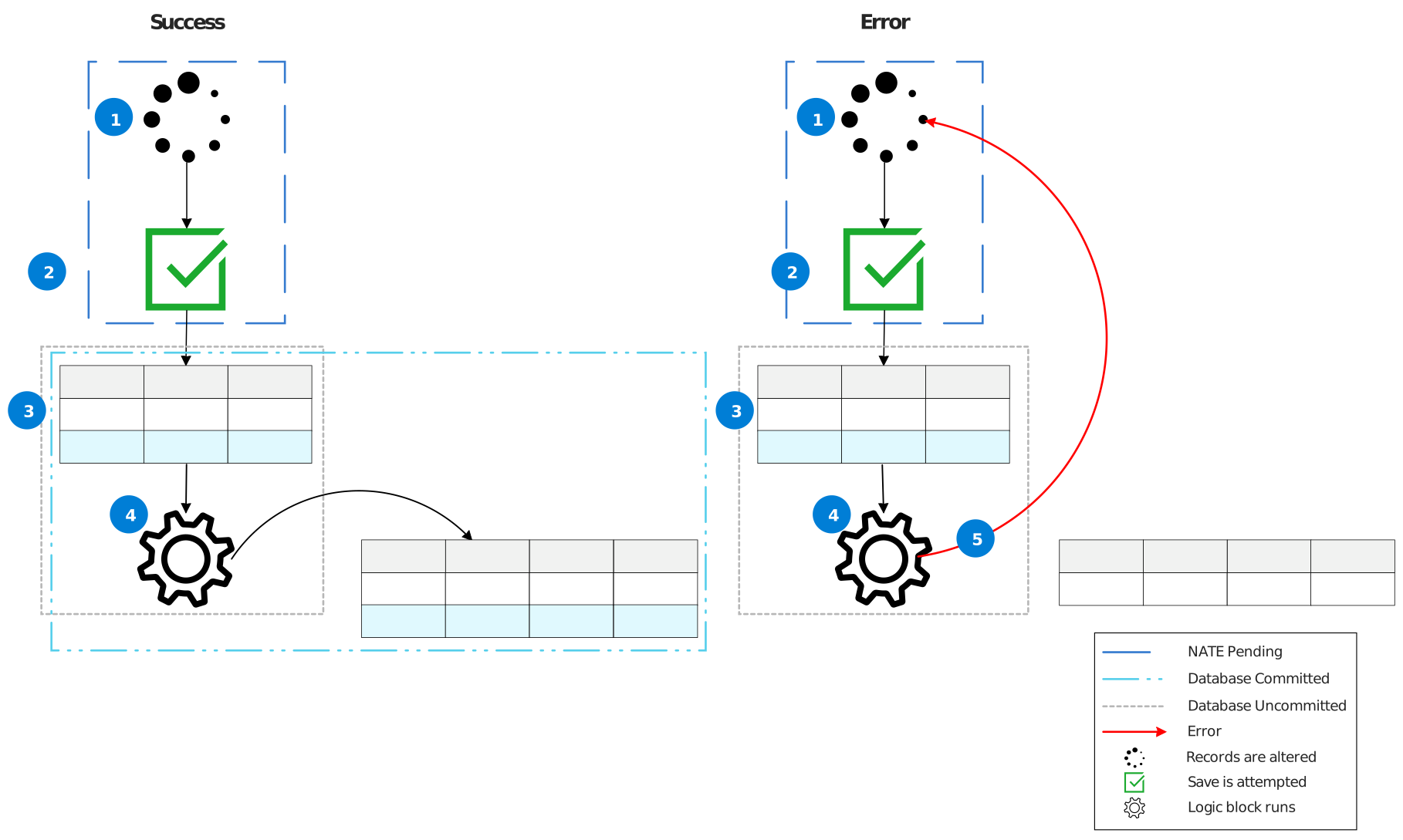
1. Records are altered
2. Save is attempted
3. Records are uncommitted
4. Post-trigger logic block runs
5. Data changes are rolled back
Pre- and post-trigger
When tables have logic blocks configured as both pre-and post-triggers, they run sequentially.
While records are being altered, and when the save is attempted, records are NATE pending. While the save is being attempted, records are database uncommitted and the pre-trigger logic block runs. After the pre-trigger logic block finishes running and is successful, the records are database uncommitted.
After the records are altered, a save is attempted. During the attempt to save, the records are NATE pending. While the records are NATE pending, the pre-trigger logic block runs. After the pre-trigger logic block finishes running and is successful, the records are database pending. When they are pending but before they are committed, the post-trigger logic block runs. While they are uncommitted, the post-trigger logic block runs. When it runs successfully, the post-trigger logic block updates additional tables with the altered record, and then the record is committed to the database. When a post-trigger logic block errors, records are reverted to before the save was attempted.
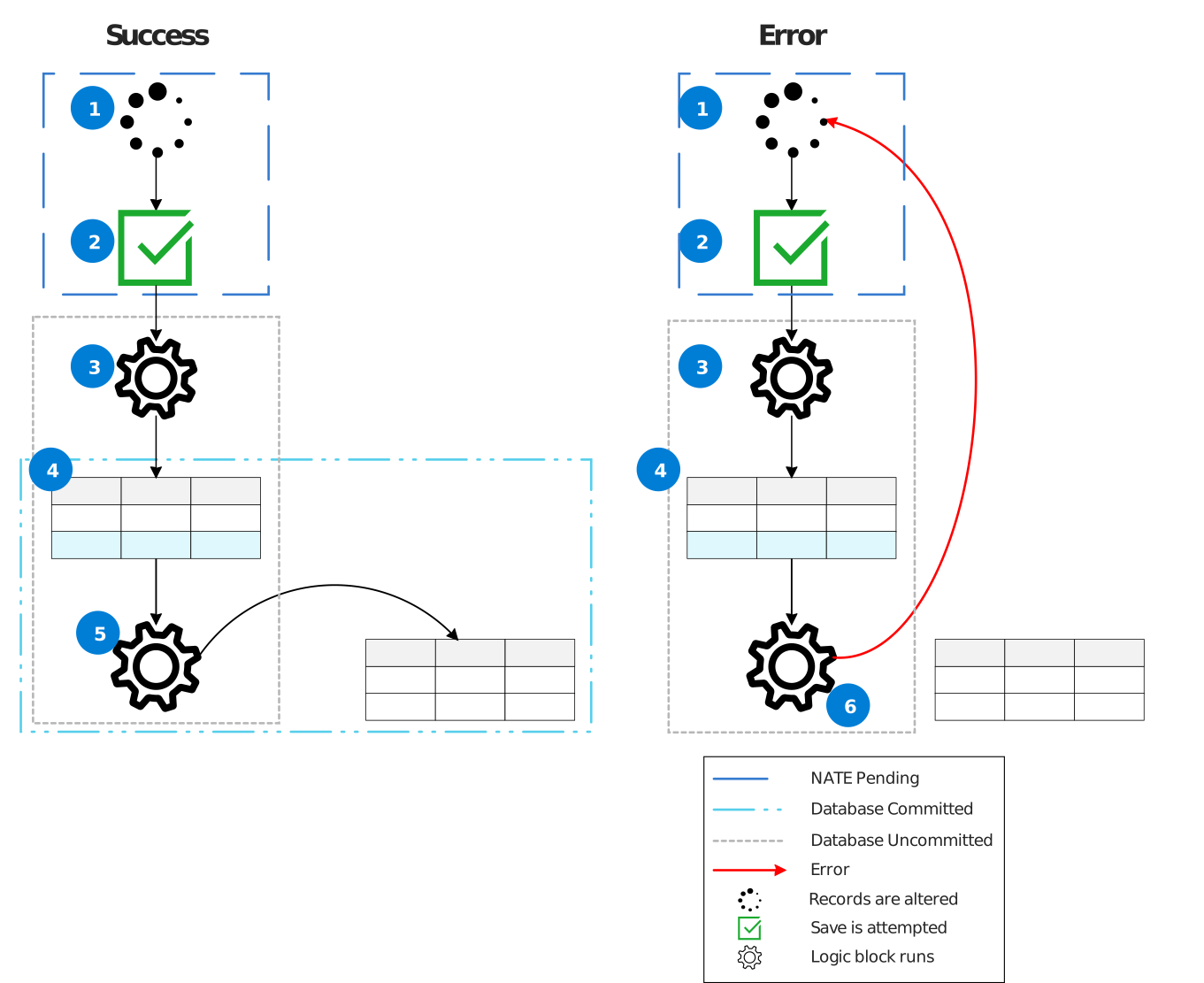
1. Records are altered
2. Save is attempted
3. Pre-trigger logic block runs
4. Records are database uncommitted
5. Post-trigger logic block runs
6. Data changes are rolled back
Configure table triggers for Header Detail applications
There are special considerations for table triggers used in Header Detail applications.
Triggers have different purposes on each of the tables that make up a Header Detail table:
- Detail—The logic block fetches data from the detail row, and not the header.
- Header—The logic block fetches from only the header, and not the detail rows.
- Header Detail—The logic block can fetch data from both the header and detail.
Sequence
Table triggers for Header Detail tables run in a specific sequence. When there are multiple detail tables, the table triggers run depending on the order in which the detail tables are defined in the Detail Tables subtable in the header detail table definition.
If there is one header detail table, one header table, two detail tables defined, and workflow logic blocks configured, the logic blocks run in the following order:
- Action Block - Header Detail table
- Table Triggers - Header table
- Table Triggers - Detail table 1
- Table Triggers - Detail table 2
- Table Triggers - Header Detail Table
- Post-Run workflow - Header table
Table triggers best practices
These best practices ensure that table triggers are configured consistently throughout Nextworld.
Table triggers are built in Logic Blocks and configured in the Table Definitions application.
When to use
Pre-triggers execute before the record is saved to the table. Post-triggers execute after a record has been saved to the table. Use each type of table trigger for different purposes, such as:
- Pre-Insert: Use to validate, populate default fields, or populate derived fields.
- Pre-Update: Use to validate, set default fields, or set derived fields.
- Post-Insert: Update or insert to other tables, or update one of its own derived fields with a fresh auto number.
- Post-Update: Update or insert to other tables.
Any logic block that is run from the UI to validate field values should also be a table trigger. Using both the UI and table triggers may cause you to validate twice, but validating twice is better than receiving invalid data.
Considerations for using an action block instead of a trigger.
- Create an action block if other families will be inserting records.
- If you have large complex logic for the table.
Common best practices
A trigger logic block cannot have any UI-only logic actions such as Hide, Show, Disable, or Enable.
Ensure you don't have recursive logic. One exception is populating the LinkId field. The LinkId is a concatenation of three fields including an auto number. An auto number is not available until the post trigger. Only configure this option on the post-insert to avoid recursion.
Include default values in triggers on a case-by-case basis. If the user wants a non-required field to be left blank and clears out the UI defaulted value, the table trigger overrides the field the user intended to leave blank.
When possible, call only one logic block for a trigger event. That logic block can call other logic blocks to keep your logic modularized and also allows a logic block to be called from the UI.
If you are placing a trigger on a Header Detail table, the trigger must be placed appropriately. See Configure table triggers for Header Detail applications for more information.
Action blocks
Configure logic blocks as action blocks so that they run instead of a save, update, or delete when a user selects a button to change a record. Action blocks are added as part of the table configuration, and contain logic block actions to update the table.
Action blocks require specific user action to run. An action block would not run when data is imported to a table or another logic block inserts records to the table, but does run when it is called by other logic blocks.
Action blocks act as a link between the data and the database. They take the information from the table they are called from, and then either connect that data with another table, or insert the data into the table that calls them. Other applications or integrations should call the action block to insert records into the table.
Instead of automatically saving a record at the end of the logic block, you include actions in your logic block to manually save a record. For example, you could include an Insert Records or Update Records action. Taking over the save ensures that there is only one logic block that performs all validations and operations on the table. Taking over the delete ensures data integrity, making any necessary updates to other tables when a record is deleted.
Logic blocks are often configured as action blocks to:
- Ensure there is only one point from which records can be inserted into a table. The action block can validate the information and then save the record.
- Insert records into transaction tables which receive records from multiple sources.
- Insert information from an application used for data entry into a different table. The action block could include actions that call other logic blocks.
- Set the nwId for the DSN on an Insert action. This will return the nwId of the record created and allow for it to be passed back to any other logic block calling that action block.