















Table lookups are data items configured to point to and retrieve information from a specified table, referred to as the related table. The data item and/or related table must have a primary search field defined which is used to identify records when searching the table. If the data item has a primary search field selected, the table's primary search field is overruled.
You can further refine which records from the related table are available in the table lookup field through use of secondary and tertiary search fields. For example, the primary search field for a table of companies could be the Company Name. If each company has multiple org units within it, you could have a secondary search field for Org Unit. When a user interacts with the table lookup field they would be able to search for the correct company and org unit combination by entering either value in the field.
Table lookups can be configured on different data item types, as seen in the table below.
| Use type... | If you want your table lookup to... | Example |
|---|---|---|
Table Lookup | Store the internal ID (nwId) of the referenced value. If the value changes, the display value in the linked lookup field is automatically updated. Configure the related table and lookup information on a data item of type Table Lookup. Learn more in nwId. | The Supplier Invoices application contains a table lookup to retrieve the latest supplier record values from the Supplier Directory application's table. This ensures that all supplier invoices are associated with a current supplier. The ID Number and Address fields from the supplier directory are configured as related fields. This allows the Supplier Invoices application to display the ID and address of the supplier associated with an invoice. This table lookup references the nwId so when you open a supplier invoice record you'll always see the current information for the supplier. If the supplier's address has changed since the invoice record was created, you'll see the new address. |
Text | Copy the current value into the field of the application. If the lookup source changes, the contents of the field are not updated. Use this type when primary fields don't change often and there is data that is date sensitive. You must setup a custom referential integrity record for | The Directory application contains the To avoid updating Directory records every time the |
Related fields
The related table can also specify related fields to display information related to the primary search field. For example, if you create a table lookup on a Supplier Name data item, you could have related fields for the Address and Status. This would retrieve the address and status for whichever supplier name you select in the table lookup field.
Once a table lookup has been added to an application's table, the associated related fields also can be displayed in the application. Related fields shown in an application are read-only. Once a value is selected for the table lookup field, the related fields populate with current information from the related table. If you do not want to use one or more of the related fields, you can change the display setting in the application to hide them.
Table lookup configuration
Configure a table lookup to retrieve and show information that's stored in a different table using the Table Definitions application and Data Item Definitions application.
Configuration considerations
There are several considerations for table lookup configuration, including:
- You must define a primary search field on either the data item or related table. The primary search field is used to identify records when searching the table. If the data item has a primary search field selected, the related table's primary search field is overruled.
- You can further refine which records from the related table are available in the table lookup field through use of secondary and tertiary search fields. Even with secondary and tertiary search fields defined, you are not guaranteed to get unique results in your table lookup query. Review the indexes on your related table to improve the search performance. Learn more in Indexes.
- The fields you specify in the primary, secondary, and tertiary search fields control what values can be entered in the table lookup field. You can enter a value from any of the defined search fields to search for a matching query.
- The Category for your related table and your application table must be within the same database. For example, you cannot have a related table in a cloud database, and the application table in a tenant database.
- The synonym for a table lookup field comes from the data item, not from the primary search field.
Tables
Configure your source table, referred to as a related table, in the Tables application:
- On the Settings page, enter a primary search field in the Primary Search Field. Optionally, select a Secondary Search Field and/or Tertiary Search Field if you want to further refine the records by additional field values.
- On the Fields page, in the Fields subtable, select the Include as Related Field checkbox for any fields that you want included when a table lookup is built over this table. Related fields are automatically included in any table lookup that references a data item from this table.
- To make a field in this table serve as a table lookup, enter the field name in the Primary Search Field field. The field then acts as a table lookup field in the application and is input capable.
Data Item Definitions
In the Data Item Definitions application, you must:
- Create a data item. The data item type determines how the table lookup functions. You can configure a table lookup with data items of type:
Table Lookup—Stores the Nextworld internal ID (nwId) of the referenced value. If the value changes, the display value in the linked lookup field is automatically updated.Text—Copies the current value into the field of the application. If the lookup source changes, the contents of the field are not updated. Use this type when primary fields don't change often and there is data that is date sensitive.- Data items of type
Textconfigured as table lookups can optionally be configured with theTable Lookup Inlinestyle option. Including multiple table lookups of this style can impact performance of your application.
- Data items of type
- On the Settings page, enter the name of the source/related table in the Related Table field.
- In the Primary Search Field, enter the field from the related table which you want your table lookup data item to pull values from.
- If you leave the Primary Search Field blank in the data item, the Primary Search Field from the table is used. The Primary Search Field from the data item always overrules the one defined on the table definition.
Table Definitions
In the Table Definitions application, you must add your table lookup data item as a field in your application's table. When an application is built over this table, the fields where you selected the Include as Related Field checkbox are available as read-only fields whose values populate automatically from the first table once a value has been selected in the primary search field.
Multiple table lookups
The information here describes the configuration options and requirements that you should be aware of when building table lookup chains.
Table lookup chains
If you create a chain of table lookups, it should not be longer than two levels beyond the source. If more than two levels are used in the table lookup chain, then an error appears when you try to generate an application over the table that is third level from the source.
For example consider the following scenario. Table A is the source of a table lookup chain and is a directory table with a record saved for Jane. In the field Contact, she enters Jane. The following table lookups are accessing the Contact field in Jane's record.
| Table lookup | Displayed value |
|---|---|
| Table B looks up on table A. | Jane |
| Table C looks up on table B. | Jane |
| Table D looks up on table C. | Error |
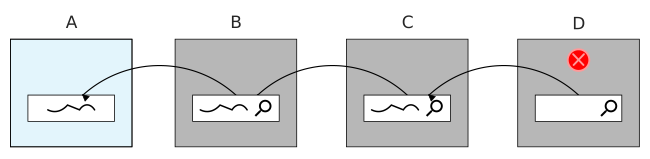
There are two ways of approaching the third level of table lookups. One solution is to use a logic block to fetch another table's fields and values, and the other way is to design your table lookup tables in a one-to-many structure to plan for future tables in the chain.
Fetch logic block
If you need to go beyond three table levels with your table lookups, then you must use a logic block to populate the necessary values. This requires configuring the keys, or the fields in a record that make it unique, from the second table so that they are in the third table. Doing this makes it possible for a logic block to populate the values from one table to the next. You can add a Fetch action to populate values from the second table to any logic block built over the third-level table.
For example, if you want table D to lookup on table C, then the following requirements must be met:
- The unique fields that make up a record in table C are also in table D. The fields are the same in both tables so that the logic block can fetch table C's record values for table D.
- A Fetch action is added to any logic block built over table D or a table D application. The Fetch action populates the values from table C into table D.
The chain can then continue without error if another two levels are created and must lookup on table D.

One-to-many structure design
Design your table lookups in a one-to-many structure rather than a chain structure if you know that the chain will not be supported and your tables do not need to access data from more than one table.
For example, if you are building a table lookup from table B to table A, you should consider the possibility of another table eventually being placed after table B that may require access to data in table B and table A. To prepare for the possibility of another table in the chain and to prevent the potential of running into the three-level error, make the next table lookup link directly to table A. In other words, if table C just requires data from table A, do not create a table lookup to table B, but directly to table A.
Dynamic table lookup configuration
Configure a dynamic table lookup using a data item of type Text. A dynamic table lookup allows you to select a different table for the lookup to be over at runtime, rather than the table the data item is built over.
Data Item Definitions
Configure a data item of type Text. See Table lookup configuration.
Then, enter the name of a data item that is a lookup over the table you want to use in the Dynamic Table Lookup Field. This table controls what values appear in the table lookup field when it is displayed in an application. The table must have a primary search field defined and marked as related field.
Table lookups and foreign keys
A foreign key is a column or group of columns in a relational database table that provides a link between data in two tables. A foreign key reference can be created using a table lookup to the foreign table or by using multiple fields in the base table that will uniquely identify a record in the foreign table.
A table lookup is essentially a pointer to a specific record in the table. Behind the scenes it stores the nwID or a unique text value used to identify the specific record. A table lookup should be created to associate a table to another table. This is done by including the table lookup in the list of fields of the base table. In addition to creating the foreign key reference, the table lookup field will enable the type ahead search, a default search application, and availability of additional fields from the table in applications. The use of the table lookup will also establish the link for referential integrity. Alternately, a table lookup can be established without using a table lookup and simply including the foreign key fields in the base table, but the other benefits of using a table lookup will not be realized.
Learn more about what a nwId is in the nwId topic.
Table lookup data item
Define one or more data items of type Table Lookup which will store the foreign key reference (nwId) and associate the data item to the table on the Formatting & Validations page by identifying the Related Table. More than one table lookup can be created that is associated to the same table. This is useful when there is more than one foreign key reference to a table. For example, table lookup fields Item and AlternateItem are both table lookups for the Items table that are referenced in the ItemAlternates Table.
Table lookup definition
Configure the table lookup type ahead fields - On the Relationship Page, identify the Primary Search Field and Secondary Search Field. If possible, the combination of the Primary Search Field and Secondary Search Field should be unique. The type ahead search will display unique instances of the combination of the primary and secondary type aheads search fields.
If the table lookup data item is a complex data item type such as Address or Name, the component table definition that describes the complex data item will determine the segment of the complex data item that is used as the primary and secondary type ahead fields. For example, the directory table has Name as the primary type ahead. Name is a complex data item. The table definition for Name specifies that NameNameInverted as the Primary Search Field and NameName as the Secondary Search Field.
Create and associate a default search application
Create and associate a default search application - This will be the default search that will automatically be accessed via the magnifying glass on the field when the table lookup field is added to an application. The default search can be overridden by the application search action definition or application settings.
Table lookup fields
Identify the table lookup fields on the Fields page. These fields will be available to include in any application over a table that includes the table lookup field associated to the table. The Primary Search Field and Secondary Search Field fields must be include.
Establish a foreign key reference
Foreign key references can be established with one of the following methods:
- A table lookup in the base table containing the nwId points back to a specific record in the foreign table. Add the
Table Lookupdata item to another table to create a foreign key reference to the table. For example, by addingItemto theItemAlternatestable, a foreign key reference to the Items table is established. - A table lookup in the base table containing a text value points back to a specific record in the foreign table.
- Multiple fields in the base table are used to identify a specific record in the foreign table.
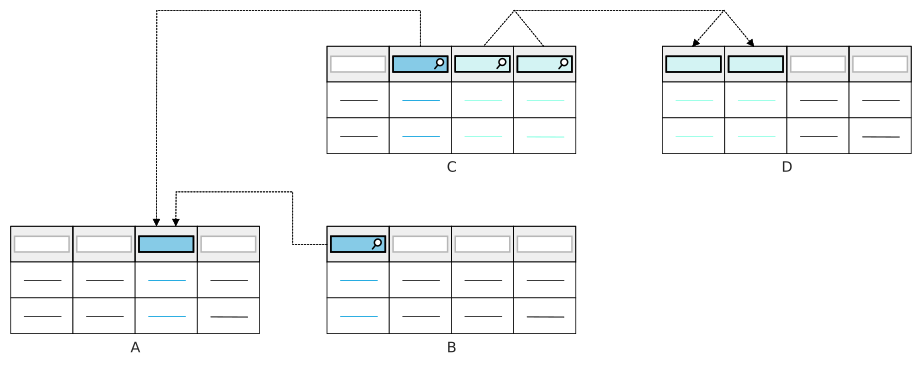
The diagram below demonstrates the definition of foreign key references using the three methods above:
| Base Table | Base Table Data Item | Foreign Table | Key Value Stored in Base Table | Foreign Key reference established by |
|---|---|---|---|---|
| B | Table Lookup | A | nwId | A table lookup in the base table containing the nwId points back to a specific record in the foreign table. |
| C | Text Data Item | A | Text Value | A table lookup in the base table containing a text value points back to a specific record in the foreign table. |
| C | Data Item 1, Data Item 2 | D | Value Data Item 1, Value Data Item 2 | Multiple fields in the base table are used to identify a specific record in the foreign table. |