















For example, you could create a Module Settings application for related financial applications. Then, you could add a Global Setting for Fiscal Year that defines the start date of the fiscal year, then defaults that value into records for all of the applications with the module setting applied. Module Settings applications provide a way to configure that in one step, rather than having to configure it for each individual application. When the fiscal year for your company changes, you can update the module setting without having to update each application in the module.
Each field in a Module Settings application represents one module setting. This means Module Settings applications often have many settings that are applied to the associated applications. The scope of each module setting controls how it is applied to records. There are different levels of module settings, such as:
- Global settings—Apply to all records within applications that reference the configured settings.
- Organizational settings—Apply to all records associated with an org unit within applications that reference the configured settings.
- Person settings—Apply to all records associated with an employee directory record within applications that reference the configured settings.
Once a Module Setting application is configured, you can link it to as many applications as you would like with the data mapper tool, or with logic blocks. Learn more in the Module Settings application configuration topic.
The initial application view for Module Setting applications is the list form. You can select a record from the list to open the configured settings. You can select the scope of each setting from this view.
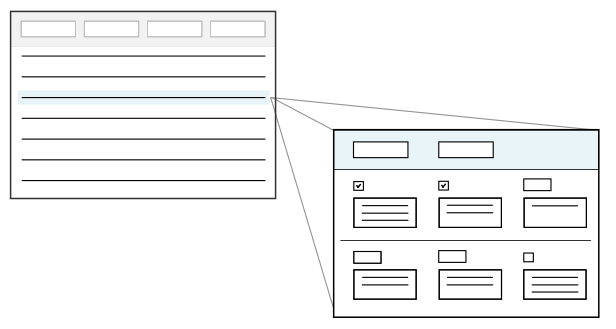
With Module Settings you can control the scope of how the settings are applied, as well as specific field configurations.
Field Configurations
You can control how users interact with fields, such as:
- Required fields—Require a value before the record can be saved.
- Field types—Configures the type of record the module setting applies to.
Module settings should be designed with the expectation that they won't change frequently. You can configure a Module Setting so that once set, it can't be changed.
Users can launch Module Settings applications and configure settings by entering values in fields. Certain configurations make the values entered into the fields become default values across the module.
Records created in a Module Settings application are consumed by the application, application settings, and application linking. Module settings are part of the configuration of an application, and define core attributes of the application. Applications evaluate module settings for every transaction at runtime.
Module Settings application configuration
Configure a Module Settings application using the Data Item Definitions application, Table Definitions application, and Application Builder application. After the settings are configured, you can use them in applications.
Data Item
During application configuration, or in the Data Item Definitions application, you can create a new data item to configure a custom setting, or reuse previously created data items.
Table Definitions
In the Table Definitions application, open or create the table which your Module Setting application will be built over.
On the Settings Configuration page, setting any of the options below to true will determine whether a create button for Global, Org Unit, and Person will be displayed on the application and what type of module settings can be setup.
- Global settings— When selected, this will allow users to setup a global module setting that could apply to all records within applications that reference the configured settings.
- Organizational settings—When selected, this will allow users to setup an org unit module setting that could apply to all records associated with an org unit within applications that reference the configured settings.
- Person settings—When selected, this will allow users to setup a person module setting that could apply to all records associated with an employee directory record within applications that reference the configured settings.
On the Settings Configuration page, in Settings Field subtable, add the following fields:
GlobalSettingOrganizationalUnitName- Only needed if you are allowing Org Unit level settings.Directory- Only needed if you are allowing Person level settings.- Any additional settings fields.
Application Builder
In the Application Builder application, build the Module Settings application over the table and configure the settings.
GlobalSettingdata item—Add on the header row to create a Global Setting checkbox in the Module Settings application. This is how you configure the module settings to be on a global level.OrganizationalUnitName_Namedata item—Add on the header row to create the Organizational Unit fields in the Module Setting application. This is how you configure the module settings to be on an organization level, and select the organization.OrganizationalUnitName_OrganizationalUnitTypedate item—Add on the header row if you want certain fields to only be configurable when the org unit is of type Company.Directory_Namedata item—Add on the header row to create the Person field in the Module Setting application. This is how you configure the module settings to be on an employee level, and select the employee.- Custom data items—Add to create the desired fields where you want the module settings applied.
- Global Settings, Organizational Settings, or Person Settings checkboxes—Select the checkboxes to allow configuration of the individual data items for those respective levels. Each data item can have the Global or Person checkbox selected individually, as well as the type of organization you want configured.
Reference Module Settings in applications
Once the module settings are configured, you can reference them in any application or application setting with the data mapper, or the Retrieve Module Settings action in the Logic Builder.
There are several ways to reference the module settings in an application, such as:
- Open the Data Mapper from the Filtered page, in the table which the application is built over.
- Open the Data Mapper from the Fields page, in the application settings for the application.
- Use the Retrieve Module Settings action in the Logic Builder.
Learn more in the Data mapper and Retrieve Module Settings action topics.
Module settings application UI best practices
These best practices ensure that module settings applications are configured consistently throughout Nextworld.
When to use
Use a module settings application when settings must be configured for all applications in a module.
List form
Display from left to right the GlobalSetting checkbox, the OrganizationalUnit field, the OrganizationalUnitType, and the Directory followed by the list of settings from the detail page in the order that they appear on the detail page.
Detail form
- When configuring the headings in that display in the detail form:
- Display the
GlobalSettingcheckbox to the far left for the global settings header. - Configure the organizational unit header to display five columns with the
OrganizationalUnitfield as column one and theOrganizationalUnitTypefield as column two andDirectoryas column three. - Hide the row separator above the header row in the Pages and Rows page.
- Display the
- When configuring the rows that display in the detail form:
- Configure the detail form to display three columns.
- Show the row separator below the header and between detail rows.
- Word the help text for the settings table data items consistently.
- When configuring a field that will traverse the company structure, determine if you want to provide the customer flexibility to avoid traversing for the No Value option.
- For example, the Receipt Routings field in Inventory Settings has the following options:
In-Transit,On-Dock, andStock. If this field is left empty, it means receipt routings are not used. However, since this field will traverse the company structure (Do Not Traverse = false), it could pick up the Receipt Routings value from a higher level in the company structure. If you want to provide the flexibility that allows them to have the field traverse for some Organizational Units but not others, you should provide an option in the list lookup calledNo Receipt Routing.
- For example, the Receipt Routings field in Inventory Settings has the following options:
- When configuring the help text for a data item that uses a Name, make sure that the formatting for all the possible list lookup selections are formatted in the same manner. They should be written and formatted in the following way:
This indicates <explanation>
- Value1 - Explanation of what it does
- Value2 - Explanation of what it does
If <field> is empty, explanation of what happens.