















MCP allows the LLM to access a company's data in real-time, ensuring it has up-to-date, system-specific information. MCP also allows:
- LLMs to take actions within systems, such as updating, creating, or executing operations.
- Multiple MCP compatible clients, such as Claude, Gemini, or ChatGPT to connect to a single MCP server without requiring custom integrations.
- MCP clients to access and perform actions in multiple systems through their MCP servers simultaneously.
Code Mode
Nextworld's implementation of MCP includes Code Mode, which extends these capabilities further. Code Mode enables the server to write and execute its own code at runtime, and provides many features for the server, including:
- Precise, accurate results—Answer any question, no matter how unique or specific, without requiring specific implementations or custom logic blocks for different industries and customers. Instead of reasoning over data or relying on pre-built tools, the server is able to write a script, run it server-side, and return an answer. Data operations run as code rather than LLM reasoning which greatly reduces miscounts and hallucinated results.
- No context window limitations—Data fetching, filtering, and aggregation run as executed code on the server. This means large record sets can be operated on without the LLM losing track.
- Eliminates custom implementations—Requirements that previously required platform development or custom logic blocks can be resolved by exposing the MCP server which only takes minutes to set up.
Code Mode combines the LLM's full coding capabilities with native platform tools, like calling external endpoints or fetching table records, to answer questions no pre-built logic block could anticipate.
MCP protocol components
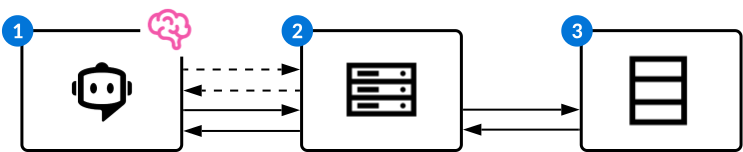
MCP has multiple components, as seen in the diagram below:
| Object | Example | |
|---|---|---|
 | MCP Client—The application or interface that orchestrates interactions between the AI model and MCP servers. MCP clients are often chatbots, such as Ed for Nextworld and Claude for Anthropic. The client:
| You connect Claude to the Nextworld MCP server and grant him access to the Work Orders application. Claude requests the tools and resources from the MCP server. Once received, the client routes them to the model. You can ask Claude to perform any actions which the server and your internal platform permissions allow. |
 | MCP Server—The MCP server which serves as the intermediary between the MCP client and a system. Servers are typically built by the system owner or a third-party developer and provide tools and resources for the AI model. Tools are functions or actions that the AI model can invoke to perform operations in the connected system. Resources provide contextual data and information for the LLM to read and understand. The MCP server:
| Nextworld MCP server notifies the client that RUID actions and workflow transitions can be performed on the application's records. |
 | The system which the LLM accesses. | Prompts entered into Claude make changes to the WorkOrders table. |
Nextworld uses MCP in several ways:
- Connecting an external MCP client to the platform—Exposes platform data and allows you to access, analyze, and perform actions on an application's data and logic blocks from within an an MCP client, such as Claude or ChatGPT. Learn more in Connect an external MCP client to the platform.
- Connecting Ed to an external MCP server—Allows Ed to leverage an external system's MCP server's tools and resources to perform actions and get information. Learn more in Connect Ed to external MCP servers.
- Connect Ed to Nextworld's MCP server—Allows Ed to leverage Nextworld's MCP server's tools and resources to perform tasks and answer questions about applications and platform features. Learn more in Connect Ed to Nextworld's MCP server.
Connect Ed to Nextworld's MCP server
Connect Ed to Nextworld's MCP server to give him access to platform data and objects. The MCP servers act as the intermediary between Ed, the MCP client, and the objects he interacts with.
Nextworld's MCP server allows you to read, insert, update, delete, and create records, or transition a record's workflow. For example, you could connect Ed to the Sales Order application. Then, from any location within the platform, you couple open Ed and enter prompts to retrieve, analyze, update, create, or delete sales orders.
You can connect to a single application or project, or to a bundle of metadata objects which includes tables and logic blocks.
Configuration
To enable Ed to connect with the platform's MCP server, you must:
- Either open the application or project you want to connect with, or navigate to the MCP Bundle application.
- If you are creating an MCP Bundle, create a new record then add each object you want included on the Metadata Objects page.
- Open the MCP Agent Option action menu next to the record name.
- Select the
 Create MCP Agent button. This automatically creates the Agent Toolset Builder and Agent Builder record required for connection and fills in the required fields. A basic persona and description are provided which you should review and edit. Learn more about writing these in How to write agent personas, skills, and descriptions.
- In the agent record, the parent agent for your agent must either be Ed, or another agent that is within the Ed hierarchy. Modify the Agent Persona and Agent Prompt as needed.
If you manually create the records for an MCP connection, you must:
- Create an Agent Builder record and provide a persona and description for the agent. The parent agent for your agent must either be Ed, or another agent that is within the Ed hierarchy. Modify the Agent Persona and Agent Prompt as needed.
- Create an Agent Toolset Builder record with:
MCP Toolsas the Toolset Type.Internalas the MCP Server Type.- Then, reference either the bundle, project, or application you are building the bundle over.
Connect Ed to external MCP servers
Application Developers use the External MCP Definitions application to enable Ed to connect to external MCP servers.
Ed manages the conversation and determines when to use external capabilities, while the MCP server provides the tools and resources that define what actions Ed can perform within the connected systems. Learn more in Model Context Protocol (MCP).
When Ed connects to an external MCP server it grants him access to the external system's data. For example, you could connect Ed to the:
- Google Maps MCP server to grant him access to geospatial data, such as weather forecasts and routing details, from the Google Maps platform.
- FreshDesk MCP server to integrate him into managing, creating, and closing your support desk tickets.
- SalesForce MCP server to read, query (SOQL), and analyze live Salesforce CRM data.
Ed can also connect to Nextworld's MCP server to enable him to access and update platform data. Learn more in Connect Ed to Nextworld's MCP server.
Configuration
To connect Ed to an external MCP Server, you must:
- In the External MCP Definitions application, create a record for each MCP server.
- In the Agent Toolset Builder application, create a record and select
MCP Toolsfor the Toolset Type. Then, reference the name of your MCP Definition record. - In the Agent Builder application, configure your agent. The parent agent for your agent must either be Ed, or another agent that is within the Ed hierarchy.
Ed has a network of agents he is delivered with, but also accesses any additional agents added to his network in his current environment. Learn more in Agents.
Enable Ed to connect to external MCP servers within your environment
System administrators use the External MCP Definitions application to configure connections between Ed and external MCP servers. External MCP Definitions are delivered but require additional configuration steps within your environment.
Ed can also connect to Nextworld's MCP server to enable him to perform actions on platform applications and objects. Learn more in Connect Ed to Nextworld's MCP server.
Learn more about MCP in Model Context Protocol (MCP).
External MCP Definitions application
In the External MCP Definitions application, find the record for the MCP server you want to connect Ed with. Open the record and navigate to the Setup page, then:
- Select the Authorization Type. The MCP server documentation provides this information.
- If you are connecting to an internal application, select
Nextworld MCP Server.
- If you are connecting to an internal application, select
- For external MCP servers, enter the URL from the MCP server. You can find this in the MCP server documentation for that system. For example, you could search for Github MCP server documentation. For the Nextworld MCP server, you do not need to populate a URL.
- If the MCP server requires OAuth 2.1, OAuth Provider records and Credential Management records are automatically created with the same name as the MCP Definition record when saved. Some servers have dynamic client registration and automatically populate the required fields once you enter the MCP Server URL. If not, you can find the Client Secret and Client ID in the MCP server documentation. Once configured, users are required to complete the authorization process when they prompt Ed to perform an action with the server.
MCP Setup application
System administrators use the MCP Setup application to configure MCP definitions. The MCP Setup application is an inline application available within the External MCP Definitions application, but can also be accessed from the Navigation Menu.
You can open the MCP Setup application from the Navigation Menu or by navigating to the Setup page within an External MCP Definition. The Setup record provides the URL and authorization information for an MCP definition. Learn more in Enable Ed to connect to external MCP servers within your environment.
Credential Management application
Use the Credential Management application to create and manage credentials for external systems, such as HMAC keys for webhooks OAuth for MCP servers, or PGP encryption for data imports and exports.
Different credential types have different requirements, such as:
- For webhooks, you must reference the key in the Webhook Setup application. Learn more in Webhook configuration.
- For MCP, the key is automatically included in the OAuth Provider application record. OAuth Provider and Credential Management records are automatically created with the same name as the MCP Definition record once it has been saved.
- For PGP encryption, you must:
- For data exports:
- Signing: Create an internal key record. Select the Generate button or paste an existing key in ASCII armored format. You'll use the internal private key to sign data exports. The platform uses the internal private key to sign exports. You provide the internal public key to the external system so it can verify the signature.
- Encryption: Create an external key record and paste the external system's public key in ASCII armored format. The platform uses the external public key to encrypt exports.
- For data imports:
- Signature Verification: Create an external PGP public key record and enter the external system's public key. This verifies the signature on incoming files. This is usually the same key used to encrypt outbound files going to the external system.
- Decryption: Create an internal key record. Select Generate or paste an existing key in ASCII armored format. The platform uses the internal private key to decrypt imports that are encrypted with the corresponding internal public key in the external system. This is usually the same key used to sign outbound files going to the external system.
- For data exports:
OAuth Provider application
System administrators use the OAuth Provider application to configure OAuth 2.1 protocols to authenticate MCP server connections.
OAuth authorizations enables a third-party application to access an MCP server on our behalf by initiating an authentication interaction between our platform and the server, or by obtaining access itself. OAuth separates the MCP client, Ed, from the MCP server it is interacting with. The client, in this case Nextworld, is issued an access token by the third-party application that indicates the scope of access and allotted time to access the servers information.
Access the OAuth Provider application from the Navigation Menu, or from View OAuth Provider Configuration field action in the External MCP Definitions application. Fill in the required fields with information you receive from the MCP server's documentation. OAuth Provider records and Credential Management records are automatically created when you save the Setup portion of the MCP Definition record. If you need to change the client secret value, you must navigate to the Credential Management application and find the associated record.
Learn more about MCP server configuration in the Enable Ed to connect to external MCP servers within your environment topic.
External MCP Definitions application
Application Developers and system administrators use the External MCP Definitions application to enable Ed to connect to external MCP servers. Ed can connect to external servers to leverage other system's tools and data.
Once your MCP Definition has been configured, there are additional configuration steps in the Agent Toolset Builder and Agent Builder applications. Learn more in Connect Ed to external MCP servers.
Ed can also connect with Nextworld's MCP server to connect directly with individual applications, or with bundles of objects. Learn more in Connect Ed to Nextworld's MCP server.
General page
Select your product family and module.
Setup page
System administrators use this page to enter the MCP Server URL and authorization information required for connecting to external MCP servers.
If your MCP requires authorization, an OAuth Provider and Credential Management record are automatically created with the same name as the MCP Definition when you save the Setup portion of the MCP Definition record. If you need to change the client secret value, you must navigate to the Credential Management application and find the associated record. Learn more in Enable Ed to connect to external MCP servers within your environment.
Once both components of the MCP definition have been configured, users within that environment can access the MCP server capabilities by typing prompts into Ed.
MCP Bundle application
Application developers use the MCP Bundle application to create groups of objects which both Ed and external MCP Clients can connect with.
General Configuration page
Select your product family and module.
Metadata Objects page
Enter each object you want the MCP server to have access to. Bundles support both tables and logic blocks.
How to connect
To connect an external MCP client, you must:
- On the AI service you want to connect with, open Settings and create a custom connection. The option may be labeled differently depending on the service. Refer to your AI service's documentation for instructions.
- In your MCP Bundle record, you must:
- Select the Get MCP URL
 button next to the application or record name. If you don't see the button, open the User Menu, navigate to the Ed page, and toggle on Show MCP Connection Option.
- Select the Get MCP URL
- In the AI Service, copy and paste the MCP URL link and Client ID into the connector configuration.
- Add and Connect your connection.
- Ask your MCP Client to perform an action.