















The studio opens to whichever application or page you previously had open, or the Welcome Page if you have no pending work. The diagram below highlights features on the Welcome Page of the studio:
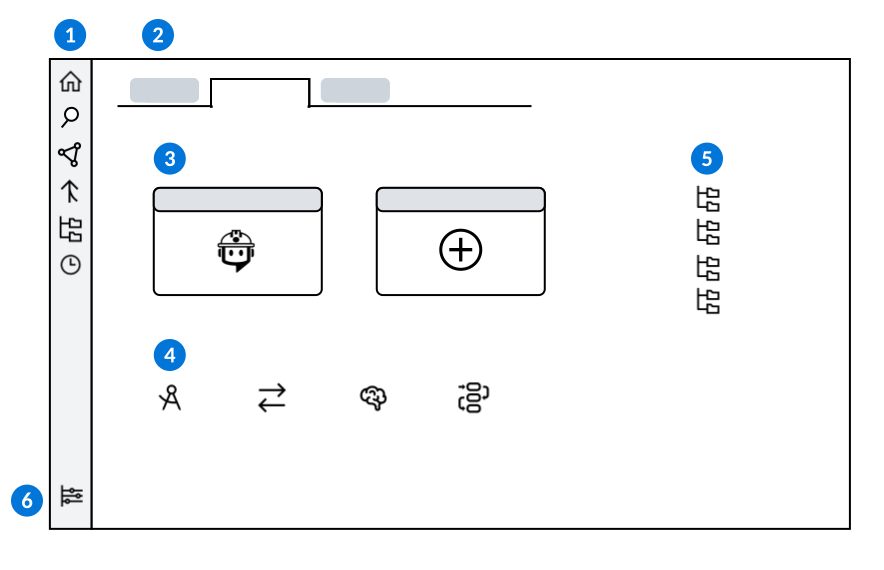
 | Open different components of the Developer Studio with the following navigation buttons:
|
|---|---|
 | Navigate between open applications and records by selecting different tabs. You can leave unsaved records open and return later to continue working. Pending work is held in a NATE container when you navigate between different lifecycles, or away from the Developer Studio. NATE containers only hold pending work for 48 hours. If you don't return within that time, your unsaved changes are discarded. |
 | Select the Create New Project or Create New Application buttons to begin development. |
 | Open the Application, Interoperability, Intelligence, or Workflow Home pages. Each home page contain links to related applications, as well as Quick Start buttons for development. Learn more in the following topics: |
 | Create or access recent lifecycles. |
 | Open the Settings menu to configure settings such as automatic tab grouping, hiding or showing metadata types, or enabling auto checkout. |
 Welcome Page—Navigate between recent work, access different Home pages, or use start development on a new project or application. Your most recent work opens automatically when the studio is opened. If no tabs are left open the studio opens to the Welcome Page by default.
 Explorer—Access the applications used to view, edit, copy and create new metadata.
 Where Used—Track where an object is being used or track what objects are being used by the selected object.
 Merge Requests—View, create, and track merge requests. Merge requests allow you to merge your changes to objects into base lifecycle.
 Branch Lifecycles—View the list form of your lifecycles. In the row action menu you can activate, deactivate, or change lifecycles.
 Unsaved Work—View metadata objects which you have worked on, but have not saved.
Quick Start options
Quick Start options are available on the Welcome Page and Home Pages of the Developer Studio. Quick Start provides a simplified creation process for different types of metadata, such as applications, data imports, prompt definitions, and model definitions. For example, when you create an application with the Quick Start tool, you can create a new application, table, and workflow in one process.
Quick Start features, along with the ability to build applications, table lookups, and list lookups using Ed, are powered by Nextworld Intelligence.
Learn more in the following topics:
- Create an application from a spreadsheet
Use the Developer Studio's Spreadsheet Quick Start option to build an application with the data from a spreadsheet.
- Build with Ed
Use Ed to create or modify metadata objects such as data items, tables, list and table lookups, workflow, applications, and interactive reports.
- Create a data import with Nextworld Intelligence
Use the Developer Studio's Data Import Quick Start option to import data with Nextworld Intelligence.
Project Builder
Project Builder enables you to design and create an application and all of its associated components by entering prompts into Ed the Builder. Application design and creation is done automatically by Nextworld Intelligence without requiring manual refinement and configuration. Learn more in Project Builder.
Simplified view of Developer Studio
Use the Advanced toggle in the Settings menu of Developer Studio to control how much of the Studio is shown. When the Advanced toggle is turned off, Developer Studio only shows the tools you need to create and manage projects in Project Builder. The far left panel is limited to Home, Project Explorer, and Settings:
- Home—Shows only your recent project artifacts.
- Project Explorer—View your most recent projects, search projects only, and look at other metadata types.
- Settings—Limited to User Interactions and Tab Grouping.
When the Advanced toggle is turned on, you see the full Developer Studio, including all metadata applications, advanced filters, and traditional development tools such as where-used, merge, network, and workflow tooling. Home also includes Studio Home Pages and My Work alongside your recent project artifacts, and Project Explorer supports searching all metadata.