















Header Detail applications are a combination of one Header application and one or more Detail applications. They are useful for one-to-many relationships that use transactional information.
Structure
Header Detail applications exist over a table structure that is comprised of multiple tables. Learn more in the Header Detail table structure topic. The Header and Detail applications can only be accessed through the Header Detail application. The applications cannot be launched individually.
By default, a Header Detail application opens to the list form. Records from the list form open in the header detail form. Records in the detail list of the detail form open in detail form. The diagram below shows the path through these forms.
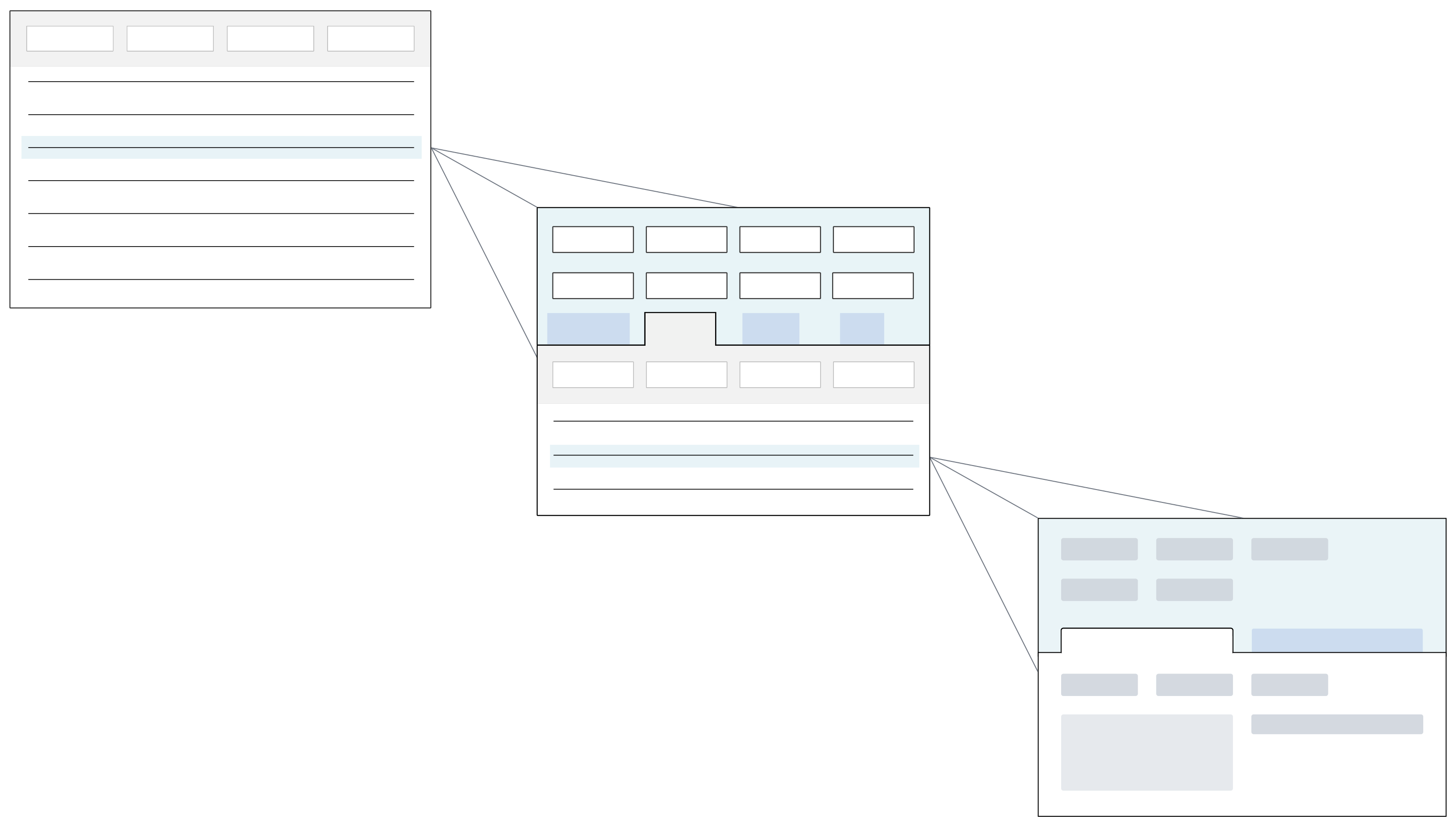
When a Header record is deleted from a Header Detail application, both the Header record and associated Detail records are deleted. This only occurs if the Header and Detail are part of an HD Structure. Header Detail (HD) Structures group records from a Header Detail table together. Learn more in HD Structures and logic blocks topic.
Configuration Options
Configure Header Detail applications with different options, such as:
- Tree Option—Displays detail records in a hierarchy that can be collapsed and expanded. Users can move directly to individual nodes within the heirarchy, and can view subtotal values for nodes. For more information see Configure a relationship tree in a Detail application
- Advanced List type—Enables additional features, such as an editable header in the list form.
- Workflow orchestration—Automatically transitions the Header or Detail application's workflow state when the other application state changes. Learn more in the Configure a workflow orchestration topic.
- Create Join Table for HD—Creates a join table between the Header and Detail table. This ensures that when an interactive report is created over the Header Detail application with the Report Quick Start form action, both the Header and Detail table information is included. This option only works for Header Detail applications configured with a single Detail table.
Header Detail application configuration
Configure Header Detail applications with the Table Definitions, Application Builder, and Logic Block Builder applications.
Header Detail structure
Header Detail applications are comprised of one Header and one or more Detail applications each with their own table.
The Header Detail application also has its own Header Detail table that connects the Header table and Detail table. You can create the Header Detail table during your application configuration, or in the Table Definitions application.
For more information, see the Header Detail table structure topic.
Application Builder
In the Application Builder application, create an application of type Header Detail. Select or create the Header Detail table for your application. Once your application record is created, select the Add button in the Viewer panel to select or create your Header and Detail applications. Within each application, configure your fields and layout.
There are several configuration options, such as:
- Allow Quick Import—When selected, adds the quick import capabilities to the Header Detail application. This allows data to be imported into the detail tables through a form action on in the Header Detail view.
- Single Click To Edit—When selected, list form fields open in edit mode after a single click. Learn more in Enable single click to edit fields.
- Extension—When selected, indicate this application is being used to extend an existing base application.
- Create Join Table for HD—When selected, the system creates a join table between the Header and Detail table. The join table name becomes visible in the RQS Table field. This ensures that when an interactive report is created over the Header Detail application with the Report Quick Start form action, both the Header and Detail table information is included. This option only works for Header Detail applications configured with a single Detail table.
- Active Page—When selected, the Detail application is defaulted to open in the Header Detail application. This checkbox is configurable in the Detail Applications subtable.
- Detail Page Configuration—When selected, the layout of the Header and Detail applications inside the Header Detail application.
To learn more about where you configure the various application action controls for Header Detail forms, see the Configure Header Detail actions topic.
Logic Block Builder
In the Logic Block Builder application, there are several considerations for configuration, such as:
- All logic blocks must be created over the Header Detail table, and then configured as actions for the application they affect.
- Background Task logic blocks cannot be built over the Header Detail table. They must be built over the Header table instead.
- Logic blocks used as table triggers must be built over the table that they update, and then added to the table as a trigger.
- Post-trigger table triggers that update the Header Detail table must be built over the Header table, and then added to the Header Detail table. See Configure table triggers for Header Detail applications for more information.
- Use the Create HD Structure action to reference Header Detail records in logic bocks. Configure the action to hold the Header Record, and any associated Detail records. See HD Structures and logic blocks for more information.
Configure Header Detail actions
This table shows where you configure the various application action controls for the Header Detail application forms.
To learn more about forms, see the Application forms topic. To learn more about regions of a Header Detail application, see the Header Detail application settings topic.
| To impact the form... | With the Action Type... | On the region.... | Define in the application... |
|---|---|---|---|
| Header detail | Event Actions | Header | Header |
| Header detail | Application Links | Header | Header |
| Header detail | Dynamic Link | Header | Header |
| Header detail | Search Actions | Header | Header |
| Header detail | Row Actions | Header | Header |
| Header detail | Form Actions | Header detail | Header |
| Header detail | Field Actions | Header detail | Header |
| Header detail | Control Actions | Header detail | Header |
| Header detail | Control Actions | Detail list | Detail |
| Header detail | Event Actions | Detail list | Header or detail |
| Header detail | Application Links | Detail list | Detail |
| Header detail | Dynamic Link | Detail list | Detail |
| Header detail | Search Actions | Detail list | Detail |
| Header detail | Row Actions | Detail list | Detail |
| Header detail | Dbl Click Override | Detail list | N/A |
| Header detail | Dbl Click Override | Header detail | N/A |
| Detail | Field Actions | Detail | Detail |
| Detail | Row Actions | Detail | Detail |
| Detail | Form Actions | Detail | Detail |
| Detail | Control Actions | Detail | Detail |
| Detail | Event Actions | Detail | Detail |
| Detail | Application Links | Detail | Detail |
| Detail | Dynamic Link | Detail | Detail |
| Detail | Search Actions | Detail | Detail |
| Detail | Dbl Click Override | Detail | Detail |
| List | Dbl Click Override | List | N/A |
| List | Field Actions | List | Header |
| List | Form Actions | List | Header |
| List | Control actions | List | Header |
| List | Event actions | List | Header |
| List | Application Links | List | Header |
| List | Dynamic Link | List | Header |
| List | Row Actions | List | Header |
| List | Field Actions | Detail | N/A |
| List | Form Actions | Detail | N/A |
| List | Search Actions | List | N/A |
Header Detail field dependencies
Field dependencies define a set of selectors for your application. In Header Detail applications, field dependencies can be configured on the Header, or the Detail applications.
The fields used to configure field dependencies are:
- Controlling Field Type—The Type of data item shown in the Dependent Field. For example, a
Calendardata item Type configures the application to be able to show a calendar in the Dependent Field. - Controlling Field—The name of the field (data item) where you enter the Controlling Field data item name. For example, this is the field where you enter the name of the Calendar you want displayed in the Dependent Field.
- Dependent Field—The field that is impacted by the controlling field's value. For example, the calendar designated in the Controlling Field is shown in the Dependent Field.
| If the Controlling Field is in the... | And the Dependent Field is on the... | Define the Field Dependency in the... |
|---|---|---|
| Detail application | Detail application | Detail application |
| Header application | Detail application | Detail application |
| Header application | Header and Detail applications (the same Dependent field is used in both applications). | Header and Detail applications |
| Header and Detail application (the same Controlling Field is used in both applications). | Detail application Dependent fields in the Detail are controlled by the Controlling Field on the Detail form. Dependent fields in the Header are controlled by the Controlling Field on the Header Form. | Header and Detail applications |
Header Detail application settings
Apply application settings to Header Detail applications.
Create individual application settings for the Header application and each individual Detail application to control settings for specific regions of the final Header Detail application. If you have multiple Detail applications, you can apply different data mappings, action controls, and layout settings to each detail.
After you have configured your desired application settings for the Header application and Detail applications, enter them on the Header Detail App Settings page for the Header Detail application to link them together. From the Header Detail application settings, you can disable the entire application using the Read Only Application checkbox.
Header Detail regions
The settings you create over the Header Detail application do not allow you to control any region configurations.
The following diagram of a Header Detail structure shows which regions of the Header Detail application are controlled by the Header and the Detail applications settings:
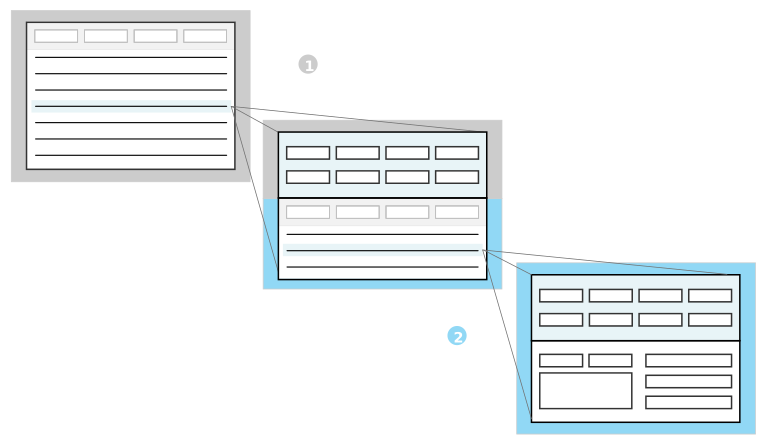
 | Header application—The settings you build over this application control the header region and List form of a Header Detail application. |
|---|---|
 | Detail application—The settings you build over this application control the Detail List form and Detail form of a Header Detail application. |
Header Detail application setting configuration
Configure application settings for Header Detail applications with the Application Setting Definitions and Application Builder applications.
To configure application settings for Header Detail applications, you must configure:
- Header application settings—Controls what you see, and how you interact with the list and header forms of the Header Detail application.
- Detail application settings—Controls what you see, and how you interact with the header detail and detail forms of the Header Detail application.
- Header Detail application settings—Connects the Header and Detail application settings to the the Header Detail application.
Header application setting
The table below describes the setting types you can configure on different pages of the Application Setting Definitions application.
| On the page... | Use the setting type... | To effect the Header Detail form... | Considerations |
|---|---|---|---|
| Field | Default Field | Header Detail | Learn more in Data mapper. |
| Filter Field | List | Only Filter Fields of type List should be mapped. | |
| Workflow | List or Header Detail | ||
| Layout | Pages | Header Detail | Used to hide pages, rows, and fields on the Header application. |
| Rows | List | ||
| Field Options | List or Header Detail | Only use List or Detail values in the Field Layout Settings subtable. | |
| Actions | Control Actions | List or Header Detail | Used to configure Control Actions for the Header and List form. |
Detail application setting
The table below describes the pages, the setting types, and the form affected by the configuration.
| On the page... | Use the setting type... | To effect the Header Detail form... | Considerations |
|---|---|---|---|
| Field | Default Field | Header Detail or Detail | Learn more in Data mapper. |
| Filter Field | Header Detail | Only Filter Fields of type Detail List should be mapped. | |
| Workflow | Header Detail or Detail | ||
| Layout | Pages | Detail | Used to hide pages, rows, and fields, on the Detail application. |
| Rows | Detail | ||
| Field Options | Header Detail or Detail | Only use List or Detail values in the Field Layout Settings subtable. | |
| Action | Control Actions | Header Detail or Detail | Used to configure Control Actions for the Detail List and Detail form. |
Header Detail application setting
The Fields, Layout, and Actions pages of the Header Detail application settings should not be configured. On the Header Detail App Settings page, enter the names of the Header application settings, and all Detail application settings.
Relationship trees in Detail applications
Application developers can display detail records in a hierarchy, with nodes that can be expanded and collapsed to show the relationships between records, by configuring a relationship tree in the detail list region of a Header Detail application.
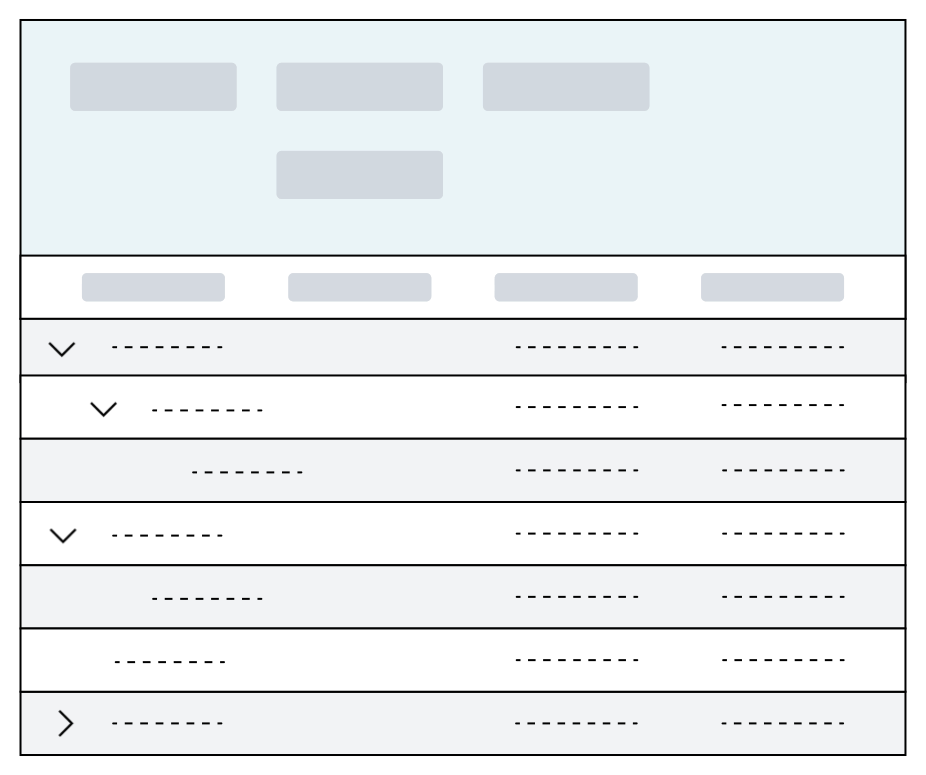
For example, the Multi-Level Bill of Material Inquiry application is configured with a relationship tree in its detail application. Users specify information in header fields and then use a form action to populate the detail list. The detail list then displays all product components of a bill of material in a hierarchical structure with nodes they can expand. The records are read-only, so users cannot add records to the detail table. Learn more in Example: Relationship tree in a Detail application.
Unlike Relationship applications, which are built over a relationship table and an entity table, relationship trees configured in Detail applications are built over a Detail table, which has a flat structure. You must design logic blocks to populate the detail table and define the relationships between the records. For this reason, users can add root node records only, but you can hide the Add button using control actions. Learn more in Configure a relationship tree in a Detail application.
Configure a relationship tree in a Detail application
Application developers use the Data Item Definitions, Table Definitions, Application Builder, and Logic Block Builder applications to configure a relationship tree in a Detail application.
Data Item
During application configuration, or in the Data Item Definitionss application, you must create a Text type data item to specify as your Parent Field on your Detail table below. Your logic blocks populate this data item with the value of its parent record's Child Field, which establishes a hierarchical relationship between records.
You can specify the nwId as the Child Field, or you can create your own Number data item. The nwId is created automatically for each record, which means that copied records have different nwIDs. If the records you insert into the Detail table need to later be copied into another table, you cannot use the nwId as your Child Field.
If you choose to use your own data item as the Child Field, consider the following:
- Unlike nwId, which is created automatically, you must populate this field with a logic block.
- Each record must have a unique value. Use enough characters to accommodate the number of unique records that your users might need.
Table
In the Table Definitions application, you must:
- Add the data items you created to your Detail table.
- Navigate to the Relationships page.
- Specify a data item in the Child Field field. This can be the nwId or the
Numberdata item you created above for this purpose. - Specify a data item in the Parent Field field. This is the data item you created above for this purpose.
Specifying a Child Field and Parent Field automatically adds the RelationshipExpansionDefaultFields data item group to your Detail table, which includes the nwRelationshipExpansionKey, nwRelationshipNoLeafKey, RelationshipDepth, and IsExpandable data items. Learn more about these data items and how to use them in your logic blocks in the sections below.
Detail application
In the Application Builder application, the following options are available to configure your Detail application:
- Primary tree—To select the field the Expand
 icon is located on in the detail list, specify the field as the
Primary Treein the Display field on the Field Selection subtable on the List Form Fields page. If you don’t specify a field as aPrimary Tree, the Expand icon is on the first field listed in the Field Selection subtable. - Application Link Style—If you configure application links on your Detail application, you can specify a Link Style of
Expand Child Nodes. When a user closes the application that you linked to and returns to the Header Detail application, the nodes they opened remain expanded. This is only up to four levels deep. By default, all nodes are collapsed when users navigate to the detail list region of your Header Detail application. - Subtotals—To display subtotals for a root node record and all its children, select
Subtotalin the Aggregation field on the List Form Fields page for the field you want to display subtotals for.
Logic Blocks
In the Logic Block Builder application, you must build logic blocks to populate the table your Detail application is built over. To create the hierarchy of records and enable the relationship tree, the following data items in your detail table must be populated with the correct values:
| Data Item | Purpose |
|---|---|
| The data item defined as the Child Field on the Detail table | Identifies the record. |
| The data item defined as the Parent Field on the Detail table | Determines the relationship to the parent record. This is the data item you created above. The Parent Field value must always match the Child Field value of its parent record. If the record is a root node, the Parent Field should be left empty. |
| Determines the path from the root node record to the current record. The nwRelationshipExpansionKey value must always start with the root node record’s Child Field, followed by the Child Field of each parent record, down to the Child Field of the current record. Each value must be separated with a | character. For example, if the root node’s Child Field is 1, its child record’s Child Field is 2, and the current record's Child Field, which is a child of the child, is 3, the nwRelationshipExpansionKey for the third level record must be 1 | 2 | 3.The nwRelationshipExpansionKey of each root node should be match its Child Field. |
| Groups records in the hierarchy. The nwRelationshipNoLeafKey value must always match the nwRelationshipExpansionKey value of its parent record. |
| Determines the record’s place in the hierarchy. The nwRelationshipDepth value for all root node records must be set to 0. If the record’s parent record is a root node, its RelationshipDepth must be set to 1. |
| Determines whether to display the Expand icon on a record. If the record has any children, this field must be set to true. |
Unlike Relationship type applications that use a relationship table and an entity table, relationship trees in Detail applications are built over a flattened data structure. The above data items form the visual hierarchy between records, but they still must be inserted into the table in the order they should appear in the application. For example, you need to insert the following records:
- Record 1, a root node record
- Record 2, a child of Record 1
- Record 3, a child of Record 2
- Record 4, a child of Record 1
- Record 5, a root node record
The logic block should insert them into the table in this order:
- Record 1
- Record 2
- Record 3
- Record 4
- Record 5
Limit fetches to the database by recursively calling a logic block to insert records.
Example: Relationship tree in a Detail application
The Multi-Level Bill of Material Inquiry application is an example of how a relationship tree in a Detail application is configured.
Logic blocks fetch records from the Bill of Materials application’s tables and insert them into a hierarchical structure in the Multi-Level Bill of Material Inquiry application’s detail table.
Object overview
Business users can examine all components of a product in a hierarchical structure with the Multi-Level Bill of Material Inquiry application. They enter values in the required fields to specify a product, and then use the View form action to populate the detail list region with product's components. These components are organized into a structure of parent components which can be expanded to see child components.
For example, if a user was to view components of a cell phone, they might see a parent component of Front Panel. When they select the Expand icon on that record, they see that components that make up the Front Panel, such as Front Frame, Front Cover Housing, and Screws.
Configuration elements
| Object | Object Type | Configuration details |
|---|---|---|
| Multi-Level Bill of Material Inquiry | Header Detail application | The Multi-Level Bill of Material Inquiry application is a Header Detail application, composed of the BOMExplosionHeaders and BOMExplosionComponents applications. The BOMExplosionComponents detail application is built over the BOMExplosionComponents detail table. |
BOMExplosionHeaders | Header application | This application is configured with the View form action, which triggers the ExplodeBOMWrapper logic block. |
BOMExplosionParentIDText | Data item | This data item captures the Child Field of the parent record. |
BOMExplosionComponents | Detail table | This Detail table is configured to support a relationship tree in the BOMExplosionComponents Detail application. On the Relationships page, nwId is entered in the Child Field field, and BOMExplosionParentIDText is entered in the Parent Field field.Specifying a Child Field and a Parent Field automatically adds the RelationshipExpansionDefaultFields data item group to the detail table. Learn more in Configure a relationship tree in a Detail application. |
Logic block configuration
The ExplodeBOMWrapper logic block is triggered when a user selects the View form action. Among other functions, this logic block and the child logic blocks that it calls work together to:
- Fetch records from the
BOMHeadersandBOMComponentstables. These tables hold the data that users enter when they create bills of material in the Bill of Material application. - Organize records into relationships by populating the
BOMExplosionParentIDText,nwRelationshipExpansionKey,nwRelationshipNoLeafKey,RelationshipDepth, andIsExpandabledata items. The logic blocks traverse theBOMHeadersandBOMComponentstables to establish a hierarchy. If there is only a header record for a component, it must be a root node record in theBOMExplosionComponentstable. If there is only a detail record for a component, it is a bottom level component with no children. - Insert records into the
BOMExplosionComponentstable. The user can now view a hierarchy of components in the Multi-Level Bill of Material Inquiry application.
Header Detail table structure
This topic outlines the necessary tables and required steps for building a Header Detail table structure on which you can build a Header Detail application.
Use the following tables to build a Header Detail table structure:
- Header table—The table that contains the fields that make up the header of a header detail application. This is information that is applied to all detail records.
- Detail tables—The table that contains fields that make up the details of the Header Detail application. Use as many Detail tables as necessary to create your Header Detail structure, but you must have at least one Detail table to build this structure.
- Header Detail table—The table you use to bring the Header table and Detail table(s) together.
For example, the Ship Via application is built over a Header Detail table structure. The ShipVia Header Detail table, which the application has been built over, is comprised of the ShipViaHeader Header table and the ShipViaZones and ShipViaRates Detail tables.
Next steps
Once you build the table structure, see the Header Detail application section for more information about how to build and design a Header Detail application over the Header Detail table structure. There is also a standard that all Header Detail table structures should also have an integration table. See the Data import integration configuration section for more information on how to build and design a Header Detail integration application.
Header Detail application best practices
These best practices ensure that header detail applications are configured consistently throughout Nextworld.
When to use
Use a header detail application when you have a one to many relationship where the transaction represents one document that stays together throughout the process, including workflow. A header can have multiple details; however, details should not always be required. Most transactions should allow the header to be saved without any details when it is first created. Each transaction can have different requirements for when the details become required. The application should require the details and issue an error prior to moving the transaction into that state. For example, a Purchase Order allows you to create a header without any details when the header is at a status. Details become required when the order is moved to , but it does not move the transaction to , until there is at least one detail.
For more on header detail application form flow and configuration, see Header Detail application.
General best practices
- Do not run logic blocks in the header that update all detail rows because of field value changes. This causes performance issues when the row count is high. If your detail row is dependent on one or more fields in the header, disable the header fields when one detail row is entered.
- Do not directly insert a record to a Detail table. Always work within an HD Structure. Inserting directly can cause data integrity issues because common fields are not populated and post insert logic blocks do not run. Even if those constructs are not used in the current application configuration, future development could introduce both them and data integrity issues. See HD Structures and logic blocks for more information.
- In the detail application list, specify a Display Name. The display name is translated. If no display name is specified, then the internal object name (which is not translated) is used.
- If the header contains multiple pages, configure the detail to be inline with the header pages. This is configured in Application Builder.
- If an application is needed to display information from the detail, create a read only or list only application over a join table (header and detail table). Or create a read only or list only standard application over the detail table. Records can only be added to the detail table through a header/detail application.
- A join table should be listed in the RQS Data Source field. If a join between the header and detail already exist, that can be used. If one does not exsit, the Create Join Table for HD action can be used to automatically create one for you. This ensures that when an interactive report is created over the Header Detail application with the Report Quick Start form action, both the Header and Detail table information is included. This option only works for Header Detail applications configured with a single Detail table.