















The table below reviews different workflow components.
| State | Records transition through different states, also known as statuses, such as Draft, Ready to Invoice, Invoiced, or Paid. Each state indicates where the record is in the workflow process, and allows logic blocks and other configuration options to be attached at different parts of the workflow design. States are unique to each workflow and are determined as part of workflow design. |
|---|---|
| State Type | State types are used to classify different states. One, or many, states can belong to the same state type. For example, Draft could have a state type of INIT, Ready to Invoice and Invoiced could have a state type of Active, and Paid could have a state type of Closed. State types enable more granular control of of security and data integrity. You can attach workflow security to different state and state type combinations to control who can modify records at different stages of the workflow process. Learn more in Workflow security. |
| Transitions and Transition Triggers | A transition is the movement of a record move from one state and state type combination to a different state and state type. Transitions define the parameters for how and when a record can be moved to a new state. Transition triggers are the actions that prompt a record to make a transition. For example, you can configure a transition to be manual, meaning a user can change the record status through use of a form action, or you could have an approval transition that requires designated approvers to approve or reject a record's transition. Learn more in Workflow transition triggers and . |
| Workflow Types | Enables you to create a workflow with multiple paths that each have unique requirements. The workflow path used is determined by the field value entered by a user. Learn more in Workflow types. |
There are also optional workflow features that can be configured, such as:
- Orchestration—A function that allows you to have one workflow affect another workflow. With orchestration in place between two tables' workflows, a record in one table is unable to make a state/state type transition until a record in another table reaches a specific state/state type. Learn more in Workflow orchestration.
- Notifications—Information sent to a user about the workflow process. These come in the form of a platform notification, email, or both. Learn more in Configure messages for workflow transitions, approvals, or rejections.
- Customization—The ability to customize workflows that are in production. Customization currently supports adding approvals and inserting additional steps between existing steps. Learn more in Workflow customizations and subflows.
Quick Start
Use the Quick Start button the home page to create a new workflow or subflow definition. During creation, you can create new state and state type lookups, or use existing ones.
Workflow applications
Workflow applications include:
- Approval and Notification Definitions application
Use the Approval and Notification Definitions application to define who can approve a record's transition into a workflow state and who is notified when a record moves from one workflow state to another.
- Approval Requests application
Use the Approval Requests application to view, approve, or reject the list of approval requests assigned to you. You can also view or withdraw any requests which you have initiated.
- Workflow Builder application
Application developers use the Workflow Builder application to configure and apply workflows. Workflows automate the transition of a table record from one state and state type to another. A workflow must be built over a table so that you can build state transitions for the table's records to go through to completion.
- Workflow Comparison Utility application
Use the Workflow Comparison Utility application to compare current workflows to customized versions of the workflow, versions in other lifecycles, or any combination of these variations.
- Workflow Orchestration Definitions application
Use the Workflow Orchestration Definitions application to define a workflow orchestration profile that controls the transition of a record in one workflow based on the transition of another workflow.
- Workflow Queued Auto Transition Inquiry application
Use the Workflow Queued Auto Transition Inquiry application to review any transition with a status of pending, error, or submitted.
- Workflow Queued Transition Inquiry application
Use the Workflow Queued Transition Inquiry application to review and monitor the status of workflow auto-transitions and effective date transitions. These trigger types run asynchronously in the background.
- Workflow Restricted Field Definitions application
Use the Workflow Restricted Field Definitions application to define lists of restricted fields for use in workflow security.
- Workflow Security Definitions application
Application developers and system administrators use the Workflow Security Definitions application to configure workflow security profiles so that a state or state type controls who can access workflow attributes.
- Workflow Type Definitions application
Application developers use the Workflow Type Definitions application to configure workflow types, and the criteria for the type.
Workflow types
Workflow types are a way to differentiate unique paths in a workflow transition through specific field values in records.
Workflow type definitions require at least one field and field value pair. To align with a workflow type, a record must have the specified value for that field. If the workflow type has multiple field and field value pairs defined, a record must match all of the pairs to be included in the workflow type.
For example, the Sales Orders application contains at least three workflow types that direct the user down different workflow paths. The workflow path is dependent upon the value in the Order Type field. The values you can choose from in this field are Order, Quote, and Credit. The workflow steps that users follow to complete the sales order depends on what workflow type they choose:
| Workflow steps | |
|---|---|
| Order | Open > Ready to Pick > Shipped > Invoiced or Closed |
| Quote | Open > Quote Won orQuote Lost |
| Credit | Open > Invoiced |
Create unique workflow type criteria
If a workflow has multiple workflow types configured, you must ensure the conditions for each workflow type are unique. If records match the criteria for multiple workflow types, behavior is unpredictable. There should only be one workflow path available for each record.
For example, you could have a PayablesTransaction workflow type configured with the following criteria:
| Field | Operator | Value |
| TransactionType | Equals | SupplierInvoice |
And you could have the PayablesTransactionSource workflow type configured with the following criteria:
| Field | Operator | Value |
| TransactionType | Equals | SupplierInvoice |
| Source | Equals | ExternalSystem |
These two workflow types do not have unique criteria. If a supplier invoice record is created with a transaction type of SupplierInvoice and a source of External system, it would meet the criteria for both the PayablesTransaction and PayablesTransactionSource workflow types.
To make the workflow types unique, you could add the following to the PayablesTransaction workflow type:
| Field | Operator | Value |
| TransactionType | Equals | SupplierInvoice |
| TransactionType | Does not equal | ExternalSystem |
When a supplier invoice record is created in this application with a transaction type of SupplierInvoice and a source of External system, it would only meet the criteria for the PayablesTransactionSource workflow type.
Reevaluate workflow type
By default, once a record has been created and assigned a workflow type, the workflow type cannot be changed. Fields included in the workflow type criteria are also locked so values cannot be modified or deleted.
You can select the Reevaluate Workflow Type checkbox on workflow definitions to allow records to reevaluate the workflow type. When selected, fields included in workflow type criteria are editable within records in an INIT state type. When the records transition out of the INIT state type, the system reviews the records for workflow type criteria and updates the workflow type as necessary.
Workflow orchestration
Use workflow orchestration to change one record's workflow state when a different record's workflow state changes. This could be defined between records in two different tables, or between records on the same table.
Workflow orchestration is commonly used in Header Detail applications. For example, you could set up an orchestration that automatically changes all associated detail records to match the header record's state. Without orchestration, a user would have to manually change each individual detail to match the header state.
Workflow orchestration definitions are configured in the Workflow Orchestration Definitions application, then applied to workflow definitions in the Workflow Builder application.
In each workflow orchestration definition, you must define the:
- Orchestrating Table and Orchestrating Data Item —The starting point of the orchestration. When the workflow on this record reaches the state and state type combination defined in the workflow definition, the target record's workflow state and state type are changed.
- Target Table and Target Data Item—The ending point of the orchestration. The state and state type of this record's workflow transitions when the orchestrating record transitions.
When you add the orchestration definition to a workflow definition, you define the state and state type a record changes from and to when the requirements of the orchestration profile are met.
Learn more about configuring workflow orchestration in the Configure a workflow orchestration topic.
Header Detail example
The Inventory Count application is built over a Header Detail structure that contains multiple workflow orchestrations between the InventoryCountHeader table and InventoryCountDetails tables. The following is one of the orchestration profiles configured for this application:
| Name | Inventory Count Header Canceled |
|---|---|
| Orchestrating Table | InventoryCountHeader |
| Target Table | InventoryCountDetails |
| Orchestrating State | |
| Orchestrating State Type | |
This profile is used in the InventoryCountDetails workflow with a Orchestration trigger. The transition is configured with the following values::
| From State | From State Type | Orchestration Config | To State | To State Type |
|---|---|---|---|---|
Inventory Count Header Canceled |
When Detail records have a / status and the header transitions to /, the Detail records also transition to /. This would prevent anyone from trying to process the inventory count when it has been voided.
Sequence of workflow execution
This topic reviews the order of execution for a workflow transition as the system makes changes to a record.
The order of execution is:
- The initial transition starts processing. The transition could be of any type, including orchestration, logic-block controlled, manual, or automatic.
- Decisions and conditional logic blocks are evaluated.
- Any post-run logic blocks run.
- Orchestrations initiated by step 1 occur.
- Any workflow queued from the post-run logic block occurs. These transitions will follow the same sequence of events, starting with a.
Approval and Notification Definitions application
Use the Approval and Notification Definitions application to define who can approve a record's transition into a workflow state and who is notified when a record moves from one workflow state to another.
The value you select in the Type field determines which fields the application displays. Options include:
Approval—Specifies who can approve records to transition into different workflow states.Notification—Informs specific users when a record transitions from one workflow state to another.
For both types, use the Workflow field to identify the workflow the definition applies to and the Notification Type field to choose how messages are sent.
Approval definitions
Configure your approval definition with the approvers you want associated with the workflow. Approvers can be a single person, a role, or a variable list determined by conditions set in a decision definition or logic block. Approvals are only required on workflow transitions of type Approval Transition, which are configured in the workflow definition record.
If the designated approver accepts the approval request, the record moves to the next workflow state. If the approver rejects the request, the record either stays in the same workflow state until any issues are resolved, or it transitions into an alternate workflow state designated in the workflow record. For example, a rejected record could be transitioned to a workflow state such as Pending.
Once a record has been submitted for approval, the system sends a notification, an email, or both to each of the designated approvers, based on the Notification Type field. The approvers can then view the approval request through the Approval Requests application, or access the record directly.
Number of approvers
You can specify the number of approvers a record needs to transition to either an approved or rejected state. For example, if you have a record that is in an Active state, you can specify that the state cannot transition to Closed until a majority of the configured approvers have approved the record. Alternatively, you could accept the approval decision of the first reviewer and not wait for any additional approvers to review the record. The approvers required are determined by the Approvers Needed field.
Use the Days Before Rejection field to set the number of days before a record is automatically rejected if no approval or rejection is received.
Configure approvers
There are several ways to configure approvers, including:
- Define a fixed list of approvers by adding user names to the Users subtable.
- If you define a fixed list of users, you can use the Backup Approvers field to specify backup approvers in case the specified user is unavailable, or to specify a deactivation delegate who can make approvals if the original user's account has been deactivated. For more information, see Approval backup configuration and Users.
- Define a fixed list of roles by adding them to the Roles subtable. Any user associated with the defined role becomes an approver.
- Specify a logic block that determines the list of approvers in the Logic Block field. The logic block must use the Build Directory Collection action to build the list of approvers.
- Specify a Decision record of type Approval that dynamically determines the list of approvers or an automatic approval based on the fields in the record being approved. For example, you can set match criteria so that a transaction below $1,000 is automatically approved. For more information, see Approval Decisions.
Backup approvers
In addition to the primary approvers, you can also have backup approvers. Backup approvers are notified of all approvals and can perform the same functions as the primary users for the approvals. To create a backup approver list, you must:
- Ensure the approvers are included in the Directory table and configured with the directory user link in the Directory User Tenant Setup application.
- In the Approvers section, in the Users subtable, select the backup approvers table lookup.
- Select the Create button, name your backup approvers list, then add the appropriate user directory records.
If a workflow approval uses a Decision to specify the approver, create the backup approval list, then enter the list name next to the approver you want the list applied to in the Group Definitions application.
If a workflow approval specifies a specific user as the approver, that user is the only one who can designate backup approvers for the transition.
Designated approvers
In addition to primary and backup approvers, you can specify a designated approver who receives approvals when your account is configured with an Out of Office status through the User Profile menu. To configure a delegate approver, you must:
- Select the Configure Out of Office Status button from the Profile tab in the User Profile menu.
- In the Default Delegate field, select the name of your delegate approver.
- In the Approvers section, select the Enable Delegation checkbox.
If the approval request should only go to the originally defined approver, do not select the Enable Delegation checkbox.
Reminders
The Reminders section lets you configure how often a notification is sent to an approver for an approval request. For example, if a designated approver does not respond to an approval request within a defined time limit, a reminder notification is sent to the approver. Use this section to control how many reminders are sent, how often, and if any specific event triggers the reminder.
Notification definitions
Use a notification definition to inform specific users about a record transitioning from one workflow state to another.
Use the Days Before Rejection field to set the number of days, including weekends and holidays, before the notification is automatically deleted. The maximum is 365 days. If the field is left empty, no expiration date is attached to the notification.
Use the fields in the Recipients section to designate who receives the notification.
Solution developers
If you are creating applications as part of a solution that will be delivered to other customers and environments, keep these restrictions in mind.
Do not deliver approval definitions with your solution. A workflow with approval requests should not be delivered to the customer as part of the workflow. Approval requests must be configured as part of the customer implementation.
You can deliver a notification definition with a workflow as long as the notification is tied to a role or group, not a user or decision, and is not associated with a transition that requires an approval.
Notification definitions that specify users as recipients cannot be delivered to customers. Customers must configure their own user lists for a notification when the workflow is delivered to them, but the notification roles stay the same.
Backup Approvers Configuration application
Use the Backup Approvers Setup application to designate backup approvers for a workflow approval request. Backup approvals are notified of all approvals and can perform the same function as the users assigned as the primary approvers.
Backup approvers can only be applied against a specified user or an approver designated by a Decision; they cannot be specified for approvers designated by logic blocks or roles.
To create a backup approver list, you must:
- Ensure the approvers are included in the Directory table and configured with the directory user link in the Directory User Tenant Setup application.
- Select the Create button, name your backup approvers list, then add the appropriate user directory records.
Once created, you can reference the backup approvers list in the Approval & Notification Definitions application.
If a workflow approval:
- Uses a Decision to specify the approver, you must create the backup approval list then enter the list name next to the approver you want the list applied to in the Group Definitions application.
- Specifies a specific user as the approver, the user is the only one who can designate backup approvers for the transition.
For more information see and Approval backup configuration.
Workflow Orchestration Definitions application
Use the Workflow Orchestration Definitions application to define a workflow orchestration profile that controls the transition of a record in one workflow based on the transition of another workflow.
Workflow orchestration is commonly used for workflows with header and detail tables. The actions in the Orchestrating Table serve as the trigger for actions in the Target Table.
For workflow structures with both a header and a detail table, either table can serve as the Orchestrating Table. A transition in a header table can trigger a transition in the related detail table or conversely a transition in a detail table can trigger a transition in a header table.
Orchestration can take place at various stages of a workflow, not just at the beginning of a process. For example, if a header is in an open active state/type and then is manually moved to canceled, the workflow orchestration for the header table can also move the related detail records to a canceled state.
Development considerations
There are several considerations when you create a workflow orchestration, such as:
- The Precedence field enables you to set the precedence of workflow transitions. Values for this field range from 1 to 5, with lower numbers having a higher precedence value. If the Precedence field is empty, the system assigns a value of 1 to the field. A workflow transition should not have two workflow orchestration configurations with the same precedence value as it is arbitrary which would be chosen in that situation. However, if the workflow orchestration definition is using logic blocks for transitions, the transitions can have the same precedence, but would have different outcomes.
- The Orchestrating Workflow Status subtable allows you to use more complex logic and wildcards. For example, you can configure the application so that whenever the workflow header reaches any canceled state type regardless of what the workflow state is, the associated detail records also transition to canceled.
- The Target Table Sort Order subtable allows you to specify a field whose values control the order in which records for orchestration should be processed.
Orchestration transitions happen in the same transaction boundary as the process which initiated them. For example, you could have a Header table which orchestrates the transition of two Detail tables. When the orchestration happens, if one of the Detail record transitions results in an error and causes the Detail table to return to the previous state, the Header table also is reverted to the previous state.
Workflow Builder application
Application developers use the Workflow Builder application to configure and apply workflows. Workflows automate the transition of a table record from one state and state type to another. A workflow must be built over a table so that you can build state transitions for the table's records to go through to completion.
Use the header fields to specify the table that the workflow is built over, the list lookups that hold the states and state types for your workflow, and a description of the workflow. Use the application pages to configure the properties of the workflow.
General Configuration
Specify the product family and module. Optionally, indicate whether the workflow should use a NATE container, is an extension, and what its customization properties are.
In the Specification section, write a detailed blueprint for the workflow describing how the workflow should function and why it was created. For more information on writing a helpful specification, see Specifications best practices.
Multi-transition Logic Blocks
Specify any post-transition logic blocks which should run.
Transitions
Configure your workflow transitions. By default, the visual builder is toggled on, but you can turn the toggle off to manually create your transitions.
The diagram below shows the components of the visual builder.
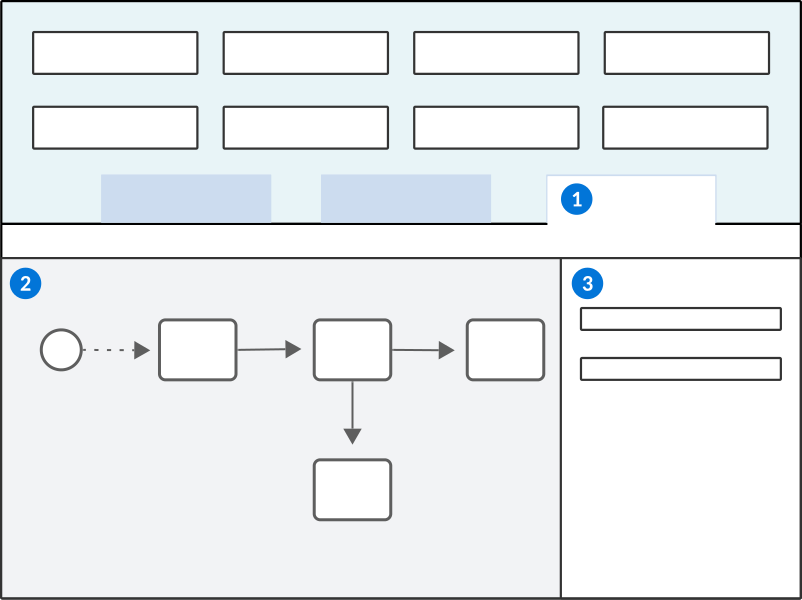
 | Transitions page within the Workflow Builder application. |
|---|---|
 | Viewer panel—Add your states and transitions with the buttons at the top of the panel. Select components within the Viewer panel to open the properties or view additional details. For example, boxes represent states and state types, while lines which connect the boxes represent transitions. Select a box to view the properties of the state you are configuring, or select a line to view details about the transition. |
 | Properties panel—Configure the properties of your states and transitions. |
For more information on creating a workflow transition, see the Configure a workflow definition section.
Workflow Type Definitions application
Application developers use the Workflow Type Definitions application to configure workflow types, and the criteria for the type.
Use this application to define different workflow types. A workflow type must be associated with a workflow, table, and family. Workflow types are used in workflows to specify different transitions for records that have specific values. That is, use workflow types to create variations of workflows using different field values. The workflow type is where you define the criteria for field values in application records. Learn more in Configure a workflow definition.
Use the header fields to define the workflow type name, the workflow the type is associated with, the workflow table, and the family the workflow belongs to. Use the Criteria subtable to define the criteria for the type. Use the Field, Operator, and Value fields to define the criteria for the type.
If a single workflow type detail has more than one value defined for a field, Nextworld strings together those values using OR. This means that the workflow transition is applied if a record has any of those values.
If a workflow type has more than one detail defined, Nextworld strings together the details using AND. This means that the workflow transition is applied only if records match all of the criteria.
Workflow Security Definitions application
Application developers and system administrators use the Workflow Security Definitions application to configure workflow security profiles so that a state or state type controls who can access workflow attributes.
You can create access rules in a workflow security profile to:
- Control who can read, update, delete, and insert actions in a workflow
- Define restricted field profiles created in the Workflow Restricted Field Definitions application that restrict or grant access to certain fields in a workflow
For more information on workflow security, see the Workflow security topic.
Workflow Queued Auto Transition Inquiry application
Use the Workflow Queued Auto Transition Inquiry application to review any transition with a status of pending, error, or submitted.
If a workflow transition succeeds, the record is deleted and does not show in this application.
Search for a specific transition record by entering the nwID of the record in the Record Id field. Open the transition record to view information such as why the transition has failed.
Select the Bulk Queue For Reprocessing form action to initiate a bulk resubmission of all failed queued workflow transition records.
Workflow Restricted Field Definitions application
Use the Workflow Restricted Field Definitions application to define lists of restricted fields for use in workflow security.
Once the workflow restricted field profile is created, you can reference it in the Access Rules subtable in the Workflow Security Definitions application. This prevents users from being able to change the specified fields even if an update is permitted for other fields.
See the Configure workflow security topic for more information.
Workflow Comparison Utility application
Use the Workflow Comparison Utility application to compare current workflows to customized versions of the workflow, versions in other lifecycles, or any combination of these variations.
For example, you can compare a workflow for bank deposits to see what changed between the base version and the customized version, or what changed between the base version and the version in a specified lifecycle.
The Source and Compare To sections of the Workflow Comparison Utility application allow you to specify the workflos you want to compare. After you run the comparison with the Compare Workflows form action, use the Results section to view the differences between them.
Source and Compare To sections
- In the Source section, use the Current Workflows field to identify one or more workflows, separated by commas, to be compared.
- In the Compare To section, use the Workflows to Compare field to identify one or more workflows for comparison. To compare the same workflows as entered in the Source section, but in different lifecycles or customizations, leave the Workflows to Compare field blank and just select either the Use Customized Version checkbox to compare different lifecycles or customizations to the base workflow.
In the Source and Compare To sections use the field or checkbox described below to refine your specified workflows:
- Lifecycle—identifies the lifecycle where the workflows are located. If no lifecycle is specified, the application defaults to the base lifecycle.
- Use Customized Version—select this checkbox to use the customized versions of the specified workflows.
Select the Compare Workflows form action to compare the workflows.
Results section
Changes discovered between workflows when a comparison has been run are displayed in the Workflow Changes field of the Results section on the application. Depending upon which fields changed, the changes may be marked as either as Added, Removed, or Updated.
When the Workflow Comparison Utility application runs, it compares multiple fields in each workflow. If any changes are found to fields that identify a workflow transition, the change is marked as Removed in the Compare To Version and marked as Added in the Source version.
Any other field changes identified during a comparison are considered updates. These are displayed showing both the original value and the updated value, which appears in parentheses. For example, if a sequence number for a workflow changed from 20 to 2, the change would appear as follows: Updated 20(2).
Workflow Queued Transition Inquiry application
Use the Workflow Queued Transition Inquiry application to review and monitor the status of workflow auto-transitions and effective date transitions. These trigger types run asynchronously in the background.
Once a workflow transition is initiated, a record is created in the Workflow Queued Transition Inquiry application with information on its status. Open the workflow status record to review additional information, such as trigger time, triggering user, and record Id. If a queued workflow transition has a status of Error, the error message and submission history are shown, as well as the number of automatic re-attempts that occurred.
Learn more in Workflow Home and Workflow transition triggers.