















Mini apps open over applications. This means when you interact with a mini app, the original application work is not lost.
Application settings can be applied to mini apps. For example, you can apply an application setting to a mini app so it opens with a default value in the filter. You could also apply an application setting to default a value when new records are created. Often, mini apps are used with search actions. The result is a mini app that opens over the application screen, where the user can view, edit, delete, or create records, and then populate field values in the initial application.
Types
Mini app style can be applied to several application types, such as:
- Standard
- Report
Mini Apps as Actions
Mini apps are commonly used to open applications from an application. This is known as an action, which is configured when you build the application.
Learn more about how to configure actions in Configure actions for an application.
- Search Action
A search action provides a way to search the records of an application, and is always used with a table lookup field. When a user clicks the magnifying glass icon on a table lookup field, a mini app opens. From the mini app, you can select a record and return the value to the table lookup field. You can also edit, delete, or create records in the mini app.
When you delete, create, or modify records in the mini app, the changes are saved to the application table. When you create or edit a record in the mini app, you can populate the value in the lookup field.
- Row action
A row action provides a way to open a mini app that displays related records with a button on a row.
When you use a mini app as a row action, you can view the records of another application. For example, if you had an application that manages recipes for a cafeteria, you could use a row action to view inventory quantities of an ingredient. The row action could open the Inventory mini app so you could see how much of an ingredient you have in stock.
Search actions and search applications
Search applications enable users to view, select, or create records in other tables. Search applications are linked to other applications by a Table Lookup field, also referred to as a search field or typeahead field.
Table lookups are data items added to an application that point to records in another application's table. On their own, table lookup fields enable you to use a typeahead function to search for records that match your search query. Optionally, you can link a search application to your table lookup field to allow users to open a mini app where they can review a list form of records.
Table lookup fields are indicated by a Search  icon. Users can either type a value into the field to search for matching records or, if a search application is configured, select the Search icon to open the search application.
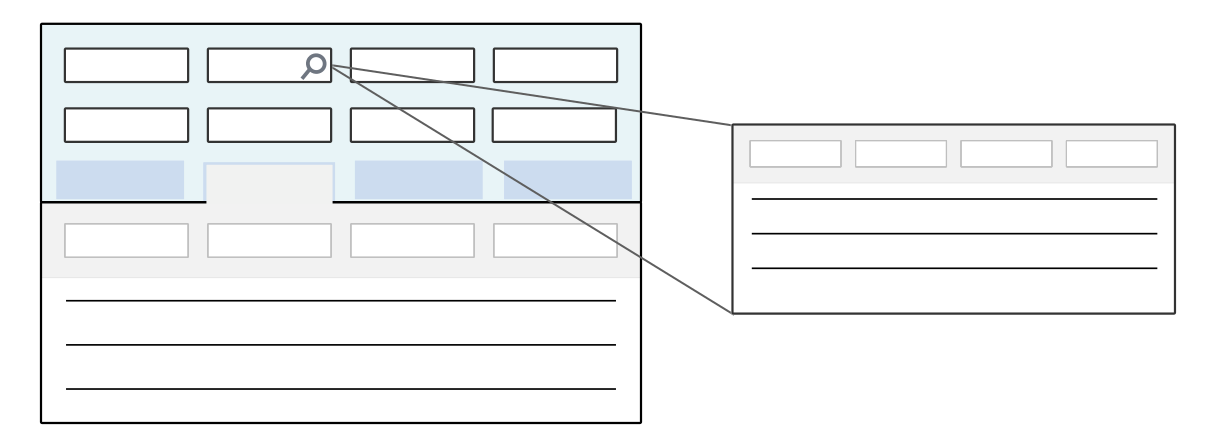
Search Applications
Search applications are mini apps configured to preview, filter, select, and create records in the table which they are built over. They allow users to search through a list form of records within the mini app, rather than just using the typeahead feature available in a table lookup field. This is helpful when there are many records available within a table lookup field since users can use the filter rows in the the mini app column headers to narrow down results.
For example, the DirectorySearch search application is built over the same table as the Directory application. In the Customer Invoices application, you can open the DirectorySearch application using the search action for the Customer Name field. In the search application you can view and select existing directory records, or create a new record to be saved to the Directory table.
Search applications are linked to table lookup fields in the Search Action section in the Configuration panel of the Application Builder. Both the search application and the search field can be filtered to narrow down the available records. Learn more in the Search application configuration topic.
Search application configuration
Search actions connect search applications to table lookup fields. Configure search applications in the Search Actions section, in the Configuration panel of the Application Builder. Filters can be applied to typeahead fields through different configurations.
Prerequisites
Before you can create your search application, you must have:
- Application—An underlying application to attach your search application to.
- Data Item—A
Table Lookupdata item on the application where you want to connect your search application. - Table—A table for your search application to be built over.
Create a search application
In the Application Builder application, to configure your search application, you must:
- Create an application of Application Type or and style
Mini App. - Select the table you want your search application built over. Often, this is the same table selected in the Related Table field of the
Table Lookupdata item that you will reference when you configure your search action. - Configure the list form fields to your specifications.
Connect a search application
Search applications can be defined on either the table or application definition. When defined on the table, any table lookup which points to that table automatically uses the specified search application. When defined on the application, you can select which search application is used and override any previously defined search applications.
To define on the table, navigate to the Settings page and enter the search application in the Default Search Application field.
Or, in the Application Builder application, open the application where you want to connect the search application, then navigate to the Search Action section of the Configuration panel. To configure:
- In the Search Field field, enter the name of the
Table Lookupfield where you want to attach the search application. If the table lookup is within a subtable, use the format of SubtableName.FieldName in the field. - In the Search Application field, enter the internal name of the search application you configured.
- If the search application was built over a table different than the Related Table of the table lookup field, you must use the Return Mapping section of the Data Mapper to map either the
nwIdor the primary search field on the search action. - Optionally, you can also map other values back to populate other fields on the same form. Values being set on the record from the Return Mapping always override whatever was in those fields originally.
Filtering the records
Filters can be applied to the search application with application settings. These filters do not apply to the typeahead/search field. To filter the search field, use data mappings in the Search Action section in the Application Builder application, or filtered table lookups configured on the Related Table in the Table Definitions application. Learn more in the Filtered table lookup configuration and Search application configuration topics.
Both the search field and search application can be influenced by these configurations:
| Filtered table lookup mapping exists | Search action mapping exists | Application setting mapping exists | Typeahead/search field result | Search Action application result |
|---|---|---|---|---|
| Yes | Yes—Same table | Yes No | Filtered Table Lookup and Search Action mapping applied Filtered Table Lookup and Search Action mapping applied | Filtered Table Lookup, Search Action, and Application Setting mappings applied Filtered Table Lookup and Search Action mapping applied |
| Yes | Yes—Different table | Yes No | Filtered Table Lookup mapping applied Filtered Table Lookup mapping applied | Search Action and Application Setting mapping applied Search Action mapping applied |
| Yes | No—Same table | Yes No | Filtered Table Lookup mapping applied Filtered Table Lookup mapping applied | Filtered Table Lookup and Application Setting mapping applied Filtered Table Lookup mapping applied |
| Yes | No—Different table | Yes No | Filtered Table Lookup mapping applied Filtered Table Lookup mapping applied | Application Setting mapping applied No filter applied |
| No | Yes—Same table | Yes No | Search Action mapping applied Search Action mapping applied | Search Action and Application Setting mapping applied Search action mapping applied |
| No | Yes—Different table | Yes No | No filter applied No filter applied | Search Action and Application Setting mapping applied Search Action mapping applied |
Other Configuration Considerations
There are several considerations for search applications, such as:
- Return Mappings and search actions over non-related tables are not supported on subtable search actions.
- You can use application settings to control whether the search application is read only, or to hide/disable the Create button if you don't want users to add records to the underlying table.
Mini app configuration
Configure mini apps using the Table Definitions and Application Builder applications.
Table
In the Table Definitions application, build a table of type Main. Mini apps can only be built over this type of table. Alternately, create the table when you create your application record.
Application Builder
In the Application Builder application, select a Standard or Report application type, and the Mini App application style.
If you create a mini app that helps users search for records from another table or application, you must include a table lookup field in the Mini app.
Learn more in the Search actions and search applications topic.