For example, you could build a test harness that ensures record mutations occur as intended. Or, you could build a test harness that ensures development changes, such as changes to user roles, don't change the functionality of your logic block.
To create a test harness you must identify the processes, or test cases, from your target logic block that need to be validated. For example, if a required field is empty, does an error get thrown. Then, build a logic block of type Test. The test block calls the target logic block and performs the validations for the test cases you identified. Complex logic blocks may have multiple test blocks.
Once your test blocks are built, create a record in the Logic Block Test Harness Definitions application that references the test blocks you want used, and the sequence in which to run them. Additionally, specify the temporary tenant you want used for testing.
Temporary tenants use metadata from your development environment and business data from a seed environment. The business data is copied into the temporary tenant while the test harness runs, and then discarded after the test finishes. Learn more in Temporary tenants and Test harness data setup.
Applications
Use the following applications to create, run, and view results for your test harnesses:
- Temporary Tenant Template Setup - Test Harness application—Set up a template that enables you to quickly create temporary tenants. Learn more in the Temporary Tenant Template Setup - Test Harness application topic.
- Temporary Tenants - Test Harness application—Create a temporary tenant using a template. When a temporary tenant is created, it's populated with a copy of the business data and metadata from the environments defined in the template. Learn more in the Temporary Tenants - Test Harness application topic.
- Logic Block Builder—Build the logic block of type
Testwhich calls the target logic block and performs validations of the identified test cases. Complex logic blocks may have multiple test blocks. - Logic Block Test Harness Definitions application—Configure and launch your test harness. Select criteria such as the roles and permissions applied, environment settings, the test blocks to run, and the sequence to run them. Learn more in the Logic Block Test Harness Definitions application topic.
- Logic Block Test Results Inquiry application—Evaluate the coverage of your test, and view the results. The coverage measures how many logic block actions are being tested by the test harness. The higher the coverage percentage, the easier it is to find disruptions in the logic block when changes occur. Learn more in the Logic Block Test Results Inquiry application topic.
- Logic Block Test Harness Group Definitions application—Create test harness groups. After logic blocks are fully developed and tested, their test harnesses are added to test harness groups that run regularly in scheduled jobs to validate the functionality of logic blocks in use. This ensures if a new development disrupts the functionality of existing logic blocks, you can quickly identify the issue. Learn more in the Logic Block Test Harness Group Definitions application topic.
- Logic Block Test Harness Group Results Inquriy application—View the results of your test harness group. Learn more in the Logic Block Test Harness Group Results Inquiry application topic.
Learn more in the Logic block test harness configuration and Nextworld example: Identify test cases for a logic block topics.
Logic block test harness configuration
Configure logic block test harnesses with the Logic Block Builder, Logic Block Test Harness Definitions, and Logic Block Test Results Inquiry applications.
Prerequisites
Before you create your test harnesses, you must:
- Review the logic block which you want to test. This logic block is referred to as the target logic block.
- Identify test cases for the target logic block. Test cases validate that processes in the target logic block work as expected. For example, a conditional action in the target logic block would require a test case for both the true condition and the false condition.
- Create a temporary tenant where you'll run your test. Temporary tenants are created in the Temporary Tenants - Test Harness application using templates configured in the Temporary Tenant Template Setup - Test Harness application. Learn more in the Temporary Tenants - Test Harness application topic.
Build a test harness - Logic Block Builder
To build a test harness, in the Logic Block Builder, you must:
- Create one or more test blocks that validate the test cases you identified. Some logic blocks require multiple test logic blocks for full test coverage. Learn more in the Test harness test block configuration topic.
- Create the test data you need to run the tests. For more complex logic blocks, you can use input and output tables to pass in data and compare results. Learn about the different ways to create test data in the Test harness data setup topic.
Build a test harness - Logic Block Test Harness Definitions
To build a test harness, in the Logic Block Test Harness Definitions application, you must:
- Create a test and specify the target logic block you want tested, environment options, roles and permissions, and the test blocks to be used. Learn more in the Logic Block Test Harness Definitions application topic.
- In the application header, optionally select the Display All Validated Expressions checkbox to show all expressions when a test harness failure occurs. This helps you determine why the test harness failed.
- On the Environment Options page, select any tables whose data should be cleared before the test is run.
- If your logic block runs based on user interactions, such as a logic block initiated by a row action, select the Run by UI checkbox.
View test harness results
In the Logic Block Test Results Inquiry application, view the results. Learn more in the Logic Block Test Results Inquiry application topic.
Debug the test harness if errors occur. Learn more in the Debug a logic block test harness topic.
Test harness test block configuration
Application developers use the Logic Block Builder application to create test blocks, also referred to as unit tests, for use in logic block test harnesses.
Logic Blocks
In the Logic Block Builder application, you must:
- Create a new logic block with a name that follows the convention
Test<target logic block name>[optional test case identifier].- Example:
TestRetrieveProductDefinitionis a test logic block for target logic blockRetrieveProductDefinition. - Example:
TestConvertUnitOfMeasureEAToLBis used to testConvertUnitOfMeasurefor test caseEAtoLBconversion.
- Example:
- In the Type field, select
Test. - In the Table Name field, select
NWATLBHarnessHeader. - Set the Security Option field to
Public. - Enter the remaining required information, and then save the record.
Logic Builder
On the Logic Builder page, select the Call Target Logic Block action. Replicate the scenario that uses that logic block, such as updating, deleting, or creating.
To validate records:
- Select the Validate Record action. Insert logic expressions to validate things about one of the target logic block's tables.
- Add Validate Record actions for all tables needed to test the target logic block.
To validate messages:
- Select the Validate Message action. Message fields that can be included in the validation are the same set of message fields used in the Fetch Message action. These include DataItemName, MessageType, MessageDescription, FunctionNumber, InputValues, and Severity.
- The recommended set of fields to include as expressions are DataItemName, MessageType, and Severity with a list lookup value of
LBMessageSeverity. An example expression would look like DataItemName =ManufacturingMsg287AND MessageType =AlertAND Severity =Error
- The recommended set of fields to include as expressions are DataItemName, MessageType, and Severity with a list lookup value of
- Add Validate Message actions for all messages that are expected to be returned for that call to the target logic block.
The table below reviews the logic block actions used in your unit test:
| Action | Function | Details |
|---|---|---|
| Call Target Logic Block | Calls the logic block specified in the action. | This action works similar to the Call a Logic Block action, except:
|
| Validate Record | Validates that the record matches the expressions. | This action works like a conditional action. Choose a table, then validate that fields on that table are as expected. If the Validate Record action fails, the test results detail the expected value versus the actual value. |
| Validate Message | Validates that a message matching the expressions exist in the message list. | This action checks if a message which matches the conditional statement exists in the current message list. This is used to validate if an error was thrown without failing the test. Each Validate Message action used can only find one matched message. If a logic block test sets three errors, then three Validate Message actions are needed. If more than one expression is used in the conditional and the Validate Message action fails, the message that closest matches the condition is displayed. If a close match is not found, the number of checked messages is shown instead. |
Test harness data setup
Application developers can create test data for the execution of test harnesses in multiple ways.
Insert Record Action
Use the Insert Record action directly in the unit test logic block to create the required data. This method of data creation may only be feasible for testing simple logic blocks that have basic data requirements.
Any data committed to the database this way may need to be explicitly deleted before the test logic block completes, depending on the nature of the test logic block. Think carefully about the test flow to make sure that test data created or modified in one test case doesn't negatively impact the execution of subsequent test cases.
Data Creation Logic Block
Create a separate test logic block that is only used to create the required test data.
This logic block can be called directly from the unit test logic block or configured as the initial step in the logic block test harness.
Add Data to Seed Data Environment
Create seed data in the environment that corresponds to your product family. The amount of data in the seed environments directly impacts the performance of the test execution. For example, the larger the number of records in the set of tables that are copied at the time of environment initialization, the longer the load time for the test harness.
To keep the seed data volume to a minimum, teams may want to implement a process to review and discuss data creation requests.
Migration scripts are used to determine which tables are copied when the test environment is initialized. There are situations when seed data is required in a new table that isn't already identified in the script used for your test environment.
Combination
Some test cases may require that new data be created in the seed data environment which is then augmented/modified at test execution time.
Debug a logic block test harness
Debug your logic block test harness in the Logic Block Test Harness Definitions, Logic Block Test Results Inquiry, and Logic Block Builder applications.
After you have designed and created your test harness, you may find that it fails upon execution. Debug your test harness to help you determine the cause of the failure.
Use the following applications to debug your test harness:
- Logic Block Test Harness Definitions application—Select the Debug Test or Debug with Options row action on the detail rows for the logic blocks you want to debug.
- Logic Block Test Results Inquiry application—Navigate to the detail record for your logic block test results and select the Debug Test form action. This automatically launches the Logic Block Debugger found in the Logic Block Builder application. If your debug session doesn't connect immediately, refresh the list or refer to the Logic Block Test Results Inquiry application to view the status of your test.
Logic Block Test Harness Definitions application
Application developers use the Logic Block Test Harness Definitions application to configure logic block test harnesses. Test harnesses are used to test the functionality of logic blocks.
The Logic Block Test Harness Definitions application is where you select:
- The logic block the test harness tests.
- The lifecycle the test harness runs in.
- The roles and permissions applied when the test harness runs.
- If failed test harnesses display all expressions, or only the expressions which fail.
- The environment type that holds the data needed to run your tests in. This should be the same environment type specified on the template used to create your temporary tenant. This is what links the temporary tenant with your test harness definition.
Row actions in the detail form of the application enable you to submit and run the test, debug the test, or navigate to the Logic Block Test Results Inquiry application to view results after the test harness runs. Learn more about the configuration process in the Logic block test harnesses and Logic block test harness configuration topics.
Environment Options
Configure the test harness to run with a specific user from the directory, or assign which roles you want applied. Select the Replace Roles checkbox to replace the roles with those entered in the Assigned Roles subtable.
Optionally, use the Tables To Clear subtable to designate tables which the system clears data from before the test runs.
Optionally, import data into your test environment. To configure, attach a CSV to the test harness record then create an import name and enter the name of your CSV attachment in the Data Imports subtable.
Details
In the detail list, add test blocks for this test harness. This is where you can configure:
- The test blocks to run and the sequence to run them
- A unique name for a test block to identify what it is testing
- If the test block is run from the user interface or not.
- If the test block can be debugged using the Logic Block Debugger.
Logic Block Test Results Inquiry application
Application developers use the Logic Block Test Results Inquiry application to view results for logic block test harnesses that have been submitted. The results in this application include details about the test whether the test harness was successful when it ran, and error information for troubleshooting.
Use the Test Harness form action to open the Logic Block Test Harness Definitions application record for a test harness. This is helpful if you need to make a change or view more details.
Results
Gives an overview of whether the test harness was successful or failed, how many tests within the harness were run, and how many of those were successful, failed, or skipped. Review the fields on this page for counts of validations and any error messages that weren't checked by the test harness.
When validations are included in the test blocks in the test harness, the total, successful, and failed validations are tracked here.
Times
Provides information about when the test ran, which includes the start, end, and total times. The total time includes any time spent on creating the test environment or generating objects. The total test time, start time, and end time, only include time when the test blocks were running.
Test Setup
Shows information from the test harness configuration such as the environment, lifecycle, user and roles.
Debug Information
Displays any system errors that occurred when the test harness was submitted. For example if there was an issue generating a logic block, or if the logic block the test submitted was in a different lifecycle.
Details
There is a detail record for each test logic block that was submitted as part of the test harness. Open a detail record to view more detailed information including failure details. The information on this page can be helpful when you're troubleshooting the test block and identifying any changes in expected versus actual functionality.
The Failure Details field displays information for a failure including:
- The action in the test block that failed.
- For example,
Action 20.
- For example,
- The reason that action failed.
- For example,
1 expression failedorError message not validated.
- For example,
- The expressions and the expected value of a validation action.
- For example,
Expression 6: Expected 100000.00 to equal 50000.00.
- For example,
Logic block expressions also display in tables in this text area that include the values from the expression. This can help you identify the expected versus actual values, and narrow down what type of change caused the actual results.
Logic Block Test Harness Group Definitions application
Application developers use the Logic Block Test Harness Groups application to create groups of completed logic block test harnesses, which then run in sequence.
After logic blocks are fully developed and tested, the test harnesses are added to test harness groups. Test harness groups are run regularly in scheduled jobs to validate the functionality of logic blocks in use. That way if a new development change disrupts existing functionality, you can quickly identify the disruption. Use this application to add multiple test harnesses to a test harness group.
The header fields provide general information about the test harness group, including the name, family, and module.
Logic block test harness groups are organized by product family and module. The different tests to run as part of the group are added as details in the test harness group record, and don't require a specific sequence.
Logic Block Test Harness Group Results Inquiry application
Application developers use the Logic Block Test Harness Group Results Inquiry application to view results for logic block test harness groups that were submitted. The results in this application include details about the test whether the test harnesses in the group were successful when they ran and error information for troubleshooting.
Use the Test Harness detail row action to open the Logic Block Test Harness Definitions application record for a test harness in the group. This is helpful if you need to make a change or view more details.
Results
Gives an overview of whether the tests were successful or failed, how many test were run, and how many of those were successful, failed, or skipped. Review the fields on this page for counts of validations and any error messages that weren't checked by the test.
When validations are included in a test block, the total, successful, and failed validations are tracked here.
Times
Provides information about when the test ran, which includes the start, end, and total times. The total time includes any time spent on creating the test environment or generating objects. The total time, start time, and end time only include time when the tests were running.
Debug Information
Displays any system errors that occurred when the test harness was submitted. For example, if there was an issue generating a logic block, or if the logic block the test submitted was in a different lifecycle.
Details
The detail records in this application represent the different test harnesses that were submitted. Use the Test Harness Result action to view the Logic Block Test Results Inquiry record for the test that is part of this group.
Nextworld example: Identify test cases for a logic block
This topic shows an example of how to review a logic block to identify test cases, and how to create a test block to validate those test cases.
This example uses the RetrieveCompanyForOrgUnit logic block.
Logic Block
The RetrieveCompanyForOrgUnit logic block is a common logic block called by multiple families. When it is called, the OrganizationalUnit field value is passed to the logic block, and then the Company field is set from the InternalOrgParentCompany field in the Directory table. If there isn't a value for the OrganizationalUnit field, an error message is set. If a company is passed to the logic block instead of an organizational unit, the same company value is returned.
The logic block actions are:
- If OrganizationalUnit Is Not Empty
- TRUE: Fetch a TableLookup with OrganizationalUnit
- Set Company from InternalOrgParentCompany
- FALSE: Set Alert/Error: Organizational unit is required
- TRUE: Fetch a TableLookup with OrganizationalUnit
- If Company Is Empty
- TRUE: Set Alert/Error: A company was not found for the given organizational unit.
Logic paths
Based on the actions in the logic block, you would test the following data:
OrganizationalUnitis emptyOrganizationalUnitis not emptyOrganizationalUnitis not empty and data is found for the Fetch a Table Lookup actionOrganizationalUnitis not empty and there is no data found for the Fetch a Table Lookup actionCompanyis emptyCompanyis not empty
Test cases
To test the identified logic paths, you could use six separate test cases. Or, you can pass in data to the test harness logic block in different combinations to reduce the number of test cases. You'll still achieve good test coverage, but don't have to write as many test cases. For example, you could write the following test cases:
OrganizationalUnitis empty.- Validate the error in action 3.
- Test case—Validate that error is set when
OrganizationalUnitdoesn't have a value.
OrganizationalUnitis not empty,Companyis empty, no data found for the Fetch a Table Lookup action.- Validate the error in action 5.
- Test case—Validate that the error is set when
OrganizationalUnithas a value,Companydoes not have a value, and there was no data found for the table lookup. This might not need to be a test case because there are not invalid records passed in the table to fetch.
OrganizationalUnitis not empty,Companyis empty, valid data found for the Fetch a Table Lookup action.- Test case—Validate that the Fetch a Table Lookup action retrieved the company for the
OrganizationalUnit, and the value in the logic block forCompanyis set with the retrieved value.
- Test case—Validate that the Fetch a Table Lookup action retrieved the company for the
OrganizationalUnitis not empty,Companyis not empty, no data found for the Fetch a Table Lookup action.- No change to validate, and might not need a test case.
You would have three total test cases, with one success scenario and two error validation scenarios.
Test harness logic block
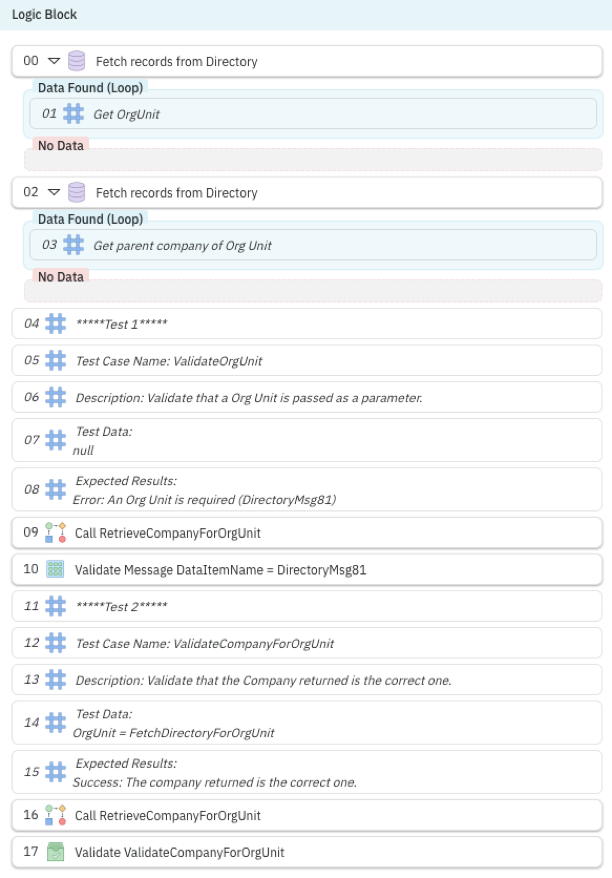
The TestRetrieveCompanyForOrgUnit logic block is the test block for the RetrieveCompanyForOrgUnit logic block. It includes actions to test the different test cases identified. It uses different actions including:
- Fetch Records—Fetch records from directory to retrieve the
OrganizationalUnitandCompany. - Comment—Provide information about what each action does, the test cases, and the expected results.
- Call Target Logic Block—Calls the logic block the harness is testing.
- Validate Message—Validate the message is being set. This is a test-specific logic block action.
The logic actions for the TestRetrieveCompanyForOrgUnit logic block are in the image below: