















Application settings allow you to control specific aspects of how an application is displayed, such as:
- Defaulting values into fields when the application is open.
- Hiding or disabling individual objects. For example, a field.
- Hiding or disabling control actions.
- Automatically moving empty columns to the end of a row in the detail form.
Application settings can also change the composition of an application based on the user. For example, accounting staff and account managers use different components of the Customer Invoices application. Application settings are used to open different versions of the application for each role. Accounting staff use the read-only Customer Invoices for Billing version, while account managers use the Customer Invoice Payment Information version. These applications also have the Create button disabled since they do not need to create new invoices.
The diagram below illustrates an application that has multiple application settings applied for different user roles.
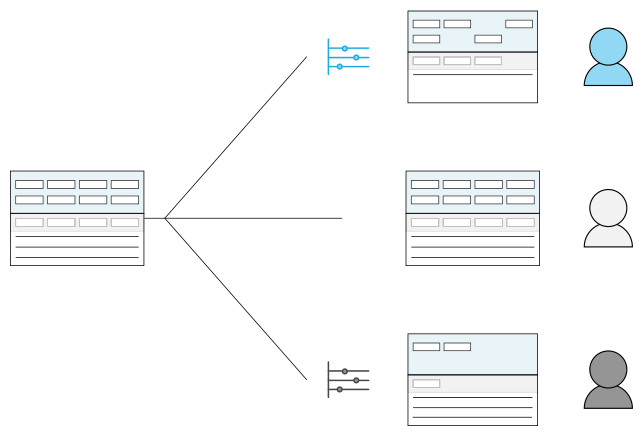
Application settings are a way to customize the user experience of an application. They should not be used to change the design, or logic, of an application. For example. if you create a directory application which uses a contact role grouping field to group users based on their role within the directory. The value in the field is populated by a logic block based on the value in the Contact Role field. You could use an application setting or logic block to hide or disable that field once a value is added, but this field could confuse users so it would be better to just hide it completely on the application configuration.
Sequence
In addition to using application settings, there are other configurations that control the application behavior. Because of this, configuration settings are applied in a sequence. The final item in the sequence takes precedence over all previous settings. When applying a default value, the sequence is:
- Data item configuration
- Application settings
- Field mapping
- Logic blocks
For example, if an application setting defaults a value into a field, then a field mapping defaults a different value, the value from the field mapping would persist. Then, if a logic block changes the value of that field, the value from the logic block takes precedence over all previous values.
When applying a default value into a filter, the data item configuration is not considered in the sequence.
See the following topics for more information:
- Secure menu entries with application settings
Add additional layers of security to menu entries by requiring users to have permission for the application setting in order to see and open the application from the menu.
- Frozen filter configuration
Configure a frozen filter with the Application Setting Definitions and Application Builder applications to create a filter value which users are unable to change.
- Application Setting Definitions application
Application developers use the Application Setting Definitions application to create and modify application settings, such as hiding or disabling fields, creating settings for buttons, or setting filters.
Frozen filter configuration
Configure a frozen filter with the Application Setting Definitions and Application Builder applications to create a filter value which users are unable to change.
Application Setting Definitions
On the Layout page of the Application Setting Definitions application you must:
- Enter the fields you want frozen in Field Options.
- Set the
FormtoList. - Either disable or hide the fields by selecting one of the checkboxes.
Configure data mapping
You can configure the filter data mapping in one of the following ways:
- In the Application Setting Definitions application, on the Fields page, using the Data Mappings. Learn more in Data mapper.
- In the Application Builder application, in the Configuration panel in either the Search Actions or Application Linkssection. Link to an application and application setting.
- If the application setting does not have a filter data mapping applied, use the Data Mapping mini app to configure the filter.
- If the application setting does have a filter data mapping applied, you do not need to create another filter data mapping.
Application Setting Definitions application
Application developers use the Application Setting Definitions application to create and modify application settings, such as hiding or disabling fields, creating settings for buttons, or setting filters.
Use this application when creating a layer of customization that modifies the application experience depending on certain user factors. The layer of customization creates a different flavor, or version, of an application. These different application flavors are used to customize the user experience so that factors such as entry points, user roles, and so on determine the flavor of application the user interacts with.
The defining information of an application setting including the application setting's name, menu title name, the application the setting is attached to and so on is stored in the Application Settings application header.
After the header information is entered, you can further specify an application settings definition by using the application's pages. These pages can be configured based on what kind of application setting you want to configure.
See the Application settings section for more information on configuring application settings.
Fields page
Create field defaults through use of advanced and frozen filters with the Data Mappings subtable.
Learn more about the data mapper in the Data mapper topic.
Layout page
Apply settings to adjust what is accessible or seen on your application's rows, pages, or fields.
In the Rows subtable, you can hide and disable rows, or use the floating column feature to move empty columns to the end of the row.
In the Field Options subtable, you can hide and disable fields.
In the Pages subtable, you can hide and disable pages. You must specify the exact Title of the page.
If you create an application layout for the setting, specify the parent application in the Name field and the application layout in the Application Layout field. Application layouts are alternate versions of an application with a modified field placement or style. Learn more in Application layouts.
Actions page
Create settings for clickable buttons such as form actions, row actions, save buttons, close buttons, and so on.
Filter and Sort page
Create pinned filters, or designate a sort profile.
Use pinned filters to create optimized filters over fields that are delivered as part of an application. Pinned filters can be accessed through the Filters menu are at the top of the list form.
Sort profiles override any sorts configured in the application.
Visualization page
Select a default visualization to display in the list form of the application. User can override the default by selecting a different visualization. Changes made by a user are persisted automatically by their user settings.
Application settings best practices
These best practices ensure that application features are consistently and logically configured based on the user's influence on the application.
Application settings are configured in the Application Setting Definitions application. The features that can be configured in Application Setting Definitions are ones that users have permission to change. Configuring on this level makes it easy for users to change because they are allowed access to this application.
There are features that can also be configured in Application Builder. Configuring on this level makes it more difficult for users to change because they have limited access to the configuration level of the application.
When creating an application link or search action, always include an application setting so a client can easily change the settings without having to customize the application in Application Builder.
If you want users to be able to change filters and default values, configure these in Application Setting Definitions.
When creating application settings for header detail applications, create application settings for the header detail application, header application, and all detail applications. Learn more in the Header Detail application setting configuration topic.
For more on application settings configuration, see Application settings.