















Common context has two components:
- Publishers—The field which dictates the values populated in the Subscribers. When a value is entered or published into a publishing field, it populates all the subscribing fields configured in the same scope.
- Subscribers—The field or application link which is populated by the publishing field value.
Example
Common context is often used to filter for records with related information amongst multiple applications or interactive reports. For example, on a dashboard page you could configure common context so that when a customer name is entered in an application field, other applications or reports populate the customer's transaction and contact information in their respective cards.
Similarly, in a composite application, you could configure common context so that when a customer name is entered in the first application step of the composite, the selected customer's information would be visible in subsequent application steps.
The diagram below shows a dashboard page with common context configured in three applications used as dashboard cards:
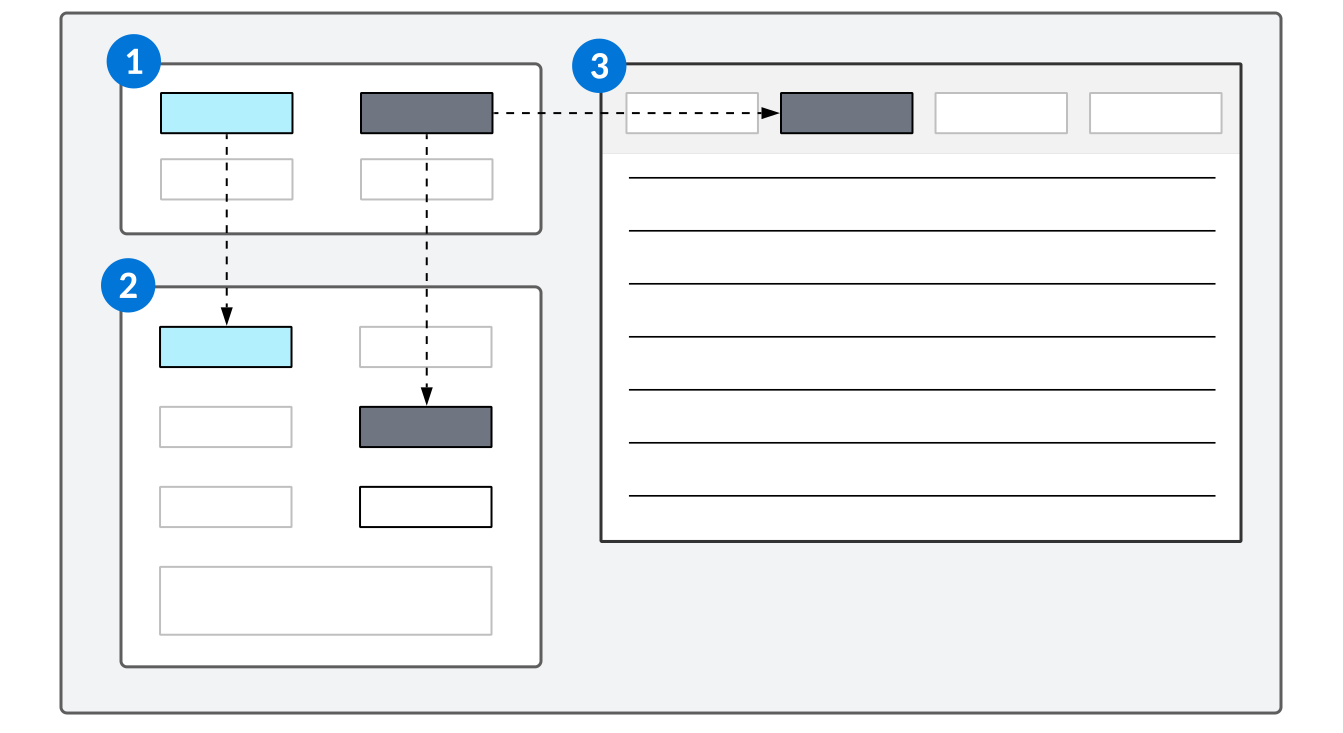
 | The application is configured with two Publisher fields. |
|---|---|
 | The application is configured with two Subscriber fields. The values in each Publisher field populate the Subscriber fields within the same scope. |
 | The application is configured with one Subscriber field. The value in the Publisher field populates the Subscriber field within the same scope. |
View an example of a dashboard using common context in Example: common context on a dashboard.
Scope
Common context is configured within a scope. The scope defines in what context a Subscriber listens to a Publisher. This is necessary because Publishers and Subscribers can have one-to-many, many-to-one, and many-to-many relationships. The scope is defined using the data mapper tool when configuring the Publisher or Subscriber. You can also create a boundary for the common context scope in both a dashboard page, or a composite application configuration. This enables you to use the same application in multiple places without it being impacted by the common context tied to it elsewhere.
Learn more in Common Context configuration.
Common context can be used in place of, as well as in addition to, logic blocks and application settings to control field values.
Example: common context on a dashboard
The Receivables dashboard page is a helpful example of a common context configuration on a dashboard because you can view the configurations in the separate applications, and view the behavior on the dashboard page.
Example
Accounting staff use the Receivables dashboard page to quickly view contact details and invoices. The applications used on this dashboard page each have fields configured as either Publishers or Subscribers.
| Dashboard Card Title | Dashboard Card Name | Application Name | Common Context Fields |
|---|---|---|---|
| Dashboard Filter | Receivables Common Context | ReceivablesCommonContext | Contact_Name Item_ItemNumber OrganizationalUnit_Name |
| Contact Notes | Contact Notes | ContactNotesMini | Contact_Name |
| Contact History | Contact History | ContactHistoryMini | Contact_Name |
| Invoice Details | Receivables Join | ReceivablesJoin | CustomerName_Name OrganizationalUnit_Name Item_ItemNumber |
| Cash Receipt Details | Cash Receipts Invoice Join | CashReceiptsInvoiceJoin | Payor_Name OrganizationalUnit_Name |
Because each application uses common context, this means that the Subscriber fields populate on the different dashboard cards when the Publisher values change. The following fields in the Receivables Common Context dashboard card are publisher fields:
- Select Customer
- Org Unit
- Item
When a user enters a value in the Select Customer field on the Receivables Common Context dashboard card, the value they enter populates in the following dashboard cards:
| Dashboard Card Title | Dashboard Card Name | Field |
|---|---|---|
| Contact Notes | Contact Notes | Select Customer |
| Contact History | Contact History | Select Customer |
| Invoice Details | Receivables Join | Customer |
| Cash Receipt Details | Cash Receipts Invoice Join | Payor |
When a user enters a value in the Org Unit field on the Receivables Common Context dashboard card, the value they enter populates in the following dashboard cards:
| Dashboard Card Title | Dashboard Card name | Field |
|---|---|---|
| Invoice Details | Receivables Join | Org Unit |
| Cash Receipt Details | Cash Receipts Invoice Join | Org Unit |
When a user enters a value in the Item field, the value they enter populates in the Item field of the Receivables Common Context Dashboard card.
Because all of the subscribers are configured as filter fields, the value entered in the Publisher field populates in the filter of the dashboard card, and filters the records.
On this dashboard page, the Receivables Common Context dashboard card application has a Publisher configured. The following configuration is defined on the Field Dependencies page of the ReceivablesCommonContext application:
| From | To |
|---|---|
| Field | Common Context |
| Publish a Common Context | |
| Contact | Receivables Scope |
| Name | Contact_Name |
The Cash Receipts Invoice Join dashboard card is on the same dashboard page, and has the following Subscriber configuration in the definition of the CashReceiptsInvoiceJoin application:
| From | To |
|---|---|
| Common Context | Filter field |
| Subscribe to a Common Context | List |
| ReceivablesScope | CustomerName |
| Contact_Name | Name |
| Exact Match |
These configurations result in the following behavior:
- A user enters a value in the Select Customer field in the Dashboard Filter dashboard card.
- The Customer filter field in the Cash Receipt Details dashboard card populates with the value entered in the Dashboard Filter card.
- The records in the Cash Receipt Details dashboard card are filtered.
Common Context configuration
Configure common context using the Application Builder or Interactive Report Builder to control values when viewing, filtering, and creating records on dashboard pages, applications, and interactive reports.
Common context Subscribers and Publishers are configured in the Configuration panel, in the Field Dependencies section in the Application Builder, or in the Common Context section of the Interactive Report Builder. Publishers are the source from which Subscribers receive data and are usually configured within separate applications or reports.
Scope
Publishers and Subscribers are grouped using a scope. The scope defines in what context a Subscribers listens to a Publishers. This is necessary because Publishers and Subscribers can have one-to-many, many-to-one, and many-to-many relationships. The scope is defined using the data mapper tool when configuring the Publisher or Subscriber. Common context can be used in place of, as well as in addition to, logic blocks and application settings to control field values.
Scope boundary
You can create a boundary for your common context scope so that if the application or interactive report is reused elsewhere, it is not impacted by common context tied to the dashboard or composite application you configure.
On a dashboard page record, select the Common Context Scope Boundary checkbox.
In a composite application record, navigate to the Composite Configuration page and select the Common Context Scope Boundary checkbox.
Publishers
The table below describes the Publisher options available for common context as well as any specific configuration requirements:
| From (source) | To (destination) | ||
|---|---|---|---|
| Field | Description | Field | Description |
| Select table (Source) | Select the location from which you want to map the value. If no source is selected from an application publisher, values will be published from both the list and detail regions of the form. | Define a scope | Enter the name of the scope this publisher is part of. This can be the same scope as other publishers, or it can be a newly created scope you're defining. |
| Field (Source) | Select the field or subtable field in the application or report to use as a publisher. The value in this field is used to populate subscriber fields. | Destination Field | This field populates automatically, based on the Source Field. If the Source Field is a table lookup field, this field populates with the source field and the related field. |
| Source Related Field | If the Source Field is a table lookup field, use this field to select the related field. |
For example, the ReceivablesCommonContext application uses the Contact field as a publisher to other cards on the Receivables Dashboard page, and uses the following configuration:
| From (source) | To (destination) | ||
|---|---|---|---|
| Source Form | Detail | Scope | ReceivablesScope |
| Source Field | Contact | Destination Field | Contact_Name |
| Related Source Field | Name |
Subscribers
The table below describes the Subscriber options available for common context as well as any specific configuration requirements:
| From (source) | To (destination) | ||
|---|---|---|---|
| Field | Description | Field | Description |
| Common Context Method (only in Application Builder) | Select Subscribe to Common Context. | Destination Type (only in Application Builder) | Select one of the following destination types to which your data will be mapped:
|
| Scope | Enter the name of the scope associated with the publisher you want to subscribe to. | Destination Region | Depending on what Destination Type you chose, select a form or region to which your data will be mapped. |
| Field (Source) | Enter the name of the field associated with the publisher to which you want to subscribe. | Destination Field | Select the field in the application or report which you want to populate. The value of this field populates when any value that is published. |
| Filter Prefix | Select from the following values for filtering (optional):
| Destination Related Field | If the Destination Field is a table lookup, select the related field. |
For example, the ContactNotesMini application uses the Contact field as a subscriber to the Contact field on the Dashboard Filter dashboard card, and uses the following configuration:
| From (source) | To (destination) | ||
|---|---|---|---|
| Common Context Method | Subscribe to a Common Context | Destination Type | Filter Field |
| Scope | ReceivablesScope | Destination Region | List |
| Source Field | Contact_Name | Destination Field | Contact |
| Filter Prefix | = Exact Match | Destination Related Field | Name |
View an example of a common context dashboard configuration in Example: common context on a dashboard.
Common Context Monitor
You can use the Common Context monitor to show which publishers and subscribers are recognized and whether they are populated. If a publisher or subscriber doesn't appear, it is not configured correctly. If it appears but is not populated, you may have selected the wrong publisher field or typed the subscriber incorrectly.
Access the Common Context Monitor by opening the Sidebar Menu, expanding the Monitors section, and toggling on Common Context.
Common Context best practices
These best practices ensure that common context values are configured consistently throughout Nextworld.
Filtering
Using application settings to filter an application or a dashboard that is also filtered by common context on initiation can lead to multiple fetches. In order to avoid this issue, use common context to drive all filtering through a single publishing source and drive all default values into that record instead of through individual applications. For dashboards, use Chrome Options on dashboard cards with the Hide Filter option.
Scope naming
Because multiple applications and dashboards could potentially be configured to publish to the same scope, if scopes names are not well defined it could cause issues with duplication and overwriting values. Scopes should be made as specific as possible for the use cases for which they are being developed. If you only expect to publish values from a single application, use that application name within the scope name. If you could potentially use multiple applications to publish values from the same scope, then name it for something common to those applications. For example, you can use the dashboard, product family, or composite application name as part of the scope name when creating for use ion multiple applications or dashboards.